FileManager 

Classification

ameos_filemanager

Version

1.4.5

Language

en

Description

Allow users to handle files directly in the frontend context.

Keywords

fal, file manager, documents manager

Author

Ameos

Email

typo3dev@ameos.com

License

This document is published under the Open Content License available from http://www.opencontent.org/opl.shtml

Rendered

Thu, 09 Oct 2025 07:37:24 +0000

License

This extension documentation is published under the CC BY-NC-SA 4.0 (Creative Commons) license

TYPO3

The content of this document is related to TYPO3 CMS, a GNU/GPL CMS/Framework available from typo3.org .

Community Documentation:

This documentation is community documentation for the TYPO3 extension ameos_filemanager

It is maintained as part of this third party extension.

If you find an error or something is missing, please: Report a Problem

Extension Manual

This documentation is for the TYPO3 extension ameos_filemanager.

For Contributors

You are welcome to help improve this guide. Just click on "Edit me on GitHub" on the top right to submit your change request.

Table of Contents
Introduction 

What does it do? 

This extension allow users to handle documents in the frontend context. You can set up read and write rights according to frontend groups. Filemanager uses FAL, that way, you'll be sure to have a similarity between what's in the frontend context and the filelist in the BE. There is also a search plugin available to search a special file. An export plugin is also available. It'll export how many time each file has been downloaded. Please consult the usermanual for additional information.

Warning 

The files and folders are the same in FE and BE. Therefore, a change in one context will be applied in the other.

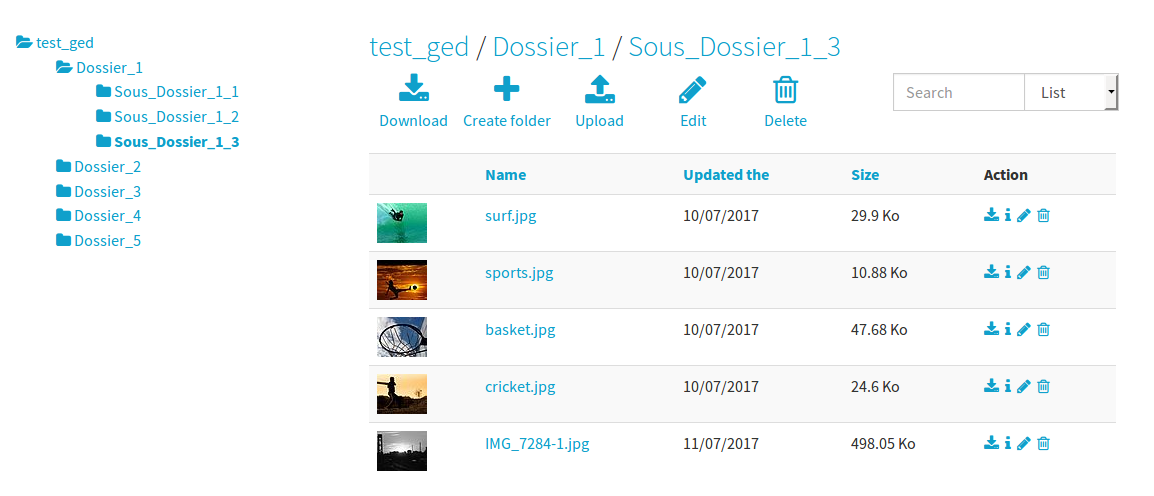
Screenshots 

Frontend rendering

Installation 

ameos_filemanager needs a little more than a simple installation.

Typoscript inclusion 

ameos_filemanager need to include Static TypoScript for run properly.

Typoscript Configuration

There are two static template

  • File Manager > Default : this one is mandatory

Initialization 

For each of your storage system, you must run the cli script :

typo3/sysext/core/bin/typo3 filemanager:index --storage=STORAGE_ID
Copied!

For the default storage (e.g. fileadmin), this is automaticly launch during extension activation.

Once the initiation is over, you can place the plugin "Frontend File Manager" in any page of your website.

Typoscript Configuration 

Many typoscript constants are available :

Option Informations
plugin.tx_ameosfilemanager.iconFolder Icon folder path. The icon's file must have a name with the pattern : icon_(file_extension).png
plugin.tx_ameosfilemanager.parseFolderInFE If value is 1 : the files are indexed when browsing folders (FE side). Use it if file can be uploaded without ameos_filemanager or the backend filelist. E.g. Upload by FTP
plugin.tx_ameosfilemanager.allowedFileExtension File extension allowed for upload. E.g. jpg,jpeg,tif,png,gif,pdf,docx,doc,xls,xlsx,csv,odt,ppt,ods,pptx
plugin.tx_ameosfilemanager.newFile.owner_has_read_access If value is 1 : when user upload a file, he has the read access
plugin.tx_ameosfilemanager.newFile.owner_has_write_access If value is 1 : when user upload a file, he has the write access
plugin.tx_ameosfilemanager.newFolder.owner_has_read_access If value is 1 : when user create a folder, he has the read access
plugin.tx_ameosfilemanager.newFolder.owner_has_write_access If value is 1 : when user create a folder, he has the write access
plugin.tx_ameosfilemanager.stockageGroupPid Storage folder that contains usergroups
plugin.tx_ameosfilemanager.includejQuery If value is 1 : include jQuery in the website
plugin.tx_ameosfilemanager.includeFontawesome If value is 1 : include fontawesome in the website
plugin.tx_ameosfilemanager.includeDefaultCss If value is 1 : include default ameos_filemanager css file

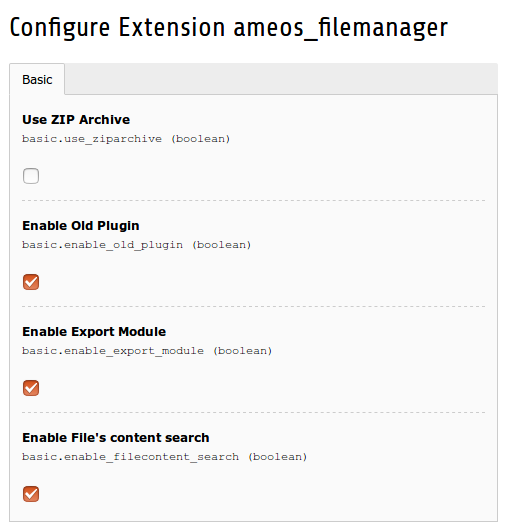
Extension configuration 

You can update the configuration in the extension manager

Extension Configuration
Field Description
Use ZIP Archive For download a folder, you can use ZipArchive library instead of zip command.
Enable Old Plugin Enable old plugin inclusion.
Enable Export Module Enable a backend module for export number of download of each files.
Enable File's content search Enable searching in file's content.

You can use tika for a better file content indexation.

Plugin configuration 

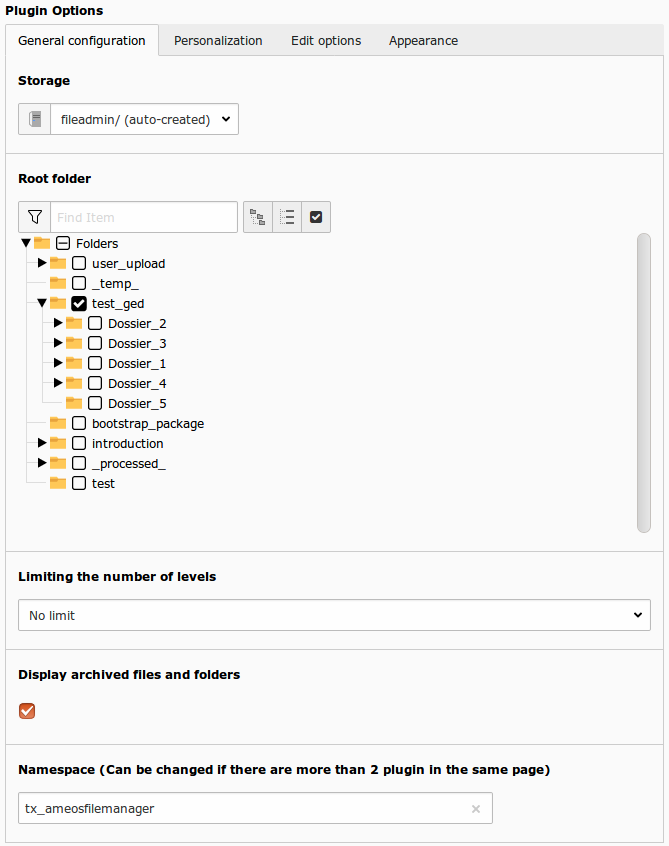
General configuration 

General Configuration

This is the basic configuration you need to make your extension to work.

Option Detail
Storage Storage mount where your files are.
Root folder Root folder for the plugin.
Limiting the number of levels Limite the recursion from the root fodler.
Display Archive If check, archive files are displayed.
Namespace Change only if you have 2 plugins on the same page. This avoids the conflicts

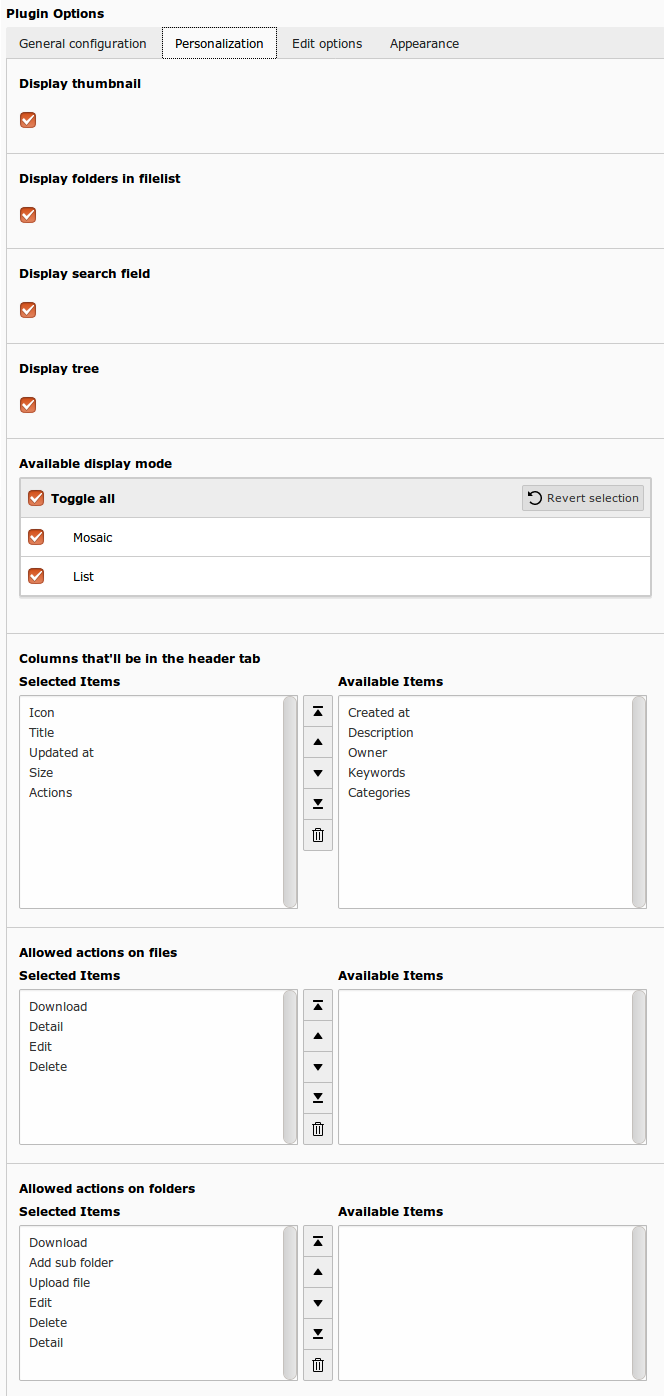
Personalization 

Display Configuration

These options are for display purpose only, you may let the default settings or choose your own :

Option Detail
Display thumbnail If checked, thumbnails are displayed instead of filetype's icon
Display folders in filelist If checked, folders are displayed if the list of files
Display search field If checked, search field is available
Display tree If checked, a folder tree is available
Available display mode Display mode of the file list. List or mosaic. If both are checked, a dropdown menu is displayed. The user can choose the display mode.
Columns that'll be in the header tab If display mode list is available, configure the information that will be displayed
Allowed actions on files Actions availables for the files
Allowed actions on folders Actions availables for the fodlers

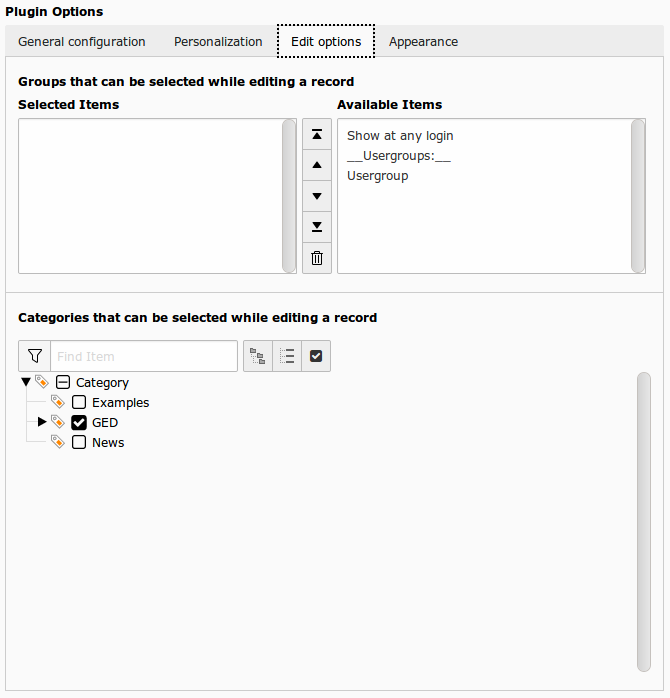
Edit options 

Edit options

These are the options used to build the frontend form to add/edit files and folders

Option Detail
Groups that can be selected while editing a record List of selectionable groups in FE forms. You can use this option to prevent FE admin to give rights to any group.
Categories that can be selected while editing a record List of selectionable groups in FE forms. You can use this option to prevent FE admin to give rights to any group.

Apparence 

Edit options

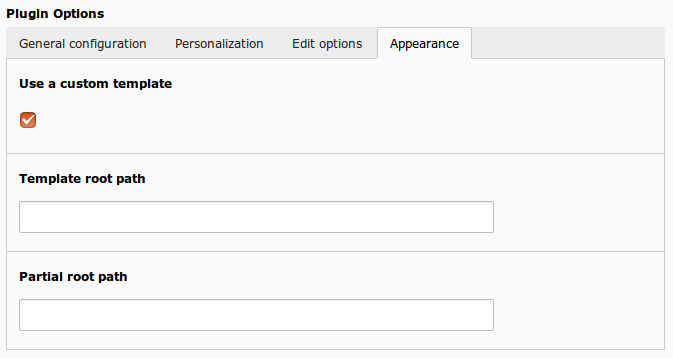
These are the options for set a custom template

Option Detail |
Use custom template If checked, you can set a custom template root path and a custom partial root path |
Template root path If you want, you can set your own template : set here, your template root path. If empty, default template is used |
Partial root path If you want, you can set your own template : set here, your partial root path. If empty, default template is used |

Folder configuration 

You can edit folders in the backend file list.

Edition form is composed by two tabs :

General Tab

General Configuration
Field Description
Description Folder's description.
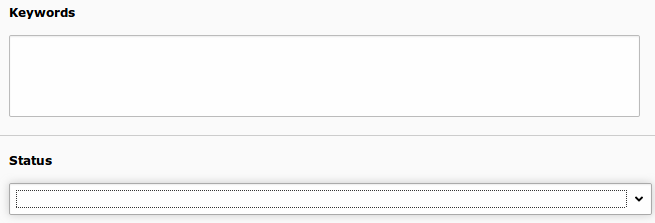
Keywords Folder's keywords.

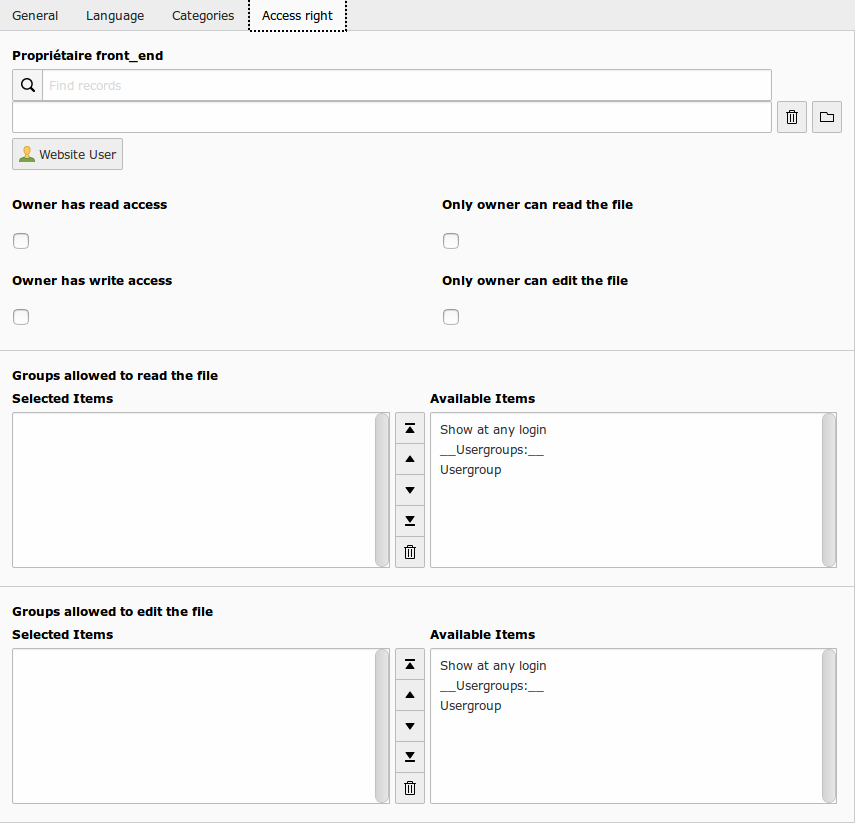
Access right Tab

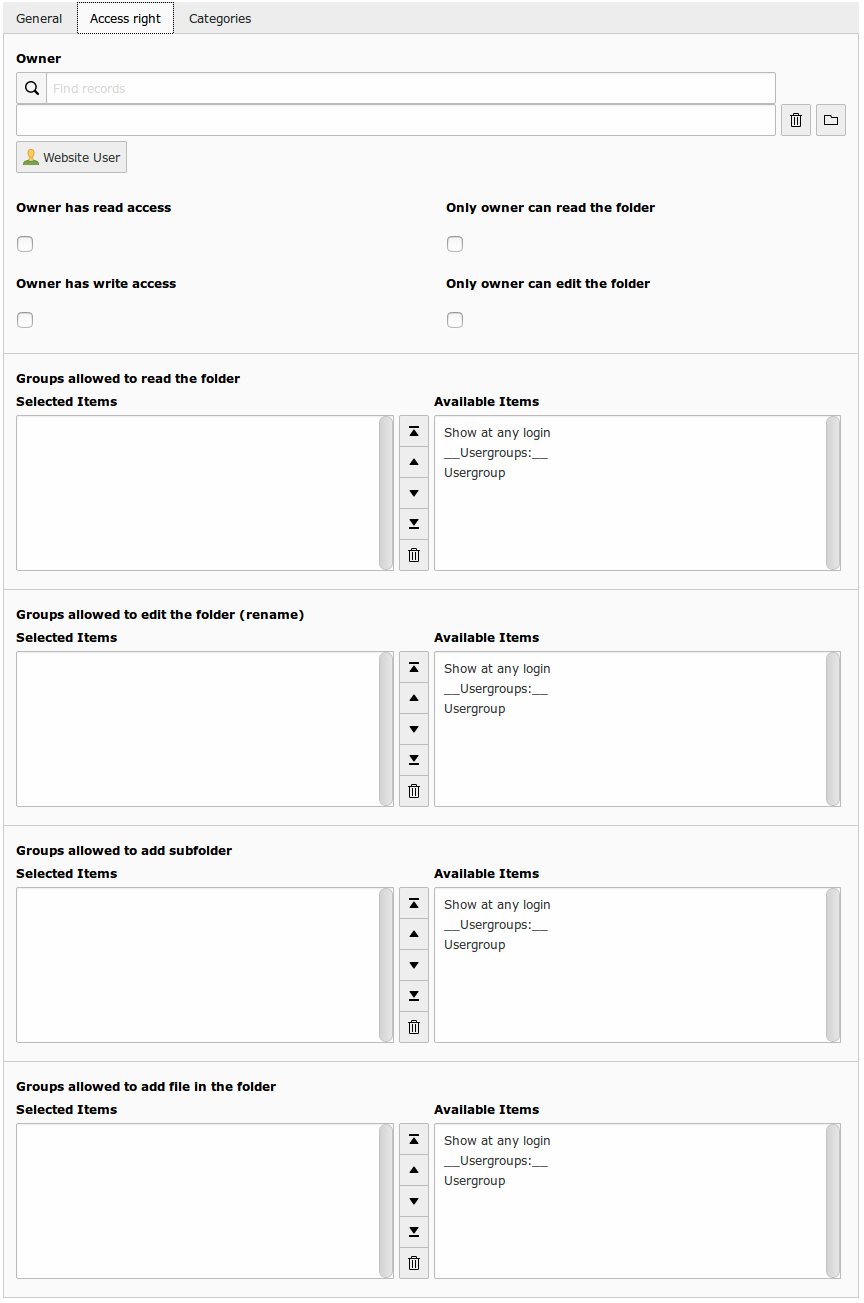
Access right Configuration
Field Description
Owner Owner of the folder (fe_users).
Groups allowed to read the folder Frontend Usergroup allow to read the folder (browse files).
Owner has read access If checked, owner has read access to his folder.
Only owner can read the folder If checked, only the owner has access to the folder.
Groups allowed to edit the folder (rename) Frontend Usergroup allow to rename the folder
Owner has write access If checked, owner has write access to his folder.
Only owner can edit the folder If checked, only the owner has write access to his folder.
Groups allowed to add subfolder Frontend Usergroup allow to add subfolder.
Groups allowed to add file in the folder Frontend Usergroup allow to upload files in the folder.

Categories Tab

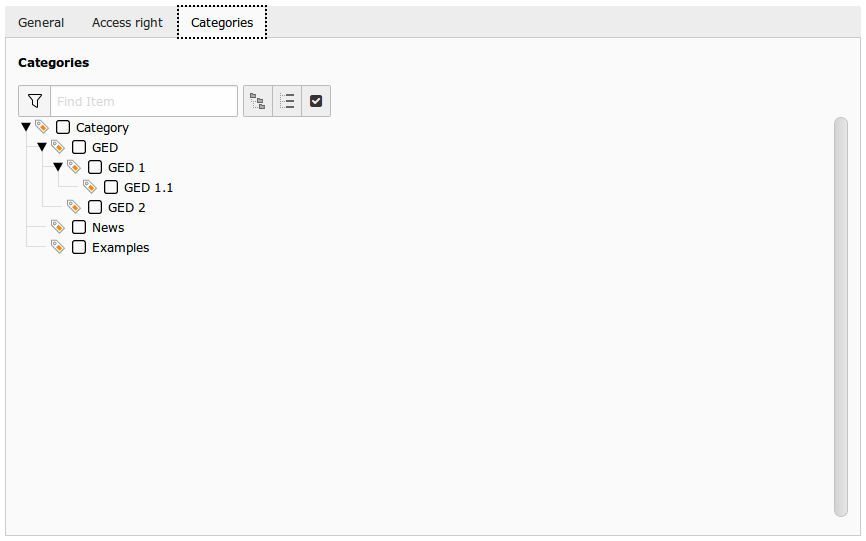
Categories Configuration

On this tab, you can associate categories with the folder.

File configuration 

You can edit files in the backend file list.

General Tab

Ameos FileManager add 2 fields in the General tab

General Configuration
Field Description
Keywords File's keywords.

Access right Tab

This tab is added by ameos_filemanager

Access Right Configuration
Field Description
Owner Owner of the folder (fe_users).
Groups allowed to read the folder Frontend Usergroup allow to read the folder (browse files).
Owner has read access If checked, owner has read access to his folder.
Only owner can read the folder If checked, only the owner has access to the folder.
Groups allowed to edit the folder (rename) Frontend Usergroup allow to rename the folder
Owner has write access If checked, owner has write access to his folder.
Only owner can edit the folder If checked, only the owner has write access to his folder.
Groups allowed to add subfolder Frontend Usergroup allow to add subfolder.
Groups allowed to add file in the folder Frontend Usergroup allow to upload files in the folder.

Frequently Asked Questions 

Categories:

Setup 

Can I import the files and folder that were in my filelist before the installation of the extension?

Yes. You can use the update script in the extension manager. This will go through your filelist and initialize the necessary tables. After that, you should be able to choose any folder to be the root folder. If your filelist is big, the update script might take some time. You may have to increase your max_execution_time value. When you use the filelist in BE, the database is automatically updated. This option can also be activated in FE context via typoscript, but performances will be decreased. It is not activated by default.


Can I have several file management plugin in one TYPO3 instance.

Yes, you just have to create multiple plugins with different namespace in general tab and set the root folder for each one of them.