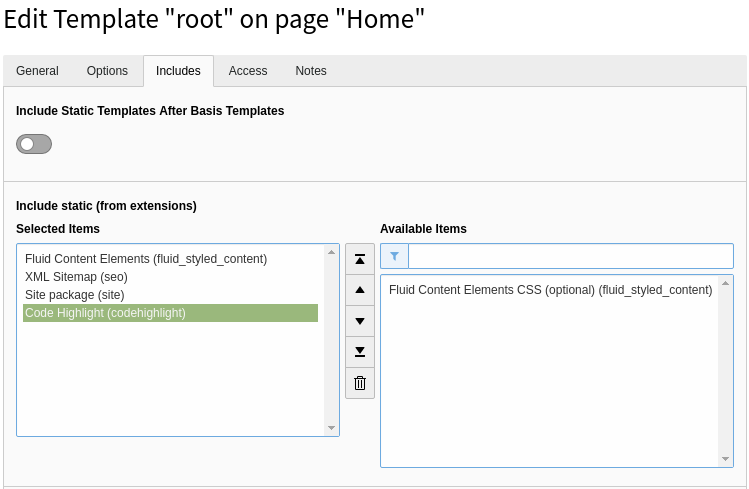
The extension provides a content element for code snippets. The code is
highlighted for better readability. Various programming languages can be chosen,
also some formatting settings. The code highlighting is based on PrismJS.
In technical articles it is sometimes necessary to embed code snippets into the
text of a page. To improve the readability of the snippets, the syntax
highlighting of code is appreciated - as in modern IDEs.
The extension provides a new content element to achieve this goal. You can
choose between several themes.
Screenshots
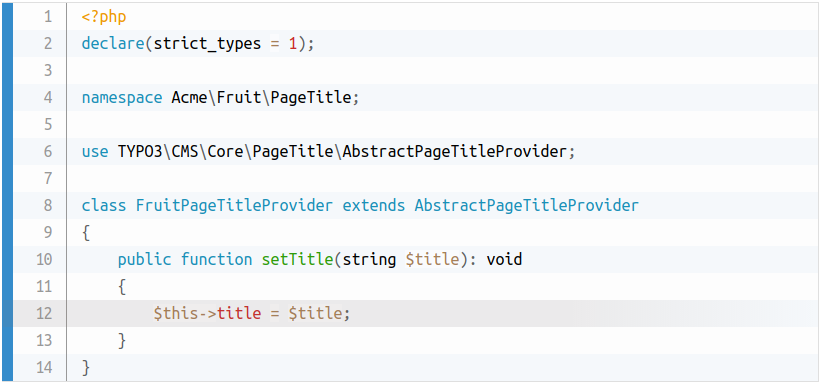
PHP code snippet
Example output using the Coy theme for a PHP code snippet with line numbers and
line highlighting:
PHP code snippet with line numbers and line highlighting
Shell command
Example output using the Coy theme for a shell command with prompt:
Shell command with prompt
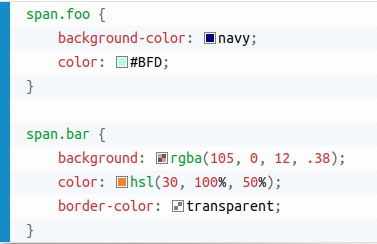
CSS inline colours
Example output using the Coy theme for a CSS snippet with activated
inline colours (the coloured square before the colour definition):
CSS snippet with inline colours
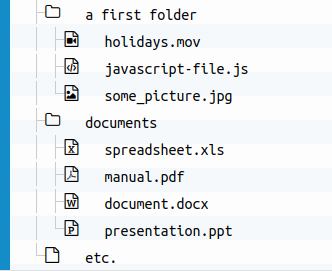
Treeview
Example for a treeview to highlight file system tree structures:
Bugfix updates (for example, 1.0.0 => 1.0.1) just includes small bug fixes or
security relevant stuff without breaking changes.
Minor updates (for example, 1.0.0 => 1.1.0) includes new features and smaller
tasks without breaking changes.
Major updates (for example, 1.0.0 => 2.0.0) breaking changes which can be
refactorings, features or bug fixes.
For editors
Target group: Editors
Using the content element
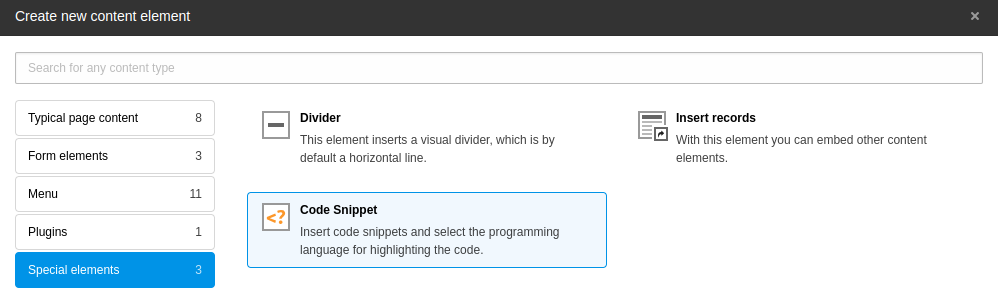
The extension is shipped with a content element Code Snippet.
You'll find it in the content element wizard under the
Special elements tab:
"Code Snippet" content element in the content element wizard
Selecting it creates a new content element.
General
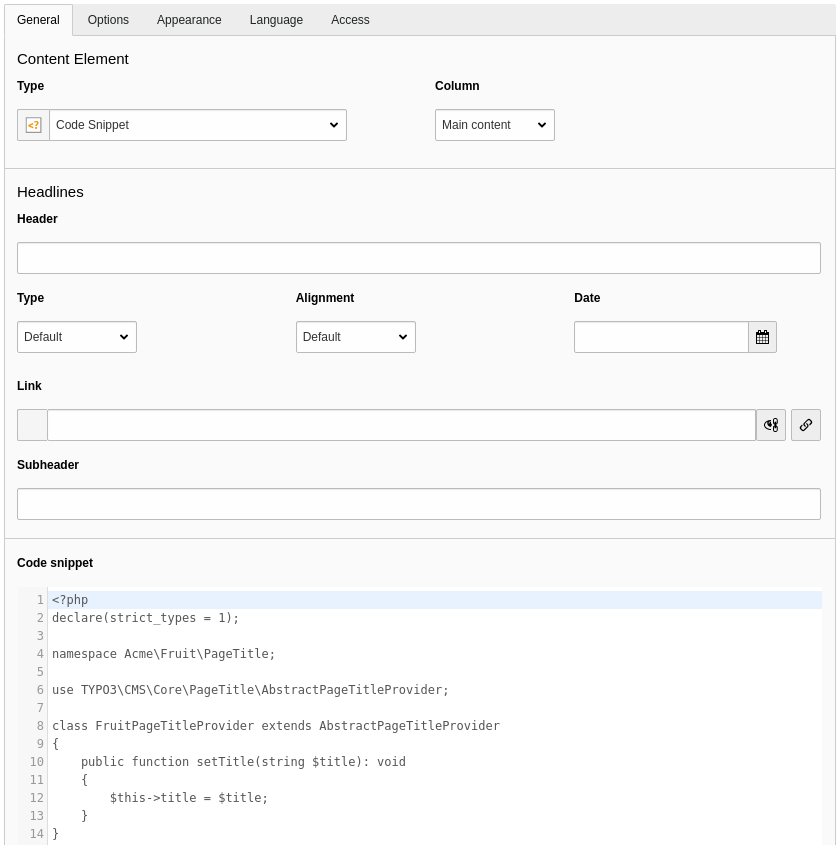
In the General tab insert the code snippet into the according field:
The "General" tab of the content element
Options
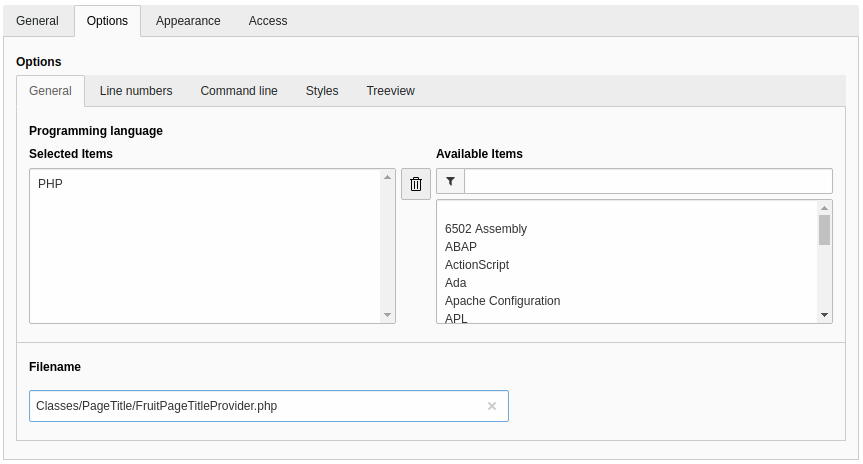
Here you'll find some settings to tune the visual representation of the code
snippet. First of all you can select the programming language - dependent on the
language the snippet is formatted:
General options
Programming language
Make use of the filter on the right side of the select box to find the needed
programming language. You can only select one language at a time. Leave it
empty if the language you want is not available or you don't want syntax
highlighting.
Filename
Give a filename if it makes sense for the code snippet. It will be shown
near the snippet.
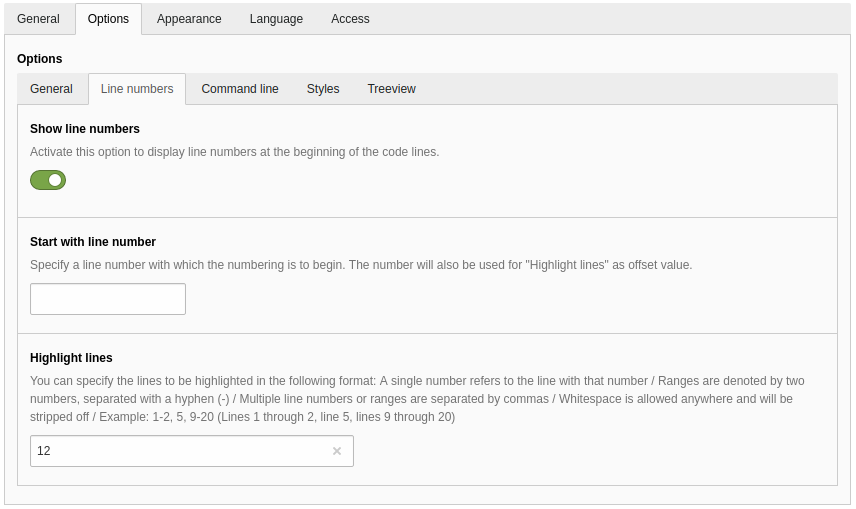
Line numbers
Sometimes it is desirable to add line numbers, start them at a different number
than 1 or highlight one or more lines to point out something important. You can
adjust these settings under the Line numbers tab of the options:
Options for showing and adjusting line numbers
Show line numbers
Activate this option to display line numbers at the beginning of the each
code line.
Start with line number
Specify a line number with which the numbering is to begin.
The entered number will also be used for "Highlight lines" as offset value.
Highlight lines
You can specify the lines to be highlighted in the following format:
A single number refers to the line with that number
Ranges are denoted by two numbers, separated with a hyphen (-)
Multiple line numbers or ranges are separated by commas
Whitespace is allowed anywhere and will be stripped off
Example:1-2, 5, 9-20 (Lines 1 through 2, line 5, lines 9 through 20)
When using an offset in the field Start with line number the
lines must be adjusted accordingly.
Tip
When using the Highlight lines feature or the configuration
option Usage of a URL hash is activated
you can link to a specific line number by using the following as a URL
hash: #codesnippet{uid}.{lines}. {uid} is the id of the content
element and {lines} is one or more lines or line ranges that follow
the format outlined above.
Examples:
#codesnippet14.3 for highlighting line 3 of content element with
id 14
#codesnippet8.5-6 for highlighting lines 5-6 of content element with
id 8
#codesnippet23.5-6,12-14 for highlighting lines 5-6 and 12-14 of
content element with id 23
Command line
Shell command with prompt
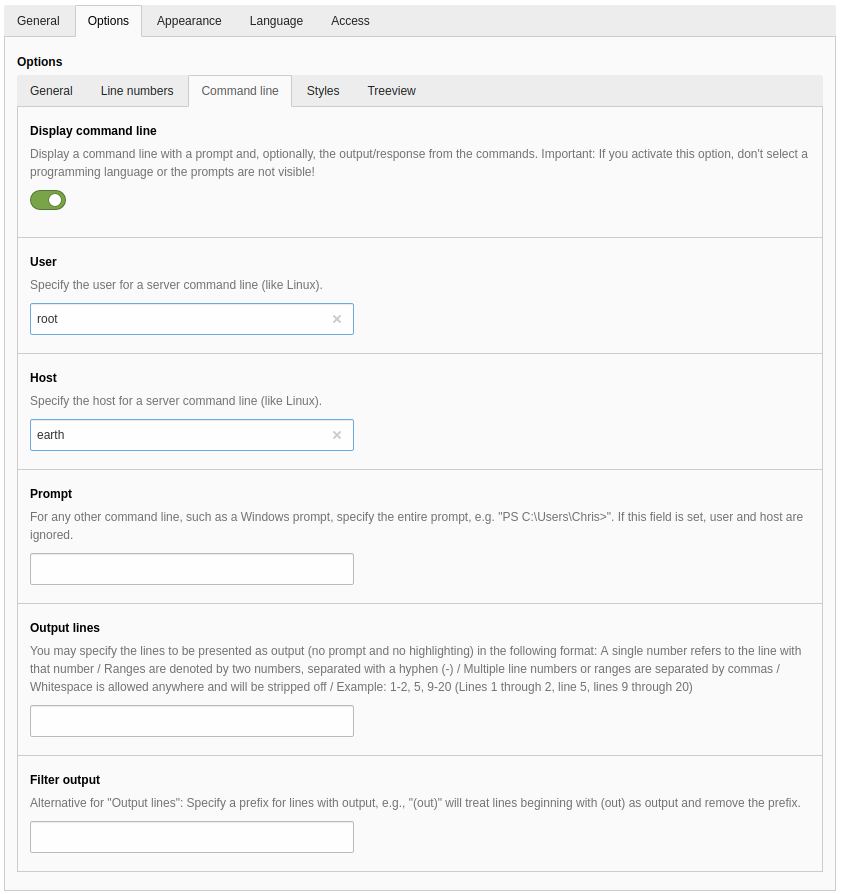
To visualise the commands on a console you can activate the Display
command line switch. A prompt will be shown before a code line.
Options for a command line snippet
Display command line
Display a command line with a prompt and, optionally, the output/response
from the commands.
Please note: If you activate this option, don't select a programming
language or the prompts are not visible!
User
Specify the user for a server command line (like Linux). The resulting prompt
displays a # for the root user and $ for all other users.
Default value: Site configuration setting
Command Line Default User or user
Host
Specify the host for a server command line (like Linux).
Default value: Site configuration setting
Command Line Default Host or localhost
Prompt
For any other command line, such as a Windows prompt, specify the entire
prompt, for example, PS C:\Users\Chris>. If this field is set, the values
in the fields User and Host are ignored.
Output lines
You can specify the lines to be presented as output (no prompt and no
highlighting) in the following format:
A single number refers to the line with that number
Ranges are denoted by two numbers, separated with a hyphen (-)
Multiple line numbers or ranges are separated by commas
Whitespace is allowed anywhere and will be stripped off
Example:1-2, 5, 9-20 (Lines 1 through 2, line 5, lines 9 through 20)
Filter output
Alternative for "Output lines": Specify a prefix for lines with output, for
example, (out) will treat lines beginning with (out) as output and remove
the prefix.
You can see some examples for the rendering of the command line on the
plugin page of the Prism
library.
Styles
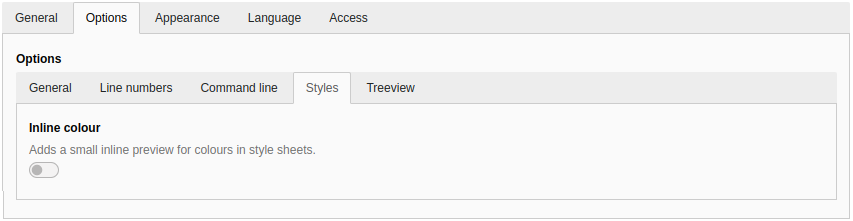
To show a preview of a colour in CSS styles you can activate the
Inline colour switch.
Options for a colour preview
This adds a small square before the colour definitions:
CSS snippet with inline colours
Treeview
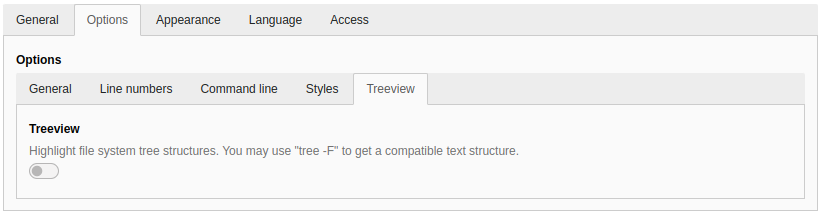
To highlight file system tree structures the Treeview switch can be
activated.
Options for a treeview
This adds icons for folders and files:
Example for a treeview
The treeview may be generated on Unix systems with tree -F.
Examples for a tree structure in the Code snippet field:
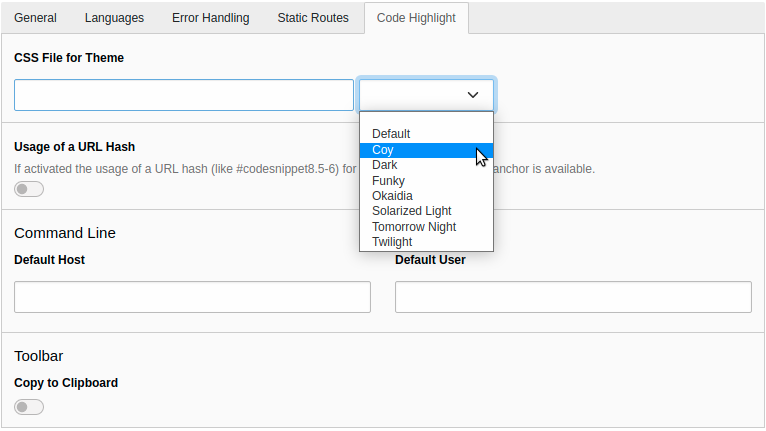
Some site-wide configurations can be made in the
site configuration. Select a site under
Site Management > Sites and switch to the tab
Code Highlight.
Site configuration
CSS file for theme
In the value picker you have the choice between several themes for using on a
website. As the extension uses PrismJS for the code
highlighting you can have a look at their website to see the differences
between the themes.
When selecting a theme, the path to the according CSS file is stored in the site
configuration. You can also use an own theme to customise the look of the
code snippets.
As the theme is assigned to a site, different sites can have different themes.
Tip
If you don't like the shipped themes you find many more in a separate
GitHub repository. Just
download the desired theme, save it to your site package extension and
type the path to the file into the site configuration field.
Usage of a URL hash
If the option is enabled, the usage of a URL hash (like #codesnippet8.5-6)
for highlighting code and as anchor is available. You can find more information
in the chapter for editors.
Command line: default host
Defines the default host for the command line, if none is given in the options
of the content element. If a value is neither in the configuration nor in the
content element given, localhost is used as last fallback.
Command line: default user
Defines the default user for the command line, if none is given in the options
of the content element. If a value is neither in the configuration nor in the
content element given, user is used as last fallback.
Toolbar: display button "Copy to clipboard"
If the option is enabled, a Copy button is displayed in the upper
right corner when the user moves the mouse pointer over a code snippet.
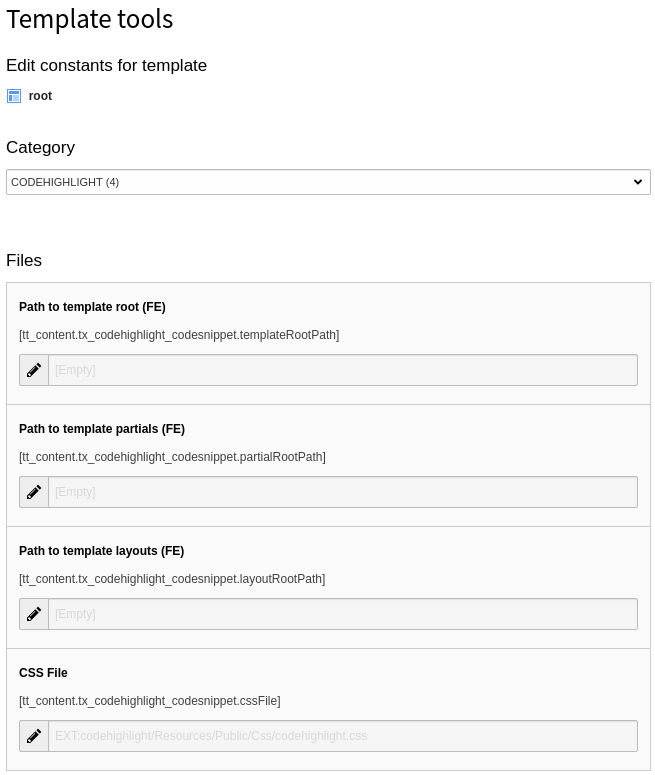
# ... some other settingstt_content:tx_codehighlight_codesnippet:templateRootPath:'EXT:your_sitepackage/Resources/Private/Extensions/Codehighlight/Templates/'
Copied!
Path to template partials
Define the additional partial root path, for example,
EXT:your_sitepackage/Resources/Private/Partials/Codehighlight/.
# ... some other settingstt_content:tx_codehighlight_codesnippet:partialRootPath:'EXT:your_sitepackage/Resources/Private/Extensions/Codehighlight/Partials/'
Copied!
Path to template layouts
Define the additional layout root path, for example,
EXT:your_sitepackage/Resources/Private/Layouts/Codehighlight/.
# ... some other settingstt_content:tx_codehighlight_codesnippet:layoutRootPath:'EXT:your_sitepackage/Resources/Private/Extensions/Codehighlight/Layouts/'
Copied!
CSS file
The extension comes with a default CSS file. If you don't want to include it or
want to use an own CSS file you can empty the field or change the path.
The extension comes with a default CSS file. If you don't want to include it
or want to use an own CSS file you can empty the field or change the path.
Alternatively you can change the setting directly in the TypoScript setup:
Do not mix up this CSS file with the CSS file for the design. This CSS file
is responsible for the representation outside the code section. Currently
there are styles for displaying the filename of a snippet.
Assets embedding
The required CSS and JavaScript files from the PrismJS library and the extension's
CSS file are embedded with the
PageRenderer methods
addCssFile()
and
addJsFooterFile(). This means, that they adhere to the configuration
setting
$GLOBALS['TYPO3_CONF_VARS']['FE']['versionNumberInFilename']
and the TypoScript settings
config.concatenateJs and
config.concatenateCss (only
available in TYPO3 v13). One exception from concatenation is the PrismJS
autoloader JavaScript which is used to load the necessary language files.
Translation
Target group: Developers, Integrators
All strings are translatable. Translations are managed on Crowdin. Click the button
below to help translating!
Override translations
You can override translations in the usual way. Have a look into the
according TYPO3 documentation:
Custom translations.
However, if you feel that a translation provided by the translation server could
be improved, please suggest an alternative on Crowdin.
Changelog
All notable changes to this project will be documented in this file.
The template of the content element changed. If you copied and adjusted it,
please have a look into the new template shipped by the extension and adjust
your custom one accordingly.
From version 1.1 to 2.0
The TypoScript settings
tt_content.tx_codehighlight_codesnippet.settings.commandLine.defaultServerHost and
respectively the Constant Editor settings for defining a default host and
default user on the command line are moved into the
site configuration. Please remove the mentioned
settings and adjust your site configuration accordingly.
Maintenance
Target group: Contributors, Developers
Translations
The translation to other languages is done within the
Crowdin service. It is appreciated to add missing or
incomplete languages. Please navigate to the
project home.
If the language is not available please drop me a note and I will
create it.
Note
For now, the language files are integrated into a release of the extension.
When the new
translation structure
(based on the translations within Crowdin) is in place, the language files
(other than English) will be removed in favour of the new infrastructure.
PrismJS library
For syntax highlighting PrismJS is used. The JavaScript
library and its dependencies are managed with npm and build with gulp:
cd Build
npm ci
npm run build
Copied!
The
npm run build command runs the according gulp task and copies the
Prism components (aka languages), plugins and themes to the
Resources/Public/Vendor/PrismJs/ folder. Also a PHP file
Resources/Private/PHP/AvailableProgrammingLanguages.php is generated
with the available languages. It will be used for the select box of programming
languages in the backend form. The option values are "translated" via the
Resources/Private/Language/ProgrammingLanguages.xlf file.
Update
To update the library to the recent version just call on the console:
cd Build
npm update prismjs
npm run build
Copied!
The copied artifacts can now be committed (along with the package.json
file to the repository. Don't forget to add new files to the commit and add
these to the translation file
Resources/Private/Language/ProgrammingLanguages.xlf.
Note
Due to the variants JavaScript files can be integrated into the page (like
last modification timestamp is embedded into the filename), the script
Build/node_modules/prismjs/plugins/autoloader/prism-autoloader.js
was patched: The variable
autoloaderFile regex has to be set to
adjusted to consider a possibly available timestamp in the filename.
When updating the PrismJS library, the patch under
Build/patches/prismjs+1.xx.x.patch has to be adjusted eventually.
The package patch-package
is used for that.
Packaging of extension for TER
Set the new version in the files
ext_emconf.php
Documentation/guides.xml,
adjust the CHANGELOG.md and tag the release. The packaging of the
extension for the TYPO3 Extension Repository (TER) can be done with:
make zip
Copied!
This creates/replaces a file ../zip/codehighlight_x.y.z.zip which is
ready for upload to TER. x.y.z holds the recent version number.
Sitemap
Reference to the headline
Copy and freely share the link
This link target has no permanent anchor assigned.The link below can be used, but is prone to change if the page gets moved.