What does it do?

This extension adds an access system for the file storage to TYPO3. By means of this extension, private file stores are supplemented with finely granulated access for frontend users.

Access can be defined per file store and/or per folder.

A restricted access is responded to by a 403 error, so you can simply add your 403 error handler to your site configuration to deal with this.

Contribution

Contributions are essential to the success of open source projects, but are by no means limited to contributing code. Much more can be done, for example by improving documentation.

Contribution workflow

  1. Please always create an issue on Github before starting a change. This is very helpful to understand what kind of issue the pull request will solve and if your change will be accepted.
  2. Bug fixes: Please describe the type of bug you want to fix and provide feedback on how to reproduce the problem. We will only accept bug fixes if we can reproduce the problem.
  3. Features: Not every feature is relevant to the majority of the users. In addition: We do not want to make this extension more complicated in usability for a marginal feature. It helps to have a discussion about a new feature before opening a pull request.
  4. Please always create a pull request based on the updated release branch. That ensures that necessary quality checks and tests are executed as a quality raiser.

Installation

The extension needs to be installed as any other extension of TYPO3 CMS. Get the extension by one of the following methods:

  1. Use composer: Run

    composer require calien/secure-filemount
    Copied!

    in your TYPO3 installation.

  2. Get it from the Extension Manager: Switch to the module Admin Tools > Extensions. Switch to Get Extensions and search for the extension key secure_filemount and import the extension from the repository.
  3. Get it from typo3.org:
    You can always get current version from TER by downloading the zip version. Upload the file afterwards in the Extension Manager.

and extensionconfiguration it.

Inside your own site configuration follow the instructions for tableconfiguration.

Compatibility

secure_filemount supports TYPO3 v11.

Configuration

Steps

  1. create a local storage (outside TYPO3 public)

    mkdir -p ${TYPO3_PUBLIC_PATH}/../private/secure_fileadmin/
    Copied!
  2. Create a File Storage in backend

    Setup of a secure file storage

    Be aware of the Base URI, as this field needs to be set up. This ensures speaking URLs in the frontend and the middleware accessing the right storage.

  3. Optional: Set up an access group for this file storage. This Access group is working as fallback, if no access is defined in file list module.

    Defined access group in file storage record, tab *access*

Backend Users and groups

Server Configuration

nginx Web Server

nginx example configuration
location ~* \.(?:jpg|jpeg|gif|png|ico|cur|gz|svg|svgz|mp4|ogg|ogv|webm|htc)$ {
    # your configuration here
    try_files $uri /index.php?$uri;
}
Copied!

Apache2 Web Server

Apache2 example configuration
RewriteCond %{DOCUMENT_ROOT}/%{REQUEST_FILENAME} !-f
RewriteRule ^/(.*)$ /index.php?%{REQUEST_URI} [P,QSA,L]
Copied!

Working with secure file storages

After the file storages have been configured, the editor can work normally in the File List module.

To secure individual folders, the editor has two options:

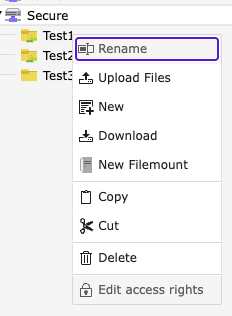
  1. in the folder tree by right-clicking on the folder -> Edit Access

    Screenshot of tree with active context menu, last point is "Edit access rights"
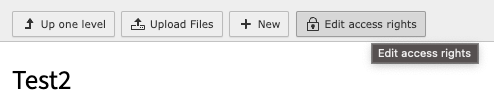
  2. in the module itself via the Edit access button

    Screenshot of module window, "Edit access rights" button hovered

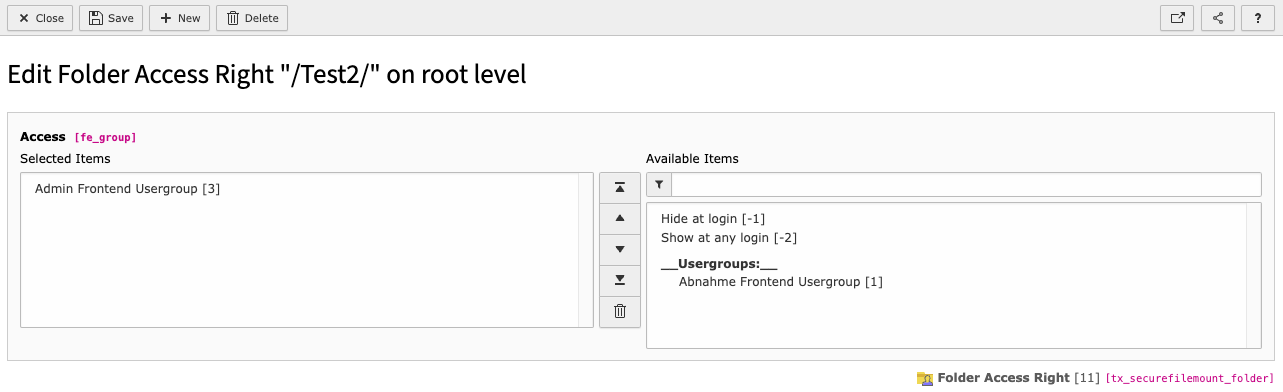
To enable access restrictions only add the frontend user groups, you want to give access. This is default TYPO3 behaviour.

Screenshot of editing access record

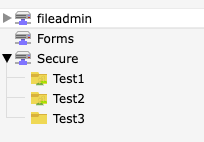
After enabling access to specific groups or "Show at any login", the tree shows the set up access to the folder.

Tree view of folders with access given. Small Icon appears on restricted folders

Now you are able to use files as you are working with standard fileadmin. Just include them in your content elements and so on. This extension cares about the correct access and answers with 403 - Auth required, if no access is given.

Feel free to add an 403 error handler to your site configuration to handle access.