FAL Protect 

Extension key

fal_protect

Package name

causal/fal-protect

Version

main

Language

en

Description

Protect everything within /fileadmin/ or other relative storages based on associated folder and file restrictions (visibility, user groups and dates of publication).

Keywords

FAL, files, directories, secure, security, protection

Copyright

2020-2026

Author

Xavier Perseguers

License

This document is published under the Creative Commons BY 4.0 license.

Rendered

Wed, 08 Apr 2026 12:34:46 +0000


Protect everything within /fileadmin/ based on associated folder and file restrictions (visibility, user groups and dates of publication).


Table of Contents:
Introduction 

What does it do? 

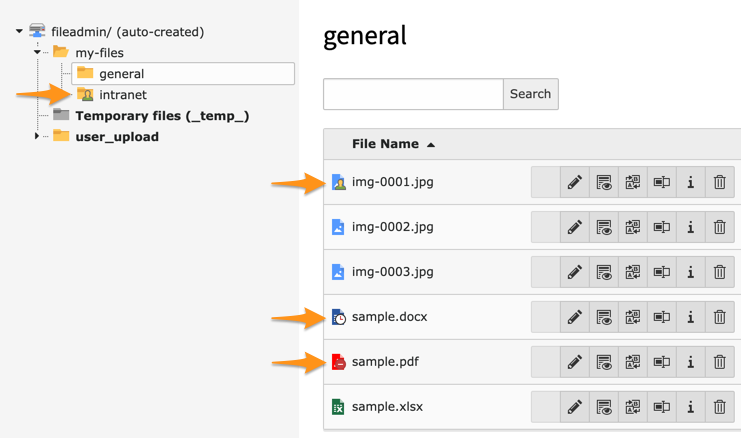
This extension protects everything within /fileadmin/ based on associated folder and file restrictions (visibility, user groups and dates of publication):

Protecting a folder and a few individual files

Unlike other similar extensions securing the File Abstraction Layer (FAL) of TYPO3, this extension aims at making it straightforward to block direct access to your sensitive assets and to keep the exact same URL as if your /fileadmin/ would not be protected; this is thus totally transparent from a user perspective.

No need to configure anything, just install and enable as usual, block direct access at the server level (Apache/Nginx see below) and... that's it!

Our motto? KISS!

How does it work? 

The idea is to block direct access at the server level so that your Apache or Nginx web server delegates the handling of static assets to a small script within this extension which ensures any file and folder restrictions are enforced.

By design, the "_processed_" folder (/fileadmin/_processed_/) is not protected and its content (thumbnails or resized/cropped images) is always freely accessible.

There is another design choice that is worth mentioning: access checks are bypassed in Frontend while you are authenticated in the Backend as a TYPO3 administrator. So if you want to double check your security measures are working properly, be sure to use another browser/session or ensure you are not currently authenticated as an administrator in the TYPO3 Backend.

NOTE: Since version > 1.2.0 all ProcessedFiles are resolved to the original FAL resource. As result you can also protect the "_processed_" folder, if the resolution of the original file rights is correct for your purpose.

Differences with similar extensions 

We have found two similar extensions with their own differences to this extensions:

  1. fal_securedownload:

    • changes the download URL (using the eID concept from TYPO3 core, non-public storages);
    • only file links from non-public (protected) storages go through security proxy
    • provides Frontend-related components (a File tree JS component);
    • is able to keep track of a count of downloads.
  2. secure_downloads:

    • requires relatively complex configuration at the server level and as administrator in TYPO3 Backend;
    • changes the download URL;
    • supports more advanced use-cases like one-time download link.

Users manual 

This extension lets you easily protect access to individual files or a whole folder (and all of its subfolders and files). An overlay is added to both protected folders and files to make it easier for you to know what you have secured and what you have not.

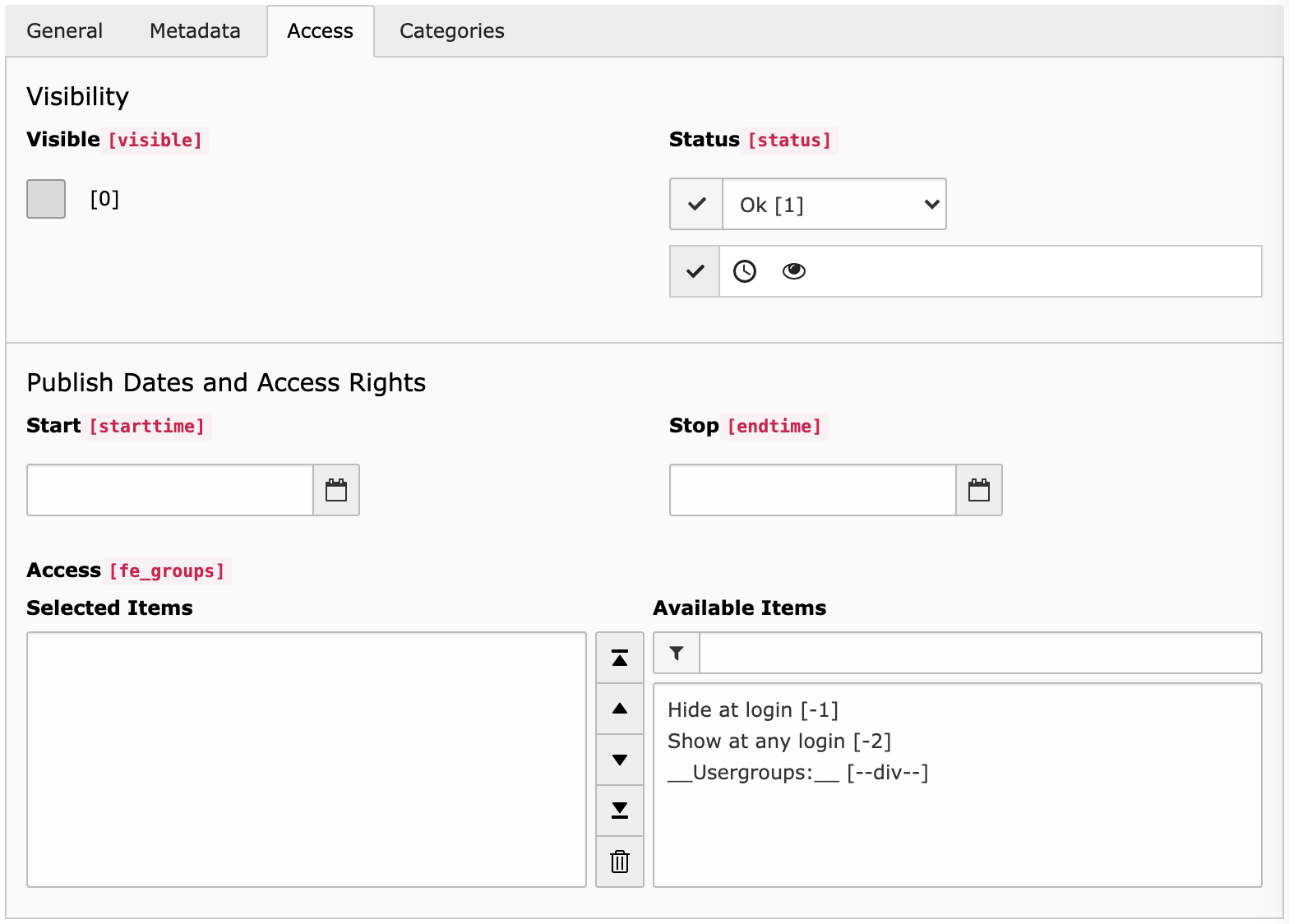
To protect a file, edit its metadata and switch to the "Access" tab:

Restricting access to a given file

Following options are available:

Visible
If you turn off the visibility of the file, this has the same effect as making other TYPO3 records "hidden". You cannot access it anymore.
Start and Stop Time
These fields are provided by this extension to let you enforce time-based restrictions.
Access
Similarly to other records, this lets you restrict access to either unauthenticated, or authenticated users or any list of Frontend user groups.

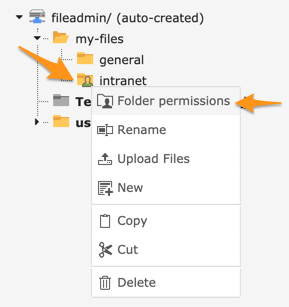
To protect a folder, you need to right click its icon, either in the tree or in the list and click the "Folder permissions" menu entry:

Editing restrictions on a folder

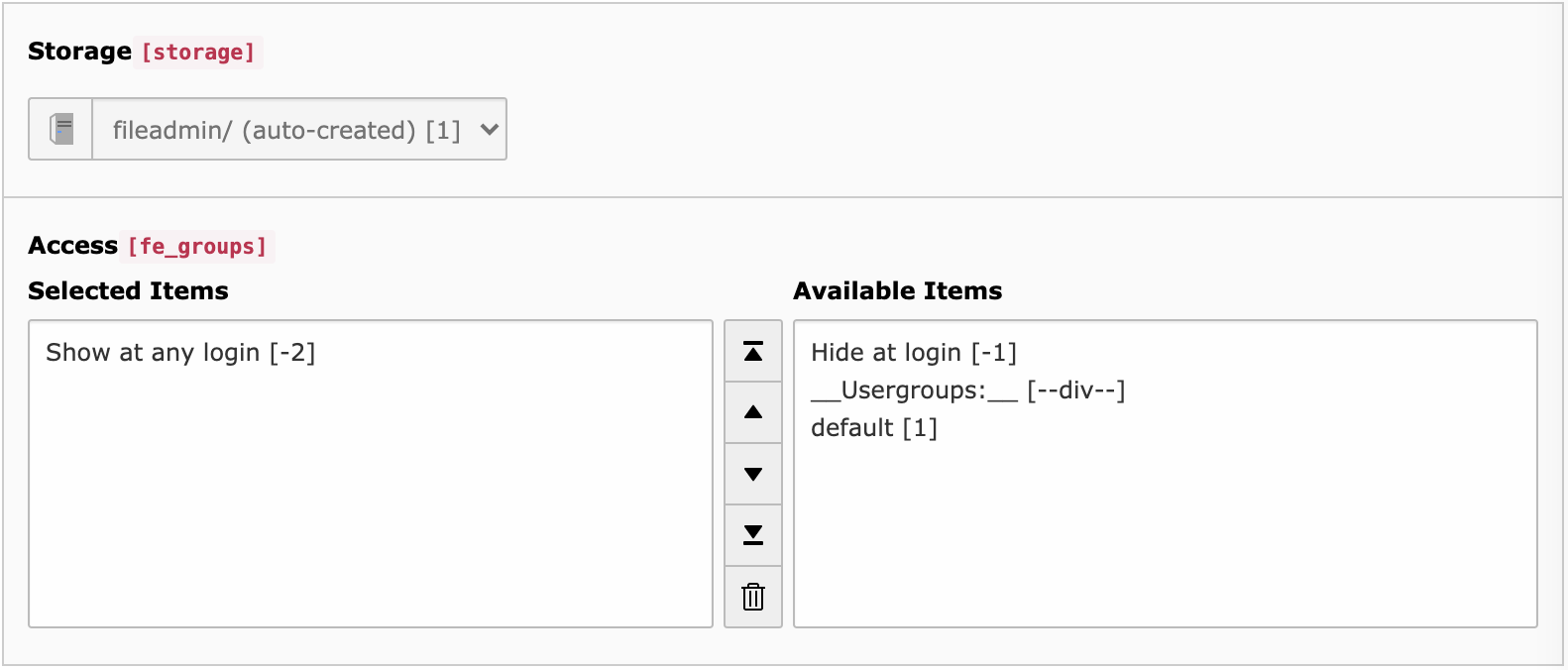
You will be presented with an Access form similar to the one for files where you can choose to restrict access to any user group:

Restricting access to a given folder

Why 404 instead of 403 by default? 

In case you try to access a restricted file and do not have the right to do so, the logical HTTP status code to use should be either a 403 Forbidden (or possibly a 401 Unauthorized) but by doing so, you make it clear for a malicious user that the resource exists but is not accessible.

We prefer, by default, to issue a 404 Not Found but you can freely choose to issue a 403 Forbidden in the extension settings. This is particularly useful if you plan to redirect to a login page when a user tries to access a restricted resource.

Administrator manual 

As an administrator, we make your life as lightweight as possible, unlike other similar extensions. The only point you need to tackle is to prevent direct access to /fileadmin/ at the web server level.

Installation (Apache) 

Edit file .htaccess (or your virtual host) to read:

RewriteCond %{REQUEST_URI} !/fileadmin/_processed_/.*$
RewriteRule ^fileadmin/.*$ %{ENV:CWD}index.php [QSA,L]
Copied!

BEWARE: Be sure to add this rule before any other related rule.

Installation (Nginx) 

Edit your server block to read:

location / {
  rewrite ^/fileadmin/(?!(_processed_/)) /index.php last;

  # snip
}
Copied!

or, if that better fits your setup, like that:

location ~ /fileadmin/(?!(_processed_/)) {
  rewrite ^(.+)$ /index.php last;
}
Copied!

Access to exclude fields 

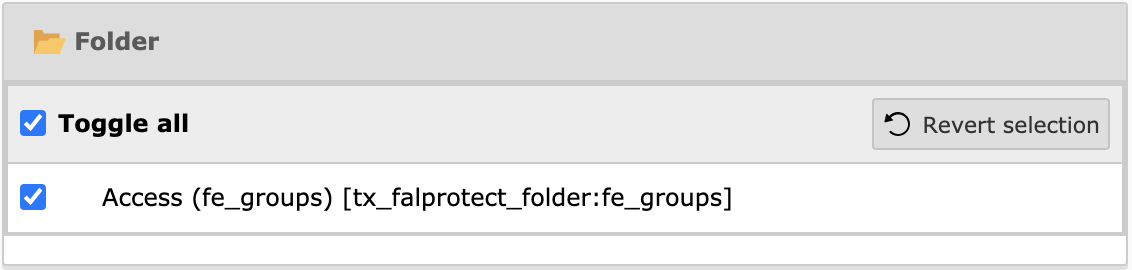
In order for your editors to edit protection on folders, make sure they are granted access to the fe_groups field for Folder (tx_falprotect_folder):

Granting access to updating folder permissions

Similarly, editing protection on files requires access to following exclude fields of File Metadata (sys_file_metadata):

  • Visible (visible)
  • Start (starttime)
  • Stop (endtime)
  • Access (fe_groups)

In addition, make sure to allow "modify" access on both tables tx_falprotect_folder and sys_file_metadata.

Security considerations 

By design, the "_processed_" folder (/fileadmin/_processed_/) is not protected and its content (thumbnails or resized/cropped images) is always freely accessible. The rules above exclude this directory from useless processing by TYPO3 but even if you ask to process absolutely everything by this extension, files within the "_processed_" folder are always public.

NOTE: Since version > 1.2.0 all ProcessedFiles are resolved to the original FAL resource. As result you can also protect the "_processed_" folder, if the resolution of the original file rights is correct for your purpose.

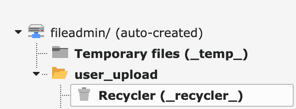
Recycler 

TYPO3 supports the concept of a recycler folder where deleted files will automatically land, if that folder exists:

Recycler directory

You may create as many recycler folders as you want by simply creating new folders with the name _recycler_. The behaviour is that any deleted file will land in the "nearest" recycler folder.

As such, a protected file may land at a higher level in the folder structure and thus be suddenly publicly available.

We think that files within a recycler folder should never be publicly accessible and would suggest administrators to block direct access to any recycler folder at the server level (taken from the suggested configuration for TYPO3):

Apache

RewriteRule _(?:recycler|temp)_/ - [F]
Copied!

Nginx

# Restrict access to deleted files in Recycler directories
location ~ ^/fileadmin/(.*/)?_recycler_/ {
  deny all;
  access_log off;
  log_not_found off;
}
Copied!

404 or 403? 

By default, the extension will return a 404 Not Found error if a file is not found. This is a security measure to prevent attackers from guessing file names. If you prefer to return a 403 Forbidden error instead, you can do so by changing the default setting in the extension configuration.

Sitemap