File List 

Classification

file_list

Version

main

Language

en

Description

This extension provides a frontend plugin which shows a list of files and folders in a specified directory on the file system (comparable to Apache directory listing) or using more advanced FAL selectors (categories, collection of files, ...). This extension may also be used for creating image galleries.

Keywords

list, file, directory, files, directories, gallery, bootstrap

Copyright

2008-2026

Author

Xavier Perseguers

Email

xavier@causal.ch

License

This document is published under the Open Publication License available from https://www.opencontent.org/openpub/

Rendered

Fri, 13 Mar 2026 16:02:09 +0000

The content of this document is related to TYPO3, a GNU/GPL CMS/Framework available from www.typo3.org.

Table of Contents

Introduction 

What does it do? 

This extension provides a frontend plugin which shows a list of files and folders in a specified directory on the file system or using more advanced FAL selectors such as categories or collections of files.

You can sort the files in this directory over the Backend by file name, title, description, size or creation/modification date. The files will be sorted by file name by default.

There is also an option to display files as "new" (with a localized text after the name).

Screenshots 

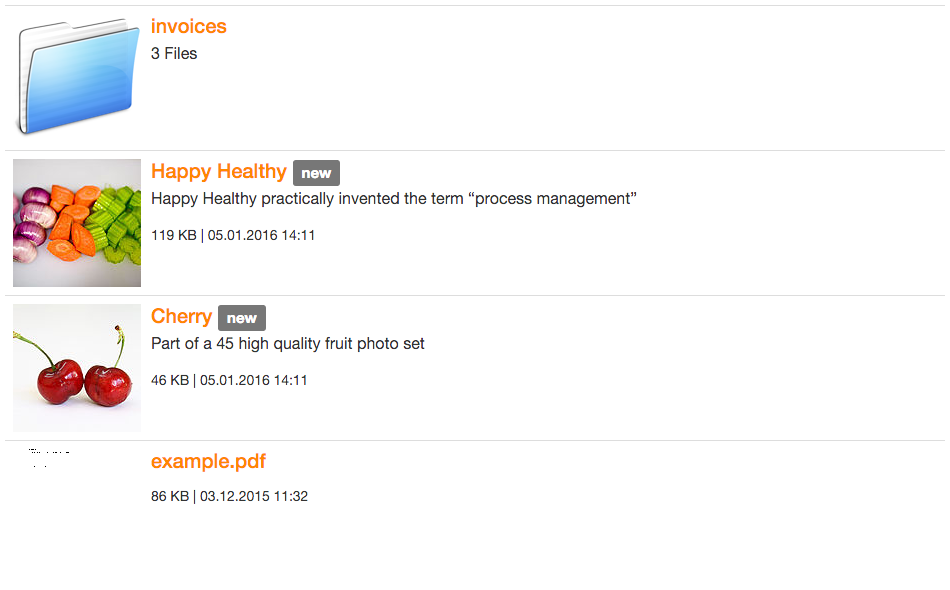
Information such as titles and descriptions are those you may populate in TYPO3 Backend, using FAL.

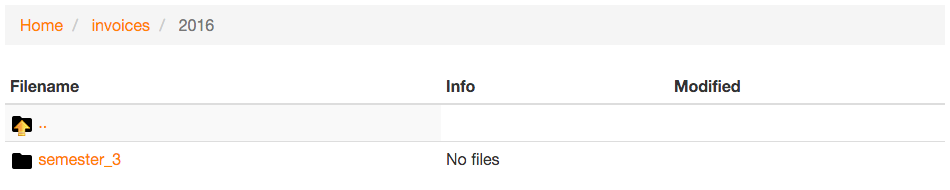
Simple list 

Simple list

Description and thumbnail 

List with description and thumbnail

Icons 

Icons have been created by:

  • To Uyen
  • Cristian Bogdan Rosu
  • Erik Ragnar Eliasson
  • Laurent Baumann

Users manual 

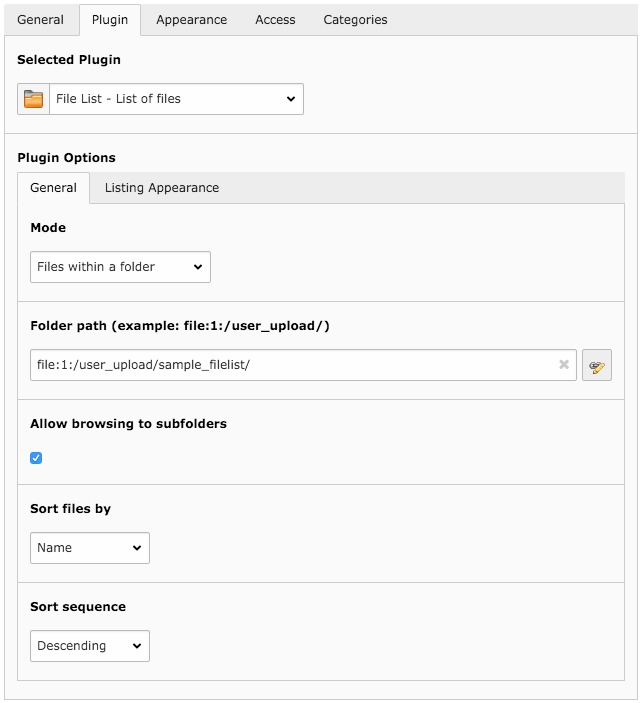
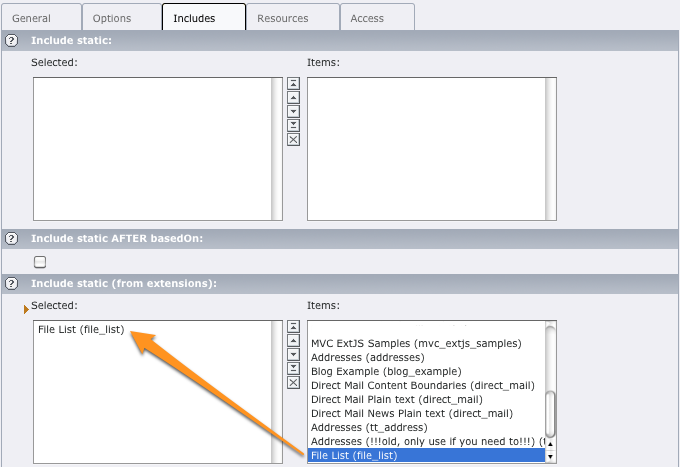
To add the plugin on a page, you can insert it as "plugin".

Configuration 

Configuration options

Configuration over TypoScript 

plugin.tx_filelist.settings 

This table is an overview of the main keys in the plugin configuration plugin.tx_filelist.settings:

Properties 

Property Data type stdWrap Default
path string yes empty
root string, array yes empty
dateFormat string yes "d.m.Y H:i"
fileIconRootPath string yes "EXT:file_list/Resources/Public/Icons/Files/"
newDurationMaxSubfolders integer yes 3
name string no empty
extension string no empty

Property details 

path 

plugin.tx_filelist.settings.path = file:1:/path/to/folder/
Copied!

Root folder for the plugin.

root 

plugin.tx_filelist.settings.root = file:1:/path/to/folder/
Copied!

or

plugin.tx_filelist.settings.root {
    10 = file:1:/path/to/folder/
    20 = file:2:/some/other/
}
Copied!

Allowed root folder or array of allowed root folders. This forces the folder of all plugins to be within these folders' hierarchy.

dateFormat 

plugin.tx_filelist.settings.dateFormat = d.m.Y H:i:s
Copied!

Format used by the default templates to show file's creation date.

fileIconRootPath 

plugin.tx_filelist.settings.fileIconRootPath = EXT:<extension-key>/Resources/Public/Icons/FileTypes/
Copied!

Path to the directory containing icons for file types (either relative to site root or prefixed with an extension name).

newDurationMaxSubfolders 

plugin.tx_filelist.settings.newDurationMaxSubfolders = 3
Copied!

Number of subdirectory levels to check for new files (in order to show a "new" badge for folders).

extension.category.<name> 

plugin.tx_filelist.settings.extension.category.<name> = extension1, extension2
Copied!

Comma-separated list of extensions belonging to the category "name".

When a file link is rendered, the extension searches for a dedicated icon (e.g., docx.png or docx.gif in directory fileIconRootPath. If this dedicated icon is not found, the category icon will be used instead (category_name.png).

Default are categories "archive", "document", "flash", "image", "sound", "source" and "video" defined with all common corresponding file extensions.

extension.remap.<extension> 

plugin.tx_filelist.settings.extension.remap.<extension1> = extension2
Copied!

Remapping of extensions before falling back to the category icon. If "docx" is remapped to "doc" with

extension.remap.docx = doc
Copied!

and a ".docx" file is encountered when rendering the file link, a docx.png or docx.gif icon will be searched for.

If not found, a doc.png or doc.gif icon will be searched for to be used instead. And if not found, the category icon will be used as a fallback option.

Integration with TypoScript 

This page gives you some examples which you can use for integrating EXT:file_list into a website.

Add file_list by TypoScript 

If EXT:file_list should be integrated by using TypoScript only, you can use this code snippet:

lib.filelist = USER
lib.filelist {
    userFunc = TYPO3\CMS\Extbase\Core\Bootstrap->run
    extensionName = FileList
    vendorName = Causal
    pluginName = Filelist

    switchableControllerActions {
        File {
            1 = list
        }
    }

    settings < plugin.tx_filelist.settings
    settings {
        path = file:1:/path/to/directory/
        mode = FOLDER
        includeSubfolders = 1
        templateLayout = ThumbnailDescription
    }
}
Copied!

Now you can use the object lib.filelist.

Extend FlexForm 

Following fields of the plugin configuration may be extended without overriding the complete FlexForm configuration.

Additional Template Layouts 

By default this extension provides two different "layouts" available in a drop-down list:

Template Layout of the plugin

If you need other options, you may register them easily using following code:

$GLOBALS['TYPO3_CONF_VARS']['EXT']['file_list']['templateLayouts'][] = [
    'my label',
    'my value'
];
Copied!

You can then access the variable in your template with {settings.templateLayout} and use it for a condition or whatever.