This extension provides LDAP support for TYPO3 by delegating the
authentication of frontend and/or backend users to the centrally-managed
directory of your organization. It fully supports OpenLDAP and Active
Directory and is capable of connecting securely to the authentication
server using either TLS or SSL (ldaps://).
In case of use in an intranet environment, this extension is a perfect
match since it natively brings Single Sign-On (SSO) capability to TYPO3
without any complex configuration.
This extension enables import/update/deletion of users and groups (frontend,
backend or both) from a LDAP-directory and provides Single Sign-On (SSO)
for frontend users. These features make it the perfect choice when deploying
TYPO3 as an intranet CMS.
In case the network topology makes it useful, this extension is able to work
with multiple LDAP server configurations, with a priority order based on the
manual sorting of configuration records.
This extension is known to work with OpenLDAP and Active Directory (various
versions).
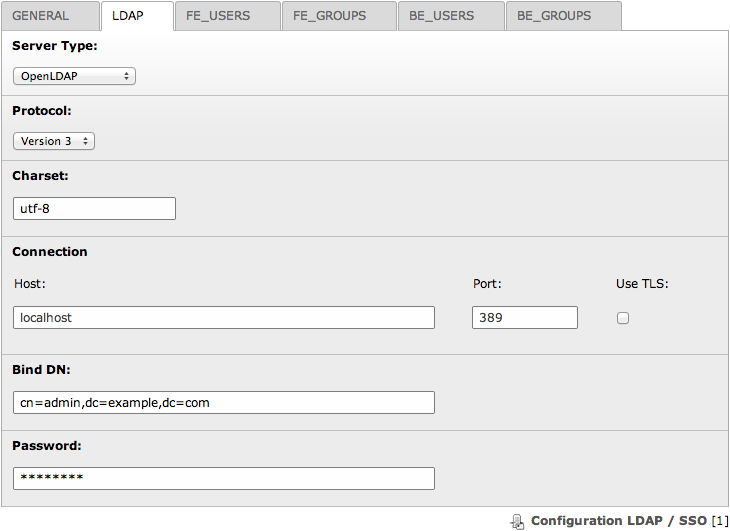
Configuration of the connection to the LDAP server
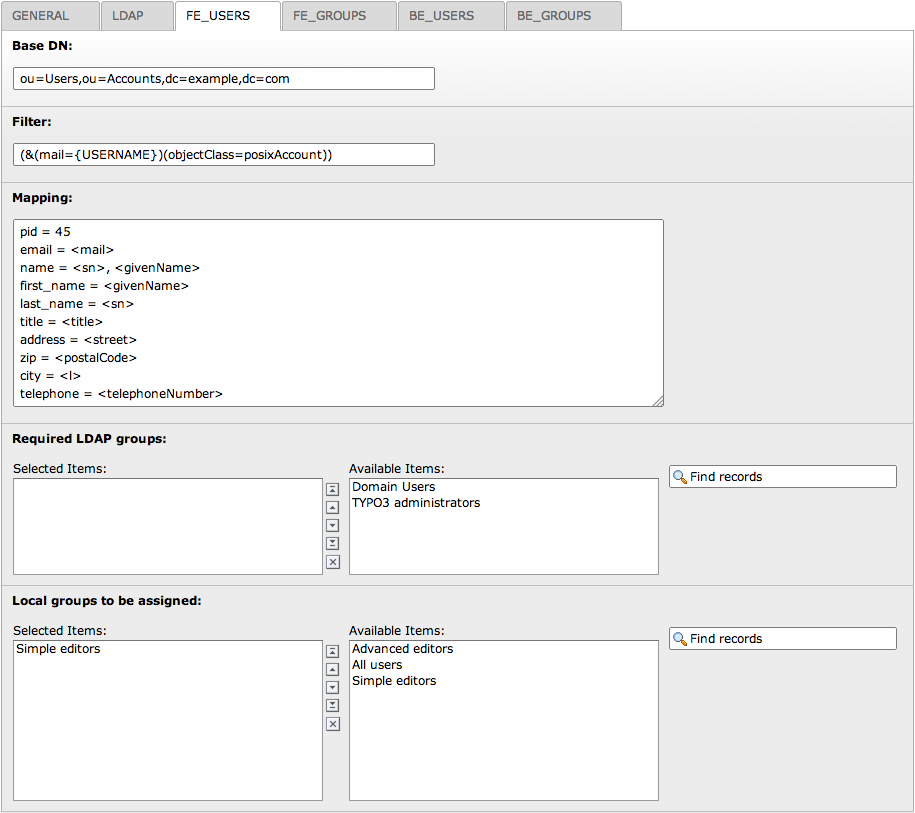
Configuration of the frontend authentication, how to map LDAP attributes to
TYPO3 fields and which groups are required or should be automatically
assigned
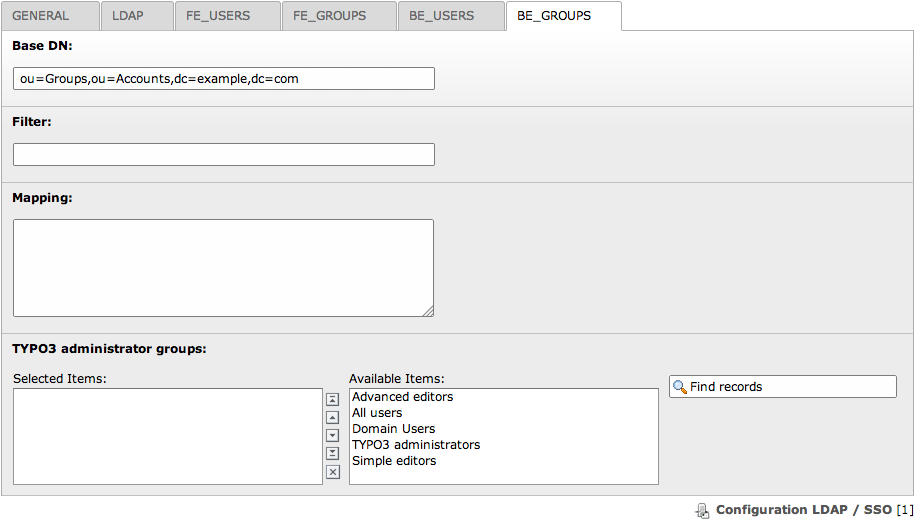
Configuration of the retrieval of backend user groups
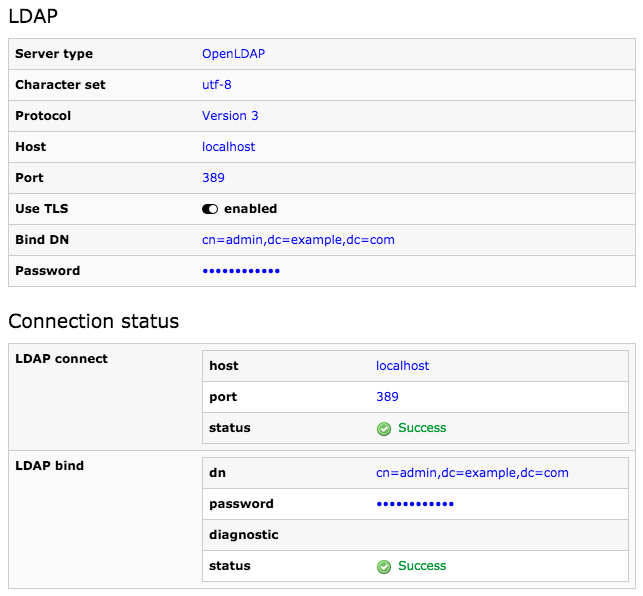
Status of the LDAP connection
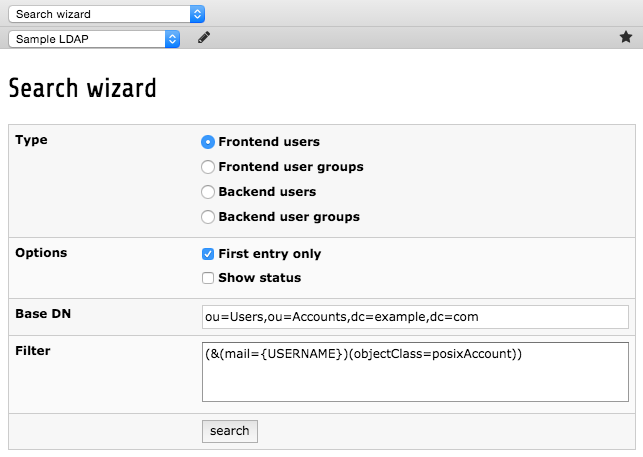
Search wizard as backend module
Sponsorship
Causal Sàrl, a Swiss company actively contributing to TYPO3, has taken over
this extension which has been initially developed by Infoglobe, a former
Canadian company specialized in open-source software.
Causal Sàrl is regularly working on compatibility updates for new TYPO3
releases.
We would like to thank:
Support for TYPO3 12 LTS would not have been possible without the support of
many members of the TYPO3 community. We would like to thank all of them and
their companies for their support.
Migration wizard from the import scheduler task to the new Symfony command has
been sponsored by the GYB (Gymnase intercantonal de la Broye) and
hemmer.ch SA.
Support for TYPO3 11 LTS has been sponsored by TEC Competence UG, Germany.
All the various developers reportings bugs and providing patches in the
bug tracker.
In case you need help to configure this extension, please ask for free support
in TYPO3 Slack or contact the maintainer for paid
support.
Frequently Asked Questions
Categories:
Web Server
Everything in this documentation is assuming that I am using Apache as web
server. Does Kerberos authentication works with Nginx as well?
We do not have tested this configuration ourselves but you can read an article
explaining how to set up Kerberos on Nginx for various versions of Linux at:
`https://docs.nginx.com/nginx/admin-guide/dynamic-modules/spnego/`__. Another
source (albeit possibly outdated) is available at:
`https://medium.com/@meeramarygeorge/setup-kerberos-on-nginx-in-ubuntu-16-04-408a5b95cdee`__.
Users
Is it possible to have both users manually defined (thus authenticated with a
TYPO3 password) and users authenticated with LDAP?
Yes. Both for frontend and backend authentication it is possible to manually
define users unrelated to your LDAP server(s). When a user is manually defined,
the record's columntx_igldapssoauth_dnis empty and thus, since the LDAP
authentication will fail, it will automatically fall back to the standard TYPO3
authentication service. This behaviour may be enabled/disabled globally for
backend and/or frontend within Extension Manager.
I have a local user with the same username as a LDAP user but which has been
manually created in TYPO3. Which password will be taken into account?
When you manually create a user in TYPO3, it is not related to LDAP. This local
user may authenticate with the password you set. However is the user matches a
LDAP userand the password providedresults into a successful LDAP
authentication, the manually created user will be automatically linked to the
LDAP user.Afterwards, only the LDAP password will be valid.
I would like to silently and automatically authenticate my users in frontend
(Single Sign On / SSO). Since Apache is configured to restrict access usingKerberos, no login form should be needed in my website. Is this
possible with this extension?
Yes. You have to activate this option in Extension Manager and ensure you have
properly configured mod_ntlm or Kerberos with Apache (or any other supported web
server). This extension will look for a username in$_SERVER['REMOTE_USER'](without any domain part) to silently create the session in TYPO3.
I would like to do SSO in backend just like I do in frontend. Is this possible
with this extension?
Yes. This is possible since version 3.2.0. Please keep in mind though that
enabling SSO for the backend means it is then impossible for a user to log out.
And TYPO3 may behave differently if you show the frontend while having a backend
session active (e.g., frontend editing).
How can I find the Bind DN of a given Active Directory account?
It is not always obvious when opening the properties of a given user in Active
Directory to figure out the DN to be used. The trick is to open a command prompt
and use ``dsquery``. E.g. when looking for the DN of the "administrator"
account:
> dsquery user -name administrator
CN=Administrator,OU=Users,DC=example,DC=com
Copied!
Groups
Can I import user groups automatically?
Yes you can.
May I manually tweak the name or configuration of imported user groups?
Yes. To do so, you should enable the global option in Extension Manager
preventing the automatic synchronization of groups (may be configured separately
for backend and frontend). In order to import new groups manually, use the LDAP
/ SSO backend module. Once imported, you may change their name to fit your needs
and conventions.
My server is providing a hierarchy of groups. Is it possible to automatically
mirror this structure in TYPO3?
Yes. You should provide a be_groups and/or fe_groups mapping instruction for
the LDAP attribute holding the reference to the parent group. E.g.,:
parentGroup = <memberof>
Copied!
Which servers support the "memberOf" / "groupMembership" attribute?
Windows 2000 and above Active Directory definitely supports this attribute.
My infrastructure provides 2 LDAP servers, one containing group records, the
second containing only users but with "memberOf" attributes corresponding to
groups found on the other server. Is it possible to map those groups to the
users?
Yes. In order to do that, you will need to manually import the LDAP user groups
into your TYPO3 website and then configure the global option in Extension
Manager that disables the synchronization of user groups. This way, only the
configured baseDN for groups will be compared with the groups assigned as
"memberOf" attributes, without actively retrieving corresponding group records
from the LDAP server.
Security
Is the effective user's password ever stored in TYPO3?
No. The password provided in the login form is sent directly to the LDAP server
and never stored in TYPO3. However, since TYPO3 requires a password to be set
for frontend and backend user records, this extension generates and saves a
random 20 byte password for the sole purpose of making TYPO3 happy.
Can I encrypt my connection to the LDAP server?
Yes. This extension is supporting SSL-encrypted connection to the LDAP server
as well as TLS-based connection.
Which port number is my LDAP server listening on?
It is not possible to answer without knowing your infrastructure but it is
worth to mention that
389is the industry standard port for LDAP connections over TCP/IP, and
636is the industry standard port for LDAP connections over SSL.
Users manual
This chapter describes how to use the extension from a user point of view.
When a user tries to log on, the extension passes her credentials to the LDAP
server(s) and verifies them. When a LDAP server can authenticate the user, she
is logged on. New users (in the directory but not in the TYPO3 database) are
imported after authentication. Records of existing users are updated.
In addition, imported users from the directory automatically get a random
password for their counterpart record in TYPO3, preventing them from bypassing
the LDAP authentication.
In case Single Sign-On (SSO) has been activated, the typical login form
is made useless and users within your domain will be automatically
authenticated.
Administrator manual
This chapter describes how to manage the extension from an administrator
point of view.
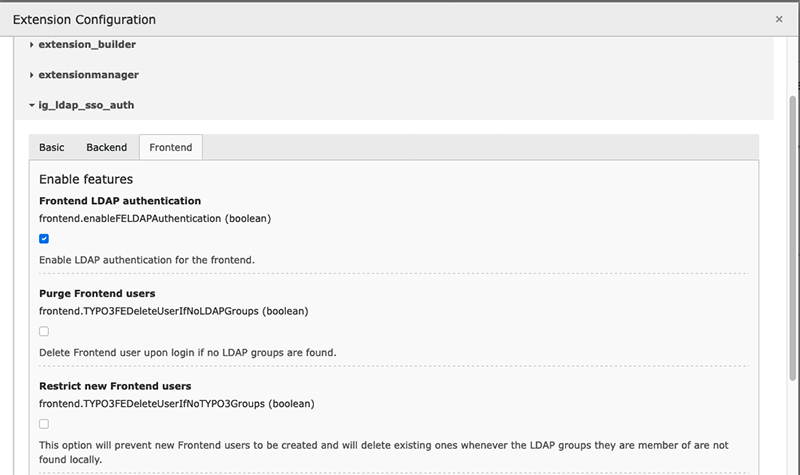
First step is to set a global configuration for this extension. You can do that
by opening Admin Tools > Settings and then clicking on the button "Configure
extensions" within the block "Extension Configuration". You should go through
each global option and enable what you need for your installation:
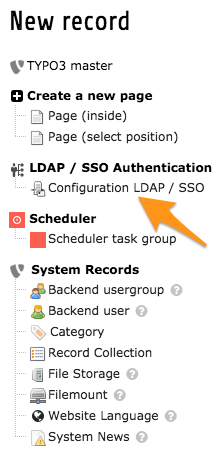
Second step for configuring your LDAP authentication is to create one or more
server configuration records. To do this, use module Web > List and create a
record "Configuration LDAP / SSO" on the root level of your TYPO3 website
(pid 0):
When creating a new record at the root of your website, choose "Configuration
LDAP / SSO".
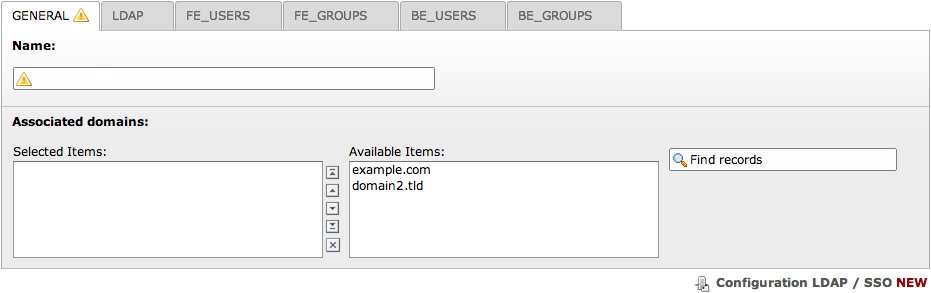
The form to edit such a record is split in 6 tabs that we will describe
separately in the next few sections.
The only mandatory field is the configuration name. This is only to name the
records you have just created.
Tip
Please note that you may create multiple configuration records with the same
(or another) LDAP server. It may then be useful to restrict a given LDAP
configuration to be used to one or more domains. In case the list of
associated domains is left empty, then the corresponding configuration will
be valid for any domain.
LDAP
The second tab is the global configuration about a single LDAP server.
Sections:
Server
Choose your LDAP type (OpenLDAP or Active Directory). This is used internally to
follow (or not) referrals returned by the LDAP server and to help you with
suggested mapping configuration.
Character set
Character set of your LDAP connection. Usually utf-8.
Host
Host of your LDAP. You may use either a host name / IP address or prefix it with
a protocol such as ldap://<hostname> or ldaps://<hostname> (latter in
case you want to connect with SSL).
Port
Port your LDAP uses. Default LDAP ports are 389 (ldap://) and 636
(ldaps://).
TLS
Whether you want to use TLS, that is
typically start with an connection on default port 389 and then set up an
encrypted connection.
Whether you want to use SSL, that is start with an
encrypted connection on default port 636.
Note
Some web servers may fail at connecting to the LDAP server since they report
that the server certificate is untrusted (although issued by a valid CA such
as Letsencrypt). In case this happens and you cannot change the web server
configuration (e.g., shared hosting), you may add this line to
typo3conf/AdditionalConfiguration.php:
// Always trust the LDAP server certificate
putenv('LDAPTLS_REQCERT=never');
Copied!
Bind DN
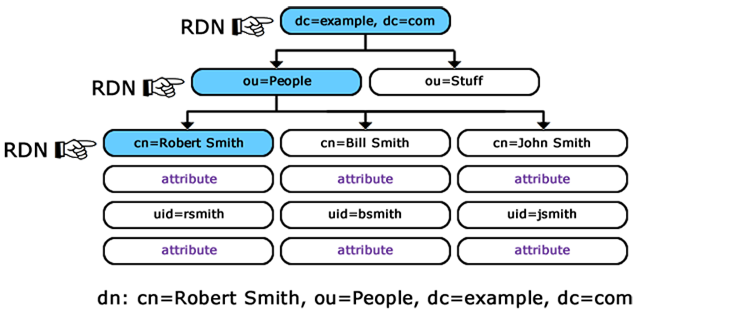
DN of the LDAP user you will use to connect to the LDAP server. The
DN is composed of a series of RDN's
which are the unique (or unique'ish) attributes at each level in the
DIT. The following diagram illustrates building up the DN from the
RDN's.
Building up the DN (Distinguished Name) from the RDN's (Relative
Distinguished Names)
Example:
cn=Robert Smith,ou=people,dc=example,dc=com
Copied!
Note
Your LDAP user needs to be granted access to the directory where users and
groups are stored and full read access to users and groups for all attributes
you plan to fetch.
When connecting to an Active Directory, this corresponds to a user account
that has privileges to search for users. E.g.,
CN=Administrator,CN=Users,DC=mycompany,DC=com. This user account must
have at least domain user privileges.
Note
On a Windows Server, you may find the DN of a given user using a command
prompt:
dsquery user -name <known username>
Copied!
Example: If you are searching for all users named "John", you can enter the$
username as John* to get a list of all users whose name is John. The
result will look like:
"CN=John.Smith,CN=Users,DC=MyDomain,DC=com"
Copied!
Similarly, you can find the Group Base DN using:
dsquery group -name <known group name>
Copied!
Password
This password is the same password used in association with the Bind DN
user account to connect to the LDAP server.
FE_USERS and BE_USERS
The third and fifth tab can be filled exactly the same way. The only difference
between them is that FE_USERS stores the configuration options for the frontend
LDAP user authentication and BE_USERS stores the configuration options for the
backend LDAP user authentication.
You may only fill the sections you need; that is, FE_USERS if you need frontend
authentication and BE_USERS if you need backend authentication.
Sections:
Base DN
Full DN path of the directory containing all the users that you want to use with
your TYPO3 authentification.
Example:
ou=people,dc=example,dc=com
Copied!
Filter
Filter is used to precise which LDAP attribute contains the username of your
users and which filter to apply when selecting users to import, either from the
backend module or from the Scheduler task.
Example: (uid={USERNAME}) uid is the most common attribute used to keep the
username in LDAP but if you are in Active Directory, the field where the
username is stored is usually sAMAccountName instead.
You will also be able to add restrictions that allow you to exclude user from
specific properties. The syntax used in this field is the standard LDAP search
syntax.
Example:
(&(uid={USERNAME})(objectClass=posixAccount))
Copied!
Note
The string {USERNAME} will be substituted by the username entered in the
login form. In case the filter is used in the context of importing users, any
placeholder will be replaced by an asterisk, thus effectively returning any
record matching the filter.
Mapping
The mapping is used to fetch other attributes from the LDAP server that we would
like users to have. It is quite simple, each line is a new command. Each command
has two parts separated by a = (equal sign). the first part is the field
from the TYPO3 user that we want to fill and the second part is the value that
the field will have.
There are three possible value types you may use:
a string;
a LDAP attribute value;
a custom marker;
In addition, every field supports stdWrap properties.
Multi-valued LDAP attributes are available using field where values have
been joined together using a line-feed character (\n).
Warning
LDAP field names are always lowercase when accessed in TypoScript.
String
This will assign the value directly to the field
Example:
email = user@domain.com
Copied!
LDAP attribute
LDAP attributes will be recognized by the specific characters <>.
Example:
email = <mail>
Copied!
This will set the field email of the TYPO3 user to the value of the attribute
mail of the user fetched from the LDAP server.
Tip
You may combine multiple markers as well, e.g.,:
name = <sn>, <givenname>
Copied!
Custom marker
Custom markers are markers created by the extension to assign specific type of
values. There are only four types of markers available at the moment:
{DATE}: the current timestamp;
{RAND}: a random number;
{USERNAME}: the username from the login form (the username will
automatically fill the needed field. This marker is only used if you want to
put the username in another field than the one by default);
email {
    field = mail
    listNum = 3
    listNum {
        splitChar = 10
    }
}
Copied!
FE_GROUPS and BE_GROUPS
The fourth and sixth tabs can be filled exactly the same way. The only
difference between them is that FE_GROUPS stores the configurations for the
frontend LDAP user group association and BE_GROUPS stores the configurations for
the backend LDAP user group association.
You may only fill the sections you need; that is, FE_GROUPS if you need frontend
authentication and BE_GROUPS if you need backend authentication.
You should skip this entire section if you just want to validate the
authentication and do not want to use any groups coming from LDAP.
Sections:
Base DN
Full DN path of the directory containing all the groups that are related to your
LDAP users and you want to use in your TYPO3 website.
Example:
ou=groups,dc=example,dc=com
Copied!
Caution
Be sure you do not include any blank space between the DN's
arguments, e.g.,:
ou=groups, dc=example, dc=com
Copied!
because this will break the membership since LDAP servers are returning a
DN without any blank space and this extension is doing a simple
string comparison as a security measure.
Filter
Filter to be used to add restrictions that allow you to exclude objects from
specific properties. The syntax used in this field is the standard LDAP search
syntax.
This field should not be left empty although it is not marked as required. Be
sure to always double-check your configuration using the wizard in the backend
module.
Example:
(objectClass=posixGroup)
Copied!
Note
The string {USERDN} will be substituted by the Distinguished Name (DN) of
the authenticated user, the string {USERUID} will be substituted by the
uid attribute of the authenticated user.
Hint
When using OpenLDAP, the group membership is usually stored within attribute
memberUid of the group itself, and not within attribute memberOf of
the user. In order to properly retrieve and associate groups for the user,
you should use a filter of the form:
(&(memberUid={USERUID})(objectClass=posixGroup))
Copied!
Warning
When using ActiveDirectory, you typically set the option `Relation between
groups and users` to
User contains the list of its associated groups. If so, you must add
a line mapping the "usergroup" for your user. This mapping will not be
actually used by TYPO3 but will let the LDAP engine know which attribute is
used to evaluate the group membership.
Example:
usergroup = <memberOf>
Copied!
Important: This is a user mapping instruction.
If you forget to do so, every group in LDAP will be imported to TYPO3 and
your user will be a member of each and every one.
Mapping
Mapping to be used to fetch other attributes form the LDAP server that we would
like groups to have. Please see syntax and examples in the
description of mapping for users.
Scheduler automation
The extension provides a Scheduler task for automating the import of users from
the configured LDAP servers.
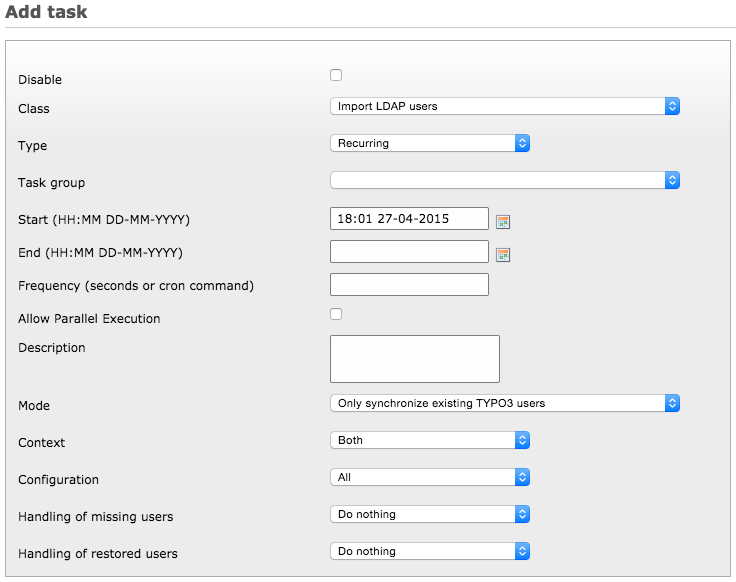
The task comes with several options, as can be seen in the Scheduler module:
Configuration options for the Scheduler task
The options are the following:
Mode: Choose to import LDAP users who are not yet available in TYPO3 or
only synchronize existing TYPO3 users with changes from LDAP.
Note
This setting will be used for corresponding user groups as well.
Context: Choose to import only frontend users, backend users or both.
Configuration: Choose which configuration to use, or choose "All" to
automate import of users from all available configurations.
Tip
Disabled configurations are not considered during automation.
Handling of missing users: What to do with users which are not found on
the LDAP server anymore. They can be deleted, disabled or left as is.
Handling of restored users: If user has been deleted or disabled locally,
it may be automatically restored upon import. Each user may be either
un-deleted, re-enabled or both. It can be also left as is by choosing to do
nothing.
Sample Configuration
Forum Systems is providing a free online LDAP test
server that you can use for testing. If all you need is to test connectivity and
do a proof of concept of connecting TYPO3 with an LDAP server, this is the right
place to eliminate the need to download, install and configure an LDAP server
just for testing.
read more.
In this example, the last mapping line will automatically promote every LDAP
user as TYPO3 administrator. This should of course be enabled only for quick
testing without having to bother with available modules.
BE_GROUPS
Option
Value
Base DN
dc=example,dc=com
Filter
(&(uniqueMember={USERDN})(ou=*))
Mapping
title = <cn>
tstamp = {DATE}
Copied!
FE_USERS
Option
Value
Base DN
dc=example,dc=com
Filter
(uid={USERNAME})
Mapping
pid = *id of your storage folder*
tstamp = {DATE}
email = <mail>
name = <cn>
last_name = <sn>
# <cn> is of the form "Albert Einstein"# Extract first name as what comes# before last "word"/blank space
first_name = <cn>
first_name.replacement.10 {
search = /^(.*) ([^ ]+)$/
replace = $1
useRegExp = 1
}
Copied!
Test Users and Groups
As of April 2015, four groups and a few users are available:
Mathematicians
euclid (Euclid)
euler (Leonhard Euler)
gauss (Carl Friedrich Gauss)
riemann (Bernhard Riemann)
Scientists
einstein (Albert Einstein)
galieleo (Galileo Galilei)
newton (Issac Newton) -- known typo: (Isaac)
tesla (Nikola Tesla)
Italians
tesla (Nikola Tesla)
Chemists
boyle (Robert Boyle)
curie (Marie Curie)
nobel (Alfred Nobel)
pastuer (Louis Pastuer) -- known typo: (Pasteur)
Note
All user passwords are "password".
Logging
This extension makes use of the Logging system introduced in TYPO3 CMS 6.0. It
is far more flexible than the old one writing to the "sys_log" table. Technical
details may be found in the TYPO3 Core API docs for logging.
As an administrator, what you should know is that the TYPO3 Logger forwards log
records to "Writers", which persist the log record.
By default, with a vanilla TYPO3 installation, messages are written to the
default log file (var/log/typo3_*.log).
Dedicated log file for LDAP
If you want to redirect every logging information from this extension to
var/log/ldap.log and send log entries with level "WARNING" or above to
the system log, you may add following configuration to
typo3conf/AdditionalConfiguration.php:
Suppose you wish to restrict access to the website
http://intranet.example.com. Since users allowed to connect to this website
are managed in a central directory server (LDAP / Active Directory),
authentication is to be performed using Kerberos and SPNEGO.
How does it work with TYPO3? What we actually want to do is as follows, from a
TYPO3 point of view:
Delegate the authentication to the Apache web server, which should restrict
access using Basic Authentication (theoretically by whatever means
-- htpasswd file, ... -- in our case with an LDAP/Active Directory backend).
Trust the authenticated user whose username is sent to PHP as
$_SERVER['REMOTE_USER'] and rely on the TYPO3 authentication services (in
our case the one provided by this extension) to retrieve additional user
information and group membership without checking the password, since Apache
did it already.
To ensure these tasks are executed transparently, without having to actively
authenticate in TYPO3, this extension sets
Kerberos Version 5 is a standard on all versions of Windows 2000 and ensures the
highest level of security to network resources. The Kerberos protocol name is
based on the three-headed dog figure from Greek mythology known as Kerberos.
The three heads of Kerberos comprise the Key Distribution Center (KDC),
the client user and the server with the desired service to access. The KDC is
installed as part of the domain controller and performs two service functions:
the Authentication Service (AS) and
the Ticket-Granting Service (TGS).
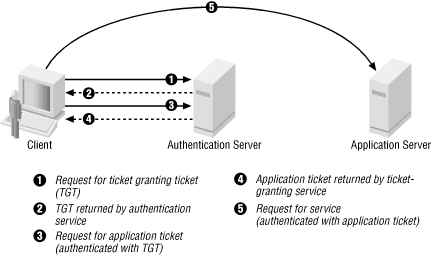
Three exchanges are involved when the client initially access a server
resource: AS exchange (circles 1 and 2), TGS exchange (circles 3 and 4) and
finally a client/server exchange (request shown as circle 5).
AS exchange
When initially logging on to a network, users must negotiate access by providing
a login name and password in order to be verified by the AS portion of a
KDC. The KDC has access to Active Directory user account information.
Once successfully authenticated, the user is granted a Ticket to Get Tickets
(TGT) that is valid for the local domain (in our example, for the realm
example.com). The TGT has a default lifetime of 10 hours and may be renewed
throughout the user's log-on session without requiring the user to re-enter her
password.
If the KDC approves the client's request for a TGT, the reply (referred to as
the AS reply) will include two sections: a TGT encrypted with a key that only
the KDC (TGS) can decrypt and a session key encrypted with the user's password
hash to handle future communications with the KDC. Because the client system
cannot read the TGT contents, it must blindly present the ticket to the TGS for
service tickets. The TGT includes time to live parameters, authorization data, a
session key to use when communicating with the client and the client's name.
TGS exchange
The user presents the TGT to the TGS portion of the KDC when desiring
access to a server service. The TGS on the KDC authenticates the user's TGT and
creates a ticket and session key for both the client and the remote server. This
information, known as the service ticket, is then cached locally on the client
machine.
The TGS receives the client's TGT and reads it using its own key. If the TGS
approves of the client's request, a service ticket is generated for both the
client and the target server. The client reads its portion using the TGS session
key retrieved earlier from the AS reply. The client presents the server portion
of the TGS reply to the target server in the client/server exchange coming next.
Client/server exchange
Once the client user has the client/server service ticket, he can establish the
session with the server service. The server can decrypt the information coming
indirectly from the TGS using its own long-term key with the KDC. The
service ticket is then used to authenticate the client user and establish a
service session between the server and client. After the ticket's lifetime is
exceeded, the service ticket must be renewed to use the service.
Basic Kerberos configuration of intranet.example.com
The method described here as five steps:
Install the mod_auth_kerb authentication module.
Create a service principal <Principal> for the web server.
Create a keytab for the service principal.
Specify the authentication method to be used.
Specify a list of authorized users or user groups.
First of all, you should make sure the clocktime of KDC, workstation and
web server is in sync (5 minutes are the highest difference you may allow for
Kerberos to work properly).
krb5-user is not an actual requirement but it will provide handy
command-line tools for Kerberos.
Hint
In Debian 11 (Bullseye) the module libapache2-mod-auth-kerb is not
available anymore. You can use libapache2-mod-auth-gssapi instead.
$ sudo apt-get install libapache2-mod-auth-gssapi
In additional to libapache2-mod-auth-kerb, this will install the dependency
package krb5-config and then show you a configuration wizard asking for:
Default Kerberos version 5 realm. Use EXAMPLE.COM (in capital
letters).
The KDC. My Active Directory server is ws2008r2.example.com, replace
by your own. In a larger organization, you probably have two domain
controllers, for redundancy reason.
The administration server. This is typically the same as the LDAP/Active
Directory server or in case of multiple domain controllers, this should be
normally set to the master.
Settings you provide are then stored within configuration file
/etc/krb5.conf which should look like this after the wizard
configuration:
You should now check that Kerberos works on intranet.example.com. Do a basic
check using kinit:
Ensure that intranet can reach KDCws2008rs2 via the network
(ping, ...).
Have a username and password in Windows Domain EXAMPLE.COM. In this
example einstein is used as username.
Within the shell, type:
$ kinit einstein@EXAMPLE.COM
Copied!
If everything is OK the command will ask you for einstein's domain
password and terminates without an error message.
Note
If command fails with
kinit: Cannot resolve servers for KDC in realm "example.com" while
getting initial credentials
Copied!
then it most probably means that you did not pay attention to writing the
realm in CAPITAL LETTERS.
Finally use klist to show the initial ticket you have got from the
KDC:
$ klist
Default principal: einstein@EXAMPLE.COM

Valid starting    Expires           Service principal
31/10/2014 13:12  31/10/2014 23:11  krbtgt/EXAMPLE.COM@EXAMPLE.COM
        renew until 01/11/2014 13:12
Copied!
Creating a service principal for the web server
SPNEGO requires that a Kerberos service principal be created for the web
server. The service name is defined to be HTTP, so for the server
intranet.example.com the required service principal name is
HTTP/intranet.example.com@EXAMPLE.COM.
Create a dummy account in Windows Domain EXAMPLE.COM. It is used like a
machine account but is nevertheless a standard user account. In this
example the name of dummy account is kerbdummy1.
Log in to the domain controller ws2008r2 and use the Windows command line
tool ktpass to map the dummy account kerbdummy1 to the service
principal HTTP/intranet.example.com@EXAMPLE.COM. You need that service
principal to kerberize host intranet:
If you have to target Windows XP machines, AES256-SHA1 is not
supported. Use the legacy crypto RC4-HMAC-NT instead.
Warning
Even if you target recent machines such as running Windows 8.x,
AES256-SHA1 may not be supported either. Please check section
Basic authentication prompt is always shown for details.
Copy file C:\\temp\\intranetkeytab from the domain controller
ws2008r2 to the location where it should reside on host intranet, in
our example /etc/apache2/http_intranet.keytab and make www-data
its owner.
Note
An alternate way to create the needed keytab file is with the help of
kadmin directly on your Linux machine. Please refer to
www.microhowto.info for instructions.
Check if the KDC sends correct tickets by checking in detail:
ticket's kvno must match kvno in keytab
principal name in ticket must match the principal name in keytab
Check that the key has been correctly added to the keytab by attempting to
use it to authenticate as the service principal, then view the resulting
ticket-granting ticket using klist:
$ kinit -k -t /etc/apache2/http_intranet.keytab HTTP/intranet.example.com
$ klist
Ticket cache: FILE:/tmp/krb5cc_0
Default principal: HTTP/intranet.example.com@EXAMPLE.COM

Valid starting    Expires           Service principal
31/10/2014 14:11  01/11/2014 00:10  krbtgt/EXAMPLE.COM@EXAMPLE.COM
        renew until 01/11/2014 14:11
Copied!
Note
if command fails with
kinit: Generic preauthentication failure while getting initial credentials
Copied!
It may be related to using a legacy crypto. Try to edit file
/etc/krb5.conf and update it to actively specify older cryptos:
Apache must be told which parts of which web sites are to use authentication
provided by mod_auth_kerb. This is done using the AuthType directive
with a value of Kerberos.
In order to protect the whole TYPO3 website, add following snippet to your
virtual host configuration:
<Location />AuthType Kerberos
AuthName"Intranet of example.com"KrbMethodNegotiateonKrbMethodK5Passwdoff# Allow shorter username (without realm):KrbAuthRealms EXAMPLE.COM
KrbServiceName HTTP
Krb5Keytab /etc/apache2/http_intranet.keytab
# Disable the verification tickets against local keytab to# prevent KDC spoofing attacks# It should be used only for testing purposesKrbVerifyKDCoff</Location>
Copied!
If you are using ``libapache2-mod-auth-gssapi``, add the following snippet instead:
<Location />SSLRequireSSLAuthType GSSAPI
AuthName"Intranet of example.com"GssapiBasicAuthOnGssapiCredStore keytab:/etc/apache2/http_intranet.keytab
GssapiLocalNameOnrequire valid-user
</Location>
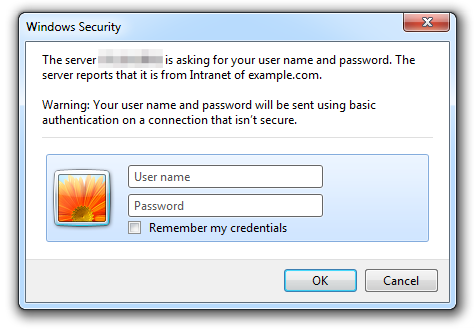
If there is a need for the web site to be accessible to its authorized users
from machines that are not part on the Kerberos realm, you may let
mod_auth_kerb ask the user for her password using basic authentication
and then validate that password by attempting to authenticate to the KDC.
Please note however that this is significantly less secure than true Kerberos
authentication:
To do so, change:
KrbMethodK5Passwdon
Copied!
Warning
If you need to enable fallback to basic authentication, you should do that
in conjunction with SSL since the password is sent Base64-encoded, that is,
as readable as clear text. The use of SSL encryption is also recommended if
you are using the Negotiate method.
Specifying a list of authorized users or user groups
Having an authentication method does not by itself restrict access to the web
site until you disallow access by anonymous users using Require directive:
<Location /># ...Require valid-user
</Location>
Copied!
Please refer to the Apache documentation if you want to restrict access to
certain users or groups (if so, you will certainly need to use another
authorization module such as mod_authnz_ldap).
Final step is to reload the Apache configuration:
$ sudo apache2ctl configtest
Syntax OK
$ sudo service apache2 force-reload
Copied!
You will need to access your website from a machine within your domain or by
authenticating with the basic authentication dialog, if enabled. TYPO3 will then
read the authenticated username from $_SERVER['REMOTE_USER'] and silently
create the frontend user session, if it does not exist yet. You do not need any
frontend login plugin for your website.
This section describes common pitfalls while configuring SSO. Please feel free
to open tickets if you encounter other problems and found a solution.
Case of option switches
Warning
Option switches MUST be written lower case. Opposed to other modules
like mod_rewrite.c, where the case of the keywords "on" and "off" does not
matter, mod_kerb_auth.c requires you to write these switches lower case,
or else the default value will be used.
Basic authentication prompt is always shown
Problem is that, although you set KrbMethodK5Passwd off in your Apache
configuration, the browser of your domain machines/computers always shows the
basic authentication dialog and does not seem to silently pass your user
credentials to the web server.
Apache's error log shows:
[debug] [client X.X.X.X] kerb_authenticate_user entered with user (NULL) and auth_type Kerberos
[debug] [client X.X.X.X] Acquiring creds for HTTP@intranet.example.com
[debug] [client X.X.X.X] Verifying client data using KRB5 GSS-API
[debug] [client X.X.X.X] Client didn't delegate us their credential
[debug] [client X.X.X.X] GSS-API token of length 9 bytes will be sent back
[debug] [client X.X.X.X] GSS-API major_status:000d0000, minor_status:000186a5
[error] [client X.X.X.X] gss_accept_sec_context() failed: Unspecified GSS failure.
                         Minor code may provide more information (, )
Copied!
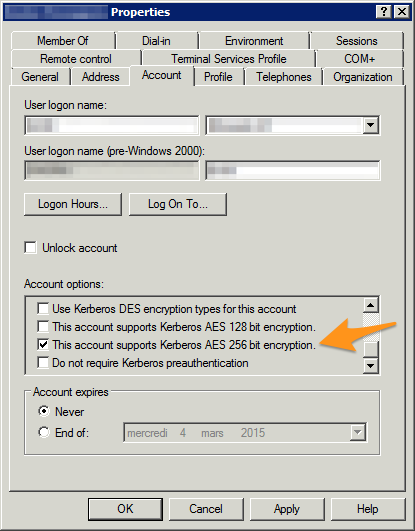
It turns out that although the domain controller is MS Windows Server 2008r2 and
the domain machine is using MS Windows 8.1, the account does not support
Kerberos AES 256 bit encryption by default.
To fix this problem, either switch to RC4 for your Apache keytab file or enable
the enhanced security option for the user accounts on your domain controller.
Security properties of a Windows domain account
Apache's error log when everything is working properly:
[debug] [client X.X.X.X] kerb_authenticate_user entered with user (NULL) and auth_type Kerberos
[debug] [client X.X.X.X] Acquiring creds for HTTP@intranet.example.com
[debug] [client X.X.X.X] Verifying client data using KRB5 GSS-API
[debug] [client X.X.X.X] Client didn't delegate us their credential
[debug] [client X.X.X.X] GSS-API token of length 185 bytes will be sent back
[debug] [client X.X.X.X] kerb_authenticate_a_name_to_local_name einstein@EXAMPLE.COM -> einstein
Copied!
Hint
In case you need/prefer it, a hidden option of mod_auth_kerb lets you
automatically strip @EXAMPLE.COM (the realm) from usernames:
KrbLocalUserMappingon
Copied!
Another problem with the basic authentication prompt always shown might show up
as follows in Apache's error log:
[error] [client X.X.X.X] gss_accept_sec_context() failed: Unspecified GSS failure.
                         Minor code may provide more information (, Wrong principal in request)
Copied!
Although the reason is most probably that the reverse DNS of the web server is
not exactly identical to what was specified in the keytab file, in one case, it
turned out the problem was the very same as above, namely that the account did
not support Kerberos AES 256 bit encryption.
Note
It may be a good option to add the domain name of your intranet page to the
file /etc/hosts. This is of course no actual requirements but may
help the keytab file to work properly if your DNS are not reliable.
Your class has to implement the
\Causal\IgLdapSsoAuth\Utility\AttributesProcessorInterface interface.
This implies implementing a method called processAttributes which will
receive the following arguments:
$link
Current LDAP link identifier, returned by ldap_connect().
$entry
Identifier of an LDAP entry in a search result.
$attributes
Array of LDAP attributes.
.. info::
This hook is deprecated since version 4.1. You should migrate your code by
listening to the PSR-14 events AttributesProcessingEvent instead.
Importing data to other tables
This extension does not directly provide a mechanism for mapping LDAP data to
other tables than those related to groups and users. However it is possible to
make it so that some data is not mapped to the users table but passed instead to
a hook, enabling a separate extension to handle that data.
Defining such data is easy. With the usual mapping syntax:
local_field = ldap_field
Copied!
Any local_field that does not exist in the mapped users table will be
considered "extra data". The local_field may have any special syntax that
suits your needs (for example "table__field") as long as it does not mess with
the mapping configuration itself.
Warning
In previous versions of this extension (2.x) it was possible to use a dot for
local_field (e.g., table.field).
This is not supported anymore since you may use
TypoScript to post-process the mapping.
We suggest that you use a double underscore character instead (__) as in
table__field.
All fields considered to be extra data will be mapped to LDAP values as any
other field, but stored separately and passed to the hook.
In your extension (in the ext_localconf.php file), register the hook
using a code like:
Your class has to implement the
\Causal\IgLdapSsoAuth\Utility\ExtraDataProcessorInterface interface.
This implies implementing a method called processExtraData which will
receive the following arguments:
$userTable
The name of the user table that was just handled
(should normally be "fe_users" or "be_users").
$user
Full user record plus the extra data to handle in your extension.
The extra data is located in $user['__extraData']. It
is up to your extension to handle it as needed.
Note
This process exists only for users, not for groups.
Attention
This hook is deprecated since version 4.1. You should migrate your code by
listening to the PSR-14 events UserAddedEvent and UserUpdatedEvent
instead. Those events are dispatched after the user is created or updated
and contain the user record along with your extra data.
Your class has to implement the
\Causal\IgLdapSsoAuth\Utility\GetGroupsProcessorInterface interface.
This implies implementing a method called getUserGroups which will
receive the following arguments:
$groupTable
The name of the db table for the groups (be_groups vs. fe_groups).
$ldapUser
The full data from ldap of the currently processed user.
$ldapGroups
The array of the groups that have been calculated for this user. passed as
reference so you can add/remove items from the list.
.. info::
This hook is deprecated since version 4.1. You should migrate your code by
listening to the PSR-14 events AfterComputeUserGroupsEvent instead.
Glossary
B
Bind DN
DN of the LDAP user you will use to connect to the LDAP server.
C
CN
Common Name, typically the full name for users or the name of a group.
D
DC
Domain Component. Usually the two last parts of a DN. E.g.,
dc=example,dc=com.
DIT
Directory Information Tree, a.k.a the naming-context.
DN
Distinguished Name, LDAP "primary key"; not indexed. Used in this
extension to relate local users/groups to their LDAP counterpart. This
represents the "path to the root" of a node in the DIT. E.g.,
cn=Robert Smith,ou=people,dc=example,dc=com.
G
GSSAPI
The Generic Security Service Application Program Interface is an
application programming interface (API) for programs to access security
services. The GSSAPI is an IETF standard. It does not, by itself, provide
any security. Instead, security-service vendors provide GSSAPI
implementations. The definitive feature of GSSAPI applications is the
exchange of opaque messages (tokens) which hide the implementation detail
from the higher-level application.
K
KDC
A Key Distribution Center is a network service that supplies tickets and
temporary sessions keys; or an instance of that service or the host on
which it runs. The KDC services both initial ticket and ticket-granting
requests. The initial ticket portion is sometimes referred to as the
Authentication Server (or service). The ticket-granting ticket portion is
sometimes referred to as the ticket-granting server (or service).
Kerberos
Kerberos is an authentication protocol that supports the concept of Single
Sign-On (SSO). In the case of HTTP, support for Kerberos is
usually provided using the SPNEGO authentication mechanism. Apache
does not itself support SPNEGO, but support can be added by means of the
mod_auth_kerb authentication module. Nginx requires the additional
nginx-plus-module-auth-spnego module.
L
LDAP
Lightweight Directory Access Protocol. Open, vendor-neutral, industry
standard application protocol for accessing and maintaining distributed
directory information services.
LDIF
LDAP Data Interchange Format. Standard plain text data interchange format
for representing :termLDAP directory content and update requests. LDIF
conveys directory content as a set of records, one record for each object
(or entry). It also represents update requests, such as Add, Modify,
Delete and Rename, as a set of records, one record for each update
request.
O
OU
Organizational Unit.
P
Principal
A principal is someone or something you authenticate or authenticate to.
Types of principals are:
user-principals
Kerberos representation of people sitting at a machine.
Example: einstein@EXAMPLE.COM.
service-principals
E.g., Kerberos representation of a web server. Example:
HTTP/intranet.example.com@EXAMPLE.COM.
R
RDN
Relative Distinguished Name. Think of it as the relative path in its
parent folder for a given file path. E.g., if /foo/bar/myfile.txt were
the DN then myfile.txt would be the RDN.
S
SPNEGO
Simple and Protected GSSAPI Negotiation Mechanism, often pronounced
"spen-go", is a GSSAPI pseudo-mechanism used by client-server
software to negotiate the choice of security technology. SPNEGO is used
when a client application wants to authenticate to a remote server, but
neither end is sure what authentication protocols the other supports. The
pseudo-mechanism uses a protocol to determine what common GSSAPI
mechanisms are available, selects one and then dispatches all further
security operations to it.
SSO
Single Sign-On is a process that permits a user to access multiple
services after going through user authentication (i.e., loggin in) only
once. This involves authentication into all services the user has given
permission to, after logging into a primary service. Among other benefits,
SSO avoids the monotonous task of confirming identity over and over again
through passwords or other authentication systems.
Breaking Changes
Version 4.0.0
Configuration option useExtConfConfiguration has been removed completely.
This option was used to enable configuring LDAP settings via PHP code instead
of a database record. In an attempt to streamline and be more consistent with
internal types, this option has been removed. If you were using this option,
you will need to migrate your custom code to use the PSR-14 event
ConfigurationLoadedEvent
instead.
This extension is using the same contribution workflow as for TYPO3 Core, but
with GitHub PRs for the review process. Please read more about the workflow in
the
TYPO3 Core Contribution Guide.
Contribution rules
There must be a ticket in the project's bug tracker explaining the problem /
the suggested enhancement