Resize images automatically 

Extension key

image_autoresize

Package name

causal/image_autoresize

Version

main

Language

en

Keywords

image, picture, resize, autoresize, auto-resize, upload, batch, exif, iptc, fal, footprint, performance

Author

Xavier Perseguers

Copyright

2010-2026

License

This document is published under the Creative Commons BY 4.0 license.

Rendered

Tue, 14 Apr 2026 17:05:40 +0000

The content of this document is related to TYPO3, a GNU/GPL CMS/Framework available from www.typo3.org.


Simplify the way your editors may upload their images: no complex local procedure needed, let TYPO3 automatically resize down their huge images/pictures on-the-fly during upload (or using a scheduler task for batch processing) and according to your own business rules (directory/groups). This will highly reduce the footprint on your server and speed-up response time if lots of images are rendered (e.g., in a gallery). Features an EXIF/IPTC extractor to ensure metadata may be used by the FAL indexer even if not preserved upon resizing.


Table of Contents:
Introduction 

What does it do? 

This extension automatically resizes images to a given maximum height/width or total image size right after they have been uploaded to the TYPO3 website. The aspect ratio is of course kept.

The idea behind this extension is that TYPO3 should make both administrators and editors happy. Administrators want the website's footprint on server as small as possible to be able to handle backups efficiently and want the web server to deliver the pages as quick as possible. On the other hand, editors should be able to do their job and not bother with technical considerations such as the size of a picture on disk or that uploading their wonderful sunset taken during holidays with their 12 MP camera will slow down the time rendering of their great photo gallery where pictures are shown with a maximum definition of 800 × 600 pixels. Moreover, editors are either not aware of this or are simply unable to "prepare" their pictures as they are using a foreign computer (in a cyber café) or on the road with their laptop, neither of them running their beloved image editing software.

General configuration settings let you choose which directories should be somehow "monitored" for uploaded pictures and define the file types that should be handled (e.g., "jpg" and "tif" but not "png" nor "gif") and a file size threshold (e.g., "skip any picture smaller than 400 KB"). After all, if an editor managed to create a picture of many mega-pixels that weights only a few KB, why should we bother?

Screenshots 

Configuration settings 

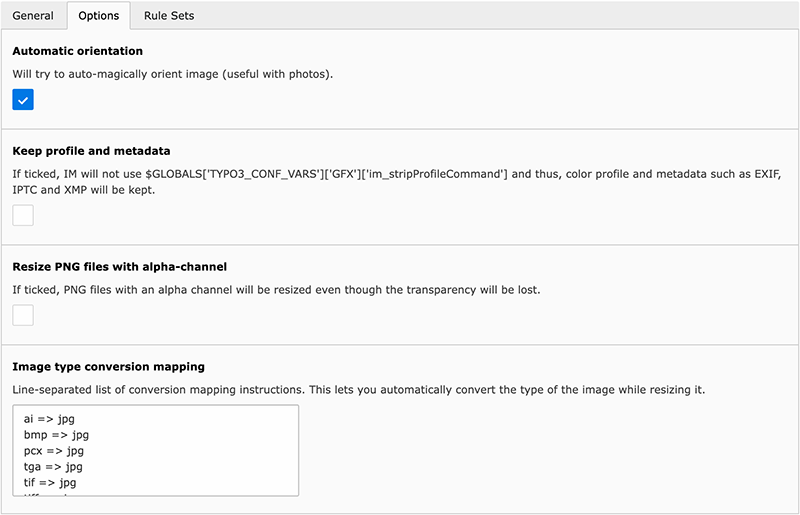
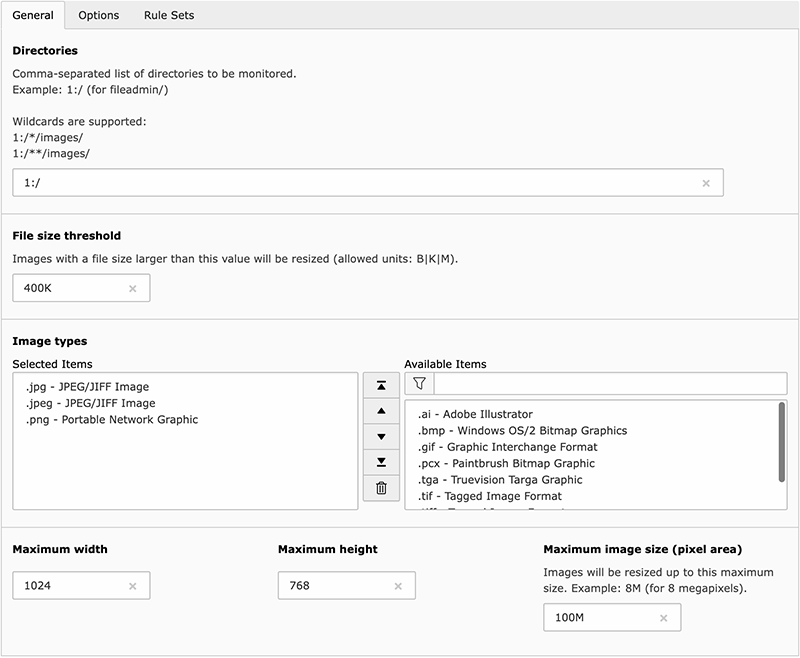
The following two figures Configuration settings and Configuration settings show how an administrator may easily configure rules to resize uploaded images.

Overview of the general configuration panel

General configuration options to resize uploaded images

Overview of the general options panel

Additional options and conversion of image format

Screencast 

The team from jweiland.net prepared a screencast showing how to install and configure this extension in your TYPO3 website:

Bilder automatisch verkleinern

Screencast available on https://jweiland.net/video-anleitungen/typo3/interessante-typo3-extensions/image-autoresize.html

Thanks a lot for providing this online resource to the community.

Requirements 

In order to extract metadata while resizing images and automatically rotate images based on the EXIF information, those PHP methods should be available:

  • exif_read_data;
  • iptcparse.

Users Manual 

This chapter describes how to use the extension from a user point of view.

Workflow 

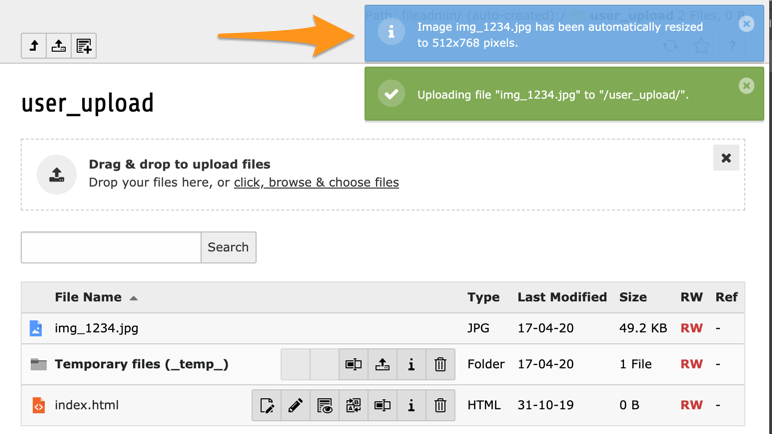
Simply upload your unmodified pictures either from the File > Filelist module (fileadmin) or from the edit form of a content element (text with image, image, ...) and enjoy the automatic resizing and orientation in portrait of your pictures (here with an original picture in 3840 × 2560, 6.5 MB with EXIF orientation set to "portrait"):

Example of an image that has been automatically resized

As you see, the constraints of 1024 × 768 pixels have been taken into account even with the correct orientation of the picture. If the reorientation did not have been taken into account, the picture would have been resized to 682 × 1024 instead (maximum ratio using the other dimension).

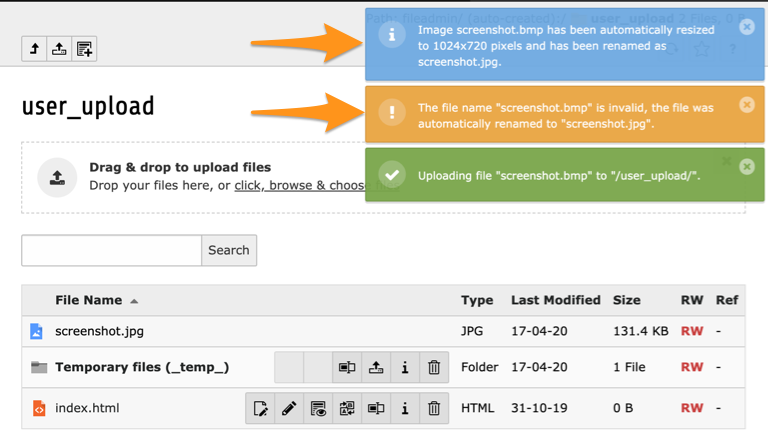
Here is another example, where a BMP (screenshot.bmp, 15.7 MB, 2732 × 1920) has been uploaded:

Example of an image that has been automatically converted from one format to another

The uploaded file screenshot.bmp has automatically been both resized and converted to a new file screenshot.jpg (according to the image type conversion mapping option described in chapter Administrator Manual).

Details of this image show that its footprint is now quite small (131.4 KB).

Supported image types 

This extension performs the resize with the standard image library API from TYPO3 meaning that on a well-configured system, following formats are supported:

ai
Adobe Illustrator
bmp
Windows OS/2 Bitmap Graphics
gif
Graphic Interchange Format
jpg/jpeg
JPEG/JIFF Image
pcx
Paintbrush Bitmap Graphic
png
Portable Network Graphic
tga
Truevision Targa Graphic
tif/tiff
Tagged Image Format

Installing the extension 

Install this extension as usual with Extension Manager.

You may configure this extension as you were used to do prior to TYPO3 v9, by using the configuration icon within Extension Manager (Admin Tools > Extensions):

Configuration within Extension Manager

General settings 

General settings are configured with the first tab of the configuration panel:

Overview of the general configuration panel

Directories 

This is a comma-separated list of directories that should be monitored for image uploads. This includes any subdirectory of them too. In the example above, 1:/ (corresponding to the well-known directory fileadmin/) will be monitored.

You may use two different wildcards characters:

  • The single asterisk (*) searches for a single directory. E.g., 1:/*/images/ will match fileadmin/directory1/images/ and fileadmin/directory2/images/ but not fileadmin/directory3/subdirectory/images/.
  • The double asterisk (**) searches for any number of subdirectories. E.g., 1:/**/images/ will match any subdirectory images within fileadmin, and of course any sub-subdirectory of it too.

File size threshold 

Only original pictures with file size bigger than this value will be processed. The field accepts suffices "B" for bytes, "K" for KB and "M" for MB. The number itself is interpreted as an integer.

Image types 

This is the list of image formats that should be processed, if both the directory and the size threshold match. The actual list of available types is read from $TYPO3_CONF_VARS['GFX']['imagefile_ext'].

Maximum width / height 

These are the maximum dimensions in pixels a picture will be bound to after the resize processing. Aspect ratio will of course be preserved.

Maximum image size (pixel area) 

This is the maximum size in pixels a picture will be bound to after the resize processing (thus height × width). Height and width are calculated as big as possible considering the defined maximum width / height. Aspect ratio will of course be preserved.

The field accepts the suffice "M" for megapixels.

Options 

General options are configured with the first tab of the configuration panel:

Overview of the general options panel

Automatic orientation 

If this checkbox is ticked, TYPO3 will try to automatically rotate the picture. Many newer digital cameras (both dSLR and Point & Shoot digicams) have a built-in orientation sensor. Virtually all Canon and Nikon digital cameras have an orientation sensor. The output of this sensor is used to set the EXIF orientation flag in the image file's metadata to reflect the positioning of the camera with respect to the ground. Canon calls their sensor the "Intelligent Orientation" sensor. It is presumably a 2-axis tilt sensor, allowing 4 possible orientations to be detected (shown in the diagram below):

Orientations as stored in EXIF

Description and diagram adapted from https://www.impulseadventure.com/photo/exif-orientation.html

Keep profile and metadata 

Normally color profile and metadata information such as EXIF, IPTC and XMP are removed from the picture during the resize process. This option lets you keep them. Example of such information is shown below:

Metadata of a picture

Resize PNG files with alpha channel 

By default PNG files which contain an alpha channel or a transparent color will not be resized because they are very likely to loose their transparency. If ticked, this checkbox will force all PNG files to be resized (if they meet the conditions of course).

Image type conversion mapping 

The mapping lets you automatically convert images from one format to another one during the resize processing. This is typically useful to convert non-Web formats (e.g., bmp and tif/tiff) to jpg or png.

Rule sets 

Rule sets are managed with the third tab of the configuration panel:

General rule sets

They basically are a set of options that should override the general settings under certain circumstances. The picture above shows two rules:

  • Allow higher resolution pictures if they are targeted at the press (e.g., allow pictures to be as wide as 4000px). This may either be group-related (user of group "Press and Communication" are allowed to upload such big pictures) and/or directory-related (photos uploaded in a special press/ directory are allowed to be that large).
  • Convert all images to jpg for news editors. You may define that members of a group "News Editors" have all their pictures converted to jpg, whatever the original format was.

The following picture shows how a rule set is configured:

Rules for a user groups

The parameters are identical to those for the general settings. The mechanism is easy to understand:

  • Rule sets are tested in the order of their definition. You may reorder them by drag-and-drop. First rule set that matches will be used. If no rule sets match, general settings will be taken into account, if they matches!
  • Settings in the rule set which are left empty or undefined (groups) will inherit the corresponding value from general settings.

Batch processing images 

This extension provides a command to batch process uploaded images in the directories you normally watch for image upload (see General settings).

It is particularly useful if you let users upload images outside of TYPO3 (e.g., using FTP), thus bypassing upload post-processing to automatically resize them according to your rule sets. The command may be invoked from the command line using:

./vendor/bin/typo3 imageautoresize:batchresize
Copied!

As such, when you create a new scheduler task, you need to choose "Execute console commands (scheduler)" and then "imageautoresize:batchresize".

This command will process all images found in the directories you are monitoring but you may optionally override this with two options:

  • --defaultDirectories: a comma-separated list of directories to process instead of the one(s) you are monitoring.
  • --excludeDirectories: a comma-separated list of directories to exclude from processing.

Developer Manual 

This chapter describes some internals of the Resize Images Automatically extension to let you extend it easily.

PSR-14 Events 

The concept of PSR-14 events allows for easy implementation of the Observer pattern in software, something similar to signal and slots or hooks in former versions of TYPO3. Please read chapter Event dispatcher (PSR-14 events) from TYPO3 Core documentation.

Available events:

ImageResizedEvent
Event raised after an image has been resized.
ProcessDefaultConfigurationEvent
Event raised whenever the default configuration file config/image_autoresize.config.php does not exist, thus loading the default configuration for this extension. This event is typically useful if you want to provide other (better) default values for the configuration.
ProcessConfigurationEvent
Event raised after the configuration has been processed, allowing to alter it based on your own business logic.

ChangeLog 

The following is a very high level overview of the changes in this extension. For more details, read the online log.

Version Changes
2.5.x
  • Early compatibility with TYPO3 v14
  • Beware: Dropped support for TYPO3 v10 and v11
2.4.x
  • Early compatibility with TYPO3 v13
  • Better respect of privacy by respecting whether or not to automatically extracting metadata prior to the resizing process
2.3.x
  • Configuration stored along with the site definitions
  • Scheduler task rewritten as a Symfony command
2.2.x
  • Compatibility with TYPO3 10 LTS - 12 LTS
  • Beware: Dropped compatibility with PHP 7.2 and 7.3
2.1.x Compatibility with TYPO3 8 LTS - 11 LTS
2.0.x
  • Compatibility with TYPO3 8 LTS - 10 LTS
  • Beware: Dropped compatibility with PHP 7.0 and 7.1
1.9.x Support for bounding the maximum dimensions in pixels
1.8.x Compatibility with TYPO3 7 LTS - 8 LTS
1.7.x Support for 3rd-party metadata extraction services
1.6.x Compatibility with TYPO3 6.2 - 7.x
1.5.x Automatic handling of Frontend-based uploads, if properly done.
1.4.x Batch processing of images
1.3.x
  • Compatibility with TYPO3 6.0. Support for auto-rotate when using GraphicsMagick.
  • Beware: Dropped compatibility with PHP 5.2, dropped compatibility code for TYPO3 < 4.5 LTS
1.2.x Added compatibility with DAM 1.3. Thanks to Eventex Nord (http://eventex.fr) for sponsoring this bugfix.
1.1.x Move configuration wizard from Extension Manager to a dedicated Backend module to be compatible with TYPO3 4.6.
1.0.x Minor update. Extension is now considered stable.
0.5.0 First release to the TER

Sitemap