This extension provides a few plugins to display the Mass schedule for the
various places of worship in a parish or pastoral unit.
theodia.org has been tailor-made to meet the needs of
the Catholic Church, from religious communities to parishes and dioceses. This
tool is used to share Catholic mass times and has been designed and developed to
be extended to several countries.
In this context, parishes and pastoral units are invited to enter the times of
their Catholic celebrations in the form of ICS feeds (e.g., Google Calendar) or
in a structured way on their website so that they can be easily added to
theodia.
What does it do?
Webmasters can easily add a theodia widget (JavaScript) to their site to display
the Mass schedule for one or more locations or according to certain criteria
(e.g., Masses in a particular language).
The extension goes one step further by providing a few plugins to integrate that
source of information directly into the TYPO3 website; thus allowing enhanced
integration and much more flexibility such as the possibility to deep-link to
custom pages for the various locations.
This extension has been initially developed in May 2020 by
Causal Sàrl for the
Pastoral Unit Sainte-Claire in canton Fribourg
(CH), and is now further maintained by the same company and other contributors.
Since end of 2023, the extension is sponsored as well by the web agency
hemmer, the company behind theodia.org.
Support
In case you need help to configure this extension, please ask for free support
in TYPO3 Slack or contact the maintainer for paid
support.
Installation
This extension may be installed like any other extension, either from the TYPO3
Extension Repository (TER) or from Packagist.
Install extension via Composer
Go to your folder where the root composer.json is located.
Type following command to get the latest version that runs on your TYPO3
version:
composer require causal/theodia
Copied!
Configuration
In order to use this extension, you must configure an API key, and which places
of worship you intend to use. This is done by editing your site configuration
(stored in config/sites/<site>/config.yaml), adding the API key that you
obtained via https://about.theodia.org/api, and adding a list of theodia
calendars.
The easiest way to do this is to use the site configuration editor in the
Backend, which will automatically add the correct configuration for you. To do
so, go to the Backend and then:
Open Site Management > Sites
Find the site you want to configure and click the pencil icon to edit it
Go to the "theodia" tab
Add a "record" for each calendar you want to use in this site.
You can find the ID of a calendar by searching it on
https://theodia.org/en/widget, selecting it in the list, and looking at the
generated code snippet.
Note
A few examples to help you get started:
Église Sts Pierre-et-Paul, Marly (id = 148)
Église de Praroman, Le Mouret (id = 150)
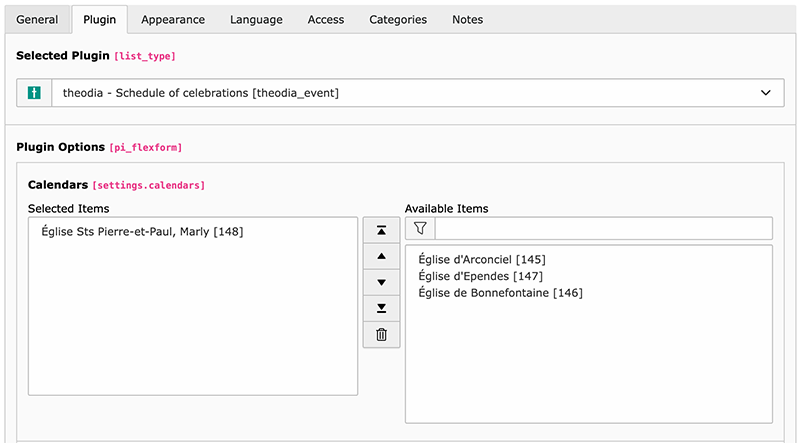
These definitions are then used to generate the list of available calendars to
be used with the plugin:
Hint
The order in which you configure your different theodia calendars has no
effect whatsoever on the order in which the calendars are presented in the
plugin. The plugin automatically sorts the available calendars in
alphabetical order.
If, for the sake of Swissness, you want to order the calendars in the Site
Configuration, you may do with the corresponding controls on the right.
Configuration in TypoScript
You should also configure the extension in TypoScript. You can do so like that:
Open the Template module within the Web section.
Select your root page template (usually the one with the world icon).
Make sure you are on the "Info/Modify" view (top selector).
Click on the button "Edit the whole template record".
Switch to tab "Includes".
Include "theodia (theodia)" within the "Include static (from extensions)"
section.
Alternatively if you are using a Site package, you can add the following to
your Configuration/TypoScript/constants.typoscript file (or alike):
This chapter describes how to take advantage of this extension from the user's
point of view.
In order to show upcoming events in your website, need need to add a plugin to
a page:
The plugin will show a list of calendars to choose from. You can select one or
more calendars to show in the plugin. Showing multiple calendars is useful if
you put the plugin on some homepage where all events from all your various
places of worship should be presented.
Note
If you miss some place of worship, you will need to adapt the mapping as
described in chapter Configuration.
Events are related to a location (or place of worship). Upon first encounter,
this extension will automatically create a new place of worship when it
encounters a new one in the calendar. Those places are fetched from theodia and
stored in the storage folder you defined in your Site Configuration. Once
imported, you may edit it freely.
Settings
Any setting needs to be prefixed with
plugin.tx_theodia.settings.
if you want to configure the plugin purely in TypoScript.
Settings
Number of events to display
numberOfEvents
numberOfEvents
type
int
Default
10
Path
plugin.tx_theodia.settings
Number of future events to show with the plugin. If the calendar contains
more events, they will be ignored and begin to show up once older events are
removed as time goes by.
Show place of worship
showLocation
showLocation
type
bool
Default
Path
plugin.tx_theodia.settings
Whether the location of the event should be made visible. Please note that
actual display may change if the default templates are overridden. This is
particularly useful to show the location if you select more than one calendar
for the plugin.
Filter
filter
filter
type
string
Default
empty string
Path
plugin.tx_theodia.settings
This is a
regular expression that
lets you filter the events that are shown. For example, if you want to show
only events that are related to a mass for families, you could select all
calendars and use the following filter:
/famil(y|ies)/i
Copied!
This will show all events, in any place of worship, that contain the word
"family" or "families" in their title (case insensitive).
Another typical example (in French) is to show only events were the parish's
choir is involved:
/ch(oe|œ)ur[ -]+mixte/i
Copied!
Use an iframe block
iframe
iframe
type
bool
Default
Path
plugin.tx_theodia.settings
This generates a standard iframe block instead of a list of events, just as
you would do on your own when you embed the default JS-based
widget from theodia.
Many options may be passed as parameter but the whole point of using this
TYPO3 extension is to be much more flexible and better in term of SEO than
the standard widget, so this option is not recommended and only basic options
are selected. You can adapt the default CSS to your
needs though.
ChangeLog
The following is a very high level overview of the changes in this extension.
For more details,
read the online log.
Version
Changes
3.0.x
Add support for signed requests to theodia API
2.2.x
Add early support for TYPO3 v13
Drop support for TYPO3 v10 (would cause too much
work to maintain Doctrine calls)
Support for cropped images
Support for dynamically loading more events
2.1.x
Multiple photos for a place
Dynamic selection of the place to display
2.0.x
Migration of the plugins to dedicated CType's
Enhanced configuration of theodia calendars to use
1.2.x
In-depth documentation and localization of the plugins
1.1.x
Various important bug fixes
1.0.x
First release to the TER (TYPO3 10, 11 and 12 LTS)
This extension is using the same contribution workflow as for TYPO3 Core, but
with GitHub PRs for the review process. Please read more about the workflow in
the
TYPO3 Contribution Guide.
Contribution rules
There must be a ticket in the project's bug tracker explaining the problem /
the suggested enhancement