T3Vault is a backup manager for TYPO3. It provides an administrator backend
module and a standalone recovery application that can create encrypted backups,
restore them on another server (including Composer ↔ classic/legacy layout
conversion), and prove integrity with OpenTimestamps time stamps on the
Bitcoin blockchain — so later changes to a stored backup can be detected.
Install via Composer (composer require codemacher/t3vault) or from the
TYPO3 Extension Repository.
See Installation for provisioning and first-time setup.
T3Vault creates encrypted backups of a TYPO3 installation (files and database)
and helps you restore them — including on a different server after a disaster.
The package is published as codemacher/t3vault (extension key t3vault).
The extension ships two layers:
A TYPO3 backend module (admin-only) that embeds the T3Vault UI and can
set the standalone password.
A standalone application under <web-dir>/t3vault that also runs
without a working TYPO3 instance (disaster recovery).
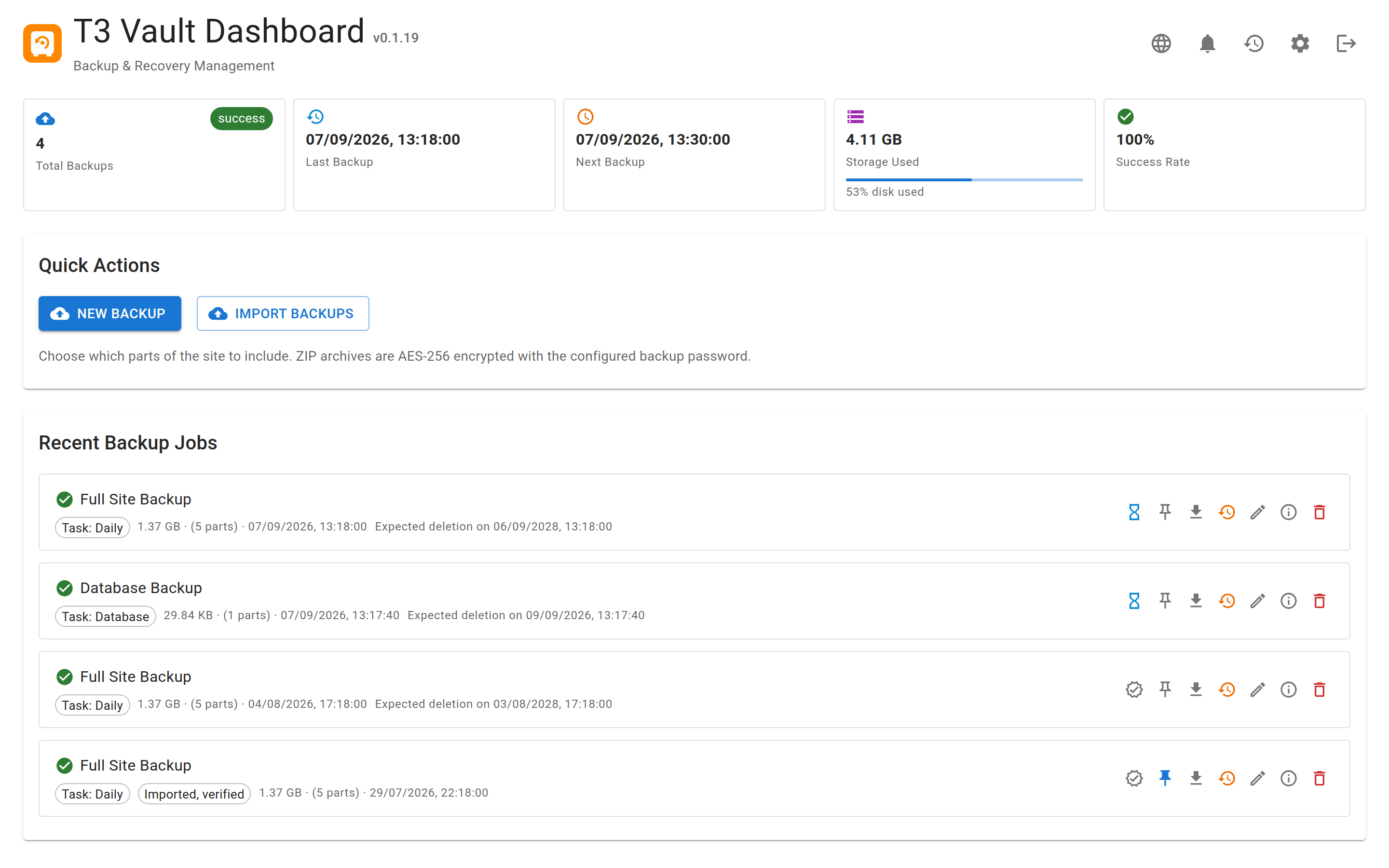
Dashboard after login: backup stats, quick actions and recent jobs.
After each completed backup, T3Vault seals integrity data so later
modifications can be detected:
SHA-256 hashes of backup artefacts in integrity.json
optional HMAC bound to the site secret
an OpenTimestamps proof (integrity.json.ots) that time-stamps the
seal on the Bitcoin blockchain via public calendars — independent of
TYPO3, the hosting provider, or whoever stores the archive (no payment or
currency transfer)
On restore, the installer can convert the TYPO3 layout:
Composer → classic/legacy (document-root layout) when the target has no
Composer workflow
Classic → Composer (e.g. for DDEV or modern project structure)
Features
OpenTimestamps integrity seals time-stamped on the Bitcoin blockchain to
detect tampering after the backup was created
Layout conversion on restore (Composer ↔ classic/legacy)
Full and fileadmin-only backups (Composer and classic TYPO3 layouts)
AES-256 encrypted ZIP parts (shared backup password)
Database dump (database.zip, AES-256) with mysqldump or PHP fallback
Downloadable .t3vault.tar archives plus installer / DDEV setup script
Integrity verification in the UI, via CLI / PHAR, or with the official
OpenTimestamps client
HTTP proxy support for calendar traffic
Target groups
Administrators who need reliable backups and offline restore
Agencies / hosting teams moving sites between environments — including
Composer sites that must land as classic/legacy on the target
Security-conscious operators who want an independent OpenTimestamps
time stamp (Bitcoin blockchain) that a backup was not altered after sealing
Compatibility
PHP
8.2 – 8.5
TYPO3
13.4 – 14.x
License
GPL-2.0-or-later
Installation
Composer
The recommended install path is Composer. Require the package in your TYPO3
project (also on
Packagist and
TER):
composer require codemacher/t3vault
Copied!
T3Vault depends on codemacher/elephstamp (OpenTimestamps), which is pulled
in automatically from Packagist.
Provisioning of <web-dir>/t3vault runs via
typo3/cms-composer-installers (InstallerScripts) on
composer install / update / dump-autoload.
Standalone app provisioning
On every composer install / update / dump-autoload,
T3Vault copies the standalone app into <web-dir>/t3vault.
The configuration (<project>/var/t3vault/config.local.php and
backup.password.php, outside the web root) is never overwritten;
legacy copies inside <web-dir>/t3vault/ are migrated automatically.
Opening the T3Vault backend module also re-syncs that folder as a fallback.
After composer remove codemacher/t3vault, delete the leftover web copy
manually if it is still present:
rm -rf public/t3vault
Copied!
Activation
Activate the extension in the Extension Manager / Package Manager (Composer
installs usually activate automatically).
Set the standalone password when prompted (used for disaster
recovery login outside the TYPO3 backend).
In the T3Vault UI settings, set a backup encryption password
(minimum 8 characters) before creating the first backup.
Important
Store the backup encryption password offline. Without it, encrypted ZIP
parts cannot be restored. AES-ZIP does not hide file names or the directory
tree — keep backups outside the web root.
Web root hardening
The standalone app is provisioned into the public web root
(<web-dir>/t3vault). The configuration with all secrets lives outside
the web root (<project>/var/t3vault/, see Configuration), and so
does the ENABLE_T3VAULT marker (see Enable marker); the app directory
still ships an Apache .htaccess that protects legacy
config.local.php copies, legacy marker files, the installer templates
(*.tpl) and any backup artifacts, and restricts the Api/
directory to Api/index.php.
Warning
.htaccess files are ignored by nginx and Caddy. On those web
servers you MUST replicate the rules in the server configuration, otherwise
legacy config.local.php copies, the installer templates and backup
files become publicly downloadable.
nginx equivalent (place inside the relevant server block):
location ^~ /t3vault/ {
    # Protect legacy configuration/marker copies inside the web root.
    location ~ ^/t3vault/(config\.local\.php|ENABLE_T3VAULT)$ { deny all; }

    # The Api/ directory only exposes index.php – everything else
    # (framework classes, installer templates) is read from disk by PHP.
    location ~ ^/t3vault/Api/(?!index\.php)  { deny all; }

    # Never serve templates, logs, PHARs or backup artifacts as static files.
    location ~ ^/t3vault/.*\.(tpl|log|sql|gz|zip|tar|phar)$ { deny all; }

    # Security headers for the SPA shell (T3V-022). frame-ancestors does NOT
    # fall back to default-src and must be set explicitly; 'self' allows the
    # same-origin TYPO3 backend iframe. script-src is 'self' only (the shell
    # loads bootstrap.js instead of an inline block); style-src keeps
    # 'unsafe-inline' for MUI/Emotion's runtime styles.
    add_header Content-Security-Policy "default-src 'self'; script-src 'self'; style-src 'self' 'unsafe-inline'; img-src 'self' data:; connect-src 'self'; font-src 'self' data:; object-src 'none'; base-uri 'none'; frame-ancestors 'self'" always;
    add_header Referrer-Policy "no-referrer" always;
    add_header X-Content-Type-Options "nosniff" always;
}
Copied!
For classic installations (project root equals the document root) the private
runtime directory var/t3vault/ (configuration, secrets, state) is
web-reachable and must be denied as well:
location ^~ /var/t3vault/ { deny all; }
Copied!
Additionally protect the backup target directory. The default
(<project-root>/var/t3vault/backups) already lives outside
public/; if you override backupBaseDir, keep it outside the web
root.
Configuration
Runtime settings live outside the web root in
<project>/var/t3vault/config.local.php (0600). The plaintext backup
password is stored separately in <project>/var/t3vault/backup.password.php
(0600) so a single file read never yields both the signing secret and the
archive password. Provisioning never overwrites these files; legacy copies
inside <web-dir>/t3vault/ are migrated automatically. Settings can also
be changed from the T3Vault UI (Settings).
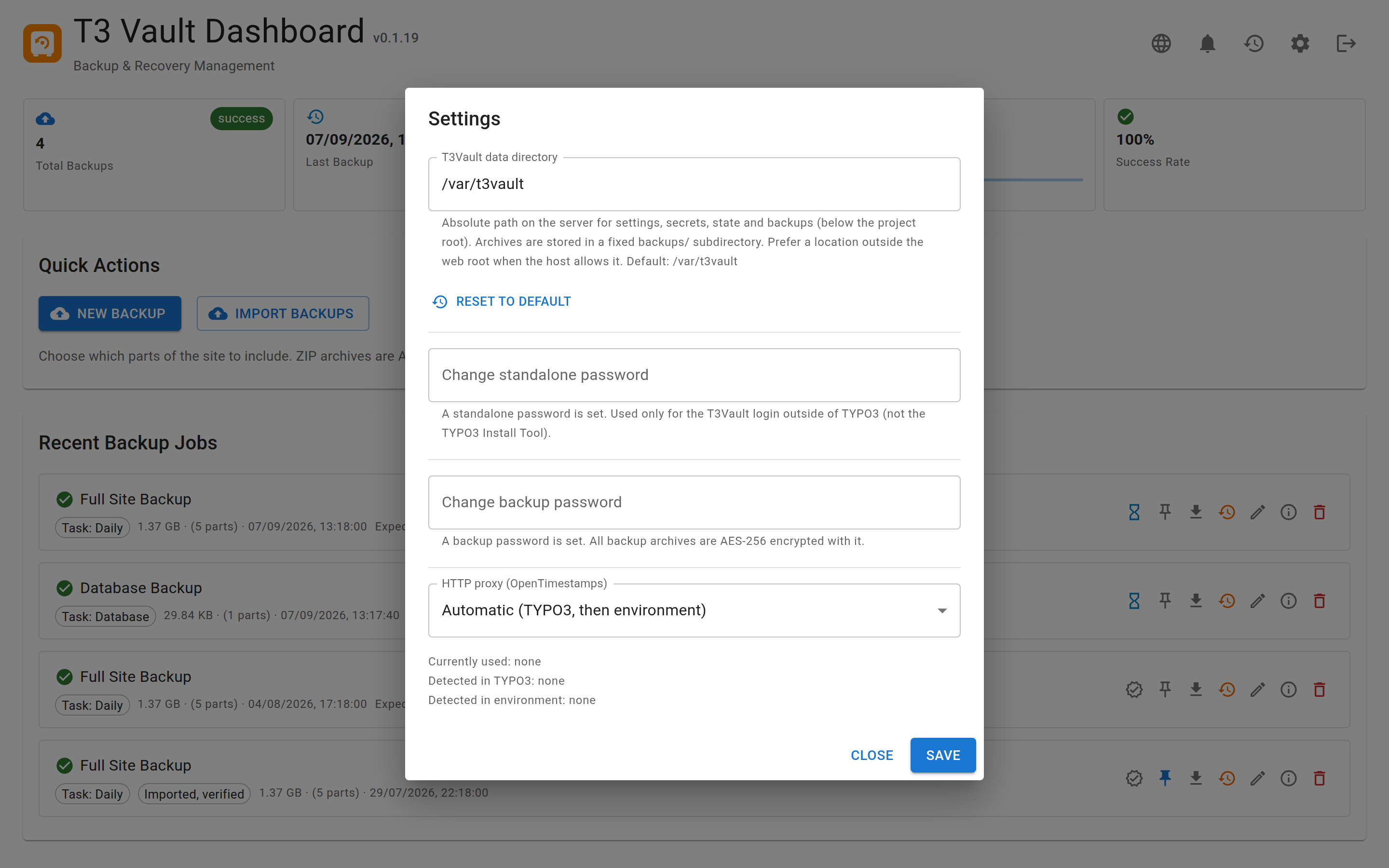
Runtime settings can be edited in the UI; secrets stay outside the web root.
AES-256 password for all backup ZIP archives (min. 8
chars); stored in backup.password.php, not in
the config file
backupBaseDir
Absolute override for the backup directory; empty =
default
allowedBackupRoots
Additional roots a backup directory may live in
(project root is always allowed)
uploadMaxFiles
Files accepted per import request (default 200)
uploadMaxFileBytes
Maximum size of a single imported file (default 20 GiB)
uploadMaxTotalBytes
Maximum total size of one import (default 40 GiB)
httpProxyMode
Proxy mode for OpenTimestamps calendar traffic
httpProxy
Custom proxy URL when httpProxyMode is custom
canonicalHost
Host (optionally host:port) used for self-generated
URLs; empty = validated request host
trustedHostsPattern
Anchored regex the request Host must match to be
trusted (mirrors the TYPO3 setting of the same name)
trustedProxies
List of reverse proxy IPs whose X-Forwarded-Proto
is believed; empty = ignore forwarded headers
allowedOrigins
Explicit cross-origin origins; empty = same-origin only
(no wildcard is accepted)
Scheduled backup tasks are not stored in config.local.php. They live in
tasks.json next to the config (same data directory, mode 0600). See
Scheduled backup tasks.
Reverse proxies
X-Forwarded-Proto is freely settable by any client, so it is only honoured
when REMOTE_ADDR matches trustedProxies (or the
T3VAULT_TRUSTED_PROXIES environment variable, comma separated). Without this
a client could claim an HTTPS connection and suppress the plaintext-transport
warnings. The standalone restore installer reads the environment variable only,
because it runs without a configuration file.
Backup directory
Default (relative to the TYPO3 project root, parent of public/):
var/t3vault/backups
Copied!
This keeps archives outside the web root. Override via backupBaseDir in
config.local.php or the Settings UI. Even AES-encrypted archives must
not live under public/: ZIP metadata (file names, sizes, structure)
is readable without the password.
The Settings API therefore refuses a target that
resolves into the web root (symlinks and .. are resolved first),
is a system location (/etc, /root, /usr, a bare home
directory, …), or
lies outside the allowed roots.
Allowed roots are the project root plus everything declared in
allowedBackupRoots (config.local.php) or in the
T3VAULT_ALLOWED_BACKUP_ROOTS environment variable (comma separated). Use
this for external volumes:
'allowedBackupRoots' => ['/srv/backups'],
Copied!
Declaring roots outside the API is deliberate — an authenticated session cannot
widen its own target range. A directory that is already configured stays usable
even if it is outside those roots, so existing installations keep working.
HTTP proxy (OpenTimestamps)
Calendar submissions and proof upgrades need outbound HTTPS. Modes:
Mode
Behaviour
auto
Prefer TYPO3 HTTP options, then environment variables
typo3
Use TYPO3 HTTP / proxy settings only
env
Use HTTP_PROXY / HTTPS_PROXY / NO_PROXY
custom
Use httpProxy from config.local.php
none
Disable proxy
A custom proxy is accepted as http(s)://[user:pass@]host[:port] or
host:port; paths, whitespace and other schemes are rejected. Private and
loopback addresses are allowed (corporate and DDEV proxies live there), but
link-local ranges are not — 169.254.169.254 is a cloud metadata endpoint,
never a proxy. Host names are additionally resolved once and rejected if they
point into those ranges.
Self-invocation base URL
Backup batches continue server-side via HTTP self-invocation. Behind a reverse
proxy you may set Config::BACKUP_BASE_URL in the packaged API config to
the public base URL of the API (example:
https://example.com/t3vault/Api). Leave empty for auto-detection from the
request.
T3Vault is operated primarily through the embedded UI (backend module or
standalone login). The sections below describe access, creating backups, and
restoring them.
Standalone access
The standalone app at /t3vault/ can be opened without TYPO3. This is
intended for disaster recovery when the CMS is broken.
Enable marker
Standalone password login is locked until a marker file exists (same idea as
TYPO3's ENABLE_INSTALL_TOOL). Like TYPO3, the marker lives outside
the web root:
var/t3vault/ENABLE_T3VAULT
Copied!
Rules:
File missing → login locked
File contains KEEP_FILE → permanently enabled
Otherwise → enabled for one hour after the file's modification time; the
window is extended on every authenticated request (sliding window)
Ten failed login attempts consume the marker (logged in
var/t3vault/state/auth.log)
After a successful standalone login the marker is removed (unless it contains
KEEP_FILE).
Warning
KEEP_FILE keeps the password login endpoint permanently reachable from the
internet. Use it for local development only — never on a production or
staging system. Without it, the marker is consumed on login and the exposure
window stays minimal.
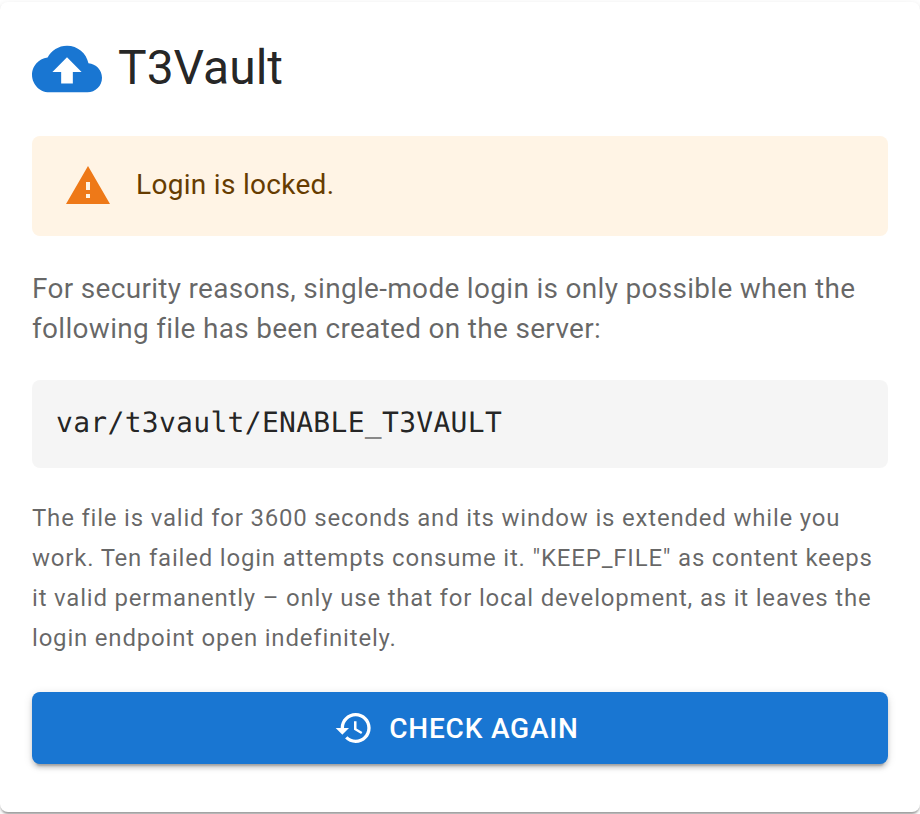
Standalone login stays locked until the enable marker exists.
Note
A marker in the old location public/t3vault/ENABLE_T3VAULT is
deliberately ignored: the web server user can write there, so any file-write
flaw in the web context could open the login window. The lock screen points
this out when it finds such a leftover file.
Tip
Create the file via SSH or SFTP, then open /t3vault/ in the browser
and log in with the standalone password set in the backend module.
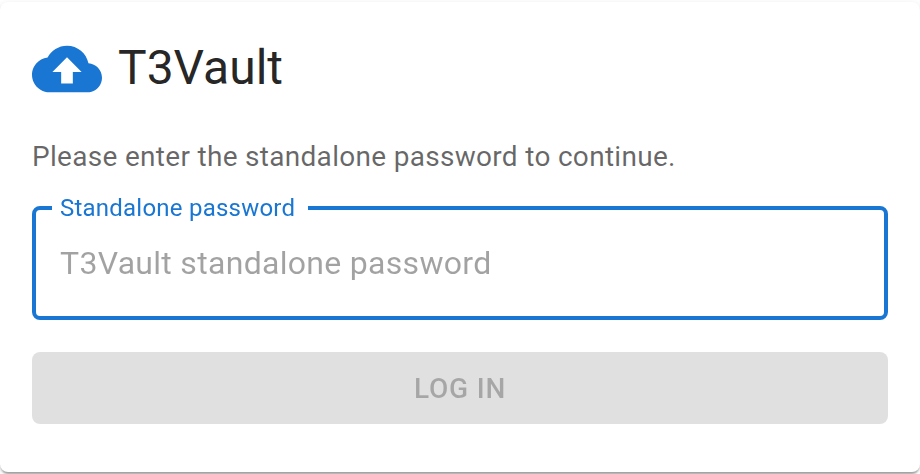
Password login used for disaster recovery outside the TYPO3 backend.
Backend SSO
When you open the module while logged in as a TYPO3 administrator, T3Vault
issues a short-lived one-time claim ticket (?sso=… on the iframe URL). The
embedded app redeems it via /auth/backend-claim and receives a backend
session — without ENABLE_T3VAULT or the standalone password. The ticket is
opaque, single-use and TTL-bound (not the former HMAC bt in the URL).
Backups
Prerequisites: a backup encryption password is set in Settings.
Important
ZIP AES-256 encrypts file contents, not archive metadata. Entry names,
sizes and the directory tree remain readable without the password. Keep
backup directories outside the web root (default
var/t3vault/backups). Never publish .t3vault.tar or ZIP
parts under public/.
config.local.php (standalone password, signing secret, backup password)
is not included. TYPO3 settings.php /
LocalConfiguration.php are stored with DB credentials and
encryptionKey removed — reconfigure them on restore.
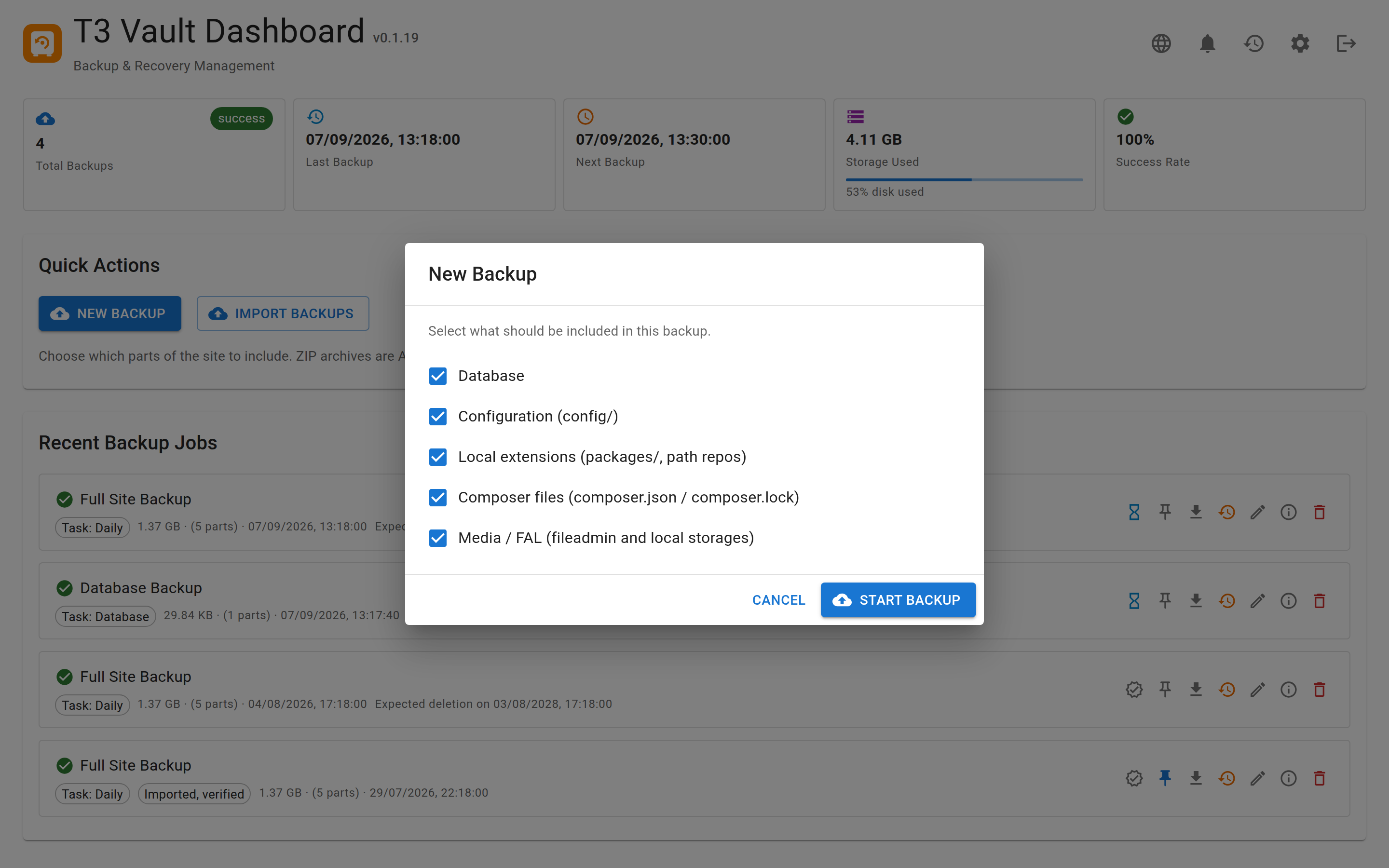
Manual backups from New Backup open a dialog to include or exclude
components (database, configuration, packages, Composer files, FAL/media,
uploads). The job label reflects the selection (e.g. database-only is shown as
a database backup, not a full site backup). Only a complete set (database +
configuration + Composer / typo3conf) enables a full site restore; the
restore installer warns and skips inapplicable steps for partial packages.
Scheduled tasks of type full still back up all components.
Manual backups let you include or exclude components before the job starts.
Backup types
full
Default. Everything needed to reinstall elsewhere (or a selected subset
when started from the New Backup dialog).
Composer layout (config/ + public/):
database.zip (AES-256; entry database.sql.gz)
config/ (settings, additional, sites)
packages/ and other local Composer path repositories (e.g. extensions/ from composer.json)
composer.json / composer.lock
public/fileadmin/ and other local FAL storages (without _processed_/ / _temp_/)
Core (typo3/, typo3_src/) and typo3temp/ are not
included
fileadmin
Media only (ZIP parts of fileadmin / FAL; without _processed_/ / _temp_/).
database
Encrypted database dump only (database.zip + MANIFEST.json).
Useful for frequent scheduled tasks when a full site backup is not required
every night.
Each completed backup also contains MANIFEST.json with layout-specific
restore hints and environment metadata (PHP / DB / TYPO3 versions).
Scheduled backup tasks
Backup tasks define what to back up, when, and how long to keep
archives. Configure them in the UI (Backup tasks) or via the API
(GET/POST/tasks). Definitions are stored in
tasks.json inside the T3Vault data directory (0600).
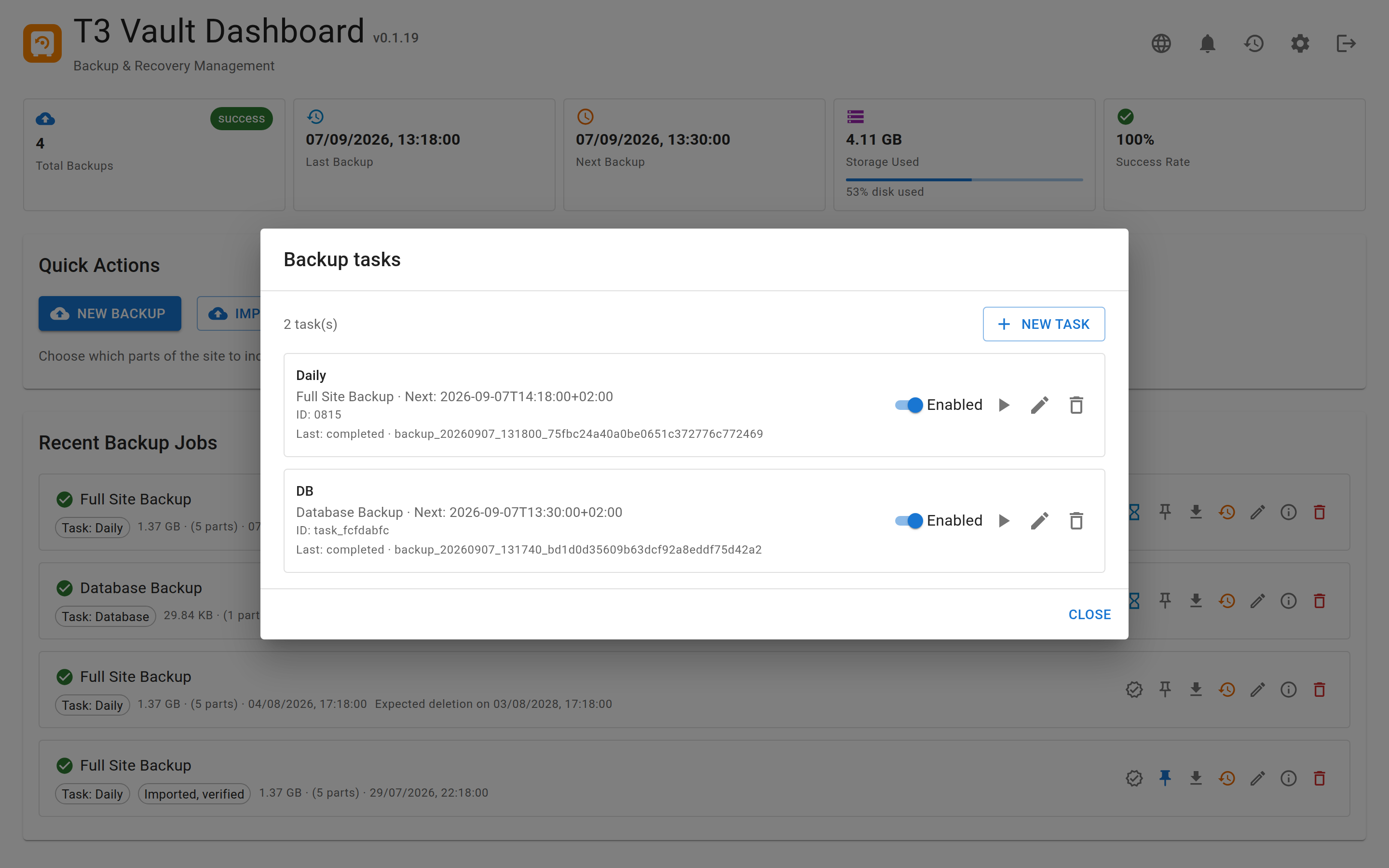
Scheduled tasks define what to back up, when to run, and how long to keep archives.
Each task has:
type — database, fileadmin or full
schedule — hourly (minute of hour) / daily / weekly /
monthly (with at time) or a five-field cron expression
retention — one or more tiers { every: { value, unit }, keep } with
unit in hour|day|week|month|year
Retention uses independent historical slots per tier, measured from the
newest non-pinned backup of that task:
The finest tier (smallest every) covers ages [0, keep·E) in
keep slots of length E (includes the newest backup).
Coarser tiers start one full period back: slots
[E, 2·E) … [keep·E, (keep+1)·E). So “1× month / keep 1” retains a
backup about 30–60 days old, and “1× year / keep 1” about 365–730 days old
(fixed durations: month = 30 days, year = 365 days).
Each slot keeps the newest backup in that age interval; the union of all tiers
survives. Manual backups (no taskId) and pinned backups are never deleted
by retention.
Run due tasks from cron (synchronous, no HTTP self-invocation loop):
php t3vault/cli/t3vault-run.php due
php t3vault/cli/t3vault-run.php task <id>
php t3vault/cli/t3vault-run.php retention
php t3vault/cli/t3vault-run.php list
Copied!
Or via the TYPO3 console (recommended on Composer installs):
vendor/bin/typo3 t3vault:run due
vendor/bin/typo3 t3vault:run task <id>
vendor/bin/typo3 t3vault:run retention
vendor/bin/typo3 t3vault:run list
Copied!
TYPO3 Scheduler (ext:scheduler suggested):
Dedicated task “T3Vault: run due backup tasks”, or
Task type Execute console commands → command t3vault:run
(optional argument due, which is the default).
On the local DDEV project, scheduler:run is invoked every minute via
Supercronic (.ddev/web-build/typo3.cron). After creating a Scheduler task
in the backend, due T3Vault backups run automatically while ddev start is
active — no host crontab needed.
Manual “Run now” in the UI starts the job via the normal web process chain.
Backups created by a task carry taskId / taskName / mode in the
plan and manifest so retention only touches that task’s archives.
What is never packed
Symlinks leaving the backup scope. Because archiving follows symlinks, a
link inside fileadmin/ that points to ~/.ssh/id_rsa,
/etc/passwd or an .env outside the project would otherwise end
up in the archive. Such links are skipped and listed as skippedSymlinks in
the backup plan. Links that resolve back into the project are kept, so
Composer path repositories in vendor/, public/_assets/ and the
classic typo3/ links keep working.
System directories configured as FAL storage. A sys_file_storage row
with a base path such as /etc, /root, /usr or a bare
home directory is ignored. Regular storages outside the project root (for
example /srv/shared-media) are still backed up as external parts.
How processing works
Start a backup from the UI (type full, fileadmin or database),
or let a scheduled task / the CLI runner start it.
A JSON plan is written under the backup directory.
Web path: the server continues batches via self-invocation (CURL), so
closing the browser does not stop the job — useful on shared hosting
without cron.
CLI path (t3vault/cli/t3vault-run.php): one process runs the
plan to completion without HTTP continuation.
When finished, integrity sealing runs (hashes + OpenTimestamps). Job status
completed is independent of whether the stamp already reached Bitcoin
blockchain confirmation (see Integrity & trust).
backup-plan.json may also hold optional user fields name (label,
max. 120 characters) and note (free text, max. 2000 characters). Edit them
from the backup list (pencil icon). They are not part of the integrity seal, so
changing them does not invalidate the archive signature. An empty value removes
the field. Without a custom name, the UI shows the backup type label.
Error messages and references
API responses keep infrastructure detail out: instead of an exception message
with absolute paths, a failing request answers with a generic message and a
reference such as ref: 9f2ac41b77e0. The full detail — exception class,
message, file and line — is written to
var/t3vault/state/error.log
Copied!
Search that file for the reference to see what actually happened. The file is
created with 0600 in the private directory, outside the web root.
Download
From the backup list you can download:
.t3vault.tar — archive of the backup directory
Installer helpers for restore on a target server
DDEV project script (t3vault-ddev.sh) for local Composer-based
reproduction
A browser download cannot send the Authorization header, so each download is
authorised by a separate short-lived token in the URL (60 s; 120 s for the
installer). The token is bound to one purpose, to one backup, and — on first use
— to the requesting client. Repeat requests from the same client still work
(redirects, resumed transfers), while the same URL from anywhere else is refused.
The generated DDEV script therefore carries its own archive token (one hour),
because it runs later and from another client than the browser.
Importing backups
An upload (.t3vault.tar or loose artifacts) is content from outside, so
it is checked before it appears in the backup list.
Request limits. At most uploadMaxFiles files, uploadMaxFileBytes per
file and uploadMaxTotalBytes in total (see Settings overview). The
import is also refused when the target volume has less than roughly twice the
payload free, because a TAR import stages the archive and then writes the
extracted artifacts. Only one import runs at a time.
Structural validation. Every ZIP part is inspected with the same rules the
restore installer applies: absolute entry paths, .. segments, backslashes and
symlink entries are rejected, as is an implausible compression ratio. A rejected
upload is deleted immediately and answered with a log reference — no half-imported
directory stays behind.
Trust marking. A backup created here is sealed: integrity.json lists
the artifact hashes and integrity.json.hmac binds that list to this
installation's signing secret. An import is therefore rated:
Rating
Meaning
verified
Hashes match integrity.jsonand the HMAC verifies
with the local secret — sealed here, unchanged
unverified
Anything else: no integrity.json, altered artifacts, a
seal from another installation, or no local signing secret
A foreign archive cannot verify here — that is expected, not an attack, and it
is reported as such. The list and the details dialog show the rating with its
reason, and the generated RESTORE.md of an unverified import carries a
warning: restoring an archive of unknown origin introduces its code and data into
the target system.
integrity-meta.json from an upload is discarded. It records the result of
a verification run on the source system and must not be shown as this
installation's verification state.
Restore
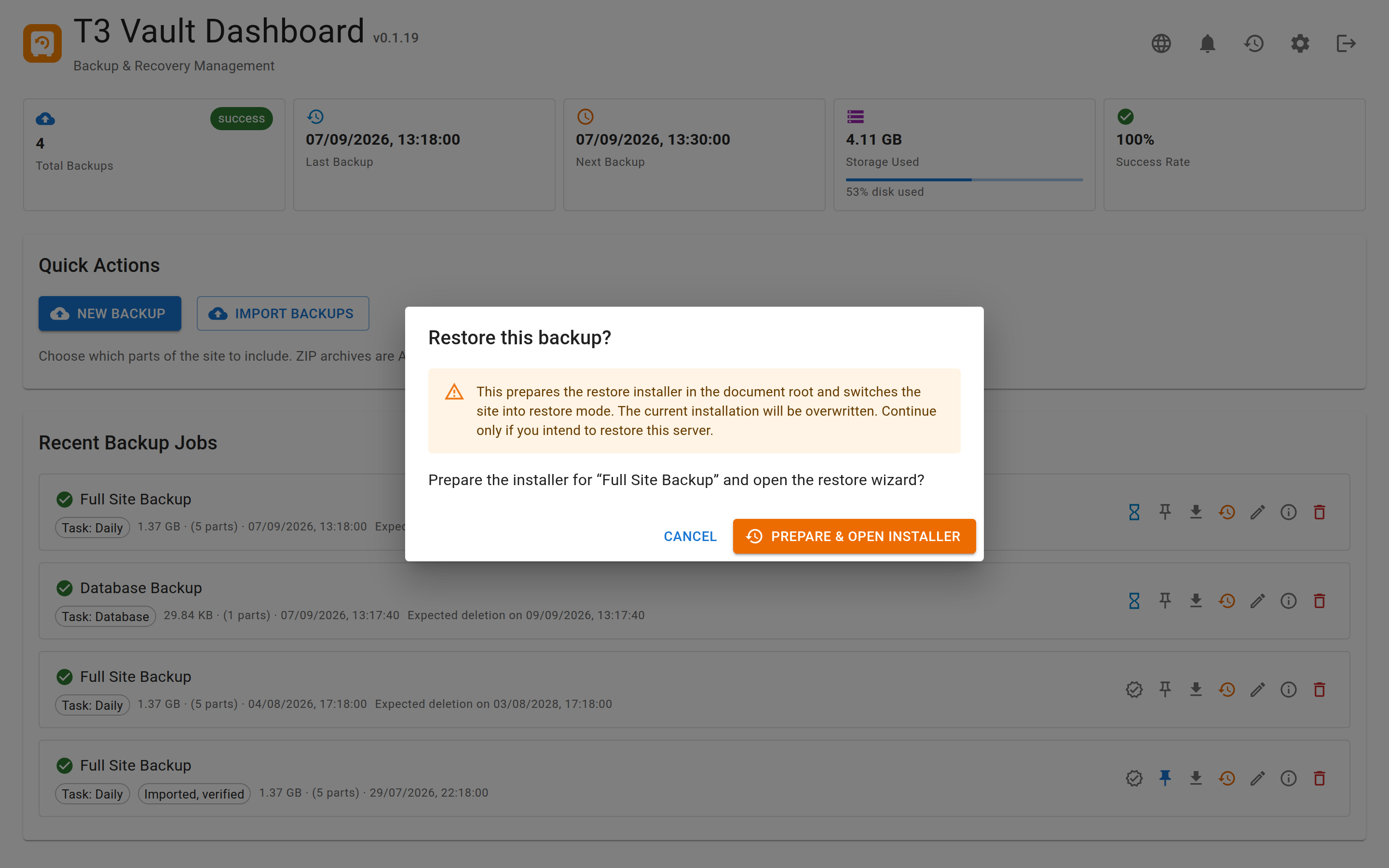
Restoring from the UI prepares the installer in the document root and
switches the site into restore mode.
Target server (installer)
Copy the downloaded .t3vault.tar (and installer files if provided) to
the target machine.
Run the installer / follow the UI import flow in a fresh T3Vault standalone
app on the target.
Enter the same backup encryption password used when the backup was
created.
Choose the target layout if it differs from the backup source
(MANIFEST.json records Composer vs. classic):
Restore a Composer backup as classic/legacy (document root) when
the target host has no Composer-based deploy.
Restore a classic backup as Composer when you want
config/ + public/ (or a DDEV project).
Complete Composer install / TYPO3 setup as required by the chosen target
layout.
Transport security
The installer refuses to run over plain HTTP, because the restore transfers the
backup password and the database credentials. Accepted as secure: real HTTPS,
HTTPS terminated by a proxy listed in T3VAULT_TRUSTED_PROXIES, or a client on
the loopback interface — for example through an SSH tunnel:
ssh -L 8443:localhost:80 user@target
# then open http://127.0.0.1:8443/installer.php
Copied!
Only if the network is demonstrably trusted, the requirement can be waived by
creating the file .t3vault-allow-insecure next to the installer (or by
setting T3VAULT_ALLOW_INSECURE=1). The environment check then shows a
warning for the connection instead of a green check.
The step Write configuration additionally accepts an optional
encryptionKey. Leave it empty to have a fresh key generated; supply the key
of the original installation if hashes stored in the database (e.g. install tool
secrets) have to stay valid.
Site base URL
If you enter a Site base URL, the installer updates a single primary site
under config/sites/*/config.yaml (or classic typo3conf/sites/) as follows:
the primary site is the one with rootPageId: 1, otherwise the lowest
rootPageId;
only that site’s top-level base is set to the new URL;
existing baseVariants (production, staging, old DDEV hosts, …) stay as they
are;
for *.ddev.site hosts, at most one Development/DDEV variant is added or
refreshed;
absolute language bases such as https://en.example.com/ become a path on the
new host (https://recover.ddev.site/en/).
Leave the field empty to skip site-config changes entirely.
If the target host is already defined in any site’s top-level base or
baseVariants, the installer leaves all site URLs unchanged (restore onto a
known domain).
Multi-site: other sites keep their original bases and are not reachable on
the recover host until you add hostnames (for example DDEV
additional_hostnames) or map them manually.
DDEV (local)
Use Download → DDEV project or the scripts inside the TAR
(t3vault-ddev.sh, t3vault-ddev.php, DDEV.md).
Typical flow:
Run the script; it loads the archive (or uses a local .t3vault.tar).
Enter the backup password.
The script unpacks AES ZIPs, converts the layout toward Composer if the
source was classic, writes .ddev/config.yaml from environment
metadata, starts DDEV, imports the database, and runs composer install.
(The web installer also supports the opposite direction: Composer →
classic/legacy.)
You can also verify from the T3Vault UI (Integrity / verify action).
Always keep integrity.json and integrity.json.ots together in
the backup directory.
Verification states
State
Meaning
ok
Hashes match and OTS proof is attested within the time window
pending
Hashes OK; calendar proof not yet upgraded to Bitcoin
missing
Integrity files incomplete
stamp_failed
Stamping failed earlier; hashes may still be OK
tampered
Hash or OTS digest mismatch / attestation skew
checking
Transient UI state while a check runs
Verify with T3Vault CLI
T3Vault ships an integrity verifier that re-hashes artefacts and checks the
OpenTimestamps receipt (via ElephStamp).
This is the recommended check before restore: it needs no Bitcoin node and
answers whether the backup files still match integrity.json. For an
optional independent check of the .ots file with the official client, see
Manual verification with the OpenTimestamps client.
The CLI also accepts --upgrade (ask calendars to complete a pending
proof). That is unrelated to detecting file changes and is not needed for
the usual pre-restore check.
Manual verification with the OpenTimestamps client
You can check integrity.json.otsindependently of T3Vault using the
official OpenTimestamps command-line client. Combined with a hash check of the
backup artefacts, this answers: has anything in this backup been changed
since it was sealed?
T3Vault stamps onlyintegrity.json (not the ZIP files themselves).
The ZIP digests are listed insideintegrity.json. Therefore:
Confirm artefact hashes still match integrity.json (re-hash yourself
or use Verify with T3Vault CLI).
Confirm integrity.json.ots is a valid OpenTimestamps proof for that
exact integrity.json file.
Always keep integrity.json and integrity.json.ots side by side
in the same directory (the ots client assumes the target file name by
stripping .ots).
Check that files were not modified
Independently of ots, confirm that backup artefacts match the seal:
cd /path/to/backup_YYYYMMDD_HHMMSS_<id>
sha256sum integrity.json
# Compare with digests listed under "files" in integrity.json, e.g.:
sha256sum database.zip MANIFEST.json *_part_*.zip
Copied!
If any artefact hash differs from integrity.json, the archive was
modified after sealing — do not restore it, regardless of OTS status.
ots verify checks that integrity.json still matches the proof and
(when Bitcoin Core RPC is available) that the attestation is anchored in a
Bitcoin block:
cd /path/to/backup_YYYYMMDD_HHMMSS_<id>
ots verify integrity.json.ots
Copied!
Expected success:
Assuming target filename is 'integrity.json'
Success! Bitcoin block <height> attests existence as of <date>
The official site opentimestamps.org can
verify an .ots proof without Bitcoin Core or the ots CLI. Hashing runs
in your browser (the stamped file content is not uploaded for hashing beyond
what the page needs locally).
Steps:
Open the backup directory and keep both files ready:
integrity.json and integrity.json.ots.
Drop (or select) integrity.json.ots as the proof (.ots).
Drop (or select) integrity.json as the stamped file when the
page asks for it.
A successful chain confirmation shows the OpenTimestamps UI label
Bitcoin Attestation (block / time). Pending calendars may still show
Pending/Other Attestation until the proof is confirmed on the Bitcoin
blockchain.
What to watch out for
Onlyintegrity.json was stamped — never drop a ZIP,
MANIFEST.json, or the whole .t3vault.tar as the stamped file.
Those will not match the proof.
Use the exactintegrity.json from the same backup as the
.ots file. Any edit (whitespace, re-save) changes the digest and
verification fails.
The website checks the seal (integrity.json ↔ .ots). It does
not re-hash *_part_*.zip / database.zip. Always run
Verify with T3Vault CLI (or the manual hash check above) as well if you need to
know the archive contents were not modified.
Right after backup creation the proof may still be pending. That is not
the same as “tampered”; wait for calendar → Bitcoin confirmation and try
again, or rely on the hash check in the meantime.
Do not use the site’s stamp action on backup files — T3Vault already
created the proof. You only need verify.
Bitcoin node for ots verify
Full CLI ots verify needs Bitcoin Core RPC (local node or remote URL).
Without it you typically see:
Could not connect to Bitcoin node: Cookie file unusable
([Errno 2] No such file or directory: '/home/…/.bitcoin/.cookie')
and rpcpassword not specified in the configuration file: '…/bitcoin.conf'
Copied!
That error means the Bitcoin-blockchain time stamp was not checked — it does
not mean the backup files were modified. For the “unchanged files”
question, rely on the hash check / Verify with T3Vault CLI. For the seal without a
local node, use Verify in the browser (opentimestamps.org).
Local Bitcoin Core (default cookie auth under ~/.bitcoin/):
# bitcoind must be running and synced far enough for the attested height
ots verify integrity.json.ots
This proves content integrity (hashes). The OTS step additionally proves
the seal existed at a point in Bitcoin-blockchain time, without trusting the
original TYPO3 server.
Troubleshooting
Symptom
Meaning / next step
Hash mismatch vs. integrity.json
Archive altered —
do not restore
Web verifier: stamped file does not match
Wrong file dropped —
use
integrity.json
from the same backup