Admiral Cloud Connector 

Extension key

admiral_cloud_connector

Package name

cpsit/admiral-cloud-connector

Version

main

Keywords

AdmiralCloud, CDN

Language

en

Author

coding. powerful. systems. CPS GmbH

License

This document is published under the Open Content License available from http://www.opencontent.org/opl.shtml

The content of this document is related to TYPO3, a GNU/GPL CMS/Framework available from www.typo3.org.

Contents 

What does it do? 

This extension is a connector to the AdmiralCloud CDN interface.

This extension gives the user the ability to both upload files from the TYPO3 backend to AdmiralCloud as well as select files previously uploaded to AdmiralCloud in TYPO3 content elements.

FAQ 

What is a CDN? 

A CDN (content delivery network) is a group of geographically distributed and interconnected servers around the globe. A CDN automatically choose the network location closest to the user, thus files are delivered much faster.

Are my TYPO3 pages cached in AdmiralCloud? 

TYPO3 pages will not be cached in AdmiralCloud. AdmiralCloud only works for files referenced within a TYPO3 installation.

Does this extension work with the free version of AdmiralCloud? 

No. The free version does not have support the AdmiralCloud API. Support of the free version is in planning for future releases but AdmiralCloud has to make some changes on their side first.

When I try to use AdmiralCloud all I can see is the loading screen. What should I do? 

Close the connection manually by clicking on "Close connection to AdmiralCloud". This will re-establish the connection next time you use it:

Installation 

  1. Install the extension

    Install the extension with composer:

    composer require cpsit/admiral-cloud-connector
    Copied!

    Afterwards run the following SQL statement:

    INSERT INTO `sys_file_storage` (`pid`, `cruser_id`, `deleted`, `description`, `name`, `driver`, `configuration`, `is_default`, `is_browsable`, `is_public`, `is_writable`, `is_online`, `auto_extract_metadata`, `processingfolder`) VALUES
    (0, 0, 0, 'Automatically created during the installation of EXT:admiral_cloud_connector', 'AdmiralCloud', 'AdmiralCloud', '', 0, 1, 1, 0, 1, 1, '1:/_processed_/');
    Copied!

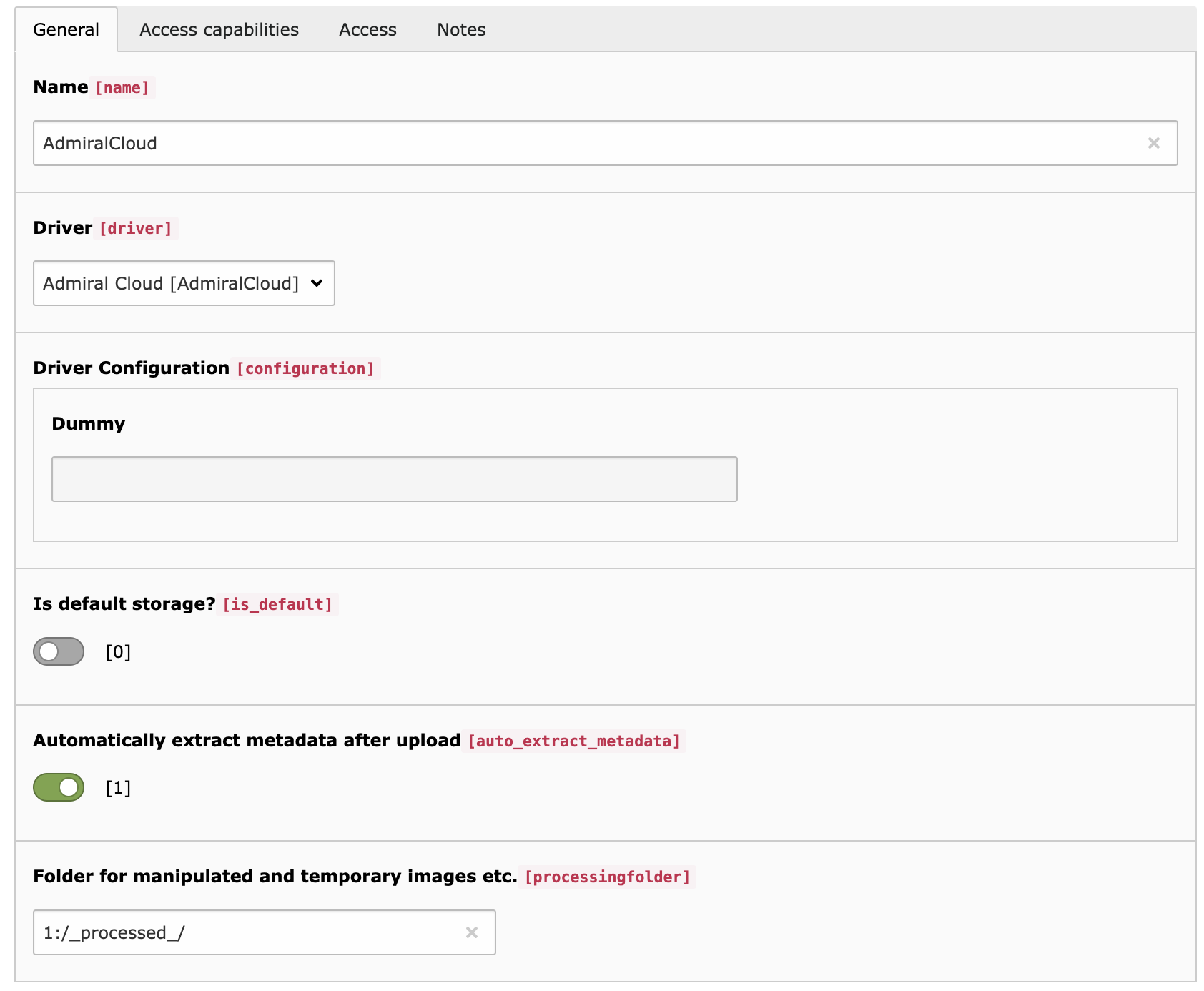
    Alternatively you can create the storage manually via list plugin on the root page. Choose AdmiralCloud from the Driver's list and set "Folder for manipulated and temporary images etc." to 1:/_processed_/.

  2. System configuration

    Once you have set up a contract with AdmiralCloud, you will receive your login credential by mail and SMS. Add the required configuration to config/system/settings.php or config/system/additional.php.

  3. Initial setup of user groups

    Send a list of your user groups to AdmiralCloud and set up AC SecurityGroups in the backend.

  4. Setting up a file mount

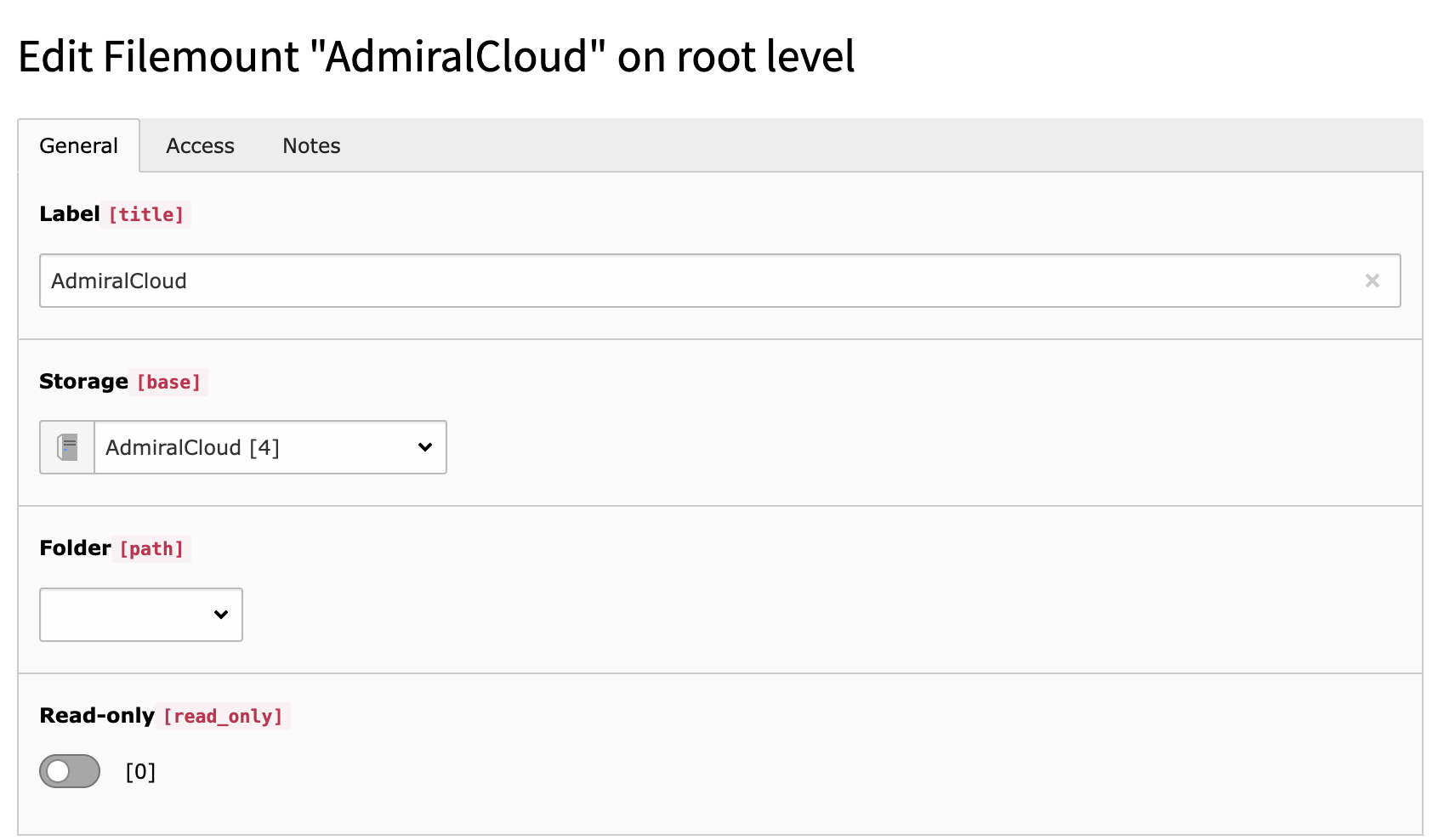
    You have to create fileMount "AdmiralCloud" for the storage.

  5. User configuration

    No configuration is needed for editors. Administrators need the Security Group for confirmation.

  6. LinkHandler Configuration

    A LinkHandler configuration is included automatically. No manual configuration steps are necessary.

    You can find the LinkHandler Configuration here: EXT:admiral_cloud_connector/Configuration/TSconfig/LinkHandler.tsconfig

Read more 

Setting up the settings for your system 

We suggest to put the code into a config/system/custom.php file.

First add the following lines to config/system/additional.php.

if (is_file(__DIR__ . '/custom.php')) {
    require_once __DIR__ . '/custom.php';
}
Copied!

Then create a file config/system/custom.php with following content:

<?php

putenv('ADMIRALCLOUD_ACCESS_SECRET=xxxxxxxx-xxxx-xxxx-xxxx-xxxxxxxxxxxx');
putenv('ADMIRALCLOUD_ACCESS_KEY=xxxxxxxxxxxxxxxxxxxxxx');
putenv('ADMIRALCLOUD_CLIENT_ID=xxxxxxxx-xxxx-xxxx-xxxx-xxxxxxxxxxxx');
putenv('ADMIRALCLOUD_DISABLE_FILEUPLOAD=0');
putenv('ADMIRALCLOUD_FLAG_CONFIG_ID=0');

putenv('ADMIRALCLOUD_DISABLE_FILEUPLOAD=1');
putenv('ADMIRALCLOUD_IS_PRODUCTION=1');
putenv('ADMIRALCLOUD_IMAGE_CONFIG_ID=238');
putenv('ADMIRALCLOUD_VIDEO_CONFIG_ID=239');
putenv('ADMIRALCLOUD_DOCUMENT_CONFIG_ID=240');
putenv('ADMIRALCLOUD_AUDIO_CONFIG_ID=241');
putenv('ADMIRALCLOUD_FLAG_CONFIG_ID=10');
putenv('ADMIRALCLOUD_IFRAMEURL=https://t3intpoc.admiralcloud.com/');

// Optional override of environment variables
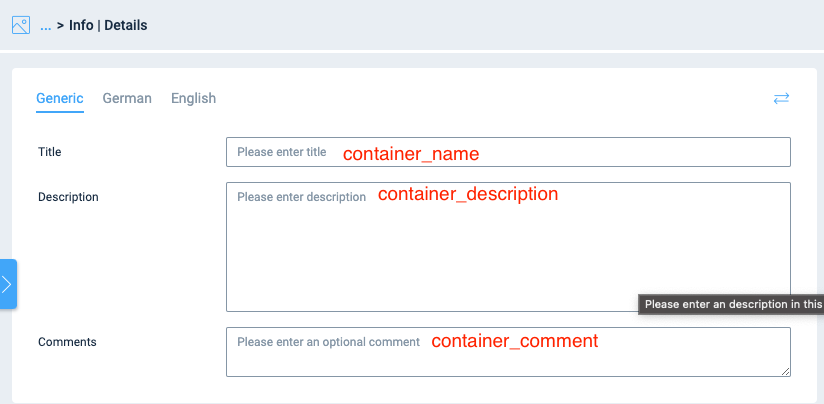
putenv('ADMIRALCLOUD_METADATA_FIELD_OVERRIDE_title=container_name');
putenv('ADMIRALCLOUD_METADATA_FIELD_OVERRIDE_alternative=meta_alttag');
putenv('ADMIRALCLOUD_METADATA_FIELD_OVERRIDE_description=container_description');
putenv('ADMIRALCLOUD_METADATA_FIELD_OVERRIDE_copyright=meta_iptc_copyrightNotice');

$GLOBALS['TYPO3_CONF_VARS']['SYS']['caching']['cacheConfigurations']['admiral_cloud_connector'] = [
    'frontend' => \TYPO3\CMS\Core\Cache\Frontend\PhpFrontend::class,
    'backend' => \TYPO3\CMS\Core\Cache\Backend\FileBackend::class,
    'groups' => [
        'all',
        'system',
    ],
    'options' => [
        'defaultLifetime' => 0,
    ],
];
Copied!

You have ro replace the credentials for ADMIRALCLOUD_ACCESS_SECRET, ADMIRALCLOUD_ACCESS_KEY and ADMIRALCLOUD_CLIENT_ID with your own. These will be send to you by AdmiralCloud via Mails and SMS.

ADMIRALCLOUD_METADATA_FIELD_OVERRIDE_title, ADMIRALCLOUD_METADATA_FIELD_OVERRIDE_alternative, ADMIRALCLOUD_METADATA_FIELD_OVERRIDE_description, and ADMIRALCLOUD_METADATA_FIELD_OVERRIDE_copyright are optional settings. The part after the last underscore corresponds with the respective field name in TYPO3. After the equal sign fill in the name of the name of the Admiral Cloud field from which you like to pull the data.

Admiralcloud Security Groups 

For the initial setup you have to send a list of usergroups you need for AdmiralCloud. AdmiralCloud will create these groups (referred to as AC Security Group) and send back a list of ID's.

These ID's of the AC Security Groups have to be matched with TYPO3 usergroups.

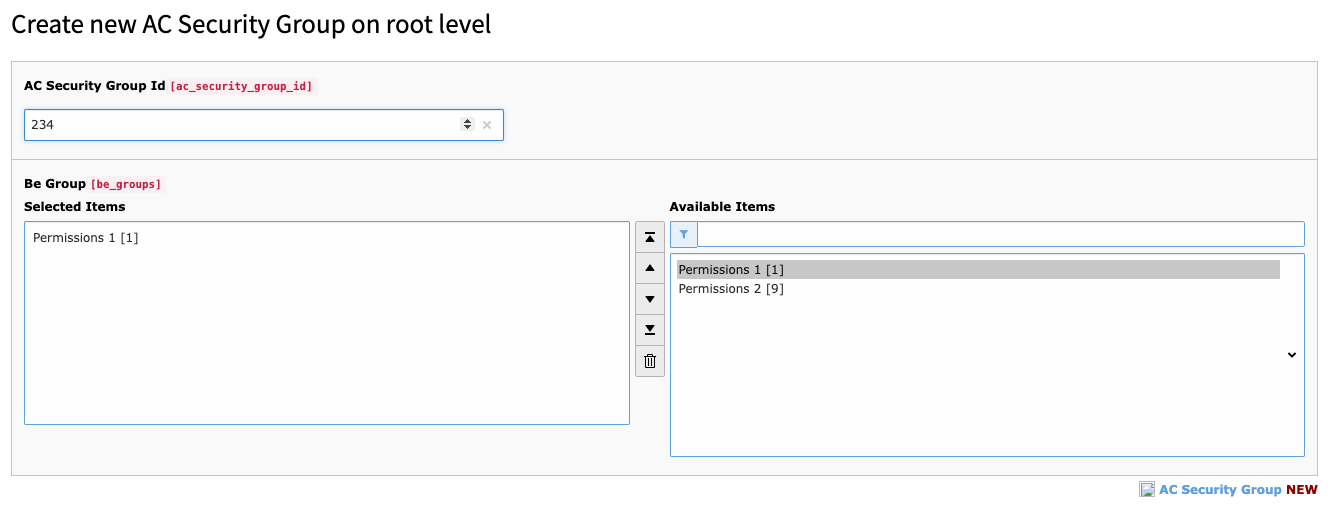
Go to page id 0 which is the same backend page where usergroups are created.

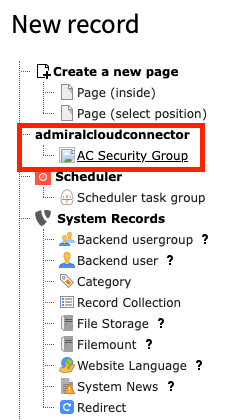
Create a new record and choose "AC Security Group"

Now enter the ID of the AC Security Group into the field "AC Security Group Id" and choose the matching usergroup.

FileMount 

A Filemount with AdmiralCloud has to be created in order to gain users access to AdmiralCloud.

Create a new filemount and choose the AdmiralCloud Filestorage.

If the Filestorage does not exist create the Filestorage manually. It is important to select "AdmiralCloud" as driver.

If the Filestorage is setup properly you can use, you can create a Filemount.

When Filemount is setup properly, you have to assign the Filemount in the "Mounts & Workspaces" tab in the Usergroup or User properties:

The user configuration 

Backend users 

The authorization between AdmiralCloud and TYPO3 is done by the e-mail address. The field e-mail address is obligatory for every user.

If the additional.php, AC Security Groups, AdmiralCloud filemount and e-mail address are properly setup, each time a newly created editor connects to AdmiralCloud from the TYPO3 backend, his or hers access rights are automatically matched to the AC Security Groups in AdmiralCloud.

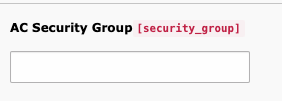
AC Security Group 

In the user settings there is a new field "AC Security Group".

This field overrides the AC Security Group permissions inherited by the usergroup. If a user shall have access to multiple AC Security Groups but shall not be a member of usergroup that inherits these permissions, then you can enter the ID's of the AC Security Groups to which the user shall have access here.

TYPO3 Administrator users are usually not a member of any group. The "AC Security Group" field was introduced so that no empty user group has to be created: You can add any random number. This field is obligatory for Administrators or else they will not have access to AdmiralCloud.

AC Cropping 

Allow cropping tool for AdmiralCloud images: check the usergroup permission for "Image crop for AdmiralCloud (tx_admiralcloudconnector_crop)" in "File Reference" on tab "Access Lists" in section "Allowed excludefields".