
Installation
Install the extension with Composer
-
In your command line interface, change to the root directory of your project and enter the following command:
composer req erhaweb/feed-displayCopied! -
Apply database changes
This extension uses the caching framework to cache feed data and plugin configuration. For this, the tables
cache_andfeeddisplay cache_must be created.feeddisplay_ tags These tables can be created under
Admin Tools→Maintenance→Analyze Database Structure→Apply selected changes.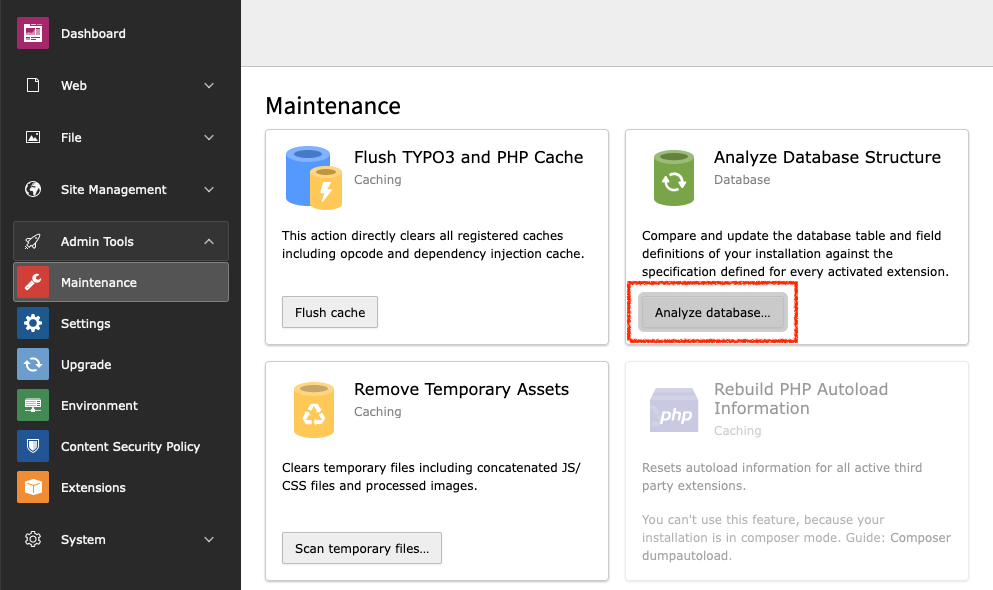
Maintenance: Analyze Database Structure
Tip
If you have installed the TYPO3 Console Extension by Helmut Hummel, you can also create the missing tables with the following command:
typo3 database:updateschema "*.add,*.change"Copied!
Install the extension with Composer in a DDEV environment
-
In your command line interface, change to the root directory of your project and enter the following command:
ddev composer req erhaweb/feed-displayCopied! -
Apply database changes
This extension uses the caching framework to cache feed data and plugin configuration. For this, the tables
cache_andfeeddisplay cache_must be created.feeddisplay_ tags These tables can be created under
Admin Tools→Maintenance→Analyze Database Structure→Apply selected changes.
Maintenance: Analyze Database Structure
Tip
If you have installed the TYPO3 Console Extension by Helmut Hummel, you can also create the missing tables with the following command:
ddev typo3 database:updateschema "*.add,*.change"Copied!
Install the extension in the classic way
- Open the TYPO3 backend.
- Go to the Extension Manager under
Admin Tools→Extensions. - Select
Get Extensionsin the module header. - Enter the extension key
feed_in the search field.display
In the result list click the Import & Install button under Actions
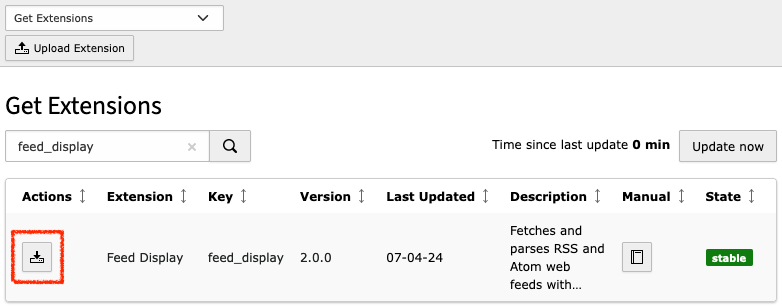
The "Get Extensions" dialog