fp-fileprotector 

Extension key

fp_fileprotector

Package name

fixpunkt/fp-fileprotector

Version

3.3

Language

en

Author

fixpunkt für digitales GmbH

License

This document is published under the Creative Commons BY 4.0 license.

Rendered

Wed, 15 Jul 2026 20:03:02 +0000


The extension fp-fileprotector allows you to restrict access to file storages in TYPO3 and define granular access rules for individual files and folders

Introduction 

What is fp-fileprotector and how does it work?

Configuration 

How to protect a file storage.

Usage 

How to define access rules for folders.

Access Types 

How the frontend and backend access types work.

For Developers 

How to extend fp-fileprotector with your own access types.

Troubleshooting 

Common issues and solutions.

Introduction 

The extension fp-fileprotector allows you to restrict access to file storages in TYPO3 and define granular access rules for individual files and folders.

Access can be restricted based on the following conditions:

  • Frontend status: Is a user logged in on the frontend?

    • Check for membership in specific user groups.
    • Check for specific individual users.
  • Backend status: Is a user logged in to the backend?

Usage 

The fp-fileprotector extension is managed from the File Protection backend module under Files.

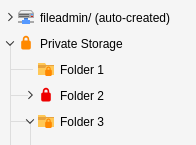
After configuring a storage to be protected, the folder tree displays the protection status of each folder within that storage.

Every folder within a protected storage can have access rules that control which users may access the files within that folder.

Folder tree of a protected file storage

Folder tree of a protected file storage. Lock icons on folders indicate their protection status.

Folder icons are color-coded based on their accessibility:

Green Lock
Everyone can access the folder.
Orange Lock
Access is restricted by an access rule.
Red Lock
No one can access the folder (e.g. when the storage denies access by default and no access rule has been created).

You can also see whether a protection rule is defined directly on a folder or inherited from a parent folder:

Folder icon is a lock symbol
A specific access rule is defined for this folder.
Folder icon has a small lock badge
The access rule was inherited from a parent folder.

Storage Configuration 

Setting the storage behaviour 

In the backend module File Protection you can edit the Storage Settings of the currently selected folder via the dropdown menu on the top right of the window. Select "Edit storage settings" to edit the configuration.

Use the dropdown on the top right to edit the storage configuration

Use the dropdown on the top right to edit the storage configuration

After opening the configuration you have the following options. After saving, the configuration is immediately applied to the storage and the respective .htaccess file is updated automatically.

Storage settings

Storage settings

Protected File Storage

Protected File Storage

Enables protection for this storage in general. Defined access rules are only applied when this option is enabled. Otherwise the storage remains publicly accessible.

Deny access if no protection rule exists

Deny access if no protection rule exists

Controls the default behaviour of the storage.

Disabled (whitelist mode)
The storage is accessible by default. Only folders with an explicit protection rule (and their children) are protected. Files in folders without a rule can always be accessed.
Enabled (blacklist mode)
The storage is inaccessible by default. Access must be explicitly granted via protection rule for every folder (which then also applies to the children of this folder). Files in folders without a rule cannot be viewed.

Updating / Repairing .htaccess 

In very rare cases it might be necessary to update the .htaccess file, if the file protection does not work. To do this you can just open the configuration of the respective storage and save it. The .htaccess will be updated automatically. Otherwise you can select "Update .htaccess" in the upper right dropdown in every folder of the storage.

Protection Configuration 

Status of Folders 

To view the protection status of a folder, select it in the page tree on the left.

You will see an overview of the folder where you can create a new access rule or edit an existing one. Existing rules can also be deleted here.

Current status of a single folder

Current status of a single folder. In this case users must be members of the frontend usergroups "Group A" or "Group D" OR might be logged into the Backend.

  • Click Create access protection to add a protection rule (only available if no rule exists yet)
  • Click Edit access protection to edit an existing protection rule
  • Click Delete access protection to delete an existing protection rule

Access rules are inherited by subfolders — unless those folders have their own access rules. Access rules of subfolders do not supplement the existing rules but replace them completely.

Creating or Editing a Protection Rule 

Settings to protect the folder

Settings to protect the folder

Select who is allowed to access the contents of the respective folder (including subfolders).

The available conditions are provided by the access types. See there for a detailed explanation of each condition and how it is evaluated.

Access Types 

An access type is a single, self-contained rule that can grant access to a protected folder. Every access type answers one simple question for a given protection record: "Should the current visitor be allowed in?"

When a folder is requested, fp-fileprotector asks every registered access type in turn. Access is granted as soon as one access type grants it — the access types are combined with an OR conjunction. If no access type grants access, the request is denied.

fp-fileprotector ships with two access types out of the box:

Frontend Login 

Grant access to logged-in frontend users, optionally limited to specific users or user groups.

Backend Login 

Grant access to backend users based on their own file storage permissions.

You are not limited to these two access types. See For Developers to learn how to add your own.

Frontend Login Access Type 

The frontend access type grants access based on the login status of a frontend user. It is implemented in \Fixpunkt\FpFileprotector\AccessType\FeLoginAccessType.

How it works 

The access type evaluates the protection record in the following order:

  1. If the Enable access for frontend users option is disabled for the folder, the frontend access type never grants access.
  2. If no frontend user is currently logged in, access is denied.
  3. If neither individual users nor user groups are configured on the protection rule, every logged-in frontend user is granted access.
  4. Otherwise, access is granted if the current frontend user is one of the selected users, or is a member of one of the selected user groups.

Configuration 

The relevant fields are configured directly on the access rule in the File Protection backend module:

Enable access for frontend users

Enable access for frontend users

Master switch for this access type. If disabled, none of the fields below have any effect and the frontend access type will not grant access.

Frontend Users

Frontend Users

Optional list of individual frontend users who may access the folder.

Frontend User Groups

Frontend User Groups

Optional list of frontend user groups whose members may access the folder.

If both the users and the user groups list are left empty, any logged-in frontend user is granted access.

Backend Login Access Type 

The backend access type grants access based on the login status and the file permissions of a backend user. It is implemented in \Fixpunkt\FpFileprotector\AccessType\BeLoginAccessType.

Unlike the frontend access type, the backend access type does not rely on a list of users or groups stored on the protection rule, and it has no configuration of its own. It is always evaluated for every protected folder and reads the access rights directly from the logged-in backend user, reusing the file mount and file storage permissions that TYPO3 already manages for that user.

How it works 

The access type evaluates the request in the following order:

  1. If no backend user is currently logged in, access is denied.
  2. If the backend user is an administrator, access is always granted.
  3. Otherwise, the access type looks up the file storage referenced by the protection rule among the user's own file storages. Access is granted if the protected folder lies within the file mount boundaries of that storage for the current user.

This means a backend user can access exactly those protected folders they are already allowed to see and manage in the TYPO3 file list — no additional configuration per user or group is required.

For Developers 

fp-fileprotector can be extended with your own access types. An access type is a small PHP class that decides whether the current visitor may access a protected folder, plus the Fluid partials used to display and edit its settings in the backend module.

At runtime, all registered access types are collected and combined with an OR conjunction: access is granted as soon as one of them grants it. Adding your own access type therefore never restricts existing rules — it only adds a new way to grant access.

A custom access type consists of the following parts.

The access type class 

The heart of every access type is a class that implements \Fixpunkt\FpFileprotector\AccessType\AccessTypeInterface. Place it under Classes/AccessType/<Name>AccessType.php in your own extension.

Classes/AccessType/AccessTypeInterface.php
interface AccessTypeInterface
{
    /** @param array<string, mixed> $protection Raw protection database record */
    public function isGranted(array $protection): bool;
    public function getPartials(): string;
}
Copied!
isGranted()
Receives the raw protection database record as an associative array and returns whether the current visitor should be granted access. Return true to grant access, false to abstain. Because access types are combined with OR, returning false never blocks another access type from granting access.
getPartials()
Returns the partial path used to render this access type in the backend module, e.g. 'Access/MyType'. The module renders <path>/Show.html to display the rule and <path>/Edit.html to edit it (see the partials section).
Classes/AccessType/MyTypeAccessType.php
<?php

declare(strict_types=1);

namespace Vendor\MyExtension\AccessType;

use Fixpunkt\FpFileprotector\AccessType\AccessTypeInterface;

class MyTypeAccessType implements AccessTypeInterface
{
    /** @param array<string, mixed> $protection Raw protection database record */
    public function isGranted(array $protection): bool
    {
        // Your access decision, based on the protection record.
        return (bool)($protection['my_field'] ?? false);
    }

    public function getPartials(): string
    {
        return 'Access/MyType';
    }
}
Copied!

Registering the class 

fp-fileprotector discovers access types through the service container. Your class must be registered as a service and tagged with fp_fileprotector.access. Add the tag in your extension's Configuration/Services.yaml:

Configuration/Services.yaml
services:
  _defaults:
    autowire: true
    autoconfigure: true

  Vendor\MyExtension\:
    resource: '../Classes/*'

  Vendor\MyExtension\AccessType\MyTypeAccessType:
    tags:
      - { name: 'fp_fileprotector.access' }
Copied!

The partials 

Each access type provides two Fluid partials, ideally located under Access/<Name>/ so they match the path returned by getPartials():

Show.html
Renders the current settings of the rule read-only. It receives the protection record as the {protection} variable.
Edit.html
Renders the form fields used to create or edit the rule. It receives all available variables ({_all}), including the current record.
Resources/Private/Partials/Access/MyType/Show.html
<div class="col-xs-12 col-md-4">
  <div class="form-group">
    <label>My setting:</label><br>
    <f:if condition="{protection.my_field}">
      <f:then><span class="text-success">Yes</span></f:then>
      <f:else><span class="text-danger">No</span></f:else>
    </f:if>
  </div>
</div>
Copied!
Resources/Private/Partials/Access/MyType/Edit.html
<div class="checkbox">
  <label>
    <f:form.checkbox name="protection[my_field]" value="1" checked="{record.my_field}" />
    My setting
  </label>
</div>
Copied!

Making the partials available to the backend module 

Because the partials live in your own extension, you have to tell the backend module where to find them. fp-fileprotector ships no TypoScript for this; instead use the TSconfig-based backend template override introduced in TYPO3 v12 (see Feature #96812). It registers an additional, higher-priority root path for the templates of a given extension.

Add the following to your extension's Configuration/page.tsconfig (automatically loaded) using the pattern templates.<overridden-extension>.<unique> = <your-extension>:<entry-path>. The key names the extension whose templates you extend (fixpunkt/fp-fileprotector), the number only has to be unique, and the value is your own composer package name followed by the path that contains your Partials/ folder:

Configuration/page.tsconfig
templates.fixpunkt/fp-fileprotector.1643293191 = my_vendor/my_extension:Resources/Private
Copied!

TYPO3 automatically appends the Templates/, Partials/ and Layouts/ subdirectories. The partial path returned by getPartials() (e.g. Access/MyType) is therefore resolved to EXT:my_extension/Resources/Private/Partials/Access/MyType/ inside your extension.

The TCA override (optional) 

If your access type needs additional fields on the protection record — for example a checkbox or a relation — add them via a TCA override for the table tx_fpfileprotector_domain_model_protection.

This step is optional: if your access decision does not require any extra data stored on the rule, you can skip it entirely.

Configuration/TCA/Overrides/tx_fpfileprotector_domain_model_protection.php
<?php

declare(strict_types=1);

defined('TYPO3') or die();

$table = 'tx_fpfileprotector_domain_model_protection';

\TYPO3\CMS\Core\Utility\ExtensionManagementUtility::addTCAcolumns($table, [
    'my_field' => [
        'label' => 'My setting',
        'exclude' => 1,
        'config' => [
            'type' => 'check',
            'renderType' => 'checkboxToggle',
        ],
    ],
]);
Copied!

Troubleshooting 

Despite protection, all files are publicly accessible 

Check whether a .htaccess file exists in the root directory of the storage and redirects requests to fp_fileprotector.

In general the extension updates those .htaccess file automatically. Try to open the storage settings in the fp_fileprotector Backend Modul and save the storage settings once, to update the .htaccess.

If nothing helps you can update the .htaccess on your own: A template can be found at Resources/Private/htaccess.txt.

Also verify that the web server is configured to process .htaccess files (AllowOverride All).

User groups and/or users are being ignored 

Check whether the option Enable access for frontend users is enabled in the access rule. Without this checkbox, group and user restrictions have no effect.

A user has access even though they are not in any selected group 

The selection of groups and individual users is an OR conjunction. All members of the selected groups as well as all individually selected users can access the files.

How do I lift an inherited access rule? 

This depends on the settings of the storage. If the storage is set to disallow all access by default, this is not possible right now unfortunately. This is a known limitation — see Future Plans for planned improvements.

If the storage is set to allow all access by default, just create an empty protection rule at the folder, where you want to lift all restrictions and leave all conditions unset. Access will then be open for everyone for that folder and its subfolders.

If you want to be safe and deny all access that has not been explicitly granted, you can choose to set the storage to "allow access by default" and create a protection rule on the root of the storage, which allows only backend users to access the storage. That given, all folders are restricted for frontend access, but you can use empty protection rules to allow access for designated folders.

I have another problem 

Please feel free to open a GitHub Issue! :)

Future Plans 

  • Making it possible to create more detailed protection rules with conjunctions other than OR.
  • Allow protection rules to override inherited rules, so that a subfolder can be made accessible again despite a restrictive parent rule (solve problem of "disallow by default" storages)

Sitemap