Crowdin 

This extension serves to support both backend and frontend translation. This extensions integrates the in-context editing of Crowdin into TYPO3. Using this feature makes it fast and simple to add translations of XLF files used in the backend.


Introduction 

Get starting with online translation and contribute to making TYPO3 better by providing the worlds best CMS available in your favorite language.

Installation 

Get the extension installed or updated.

Configuration 

Learn how to load the Crowdin features into both backend and frontend and switch between translating TYPO3 core or your favorite extensions.

Troubleshooting 

Find solutions on common issues and get help.


Extension key

crowdin

Package name

friendsoftypo3/crowdin

Version

4.0

Language

en

Author

Georg Ringer, Xavier Perseguers & Contributors

License

This document is published under the Creative Commons BY 4.0 license.

Rendered

Fri, 06 Feb 2026 08:36:57 +0000

Introduction 

What does it do? 

The extension makes a connection between your TYPO3 instance and your account at Crowdin and

  • Enables you to make in-context translate TYPO3 core and available TYPO3 extensions.
  • Enables you to see and translate labels directly in both backend and frontend.
  • Gives you access to the same tools as when translating in Crowdin (Translation Memory, Glossary, etc.).
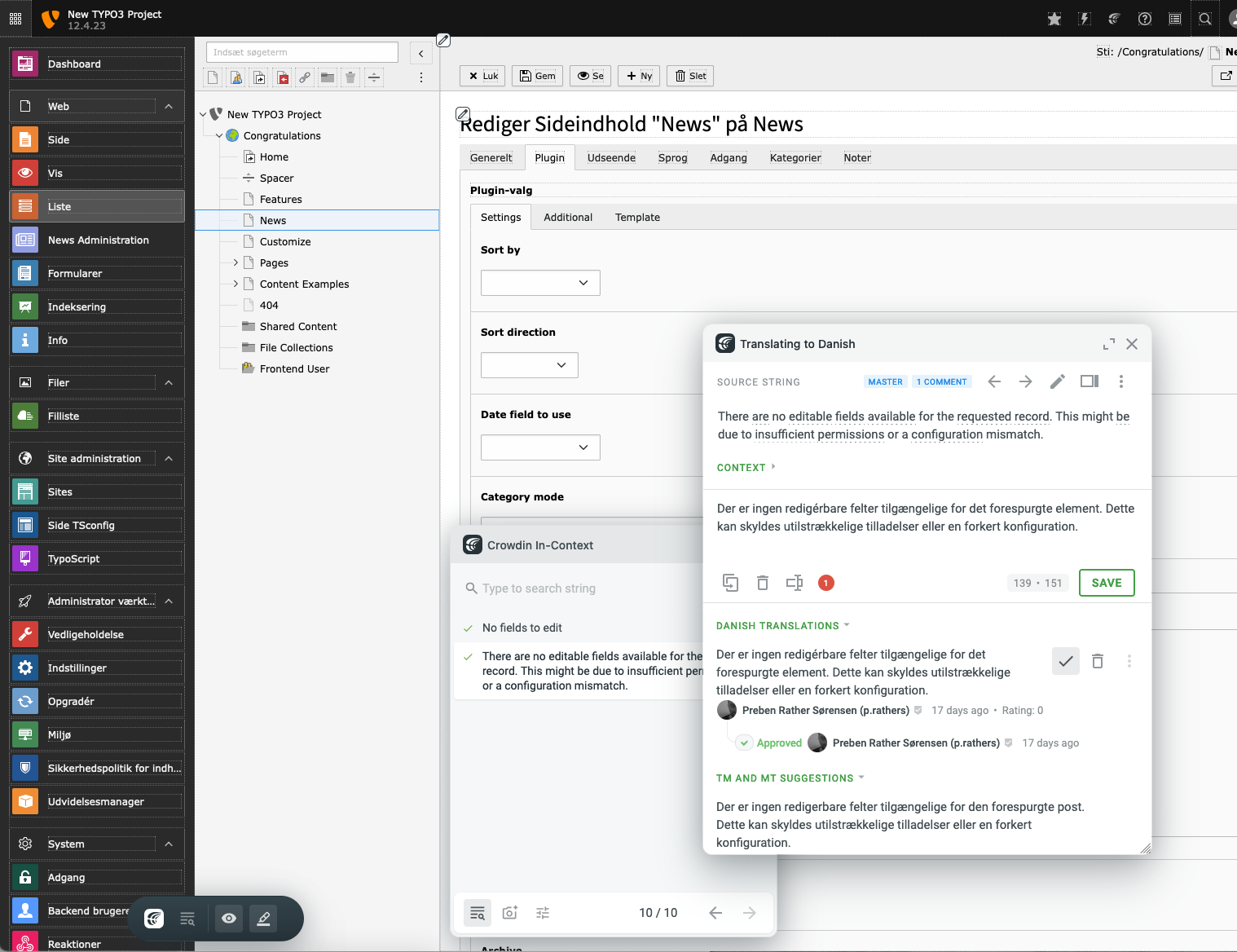
Crowdin integration into TYPO3

Crowdin integration into TYPO3.

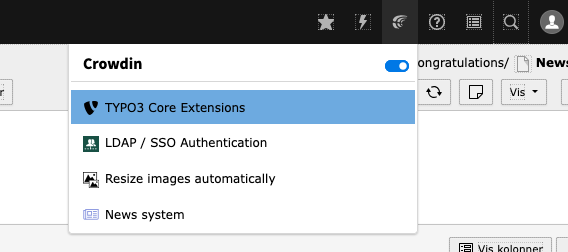
Once installed, use the Crowdin icon in the TYPO3 top bar to start localizing your TYPO3 instance and extensions:

Toolbar for Crowdin

Context menu for Crowdin in the TYPO3 top bar.

Installation 

  1. Using composer

    1. composer require friendsoftypo3/crowdin.
    2. ./vendor/bin/typo3 crowdin:enable.
  2. Non composer

    1. Download the extension from TER.
    2. ./typo3/sysext/core/bin/typo3 crowdin:enable.

Additional information 

The enable command above writes the following information to config/system/settings.php:

$GLOBALS['TYPO3_CONF_VARS']['SYS']['localization']['locales']['user']['t3'] = 'Crowdin In-Context Localization';
$GLOBALS['TYPO3_CONF_VARS']['SYS']['fluid']['namespaces'] = [
    'f' => [
        'TYPO3\\CMS\\Fluid\\ViewHelpers',
        'TYPO3Fluid\\Fluid\\ViewHelpers',
        'FriendsOfTYPO3\\Crowdin\\ViewHelpers\\Override\\V14',
    ],
];
Copied!

Configuration 

  1. Log into backend and download at least two language packs from ADMIN TOOLS > Maintenance > Manage Language Packs :

    1. The language you want to translate to
    2. The language pack Crowdin In-Context Localization [t3]
    3. Click Update all
  2. Go to your profile User settings and select Crowdin In-Context Localization [t3] as your Languages
  3. When you click save, TYPO3 will connect to Crowdin and you will be asked to login using your Crowdin Credentials

Translating extensions 

You can switch between TYPO3 Core and your local extensions by using the selector in the TYPO3 top bar.

To be able to translate an extension, it needs to be enabled as a project on Crowdin.

Screenshots 

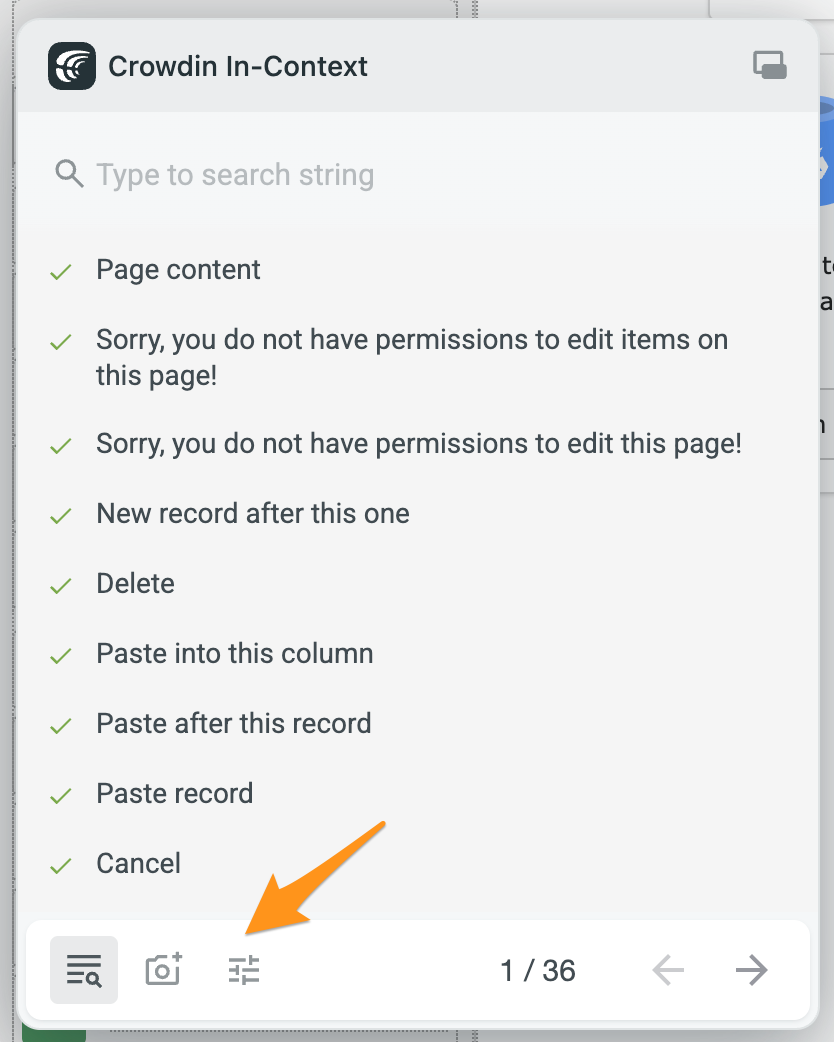
When the things are running, you should have access to the Crowdin Modal Tool in the bottom of the browser window:

Crowdin Tool

Crowdin Tool after installation.

whereas the Crowdin Icon in the TYPO3 top bar will let you enable/disable in-context localization and switch between translating TYPO3 core or your favorite extensions:

Toolbar for Crowdin

Context menu for Crowdin in the TYPO3 top bar.

Known problems 

Where is the extension in the TYPO3 top bar 

If an extension does not appear on the Crowdin list in the TYPO3 top bar, after you've installed it, it is probably because you need to update the language packs. Head over to ADMIN TOOLS > Maintenance > Manage Language Packs and hit the Update all button to get language packs for the newly installed extensions.

How to change the current language I am working on 

When you first open the Crowdin interface, you are presented with a list of language you can choose from. But if you later want to change the language you are working on, you can do so by clicking the icon (left) of the Crowdin Modal Tool:

Crowdin Tool

Then click the settings icon:

Crowdin Settings

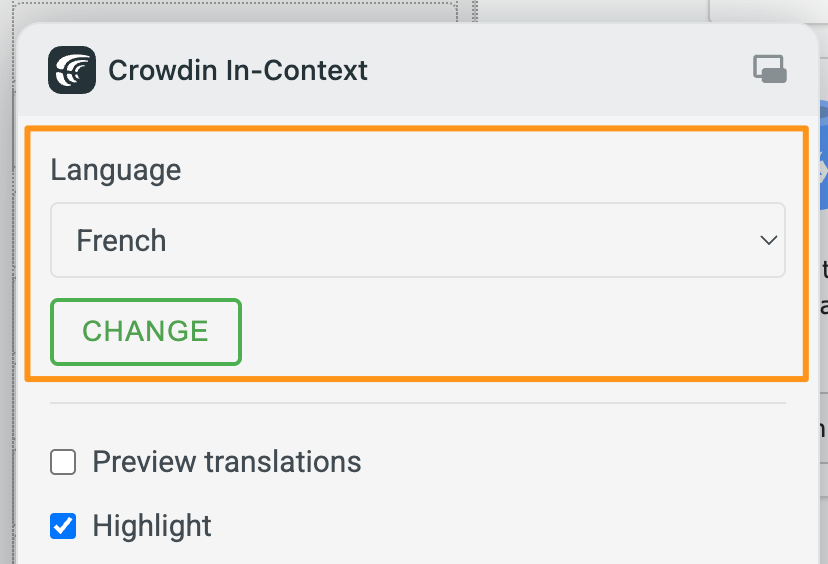
And finally choose another language from the list:

Crowdin Language Settings

Crowdin issues 

Find a list of open issues on Github.