Introduction

What does it do?

With jw_shell_exec you can configure just ONE shell script which also non-admin BE users can execute (if he has rights to access the BE module).

By default parallel execution of the script will be prevented, but as an administrator you still can allow parallel execution.

Examples

Backup

Let you BE users decide when it's time to start the configured backup script.

Import

Add a possibility for your BE users to start the configured import script.

Last three log entries

Set the shell script to show the last 3 lines of the TYPO3 log:

tail -n 3 /var/www/html/var/log/typo3_61d7538bf5.log
Copied!

Show content of a file

Set the shell script to show the content of a file:

cat /var/www/html/index.php
Copied!

Execute typo3 commands

In most cases your BE users does not have access to scheduler module, but with jw_shell_exec you can let your BE users execute a TYPO3 command:

typo3 scheduler:run
Copied!

Screenshots

See jw_shell_exec in action.

Execute Command

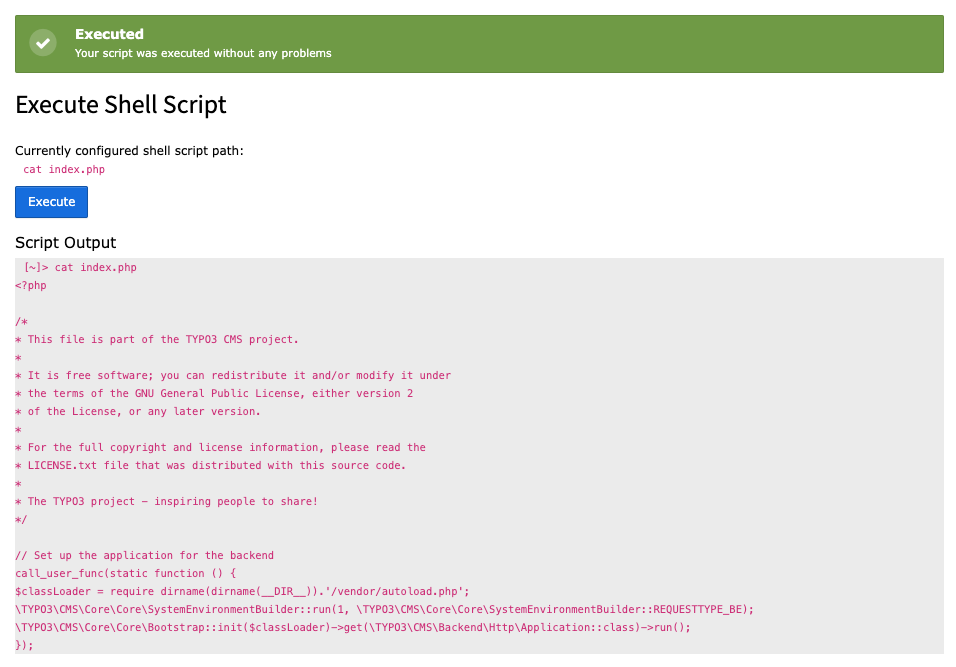
This is an example output of the BE module of jw:shell_exec. As you can see there is no possibility for an editor to change the configured shell script. There is just one button to execute the command and the job is done.

After execution you will see the command output.

BE module and example command output

Prevent Parallel Execution

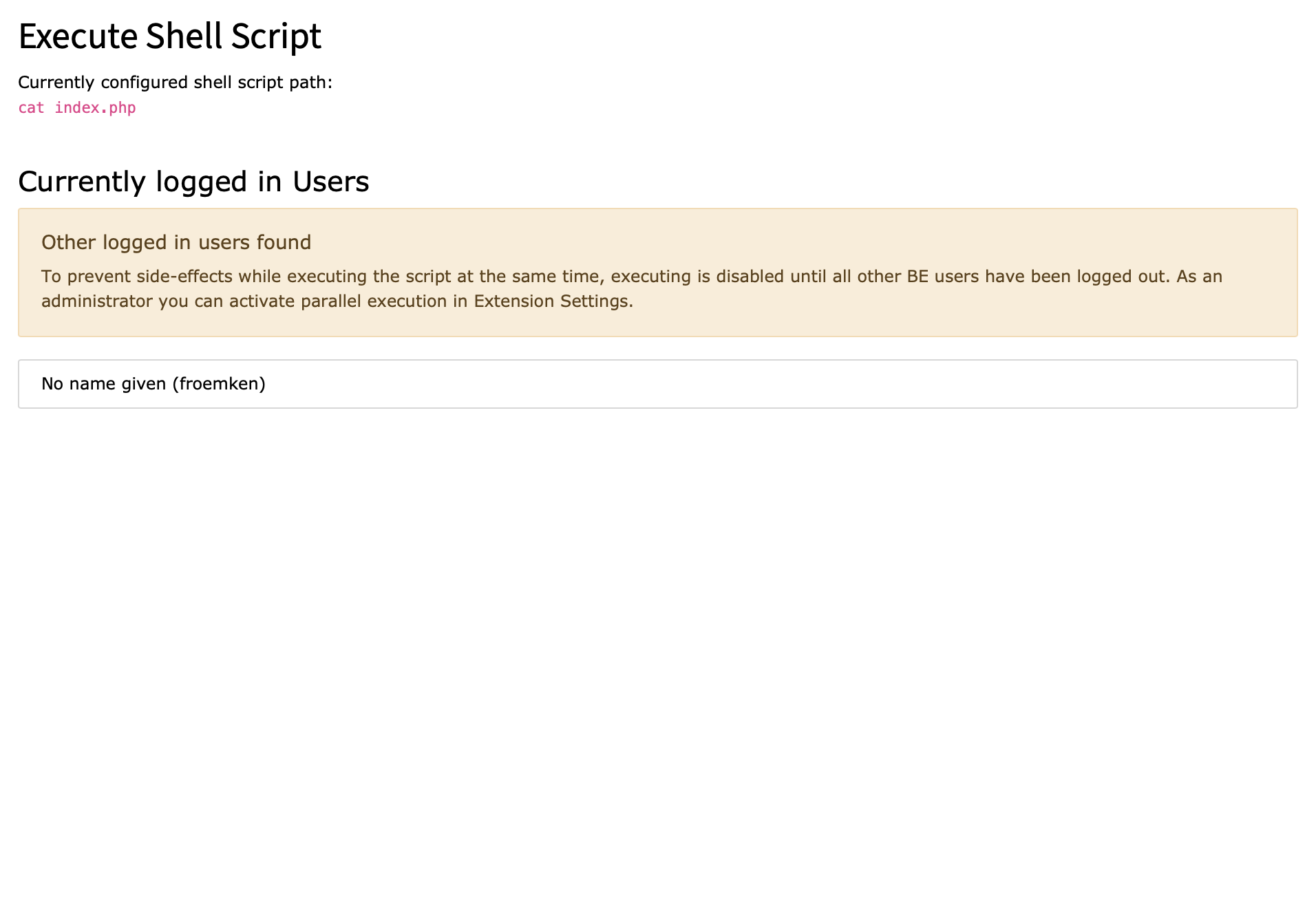
By default it is not possible to execute a shell script, if another BE editor/admin is currently logged-in to TYPO3 BE. That prevents parallel executions of the shell script which may result into unwished side-effects.

Since version 3.0.0 you, as an admin, can activate parallel execution in extension settings

See parallel execution warnings, if multiple BE users are logged-in in TYPO3 backend.

Installation

Composer

If your TYPO3 installation works in composer mode, please execute following command:

composer req jweiland/jw-shell-exec
vendor/bin/typo3 extension:setup --extension=jw_shell_exec
Copied!

If you work with DDEV please execute this command:

ddev composer req jweiland/jw-shell-exec
ddev exec vendor/bin/typo3 extension:setup --extension=jw_shell_exec
Copied!

ExtensionManager

On non composer based TYPO3 installations you can install jw_shell_exec still over the ExtensionManager:

  1. Login

    Login to backend of your TYPO3 installation as an administrator or system maintainer.

  2. Open ExtensionManager

    Click on Extensions from the left menu to open the ExtensionManager.

  3. Update Extensions

    Choose Get Extensions from the upper selectbox and click on the Update now button at the upper right.

  4. Install jw_shell_exec

    Use the search field to find jw_shell_exec. Choose the jw_shell_exec line from the search result and click on the cloud icon to install jw_shell_exec.

Extension Settings

Some general settings for jw_shell_exec can be configured in Admin Tools -> Settings.

Tab: Basic

Shell Script

Default: pwd

Define a path to an executable shell script.

Allow parallel execution

Default: false

To prevent side-effects when BE users have started the script at the same, the parallel execution is disabled by default. If you're sure that no side-effects will occure you can activate this option.

Users Manual

Execute Shell Script

  1. Visit BE Module

    Click on JW Shell Exec from the left main menu in TYPO3 backend. It is only visible, if an integrator has given you access to that BE module.

  2. Execute

    If you are the only user logged in into the TYPO3 BE you can now execute the defined shell script.

ChangeLog

Version 3.0.1

  • [DOCU] Add example usages
  • [DOCU] Add screenshots

Version 3.0.0

  • Add TYPO3 12.4 compatibility
  • Remove TYPO3 10.4 compatibility
  • [FEATURE] Allow shell arguments
  • [FEATURE] Show output in module
  • [FEATURE] Add setting to allow parallel execution of script
  • [TASK] Remove support for EXT: prefix

Version 2.0.0

  • Remove TYPO3 8.7 compatibility
  • Remove TYPO3 9.5 compatibility
  • Add TYPO3 10.4 compatibility
  • Add TYPO3 11.5 compatibility

Version 1.0.0

  • Initial release

Sitemap

Index