What does it do?

This extension adds salesforce support to powermail. This will allow sending answer data to salesforce using a HTTP-Post-Request.

Installation

Composer

If your TYPO3 installation works in composer mode, please execute following command:

composer req jweiland/powermail2salesforce
vendor/bin/typo3 extension:setup --extension=powermail2salesforce
Copied!

If you work with DDEV please execute this command:

ddev composer req jweiland/powermail2salesforce
ddev exec vendor/bin/typo3 extension:setup --extension=powermail2salesforce
Copied!

ExtensionManager

On non composer based TYPO3 installations you can install powermail2salesforce still over the ExtensionManager:

  1. Login

    Login to backend of your TYPO3 installation as an administrator or system maintainer.

  2. Open ExtensionManager

    Click on Extensions from the left menu to open the ExtensionManager.

  3. Update Extensions

    Choose Get Extensions from the upper selectbox and click on the Update now button at the upper right.

  4. Install powermail2salesforce

    Use the search field to find powermail2salesforce. Choose the powermail2salesforce line from the search result and click on the cloud icon to install powermail2salesforce.

Next step

Configure powermail2salesforce.

TypoScript

powermail2salesforce needs some basic TypoScript configuration. To do so you have to add an +ext template to either the root page of your website or to a specific page which contains the powermail2salesforce plugin.

  1. Locate page

    You have to decide where you want to insert the TypoScript template. Either root page or page with powermail2salesforce plugin is OK.

  2. Create TypoScript template

    Switch to template module and choose the specific page from above in the pagetree. Choose Click here to create an extension template from the right frame. In the TYPO3 community it is also known as "+ext template".

  3. Add static template

    Choose Info/Modify from the upper selectbox and then click on Edit the whole template record button below the little table. On tab Includes locate the section Include static (from extension). Use the search above Available items to search for powermail2salesforce. Hopefully just one record is visible below. Choose it, to move that record to the left.

  4. Save

    If you want you can give that template a name on tab "General", save and close it.

  5. Constants Editor

    Choose Constant Editor from the upper selectbox.

  6. powermail2salesforce constants

    Choose PLUGIN.TX_POWERMAIL2SALESFORCE from the category selectbox to show just powermail2salesforce related constants

  7. Configure constants

    Adapt the constants to your needs.

  8. Configure TypoScript

    As constants will only allow modifiying a fixed selection of TypoScript you also switch to Info/Modify again and click on Setup. Here you have the possibility to configure all powermail2salesforce related configuration.

Finisher

class

class

class
Required

true

type

string

Default

JWeilandPowermail2salesforceFinisherSalesforceFinisher

Path

plugin.tx_powermail.settings.setup.finishers.100

The FQCN of the PHP class which handles the transfer to the salesforce API. In most cases there is no need to change that setting.

Finisher Configuration

_enable

_enable

_enable
type

boolean

Default

1

Path

plugin.tx_powermail.settings.setup.finishers.100.config

With this switch you can deactivate the connection to salesforce API.

targetUrl

targetUrl

targetUrl
Required

true

type

string

Default

[EMPTY]

Path

plugin.tx_powermail.settings.setup.finishers.100.config

Set the *.php URI endpoint of the salesforce API endpoint starting with https://. Example: http://www.target.com/target.php.

orgid

This is a salesforce specific option.

orgid

orgid
Required

true

type

integer

Default

[EMPTY]

Path

plugin.tx_powermail.settings.setup.finishers.100.config

Set the organization UID.

recordType

This is a salesforce specific option.

recordType

recordType
Required

true

type

string

Default

[EMPTY]

Path

plugin.tx_powermail.settings.setup.finishers.100.config

Set the record type.

type

This is a salesforce specific option.

type

type
Required

true

type

string

Default

[EMPTY]

Path

plugin.tx_powermail.settings.setup.finishers.100.config

Set the type.

origin

This is a salesforce specific option.

origin

origin
Required

true

type

string

Default

[EMPTY]

Path

plugin.tx_powermail.settings.setup.finishers.100.config

Set the origin.

username

Basic Auth Protection - leave empty if Target is not protected.

username

username
type

string

Default

[EMPTY]

Path

plugin.tx_powermail.settings.setup.finishers.100.config

Set the username for the .htaccess basic auth protection.

password

Basic Auth Protection - leave empty if Target is not protected.

password

password
type

string

Default

[EMPTY]

Path

plugin.tx_powermail.settings.setup.finishers.100.config

Set the password for the .htaccess basic auth protection.

debug

debug

debug
type

boolean

Default
Path

plugin.tx_powermail.settings.setup.finishers.100.config

If activated, we add further debugging information to the output.

Users manual

Usage

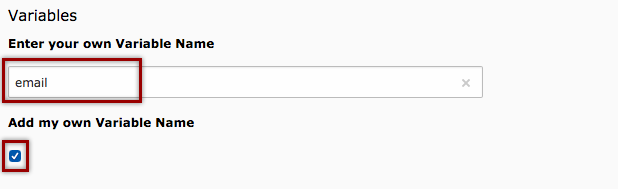
Create a new field for your form. Set the marker equal to the equivalent salesforce field.

Set custom marker

FAQ

Does this work with double opt in?

Yes, this extension adds an powermail finisher and will respect the powermail workflow.

How to debug POST request to Salesforce?

With version 2.0.1 we have added a logger to powermail finisher. You can configure it to store the POST request in TYPO3 logs:

$GLOBALS['TYPO3_CONF_VARS']['LOG']['JWeiland']['Powermail2salesforce']['writerConfiguration'] = [
    \TYPO3\CMS\Core\Log\LogLevel::DEBUG => [
        \TYPO3\CMS\Core\Log\Writer\FileWriter::class => [
            'logFileInfix' => 'powermail2salesforce',
        ],
    ],
];
Copied!

Sitemap

Index