
Plugin
List View
Add plugin to page
- Add the Anthology plugin to the page where you want the list view to appear via the New Page Content Wizard.
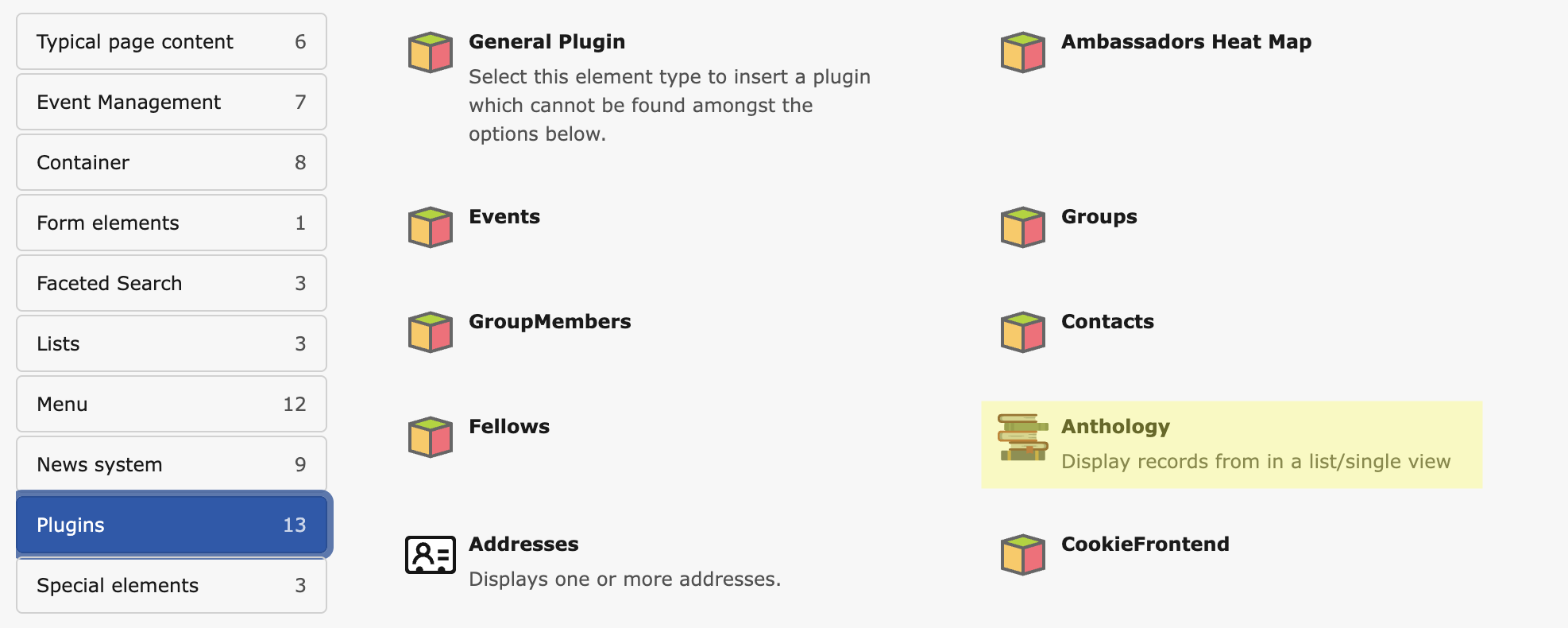
Adding the Anthology plugin to a page
- Configure the plugin, ensure the following minimum settings are applied:
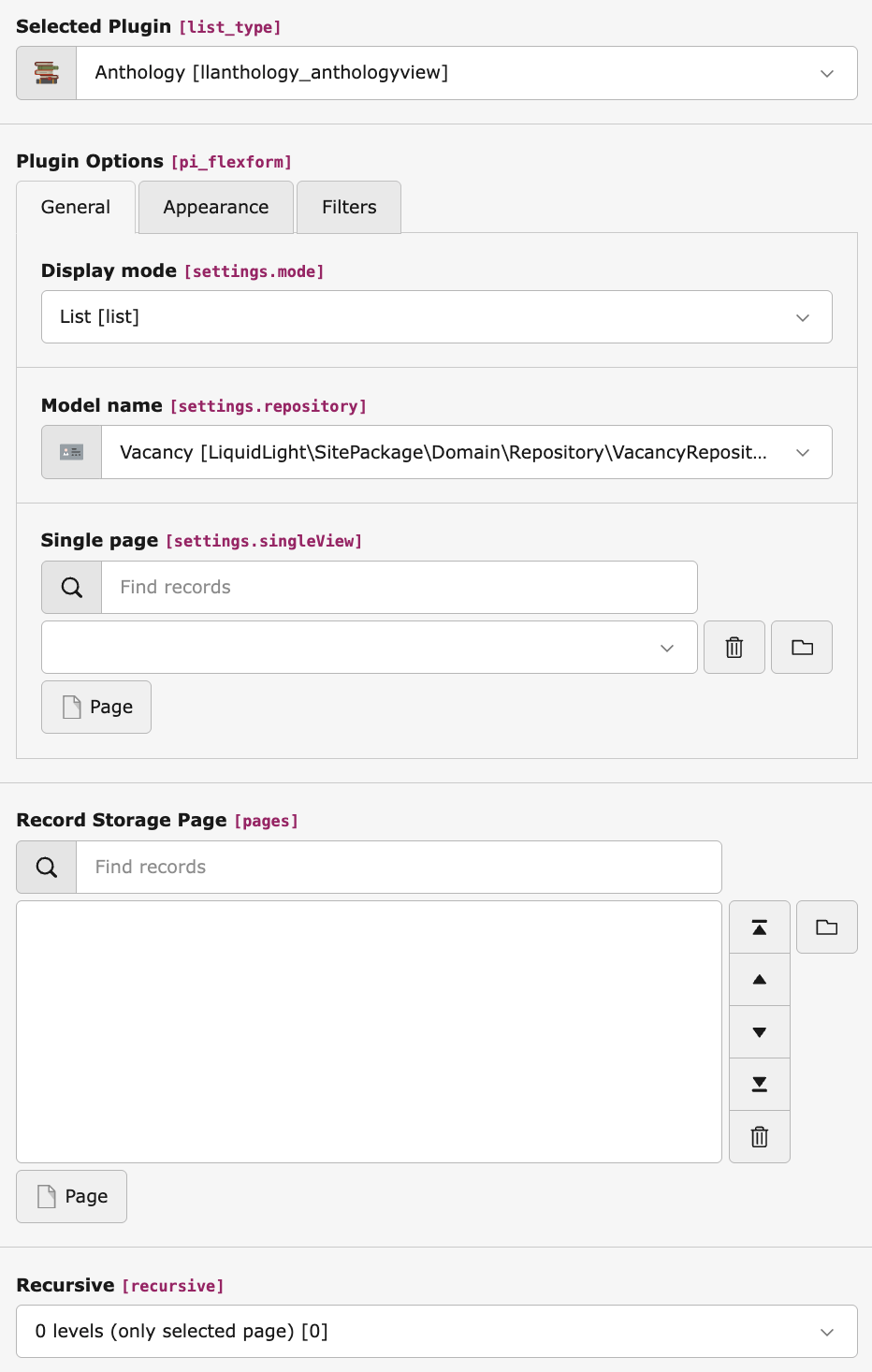
Configuring the Anthology plugin in list mode
- Display mode: List
- Model name: Select your model. If your model is not listed, ensure it has been configured correctly, see Quick Start for instructions
- Single page: Select the page where the single view plugin is located (if required)
- Record Storage Page: Select where your records are stored
- Configure filters (if required)
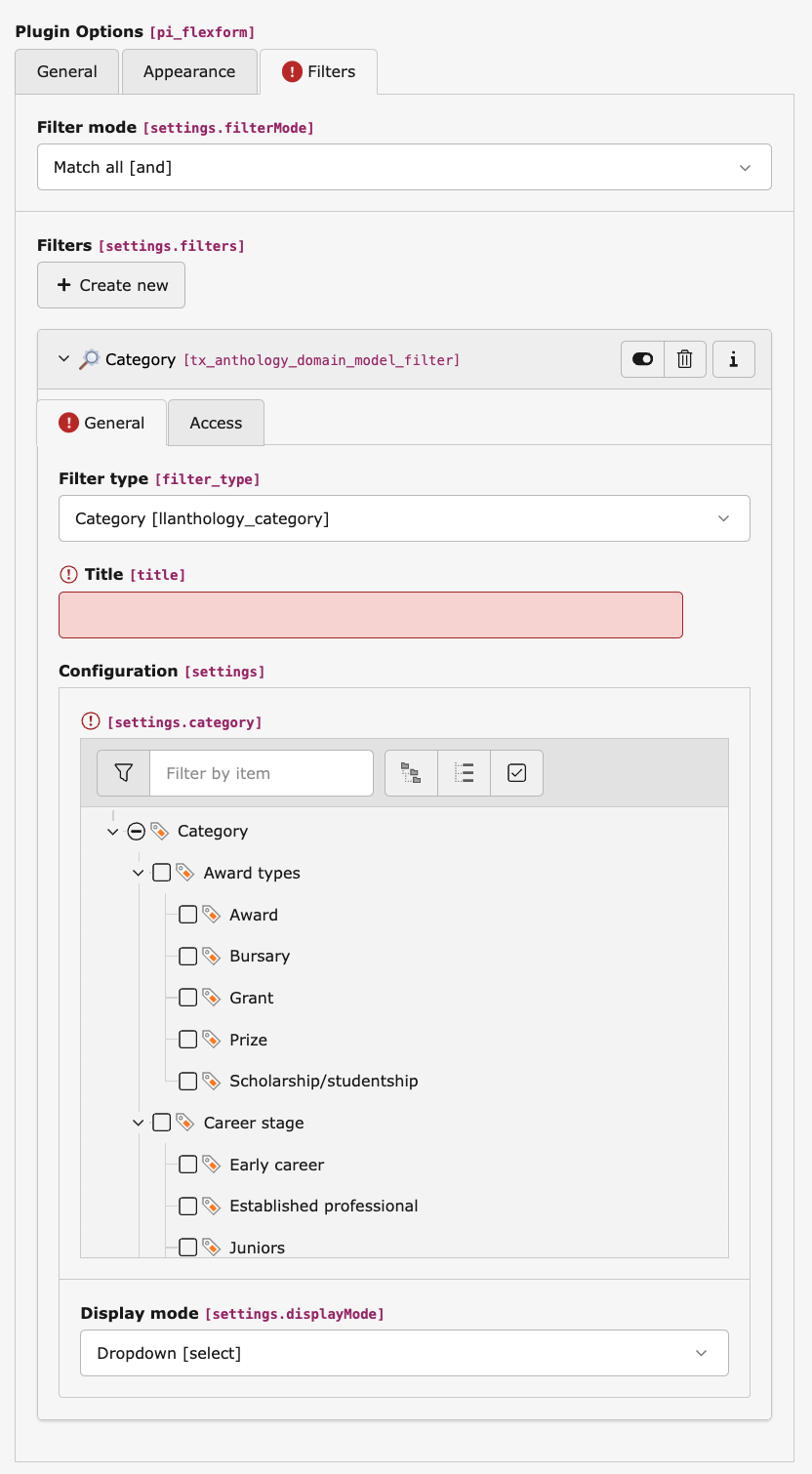
Configuring filters for the Anthology plugin
- Navigate to the Filters tab, and add any required filters. Anthology comes with a set of commonly used filter types already available, see Filters for more information
Single View
- Add the Anthology plugin to the page where you want the single view to appear via the New Page Content Wizard.
Adding the Anthology plugin to a page
- Configure the plugin, ensure the following minimum settings are applied:
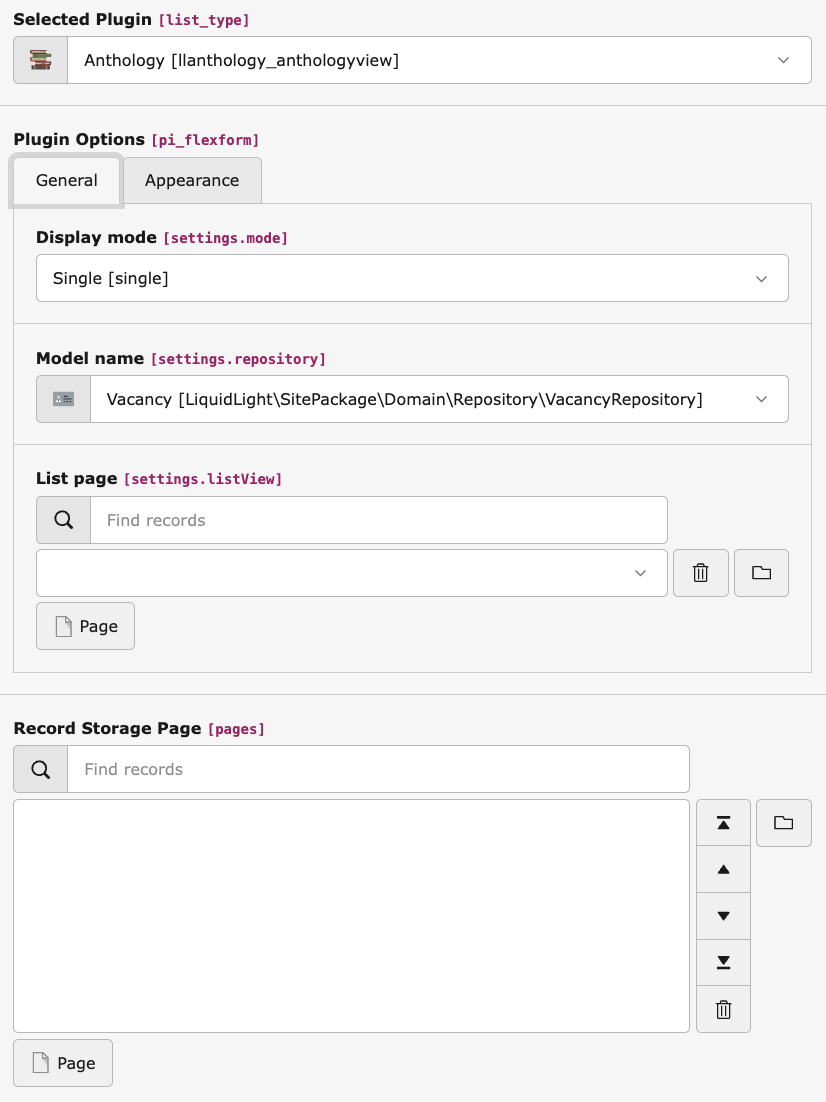
Configuring the Anthology plugin in single view mode
- Display mode: Single
- Model name: Select your model. If your model is not listed, ensure it has been configured correctly: Quick Start
- List page: Select the page where the list view plugin is located
- Record Storage Page: Select where your records are stored