Introduction 

What does it do? 

Call to Actions (CTAs) creates a record type and plugin which allows you to make a central Call to Action repository and use them throughout the site.

Features 

  • Make a single Call to Action and use it throughout the site
  • Add a title, body, image and action link
  • Uses an internal label field for identification
  • Can have one or more CTA displayed with one plugin
  • Update one CTA and have it update throughout the site
  • Utilise the start/stop showing fields to have different CTAs show at different times

Screenshots 

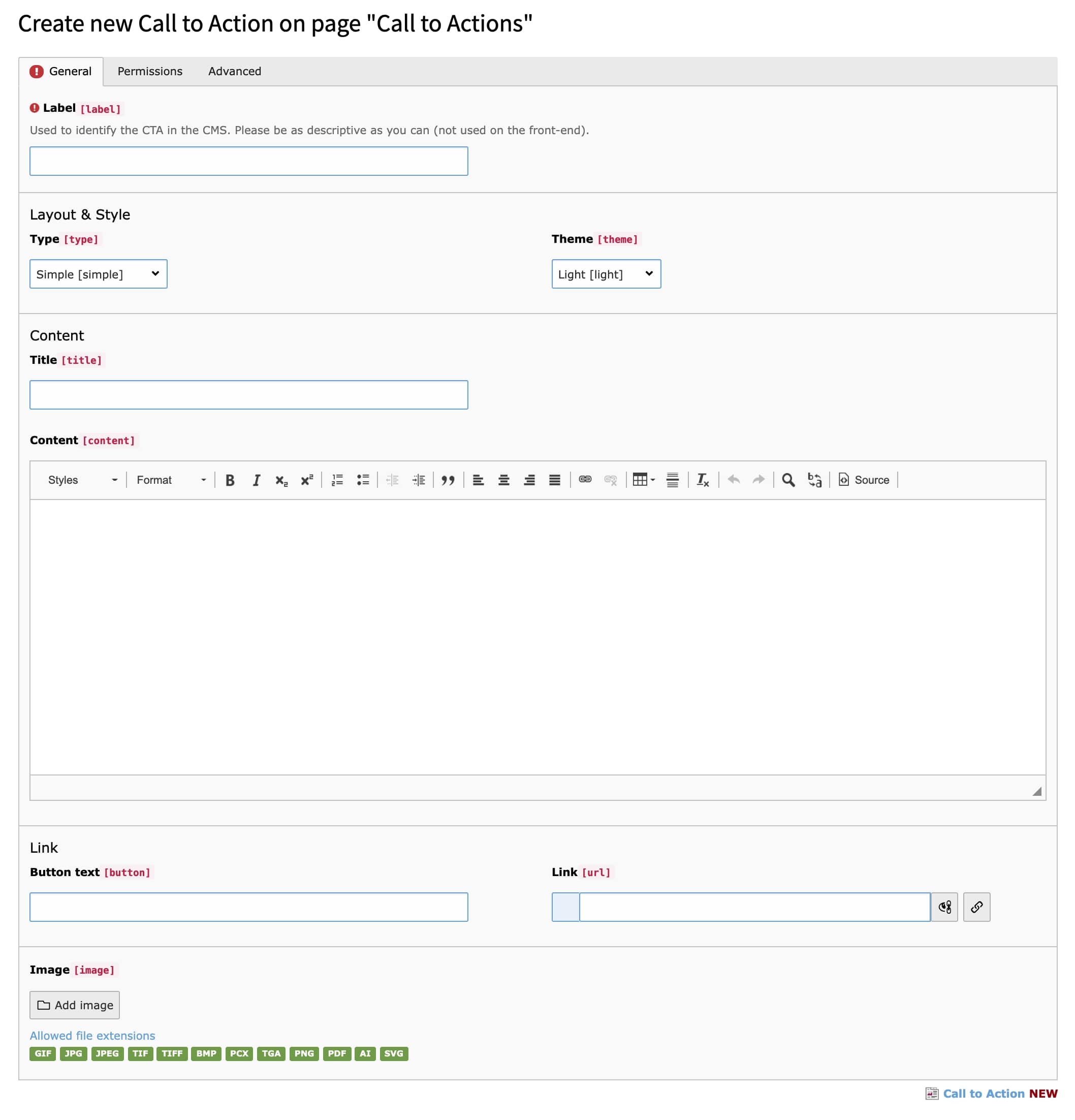
A Call to Action record

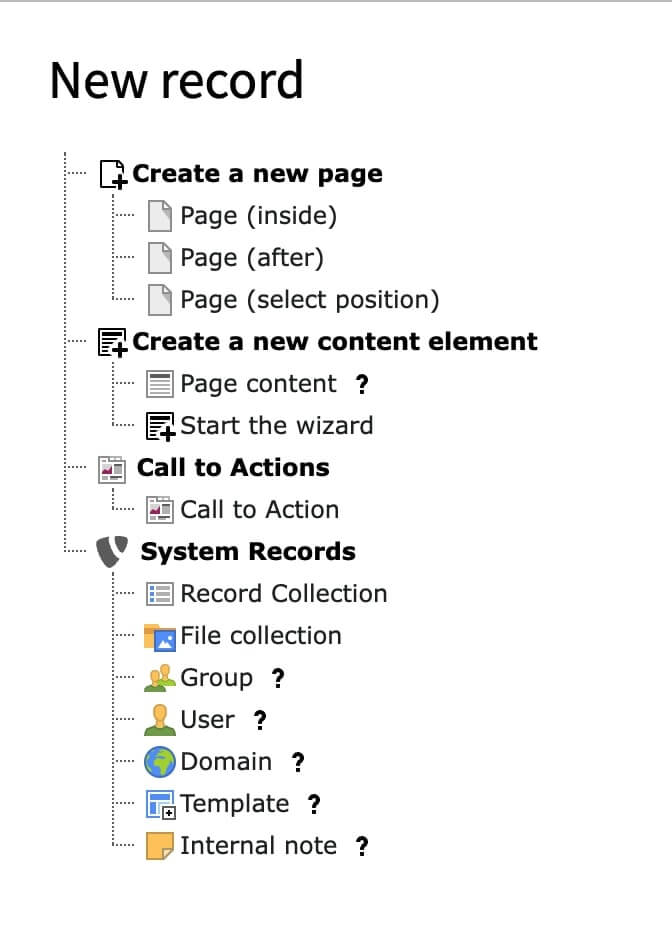
A new Call to Action record

Installation 

Call to actions can be installed via composer or downloaded from the TYPO3 Extension repository.

composer req liquidlight/typo3-call-to-actions
Copied!

Make sure the extension is enabled in the CMS -> Extensions -> Call to Actions

Usage 

TL;DR 

  1. Navigation to the sysfolder/page where the Call to Actions are going to live
  2. Create a new content element and select Call to Action
  3. Fill in the fields applicable then Save and close
  4. Navigate to the page you wish to show the CTA on
  5. Create a new content element, under "Plugins" select "Call to Actions"
  6. In the records field, select the CTA(s) you wish to display

Steps 

  1. Create new CTA

    Once installed, it is best to create a sysfolder to house your Call to Actions, however this isn't a requirement and they can live anywhere on the site.

    Navigate to List view and create a new content element

    Create new CTA
  2. Enter CTA details

    Fill in the fields required, some extra details

    • The label field is only used internally, for identifying in list views and when selecting
    • Theme and Type is used for CSS styling, however you could use fluid conditionals to change the display & layout - these can be customised
    • Buttons/links are only shown if link text & url are filled in
    • The image is rendered at the top of the CTA (but can be changed by customising the template)
    Enter CTA details
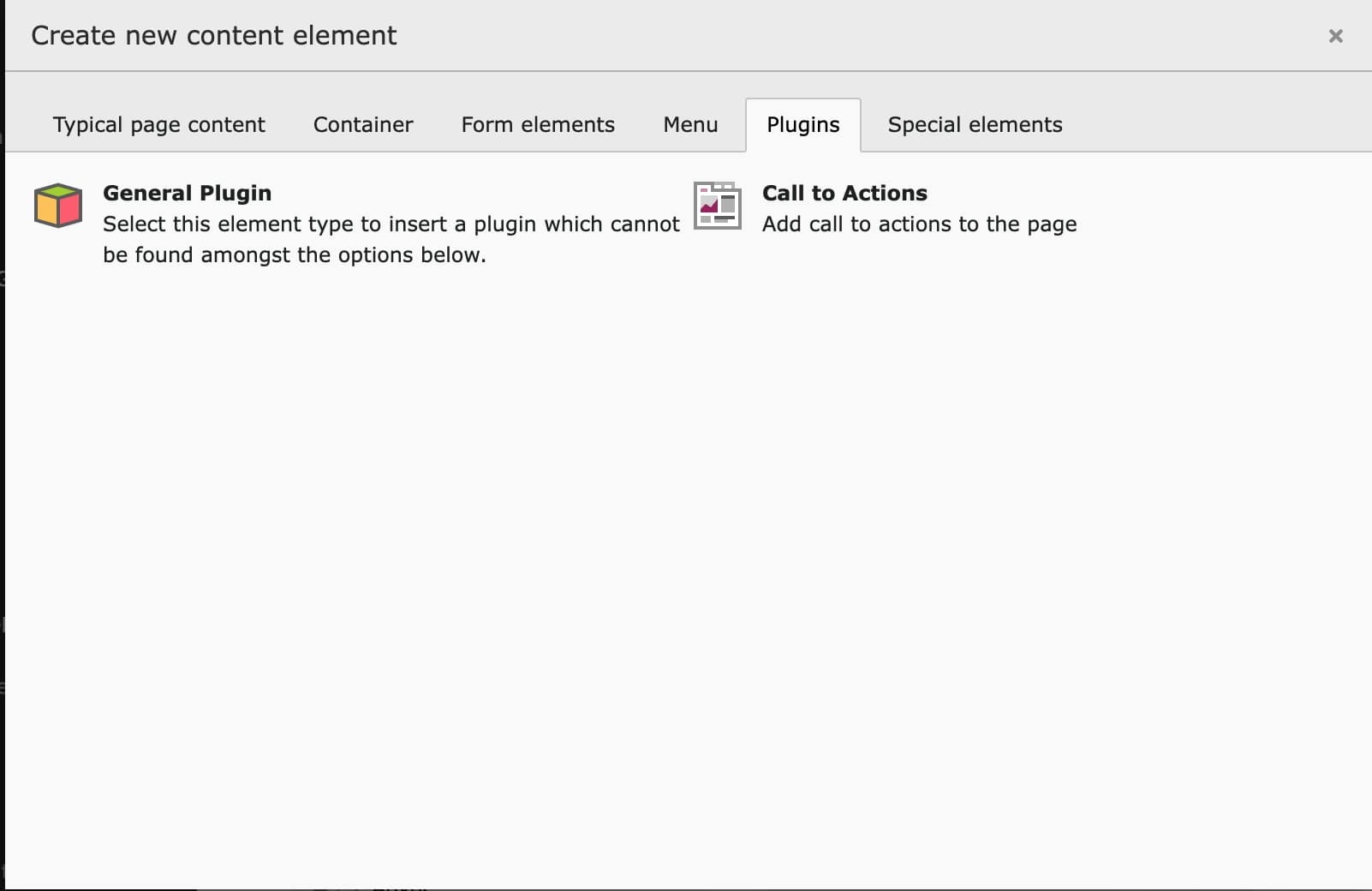
  3. Create the Content Element

    Navigate the the page you wish to show the CTA on and create a new content element. Under the "Plugins" tab you should be able to add a "Call to Actions" element

    Create the Content Elements
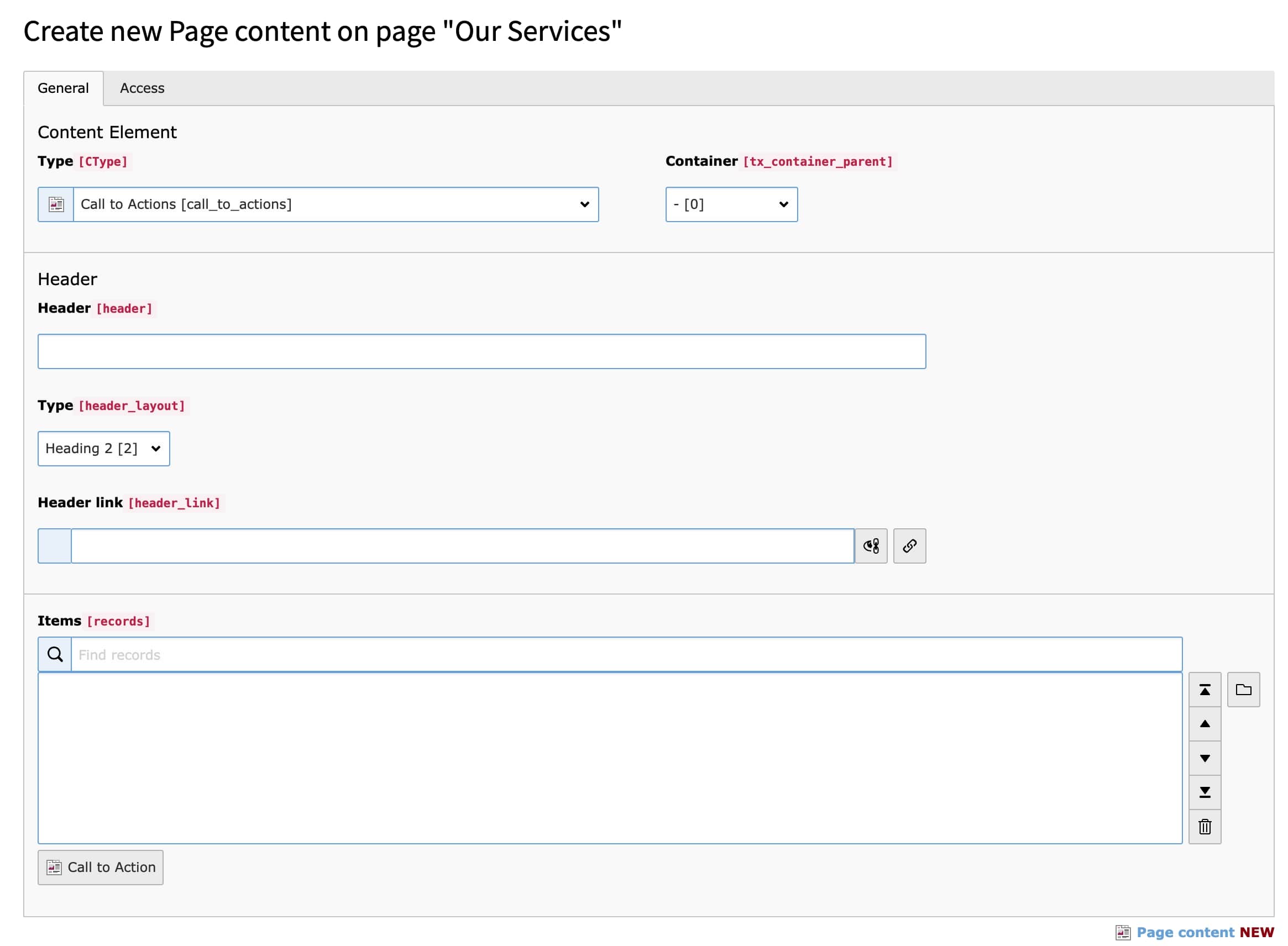
  4. Select the Records

    Using the Items (Records), select the records you want to show

    Select the Records