MAIL is a TYPO3 backend module for sending personalized mails to different groups of recipients.
This can be done from an internal TYPO3 page, from an external URL or a simple text field.
The date time of sending can be scheduled, and it's done by a queue command controller which sends
the mails in small packages to prevent blacklisting.
With an easy yaml configuration, included in a site configuration, it is possible to add any database
table as recipient source as long all necessary fields are available.
Because this is (mostly) not the case, it is also possible to define an extbase model, where the
mapping can be done inside a Configuration/Extbase/Persistence/Classes.php file.
The included mail template and some basic content elements are based on the mail template system
of foundation: https://get.foundation/emails.html
Thanks to the same php sass parser used by bootstrap_package, it is possible to modify several
settings (colors, widths, paddings, margin) using TypoScript constants.
The extension is highly inspired from direct_mail, and was the base of a massive refactoring.
Kudos to all people who put there lifeblood and love in this project.
For all EXT:direct_mail users who wants to try out this extension:
A direct_mail -> mail migration script can be found in the upgrade wizard of the TYPO3 install tool
after installing MAIL.
Dependencies
MAIL make use of several packages all found at packagist.org:
Used for redirects of shorted links in plain text mails
scssphp/scssphp
This package transpiles scss files to css, which makes it possible to use the scss files of foundation mail and change there values (colors, dimensions) using typoscript constants.
I had to modify the original scss from foundation a little, because the scssphp package could currently not handle sass modules like math, which were used on some places.
See https://github.com/scssphp/scssphp/issues/421 for more information. Basically, I just replaced all math.div() with /.
pelago/emogrifier
This package is needed to convert all css to inline styles, which is unfortunately necessary for outlook and co.
league/html-to-markdown
This package is used to convert an html mail to a plain text (markdown) version using a middleware, just by adding ?plain=1 to the url.
It has the ability to add own converters, which is used by this extension to handle the mail boundaries, which wrapped around every content element.
masterminds/html5
This package is used on several places to extract specific parts of a mail (e.g. links, images, special data attributes).
ddeboer/imap
This package is used by the AnalyzeBounceMailCommand to read the mail account of returned mails.
Sponsoring
This extension and the manual took several hundred hours to create.
If this extension helps you in any way to meet your business needs,
please consider to give something back.
This site will be used to store the MAIL pages later. Remember the uid of
this new page, you may need it in a later step.
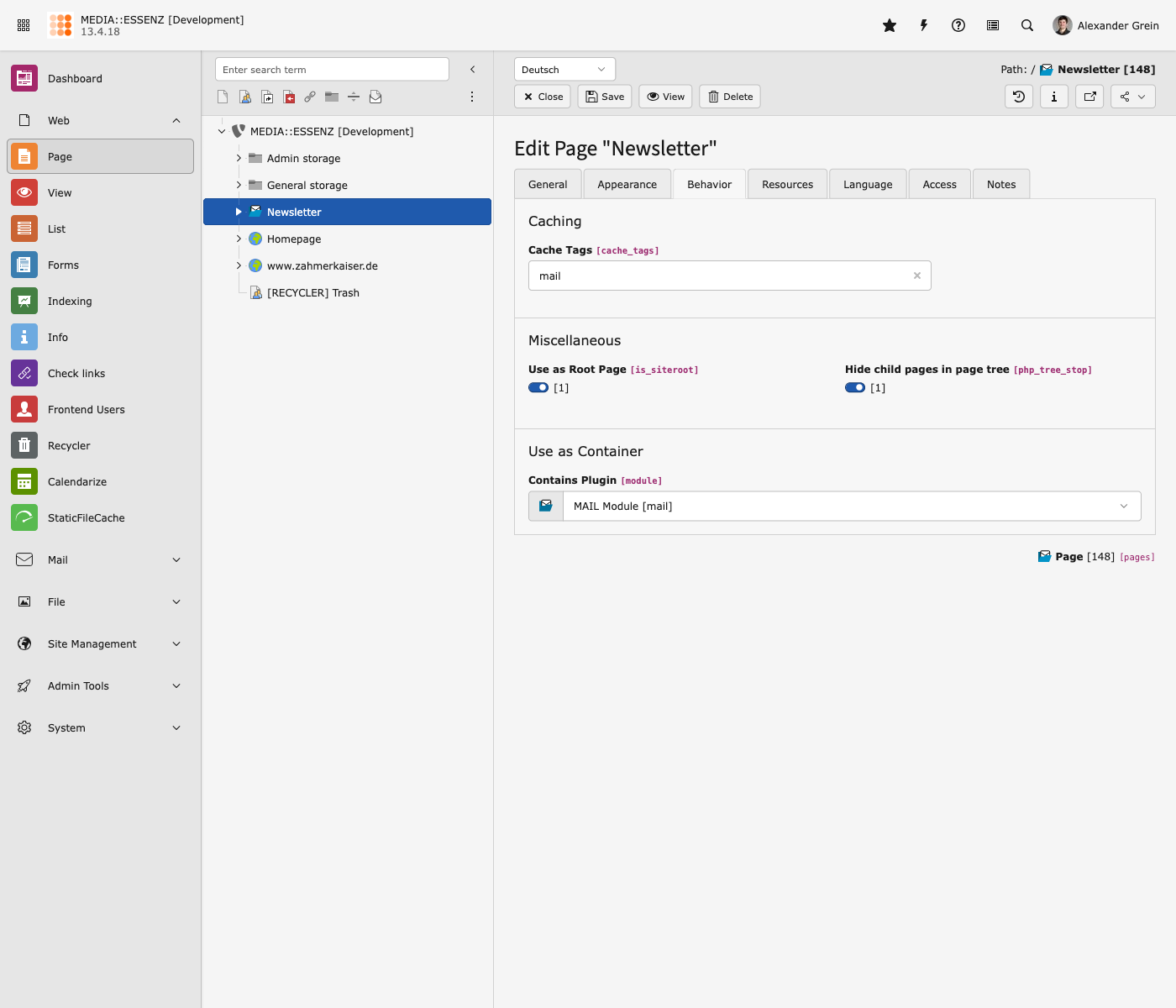
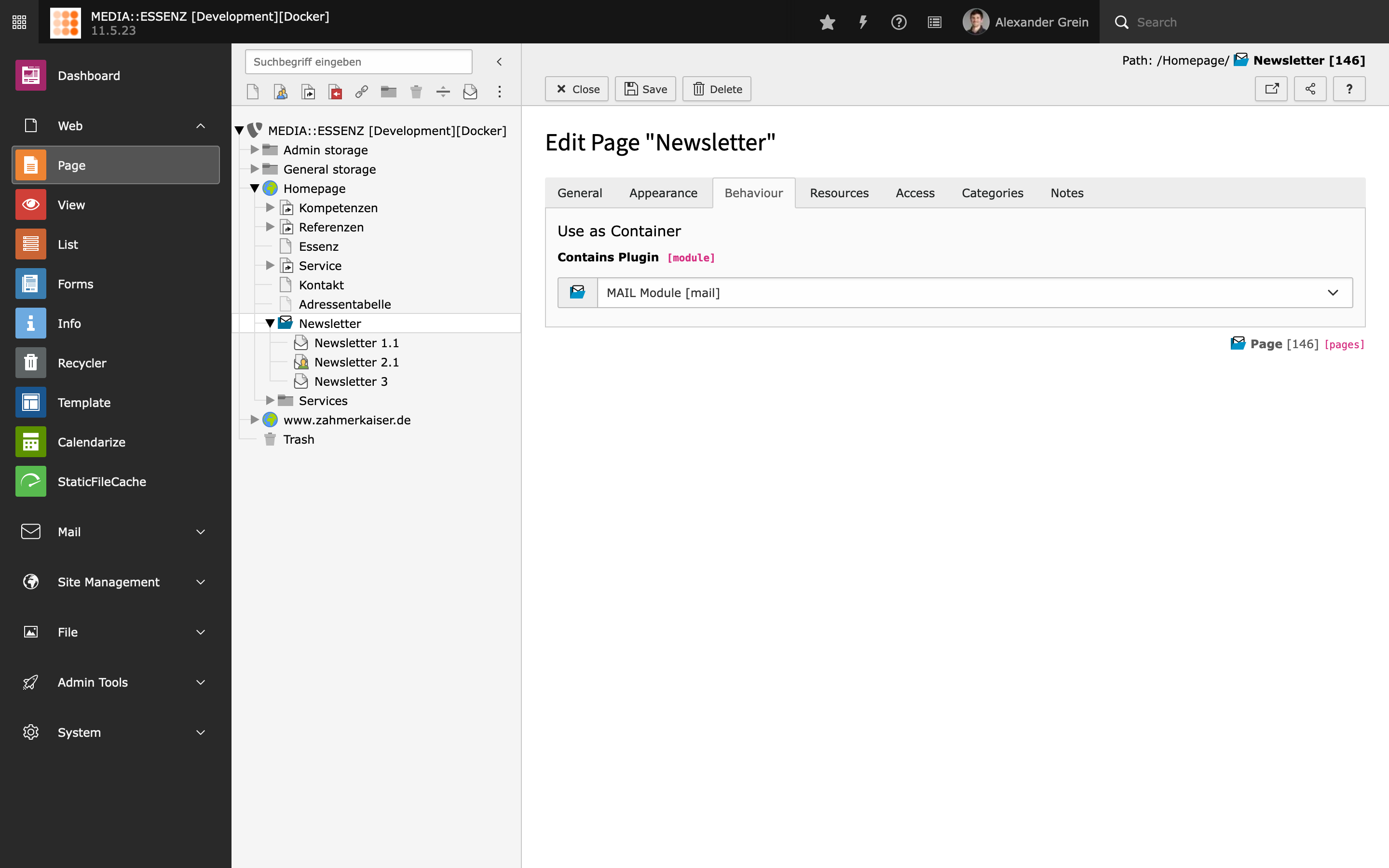
Open the settings of the new created page, go to tab Behaviour
and switch on Use as Root Page. Additional select MAIL Module
under Contains plugin. Also check Hide child pages in page tree,
if you like to activate a usefull feature that helps you to keep track
of an extensive page tree.
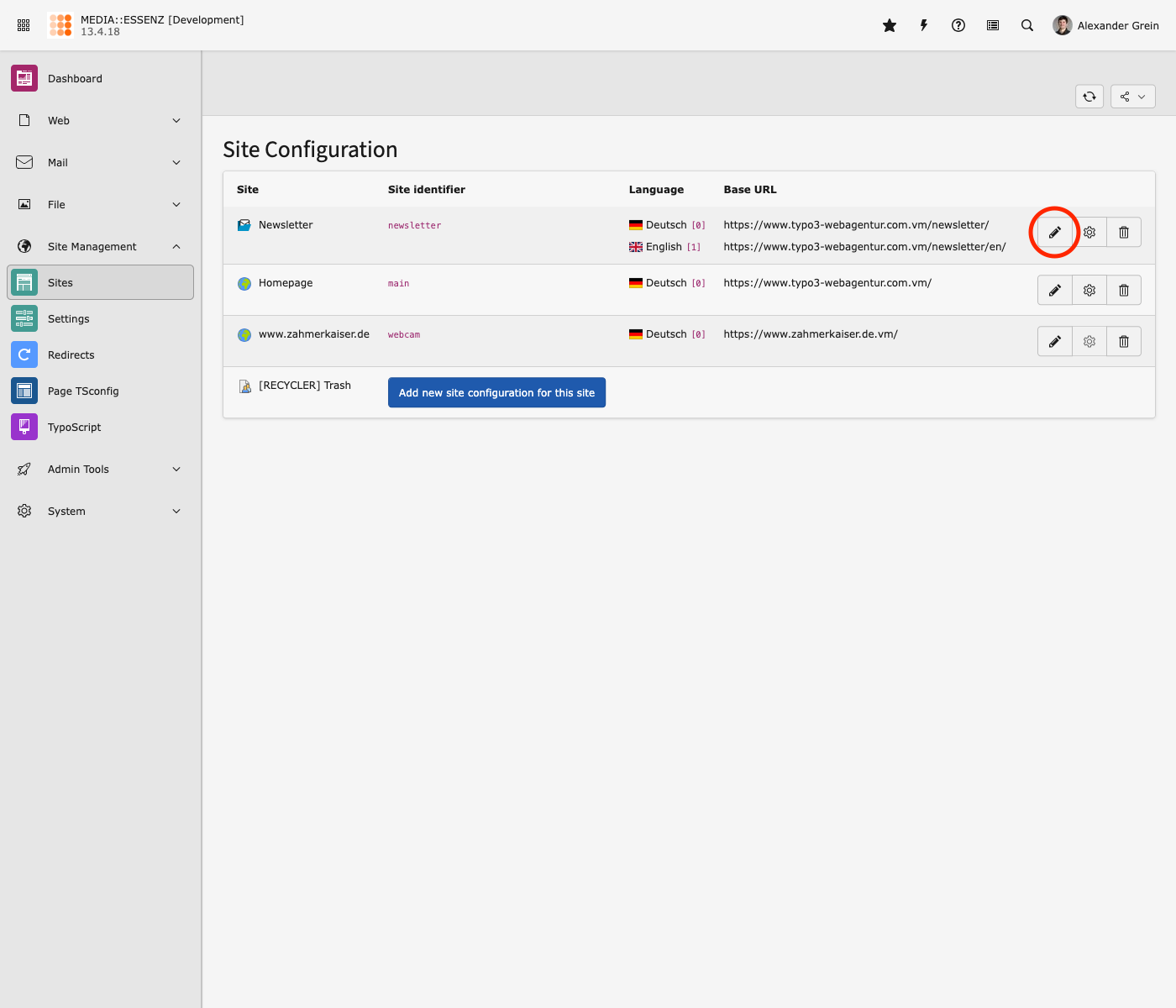
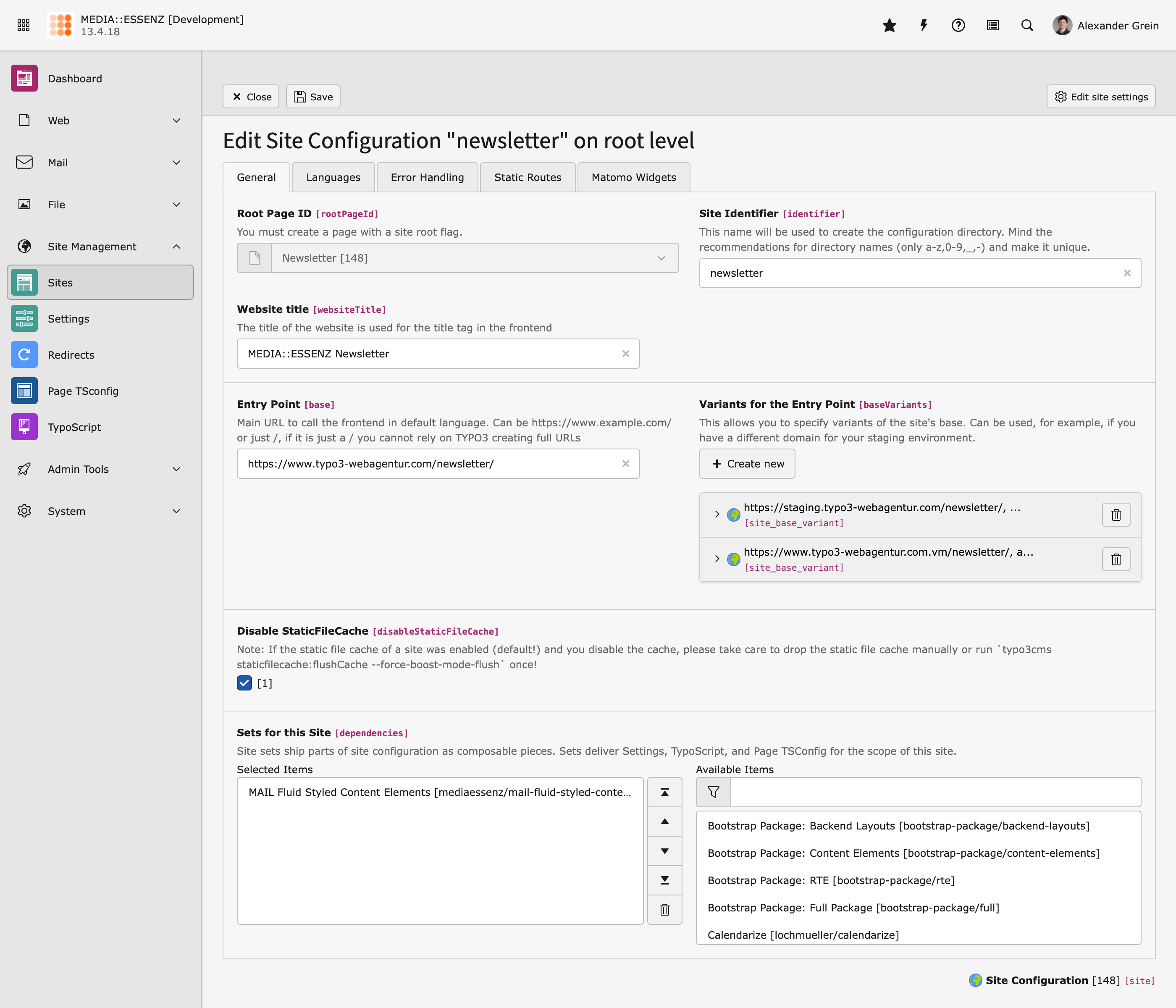
Open the site configuration of the just created page
Add Site Set
Under the General Tab you can find all relevant settings.
First of all you have to enter a Site Identifier (eg. newsletter).
Second, add an Entry Point. This must be a full domain!
Relative domains like "/" will not work! Same for optionaly added
Variants.
At Sets for this Site add the included MAIL Fluid Styled Content Elements
Set (if you like to use the included fluid styled content elements) or, if you
like to use the included Content Block Elements the MAIL Content Blocks Set.
There is also a MAIL News Content Elements Set available, if you
like to use the News Plugin. All of them depend on the MAIL Backend Layout and Settings
Set, so that these do not need to be added separately.
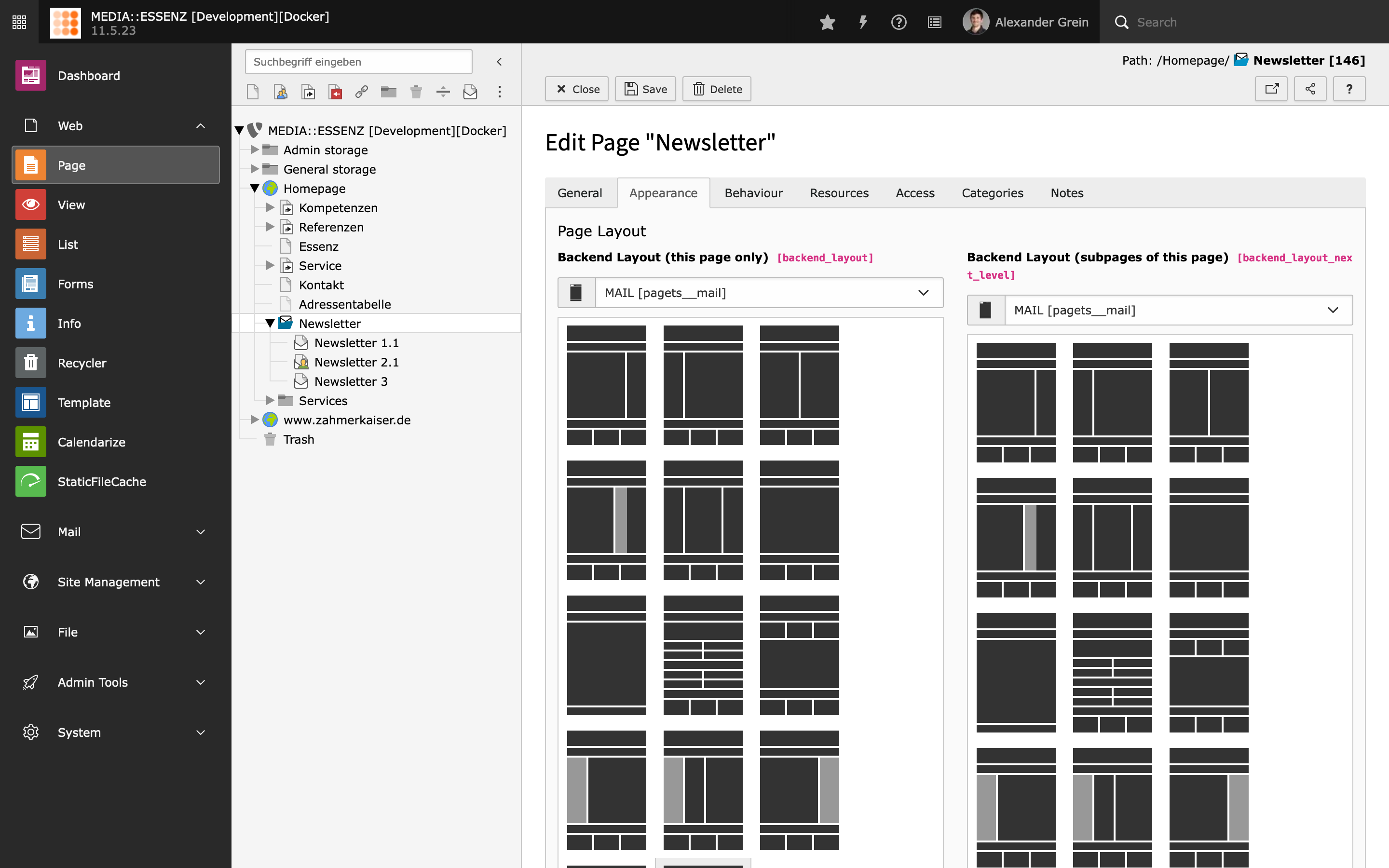
Set Backend Layout
Back in the TYPO3 Page Module, open the Settings of your MAIL Root Page.
In here, click on the Appearance tab, select MAIL
in both Backend Layout boxes and press Save.
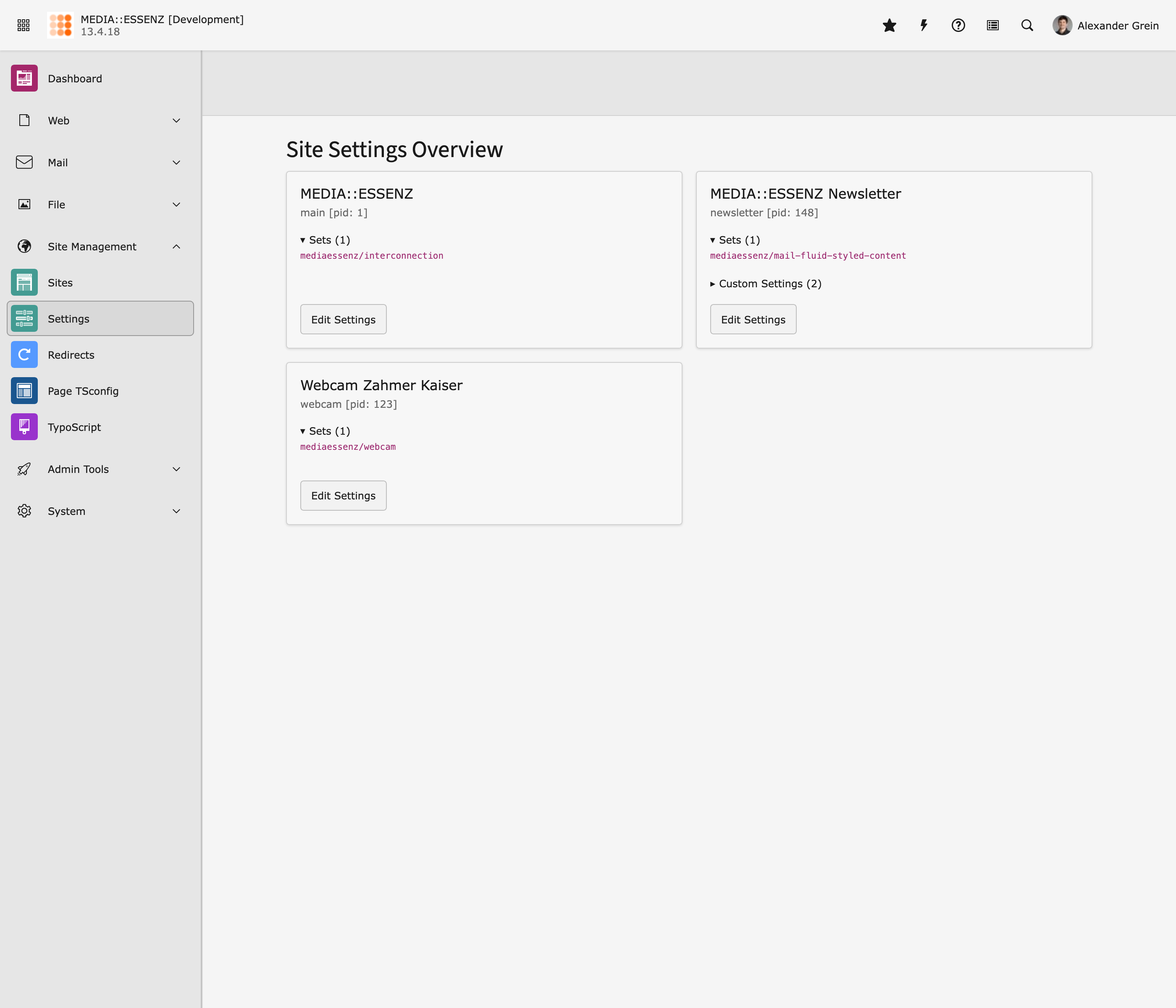
To change the styles of the generated mails, go to the
Settings Module and click on Edit Settings
of your MAIL Site.
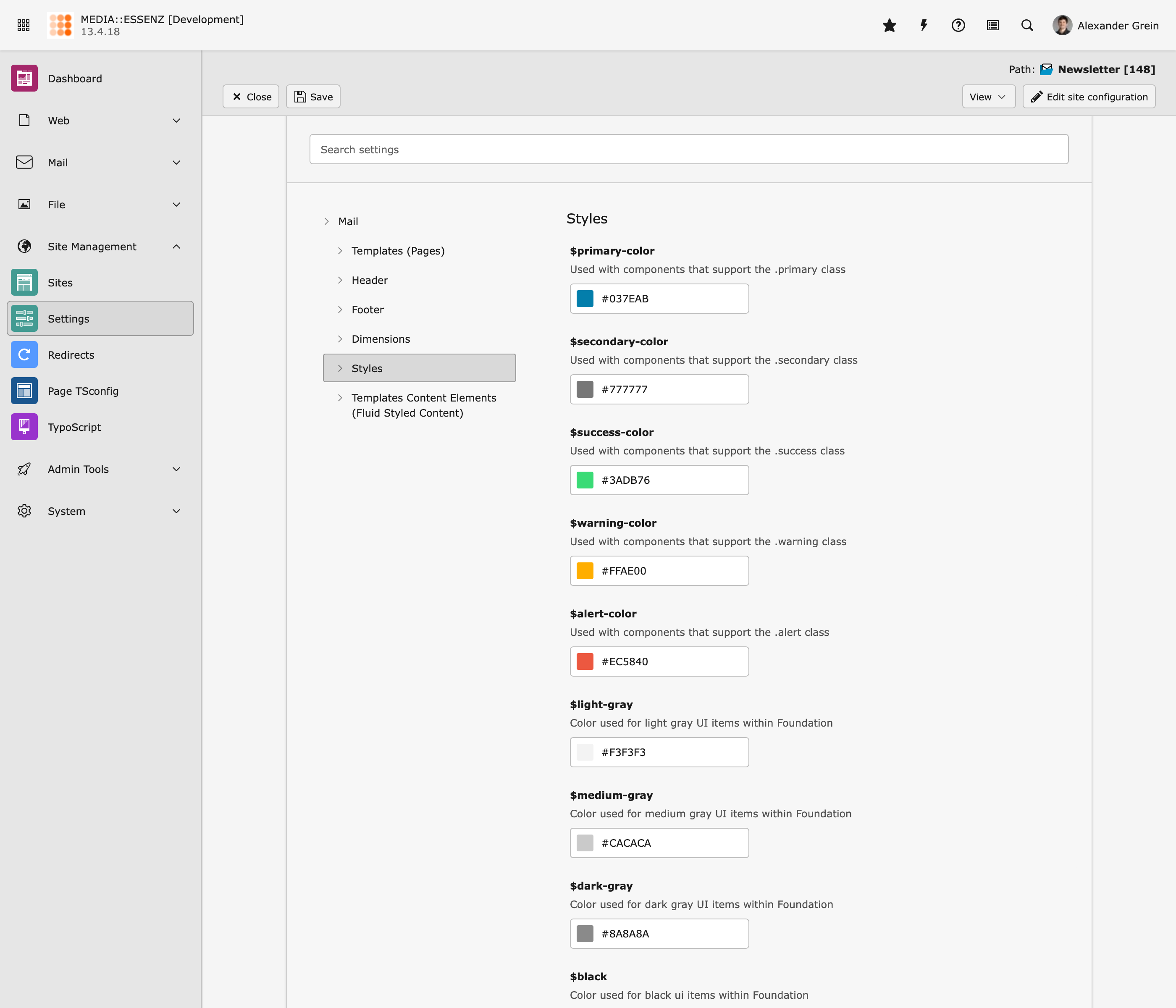
E.g. change colors under Styles
Attention
If you want to switch from the classic way to site sets way, aware
that the root page of MAIL has be changed to a "real" site root.
Additional do not forget to remove old TypoScript or TsConfig settings!
And a classic: Clear ALL Caches after a change.
Add a new sys-folder inside (!) of your page tree (not on page 0!)
This folder will be used to store the MAIL pages later. Remember the uid of
this new sys-folder page, you may need it in a later step.
Open the settings of the new created sys-folder page, go to tab Behaviour
and select MAIL Module under Contains plugin.
Add Static Page TSconfig Files
Switch to the Resources tab and include this static Page TSconfig
entries:
MAIL: Add simple mail backend layout
MAIL: TCEFORM settings for the mail root page
MAIL: Default settings for mail pages
If you want to use the fluid styled content elements additional:
MAIL: Allow only supported fluid styled content elements
MAIL: Disable not supported fields of fluid styled content elements
If you want to use the content block elements additional:
MAIL: Allow only supported content blocks
MAIL: Disable not supported fields of content blocks
If you want to use the news plugin additional:
MAIL: Allow only supported news content elements
If you want to disable all category stuff:
MAIL: Deactivate categories
Press the good old floppy disc icon to save.
After that, a new backend layout MAIL should be available under the Appearance tab.
Select MAIL backend layout
Choose it for this page and also for the subpages.
Include TypoScript templates
To use the included table based content elements, a corresponding TypoScript
is provided by this extension.
Go module Web > Template and chose your MAIL sys-folder. If not
already done, create an extension template. Switch to view Info/Modify
and click on Edit the whole template record.
Switch to the Advanced Options tab and check Constants
and Setup to Clear every TypoScript settings from TypoScript
records up in root-line.
Additional Include the following TypoScript sets if you want to use the
fluid styles content elements:
MAIL (Page)
MAIL (Styles)
If you want to use the fluid styled content elements additional:
Fluid Content Elements (fluid_styled_content)
MAIL (Fluid Styled Content)
If you want to use the content block elements additional:
MAIL (Content Blocks)
If you want to use the news plugin additional:
MAIL (News)
Read more about possible configurations via TypoScript in the
Reference section.
Add recipient sources
MAIL needs a yaml configuration for recipient sources. It comes with a ready
configuration for frontend user groups (fe_groups), frontend user (fe_users)
and addresses (tt_address).
To add them all, just import the included yaml into your site configuration:
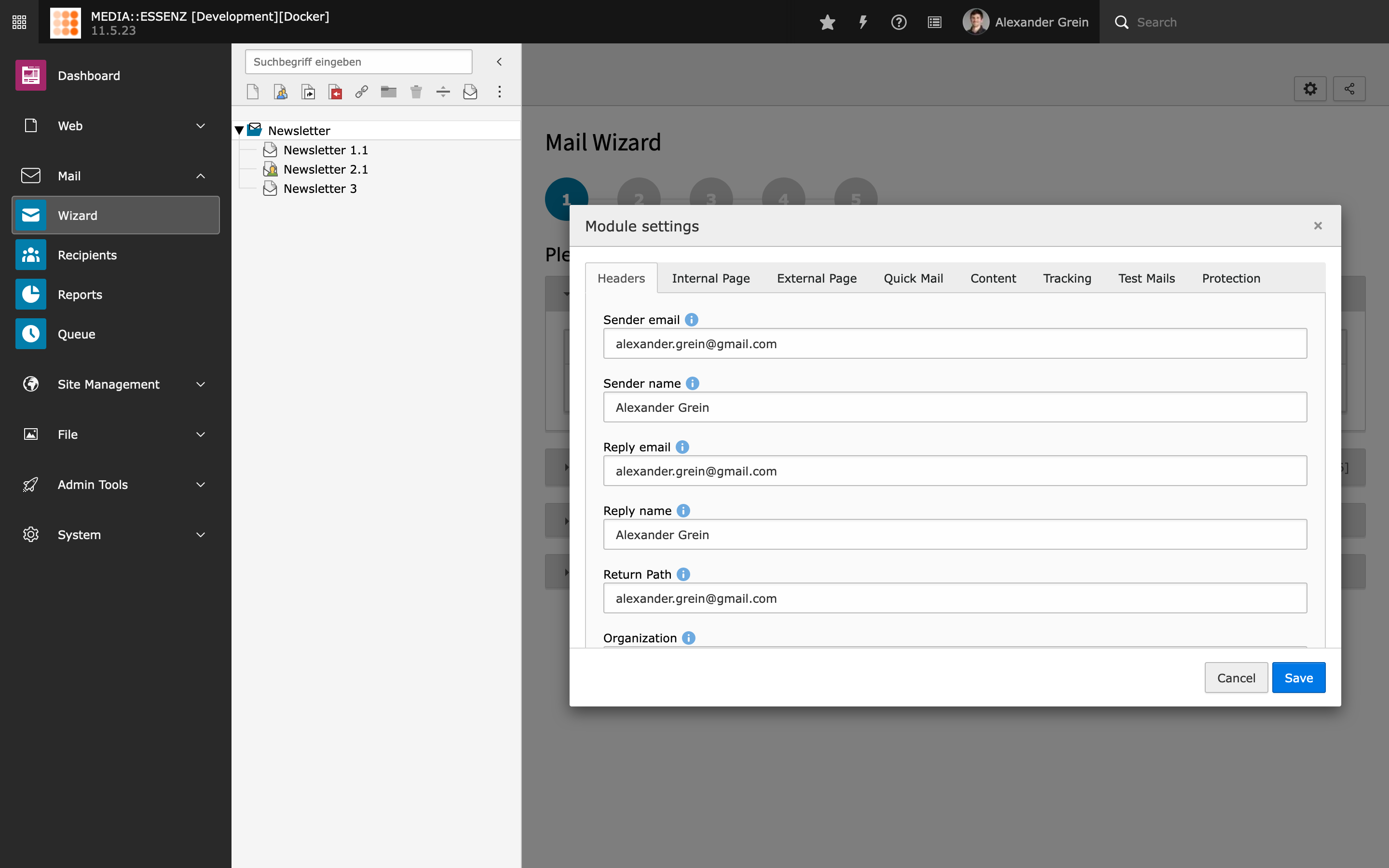
MAIL brings – similar to EXT:direct_mail – an easy way to adjust some default settings,
used by the mail creation wizard.
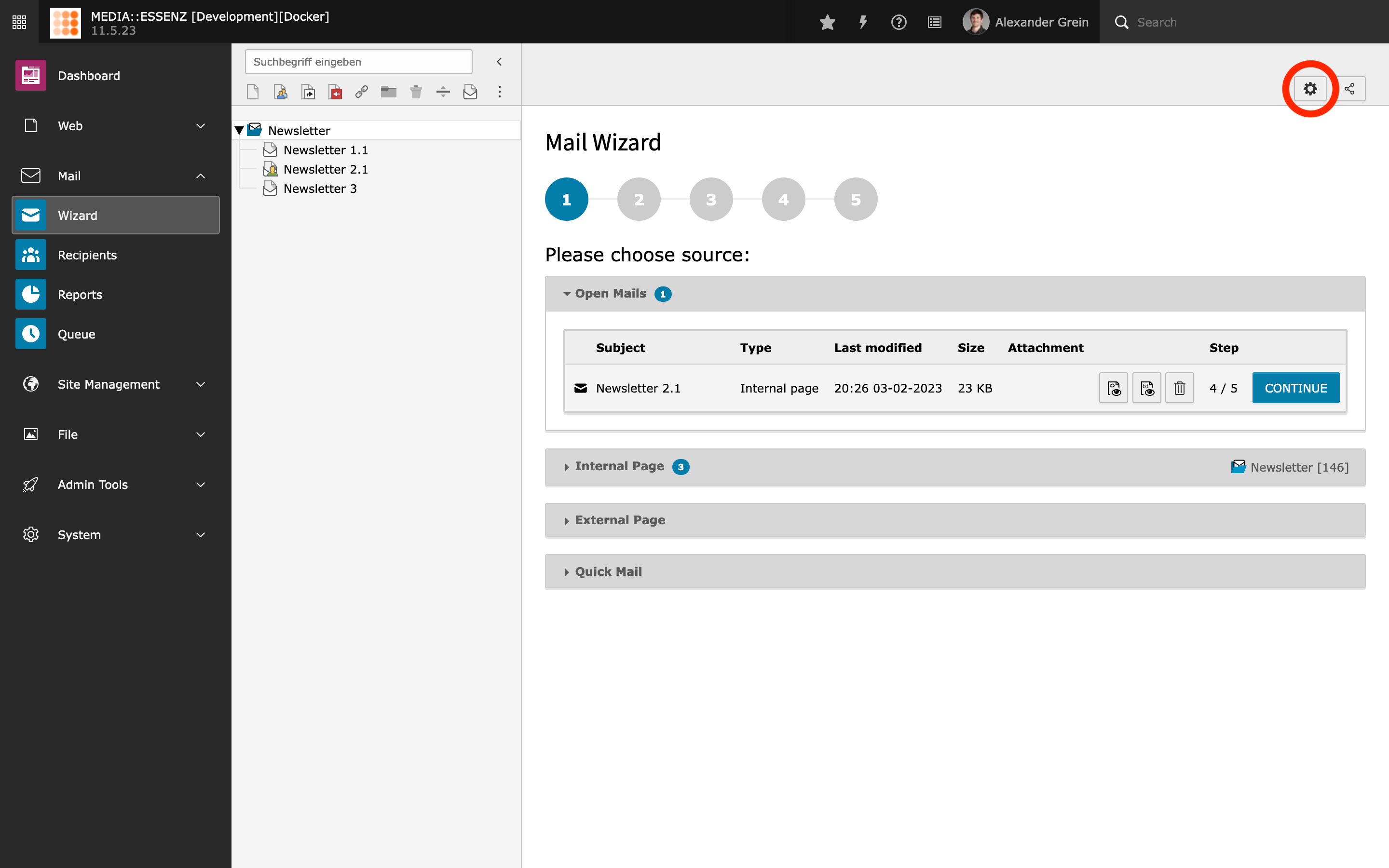
You find it by clicking on the cog button (Configuration) on the upper right corner of the
MAIL wizard module.
The input fields are divided into several groups, which can be reached by clicking on their titles.
After filling all fields with your data, press SAVE to store.
Tip
All configurations done here will be stored in the Page TSconfig field of the
currently selected page. This way, it is possible to override settings in a deeper page tree level.
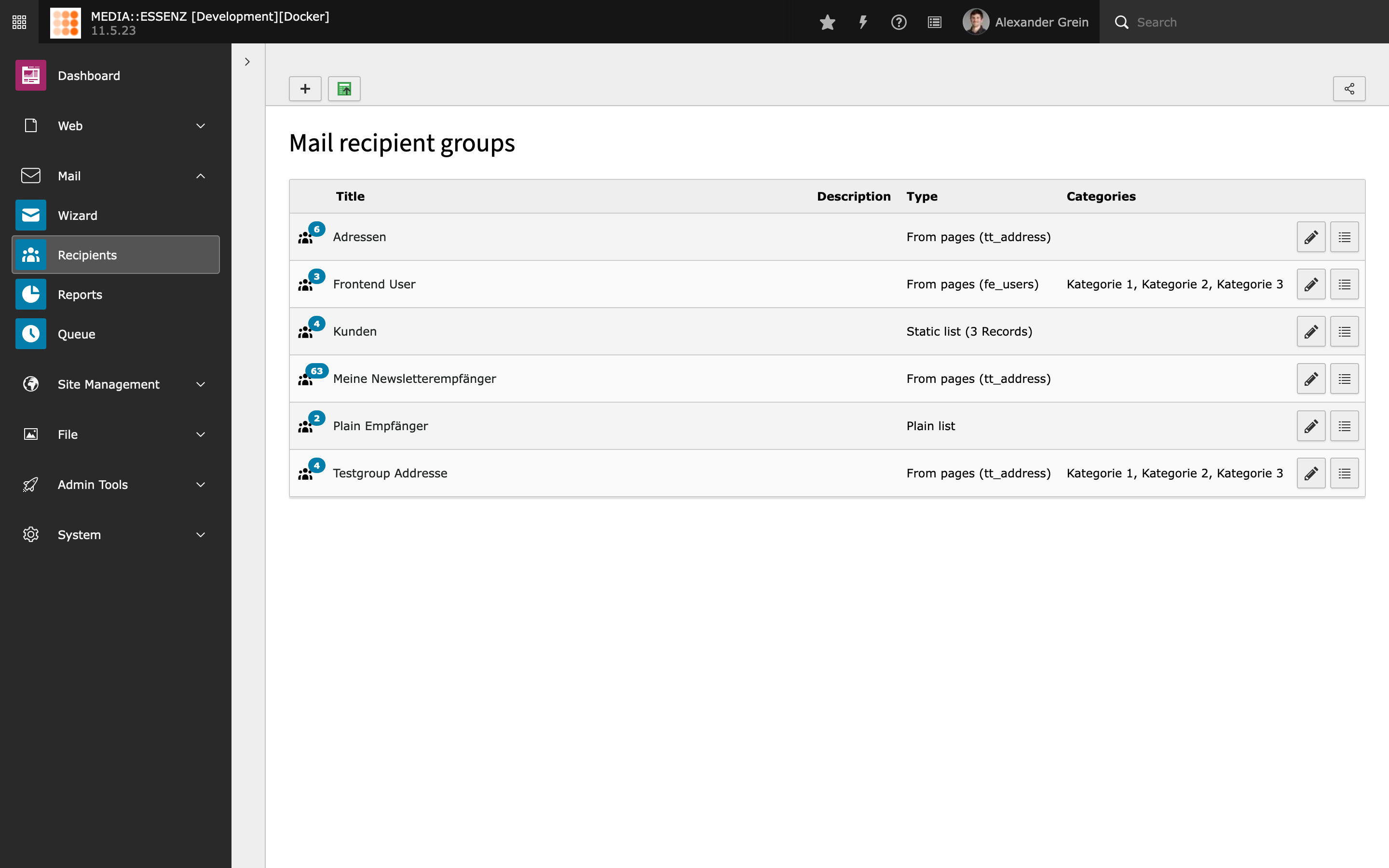
Since this extension is made to send personalized mails to groups of recipients, this groups has to be defined first.
MAIL comes with a lot of possibilities:
From pages
Compare to EXT:direct_mail, MAIL is not limited to fe_groups, fe_users, tt_address and one custom table
It is possible to add as many tables you like, as long they have the needed fields or an extbase model which implements at least the RecipientInterface, defined in Classes/Domain/Model/RecipientInterface.php
To make it even more flexible it is possible to define query restrictions (for tables) or use the RecipientsRestrictionEvent (for extbase) to filter recipients list.
Checkout https://gitlab.com/mediaessenz/additional-mail-recipients how to do it.
Beside the recipient source (table) it is also possible to set a starting point where the records should be taken from
Categories can also be set to filter the list of recipients to only those who have at least one of them assigned as well
Plain list
A comma separated list of recipients (just mails or names and mails separated by a comma or semicolon)
Compare to EXT:direct_mail, within MAIL you also can choose whether the recipients should get html or plain mails.
Categories are also assignable
CSV (Plain/File)
Configurable CSV input format (different separators, enclosures and check if first line contain field names)
If the first line doesn't contain the fieldnames, the order of the data must be "name", "email" and (optionally) "salutation"
The recipient list has a configurable duplicate filter (email by default)
Data can be plain pasted into the data field or from a selected csv file (must be utf-8 encoded!)
Compare to EXT:direct_mail, within MAIL you also can choose whether the recipients should get html or plain mails.
Categories are also assignable
Static list
Single records of all defined sources can be added – also fe_groups which will add all fe_users who have this groups assigned.
From other recipient lists
To make things even more flexible, it is also possible to create a compilation of different other recipient groups.
Some EXT:direct_mail power users may miss the possibility to define queries as sending groups.
This feature is currently not available, and will maybe come with a future release. Sponsoring is highly welcome.
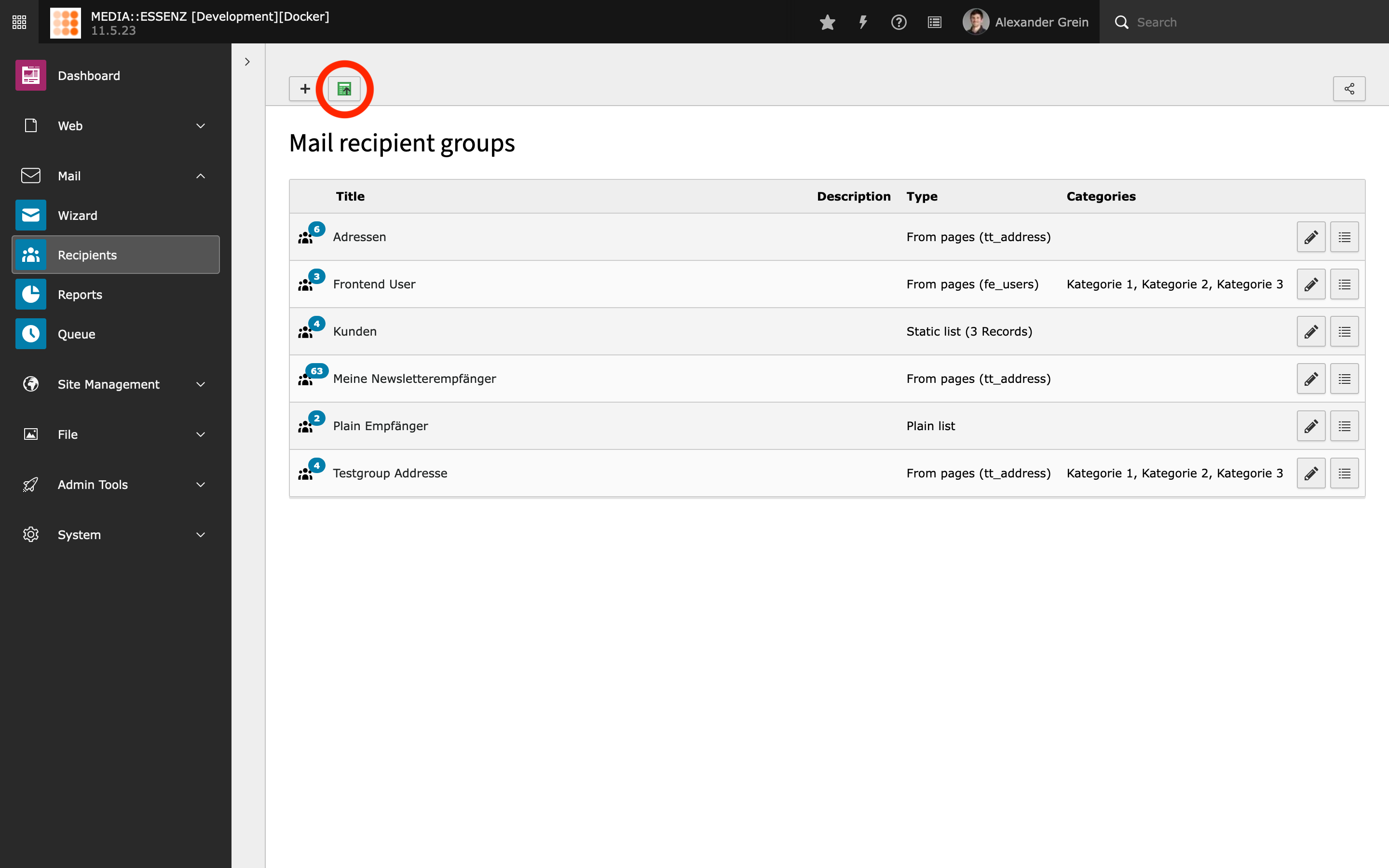
Importing CSV data to fe_users or tt_address table
This module gives you the opportunity to import a csv (comma separates list)
of addresses as fe_users or tt_address (if installed) records, which could
be added as "From pages" or "Static list" recipient group afterwards.
To make it easier to import csv records a wizard guides you through the process.
If you have installed tt_address, you can first select the destination for your import.
In the next step you can choose the source of your import. Upload a csv file or
paste the records into a text field. You can use comma (;), semicolon (;), colon (:)
or tabs as field delimiter.
Clicking the NEXT button uploads the CSV data and displays the configuration step.
In this step you can specify the detail information of the csv data, such as field
delimiter, field encapsulation, and field name in the first line. You can also specify
the sys-folder, where the records should be imported to, the uniqueness of the records,
rename or update the records if a similar record is found, or to empty the sys-folder
before importing and more.
Warning
If you set the field “remove all Addresses in the storage folder before importing”,
all records in this sys-folder will be physically DELETED .
Once you have entered all the information, proceed to the next step, where you can
select the correct encoding for your data. To do this, check the value column in the
table below to see whether special characters such as German umlauts are displayed
correctly. UTF-8 should be the standard nowadays, but some CSV exports from older
Windows systems may use other encodings such as Windows-1252.
If you wish to send HTML emails to all imported recipients, which is recommended,
tick the corresponding checkbox.
Below determine categories and fe_groups (if you choose fe_users as destination) for all
recipients.
Last but not least, start mapping the fields.
There are 3 columns in the mapping step. The description column shows
the first row of the csv records (if you set in the configuration that
the first row is the field names) or shows only field_xx (where xx is
continuous number).
The mapping column shows only the list of field, which are part of
the selected table. You must at least map the field “Name” and “Email”.
The value column shows the first up to three rows from the csv
records. They should help you to map the field.
In the select box, which contains the field names of the choosen table, there is
also an entry “categories”. This entry can be mapped to a comma-separated
list of sys_category IDs. This value will overwrite whatever
categories you selected in the above section.
After mapping the fields, you are ready to start the final import by pressing the NEXT button
once again.
If finished a list of new imported, invalid email, updated and doublet records will be shown.
Attention
This process only generates records of the selected table in the choosen folder.
It does not automatically create a recipient group for you!
To create a recipient group from this records, you must add a new recipient
group of the type “From pages” and select “Addresses” (if you imported the csv to tt_address)
as Recipient source.
Then choose the folder where you imported the records under "Startingpoint" and finally press Save.
Create MAIL page
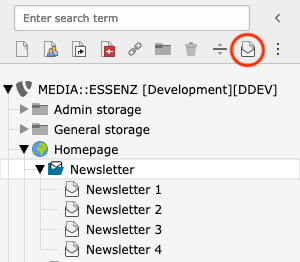
MAIL brings an own page type (#24, can be changed inside extension settings),
which appear as a new icon (letter within an envelope) above the page tree,
beside the other page type icons.
To create a new mail, just drag and drop the MAIL page icon inside the new
mail sys-folder created in the corresponding configuration step.
Now you can add content to the MAIL page using the normal page module.
As you may notice, only a few content elements are available, and some of
them do not work yet.
Currently only headline, text, text with image, text with media, image and
html are working.
Additionally (untested) it should be possible to add a news plugin.
The included content elements are inspired by EXT:luxletter. Thanks to in2code
for making it public.
Use Placeholder in MAIL Content
To personalize your emails, you can use Placeholder inside your texts.
Let's add a headline element and enter this content inside the headline field:
###USER_salutation###
Copied!
This is a marker or placeholder which will later be replaced by the individual recipient data.
To keep things simple for now, only add another content element to the MAIL page,
e.g. a "text with image".
After adding some dummy text choosing an image, specify its position, save and close it.
Create mailing
Choose source
Click on the first button of the MAIL modules.
Choose the MAIL sys-folder and move over to the main content area of this module,
where the accordion for "Internal Page" should now show the previous created MAIL page.
With the two page preview buttons (page-eye-icon) you can get an idea how the
mail will look like for the recipients later.
To continue click the NEXT button to get to the settings page.
Settings
On this page you can check and adjust the settings of the mail, whose defaults can
be changed via the configuration on the previous page.
You can either change individual values by clicking on them, or edit all of them at once
by clicking the edit button.
At this place it is also possible to add attachments by clicking on the paper clip button.
Note
Since the process of fetching, parsing, modifying, thumbnail generation and storing needs a
lot of time and energy, it happens automatically only once. If you have changed any content
on the source page (internal or external) you have to press the double cycle icon in the
type row to update the mail content.
If done, click NEXT again to get to the category settings.
Categories
Since it is possible to choose categories inside the different recipient sources
(eg. fe_users, tt_address) it must also be possible to set categories inside the different content elements.
This is what can be done here.
During moving your mouse over a row of categories the corresponding content
elements on the right side gets highlighted.
To see categories at this place, they must be defined before, of course.
How this can be done is described in the categories.
But for now you can skip this step by click on NEXT, which brings you to the test mail step
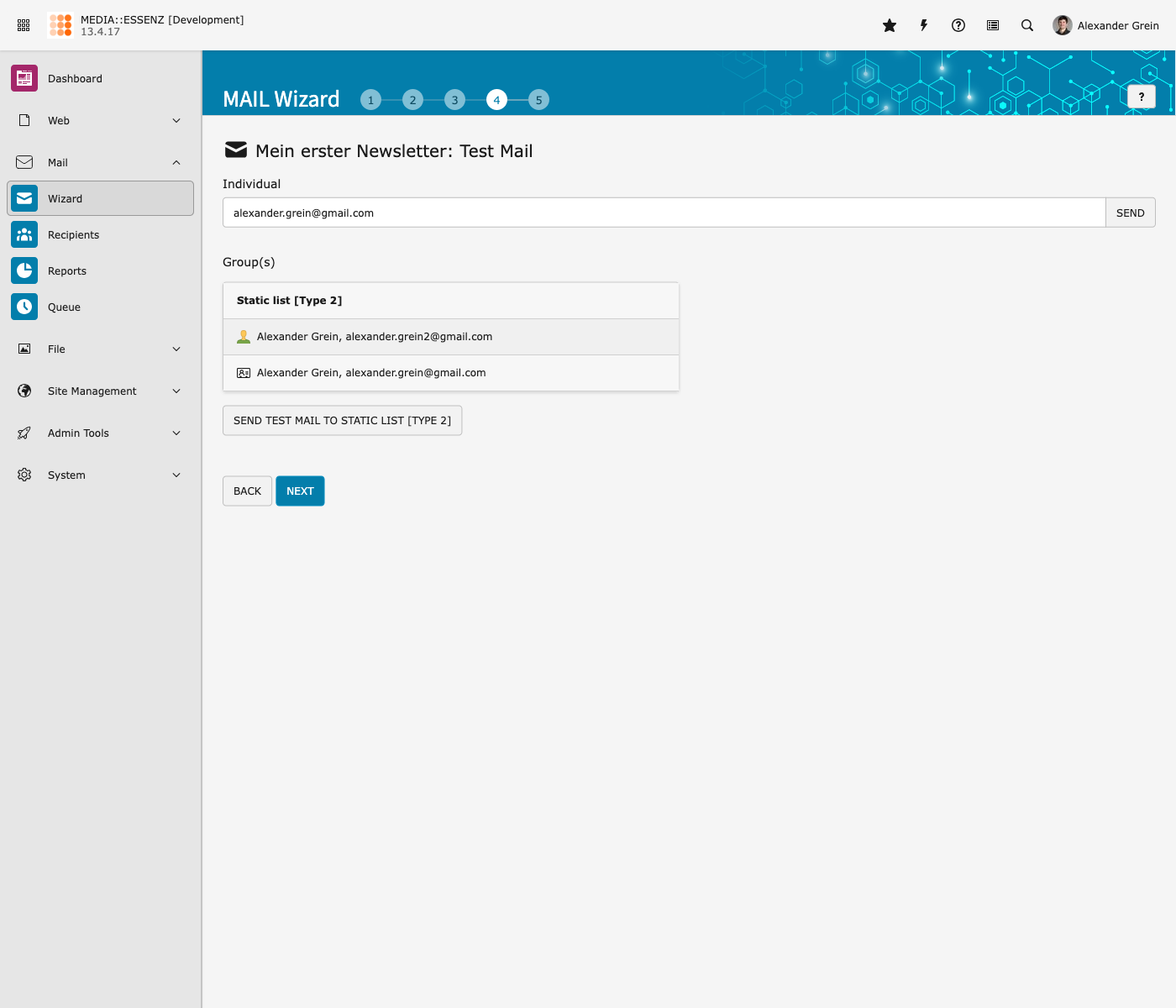
Test mail
Here you can send a simple test mail to one or a list of mail addresses.
But beware: The generated mail will include ALL content elements regardless of their categories. User fields will NOT be substituted with data.
After pressing NEXT another time, you reached the last point of this wizard: Schedule sending
Schedule sending
On this site you can choose one (or more) recipient groups and the date/time when distribution should start.
You can also exclude recipient groups, which will reduce the number of final recipients accordingly.
For our test, just choose the recipient group you created in the Create recipient group step and press FINISH.
Send mail
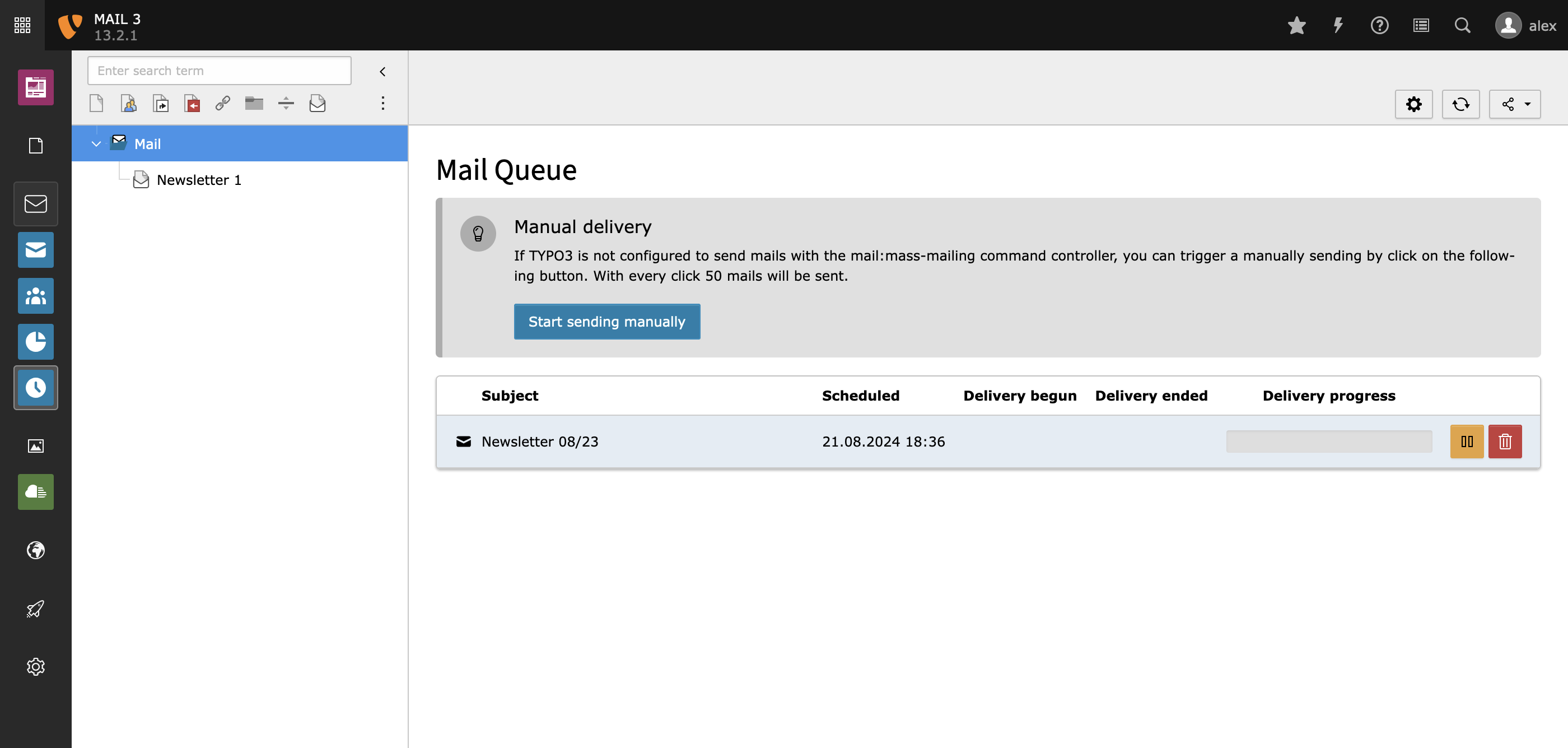
With finishing the schedule step of the wizard, a mail is added to the MAIL queue, which has its own backend module.
Watch out for the clock icon inside the mail modules on the left side.
If you click that clock button, you should see your mailing on top now.
In case you did not have configured the MAIL sending queue command controller inside the TYPO3 scheduler module yet,
you can press the button "Start sending manually" for now.
This will send the mail immediately to the members of the recipient group you choose in the last step of the MAIL wizard.
Note
Since MAIL v4 the final recipients are recalculated at the time of delivery start once again to add/remove new/removed
recipients from the given recipient group(s). To stay at the old behaviour go the the extension settings and activate the
specifyFinalRecipientsInWizard checkbox.
Now go to the mail program of your trust, to receive the recently generated mail.
Mail Report
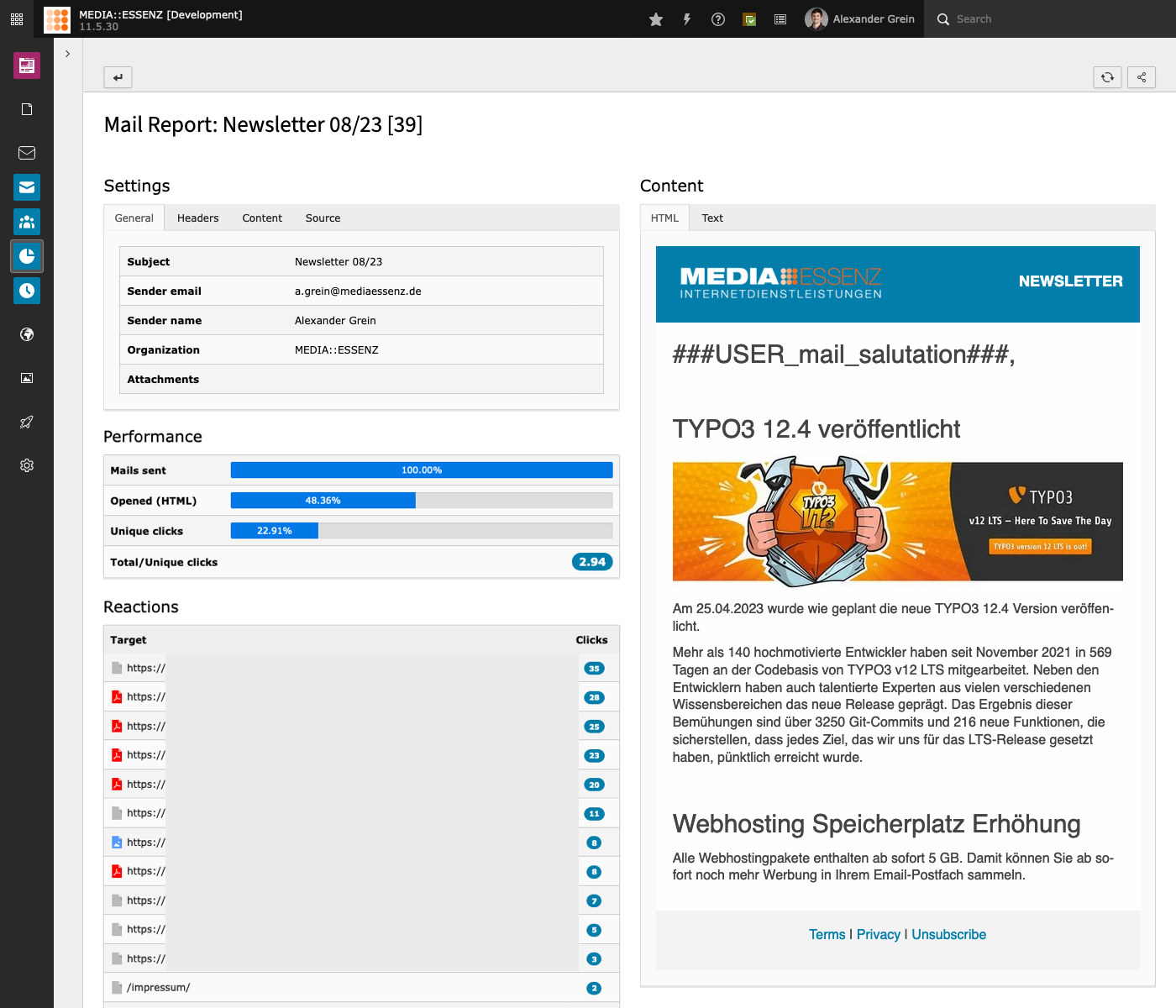
If you had included links to internal or external pages in the mail content and also enabled click tracking in the
MAIL configuration module, you can also check which links were clicked and how often.
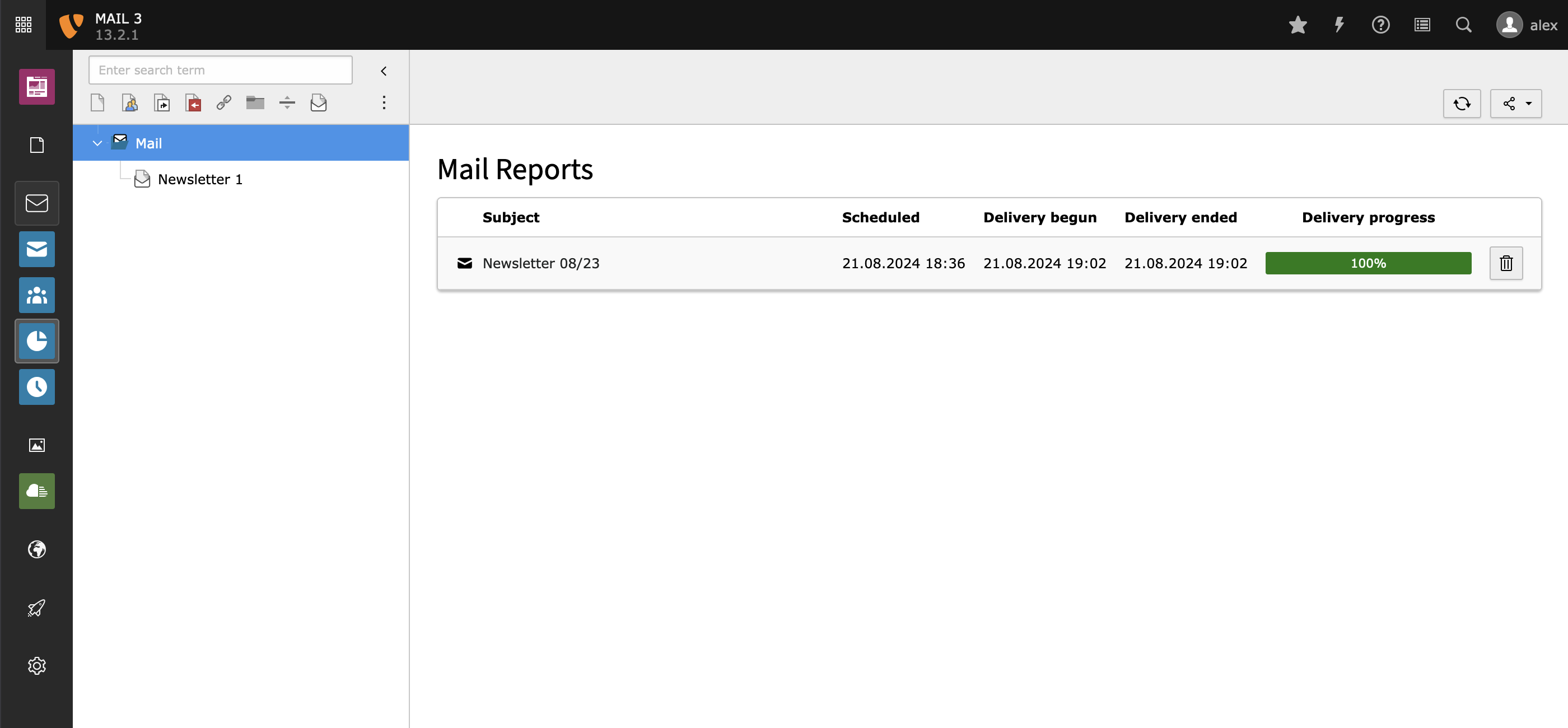
To do this, move to the report's module by clicking on the pie chart icon:
To get the report of a specific mail, click on the corresponding mail subject:
Under the panel "Mail" you can see some basic stuff.
Under the panel "Performance" you can see some metrics about the responses.
This numbers, especially "Unique responses (links clicked)" and "Total responses/Unique responses" are taken from the
code developed from the EXT:direct_mail team.
I have no clue, how relevant they are and even show the right values.
If someone with marketing skills could give me feedback about it, I would really be happy.
The panel "Delivery failed" shows the different types of returned mails.
Note
This data only will be filled if return-path for mails is set and AnalyzeBounceMail-Command-Controller is configured correctly.
See Command Controller Reference
If returned mails found, a forth box will appear, to view, delete or disable the corresponding recipients.
Note
This only works, if Privacy click tracking inside Mail > Configuration > Links and click tracking is deactivated.
Note
It it possible to exclude links from tracking, by adding data-do-not-track as attribute.
This extension needs an entry point with a protokoll and domain to proper
fetch internal pages.
An entry point with just a slash ("/") will not work!
This value can be set here "Sites Module" > "Edit site" > "General" > "Entry Point".
If you e.g. use the introduction package, this value is set to "/" by default!
Self Signed Certificates
If you use a self signed certificate, you should also check, that "HTTP" > "verify"
is set to "0".
This can be done under "Admin Tools" > "Settings" > "Configure Installation Wide Options"
> Filter by "verify" > enter "0" > Press "Write configuration"
The same setting can be done by adding this to the (additional) settings.php:
If your system is protected by basic auth (e.g. because it's a staging system) you can set
HTTP username and password in the mail wizard settings.
This will add the Guzzle "auth" option to the MailerUtility::fetchContentFromUrl method,
which enables MAIL to fetch the html code for the mail wizard preview.
If you also activate image embedding, the basic auth credentials has to be add at a second
place to enable the MAIL Service, which runs in a different context (CLI), to fetch the images
as well.
To do so, add this to the (additional) settings.php of the Basic Auth Protected system (e.g. staging):
Comma separated list of default recipient fields. Will be available by markers in a mail message. e.g. name as ###USER_name### or ###USER_NAME### filled with (uppercase) value of the user.
additionalRecipientFields
additionalRecipientFields
type
string
Default
Comma separated list of additional fields that may be substituted in the mail messages.
mailPageTypeNumber
mailPageTypeNumber
type
int
Default
24
MAIL page type number. Change this number only if another extension use the same.
mailModulePosition
mailModulePosition
type
string
Default
after:web
MAIL modules position in the side navigation. If set to empty, the module will move to the end of all other modules
mailModulePageId
mailModulePageId
type
int
Default
MAIL module page id. If set, page tree navigation will be hidden in MAIL module. Here you can
add the uid of the MAIL sys-folder if you only have one.
mailModulePageIds
mailModulePageIds
type
string
Default
auto
MAIL module page id. Reduces the page tree of the mail modules to a comma separated list of page
uids. If set to "auto" (default), the list will be automatically taken from
the pages database table, based on the selected module. This value can be
overwritten via userTS.
Feature
hideNavigation
hideNavigation
type
bool
Default
Hide navigation: If set, page tree navigation will be hidden in mail module. User tsconfig parameter tx_mail.mailModulePageId has to be set!
deleteUnusedMarkers
deleteUnusedMarkers
type
bool
Default
1
Delete unused markers in personalized mails. All markers/placeholder without corresponding recipient data will remove from personalized mails.
notificationJob
notificationJob
type
bool
Default
1
Enable notification mail. Allow MAIL to send notification about start and end of a mailing job.
deactivateCategories
deactivateCategories
type
bool
Default
Deactivate categories. Attention: If set, ALL category fields inside tt_content,fe_users,tt_address,tx_mail_domain_model_group will be disabled!
useHttpToFetch
useHttpToFetch
type
bool
Default
Use http connection for fetching Newsletter-Content. Even if your TYPO3 Backend is in SSL-Mode, the URL for fetching the newsletter contents will be http
specifyFinalRecipientsInWizard
specifyFinalRecipientsInWizard
type
bool
Default
Prior v4, the final recipients were determined after clicking the “Finish” button in the wizard. Now they are recalculated at the time of delivery once again.
Check this option to keep the old behaviour.
Ignore backend user permissions for recipients from pages.
Direct Mail Migration
directMailCategorySysCategoryMapping
directMailCategorySysCategoryMapping
type
string
Default
Mapping sys_dmail_category -> sys_category.
Used by update wizard to migrate Direct Mail records to MAIL records.
Format: 1:2,2:3,3:4 maps Direct mail category 1 to sys_category 2 and Direct mail category 2 to sys_category 3 and so on. If categories not found or set, new categories will be added.
directMailCategorySysCategoryParentCategory
directMailCategorySysCategoryParentCategory
type
int
Default
Parent sys_category used by sys_dmail_category -> sys_category migration.
If the migrated categories should be attached to a parent sys_category.
Site Configuration
This extension needs a existing site configuration to work, which should be standard nowadays.
There are two site configurations coming with this extension, both life inside the EXT:mail/Configuration/Site folder.
Transport.yaml
This configuration should only be used as a copy base for your own mail transport settings.
The supported parameters are the same as definable in $GLOBALS['TYPO3_CONF_VARS']['Mail'].
Adding one or more of this setting inside your site configuration is only necessary if you like to override the mail transport setting for a specific site.
If a property is not set via site config, there corresponding system setting is used, defined in $GLOBALS['TYPO3_CONF_VARS']['Mail'].
The overrides do only affect the transport settings used by EXT:mail or its MEDIAESSENZMailMail(Mailer|MailMessage) classes.
RecipientSources.yaml
To add all recipient sources come with MAIL (fe_groups, fe_users, tt_address) you has nothing to do.
If you would like to add your own recipient sources, just add it to your site configuration under the key mail.recipientSources.
Note
If you add your own configuration, you also have to add the fe_groups and fe_users config from the mentioned file.
Otherwise MAIL will not work correctly.
Here is an example of how to add a table which has all necessary fields (at least uid, email, name, salutation, mail_html, mail_active):
mail:recipientSources:tx_extension_domain_model_address:#<- Table nametitle:'LLL:EXT:extension/Resources/Private/Language/locallang.xlf:tx_extension_domain_model_address.title'#<- title of the recipient sourceicon:'tcarecords-tx_extension_domain_model_address-default'#<- icon identifier
Copied!
To simplify things a bit, it is also possible to ignore the mail_html and mail_active fields (they not need to exist at all).
To do this, just add forceHtmlMail: true or/and ignoreMailActive: true to your recipientSource configuration.
It is also possible to use a table more than once to create recipient sources with a subset of e.g. tt_address records.
mail:recipientSources:female_tt_address:table:'tt_address'title:'Female filtered tt_address records using table'icon:'tcarecords-tt_address-default'queryRestrictions:-'MEDIAESSENZ\AdditionalMailRecipients\Database\Query\Restriction\FemaleRestriction'csvExportFields:[uid,gender,name,first_name,middle_name,last_name,title,email,phone,www,address,company,city,zip,country,fax,categories,mail_salutation,mail_html,tstamp]
Copied!
In this case the table name has to be defined as table property. To create a subset of tt_address records, one or more QueryRestrictions can be defined.
Such a QueryRestrictions could look like this:
<?phpnamespaceMEDIAESSENZ\AdditionalMailRecipients\Database\Query\Restriction;
useTYPO3\CMS\Core\Database\Query\Expression\CompositeExpression;
useTYPO3\CMS\Core\Database\Query\Expression\ExpressionBuilder;
useTYPO3\CMS\Core\Database\Query\Restriction\QueryRestrictionInterface;
classFemaleRestrictionimplementsQueryRestrictionInterface{
publicfunctionbuildExpression(array $queriedTables, ExpressionBuilder $expressionBuilder): CompositeExpression{
$constraints = [];
foreach ($queriedTables as $tableAlias => $tableName) {
if ($tableName === 'tt_address') {
// attention: since gender is a string in tt_address the value has to be set in double quotes!// normally this should be done with help of the $queryBuilder->createNamedParameter('f', Connection::PARAM_STR)), but here we do not have the query builder :-(
$constraints[] = $expressionBuilder->eq(
$tableAlias . '.' . 'gender',
'"f"'
);
}
}
return $expressionBuilder->and(...$constraints);
}
}
Copied!
If a table doesn't contain the upper mentioned fields, or the fields have different names, it is also possible to use an extbase model to map fields to the need.
A site configuration doing this could look like this:
mail:recipientSources:tx_extension_domain_model_address:#<- Table nametitle:'LLL:EXT:extension/Resources/Private/Language/locallang.xlf:tx_extension_domain_model_address.title'#<- title of the recipient sourceicon:'tcarecords-tx_extension_domain_model_address-default'#<- icon identifiermodel:Vendor\Extension\Domain\Model\MailAddress#<- the extbase model
Copied!
Beside of the site configuration a model definition and a mapping configuration is needed as well.
Check the included model EXT:mail/Classes/Domain/Model/Address.php and EXT:mail/Configuration/Extbase/Persistence/Classes.php for how this can look like.
The model needs to implement at least the included RecipientInterface.
If you like to use categories, to send specific parts of a mail only to a specific group of recipients, the included CategoryInterface has to be implemented as well.
Since this extension can handle simple tables and extbase models as well, and in the end its data only used to replace a simple placeholder like ###USER_name###, I decided to use simple arrays for transporting.
Because of this, every model needs to have a getEnhancedData method, which must return an array of all fields, which should serve as placeholder later on.
Btw.: The same method will be used by the csv-export inside the recipient group module.
Note
Since using a domain model for a recipient source brings extbase into the game, working with large recipient groups can become a game of patience.
It is also possible to create a subset of record from a domain model source.
Since MAIL doesn't use the "normal" repository classes of a model, this restriction has to be added as an event listener (RecipientsRestrictionEvent).
This extension come with several static Page TSconfig files, which all can be found here:
EXT:mail/Configuration/TsConfig/Page
Copied!
BackendLayouts/Mail.tsconfig adds a very simple one-column backend layout for mail content to the system.
TCADefaults.tsconfig contain some default pages settings which does not (for me) make sense in context of mails.
TCEFORM.tsconfig TCEFORM settings for the mail root page.
ContentElement/AllowOnlySupportedContentElements.tsconfig Allows only supported fluid_styled_content elements from the newContentElement wizard of TYPO3.
ContentElement/DisableNotSupportedFields.tsconfig Disable not supported fields of fluid_styled_content elements.
ContentBlocks/AllowOnlySupportedContentElements.tsconfig Allows only supported content block elements from the newContentElement wizard of TYPO3.
ContentBlocks/DisableNotSupportedFields.tsconfig Disable not supported fields of content block elements.
News/AllowOnlySupportedContentElements.tsconfig Allow only supported news plugins.
DisableCategories.tsconfig Disable all category stuff (use with care!)
Backend related (modules)
All this MAIL configuration properties must be set in the Page TSconfig field of the MAIL
sys-folder under the key mod.web_modules.mail.
The following properties set default values for corresponding properties of mails and can (mostly) changed in the
settings step of the mail wizard.
Properties
fromEmail
fromEmail
type
string
Default
Path
mod.web_modules.mail.fromEmail
Default value for the 'From' or sender email address of mails. (Required)
Note: This email address appears as the originating address or sender
address in the mails received by the recipients.
fromName
fromName
type
string
Default
Path
mod.web_modules.mail.fromName
Default value for the 'From' or sender name address of mails. (Required)
Note: This name appears as the name of the author or sender in the mails
received by the recipients.
replyToEmail
replyToEmail
type
string
Default
Path
mod.web_modules.mail.replyToEmail
Default value for 'Reply To' email address.
Note: This is the email address to which replies to mails are sent.
If not specified, the 'fromEmail' is used.
replyToName
replyToName
type
string
Default
Path
mod.web_modules.mail.replyToName
Default value for 'Reply To' name.
Note: This is the name of the 'Reply To' email address.
If not specified, the 'fromName' is used.
returnPath
returnPath
type
string
Default
Path
mod.web_modules.mail.returnPath
Default return path email address.
Note: This is the address to which non-deliverable mails will be
returned to.
Note: If you put in the marker ###XID###, it'll be substituted with
the unique id of the mail recipient.
organisation
organisation
type
string
Default
Path
mod.web_modules.mail.organisation
Name of the organization sending the mail.
priority
priority
type
int+
Default
3
Path
mod.web_modules.mail.priority
Default priority of direct mails.
Possible values are:
1 - High
3 - Normal
5 – Low
hideExcludeRecipientGroups
hideExcludeRecipientGroups
type
bool
Default
Path
mod.web_modules.mail.hideExcludeRecipientGroups
Hide the exclude recipient groups in the last mail wizard step.
showSendingPriority
showSendingPriority
type
bool
Default
Path
mod.web_modules.mail.showSendingPriority
Show the sending priority in the last mail wizard step.
Mails marked as "high" will be send before other mails.
defaultSendingPriority
defaultSendingPriority
type
int+
Default
Path
mod.web_modules.mail.defaultSendingPriority
Set the default sending priority for the last mail wizard step.
Possible values are:
0 - Normal
1 - High
sendOptions
sendOptions
sendOptions
type
int+
Default
3
Path
mod.web_modules.mail.sendOptions
Default value for the format of email content.
If in doubt, set it to 3 (Plain and HTML). The recipients are normally
able to select their preferences anyway.
Possible values are:
1 - Plain text only
2 - HTML only
3 - Plain and HTML
includeMedia
includeMedia
type
boolean
Default
Path
mod.web_modules.mail.includeMedia
If set, images will be embedded into the HTML mail content.
Note: Sent messages will be much heavier to transport.
Note: To prevent embedding of a specific image, add the attribute data-do-not-embed
to the image tag. This can be useful for adding third party tracking.
When this option is not set, images and media are included in HTML
content by absolute reference (href) to their location on the site
where they reside.
htmlParams
htmlParams
type
string
Default
Path
mod.web_modules.mail.htmlParams
Default value for additional URL parameters used to fetch the HTML content from a TYPO3 page.
Note: The specified parameters will be added to the URL used to fetch the HTML content of the
mail from a TYPO3 page. If in doubt, leave it blank.
plainParams
plainParams
type
string
Default
&plain=1
Path
mod.web_modules.mail.plainParams
Default value for additional URL parameters used to fetch the plain text content from a TYPO3 page.
Note: The specified parameters will be added to the URL used to fetch the plain text content of the mail from a TYPO3 page.
The default &plain=1 will be handled by the Markdown Middleware come with this extension. This middleware
generates a markdown (text) version of a html page and keeps content boundaries needed to separate content
blocks with specific categories.
encoding
encoding
type
string
Default
quoted-printable
Path
mod.web_modules.mail.encoding
Content transfer encoding to use when sending mails.
Possible values:
quoted-printable
base64
8bit
charset
charset
type
string
Default
utf-8
Path
mod.web_modules.mail.charset
Character set to use when sending mails.
quickMailEncoding
quickMailEncoding
type
string
Default
quoted-printable
Path
mod.web_modules.mail.quickMailEncoding
Content transfer encoding to use when sending quick mails.
Possible values:
quoted-printable
base64
8bit
quickMailCharset
quickMailCharset
type
string
Default
utf-8
Path
mod.web_modules.mail.quickMailCharset
Default character set for mails built from external pages.
Note: This is the character set used in mails when they are
built from external pages and character set cannot be auto-detected.
redirect
redirect
type
boolean
Default
Path
mod.web_modules.mail.redirect
If set, links longer than 76 characters found in plain text content will be redirected.
This is realized by creating protected TYPO3 redirect entries, which hold the long URL.
Links in the mail will be replaced by URLs starting with /redirect-[md5hash].
Note: This configuration determines how Quick Mails are handled and
further sets the default value for mails from internal pages.
redirectAll
redirectAll
type
boolean
Default
Path
mod.web_modules.mail.redirectAll
If set and redirect is set as well, all links in plain text content will be redirected, not only links longer than 76 characters.
clickTracking
clickTracking
type
boolean
Default
Path
mod.web_modules.mail.clickTracking
Enables click tracking
clickTrackingMailTo
clickTrackingMailTo
type
boolean
Default
Path
mod.web_modules.mail.clickTrackingMailTo
Enables click tracking for mailto-links as well
trackingPrivacy
trackingPrivacy
type
boolean
Default
Path
mod.web_modules.mail.trackingPrivacy
Do not add recipient id to click tracking.
authCodeFields
authCodeFields
type
string
Default
uid
Path
mod.web_modules.mail.authCodeFields
Default list of fields to be used in the computation of the authentication code included in unsubscribe links
and for click tracking of mails.
httpUsername
httpUsername
type
string
Default
Path
mod.web_modules.mail.httpUsername
The username used to fetch the mail content, if mail content is protected by HTTP authentication.
Note: The username is NOT sent in the mail!
Note: If you do not specify a username and password and a newsletter
page happens to be protected, an error will occur and no mail content
will be fetched.
httpPassword
httpPassword
type
string
Default
Path
mod.web_modules.mail.httpPassword
The password used to fetch the mail content, if mail content is protected by HTTP authentication.
Note: The password is NOT sent in the mail!
Note: If you do not specify a username and password and a newsletter
page happens to be protected, an error will occur and no mail content
will be fetched.
simulateUsergroup
simulateUsergroup
type
integer
Default
Path
mod.web_modules.mail.simulateUsergroup
If mail content is protected by Frontend user authentication, enter
a user group that has access to the page.
Note: If you do not specify a usergroup uid and the page has frontend
user restrictions, an error will occur and no mail content will be
fetched.
testMailGroupUids
testMailGroupUids
type
string
Default
Path
mod.web_modules.mail.testMailGroupUids
List of UID numbers of test recipient groups.
Before sending mails, you should test the mail content by sending test
mails to one or more test recipients. The available recipient groups for
testing are determined by this list of UID numbers. So first, find out
the UID numbers of the recipient groups you wish to use for testing, then
enter them here in a comma-separated list.
testTtAddressUids
testTtAddressUids
type
string
Default
Path
mod.web_modules.mail.testTtAddressUids
List of UID numbers of test recipients.
Before sending mails, you should test the mail content by sending test
mails to one or more test recipients. The available recipients for
testing are determined by this list of UID numbers. So first, find out
the UID numbers of the recipients you wish to use for testing, then
enter them here in a comma-separated list.
showContentTitle
showContentTitle
type
boolean
Default
Path
mod.web_modules.mail.showContentTitle
If set to 1, only the title/name (instead of the path) of a clicked
target will be shown in the mail reports. This cost a bit performance,
since the title/name has to be fetched and parsed from the target url.
prependContentTitle
prependContentTitle
type
boolean
Default
Path
mod.web_modules.mail.prependContentTitle
If set to 1, the content title (see above) and the clicked target path
will be shown. Only relevant if showContentTitle is set to 1.
maxLabelLength
maxLabelLength
type
int
Default
Path
mod.web_modules.mail.maxLabelLength
Maximum length of the clicked statistics label
sendPerCycle
sendPerCycle
type
int
Default
50
Path
mod.web_modules.mail.sendPerCycle
Send per circle for manual sending trigger via Queue module
queueLimit
queueLimit
type
int
Default
10
Path
mod.web_modules.mail.queueLimit
Number of mailings listed in queue module. If zero (0) all current and past mails will be visible.
refreshRate
refreshRate
type
int
Default
5
Path
mod.web_modules.mail.refreshRate
Number of seconds between automatic refreshing of delivery progress bars. Set to 0, to stop automatic
refreshing.
storage
storage
type
int+
Default
Path
mod.web_modules.mail.importer.storage
PID of the target SysFolder, in which the recipients will be imported.
If importing to frontend user, set username to contents of email if username is empty
uniqueMode
uniqueMode
type
string
Default
update
Path
mod.web_modules.mail.importer.uniqueMode
Determines what happens when recipient already exists. Skip creating record [skip]. Create renamed record [rename]. Update existing record, keeping existing assignments and adding new [update]
recordUnique (tt_address)
recordUnique (tt_address)
type
string
Default
Path
mod.web_modules.mail.importer.recordUnique
Specify the field of the tt_address table, which determines the uniqueness of imported subscribers. [email, name]
recordUnique (fe_users)
recordUnique (fe_users)
type
string
Default
Path
mod.web_modules.mail.importer.recordUniqueFeUsers
Specify the field of the fe_users table, which determines the uniqueness of imported subscribers. [username, email, name]
filterColumns
filterColumns
type
string
Default
Path
mod.web_modules.mail.importer.filterColumns
Filter allowed columns to be imported
inputDisable
inputDisable
type
boolean
Default
Path
mod.web_modules.mail.importer.inputDisable
Disable all of above input field, so that no user can change it.
resultOrder
resultOrder
type
string
Default
new, update, invalidEmail, double
Path
mod.web_modules.mail.importer.resultOrder
Set the order of import result. Keywords separated with comma. [new, update, invalidEmail, double]
Restrict categories example
Here is an Page TSconfig example of how to restrict a list of categories to a specific parent category (has uid 1 in this example):
This config placed in the Page TSconfig field of the MAIL sys-folder page, will reduce all categories shown in tt_content, tt_address, fe_users and for simple list recipient groups living inside the MAIL sys-folder to the parent category with the uid 1.
Beside of this, the nonSelectableLevels = 0 lines prevent the parent category itself to be selectable.
User TSconfig
The following properties may be used in user TSConfig (BE user or BE usergroups) to configure parts of the different
MAIL modules.
hideTabs
hideTabs
type
string
Default
Path
tx_mail.hideTabs
Comma separated list of not needed mail sources in the mail wizard.
Available value:
internal: hide the internal page option
external: hide the external page option
quickmail: hide the quick mail option
draft: hide the draft mail option
defaultTab
defaultTab
type
string
Default
draft
Path
tx_mail.defaultTab
Possible options: internal, external, quickmail, draft
hideConfiguration
hideConfiguration
type
bool
Default
Path
tx_mail.hideConfiguration
Hide configuration button in mail wizard and queue module.
hideEditAllSettingsButton
hideEditAllSettingsButton
type
bool
Default
Path
tx_mail.hideEditAllSettingsButton
Hide edit all settings button in mail wizard settings step.
Comma separated list of source fields which should be visible in the mail wizard settings step and report.
readOnlySettings
readOnlySettings
type
string
Default
type,renderedSize
Path
tx_mail.readOnlySettings
Comma separated list of fields which should be read only in the mail wizard settings step.
Attention: this is only a visual restriction! If the user has the rights to change the corresponding
fields of the tx_mail_domain_model_mail table he/she will be able to do this by clicking the
"edit complete record" button! To prevent this, you have to restrict the fields in the usergroup
settings (exclude fields) as well.
hideCategoryStep
hideCategoryStep
type
bool
Default
Path
tx_mail.hideCategoryStep
hideExcludeRecipientGroups
hideExcludeRecipientGroups
type
bool
Default
Path
tx_mail.hideExcludeRecipientGroups
Hide the exclude recipient groups in the last mail wizard step.
showSendingPriority
showSendingPriority
type
bool
Default
Path
tx_mail.showSendingPriority
Show the sending priority in the last mail wizard step.
Mails marked as "high" will be send before other mails.
defaultSendingPriority
defaultSendingPriority
type
int+
Default
Path
tx_mail.defaultSendingPriority
Set the default sending priority for the last mail wizard step.
Possible values are:
0 - Normal
1 - High
hideManualSendingButton
hideManualSendingButton
type
bool
Default
Path
tx_mail.hideManualSendingButton
Hide manual sending button in queue module.
hidePauseButton
hidePauseButton
type
bool
Default
Path
tx_mail.hidePauseButton
Hide pause and continue button in queue module.
hideDeleteRunningSendingButton
hideDeleteRunningSendingButton
type
bool
Default
Path
tx_mail.hideDeleteRunningSendingButton
Hide delete running sending button in queue module.
hideDeleteReportButton
hideDeleteReportButton
type
bool
Default
Path
tx_mail.hideDeleteReportButton
Hide delete report button in report module.
mailModulePageId
mailModulePageId
type
int
Default
Path
tx_mail.mailModulePageId
If extension configuration parameter hideNavigation
is set to 1 or mailmodulepageid <extension-configuration-mail-module-page-id> is set to a mail
module page, this value can be set to a (different) mail module page id. This way it is possible to
show a user individual mail module.
mailModulePageIds
mailModulePageIds
type
string
Default
Path
tx_mail.mailModulePageIds
Reduces the page tree of the mail modules to a comma separated list of page uids.
If set to "auto", the list will be automatically taken from the pages database table,
based on the selected module (see here).
This value overrides the extension configuration
with the same name.
This setting is ignored if mailModulePageId or hideNavigation is set, because this will result in
no page tree at all!
hideAddNewRecipientListButton
hideAddNewRecipientListButton
type
bool
Default
Path
tx_mail.hideAddNewRecipientListButton
Hide the icon for adding a new recipient list in the Recipient module.
To deactivate returned mail recipients within the report module (beside tt_address and fe_users), it is necessary to register corresponding event
listeners.
See MEDIAESSENZMailEventListenerDeactivateAddresses and DeactivateFeUsers for example.
Note
Need an entry in a Services.yaml as well. It looks similar to this:
This command is responsible for adding scheduled mailings to the sending queue.
There are two mandatory parameters:
site-identifier
send-per-cycle
The first one (site-identifier) is the identifier of the site configuration where MAIL can find its recipient sources configuration.
You can find it inside the TYPO3 sites module under the "General" tab.
The second (send-per-cycle) determine how many mails should be sent per cycle.
The time between a cycle can be defined in the "Frequency" field of a task.
e.g. * * * * * will run the task every minute, if you put 50 into the send-per-cycle field, 50 Mails per minute will be sent.
AnalyzeBounceMailCommand
This command fetches returned mails from the mail account defined in the return-path field of the MAIL configuration module.
Depends on special headers, the reason of the return will be added to the report of the corresponding mail.
SpoolSendCommand
This command controller can be used to send mail in a queue.
It's basically the same coming with TYPO3, but it uses a site specific mail transport configuration.
See site configuration Transport.yaml under Integration up in this manuel.
To make this command controller work, it is also necessary to set transport_spool_type to file or memory. if the type was set to file, the transport_spool_type has to be set as well, e.g. to upload/tx_mailspool/.
This command controller is not really needed by this extension, since the sending is already queued by the MassMailingCommand.
But if a developer wants to use the extended Mail-Classes MEDIAESSENZMailMail(Mailer|MailMessage) inside their own extension, it can be usefully.
ClearScssParserCacheCommand
This command controller clears the scss parser cache files located in typo3temp/assets/mail/css.
This cache is also cleared after a mail report is deleted.
Page id of the mail-sys-folder containing the mail configuration mod.web_modules.mail.sendOptions.
Returns:
Preview-links, title, languageUid and flag-icon-identifiers for every language and type (plain/html), grouped by types.
The types (plain and/or html) will be taken from the Page TSconfig parameter mod.web_modules.mail.sendOptions
from the given pageId, defined with e.g. the mail configuration module under "Mail format (default)".
GetBodyContentViewHelper
Extract the body tag content of the mail html content. Used to embed the mail html content.
Usage:
{mail.htmlContent -> mail:getBodyContent()}
Copied!
RemoveMailBoundariesViewHelper
Remove the mail boundaries from the mail plain content. Used to embed the mail plain text content.
<f:variablename="contentSelectionBoundary"value="{mail:constant(name:'CONTENT_SECTION_BOUNDARY')}"/><!--{contentSelectionBoundary}_-->Content for all<!--{contentSelectionBoundary}_END--><!--{contentSelectionBoundary}_1-->content for category 1<!--{contentSelectionBoundary}_END--><!--{contentSelectionBoundary}_1,2,3-->content for category 1, 2 and 3<!--{contentSelectionBoundary}_END-->
Copied!
Parameters:
name:
Name of the constant
classFQN:
Full qualified name of the class containing the constants. Default: MEDIAESSENZMailConstants
Returns:
The value of the constant if exists, otherwise null.
Add RecipientsRestrictionEvent to manipulate querys of extbase model recipient sources. This way it is now possible to e.g. filter recipient lists coming from extbase.
Add possibility to define one or more query restrictions to manipulate table recipient sources. This way it is now possible to e.g. filter recipient lists coming from tables.
To make it possible to use a table more than once, a new recipient source confiiguration property table was added.
If not set, the identifier is used as table name instead.
The mail queue is now pausable. This opens the possibility to pause a running delivery to e.g. give another delivery priority.
A new recipient group type "CSV" was added with additional configuration settings:
Type "Plain CSV" and "CSV from file"
Field separator
Field enclosure
First line contains field names, which makes it possible to use every field defined in the extension settings "defaultRecipientFields" or "additionalRecipientFields" as marker
CSV file as source (file must be UTF-8 encoded!)
The bounce mail handling was enhanced to handle recipients from csv and plain lists as well. After deactivate bounced recipients inside the report module, the affected emails
will be changed inside there source (recipient group record or csv file) like so: invalid-email@domain.com -> !invalid!--invalid-email[at]domain.com.
In this way, any other data for this user is retained. However, it will no longer be used as a recipient due to the invalid email.
The last step of the Mail Wizard has been expanded to include a new “Exclude recipient groups” selection, which allows to define one or more recipient groups that are to be
excluded from a mailing. This makes it possible, for example, to exclude a few people from a larger list in order to prevent them from receiving a specific mailing.
This list could be a plain list with just email addresses.
Breaking changes
Recipient Source Configurations now uses the DTO MEDIAESSENZDomainModelDtoRecipientSourceConfigurationDTO.
Previously the getRecipientSourceConfiguration method of the following events returns an array:
ManipulateMarkersEvent
ManipulateRecipientEvent
DeactivateRecipientEvent
Please adjust your event listeners to use e.g. $recipientsSourceConfiguration->table instead of $recipientsSourceConfiguration['table'].
There is also a custom property available to transfer custom yaml config into event listeners.
This will be available as $recipientsSourceConfiguration->custom['foo'] in an event listener.
Plain Lists and CSV recipient groups are now different recipient group types. A migration wizard to convert from the old to new format comes with this version.
Attention: Before using the migration wizard please do a database compare, but do not rename or remove the field "csv" in the first step!
After the new fields "csv_type", "csv_data", "csv_separator" and "csv_file" have been generated, goto admin tools > upgrade and click on upgrade wizard.
Here start the wizard with the title: "EXT:mail: Migrate mail group type plain to plain or new group csv, depending on csv type.".
After this, you can safely delete the field "csv" from the tx_mail_domain_model_group database table.
Mail records now have a status field, which can hold (currently) 5 different states:
0 = DRAFT
1 = SCHEDULED
2 = SENDING
3 = PAUSED
4 = ABORTED
5 = SENT
There is an update wizard to convert existing mail records. Please do not delete the mail database field "sent" or rename it to "zzz_deleted_sent" before running it once!
As a side effect, the backend module of the queue now only shows scheduled mails that have not yet been sent.
For a better bounce mail handling MAIL now uses ddeboer/imap instead of tedivm/fetch. Since ddeboer/imap only can handle IMAP accounts, the possibility to use a POP3
account for collecting bounce mails is dropped. As the mail server type parameter in the bounce mail command is therefore obsolete, it is also deleted. The parameter "count",
to set the number of bounce mail to be processed per run, was dropped as well, since it should not be a critical thing, to handle all found bounce mail in one run.
Due to this changes, all scheduler task using this command may be corrupt after updating to MAIL 3.0. In dought just recreate them.
Add ManipulateMailRecipientsEvent to manipulate the array of recipients of a mail after pressing the finish button in the mail wizard.
This event can be helpful to remove duplicate email recipients comming from multiple selected recipient lists.
Please note that recipients with the same email may have subscribed to different email categories. If this is the case and a mailing
also uses the category function, caution is advised!
The included NormalizeRecipientData Event Listener now normalizes the name of recipients.
If the name field is empty, it now searches for the fields first_name, middle_name and last_name and uses them (combined) as replacements in case they are not empty as well.
Add an example of how to prevent duplicate sendings using the new ManipulateMailRecipientsEvent introduced with version 3.1.0
This example does not take into account that a duplicate recipient may have other categories.
Enhance the ManipulateFrontendUserRecipients to also normalize the phone field (from telephone) if the source is table
Bug Fixes
CSV sendings now do not stop after the first sending period anymore
Recipient data containing null or 0 are now also have this value in there corresponding markers
The getRecipientsDataByUidListAndModelName, responsible for getting the data of recipients from a model source, now make use of the getEnhancedData method
Creating and sending mails in other languages then default (0) had some issues which needs to change several files:
Templates/Backend/Mail/Index.html (preview modals link changed)
ViewHelpers/PreviewLinksViewHelper.php (change way how to get links to translated pages and add page title to return array)
Configuration/TCA/tx_mail_domain_model_mail.php (remove 'languageField' => 'sys_language_uid', from the ctrl section, since this field is only used to fetch
the right language from a given internal page, not from the mail record it self)
Make all included viewhelpers future proof by changing them from renderStatic to render
Add sending priority to the last step of the mail wizard. Mails set to "high" will be send before other mails.
At the end of an already running sending cycle, triggered by the scheduler task, a currently running delivery
will be paused, until the mail with the higher priority was sent out.
New page and user TsConfig parameters (defaultSendingPriority, showSendingPriority) are available to set the
default priority and show/hide the priority selector. The sending priority selector is set to hidden by default!
hideExcludeRecipientGroups is now also available as pageTsConfig parameter (mod.web_modules.mail.hideExcludeRecipientGroups)
Recipient lists of type csv includes a configurable duplicate filter now. The default setting filters out duplicate email recipients by its email address.
By adding more fields to the corresponding configuration field (CSV deduplicate fieldnames) it is possible to restict this filter by e.g. the name field.
If you e.g. enter "email,name" into this field, only CSV entries with the same value in both fields will be deduplicated.
For the compare email field will be trimed and lowercased before. Other fields will only be trimmed before comparing.
So emails like "MyCoolEmail@domain.com" and "mycoolemail@domain.com" will be handled as duplicates, but names with values "Mister X" and "mister x" are not duplicates.
Always the first entry "wins" and make it into the final sending list.
Since this feature adds a new database field, please do a database compare after updating!
Add MAIL Settings and MAIL Fluid Styled Content Elements Site Sets.
If you like to switch to site sets configuration, aware
that the root page of MAIL has be changed to a "real" site root.
Additional do not forget to remove old TypoScript or TsConfig settings!
Add some additional 'require' => true properties beside 'eval' => 'require' to keep
downward compatibility.
TypoScript optimisations
Replace a left <INCLUDE_TYPOSCRIPT> with @import syntax
Improve migration script
Use a "fresh" querybuilder object for all sys_category_record_mm calls.
Add base scheme fallback
If the base url defined in a site config.yaml doesn't contains a scheme, the
default scheme defined in $GLOBALS['TYPO3_CONF_VARS']['SYS']['defaultScheme']
will be used. If this is not set as well, http will be used.
Open existing draft mail when click on internal page
Previously, when you clicked on an internal page in the email wizard's sidebar (if enabled),
a new email draft was created, regardless of whether a draft already existed.
Now, the existing draft is opened instead.
Add attachments to test mails
Add attachment defined in the settings step of the wizard to test mails.
Also changed subject and mail sender data will be used now for test mails.
Introduce separate sender email and name configuration
Since the beginning of mail there was a misuse of the return path address as sender email.
This release brings two new parameters senderEmail and senderName to set the corresponding
values within a site configuration (under the mail key).
The return path email can and must still be configured by page tsconfig but will now set the
correct mail header Return-Path.
Refactor "Recipients From Pages" with activated "include subpages"
Since the beginning, the recipient group of type "From pages" has a "include subpages" checkbox.
If activated, previously the PageTreeView class was used to collect all subpages of the selected pages.
Now the PageTreeRepository class, introduced with TYPO3 13, is used to get the needed data.
If a backend user does not have access to a subpage, their recipients were not displayed in the Recipients
module and were not added to the email recipients at the end of the MAIL wizard.
But with the activated feature "Recalculation of Recipients at delivery start", added with version v4.0.0,
the list of recipients is mostly recalculated in the context of cli, if the mail sending is done by a
scheduler task.
For this reason, a newsletter may be sent to more recipients than a user expects.
To show them the full list of recipients, there is a new feature flag which could be activated extension wide.
It can be found under the system settings > Configure Extensions > mail > feature >
"Ignore backend user permissions for recipients from pages.".
But be care full, this can give editors access to data they do not have permissions!
To prevent users from modifying recipient details or viewing anything other than the name and email address,
you should restrict access to the relevant tables to ‘read-only’.
Enhance AdditionalMailHeadersEvent
A shortly made change in the AdditionalMailHeadersEvent produces an type error exception which prevents mails from
sending if the php exception handling was to strict. This will be fixed by this release.
The event now has two new getters:
getRecipientSourceIdentifier
getRecipientUid
This can be used to easier create eg. RFC 8058 one-click unsubscribe headers.
Sitemap
Index
Reference to the headline
Copy and freely share the link
This link target has no permanent anchor assigned.The link below can be used, but is prone to change if the page gets moved.