
Managing tasks
Tasks are one-shot prompt templates that combine a configuration with a specific user prompt. They provide reusable AI operations that editors or extensions can execute with a single call.
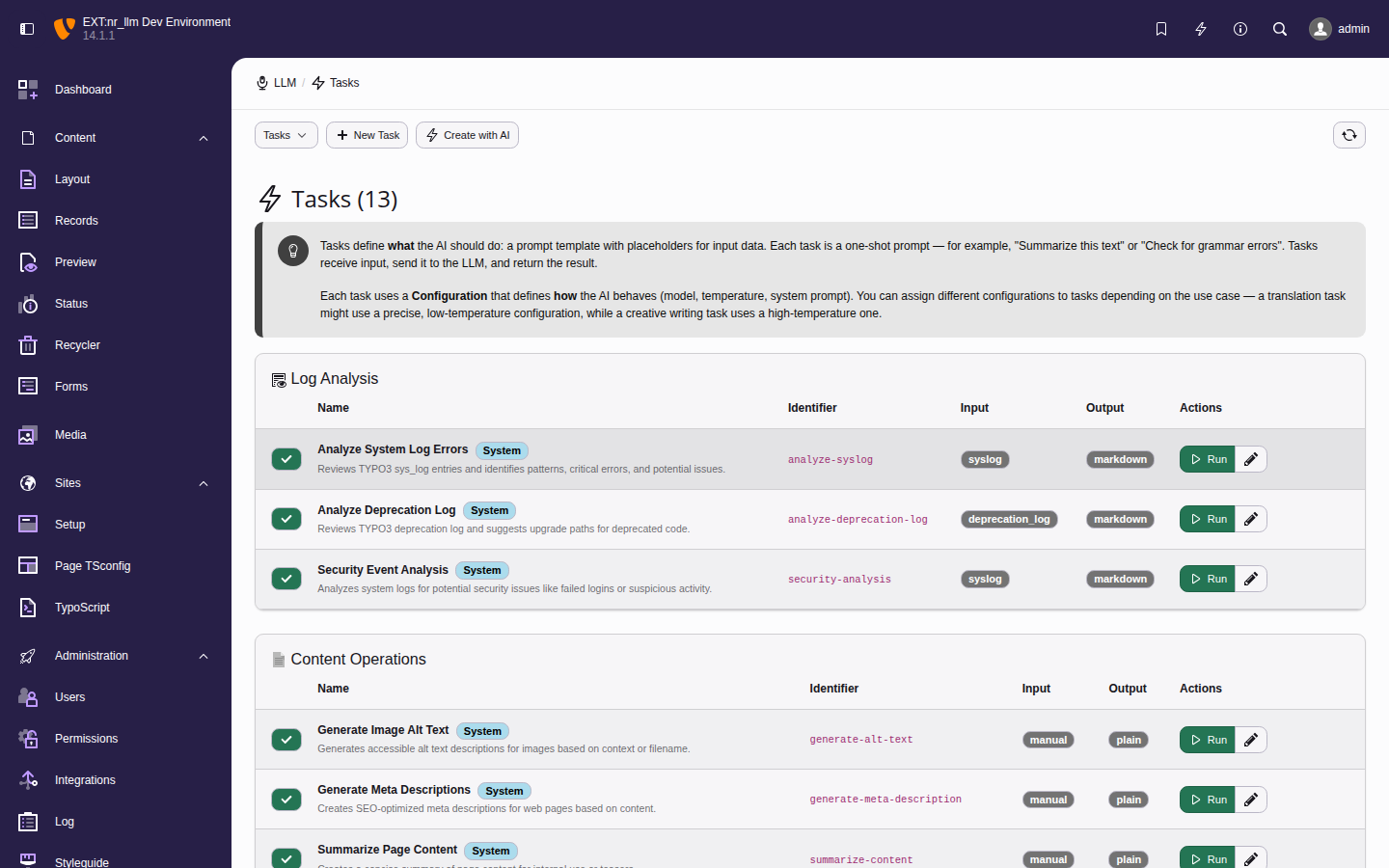
The task list with each task's assigned configuration and action buttons.
Adding a task manually
- Navigate to Admin Tools > LLM > Tasks.
- Click Add Task.
-
Fill in the required fields:
- Name
- Display name (e.g.,
Summarize Article). - Configuration
- Select the LLM configuration to use.
- User Prompt
- The prompt template. Use
{placeholders}for dynamic values.
- Add a description so other admins understand what the task does.
- Click Save.
Executing a task
Click Run on any task to open the execution form. It shows the configuration, model, parameters, input field, and prompt template.
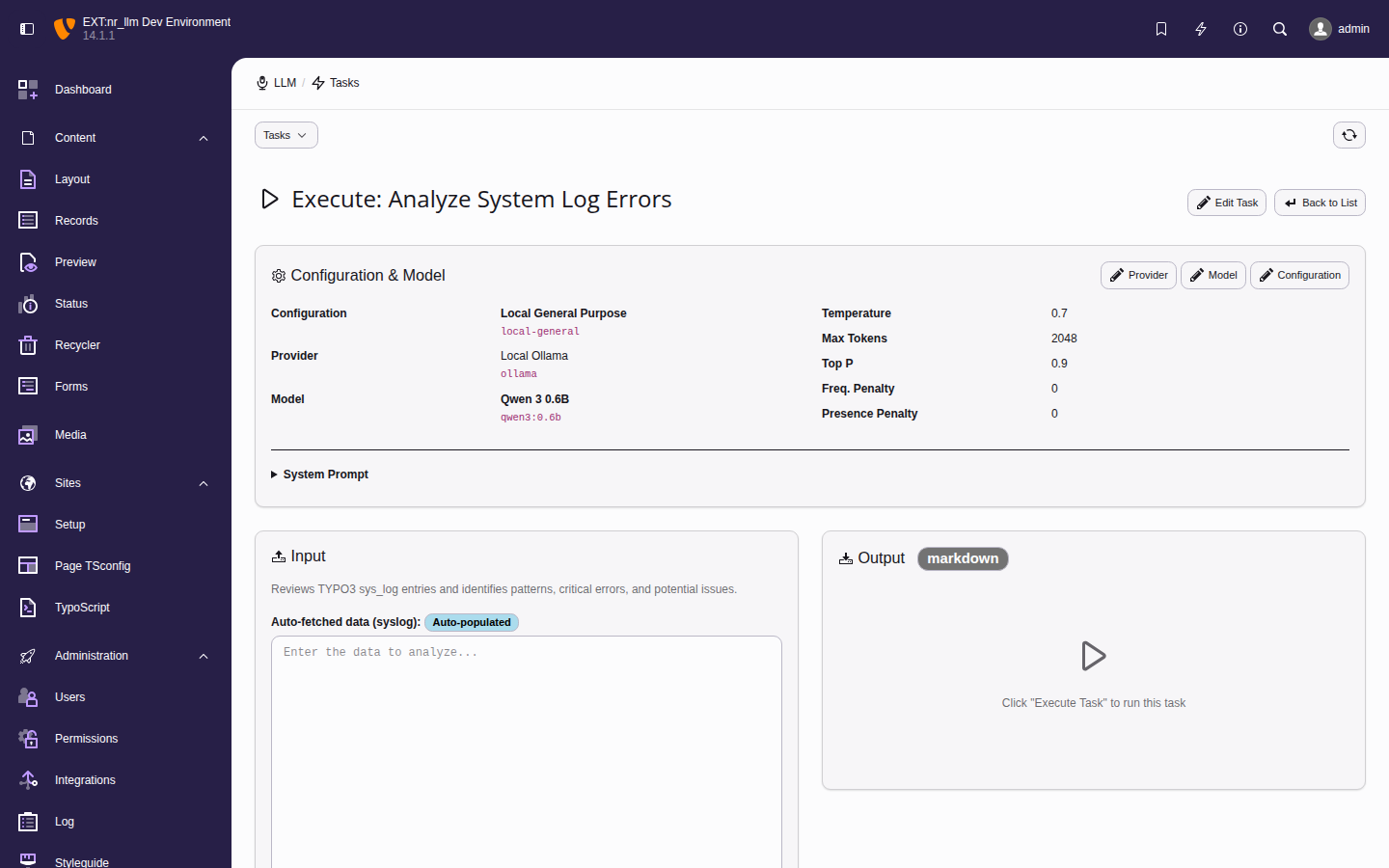
The task execution form for "Analyze System Log Errors" with the Ollama provider and Qwen 3 model.
Example tasks:
- Summarize content — condense long articles.
- Generate meta descriptions — SEO optimization.
- Translate text — one-click translation.
- Extract keywords — pull key terms from content.
The editor module
Editors do not need backend administrator rights to run tasks: the
dedicated Web > AI Tasks module (ADR-131)
lists every active task and opens a slim run form — without any of the
management affordances of this admin module. Access takes both switches
described under Backend user permissions: the module permission
on the backend group AND the Execute AI tasks grant. Every run is
pre-flighted against the user's own usage budget. Tasks with the table input type are
not offered to editors — their database record picker stays admin-only.
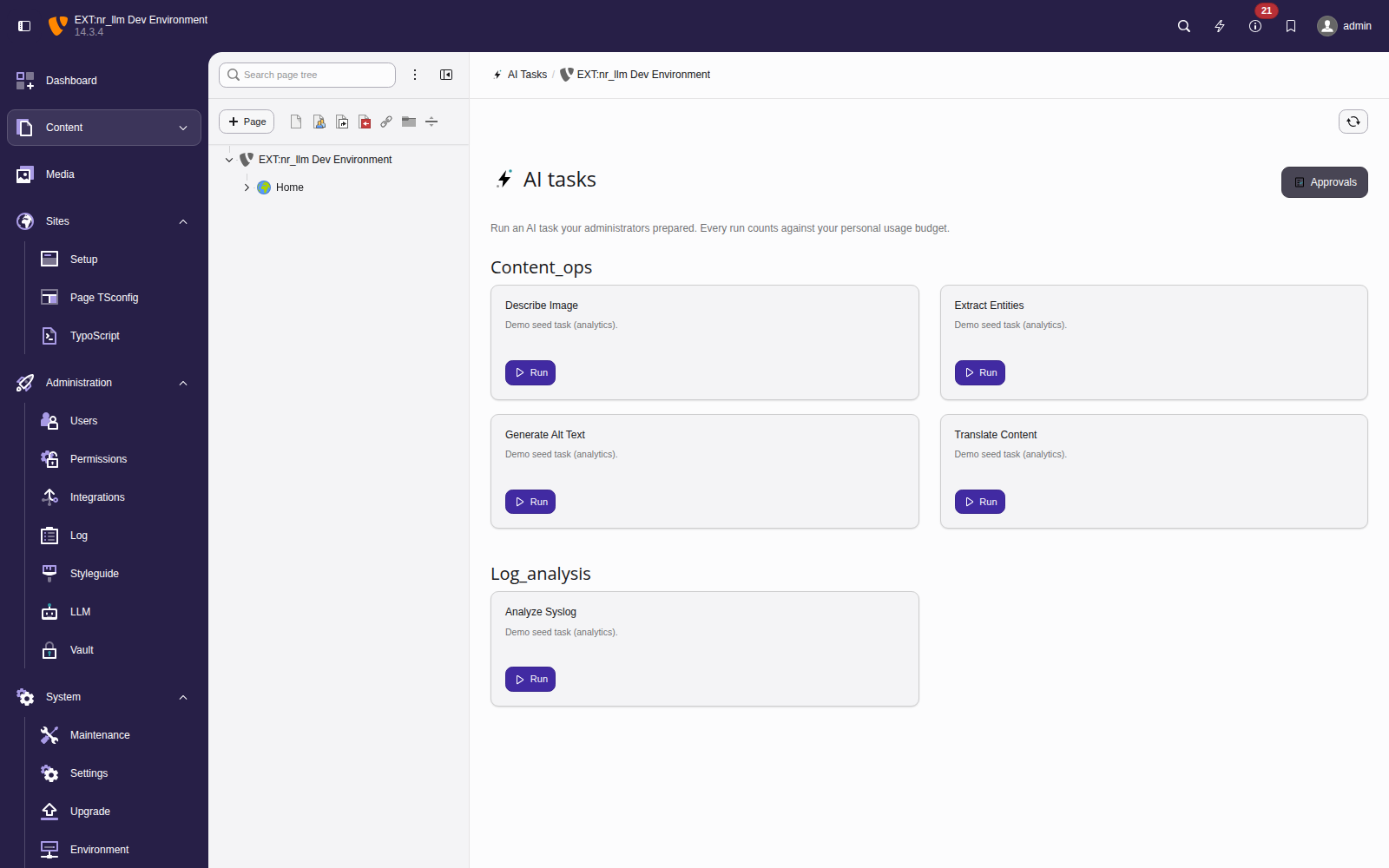
The AI Tasks module as an editor sees it: runnable tasks grouped by category, plus the Approvals shortcut for users holding the approval grant.
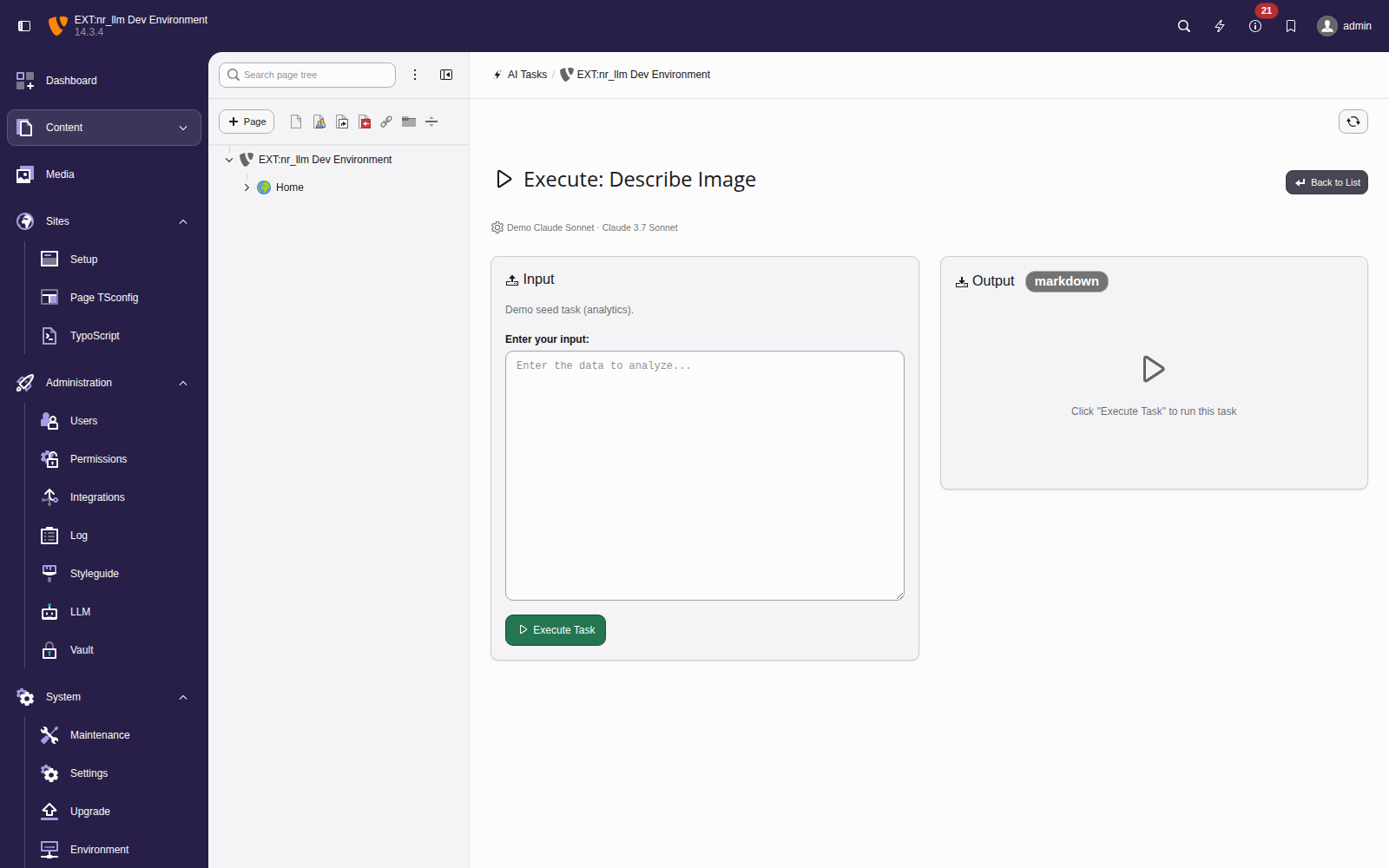
The editor run form: input, execute, output — the configuration is shown as a read-only summary line.
Tip
Use the Task wizard to generate a complete task (including a new configuration) from a plain-language description.