
RTE CKEditor Image 

Extension key

rte_ckeditor_image

Package name

netresearch/rte-ckeditor-image

Version

13.0.x

Language

en

Author

Netresearch DTT GmbH

License

This document is published under the Creative Commons BY 4.0 license.

Rendered

Sat, 20 Dec 2025 19:57:38 +0000

Image support in CKEditor for the TYPO3 ecosystem - by Netresearch.


📘 Introduction 

The RTE CKEditor Image extension provides comprehensive image handling capabilities for TYPO3's CKEditor Rich Text Editor with full FAL integration.

⚡ Quick Start 

Get up and running quickly with installation instructions and basic configuration examples.

⚠️ Core Removal Notice 

Important: TYPO3 intentionally removed RTE image handling in v10. Understand the design decision before using this extension.

⚙️ Configuration 

Learn how to configure custom image styles, processing options, and frontend rendering setup.

🏗️ Architecture 

Understand the extension's architecture, design patterns, and how components interact.

🔧 Developer API 

Explore the PHP and JavaScript APIs for extending and customizing the extension.

🐛 Troubleshooting 

Find solutions to common issues and learn debugging techniques.

🤝 Contributing 

Help improve this extension through code contributions, documentation, or translations.

License 

This extension is licensed under AGPL-3.0-or-later.
Introduction 

The RTE CKEditor Image extension provides comprehensive image handling capabilities for TYPO3's CKEditor Rich Text Editor. This extension enables editors to insert, configure, and style images directly within the CKEditor interface, with full integration into TYPO3's File Abstraction Layer (FAL).

Key Features 

  • Native CKEditor 5 plugin integration
  • Full TYPO3 FAL support with file browser integration
  • Advanced image processing (magic images, cropping, scaling)
  • Custom image style configuration
  • Responsive image support
  • Lazy loading and performance optimization
  • Event-driven architecture for extensibility

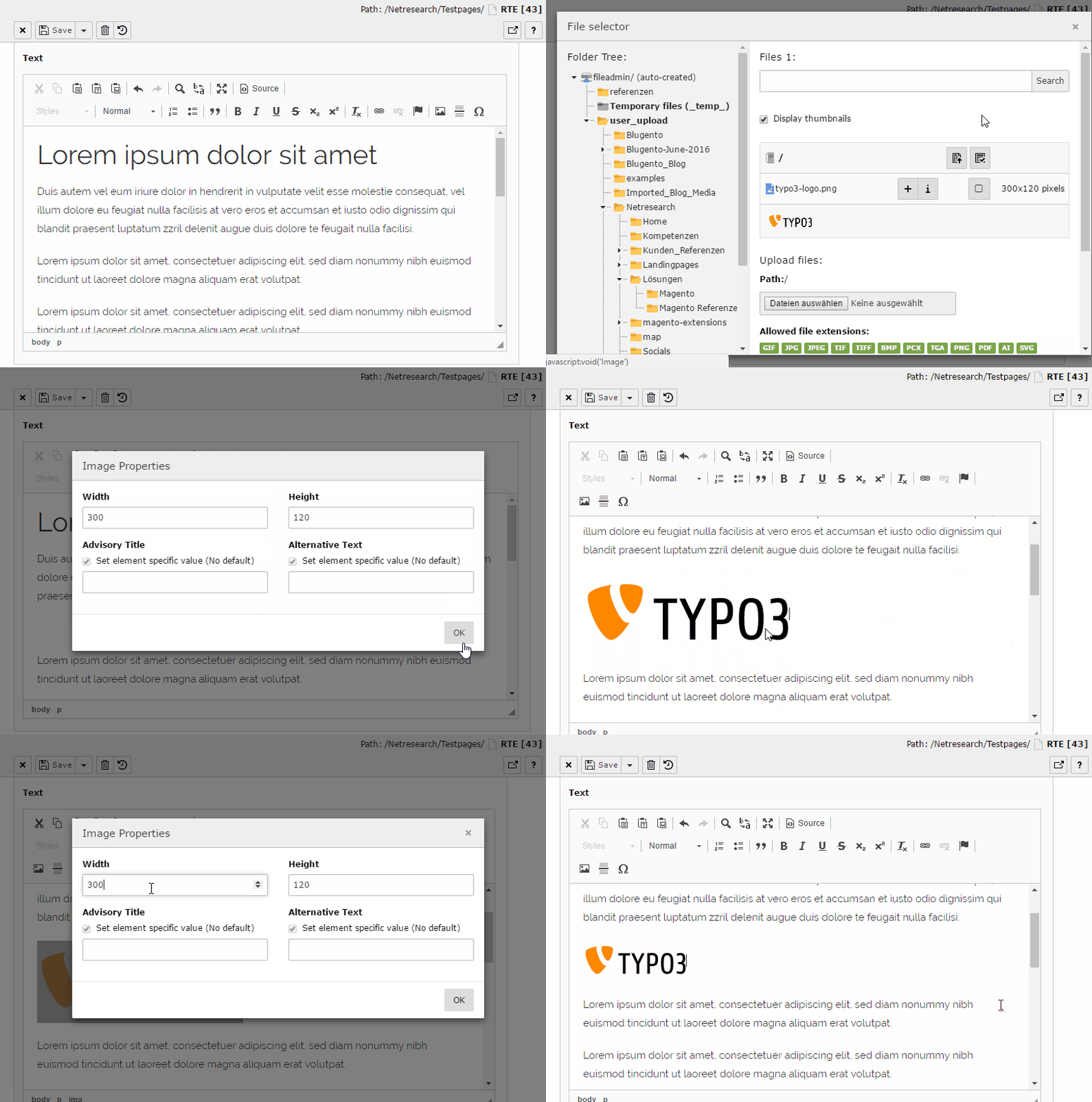
Visual Preview 

RTE CKEditor Image extension demo

Image insertion and configuration in CKEditor with TYPO3 file browser integration

Version Information 

Version

13.0.x for TYPO3 13.4+

License

AGPL-3.0-or-later

Repository

github.com/netresearch/t3x-rte_ckeditor_image

Maintainer

Netresearch DTT GmbH

Requirements 

System Requirements 

  • TYPO3: 13.4 or later
  • PHP: 8.2, 8.3, or 8.4
  • Extensions: cms-rte-ckeditor (included in TYPO3 core)

Critical Dependencies 

New in version 13.0.0

The CKEditor plugin now requires StyleUtils and GeneralHtmlSupport dependencies for style functionality. Previous versions did not have this requirement.

The CKEditor plugin requires these dependencies for style functionality:

static get requires() {
    return ['StyleUtils', 'GeneralHtmlSupport'];
}
Copied!

Quick Start 

Installation 

Install via Composer:

composer require netresearch/rte-ckeditor-image
Copied!

That's it! The extension works completely out-of-the-box with zero configuration:

  • Backend RTE: Automatically registers the rteWithImages preset and configures the toolbar with insertimage button for all sites
  • Frontend Rendering: Automatically loads TypoScript for proper image rendering via lib.parseFunc_RTE
  • No Manual Steps: No template inclusion, no TSConfig setup, no YAML configuration required
Image button in CKEditor toolbar

The insertimage button provides full image management capabilities with TYPO3 file browser integration

Custom Configuration (Optional) 

If you need to customize the RTE configuration or create your own preset, see the RTE Setup Guide for detailed instructions.

The extension provides a default preset that you can extend or override as needed.

TYPO3 Core Removal & Design Decision 

What TYPO3 Removed 

In TYPO3 v10.0 (Breaking #88500), the core team removed the RTE image handling functionality:

Removed Components 

  • RTE processing mode ("ts_images")
  • SoftReference Index for inline images
  • Magic Image processing (automatic scaling, cropping via TSConfig)
  • Image storage handling (RTE_imageStorageDir)
  • CLI cleanup command (cleanup:rteimages)
  • Public API methods (ImportExport->getRTEoriginalFilename(), RteHtmlParser->TS_images_rte())

Later Deprecation 

In TYPO3 v12.4 (Deprecation #99237), the MagicImageService class was deprecated with no direct migration path.

Why TYPO3 Removed This 

The TYPO3 core team removed this functionality for several architectural reasons:

  1. Obsolete Technology

    CKEditor replaced RTEHtmlArea in TYPO3 v8, making the native RTE image handling unused and obsolete.

  2. Incomplete Implementation

    The changelog explicitly states the functionality was "very incomplete" compared to modern alternatives.

  3. Architectural Philosophy

    TYPO3 promotes structured content over inline mixed content. Storing images as relations (FAL references) provides better:

    • Content reuse across multiple elements
    • Metadata management (alt text, copyright, descriptions)
    • Image variant generation (responsive images, WebP conversion)
    • Migration and content import/export
    • Multi-language handling
    • Permission and access control
    • Asset management and organization

TYPO3's Official Recommendation 

The breaking change documentation recommends:

Primary Approach: Structured Content 

Move images from inline RTE fields to proper relational fields:

// TCA Configuration Example
'columns' => [
    'bodytext' => [
        'config' => [
            'type' => 'text',
            'enableRichtext' => true,
        ],
    ],
    'images' => [
        'config' => [
            'type' => 'file',
            'allowed' => 'common-image-types',
            'maxitems' => 10,
        ],
    ],
],
Copied!

Benefits of Structured Content:

  • ✅ Better content reuse
  • ✅ Proper metadata management
  • ✅ Responsive image generation
  • ✅ Clean separation of concerns
  • ✅ Modern TYPO3 architecture
  • ✅ Better editor experience

Fallback Approach: Extensions 

For projects that need inline image functionality, TYPO3 recommends extensions like rte_ckeditor_image or creating custom extension implementations.

Why This Extension Exists 

Despite TYPO3's architectural direction, this extension exists because:

Real-World Requirements 

  1. Legacy Content Migration

    Many TYPO3 installations have years of content with inline images. Migrating to structured content requires significant time and resources.

  2. Editorial Workflows

    Some editorial teams are trained on inline image workflows and prefer WYSIWYG image placement directly in text.

  3. Content Nature

    Certain content types (news articles, blog posts, documentation) naturally contain inline images that are contextually bound to surrounding text.

  4. Migration Bridge

    Provides a transition path while planning migration to structured content.

What This Extension Provides 

  • Backward compatibility with RTEHtmlArea image workflows
  • Magic Image processing (automatic scaling via TSConfig)
  • TYPO3 FAL integration (native file browser)
  • Modern CKEditor 5 implementation
  • Image attributes (width, height, alt, title, quality)
  • Custom styles via CKEditor style system
  • Event-driven architecture for extensibility

Decision Guide: Should You Use This Extension? 

Use This Extension When 

You have legacy content with extensive inline images that cannot be migrated immediately

Editorial workflow requires inline image placement with WYSIWYG editing

Content is tightly coupled to surrounding text (inline diagrams, screenshots, examples)

Migration timeline is long and you need a working solution now

Small to medium projects where structured content overhead isn't justified

Follow TYPO3 Guidelines Instead When 

Starting a new project - Build with structured content from the beginning

Images are reusable - Same images appear across multiple content elements

Need advanced features - Responsive images, WebP conversion, image variants

Multi-language sites - Image metadata needs proper translation workflows

Large editorial teams - Structured content provides better governance

Long-term maintainability - Align with TYPO3's architectural direction

Hybrid Approach 

You can use both approaches in the same TYPO3 installation:

  • Structured content for main images, galleries, and reusable assets
  • Inline images (this extension) for contextual images in rich text

Example TCA configuration:

'columns' => [
    'header_image' => [
        // Structured: Main article image
        'config' => [
            'type' => 'file',
            'allowed' => 'common-image-types',
            'maxitems' => 1,
        ],
    ],
    'bodytext' => [
        // Inline: Contextual images within text
        'config' => [
            'type' => 'text',
            'enableRichtext' => true,
            // rte_ckeditor_image provides inline functionality
        ],
    ],
    'gallery' => [
        // Structured: Image gallery
        'config' => [
            'type' => 'file',
            'allowed' => 'common-image-types',
            'maxitems' => 20,
        ],
    ],
],
Copied!

Future Migration Path 

If you use this extension now but plan to migrate to structured content later:

Planning Migration 

  1. Audit content - Identify all RTE fields with inline images
  2. Create TCA fields - Add proper FAL reference fields
  3. Write migration script - Extract inline images to relations
  4. Update templates - Adjust Fluid templates for structured content
  5. Train editors - Update editorial workflows and documentation

Migration Tools 

TYPO3 provides tools for content migration:

  • Data Handler API for programmatic content updates
  • TypoScript processors for rendering
  • CLI commands for batch processing

This extension can coexist during the migration period.

Best Practices If Using This Extension 

  1. Document the Decision

    Add notes to your project documentation explaining why inline images are used and what the long-term plan is.

  2. Set Editor Guidelines

    Define when editors should use inline images vs. structured image fields.

  3. Configure Processing

    Use magic image configuration (TSConfig) to control automatic scaling:

    RTE.default.buttons.image.options.magic {
        maxWidth = 1920
        maxHeight = 9999
    }
    Copied!
  4. Monitor TYPO3 Updates

    Stay informed about TYPO3's direction regarding RTE and CKEditor.

  5. Plan Migration

    If project lifespan is long, plan eventual migration to structured content.

Conclusion 

This extension serves as a pragmatic bridge between TYPO3's architectural direction (structured content) and real-world editorial needs (inline images).

Key Takeaways:

  • TYPO3 intentionally removed RTE image handling for good architectural reasons
  • Structured content is the recommended modern approach
  • This extension provides backward compatibility when needed
  • Consider your project's specific requirements, timeline, and resources
  • A hybrid approach (both structured and inline) is valid
  • Plan for eventual migration if project lifespan is long

Questions to ask:

  1. Do we have time/budget to migrate existing content?
  2. Does our editorial team need inline image placement?
  3. Are our images contextually bound to text or reusable assets?
  4. What is our project's expected lifespan?
  5. Can we align with TYPO3's architectural direction?

The "right" choice depends on your specific context. There is no universal answer.

Additional Resources 

TYPO3 Core Documentation:

This Extension:

Support & Contributing 

Get Help 

Contribute Code 

Help Translate 

You can help translate this extension into your language through TYPO3's Crowdin platform:

Translation Platform: https://crowdin.com/project/typo3-extension-rte_ckeditor_image

How to contribute translations 

  1. Create a Crowdin account (free for open source contributors)
  2. Join the TYPO3 translation team for your language
  3. Translate strings directly in the Crowdin web interface
  4. Review translations from other contributors
  5. Suggest improvements to existing translations

Why translate 

  • Make TYPO3 more accessible to speakers of your language
  • Help the global TYPO3 community
  • No programming knowledge required
  • Translations are automatically integrated via pull requests

Translation notes 

  • Some terms like "Retina", "Ultra", "Standard" are multilingual - keep as-is or transliterate if more natural in your language
  • Context notes are provided for technical terms to help with accurate translation
  • Your contributions are reviewed by language coordinators before integration

Need help 

Credits 

Development & Maintenance 

Community Contributors 

See GitHub Contributors

Additional Resources 

Integration & Configuration 

Complete configuration reference and integration guide for the RTE CKEditor Image extension.

Configuration Quick Reference 

For Custom RTE Presets 

These examples show how to create custom configurations that override the automatic defaults. If you just installed the extension and it's working, you don't need these.

Minimum Custom Toolbar 

# Only needed if customizing the default toolbar
editor:
  config:
    toolbar:
      items:
        - insertimage
Copied!

Custom Toolbar with Specific Buttons 

# Example: Custom preset with limited toolbar
editor:
  config:
    toolbar:
      items:
        - bold
        - italic
        - insertimage
Copied!

Configuration Patterns 

By Use Case 

By Component 

Configuration Topics 

🛠️ RTE Setup 

RTE configuration, presets, and toolbar setup

⚙️ TSConfig 

Page TSConfig settings, permissions, and file mounts

🖼️ Frontend Rendering 

TypoScript configuration and frontend rendering setup

🔧 Advanced Configuration 

Custom styles, performance optimization, and best practices

RTE Setup 

Complete guide for configuring the RTE (Rich Text Editor) with CKEditor image support.

Automatic Configuration (Default) 

The extension automatically provides:

  • Preset: rteWithImages registered and enabled globally
  • Toolbar: insertimage button included in default toolbar
  • TypoScript: Frontend rendering hooks loaded automatically
  • Configuration: Configuration/RTE/Default.yaml with full toolbar

To use the automatic configuration, simply install the extension. No additional steps required.

Custom RTE Configuration 

Creating Custom Presets 

If you need to customize the toolbar or RTE behavior beyond the defaults, create a custom preset:

EXT:my_ext/Configuration/RTE/Custom.yaml
imports:
  # Import default RTE config
  - { resource: "EXT:rte_ckeditor/Configuration/RTE/Default.yaml" }
  # Import image plugin configuration
  - { resource: "EXT:rte_ckeditor_image/Configuration/RTE/Plugin.yaml" }

editor:
  config:
    toolbar:
      items:
        - heading
        - '|'
        - insertimage
        - link
        - '|'
        - bold
        - italic
Copied!

Register Custom Preset 

EXT:my_ext/ext_localconf.php
$GLOBALS['TYPO3_CONF_VARS']['RTE']['Presets']['custom']
    = 'EXT:my_ext/Configuration/RTE/Custom.yaml';
Copied!

Enable Custom Preset 

Page TSConfig
RTE.default.preset = custom
Copied!

Advanced RTE Configuration 

Custom Allowed Extensions 

editor.externalPlugins.typo3image.allowedExtensions

editor.externalPlugins.typo3image.allowedExtensions
type

string

Default

Value from $GLOBALS['TYPO3_CONF_VARS']['GFX']['imagefile_ext']

Comma-separated list of allowed image file extensions for the RTE image plugin.

Restricts which file types can be selected through the image browser.

Example:

editor:
  externalPlugins:
    typo3image:
      route: "rteckeditorimage_wizard_select_image"
      allowedExtensions: "jpg,jpeg,png,gif,webp"
Copied!

If not specified, falls back to the global TYPO3 configuration at $GLOBALS['TYPO3_CONF_VARS']['GFX']['imagefile_ext']

Multiple RTE Presets 

Different configurations for different content types:

EXT:my_ext/Configuration/RTE/Simple.yaml
imports:
  - { resource: "EXT:rte_ckeditor/Configuration/RTE/Minimal.yaml" }
  - { resource: "EXT:rte_ckeditor_image/Configuration/RTE/Plugin.yaml" }

editor:
  config:
    removePlugins: null
    toolbar:
      items:
        - insertimage
Copied!
Different presets for different fields
# Different presets for different fields
RTE.default.preset = default
RTE.config.tt_content.bodytext.preset = full
RTE.config.tt_content.header.preset = simple
Copied!

Page TSConfig Setup 

Configuration of page TSConfig settings for image handling, upload folders, and permissions.

Page TSConfig 

Magic Image Configuration 

Configure maximum image dimensions for automatic image processing:

RTE.default.buttons.image.options.magic.maxWidth

RTE.default.buttons.image.options.magic.maxWidth
type

integer

Default

300

Maximum width in pixels for images inserted through the RTE.

Images larger than this value will be automatically resized during processing.

RTE.default.buttons.image.options.magic.maxHeight

RTE.default.buttons.image.options.magic.maxHeight
type

integer

Default

1000

Maximum height in pixels for images inserted through the RTE.

Images taller than this value will be automatically resized during processing.

Example:

RTE.default.buttons.image.options.magic {
    maxWidth = 1920
    maxHeight = 9999
}
Copied!

Processing Modes 

RTE.default.proc.overruleMode := addToList(default)
Copied!

Upload Folder Configuration 

RTE.default.buttons.image.options.defaultUploadFolder

RTE.default.buttons.image.options.defaultUploadFolder
type

string

Default

(empty)

Default upload folder for images inserted through the RTE.

Format: <storage_uid>:<folder_path>

Example: 1:rte_uploads/ uses storage 1 and uploads to rte_uploads/ directory.

RTE.default.buttons.image.options.createUploadFolderIfNeeded

RTE.default.buttons.image.options.createUploadFolderIfNeeded
type

boolean

Default

false

Automatically creates the upload folder if it doesn't exist.

Recommended to set to 1 (true) to avoid upload errors.

Example:

RTE.default.buttons.image.options {
    defaultUploadFolder = 1:rte_uploads/
    createUploadFolderIfNeeded = 1
}
Copied!

Content Element Configuration 

Enable for Specific Content Types 

# Only enable for tt_content bodytext
RTE.config.tt_content.bodytext {
    preset = default
    buttons.image.options.magic {
        maxWidth = 1200
        maxHeight = 800
    }
}
Copied!

Disable for Specific Fields 

# Disable RTE entirely for specific field
RTE.config.tt_content.header.disabled = 1
Copied!

Backend User Permissions 

File Mounts 

Ensure backend users have appropriate file mounts:

User TSConfig
options.defaultUploadFolder = 1:user_uploads/rte/
Copied!

Access Restrictions 

User TSConfig
# Allow only specific file extensions
options.file_list.validFileExtensions = jpg,jpeg,png,gif,webp
Copied!

Multi-Language Configuration 

Language-Specific Presets 

[siteLanguage("locale") == "de_DE"]
    RTE.default.preset = german
[END]

[siteLanguage("locale") == "en_US"]
    RTE.default.preset = english
[END]
Copied!

Troubleshooting Configuration 

Debug RTE Configuration 

Enable RTE debugging:

Page TSConfig
RTE.default.showButtons = *
RTE.default.hideButtons =
Copied!

Verify Configuration Loading 

Check active RTE configuration in backend:

  1. Edit content element
  2. Open browser console
  3. Check CKEDITOR.config object

Configuration Priority 

Configuration precedence (highest to lowest):

  1. Field-specific config: RTE.config.tt_content.bodytext
  2. Type-specific config: RTE.config.tt_content
  3. Default config: RTE.default
  4. Extension defaults

Frontend Rendering 

TypoScript configuration for frontend image rendering, CSS classes, lazy loading, and lightbox integration.

TypoScript Configuration 

Frontend Rendering Setup 

The extension provides default configuration. You can customize it:

lib.parseFunc_RTE {
    tags.img = TEXT
    tags.img {
        current = 1
        preUserFunc = Netresearch\RteCKEditorImage\Controller\ImageRenderingController->renderImageAttributes
    }

    tags.a = TEXT
    tags.a {
        current = 1
        preUserFunc = Netresearch\RteCKEditorImage\Controller\ImageLinkRenderingController->renderImages
    }

    nonTypoTagStdWrap.HTMLparser.tags.img.fixAttrib {
        # Remove internal data attributes from frontend
        allparams.unset = 1
        data-htmlarea-file-uid.unset = 1
        data-htmlarea-file-table.unset = 1
        # Keep zoom attributes for popup/lightbox rendering (ImageRenderingController.php)
        # data-htmlarea-zoom.unset = 1
        # data-htmlarea-clickenlarge.unset = 1
        data-title-override.unset = 1
        data-alt-override.unset = 1
    }
}

lib.parseFunc_RTE.nonTypoTagStdWrap.encapsLines.encapsTagList := addToList(img)
Copied!

Default CSS Class 

Add default class to all RTE images:

lib.parseFunc_RTE {
    nonTypoTagStdWrap.HTMLparser.tags.img.fixAttrib.class {
        default = img-fluid responsive-image
    }
}
Copied!

Lazyload Configuration 

Enable native browser lazy loading:

Template Constants
styles.content.image.lazyLoading = lazy
# Options: lazy, eager, auto
Copied!

Automatic TypoScript Loading 

New in version 13.0.0

TypoScript is now loaded automatically via ext_localconf.php. Manual static template inclusion is no longer required.

The extension automatically loads frontend rendering configuration:

ExtensionManagementUtility::addTypoScript(
    'rte_ckeditor_image',
    'setup',
    '@import "EXT:rte_ckeditor_image/Configuration/TypoScript/ImageRendering/setup.typoscript"'
);
Copied!

TypoScript Reference 

Complete TypoScript Configuration Options 

Image Rendering 

lib.parseFunc_RTE {
    tags.img = TEXT
    tags.img {
        current = 1
        preUserFunc = Netresearch\RteCKEditorImage\Controller\ImageRenderingController->renderImageAttributes
    }
}
Copied!

HTML Parser Configuration 

lib.parseFunc_RTE.nonTypoTagStdWrap.HTMLparser.tags.img {
    fixAttrib {
        # Remove internal data attributes
        data-htmlarea-file-uid.unset = 1
        data-htmlarea-file-table.unset = 1
        # Keep zoom attributes for popup/lightbox rendering (ImageRenderingController.php)
        # data-htmlarea-zoom.unset = 1
        # data-htmlarea-clickenlarge.unset = 1
        data-title-override.unset = 1
        data-alt-override.unset = 1
    }
}
Copied!

Default CSS Classes 

lib.parseFunc_RTE.nonTypoTagStdWrap.HTMLparser.tags.img.fixAttrib.class {
    default = img-fluid
    list = img-fluid,img-thumbnail,rounded
}
Copied!

Lazy Loading 

# Template Constants
styles.content.image.lazyLoading = lazy
# Options: lazy, eager, auto
Copied!

Image Processing 

lib.parseFunc_RTE.nonTypoTagStdWrap.HTMLparser.tags.img {
    width =
    height =
    # Allows TYPO3 to process dimensions
}
Copied!

Encapsulation Configuration 

lib.parseFunc_RTE.nonTypoTagStdWrap.encapsLines {
    encapsTagList := addToList(img)
    remapTag.img = p
}
Copied!

Advanced Configuration 

Advanced configuration options including custom styles, performance optimization, extension settings, and best practices.

CKEditor Style Configuration 

Adding Image Styles 

Define custom styles for images:

EXT:my_ext/Configuration/RTE/Default.yaml
editor:
  config:
    style:
      definitions:
        - name: 'Image Left'
          element: 'img'
          classes: ['float-left', 'mr-3']
        - name: 'Image Right'
          element: 'img'
          classes: ['float-right', 'ml-3']
        - name: 'Image Center'
          element: 'img'
          classes: ['d-block', 'mx-auto']
        - name: 'Full Width'
          element: 'img'
          classes: ['w-100']
Copied!

Style Groups 

Organize styles in groups:

editor:
  config:
    style:
      definitions:
        # ... style definitions ...

      # Group styles in dropdown
      groupDefinitions:
        - name: 'Image Alignment'
          styles: ['Image Left', 'Image Right', 'Image Center']
        - name: 'Image Size'
          styles: ['Full Width', 'Half Width']
Copied!

Extension Configuration 

Configure extension behavior in Extension Manager or settings.php:

fetchExternalImages

fetchExternalImages
type

boolean

Default

true

Path

$GLOBALS['TYPO3_CONF_VARS']['EXTENSIONS']['rte_ckeditor_image']['fetchExternalImages']

Controls whether external image URLs are automatically fetched and uploaded to the backend user's upload folder.

When enabled, pasting external image URLs into the editor will trigger automatic download and upload to FAL.

Options:

  • true: External image URLs are fetched and uploaded to BE user's uploads folder
  • false: External URLs remain as external links (not recommended for security)

Example:

settings.php or LocalConfiguration.php
$GLOBALS['TYPO3_CONF_VARS']['EXTENSIONS']['rte_ckeditor_image'] = [
    'fetchExternalImages' => true,
];
Copied!

Performance Optimization 

Image Processing Configuration 

LocalConfiguration.php
$GLOBALS['TYPO3_CONF_VARS']['GFX'] = [
    'processor' => 'ImageMagick',
    'processor_path' => '/usr/bin/',
    'processor_enabled' => true,
    'processor_effects' => true,

    // Image quality
    'jpg_quality' => 85,

    // Maximum dimensions
    'imagefile_ext' => 'gif,jpg,jpeg,png,webp',
];
Copied!

Processed File Cache 

TYPO3 caches processed images in _processed_/ folder. Clear if needed:

# TYPO3 CLI
./vendor/bin/typo3 cache:flush --group=pages
Copied!

Performance Best Practices 

  • Configure appropriate image processing quality (jpg_quality: 85)
  • Enable TYPO3 page caching for content with images
  • Use WebP format where supported
  • Implement lazy loading for images below the fold
  • Set reasonable maximum dimensions in TSConfig
  • Consider using CDN for image delivery in production

Example Configurations 

Minimal Setup 

Minimal RTE with just image support
imports:
  - { resource: "EXT:rte_ckeditor/Configuration/RTE/Minimal.yaml" }
  - { resource: "EXT:rte_ckeditor_image/Configuration/RTE/Plugin.yaml" }

editor:
  config:
    removePlugins: null
    toolbar:
      items: [insertimage]
Copied!

Best Practices 

Configuration Best Practices 

  1. Start with minimal configuration and add features incrementally
  2. Test in staging environment before deploying to production
  3. Use separate RTE presets for different content types
  4. Enable caching for processed images
  5. Set appropriate maxWidth/maxHeight to prevent oversized images
  6. Configure lazy loading for better performance
  7. Use meaningful style names that reflect intent, not appearance
  8. Document custom configurations for team members

Security Considerations 

  • Restrict allowed file extensions to safe image formats
  • Configure appropriate file mounts for backend users
  • Review and limit upload folder permissions
  • Validate image dimensions and file sizes
  • Keep extension and TYPO3 core up to date

Maintenance 

  • Regularly clear processed image cache
  • Monitor storage usage in upload folders
  • Review and clean unused images periodically
  • Keep documentation of custom configurations
  • Test after TYPO3 core or extension updates

Using with Third-Party Extensions 

Automatic Support for ALL Extensions (v13.x+)

This extension automatically configures RTE image support for all tables with RTE-enabled text fields, including:

  • TYPO3 core tables (tt_content, sys_template)
  • Third-party extensions (tx_news_domain_model_news, etc.)
  • Custom extension tables

No manual configuration is required. The extension uses a PSR-14 event listener that automatically adds the rtehtmlarea_images soft reference to all RTE fields during TCA compilation.

Extension Configuration 

You can customize the automatic behavior via Extension Configuration:

Admin Tools > Settings > Extension Configuration > rte_ckeditor_image

enableAutomaticRteSoftref

enableAutomaticRteSoftref
type

boolean

Default

1 (enabled)

Master switch to enable or disable automatic RTE softref processing.

When enabled, the extension automatically adds rtehtmlarea_images soft reference to all RTE-enabled text fields across all tables.

excludedTables

excludedTables
type

string (comma-separated)

Default

(empty)

Comma-separated list of table names to exclude from automatic processing.

Example: tx_form_formframework,sys_template

Use this if specific tables should not have automatic softref processing.

includedTablesOnly

includedTablesOnly
type

string (comma-separated)

Default

(empty)

Whitelist mode: If set, ONLY these tables will be processed.

Example: tt_content,tx_news_domain_model_news,tx_myext_article

This overrides the excludedTables setting. Leave empty to process all tables (recommended).

Configuration Examples 

Exclude Specific Tables:

settings.php or LocalConfiguration.php
$GLOBALS['TYPO3_CONF_VARS']['EXTENSIONS']['rte_ckeditor_image'] = [
    'enableAutomaticRteSoftref' => true,
    'excludedTables' => 'tx_form_formframework,sys_template',
];
Copied!

Whitelist Mode (Only Specific Tables):

settings.php or LocalConfiguration.php
$GLOBALS['TYPO3_CONF_VARS']['EXTENSIONS']['rte_ckeditor_image'] = [
    'enableAutomaticRteSoftref' => true,
    'includedTablesOnly' => 'tt_content,tx_news_domain_model_news',
];
Copied!

Disable Automatic Processing:

settings.php or LocalConfiguration.php
$GLOBALS['TYPO3_CONF_VARS']['EXTENSIONS']['rte_ckeditor_image'] = [
    'enableAutomaticRteSoftref' => false,
];
Copied!

Troubleshooting Third-Party Extension Issues 

Images Disappear When Saving 

Symptom: Images inserted in RTE fields disappear after saving the record.

Cause: Automatic softref processing may be disabled, or the table is excluded.

Solution:

  1. Verify automatic processing is enabled:

    // Check extension configuration
    $config = $GLOBALS['TYPO3_CONF_VARS']['EXTENSIONS']['rte_ckeditor_image'];
    // enableAutomaticRteSoftref should be true (default)
    Copied!
  2. Check if the table is excluded:

    // Check excludedTables and includedTablesOnly settings
    debug($config['excludedTables']);
    debug($config['includedTablesOnly']);
    Copied!
  3. Verify soft reference is configured in TCA:

    // In TYPO3 backend console or debug output
    debug($GLOBALS['TCA']['your_table']['columns']['your_field']['config']['softref']);
    // Should output: "rtehtmlarea_images" or include it in comma-separated list
    Copied!
  4. Check if data-htmlarea-file-uid attribute is preserved:

    -- Check database content
    SELECT bodytext FROM tx_news_domain_model_news WHERE uid = 123;
    -- Should contain: data-htmlarea-file-uid="456"
    Copied!
  5. Clear all caches and retry:

    ./vendor/bin/typo3 cache:flush
    Copied!

Automatic Processing Not Working 

Symptom: RTE images are not tracked automatically in custom tables.

Cause: Event listener not registered, caches not cleared, or configuration issue.

Solution:

  1. Verify the event listener is registered:

    # Check if RteSoftrefEnforcer class exists
    ls Classes/Listener/TCA/RteSoftrefEnforcer.php
    Copied!
  2. Verify Services.yaml configuration:

    # Check listener registration
    grep -A 5 "RteSoftrefEnforcer" Configuration/Services.yaml
    Copied!
  3. Clear all caches:

    ./vendor/bin/typo3 cache:flush
    Copied!
  4. Check if the field is RTE-enabled:

    // Field must have type='text' AND enableRichtext=true
    debug($GLOBALS['TCA']['your_table']['columns']['your_field']['config']);
    Copied!

data-htmlarea-file-uid Attribute Missing 

Symptom: Images render but the data-htmlarea-file-uid attribute is missing from saved content.

Cause: Soft reference parser not registered or not being invoked.

Solution:

  1. Verify soft reference parser is registered:

    # Check Services.yaml for softreference.parser
    grep -A 3 "softreference.parser" Configuration/Services.yaml
    Copied!
  2. Verify soft reference is in TCA (see "Images Disappear When Saving" above)
  3. Clear all caches:

    ./vendor/bin/typo3 cache:flush
    Copied!

Images Not Processed in Frontend 

Symptom: Images appear as <img> tags with data-htmlarea-file-uid in frontend HTML.

Cause: TypoScript configuration missing or incorrect.

Solution: Ensure TypoScript static template is included:

# Include static template in your root template
# Template > Info/Modify > Edit whole template record > Includes
# Select: "CKEditor Image Support" for "Include static (from extensions)"
Copied!

Examples & Use Cases 

Practical, ready-to-use examples for common implementation scenarios with rte_ckeditor_image.

Table of Contents

Examples by Topic 

🚀 Basic Integration 

Minimal setup guide for getting basic image functionality working quickly. Perfect for new installations and quick starts.

🎨 Image Styles 

Configure custom image styles with Bootstrap classes, CSS groups, and style dropdowns. Includes both framework-based and custom CSS approaches.

📱 Responsive Images 

Implement responsive images with automatic srcset generation and multiple breakpoints. Complete PHP implementation with result examples.

⭐ Advanced Features 

Add lightbox functionality with PhotoSwipe and implement lazy loading for performance. Includes both native browser lazy loading and Intersection Observer fallbacks.

🔌 Custom Extensions 

Extend the image plugin with custom dialog fields, external image handling, multi-language support, and automatic backend processing hooks.

✅ Testing 

Functional and unit test examples for ensuring quality and preventing regressions. Includes controller tests and database hook tests.

Basic Integration 

Quick start guide demonstrating the zero-configuration installation and basic customization options.

Zero-Configuration Installation 

Objective: Get image functionality working with zero manual configuration

Installation 

composer require netresearch/rte-ckeditor-image:^13.0
Copied!

That's it! The extension automatically:

  • ✅ Registers the rteWithImages preset for backend RTE
  • ✅ Configures toolbar with insertimage button for all sites
  • ✅ Loads TypoScript for frontend image rendering
  • ✅ No manual configuration required

Result: Full image functionality working out-of-the-box ✅

Verification 

  1. Backend: Log into TYPO3 backend → Edit any content element → RTE should show image button
  2. Frontend: Insert image in RTE → Save → View frontend → Image renders correctly
Image insertion demo

The insertimage button is automatically available after installation

Custom Configuration (Optional) 

If you need to customize the RTE configuration, you can create your own preset:

Custom Preset 

EXT:my_site/Configuration/RTE/Custom.yaml
imports:
  - { resource: "EXT:rte_ckeditor/Configuration/RTE/Default.yaml" }
  - { resource: "EXT:rte_ckeditor_image/Configuration/RTE/Plugin.yaml" }

editor:
  config:
    toolbar:
      items:
        - heading
        - '|'
        - bold
        - italic
        - '|'
        - insertimage
        - link
Copied!

Register Custom Preset 

EXT:my_site/ext_localconf.php
$GLOBALS['TYPO3_CONF_VARS']['RTE']['Presets']['custom']
    = 'EXT:my_site/Configuration/RTE/Custom.yaml';
Copied!

Enable Custom Preset 

Configuration/page.tsconfig
RTE.default.preset = custom
Copied!

Image Styles 

Examples for configuring custom image styles with CSS classes and style groups.

Bootstrap-Style Images 

Objective: Add Bootstrap image utility classes

Configuration 

EXT:my_site/Configuration/RTE/Default.yaml
editor:
  config:
    style:
      definitions:
        # Alignment Styles
        - name: 'Float Left'
          element: 'img'
          classes: ['float-start', 'me-3', 'mb-3']
        - name: 'Float Right'
          element: 'img'
          classes: ['float-end', 'ms-3', 'mb-3']
        - name: 'Center'
          element: 'img'
          classes: ['d-block', 'mx-auto']

        # Size Styles
        - name: 'Thumbnail'
          element: 'img'
          classes: ['img-thumbnail']
        - name: 'Rounded'
          element: 'img'
          classes: ['rounded']
        - name: 'Circle'
          element: 'img'
          classes: ['rounded-circle']

        # Responsive
        - name: 'Responsive'
          element: 'img'
          classes: ['img-fluid']

      groupDefinitions:
        - name: 'Image Alignment'
          styles: ['Float Left', 'Float Right', 'Center']
        - name: 'Image Style'
          styles: ['Thumbnail', 'Rounded', 'Circle', 'Responsive']
Copied!

CSS (if not using Bootstrap) 

EXT:my_site/Resources/Public/Css/rte-images.css
.float-start { float: left; }
.float-end { float: right; }
.me-3 { margin-right: 1rem; }
.ms-3 { margin-left: 1rem; }
.mb-3 { margin-bottom: 1rem; }
.d-block { display: block; }
.mx-auto { margin-left: auto; margin-right: auto; }

.img-thumbnail {
    padding: 0.25rem;
    background-color: #fff;
    border: 1px solid #dee2e6;
    border-radius: 0.25rem;
    max-width: 100%;
    height: auto;
}

.rounded { border-radius: 0.25rem; }
.rounded-circle { border-radius: 50%; }
.img-fluid { max-width: 100%; height: auto; }
Copied!

Result: Professional image styling options ✅

Responsive Images 

Examples for implementing responsive images with srcset and automatic generation.

Automatic srcset Generation 

Objective: Generate responsive images with srcset

TypoScript Setup 

EXT:my_site/Configuration/TypoScript/setup.typoscript
lib.parseFunc_RTE {
    tags.img = TEXT
    tags.img {
        current = 1
        preUserFunc = MyVendor\MySite\UserFunc\ResponsiveImageRenderer->render
    }
}
Copied!

PHP Implementation 

EXT:my_site/Classes/UserFunc/ResponsiveImageRenderer.php
namespace MyVendor\MySite\UserFunc;

use TYPO3\CMS\Core\Resource\FileRepository;
use TYPO3\CMS\Core\Resource\ProcessedFile;
use TYPO3\CMS\Core\Utility\GeneralUtility;
use TYPO3\CMS\Frontend\ContentObject\ContentObjectRenderer;

class ResponsiveImageRenderer
{
    public function render(
        string $content,
        array $conf,
        ContentObjectRenderer $cObj
    ): string {
        // Parse img tag
        if (!preg_match('/<img([^>]*)>/i', $content, $imgMatch)) {
            return $content;
        }

        // Extract data-htmlarea-file-uid
        if (!preg_match('/data-htmlarea-file-uid="(\d+)"/', $imgMatch[1], $uidMatch)) {
            return $content;
        }

        $fileUid = (int)$uidMatch[1];

        // Get FAL file
        $fileRepository = GeneralUtility::makeInstance(FileRepository::class);
        try {
            $file = $fileRepository->findByUid($fileUid);
        } catch (\Exception $e) {
            return $content;
        }

        // Generate responsive variants
        $breakpoints = [
            'xs' => 480,
            'sm' => 768,
            'md' => 992,
            'lg' => 1200,
            'xl' => 1920
        ];

        $srcsetParts = [];
        foreach ($breakpoints as $name => $width) {
            $processedFile = $file->process(
                ProcessedFile::CONTEXT_IMAGECROPSCALEMASK,
                ['width' => $width]
            );
            $srcsetParts[] = $processedFile->getPublicUrl() . ' ' . $width . 'w';
        }

        $srcset = implode(', ', $srcsetParts);
        $sizes = '(max-width: 768px) 100vw, (max-width: 992px) 50vw, 33vw';

        // Replace img tag with srcset version
        $newImg = str_replace(
            '<img',
            '<img srcset="' . htmlspecialchars($srcset) . '" sizes="' . $sizes . '"',
            $imgMatch[0]
        );

        return str_replace($imgMatch[0], $newImg, $content);
    }
}
Copied!

Result HTML 

<img
    src="/fileadmin/image.jpg"
    srcset="/fileadmin/_processed_/image_480.jpg 480w,
            /fileadmin/_processed_/image_768.jpg 768w,
            /fileadmin/_processed_/image_992.jpg 992w,
            /fileadmin/_processed_/image_1200.jpg 1200w,
            /fileadmin/_processed_/image_1920.jpg 1920w"
    sizes="(max-width: 768px) 100vw, (max-width: 992px) 50vw, 33vw"
    alt="Image description"
/>
Copied!

Result: Automatic responsive images ✅

Advanced Features 

Examples for implementing lightbox functionality and lazy loading for performance optimization.

Lazy Loading 

Native Lazy Loading 

Objective: Improve page load performance with native lazy loading

TypoScript Setup 

lib.parseFunc_RTE {
    nonTypoTagStdWrap.HTMLparser.tags.img {
        fixAttrib {
            loading {
                set = lazy
            }
            # Remove internal attributes
            data-htmlarea-file-uid.unset = 1
            data-htmlarea-file-table.unset = 1
            # Keep zoom attributes for popup/lightbox rendering
            # data-htmlarea-zoom.unset = 1
        }
    }
}
Copied!

Result HTML 

<img src="..." loading="lazy" alt="..." />
Copied!

Intersection Observer Fallback 

For older browsers:

TypoScript 

page.includeJSFooterlibs.lazyload = EXT:my_site/Resources/Public/JavaScript/lazyload.js

lib.parseFunc_RTE {
    nonTypoTagStdWrap.HTMLparser.tags.img {
        fixAttrib {
            class {
                list = lazyload
            }
            data-src {
                # Copy src to data-src
                stdWrap.field = src
            }
            src {
                # Set placeholder
                set = data:image/svg+xml,%3Csvg xmlns='http://www.w3.org/2000/svg' viewBox='0 0 3 2'%3E%3C/svg%3E
            }
        }
    }
}
Copied!

JavaScript 

EXT:my_site/Resources/Public/JavaScript/lazyload.js
document.addEventListener('DOMContentLoaded', function() {
    const imageObserver = new IntersectionObserver((entries, observer) => {
        entries.forEach(entry => {
            if (entry.isIntersecting) {
                const img = entry.target;
                img.src = img.dataset.src;
                img.classList.remove('lazyload');
                imageObserver.unobserve(img);
            }
        });
    });

    document.querySelectorAll('img.lazyload').forEach(img => {
        imageObserver.observe(img);
    });
});
Copied!

Result: Progressive image loading ✅

Custom Extensions 

Advanced examples for extending the image plugin with custom fields, external image handling, multi-language support, and backend processing.

Custom Image Dialog 

Extended Image Properties 

Objective: Add custom fields to image dialog

CKEditor Plugin Extension 

EXT:my_site/Resources/Public/JavaScript/Plugins/extended-typo3image.js
import { Plugin } from '@ckeditor/ckeditor5-core';

export default class ExtendedTypo3Image extends Plugin {
    static get pluginName() {
        return 'ExtendedTypo3Image';
    }

    init() {
        const editor = this.editor;

        // Extend schema with custom attributes
        editor.model.schema.extend('typo3image', {
            allowAttributes: ['customCaption', 'customCopyright']
        });

        // Add upcast conversion
        editor.conversion.for('upcast').attributeToAttribute({
            view: 'data-custom-caption',
            model: 'customCaption'
        });

        // Add downcast conversion
        editor.conversion.for('downcast').attributeToAttribute({
            model: 'customCaption',
            view: 'data-custom-caption'
        });

        // Modify image dialog
        editor.on('typo3image:dialog', (evt, { dialog, modelElement }) => {
            // Add custom fields to dialog
            const customFields = $(`
                <div class="form-group">
                    <label>Custom Caption</label>
                    <input type="text" class="form-control" name="customCaption"
                           value="${modelElement.getAttribute('customCaption') || ''}" />
                </div>
                <div class="form-group">
                    <label>Copyright</label>
                    <input type="text" class="form-control" name="customCopyright"
                           value="${modelElement.getAttribute('customCopyright') || ''}" />
                </div>
            `);

            dialog.$el.append(customFields);

            // Override dialog.get() to include custom fields
            const originalGet = dialog.get;
            dialog.get = function() {
                const attrs = originalGet.call(this);
                attrs.customCaption = customFields.find('[name="customCaption"]').val();
                attrs.customCopyright = customFields.find('[name="customCopyright"]').val();
                return attrs;
            };
        });
    }
}
Copied!

Register Plugin 

Configuration/RTE/Extended.yaml
editor:
  config:
    importModules:
      - '@my-vendor/my-site/extended-typo3image.js'
Copied!

Result: Custom image metadata fields ✅

External Image Handling 

Fetch and Upload External Images 

Extension Configuration 

settings.php
$GLOBALS['TYPO3_CONF_VARS']['EXTENSIONS']['rte_ckeditor_image'] = [
    'fetchExternalImages' => true,
];
Copied!

Custom Upload Folder 

User TSConfig
options.defaultUploadFolder = 1:user_upload/rte_images/
Copied!

Custom Fetch Handler 

EXT:my_site/Classes/Hooks/CustomImageFetchHook.php
namespace MyVendor\MySite\Hooks;

use TYPO3\CMS\Core\Resource\File;
use TYPO3\CMS\Core\Resource\Folder;

class CustomImageFetchHook
{
    public function postProcessExternalImage(
        string $externalUrl,
        File $uploadedFile,
        Folder $targetFolder
    ): void {
        // Add custom metadata
        $uploadedFile->updateProperties([
            'title' => 'Imported from ' . parse_url($externalUrl, PHP_URL_HOST),
            'description' => 'Automatically fetched external image',
        ]);

        // Trigger image optimization
        $this->optimizeImage($uploadedFile);
    }

    protected function optimizeImage(File $file): void
    {
        // Custom optimization logic
        // e.g., compress, resize, convert format
    }
}
Copied!

Register Hook 

ext_localconf.php
$GLOBALS['TYPO3_CONF_VARS']['SC_OPTIONS']['rte_ckeditor_image']['postProcessExternalImage'][]
    = \MyVendor\MySite\Hooks\CustomImageFetchHook::class . '->postProcessExternalImage';
Copied!

Result: Automatic external image import ✅

Multi-Language Setup 

Language-Specific Image Variants 

Page TSConfig 

[siteLanguage("languageId") == 0]
    # Default language (English)
    RTE.default.preset = default
[END]

[siteLanguage("languageId") == 1]
    # German
    RTE.default.preset = german
    RTE.default.buttons.image.options.defaultUploadFolder = 1:user_upload/de/
[END]

[siteLanguage("languageId") == 2]
    # French
    RTE.default.preset = french
    RTE.default.buttons.image.options.defaultUploadFolder = 1:user_upload/fr/
[END]
Copied!

RTE Configuration 

Configuration/RTE/German.yaml
imports:
  - { resource: "EXT:rte_ckeditor_image/Configuration/RTE/Plugin.yaml" }

editor:
  config:
    language: de
    style:
      definitions:
        - name: 'Bild Links'
          element: 'img'
          classes: ['float-left']
        - name: 'Bild Rechts'
          element: 'img'
          classes: ['float-right']
Copied!

Result: Language-specific configurations ✅

Custom Backend Processing 

Automatic Image Optimization 

Custom Hook 

EXT:my_site/Classes/Hooks/ImageOptimizationHook.php
namespace MyVendor\MySite\Hooks;

use TYPO3\CMS\Core\DataHandling\DataHandler;
use TYPO3\CMS\Core\Resource\FileRepository;
use TYPO3\CMS\Core\Utility\GeneralUtility;

class ImageOptimizationHook
{
    public function processDatamap_afterDatabaseOperations(
        string $status,
        string $table,
        string $id,
        array $fieldArray,
        DataHandler $dataHandler
    ): void {
        if ($table !== 'tt_content') {
            return;
        }

        foreach ($fieldArray as $field => $value) {
            if (!$this->isRteField($table, $field)) {
                continue;
            }

            // Find images in RTE content
            preg_match_all('/data-htmlarea-file-uid="(\d+)"/', $value, $matches);

            foreach ($matches[1] as $fileUid) {
                $this->optimizeImage((int)$fileUid);
            }
        }
    }

    protected function isRteField(string $table, string $field): bool
    {
        $tcaConfig = $GLOBALS['TCA'][$table]['columns'][$field]['config'] ?? [];
        return ($tcaConfig['enableRichtext'] ?? false) === true;
    }

    protected function optimizeImage(int $fileUid): void
    {
        $fileRepository = GeneralUtility::makeInstance(FileRepository::class);

        try {
            $file = $fileRepository->findByUid($fileUid);

            // Generate optimized variants
            $file->process(
                \TYPO3\CMS\Core\Resource\ProcessedFile::CONTEXT_IMAGECROPSCALEMASK,
                ['width' => 1920, 'height' => 1080]
            );

            // Generate WebP variant
            $file->process(
                \TYPO3\CMS\Core\Resource\ProcessedFile::CONTEXT_IMAGECROPSCALEMASK,
                ['width' => 1920, 'height' => 1080, 'fileExtension' => 'webp']
            );
        } catch (\Exception $e) {
            // Log error
        }
    }
}
Copied!

Register Hook 

ext_localconf.php
$GLOBALS['TYPO3_CONF_VARS']['SC_OPTIONS']['t3lib/class.t3lib_tcemain.php']['processDatamapClass'][]
    = \MyVendor\MySite\Hooks\ImageOptimizationHook::class;
Copied!

Result: Automatic optimization on save ✅

Testing Examples 

Examples for writing functional and unit tests for the RTE CKEditor Image extension.

Functional Test 

Controller Test Example 

Tests/Functional/Controller/SelectImageControllerTest.php
namespace Netresearch\RteCKEditorImage\Tests\Functional\Controller;

use TYPO3\TestingFramework\Core\Functional\FunctionalTestCase;

class SelectImageControllerTest extends FunctionalTestCase
{
    protected $testExtensionsToLoad = [
        'typo3conf/ext/rte_ckeditor_image'
    ];

    /**
     * @test
     */
    public function infoActionReturnsJsonForValidFile(): void
    {
        // Import test data
        $this->importDataSet(__DIR__ . '/Fixtures/sys_file.xml');

        // Create request
        $request = $this->createRequest('/typo3/rte/wizard/selectimage')
            ->withQueryParams([
                'action' => 'info',
                'fileId' => 1,
                'table' => 'sys_file'
            ]);

        // Execute
        $response = $this->executeFrontendRequest($request);

        // Assert
        self::assertEquals(200, $response->getStatusCode());

        $json = json_decode((string)$response->getBody(), true);
        self::assertArrayHasKey('uid', $json);
        self::assertArrayHasKey('url', $json);
        self::assertEquals(1, $json['uid']);
    }
}
Copied!

Unit Test 

Database Hook Test Example 

Tests/Unit/Database/RteImagesDbHookTest.php
namespace Netresearch\RteCKEditorImage\Tests\Unit\Database;

use Netresearch\RteCKEditorImage\Database\RteImagesDbHook;
use TYPO3\TestingFramework\Core\Unit\UnitTestCase;

class RteImagesDbHookTest extends UnitTestCase
{
    /**
     * @test
     */
    public function processDatamapAddsImageAttributes(): void
    {
        $hook = new RteImagesDbHook(/* dependencies */);

        $fieldArray = ['bodytext' => '<img src="/fileadmin/image.jpg" />'];
        $hook->processDatamap_postProcessFieldArray('new', 'tt_content', '1', $fieldArray, $dataHandler);

        self::assertStringContainsString('alt=', $fieldArray['bodytext']);
    }
}
Copied!

Run Tests 

Execute Test Suites 

# Functional tests
./vendor/bin/phpunit -c Build/phpunit-functional.xml

# Unit tests
./vendor/bin/phpunit -c Build/phpunit-unit.xml
Copied!

Result: Automated testing suite ✅

Troubleshooting & Support 

Solutions to common issues, debugging techniques, and support resources.

Quick Fixes 

Most Common Issues 

1. Style Dropdown Disabled (v13.0.0+) 

// Ensure these dependencies are present:
static get requires() {
    return ['StyleUtils', 'GeneralHtmlSupport'];
}
Copied!

2. Images Not Appearing in Frontend 

  • Check TypoScript setup
  • Verify file permissions
  • Clear all caches

3. File Browser Not Opening 

  • Check backend user permissions
  • Verify TSConfig
  • Check file mount configuration

Debugging Techniques 

Enable Debug Mode 

$GLOBALS['TYPO3_CONF_VARS']['SYS']['devIPmask'] = '*';
$GLOBALS['TYPO3_CONF_VARS']['SYS']['displayErrors'] = 1;
Copied!

Browser Console 

  • Check for JavaScript errors
  • Monitor network requests
  • Inspect CKEditor plugin loading

TYPO3 Logs 

  • Check var/log/typo3_*.log
  • Review deprecation log
  • Monitor PHP error log

Database Queries 

  • Enable SQL debug mode
  • Check soft references
  • Verify file relations

Getting Help 

Self-Help Resources 

  1. Check this troubleshooting guide
  2. Review Integration & Configuration
  3. Consult Examples & Use Cases
  4. Search GitHub Issues

Community Support 

GitHub Discussions
github.com/netresearch/t3x-rte_ckeditor_image/discussions
TYPO3 Slack
#ext-rte_ckeditor_image channel
TYPO3 Forum
typo3.org/community/meet

Reporting Bugs 

Report bugs: github.com/netresearch/t3x-rte_ckeditor_image/issues

Include:

  • TYPO3 version
  • PHP version
  • Extension version
  • Steps to reproduce
  • Error messages
  • Browser console output

Troubleshooting Topics 

📦 Installation Issues 

Extension installation problems, dependency conflicts, cache issues, and permission problems

✏️ Editor Issues 

Image button problems, style dropdown issues, file browser problems, and CKEditor errors

🖥️ Frontend Issues 

Image display problems, broken links, dimension issues, and rendering problems

⚡ Performance Issues 

Editor performance, frontend performance, image processing optimization, and database performance

Installation Issues 

Solutions for problems encountered during extension installation, configuration, and setup.

Extension Installation Problems 

Issue: Extension Not Working After TYPO3 13 Upgrade 

Symptoms:

  • Extension installed but not functional
  • Errors about missing classes

Solution: Ensure correct version compatibility:

{
  "require": {
    "typo3/cms-core": "^13.4",
    "netresearch/rte-ckeditor-image": "^13.0"
  }
}
Copied!
composer update
./vendor/bin/typo3 cache:flush
./vendor/bin/typo3 extension:setup
Copied!

Dependency Conflicts 

Issue: Style Drop-Down Dependency Error 

Symptoms:

  • Styles disabled when image selected
  • Style changes not applied to images

Cause: Missing GeneralHtmlSupport dependency (fixed in v13.0.0+)

Solution: Ensure you're using extension version 13.0.0 or higher:

composer require netresearch/rte-ckeditor-image:^13.0
Copied!

The plugin now requires:

static get requires() {
    return ['StyleUtils', 'GeneralHtmlSupport'];  // Both mandatory
}
Copied!

Issue: JavaScript Dependency Errors 

Symptoms:

  • Browser console shows "GeneralHtmlSupport is not defined"
  • Editor doesn't load properly

Cause: Extension version < 13.0.0

Solution: Update to latest version:

composer update netresearch/rte-ckeditor-image
Copied!

Permission Problems 

Issue: File Browser Empty or Not Loading 

Symptoms:

  • Modal opens but shows no files
  • File browser stuck loading

Causes:

  1. No file mount configured for backend user
  2. Missing file permissions
  3. Empty fileadmin directory

Solution:

# User TSConfig
options.defaultUploadFolder = 1:fileadmin/user_upload/
Copied!

Verify backend user has file mount in: BackendUser ManagementBackend UsersFile Mounts


Issue: Processed Images Directory Not Writable 

Symptoms:

  • Original large images displayed
  • No _processed_/ directory created
  • Slow page load due to large images

Solution: Check directory permissions:

# Ensure _processed_/ is writable
chmod 775 fileadmin/_processed_/

# Verify ownership
chown www-data:www-data fileadmin/_processed_/
Copied!

Static Template Configuration 

Issue: Static Template Not Included 

Symptoms:

  • Images visible in backend RTE
  • Images missing in frontend output

Solution:

  1. Include Static Template:

    • Go to TemplateInfo/Modify
    • Edit whole template record
    • Include CKEditor Image Support before Fluid Styled Content
  2. Verify TypoScript:
lib.parseFunc_RTE {
    tags.img = TEXT
    tags.img {
        current = 1
        preUserFunc = Netresearch\RteCKEditorImage\Controller\ImageRenderingController->renderImageAttributes
    }
}
Copied!

Issue: Click-to-Enlarge Not Working with sys_template Records (TYPO3 v13) 

New in version 13.0.0

TYPO3 v13 introduced site sets as a modern alternative to sys_template records. When sys_template records exist, site sets are bypassed, which affects extensions that rely on site set dependencies.

Symptoms:

  • Images display correctly in frontend
  • Click-to-enlarge functionality doesn't work
  • Data attributes still visible in HTML output (data-htmlarea-zoom, data-htmlarea-file-uid)
  • Image processing hooks not executed

Cause:

In TYPO3 v13, sys_template records prevent site sets from loading. Legacy installations like the Introduction Package use sys_template records instead of modern site sets. When a sys_template exists on a page, TYPO3 ignores site set dependencies, so the extension's TypoScript configuration is never loaded.

Detection:

Check if your site uses sys_template records:

SELECT uid, pid, title, include_static_file
FROM sys_template
WHERE deleted=0 AND hidden=0;
Copied!

If records exist and data-htmlarea-* attributes appear in frontend HTML, the extension's TypoScript is not being loaded.

Solution 1: Manual TypoScript Include (Quick Fix)

Add TypoScript directly to the sys_template record:

  1. Go to WEB > Template module
  2. Select page with sys_template record
  3. Click Edit the whole template record
  4. In Setup field, add:
# Include RTE CKEditor Image TypoScript
<INCLUDE_TYPOSCRIPT: source="FILE:EXT:rte_ckeditor_image/Configuration/TypoScript/ImageRendering/setup.typoscript">
Copied!
  1. Save template
  2. Clear all caches:
./vendor/bin/typo3 cache:flush
Copied!

Solution 2: Migrate to Site Sets (Recommended for TYPO3 v13)

Modern TYPO3 v13 approach:

  1. Remove sys_template records from pages (or set them to deleted/hidden)
  2. Enable site set dependencies in config/sites/<site>/config.yaml:
base: 'https://example.com/'
rootPageId: 1
dependencies:
  - typo3/fluid-styled-content
  - netresearch/rte-ckeditor-image
Copied!
  1. Clear caches:
./vendor/bin/typo3 cache:flush
Copied!
  1. Verify in frontend - data attributes should be removed and click-to-enlarge should work

Why This Happens:

  • Zero-config installation (via ext_localconf.php) loads TypoScript globally
  • sys_template records override global TypoScript for their page tree
  • Bootstrap Package in sys_template clears lib.parseFunc_RTE hooks
  • Site sets are ignored when sys_template exists

Verification:

After applying fix, check frontend HTML:

<!-- Before (BROKEN): -->
<img src="..." data-htmlarea-zoom="true" data-htmlarea-file-uid="2" />

<!-- After (WORKING): -->
<a href="/index.php?eID=tx_cms_showpic&file=2&...">
    <img src="..." />
</a>
Copied!

Image Processing Configuration 

Issue: ImageMagick/GraphicsMagick Not Configured 

Symptoms:

  • Original large images displayed instead of processed versions
  • Image processing test fails

Solution: Verify image processing configuration:

// LocalConfiguration.php
$GLOBALS['TYPO3_CONF_VARS']['GFX'] = [
    'processor' => 'ImageMagick',  // or 'GraphicsMagick'
    'processor_path' => '/usr/bin/',
    'processor_enabled' => true,
];
Copied!

Test Image Processing:

./vendor/bin/typo3 backend:test:imageprocessing
Copied!

Debugging Installation 

Check Extension Installation 

# Verify extension is installed
composer show netresearch/rte-ckeditor-image

# Check TYPO3 extension list
./vendor/bin/typo3 extension:list
Copied!

Verify Configuration Loading 

# Page TSConfig - Enable RTE debugging
RTE.default.showButtons = *
RTE.default.hideButtons =
Copied!

Check Browser Console 

  1. Open browser DevTools (F12)
  2. Go to Console tab
  3. Look for errors related to:

    • Plugin loading
    • Configuration issues
    • Missing dependencies

Monitor Network Requests 

  1. Open browser DevTools
  2. Go to Network tab
  3. Check for failed requests to:

    • /rte/wizard/selectimage
    • Backend image info API

Database Issues 

Issue: Large Database Size 

Symptoms:

  • Database growing rapidly
  • sys_refindex table very large

Cause: Excessive soft reference entries

Solution: Rebuild reference index:

./vendor/bin/typo3 referenceindex:update
Copied!

Check References:

-- Find images in RTE content
SELECT uid, bodytext
FROM tt_content
WHERE bodytext LIKE '%data-htmlarea-file-uid%';
Copied!

Getting Help 

If issues persist after troubleshooting:

  1. Check GitHub Issues: https://github.com/netresearch/t3x-rte_ckeditor_image/issues
  2. Review Changelog: Look for breaking changes in CHANGELOG.md
  3. TYPO3 Slack: Join #typo3-cms
  4. Stack Overflow: Tag questions with typo3 and ckeditor

Editor Issues 

Solutions for problems encountered in the TYPO3 backend editor and CKEditor functionality.

Image Button Problems 

Issue: Image Button Not Visible in Toolbar 

Symptoms:

  • Insert image button missing from CKEditor toolbar
  • RTE loads but no image functionality

Causes:

  1. Plugin not properly imported in RTE configuration
  2. removePlugins includes image plugin
  3. Toolbar configuration missing insertimage item

Solution:

# Configuration/RTE/Default.yaml
imports:
  - { resource: "EXT:rte_ckeditor_image/Configuration/RTE/Plugin.yaml" }

editor:
  config:
    removePlugins: null  # Critical: Don't remove image plugin
    toolbar:
      items:
        - insertimage  # Add to toolbar
Copied!

Style Dropdown Problems 

Issue: Style Drop-Down Not Working with Images 

Symptoms:

  • Styles disabled when image selected
  • Style changes not applied to images

Cause: Missing GeneralHtmlSupport dependency (fixed in v13.0.0+)

Solution: Ensure you're using extension version 13.0.0 or higher:

composer require netresearch/rte-ckeditor-image:^13.0
Copied!

The plugin now requires:

static get requires() {
    return ['StyleUtils', 'GeneralHtmlSupport'];  // Both mandatory
}
Copied!

Issue: Custom Image Styles Lost After Upgrade 

Symptoms:

  • Custom styles no longer available
  • Style drop-down empty

Cause: RTE configuration changed

Solution: Re-apply custom styles in RTE configuration:

editor:
  config:
    style:
      definitions:
        - name: 'Your Custom Style'
          element: 'img'
          classes: ['your-class']
Copied!

File Browser Issues 

Issue: File Browser Empty or Not Loading 

Symptoms:

  • Modal opens but shows no files
  • File browser stuck loading

Causes:

  1. No file mount configured for backend user
  2. Missing file permissions
  3. Empty fileadmin directory

Solution:

# User TSConfig
options.defaultUploadFolder = 1:fileadmin/user_upload/
Copied!

Verify backend user has file mount in: BackendUser ManagementBackend UsersFile Mounts


Issue: "File Not Found" After Selection 

Symptoms:

  • Image selected but error occurs
  • Empty image inserted

Causes:

  1. File reference invalid
  2. Storage not accessible
  3. File deleted from filesystem

Solution:

  1. Verify file exists in fileadmin/
  2. Check file permissions (readable by web server)
  3. Clear file abstraction layer cache:
./vendor/bin/typo3 cache:flush --group=system
Copied!

Image Dimension Problems 

Issue: Magic Image Maximum Dimensions Not Working 

Symptoms:

  • Images not respecting configured maxWidth/maxHeight
  • Large images not being resized

Cause: TSConfig settings in custom template extension not loaded (TYPO3 bug #87068)

Solution: Add settings to root page config instead:

# In root page TSConfig (not template extension)
RTE.default.buttons.image.options.magic {
    maxWidth = 1920
    maxHeight = 9999
}
Copied!

JavaScript/CKEditor Errors 

Issue: JavaScript Console Errors 

Symptoms:

  • Browser console shows errors
  • Editor doesn't load properly

Common Errors 

1. "GeneralHtmlSupport is not defined" 

Cause: Extension version < 13.0.0

Solution: Update to latest version:

composer update netresearch/rte-ckeditor-image
Copied!
2. "Cannot read property 'typo3image' of undefined" 

Cause: Plugin configuration not loaded

Solution: Verify Configuration/RTE/Plugin.yaml imported:

imports:
  - { resource: "EXT:rte_ckeditor_image/Configuration/RTE/Plugin.yaml" }
Copied!
3. jQuery Errors 

Cause: jQuery not available in context

Solution: The plugin requires jQuery. Ensure TYPO3 backend context loads it (typically automatic).


Issue: Double-Click on Image Does Nothing 

Symptoms:

  • Double-clicking image doesn't open dialog
  • Edit functionality not working

Causes:

  1. DoubleClickObserver not registered
  2. JavaScript error blocking execution
  3. Image not recognized as typo3image

Solution:

  1. Check browser console for JavaScript errors
  2. Verify image has data-htmlarea-file-uid attribute
  3. Clear browser cache and reload
  4. Check CKEditor version compatibility (requires CKEditor 5)

Editor Loading Problems 

Issue: Editor Not Initializing 

Symptoms:

  • CKEditor doesn't load
  • Textarea remains plain text field

Causes:

  1. JavaScript errors preventing initialization
  2. RTE configuration not loaded
  3. Browser cache issues

Solution:

  1. Check browser console for errors
  2. Verify RTE preset is enabled:
# Configuration/RTE/Default.yaml
imports:
  - { resource: "EXT:rte_ckeditor/Configuration/RTE/Default.yaml" }
  - { resource: "EXT:rte_ckeditor_image/Configuration/RTE/Plugin.yaml" }
Copied!
  1. Clear browser and TYPO3 caches:
./vendor/bin/typo3 cache:flush
Copied!
  1. Force reload in browser (Ctrl+Shift+R)

Plugin Configuration Issues 

Issue: Plugin Not Recognized 

Symptoms:

  • Image plugin functionality missing
  • Console error about undefined plugin

Cause: Plugin configuration not properly loaded

Solution: Ensure proper import order:

# Configuration/RTE/Default.yaml
imports:
  # Base CKEditor configuration first
  - { resource: "EXT:rte_ckeditor/Configuration/RTE/Default.yaml" }
  # Then image plugin
  - { resource: "EXT:rte_ckeditor_image/Configuration/RTE/Plugin.yaml" }

editor:
  config:
    # Ensure plugin is not removed
    removePlugins: null
    toolbar:
      items:
        - insertimage
Copied!

Debugging Editor Issues 

Enable RTE Debugging 

# Page TSConfig
RTE.default.showButtons = *
RTE.default.hideButtons =
Copied!

Check Loaded Configuration 

Browser console:

// Check if plugin loaded
console.log(CKEDITOR.instances);

// Inspect editor config
const editor = Object.values(CKEDITOR.instances)[0];
console.log(editor.config);
Copied!

Monitor Network Requests 

  1. Open browser DevTools
  2. Go to Network tab
  3. Trigger image selection
  4. Check for failed requests to:

    • /rte/wizard/selectimage
    • Backend image info API

Inspect DOM Elements 

Check if images have required attributes:

// In browser console
document.querySelectorAll('img[data-htmlarea-file-uid]');
Copied!

Getting Help 

If issues persist after troubleshooting:

  1. Check GitHub Issues: https://github.com/netresearch/t3x-rte_ckeditor_image/issues
  2. Review Changelog: Look for breaking changes in CHANGELOG.md
  3. TYPO3 Slack: Join #typo3-cms
  4. Stack Overflow: Tag questions with typo3 and ckeditor

Frontend Issues 

Solutions for problems with image display and rendering in the frontend.

Image Display Problems 

Issue: Images Not Appearing in Frontend 

Symptoms:

  • Images visible in backend RTE
  • Images missing in frontend output

Causes:

  1. TypoScript rendering hooks missing (rare with v13.0.0+)
  2. Cached content
  3. Custom TypoScript overriding automatic configuration

Solution:

  1. Verify TypoScript is loaded (v13.0.0+ automatic):

    The extension automatically loads TypoScript. Verify it's present:

    lib.parseFunc_RTE {
        tags.img = TEXT
        tags.img {
            current = 1
            preUserFunc = Netresearch\RteCKEditorImage\Controller\ImageRenderingController->renderImageAttributes
        }
    }
    Copied!
  2. Clear Caches:

    ./vendor/bin/typo3 cache:flush
    Copied!
  3. Check for TypoScript conflicts:

    If you have custom lib.parseFunc_RTE configuration, ensure it doesn't override the image rendering hooks.


Issue: Processed Images Not Generated 

Symptoms:

  • Original large images displayed
  • No _processed_/ directory created
  • Slow page load due to large images

Causes:

  1. Image processing disabled
  2. ImageMagick/GraphicsMagick not configured
  3. File permissions issue

Solution:

  1. Verify Image Processing Configuration:
// LocalConfiguration.php
$GLOBALS['TYPO3_CONF_VARS']['GFX'] = [
    'processor' => 'ImageMagick',  // or 'GraphicsMagick'
    'processor_path' => '/usr/bin/',
    'processor_enabled' => true,
];
Copied!
  1. Test Image Processing:
# TYPO3 CLI
./vendor/bin/typo3 backend:test:imageprocessing
Copied!
  1. Check Directory Permissions:
# Ensure _processed_/ is writable
chmod 775 fileadmin/_processed_/
Copied!
  1. Check Processed Files:
ls -la fileadmin/_processed_/
Copied!

Dimension Problems 

Issue: Images Display at Wrong Size 

Symptoms:

  • Images too large or too small
  • Dimensions not respected
  • Responsive behavior broken

Causes:

  1. CSS conflicts
  2. Missing width/height attributes
  3. Responsive image configuration issues

Solution:

  1. Check Generated HTML:
<!-- Should include width and height -->
<img src="..." width="800" height="600" />
Copied!
  1. Verify CSS:
/* Ensure images are responsive */
.rte img {
    max-width: 100%;
    height: auto;
}
Copied!
  1. Check TypoScript Configuration:
lib.parseFunc_RTE.tags.img {
    current = 1
    preUserFunc = Netresearch\RteCKEditorImage\Controller\ImageRenderingController->renderImageAttributes
}
Copied!

Issue: Image Dimensions Not Preserved 

Symptoms:

  • Aspect ratio distorted
  • Images stretched or squashed

Cause: Missing or incorrect dimension attributes

Solution:

Ensure both width and height are rendered:

lib.parseFunc_RTE.tags.img {
    current = 1
    preUserFunc = Netresearch\RteCKEditorImage\Controller\ImageRenderingController->renderImageAttributes
    stdWrap {
        wrap = <div class="rte-image">|</div>
    }
}
Copied!

Style and Class Problems 

Issue: CSS Classes Not Applied 

Symptoms:

  • Custom classes missing from output
  • Styles not visible in frontend
  • Classes work in backend but not frontend

Cause: HTMLparser configuration stripping classes

Solution:

lib.parseFunc_RTE.nonTypoTagStdWrap.HTMLparser {
    keepNonMatchedTags = 1
    tags.img {
        allowedAttribs = class,src,alt,title,width,height
        fixAttrib.class.list = your-allowed-classes
    }
}
Copied!

Issue: Data Attributes Visible in Frontend 

Symptoms:

  • data-htmlarea-file-uid visible in HTML
  • Internal attributes exposed

Cause: HTMLparser configuration missing

Solution:

lib.parseFunc_RTE.nonTypoTagStdWrap.HTMLparser.tags.img.fixAttrib {
    data-htmlarea-file-uid.unset = 1
    data-htmlarea-file-table.unset = 1
    # Keep zoom attributes for popup/lightbox rendering
    # data-htmlarea-zoom.unset = 1
    data-title-override.unset = 1
    data-alt-override.unset = 1
}
Copied!

Responsive Image Issues 

Issue: Images Not Responsive 

Symptoms:

  • Images overflow container on mobile
  • Fixed width prevents scaling
  • No srcset generated

Cause: Missing responsive configuration

Solution:

/* Basic responsive images */
.rte img {
    max-width: 100%;
    height: auto;
    display: block;
}
Copied!

For advanced responsive images with srcset, configure image processing:

lib.parseFunc_RTE.tags.img {
    current = 1
    preUserFunc = Netresearch\RteCKEditorImage\Controller\ImageRenderingController->renderImageAttributes
}
Copied!

Caching Issues 

Issue: Old Images Still Displayed 

Symptoms:

  • Updated images not showing
  • Old version cached
  • Changes visible in backend but not frontend

Solution:

  1. Clear TYPO3 Caches:
./vendor/bin/typo3 cache:flush
Copied!
  1. Clear Browser Cache:

    • Hard reload: Ctrl+Shift+R (Windows/Linux)
    • Hard reload: Cmd+Shift+R (Mac)
  2. Clear Processed Images:
# Remove all processed images
rm -rf fileadmin/_processed_/*
Copied!
  1. Verify Cache Configuration:
config {
    sendCacheHeaders = 1
    cache_period = 86400
}
Copied!

Debugging Frontend Issues 

Check Generated HTML 

View page source and inspect image markup:

<!-- Expected output -->
<img src="fileadmin/_processed_/.../image.jpg"
     alt="Description"
     width="800"
     height="600"
     class="your-class" />
Copied!

Verify TypoScript Processing 

# Enable TypoScript debugging
config {
    debug = 1
    admPanel = 1
}
Copied!

Check Browser Network Tab 

  1. Open DevTools (F12)
  2. Go to Network tab
  3. Filter by images
  4. Check for:

    • 404 errors
    • Slow loading
    • Wrong paths

Inspect CSS 

/* Check for conflicts */
.rte img {
    /* Ensure no display:none or visibility:hidden */
}
Copied!

Monitor Console Errors 

Look for JavaScript errors that might affect image rendering:

// Common issues
- Failed to load resource
- CORS errors
- JavaScript blocking rendering
Copied!

Getting Help 

If issues persist after troubleshooting:

  1. Check GitHub Issues: https://github.com/netresearch/t3x-rte_ckeditor_image/issues
  2. Review Changelog: Look for breaking changes in CHANGELOG.md
  3. TYPO3 Slack: Join #typo3-cms
  4. Stack Overflow: Tag questions with typo3 and ckeditor

Performance Issues 

Solutions for performance problems, slow loading, and optimization strategies.

Editor Performance 

Issue: Slow Editor Loading 

Symptoms:

  • CKEditor takes long time to initialize
  • Image browser slow to open

Causes:

  1. Large number of files in file browser
  2. Unoptimized image processing settings
  3. Network latency
  4. Browser resource constraints

Solutions:

  1. Optimize Image Processing:
// LocalConfiguration.php
$GLOBALS['TYPO3_CONF_VARS']['GFX']['jpg_quality'] = 85;
$GLOBALS['TYPO3_CONF_VARS']['GFX']['processor_effects'] = false;  // If not needed
Copied!
  1. Reduce Maximum Dimensions:
RTE.default.buttons.image.options.magic {
    maxWidth = 1200  # Instead of 1920
    maxHeight = 800  # Instead of 9999
}
Copied!
  1. Limit File Browser Results:

Configure file mounts to show only relevant directories:

# User TSConfig
options.folderTree.uploadFieldsInLinkBrowser = 0
options.pageTree.showPageIdWithTitle = 0
Copied!

Issue: Image Selection Dialog Slow 

Symptoms:

  • Modal takes long time to open
  • Thumbnails load slowly
  • Browser becomes unresponsive

Causes:

  1. Too many files in directory
  2. Large unprocessed images
  3. Missing thumbnail cache

Solutions:

  1. Organize Files into Subdirectories:

    • Group images by category
    • Use year/month folder structure
    • Keep directories under 100 files
  2. Pre-generate Thumbnails:
# Generate missing thumbnails
./vendor/bin/typo3 cleanup:missingfiles
./vendor/bin/typo3 cleanup:previewlinks
Copied!
  1. Optimize File Storage:
# Limit file selection to specific folders
options.defaultUploadFolder = 1:fileadmin/user_upload/
Copied!

Frontend Performance 

Issue: Slow Page Load Due to Images 

Symptoms:

  • Pages load slowly
  • Large images not processed
  • High bandwidth usage

Causes:

  1. Original large images served instead of processed versions
  2. No image compression
  3. Missing lazy loading
  4. Too many images on page

Solutions:

  1. Enable Image Processing:
// LocalConfiguration.php
$GLOBALS['TYPO3_CONF_VARS']['GFX'] = [
    'processor_enabled' => true,
    'processor' => 'ImageMagick',
    'jpg_quality' => 85,
];
Copied!
  1. Configure Reasonable Maximum Dimensions:
RTE.default.buttons.image.options.magic {
    maxWidth = 1920
    maxHeight = 1080
}
Copied!
  1. Implement Lazy Loading:
lib.parseFunc_RTE.tags.img {
    current = 1
    preUserFunc = Netresearch\RteCKEditorImage\Controller\ImageRenderingController->renderImageAttributes
    stdWrap.replacement {
        10 {
            search = <img
            replace = <img loading="lazy"
        }
    }
}
Copied!
  1. Enable Browser Caching:
# .htaccess
<IfModule mod_expires.c>
    ExpiresActive On
    ExpiresByType image/jpeg "access plus 1 year"
    ExpiresByType image/png "access plus 1 year"
    ExpiresByType image/webp "access plus 1 year"
</IfModule>
Copied!

Issue: Excessive Bandwidth Usage 

Symptoms:

  • High server bandwidth consumption
  • Slow site on mobile devices
  • Large page sizes

Solutions:

  1. Use WebP Format:
// LocalConfiguration.php
$GLOBALS['TYPO3_CONF_VARS']['GFX']['processor_allowUpscaling'] = false;
$GLOBALS['TYPO3_CONF_VARS']['GFX']['processor_stripColorProfileByDefault'] = true;
Copied!
  1. Implement Progressive JPEG:
$GLOBALS['TYPO3_CONF_VARS']['GFX']['processor_interlace'] = true;
Copied!
  1. Compress Images:
$GLOBALS['TYPO3_CONF_VARS']['GFX']['jpg_quality'] = 80;
Copied!

Image Processing Performance 

Issue: Image Processing Timeouts 

Symptoms:

  • 500 errors when uploading images
  • Processing hangs
  • Timeouts in backend

Causes:

  1. Insufficient PHP memory
  2. Low execution time limits
  3. Slow image processor
  4. Very large source images

Solutions:

  1. Increase PHP Limits:
// php.ini or LocalConfiguration.php
memory_limit = 512M
max_execution_time = 300
upload_max_filesize = 20M
post_max_size = 20M
Copied!
  1. Optimize Image Processor:
// LocalConfiguration.php
$GLOBALS['TYPO3_CONF_VARS']['GFX']['processor_path_lzw'] = '';
$GLOBALS['TYPO3_CONF_VARS']['GFX']['processor_colorspace'] = 'RGB';
Copied!
  1. Limit Upload Size:
# Page TSConfig
RTE.default.buttons.image.options.magic {
    maxFileSize = 5000  # 5MB in KB
}
Copied!

Issue: Processed Images Directory Growing 

Symptoms:

  • Large _processed_/ directory
  • Disk space issues
  • Duplicate processed images

Causes:

  1. Old processed images not cleaned up
  2. Multiple versions of same image
  3. Unused processed files accumulating

Solutions:

  1. Clean Old Processed Files:
# Remove processed files older than 30 days
find fileadmin/_processed_ -type f -mtime +30 -delete
Copied!
  1. Implement Automated Cleanup:
// LocalConfiguration.php
$GLOBALS['TYPO3_CONF_VARS']['GFX']['processor_allowTemporaryMasksAsPng'] = false;
Copied!
  1. Schedule Cleanup Task:

Create a scheduler task to regularly clean old processed images:

# Cron job example (runs weekly)
0 2 * * 0 find /path/to/fileadmin/_processed_ -type f -mtime +30 -delete
Copied!

Database Performance 

Issue: Large Database Size 

Symptoms:

  • Database growing rapidly
  • sys_refindex table very large
  • Slow queries

Causes:

  1. Excessive soft reference entries
  2. Orphaned records
  3. Unoptimized indexes

Solutions:

  1. Rebuild Reference Index:
./vendor/bin/typo3 referenceindex:update
Copied!
  1. Clean Up Orphaned Records:
-- Find images in deleted content
SELECT uid, bodytext
FROM tt_content
WHERE deleted = 1 AND bodytext LIKE '%data-htmlarea-file-uid%';
Copied!
  1. Optimize Tables:
OPTIMIZE TABLE sys_refindex;
OPTIMIZE TABLE tt_content;
Copied!

Issue: Slow Reference Index Updates 

Symptoms:

  • Reference index update takes long time
  • High CPU usage during updates

Solutions:

  1. Batch Update References:
# Update in smaller batches
./vendor/bin/typo3 referenceindex:update --check
Copied!
  1. Schedule Off-Peak Updates:

Run reference index updates during low-traffic periods:

# Cron job (runs at 3 AM)
0 3 * * * /path/to/vendor/bin/typo3 referenceindex:update
Copied!

Cache Performance 

Issue: Excessive Cache Invalidation 

Symptoms:

  • Caches cleared too frequently
  • Slow page regeneration
  • High server load

Causes:

  1. Aggressive cache clearing
  2. Content changes trigger full cache clear
  3. Misconfigured cache tags

Solutions:

  1. Optimize Cache Configuration:
// LocalConfiguration.php
$GLOBALS['TYPO3_CONF_VARS']['SYS']['caching']['cacheConfigurations']['pages'] = [
    'backend' => \TYPO3\CMS\Core\Cache\Backend\RedisBackend::class,
    'options' => [
        'hostname' => 'localhost',
        'database' => 0,
        'port' => 6379,
    ],
];
Copied!
  1. Use Cache Tags Effectively:
config {
    cache_period = 86400
    sendCacheHeaders = 1
}
Copied!
  1. Implement Selective Cache Clearing:
# Clear only specific cache groups
./vendor/bin/typo3 cache:flush --group=pages
Copied!

Network Performance 

Issue: Slow Image Loading from CDN 

Symptoms:

  • Images load slowly despite CDN
  • Inconsistent loading times
  • Failed CDN requests

Solutions:

  1. Configure Proper CDN:
config {
    absRefPrefix = /
    baseURL = https://cdn.yourdomain.com/
}
Copied!
  1. Use HTTP/2:

Ensure your server supports HTTP/2 for multiplexing

  1. Implement Preconnect:
<link rel="preconnect" href="https://cdn.yourdomain.com">
<link rel="dns-prefetch" href="https://cdn.yourdomain.com">
Copied!

Monitoring and Profiling 

Performance Monitoring 

  1. Enable TYPO3 Admin Panel:
config.admPanel = 1
Copied!
  1. Monitor Image Processing:
# Check processing time
./vendor/bin/typo3 backend:test:imageprocessing
Copied!
  1. Track Page Load Times:
Use browser DevTools Network tab to monitor:
  • Image load times
  • TTFB (Time to First Byte)
  • Total page load time

Database Query Profiling 

-- Find slow queries
SHOW PROCESSLIST;

-- Analyze reference index queries
EXPLAIN SELECT * FROM sys_refindex WHERE tablename='tt_content';
Copied!

Image Processing Profiling 

# Time image processing
time ./vendor/bin/typo3 backend:test:imageprocessing

# Monitor processed files
watch -n 5 "ls -lh fileadmin/_processed_/ | wc -l"
Copied!

Optimization Best Practices 

Image Optimization Checklist 

Configure reasonable maximum dimensions:

RTE.default.buttons.image.options.magic {
    maxWidth = 1920
    maxHeight = 1080
}
Copied!

Enable image processing:

$GLOBALS['TYPO3_CONF_VARS']['GFX']['processor_enabled'] = true;
Copied!

Set appropriate JPEG quality:

$GLOBALS['TYPO3_CONF_VARS']['GFX']['jpg_quality'] = 85;
Copied!

Implement lazy loading:

<img loading="lazy" src="..." />
Copied!

Use browser caching:

ExpiresActive On
ExpiresByType image/jpeg "access plus 1 year"
Copied!

Regular cleanup of processed files:

find fileadmin/_processed_ -type f -mtime +30 -delete
Copied!

Monitor disk space and database size

Optimize images before upload (recommend to editors)

Server Optimization Checklist 

Adequate PHP memory: 512M minimum

Fast image processor: ImageMagick or GraphicsMagick

Redis/Memcached for caching

HTTP/2 support enabled

CDN for static assets

Regular database optimization

Scheduled cleanup tasks


Getting Help 

If issues persist after troubleshooting:

  1. Check GitHub Issues: https://github.com/netresearch/t3x-rte_ckeditor_image/issues
  2. Review Changelog: Look for performance improvements in CHANGELOG.md
  3. TYPO3 Slack: Join #typo3-cms
  4. Stack Overflow: Tag questions with typo3 and performance

Architecture & Design 

System architecture, component design, and technical implementation details for the RTE CKEditor Image extension.

Overview 

This section explains the architectural decisions, design patterns, and component interactions in the RTE CKEditor Image extension.

Architecture Topics 

🏛️ System Architecture 

Three-layer architecture, core components, technology stack, and security/performance considerations

🎯 Design Patterns 

Key design patterns, integration points, data flow, and extension points for developers

📋 Architecture Decision Records 

Key architectural decisions, their context, rationale, and consequences for the extension design and implementation

System Architecture 

System architecture overview for the RTE CKEditor Image extension, covering the three-layer architecture, core components, and technology stack.

Overview 

This document explains the architectural structure and core components of the RTE CKEditor Image extension. For design patterns and integration details, see Design Patterns & Integration.

Three-Layer Architecture 

  1. CKEditor Plugin Layer (JavaScript)

    • Custom typo3image plugin
    • Model element definition
    • UI components and commands
    • Upcast/downcast conversions
  2. TYPO3 Backend Layer (PHP)

    • Controllers for image selection and rendering
    • Database hooks for content processing
    • FAL integration
    • Event listeners
  3. Frontend Rendering Layer (PHP/HTML)

    • TypoScript configuration
    • Image processing and optimization
    • HTML generation

System Design 

The rte_ckeditor_image extension follows TYPO3's modern extension architecture with CKEditor 5 integration, providing seamless FAL (File Abstraction Layer) image management within rich text editors.

High-Level Architecture 

┌─────────────────────────────────────────────────────────┐
│                    TYPO3 Backend                        │
│  ┌──────────────┐  ┌──────────────┐  ┌──────────────┐ │
│  │   CKEditor   │  │    Image     │  │     FAL      │ │
│  │   Plugin     │─▶│  Controller  │─▶│   Storage    │ │
│  └──────────────┘  └──────────────┘  └──────────────┘ │
│         │                 │                             │
│         ▼                 ▼                             │
│  ┌──────────────┐  ┌──────────────┐                   │
│  │  JavaScript  │  │  Backend     │                    │
│  │   Dialog     │  │    Route     │                    │
│  └──────────────┘  └──────────────┘                   │
└─────────────────────────────────────────────────────────┘
                       │
                       ▼
┌─────────────────────────────────────────────────────────┐
│                  Content Storage                        │
│  ┌──────────────────────────────────────────────────┐  │
│  │  RTE Content with data-htmlarea-* attributes    │  │
│  └──────────────────────────────────────────────────┘  │
└─────────────────────────────────────────────────────────┘
                       │
                       ▼
┌─────────────────────────────────────────────────────────┐
│                  Frontend Rendering                     │
│  ┌──────────────┐  ┌──────────────┐  ┌──────────────┐ │
│  │  TypoScript  │─▶│   Image      │─▶│   Rendered   │ │
│  │    Hooks     │  │  Rendering   │  │     HTML     │ │
│  └──────────────┘  └──────────────┘  └──────────────┘ │
└─────────────────────────────────────────────────────────┘
Copied!

Core Components 

Backend Layer 

1. Controllers (Classes/Controller/) 

  • SelectImageController: Handles image selection and processing
  • ImageRenderingController: Frontend image rendering
  • ImageLinkRenderingController: Renders images within links

2. Event Listeners (Classes/EventListener/) 

  • RteConfigurationListener: Customizes RTE configuration before initialization

3. Database Hooks (Classes/Database/) 

  • RteImagesDbHook: TCEmain data processing for image references

4. Data Handling (Classes/DataHandling/SoftReference/) 

  • RteImageSoftReferenceParser: Tracks soft references for link management

Frontend Layer (CKEditor Plugin) 

JavaScript Module (Resources/Public/JavaScript/Plugins/typo3image.js) 

  • Typo3Image Plugin: CKEditor 5 plugin class
  • Custom Model: typo3image element with rich attributes
  • UI Components: Image dialog, selection modal
  • Style Integration: StyleUtils and GeneralHtmlSupport integration
  • Conversion System: Upcast (HTML → Model) and Downcast (Model → HTML)

Configuration Layer 

YAML Configuration 

  • Services.yaml: Dependency injection container configuration
  • Plugin.yaml: RTE plugin registration

TypoScript 

  • setup.typoscript: Frontend rendering configuration
  • page.tsconfig: Backend RTE configuration

Backend Routes 

  • Routes.php: Backend route definitions for image selection

Technology Stack 

  • PHP: 8.2-8.9 with strict types
  • TYPO3: 13.4.x (Core, Backend, Frontend, Extbase, RTE CKEditor)
  • JavaScript: ES6 modules
  • CKEditor: 5.x provided by TYPO3 core with direct imports from @ckeditor/* namespace
  • Dependency Injection: Symfony service container
  • Standards: PSR-12, PER-CS2.0

Security Considerations 

  • File access through FAL security layer
  • Backend routes require authentication
  • Input validation on all user data
  • XSS prevention through proper encoding
  • Data attribute sanitization on frontend

Performance Considerations 

  • Processed images cached by TYPO3
  • Lazy loading support for frontend
  • Minimal JavaScript footprint
  • Efficient database queries with soft references

Design Patterns & Integration 

Design patterns, integration points, data flow, and extension mechanisms for the RTE CKEditor Image extension.

Overview 

This document explains the design patterns, integration approaches, and data flow used in the RTE CKEditor Image extension. For system architecture and components, see System Architecture.

Key Design Patterns 

The extension employs several proven design patterns for maintainability and extensibility:

  • MVC Pattern - Controllers, models, and views separation
  • Event-Driven - PSR-14 events for extensibility
  • Plugin Architecture - Modular CKEditor plugin
  • Soft References - TYPO3 reference tracking
  • Command Pattern - CKEditor commands for actions

Dependency Injection 

All PHP classes use Symfony's dependency injection:

services:
  _defaults:
    autowire: true
    autoconfigure: true
    public: false
Copied!

This approach provides:

  • Loose coupling between components
  • Easier testing through dependency substitution
  • Clear component dependencies
  • Automatic service wiring

Event-Driven Architecture 

TYPO3 event system for loose coupling:

  • AfterPrepareConfigurationForEditorEvent - RTE configuration
  • TCEmain hooks for data processing

Benefits:

  • Components can be extended without modification
  • Third-party extensions can hook into processing
  • Maintainable separation of concerns
  • Clear extension points for customization

MVC Pattern 

Controllers handle requests, models represent data, views render output:

  • Controllers: Process backend requests and coordinate actions
  • FAL Models: Represent files and their metadata
  • TypoScript Views: Render frontend HTML output

This separation ensures:

  • Clear responsibility boundaries
  • Independent testing of each layer
  • Flexible view rendering strategies
  • Reusable business logic

Plugin Pattern 

CKEditor 5 plugin system:

  • Custom typo3image model element
  • Editor commands and UI components
  • Conversion system for data transformation

Implementation details:

  • Plugin registration via Plugin.yaml
  • Custom schema definitions for model elements
  • Bidirectional conversion (upcast/downcast)
  • Integration with CKEditor's command system

Integration Points 

TYPO3 Core Integration 

  1. RTE CKEditor: Extends TYPO3's CKEditor integration

    • Registers custom plugin through YAML configuration
    • Extends default RTE configuration
    • Adds TYPO3-specific functionality to editor
  2. FAL: Uses File Abstraction Layer for file management

    • Leverages FAL for unified file handling
    • Respects file permissions and access rights
    • Supports all FAL storage drivers
    • Maintains file reference integrity
  3. TCEmain: Hooks into data processing pipeline

    • Processes image references during save operations
    • Updates soft references automatically
    • Validates data integrity
    • Triggers reference index updates
  4. Soft References: Tracks file references for integrity

    • Custom soft reference parser for RTE images
    • Enables reference tracking across content
    • Supports reference index operations
    • Prevents orphaned file records

CKEditor Integration 

  1. Plugin Registration: Via JavaScriptModules.php and Plugin.yaml

    • Module registration in PHP
    • Plugin configuration in YAML
    • Integration with TYPO3's asset management
    • Proper loading order and dependencies
  2. Custom Model: typo3image element with TYPO3-specific attributes

    • Schema definition for element structure
    • Support for data-htmlarea-* attributes
    • Custom properties for FAL integration
    • Validation rules for data integrity
  3. Style System: Integration with CKEditor's style drop-down

    • Custom style definitions
    • Integration with GeneralHtmlSupport
    • TYPO3-specific class handling
    • Style persistence in content
  4. Conversion: Bidirectional HTML ↔ Model conversion

    • Upcast: HTML to model during editor initialization
    • Downcast: Model to HTML during save operations
    • Attribute mapping and transformation
    • Special handling for TYPO3 data attributes

Data Flow 

Image Selection Flow 

User clicks insert image
    ↓
CKEditor plugin opens modal
    ↓
Backend route loads file browser
    ↓
User selects image
    ↓
JavaScript receives file UID
    ↓
Backend API returns image info
    ↓
Dialog opens with image properties
    ↓
User confirms settings
    ↓
typo3image model element created
    ↓
Content saved to database
Copied!

Detailed steps:

  1. User Interaction: Editor toolbar button clicked
  2. Modal Opening: CKEditor executes custom command
  3. Browser Loading: AJAX call to backend route
  4. File Selection: User navigates FAL structure
  5. Data Retrieval: File UID sent to backend API
  6. Properties Dialog: JavaScript populates form with file data
  7. Confirmation: User sets dimensions, alignment, etc.
  8. Model Creation: CKEditor creates typo3image element
  9. Persistence: Content saved with data-htmlarea-* attributes

Frontend Rendering Flow 

RTE content loaded from database
    ↓
lib.parseFunc_RTE processes content
    ↓
ImageRenderingController hook invoked
    ↓
FAL file loaded from UID
    ↓
Magic image processing applied
    ↓
Processed image URL generated
    ↓
HTML with processed URL rendered
    ↓
Internal data-* attributes removed
Copied!

Detailed steps:

  1. Content Retrieval: Database query loads RTE field
  2. TypoScript Processing: lib.parseFunc_RTE activated
  3. Hook Execution: Custom rendering hook triggered
  4. File Loading: FAL resolves file UID to file object
  5. Image Processing: Magic image generation (resize, crop, etc.)
  6. URL Generation: Processed image URL created
  7. HTML Rendering: Final img tag generated
  8. Attribute Cleanup: Internal data-* attributes stripped

Extension Points 

Developers can extend the extension through:

  1. Event listeners (PSR-14 events)

    • AfterPrepareConfigurationForEditorEvent: Customize RTE configuration
    • Custom events can be added for additional hooks
    • Event priority allows fine-grained control
    • Standard TYPO3 event dispatcher patterns
  2. TypoScript configuration

    • Override rendering settings
    • Custom image processing instructions
    • Template modifications
    • Additional CSS classes or attributes
  3. XClasses (not recommended)

    • Last resort for core modifications
    • Potential compatibility issues
    • Better alternatives usually exist
    • Should only be used when no other option available
  4. Custom processing hooks

    • TCEmain hooks for data manipulation
    • Content element rendering hooks
    • Custom transformations during save/load
    • Validation and sanitization extensions
  5. Additional CKEditor plugins

    • Complementary functionality
    • Integration with typo3image plugin
    • Custom commands and UI components
    • Extended model attributes

Example Event Listener 

use TYPO3\CMS\RteCKEditor\Form\Element\Event\AfterPrepareConfigurationForEditorEvent;

class CustomRteConfigurationListener
{
    public function __invoke(AfterPrepareConfigurationForEditorEvent $event): void
    {
        $config = $event->getConfiguration();

        // Modify configuration as needed
        $config['typo3image']['customSetting'] = 'value';

        $event->setConfiguration($config);
    }
}
Copied!

Example TypoScript Extension 

lib.parseFunc_RTE {
    tags {
        img {
            width = 1920
            height = 1080

            // Custom processing
            params = class="custom-image-class"
        }
    }
}
Copied!

ADR-001: Image Scaling Behavior 

Status

Accepted

Date

2025-10-27

Authors

Development Team

Context

RTE CKEditor Image Extension for TYPO3

Context and Problem Statement 

The RTE CKEditor Image extension needs to provide flexible image processing options that balance quality, performance, and file size. Users need clear control over when images should be processed versus when original files should be used directly.

The system must handle various scenarios:

  • Different display quality requirements (web, retina displays, print)
  • Performance optimization (avoid unnecessary processing)
  • File size considerations (prevent serving oversized originals)
  • SVG handling (vector graphics don't need raster processing)

Decision Drivers 

  • User Control: Clear options for when to process vs use originals
  • Performance: Avoid unnecessary image processing operations
  • Quality: Provide appropriate quality for different use cases
  • File Size: Prevent serving excessively large files to browsers
  • Browser Compatibility: Ensure proper rendering across devices

Considered Options 

Option 1: Always Process Images 

  • Pros: Consistent behavior, predictable output
  • Cons: Unnecessary processing, performance overhead, potential quality loss

Option 2: Never Process Images (Always Use Originals) 

  • Pros: Maximum quality, no processing overhead
  • Cons: Large file sizes, no optimization for different displays

Option 3: Intelligent Conditional Processing (Selected) 

  • Pros: Balances quality, performance, and file size
  • Cons: More complex logic, requires configuration

Decision Outcome 

Chosen option: Option 3 - Intelligent Conditional Processing

The system implements a multi-tier approach with explicit user control and automatic optimization.

Image Processing Modes 

1. No Scaling (Skip Processing Entirely) 

Behavior: Use original file without any TYPO3 image processing

When to Use:

  • Newsletters (external email clients)
  • PDF generation
  • When maximum quality is required
  • When original file optimization is already optimal

Backend Attribute: data-noscale="1"

Example Scenario:

Original Image: 1920×1080 px (500 KB)
Display Size:   1920×1080 px
Processing:     NONE - original file used directly
Output URL:     /fileadmin/user_upload/image.jpg
Result:         Exact original file served (500 KB)
Copied!

Processing Info Message (Gray):

Processing Info: Image 1920×1080 px will be displayed at 1920×1080 px = ● Standard Quality (1.0x scaling)
Copied!

2. Low Quality (0.9x Multiplier) 

Behavior: Process with reduced quality for smaller file sizes

When to Use:

  • Thumbnail images
  • Background images where quality is less critical
  • Bandwidth-constrained scenarios

Example Scenario:

Original Image: 1920×1080 px
Display Size:   800×450 px
Multiplier:     0.9x
Calculation:    800×450 × 0.9 = 720×405 px
Processing:     YES - image scaled and compressed
Output URL:     /typo3temp/assets/processed/image_[hash].jpg
Result:         Processed file at 720×405 px
Copied!

Processing Info Message (Red):

Processing Info: Image 1920×1080 px will be resized to 720×405 px and displayed at 800×450 px = ● Low Quality (0.9x scaling)
Copied!

3. Standard Quality (1.0x Multiplier) 

Behavior: Process with exact display dimensions

When to Use:

  • General content images
  • Standard web displays (non-retina)
  • Balanced quality and file size

Example Scenario:

Original Image: 1920×1080 px
Display Size:   800×450 px
Multiplier:     1.0x
Calculation:    800×450 × 1.0 = 800×450 px
Processing:     YES - image scaled to exact display size
Output URL:     /typo3temp/assets/processed/image_[hash].jpg
Result:         Processed file at 800×450 px
Copied!

Processing Info Message (Orange):

Processing Info: Image 1920×1080 px will be resized to 800×450 px and displayed at 800×450 px = ● Standard Quality (1.0x scaling)
Copied!

4. Retina Quality (2.0x Multiplier) 

Behavior: Process with 2x display dimensions for high-DPI screens

When to Use:

  • Retina/HiDPI displays (MacBook, iPhone, modern monitors)
  • High-quality content imagery
  • Professional photography portfolios

Example Scenario:

Original Image: 1920×1500 px
Display Size:   960×750 px
Multiplier:     2.0x
Calculation:    960×750 × 2.0 = 1920×1500 px
Processing:     YES - image scaled for retina displays
Output URL:     /typo3temp/assets/processed/image_[hash].jpg
Result:         Processed file at 1920×1500 px
Copied!

Processing Info Message (Green):

Processing Info: Image 1920×1500 px will be resized to 1920×1500 px and displayed at 960×750 px = ● Retina Quality (2.0x scaling)
Copied!

5. Ultra Quality (3.0x Multiplier) 

Behavior: Process with 3x display dimensions for ultra-high-DPI

When to Use:

  • 4K/5K displays
  • Professional design work
  • Maximum quality requirements

Example Scenario:

Original Image: 5760×3240 px
Display Size:   640×360 px
Multiplier:     3.0x
Calculation:    640×360 × 3.0 = 1920×1080 px
Processing:     YES - image scaled for ultra displays
Output URL:     /typo3temp/assets/processed/image_[hash].jpg
Result:         Processed file at 1920×1080 px
Copied!

Processing Info Message (Cyan):

Processing Info: Image 5760×3240 px will be resized to 1920×1080 px and displayed at 640×360 px = ● Ultra Quality (3.0x scaling)
Copied!

6. Print Quality (6.0x Multiplier) 

Behavior: Process with 6x display dimensions for print output

When to Use:

  • Print-ready materials
  • High-resolution documents
  • Maximum quality print output

Example Scenario:

Original Image: 5760×3240 px
Display Size:   320×180 px
Multiplier:     6.0x
Calculation:    320×180 × 6.0 = 1920×1080 px
Processing:     YES - image scaled for print quality
Output URL:     /typo3temp/assets/processed/image_[hash].jpg
Result:         Processed file at 1920×1080 px
Copied!

Processing Info Message (Blue):

Processing Info: Image 5760×3240 px will be resized to 1920×1080 px and displayed at 320×180 px = ● Print Quality (6.0x scaling)
Copied!

Quality Calculation Logic 

Achievable Quality 

The system automatically determines what quality can actually be achieved based on the original image dimensions:

Quality Formula: actualQuality = min(imageWidth / displayWidth, imageHeight / displayHeight)

Examples:

  • Image 1920×1500, Display 960×750 → Quality = min(1920/960, 1500/750) = min(2.0, 2.0) = 2.0x (Retina)
  • Image 1920×1500, Display 192×150 → Quality = min(1920/192, 1500/150) = min(10.0, 10.0) = 10.0x (Print)
  • Image 1920×1500, Display 1920×1500 → Quality = min(1920/1920, 1500/1500) = min(1.0, 1.0) = 1.0x (Standard)
  • Image 1920×1500, Display 2840×3000 → Quality = min(1920/2840, 1500/3000) = min(0.68, 0.5) = 0.5x (Poor)

Processing Multipliers vs Achievable Quality 

When a processing option (Standard, Retina, Ultra, Print) is selected:

  • Requested Size = Display × Multiplier
  • Processed Size = min(Requested Size, Original Size) — Never upscale!
  • Actual Quality = Processed Size / Display Size

Example: Image 1920×1500, Display 1920×1500, Retina (2.0x)

  • Requested: 1920×1500 × 2.0 = 3840×3000
  • Processed: min(3840×3000, 1920×1500) = 1920×1500
  • Actual Quality: 1920/1920 = 1.0x (Standard, not Retina!)

Automatic Optimization Rules 

Rule 1: SVG Files (Always Skip Processing) 

Behavior: SVG files are NEVER processed regardless of settings

Rationale:

  • SVG is vector format that scales perfectly at any resolution
  • ImageMagick would rasterize SVG, losing vector benefits
  • Browser handles SVG scaling natively

Example:

File:           logo.svg (vector)
Display Size:   400×300 px
Setting:        ANY (ignored for SVG)
Processing:     NONE - original SVG used
Result:         Browser scales SVG natively
Copied!

Processing Info Message (Gray):

Processing Info: Vector image will not be processed (scales perfectly at any resolution).
Copied!

Rule 2: Dimensions Match Exactly (Skip Processing) 

Behavior: When display dimensions exactly match original, skip processing

Rationale:

  • No resize needed = no quality benefit from processing
  • Avoid unnecessary processing overhead
  • Preserve original file quality

Example:

Original Image: 1920×1080 px
Display Size:   1920×1080 px
Setting:        Standard (1.0x)
Processing:     NONE - dimensions match exactly
Result:         Original file used
Copied!

Processing Info Message (varies by scaling option):

No Scaling: Image 1920×1080 px will be displayed at 1920×1080 px = ● Standard Quality (1.0x scaling)
Standard (1.0x): Image 1920×1080 px will be displayed at 1920×1080 px = ● Standard Quality (1.0x scaling)
Retina (2.0x): Image 1920×1080 px will be displayed at 1920×1080 px = ● Standard Quality (1.0x scaling) [cannot achieve 2.0x]
Copied!

Note: When requested quality cannot be achieved (original image too small), the message shows the actual achievable quality.

Note: This rule is overridden by file size threshold (see Rule 4).

Rule 3: Display Exceeds Image Size (Skip Processing + Warning) 

Behavior: When display size is larger than original image, skip processing and warn

Rationale:

  • Upscaling degrades quality
  • Better to use original at natural size
  • User should be aware of quality limitation

Example:

Original Image: 800×600 px (small original)
Display Size:   1920×1080 px (larger than original)
Setting:        Retina (2.0x)
Processing:     NONE - cannot upscale quality
Result:         Original 800×600 px used, stretched by browser
Warning:        Quality degradation expected
Copied!

Processing Info Message (Red warning):

Processing Info: Image 800×600 px will be displayed at 1920×1080 px = ● Poor Quality (0.4x scaling)
Copied!

Rule 4: File Size Threshold (Force Processing) 

Behavior: Large files are processed even when dimensions match

Configuration:

lib.parseFunc_RTE.tags.img {
    noScale = 1
    noScale {
        maxFileSizeForAuto = 2000000  # 2MB threshold
    }
}
Copied!

Rationale:

  • Prevent serving multi-megabyte originals
  • Optimize file size through compression
  • Balance quality and bandwidth

Example:

Original Image: 1920×1080 px (5 MB uncompressed TIFF)
Display Size:   1920×1080 px (exact match)
File Size:      5,242,880 bytes (> 2MB threshold)
Processing:     YES - exceeds size threshold
Result:         Processed JPEG at 1920×1080 px (~500 KB)
Copied!

Frontend Rendering (ImageRenderingController) 

Processing Decision Logic 

protected function shouldSkipProcessing(
    File $originalFile,
    array $imageConfiguration,
    bool $noScale,
    int $maxFileSizeForAuto = 0
): bool {
    // RULE 1: SVG files - always skip
    if (strtolower($originalFile->getExtension()) === 'svg') {
        return true;
    }

    // RULE 2: Explicit noScale setting OR data-noscale attribute
    if ($noScale) {
        return true;
    }

    // Get dimensions
    $originalWidth = (int) ($originalFile->getProperty('width') ?? 0);
    $originalHeight = (int) ($originalFile->getProperty('height') ?? 0);
    $requestedWidth = (int) ($imageConfiguration['width'] ?? 0);
    $requestedHeight = (int) ($imageConfiguration['height'] ?? 0);

    // RULE 3: No dimensions requested - use original
    if ($requestedWidth === 0 && $requestedHeight === 0) {
        return true;
    }

    // RULE 4: Dimensions match exactly
    if ($requestedWidth === $originalWidth && $requestedHeight === $originalHeight) {
        // Check file size threshold
        if ($maxFileSizeForAuto > 0) {
            $fileSize = $originalFile->getSize();
            // Exceeds threshold - process to reduce size
            if ($fileSize > $maxFileSizeForAuto) {
                return false;
            }
        }
        // Within threshold or no limit - skip processing
        return true;
    }

    // Different dimensions - processing needed
    return false;
}
Copied!

Configuration Examples 

Global No Processing (All RTE Images) 

TypoScript Setup
# TypoScript Setup
lib.parseFunc_RTE.tags.img.noScale = 1
Copied!

Result: ALL images use originals, no processing

Selective No Processing (Per Image) 

Users set "No Scaling" option in image dialog.

Result: Only images with data-noscale="1" skip processing

File Size Optimized 

TypoScript Setup
lib.parseFunc_RTE.tags.img {
    noScale = 0  # Enable processing
    noScale {
        maxFileSizeForAuto = 2000000  # 2MB
    }
}
Copied!

Result: Images processed only when needed, automatic optimization for large files

User Interface Indicators 

Color Coding 

Quality Color Hex Usage
No Scaling Gray #6c757d No processing
Low Red #dc3545 Reduced quality
Standard Orange #ffc107 Balanced
Retina Green #28a745 High quality
Ultra Cyan #17a2b8 Ultra quality
Print Blue #007bff Print quality

Processing Info States 

  1. No Processing (Gray) - Original file used
  2. Normal Processing (Blue) - Standard resize operation
  3. Exact Match (Green) - No processing needed, dimensions match
  4. Oversized Display (Red) - Warning about quality limitation

Technical Implications 

Backend (SelectImageController) 

  • Validation: Enforce dimension limits (1-10000px) to prevent resource exhaustion
  • Security: Verify file access permissions (IDOR protection)
  • Performance: Use efficient file property access

Frontend (ImageRenderingController) 

  • Caching: Processed images cached in typo3temp/assets/
  • Security: Block non-public files from frontend rendering
  • Performance: Skip processing when possible to reduce server load

JavaScript (typo3image.js) 

  • Real-time Calculation: Show expected output dimensions
  • Visual Feedback: Color-coded quality indicators
  • Validation: Prevent invalid dimension combinations

Consequences 

Positive 

  • Flexibility: Users control when processing occurs
  • Performance: Automatic optimization reduces unnecessary operations
  • Quality: Appropriate processing for different use cases
  • File Size: Prevents serving oversized originals

Negative 

  • Complexity: More logic to maintain and test
  • Learning Curve: Users need to understand when to use each option
  • Edge Cases: Requires careful handling of dimension mismatches

Compliance 

  • TYPO3 Standards: Follows FAL (File Abstraction Layer) patterns
  • Security: Implements access control and resource limits
  • Performance: Optimizes for typical web usage patterns

References 

Revision History 

Date Version Changes
2025-10-27 1.0 Initial ADR documenting scaling behavior

ADR-002: Native CKEditor 5 vs Custom TYPO3 Image Plugin 

Status

Accepted

Date

2025-11-09

Authors

Development Team

Context

RTE CKEditor Image Extension for TYPO3

Context and Problem Statement 

TYPO3 integrates CKEditor 5 as its Rich Text Editor (RTE), and images are a fundamental content element. CKEditor 5 provides comprehensive native image plugins (Image, ImageCaption, ImageToolbar, ImageResize, ImageStyle, LinkImage) with excellent WYSIWYG capabilities including:

  • Inline editable captions
  • Contextual toolbars on image click
  • Visual resize handles
  • Pre-defined image styles (alignment, sizing)
  • Image linking capabilities
  • Text alternative (alt) editing

However, TYPO3 has specific requirements for file handling through its File Abstraction Layer (FAL) that are incompatible with CKEditor 5's native image implementation.

The Question: Should we use CKEditor 5's native image plugins or implement a custom plugin specifically for TYPO3?

Decision Drivers 

TYPO3 Core Requirements 

  • FAL Integration: All files must be managed through TYPO3's File Abstraction Layer
  • Reference Tracking: sys_file_reference database records for all file usage
  • Magic Image Processing: TYPO3's automatic image optimization and variant generation
  • Security: File access permissions and public/non-public file handling
  • Backend Integration: File selector dialog and metadata management

User Experience Requirements 

  • WYSIWYG Editing: Inline caption editing, visual resize, contextual toolbars
  • Accessibility: Alt text, semantic HTML structure
  • Flexibility: Image styles, linking, sizing options
  • Performance: Optimized image delivery

Technical Requirements 

  • Data Persistence: FAL attributes must survive RTE → DB → RTE round-trips
  • Backend Rendering: PHP-based frontend rendering with TypoScript integration
  • Compatibility: Work across TYPO3 versions (v12/v13)

Considered Options 

Option 1: Use CKEditor 5 Native Image Plugins 

Use the official CKEditor 5 image feature set:

  • @ckeditor/ckeditor5-image (base Image plugin)
  • @ckeditor/ckeditor5-image/imagecaption (ImageCaption)
  • @ckeditor/ckeditor5-image/imagetoolbar (ImageToolbar)
  • @ckeditor/ckeditor5-image/imageresize (ImageResize)
  • @ckeditor/ckeditor5-image/imagestyle (ImageStyle)
  • @ckeditor/ckeditor5-link/linkimage (LinkImage)

Pros:

  • ✅ Excellent WYSIWYG experience out-of-the-box
  • ✅ Inline editable captions with proper UX
  • ✅ Contextual balloon toolbar on image selection
  • ✅ Visual resize handles with dimension control
  • ✅ Pre-built image styles (alignment, sizing)
  • ✅ Official support and documentation
  • ✅ Regular updates and bug fixes
  • ✅ Accessibility features built-in
  • ✅ Tested across browsers and devices

Cons:

  • No FAL Support: Uses direct image URLs (src attribute), not FAL file references
  • No Reference Tracking: Cannot create sys_file_reference records
  • No Magic Image Processing: Cannot integrate with TYPO3's image processing pipeline
  • No Backend Integration: Cannot use TYPO3's file selector dialog
  • Data Attribute Loss: Cannot store FAL-specific metadata (data-htmlarea-file-uid, data-htmlarea-file-table)
  • Security Issues: Cannot enforce TYPO3's file access permissions
  • Frontend Rendering Incompatibility: PHP rendering expects FAL attributes, not direct URLs
  • TYPO3 Core Explicitly Disables It: Core configuration removes the plugin

Option 2: Custom TYPO3 Image Plugin (Selected) 

Implement a custom CKEditor 5 plugin (typo3image) that:

  • Uses custom model element (typo3image instead of imageBlock)
  • Stores FAL attributes in the model
  • Integrates with TYPO3's file selector dialog
  • Provides backend rendering through PHP controllers
  • Supports magic image processing

Pros:

  • Full FAL Integration: Stores file UID and table references
  • Reference Tracking: Creates proper sys_file_reference records
  • Magic Image Processing: Full integration with TYPO3's image pipeline
  • Backend Integration: Uses TYPO3's file selector dialog
  • Data Persistence: All FAL attributes preserved through save/load cycles
  • Security: Respects TYPO3's file access permissions
  • Frontend Rendering: PHP controllers handle all rendering logic
  • TypoScript Integration: Full control via TypoScript configuration
  • Feature Control: Can implement exactly what TYPO3 needs

Cons:

  • ❌ Must implement WYSIWYG features manually (captions, toolbar, resize, styles)
  • ❌ Higher development and maintenance effort
  • ❌ Requires deep CKEditor 5 plugin architecture knowledge
  • ❌ Must keep up with CKEditor 5 API changes
  • ❌ More complex than using native plugins

Option 3: Hybrid Approach (Native Plugins + FAL Bridge) 

Use native CKEditor 5 plugins but add a bridge layer to convert to/from FAL.

Pros:

  • ✅ WYSIWYG features from native plugins
  • ✅ Potential FAL integration through conversion

Cons:

  • Model Incompatibility: Native imageBlock model doesn't support FAL attributes
  • Data Loss Risk: Conversion between incompatible models prone to errors
  • Plugin Conflicts: Native plugins expect specific model schema
  • Maintenance Nightmare: Must bridge two incompatible architectures
  • TYPO3 Core Still Disables Native Plugin: Cannot be used without core modifications

Decision Outcome 

Chosen option: Option 2 - Custom TYPO3 Image Plugin

The custom plugin approach is the only viable option for TYPO3 integration.

Evidence and Technical Justification 

1. TYPO3 Core Explicitly Disables Native Image Plugin 

File: typo3/sysext/rte_ckeditor/Configuration/RTE/Default.yaml

editor:
  config:
    removePlugins:
      - image  # ← Native Image plugin is disabled
Copied!

Source: TYPO3 Core Documentation

"By default, images in CKE are disabled within configuration typo3/sysext/rte_ckeditor/Configuration/RTE/Default.yaml with removePlugins: - image"

This is not accidental — it's a deliberate architectural decision by the TYPO3 core team.

2. FAL Requirements Incompatible with Native Plugins 

Required FAL Data Attributes 

<img
  src="fileadmin/user_upload/image.jpg"
  data-htmlarea-file-uid="123"
  data-htmlarea-file-table="sys_file"
  alt="Example"
  width="800"
  height="600"
/>
Copied!

Why These Matter:

  • data-htmlarea-file-uid: Links to sys_file record for reference tracking
  • data-htmlarea-file-table: Specifies FAL table (always sys_file)
  • These attributes trigger sys_file_reference creation in TYPO3 backend
  • Without them, TYPO3 cannot track where files are used
  • Reference index breaks, file deletion safety checks fail

Native Plugin Model 

// CKEditor 5 native imageBlock model
editor.model.schema.register('imageBlock', {
  allowAttributes: ['src', 'alt', 'srcset', 'sizes']
  // ❌ No support for data-* attributes
  // ❌ No FAL metadata storage
});
Copied!

3. Magic Image Processing Requirements 

Frontend Rendering Flow:

1. RTE saves: <img data-htmlarea-file-uid="123" width="800" height="600" />
2. TYPO3 Backend: Creates sys_file_reference record
3. Frontend Rendering (PHP):
   a. Load file from FAL via UID
   b. Apply TypoScript configuration
   c. Generate processed image variant
   d. Output: <img src="/typo3temp/processed/image_hash.jpg" />
Copied!

TypoScript Hook:

setup.typoscript:12
lib.parseFunc_RTE {
    tags.img = TEXT
    tags.img {
        preUserFunc = Netresearch\RteCKEditorImage\Controller\ImageRenderingController->renderImageAttributes
    }
}
Copied!

Why Native Plugins Can't Support This:

  • Native plugins use direct src URLs, not FAL UIDs
  • ImageRenderingController->renderImageAttributes() expects FAL data attributes
  • No way to look up file in FAL without UID
  • Cannot apply magic image processing without FAL context

4. Backend Integration Requirements 

TYPO3 File Selector Dialog:

typo3image.js:349
externalPlugins: {
  typo3image: {
    route: "rteckeditorimage_wizard_select_image"  // ← TYPO3 backend route
  }
}
Copied!

Flow:

  1. User clicks "Insert Image" button
  2. Custom plugin opens TYPO3's file selector dialog
  3. User selects file from FAL storage
  4. Dialog returns { fileUid: 123, fileTable: 'sys_file', ... }
  5. Plugin creates typo3image model element with FAL attributes

Native Plugin Limitation:

  • Native uploadImage plugin expects file upload or URL input
  • No integration point for TYPO3's file selector
  • Cannot access FAL metadata
  • Cannot select existing files from storage

5. Database Reference Tracking 

sys_file_reference Table:

CREATE TABLE sys_file_reference (
  uid_local int,        -- Points to sys_file.uid
  uid_foreign int,      -- Points to tt_content.uid
  tablenames varchar,   -- 'tt_content'
  fieldname varchar     -- 'bodytext'
);
Copied!

Created by:

Classes/Database/RteImagesDbHook.php:18
$GLOBALS['TYPO3_CONF_VARS']['SC_OPTIONS']['t3lib/class.t3lib_tcemain.php']['processDatamapClass'][]
    = RteImagesDbHook::class;
Copied!

Why This Matters:

  • TYPO3's "Used on" feature shows where images are referenced
  • Prevents deleting images still in use
  • File usage statistics
  • Broken link detection
  • Requires FAL UIDs — native plugins provide only URLs

Implementation: Custom Plugin Architecture 

Model Schema 

typo3image.js:871-894
editor.model.schema.register('typo3image', {
    inheritAllFrom: '$blockObject',
    allowAttributes: [
        'fileUid',          // FAL: sys_file.uid
        'fileTable',        // FAL: table name (sys_file)
        'src',              // Image URL (for editing preview)
        'alt',              // Accessibility
        'title',            // Image title
        'width',            // Display dimensions
        'height',           // Display dimensions
        'enableZoom',       // Click-to-enlarge
        'noScale',          // Skip image processing
        'quality',          // Processing quality multiplier
        'caption',          // Image caption text
        'htmlA',            // Link wrapper attributes
        // ... more FAL-specific attributes
    ]
});
Copied!

Upcast Converter (HTML → Model) 

typo3image.js:1061-1077
editor.conversion.for('upcast').elementToElement({
    view: {
        name: 'img',
        attributes: {
            'data-htmlarea-file-uid': true  // ← FAL attribute required
        }
    },
    model: (viewElement, { writer }) => {
        return writer.createElement('typo3image', {
            fileUid: viewElement.getAttribute('data-htmlarea-file-uid'),
            fileTable: viewElement.getAttribute('data-htmlarea-file-table'),
            src: viewElement.getAttribute('src'),
            // ... extract all FAL attributes
        });
    }
});
Copied!

Downcast Converter (Model → HTML) 

typo3image.js:1113-1129
editor.conversion.for('dataDowncast').elementToElement({
    model: 'typo3image',
    view: (modelElement, { writer }) => {
        const img = writer.createEmptyElement('img', {
            'src': modelElement.getAttribute('src'),
            'data-htmlarea-file-uid': modelElement.getAttribute('fileUid'),
            'data-htmlarea-file-table': modelElement.getAttribute('fileTable'),
            // ... output all FAL attributes
        });
        return toWidget(figure, writer);
    }
});
Copied!

Frontend Rendering 

ImageRenderingController.php (conceptual)
public function renderImageAttributes(string $content, array $conf): string
{
    // Extract data-htmlarea-file-uid from HTML
    $fileUid = $this->extractFileUid($content);

    // Load file from FAL
    $file = $this->resourceFactory->getFileObject($fileUid);

    // Apply magic image processing
    $processedImage = $this->imageService->applyProcessingInstructions($file, [
        'width' => $width,
        'height' => $height,
        'crop' => $cropData,
    ]);

    // Generate <img> tag with processed URL
    return sprintf('<img src="%s" alt="%s" />',
        $processedImage->getPublicUrl(),
        $alt
    );
}
Copied!

Consequences 

Positive 

  • Full TYPO3 Integration: Complete FAL support, reference tracking, magic image processing
  • Security: Respects TYPO3's file permission system
  • Flexibility: Can implement exactly what TYPO3 needs, no compromises
  • TypoScript Control: Full configuration via TypoScript
  • Future-Proof: Can add TYPO3-specific features without CKEditor limitations
  • Backward Compatibility: Works with existing TYPO3 content and workflows

Negative 

  • WYSIWYG Features Missing: Must implement caption editing, contextual toolbar, visual resize, image styles manually
  • Development Effort: Significant implementation work for WYSIWYG features
  • Maintenance Burden: Must track CKEditor 5 API changes and update accordingly
  • Feature Parity Challenge: Native plugins have better UX, must match quality
  • Knowledge Requirements: Deep CKEditor 5 plugin architecture expertise needed

Current Limitations 

The custom plugin currently lacks some WYSIWYG features present in native plugins:

  1. Caption Not Inline Editable: Uses dialog instead of click-to-edit

    • Root cause: toWidget() wrapper prevents nested editables
    • Status: Implementation gap - can be addressed with proper editable nesting
  2. No Contextual Toolbar: No balloon toolbar on image selection

    • IMPLEMENTED in feature/wysiwyg-caption-fixes branch via WidgetToolbarRepository
  3. No Visual Resize: No drag handles for resizing

    • Root cause: WidgetResize is NOT available in TYPO3's CKEditor 5 build (confirmed in typo3image.js:1576)
    • Status: Architectural limitation - cannot be implemented without CKEditor build changes
    • Alternative: Resize functionality available via context toolbar buttons
  4. No Image Styles: No pre-defined alignment/sizing options

    • IMPLEMENTED via balloon toolbar (alignment buttons: left/center/right/block)

Summary: Most gaps are implementation issues that can be addressed. Visual resize handles are an architectural limitation due to WidgetResize unavailability in TYPO3's CKEditor 5 build.

Compliance 

  • TYPO3 Core Architecture: Follows FAL (File Abstraction Layer) patterns
  • CKEditor 5 Plugin API: Implements official plugin architecture
  • Security: File access control and permission checking
  • Performance: Optimized image processing pipeline
  • Accessibility: Semantic HTML structure support

References 

Future Considerations 

While native CKEditor 5 plugins cannot be used directly, their implementation patterns can guide our custom plugin development:

  • Study ImageCaption source for inline editable caption UX
  • Study ImageToolbar source for contextual balloon toolbar
  • Study ImageResize source for visual resize handle implementation
  • Study ImageStyle source for style dropdown integration

Goal: Achieve feature parity with native plugins while maintaining full TYPO3 FAL integration.

Revision History 

Date Version Changes
2025-11-09 1.0 Initial ADR documenting why native CKEditor 5 plugins cannot be used with TYPO3 FAL

ADR-003: Security Responsibility Boundaries 

Date

2025-12-14

Status

Accepted

Context

Code Review v13.0.1 → v13.2.x

Summary 

This ADR documents the security responsibility boundaries between this extension (netresearch/rte-ckeditor-image) and TYPO3 Core. Clear boundaries prevent scope creep and ensure security issues are addressed by the appropriate party.

Decision 

The following security responsibilities are explicitly out of scope for this extension and are delegated to TYPO3 Core:

Out of Scope (TYPO3 Core Responsibility) 

  1. SVG Sanitization

    • SVG files can contain embedded JavaScript (<script> tags, event handlers)
    • TYPO3 FAL is responsible for validating and sanitizing uploaded SVG files
    • This extension only references files already accepted by TYPO3
    • Related issue: #474 tracks optional additional protection, but Core sanitization is primary defense
  2. File Extension / MIME Type Validation

    • Ensuring a file's extension matches its actual content type
    • Example: Blocking a .jpg file that contains SVG/XML content
    • TYPO3 FAL validates this during upload via FileNameValidator and MIME checks
    • This extension trusts FAL's validation when referencing sys_file records
  3. General File Upload Security

    • Virus scanning, file size limits, allowed extensions
    • All handled by TYPO3 FAL and $GLOBALS['TYPO3_CONF_VARS']['BE']['fileDenyPattern']
  4. Image Processing Security

    • ImageMagick/GraphicsMagick command injection prevention
    • Handled by TYPO3's GraphicalFunctions and ImageService

In Scope (This Extension's Responsibility) 

  1. Caption XSS Prevention

    • User-editable caption text must be sanitized
    • Implementation: htmlspecialchars($caption, ENT_QUOTES | ENT_HTML5, 'UTF-8')
    • Location: ImageResolverService::sanitizeCaption()
  2. File Visibility Validation

    • Prevent rendering images from non-public storages
    • Backend users should not expose internal files via RTE
    • Location: ImageResolverService::validateFileVisibility()
  3. Dangerous Protocol Blocking

    • Block javascript:, vbscript:, data:text/html in URLs
    • Tracked in #475
    • Location: ImageResolverService::DANGEROUS_PROTOCOLS
  4. SSRF Protection for External Images

    • DNS rebinding prevention
    • Private/reserved IP blocking
    • Cloud metadata endpoint blocking
    • Location: RteImagesDbHook::getSafeIpForExternalFetch()
  5. Style Attribute Exclusion

    • Prevent CSS injection via style attributes
    • Style attributes are explicitly excluded from htmlAttributes
    • Location: ImageResolverService::buildHtmlAttributes()

Known Boundaries & Limitations 

  1. Data URI Handling

    Data URIs (data:image/*) bypass FAL upload validation entirely since they are embedded inline rather than uploaded as files. This creates a security boundary:

    • Blocked: data:text/html, javascript:, vbscript:, file: protocols
    • Allowed: data:image/* for legitimate inline images (Base64-encoded)
    • Risk: data:image/svg+xml can contain embedded JavaScript but is not blocked

    Rationale: Blocking all data URIs would break legitimate use cases (copy/paste images from clipboard). The data:text/html variant is the primary XSS vector and is blocked. SVG data URIs are a known vector but require user action to create.

    Mitigation: Sites requiring strict security should configure CKEditor to strip data URIs via custom removePlugins or htmlSupport configuration.

  2. Frontend Context Processing

    The RteImagesDbHook skips processing in frontend contexts rather than throwing exceptions. This ensures DataHandler operations triggered from frontend (e.g., frontend editing extensions, TypoScript-based content manipulation) do not crash.

    • Images in frontend-saved content retain their original URLs
    • Magic image processing only occurs during backend saves
    • This is intentional to prevent breaking frontend editing workflows

Consequences 

Positive:

  • Clear accountability for security issues
  • Prevents duplicate security implementations
  • Reduces extension complexity by leveraging Core security

Negative:

  • Relies on TYPO3 Core maintaining its security measures
  • Sites with outdated TYPO3 versions may have gaps

Mitigations:

  • Document minimum TYPO3 version requirements
  • Optional additional protections tracked in GitHub issues (#474, #475)
  • Users can enable stricter settings via extension configuration

References 

API Documentation 

Complete API reference for all PHP classes in the RTE CKEditor Image extension.

Table of Contents

API Components 

🎮 Controllers API 

Frontend and backend controllers for image handling and rendering

📊 Data Handling API 

Database hooks, content processing, and image transformations

🔔 Event Listeners 

PSR-14 event system integration for RTE configuration

Usage Examples 

See Common Use Cases for practical implementation examples of these APIs.

Controllers API 

Controllers handle HTTP requests in the backend, providing image selection, information retrieval, and processing capabilities.

SelectImageController 

Namespace

Netresearch\RteCKEditorImage\Controller

Purpose

Main controller for image selection and processing in the CKEditor context

Backend Route

rteckeditorimage_wizard_select_image/rte/wizard/selectimage

Methods 

mainAction() 

mainAction ( ServerRequestInterface $request) : ResponseInterface

Entry point for the image browser/selection interface.

param ServerRequestInterface $request

PSR-7 server request with query parameters

returntype

ResponseInterface

Query Parameters:

`mode`

Browser mode (default: file from route configuration)

`bparams`

Browser parameters passed to file browser

Usage Example:

// Called from CKEditor plugin
const contentUrl = routeUrl + '&contentsLanguage=en&editorId=123&bparams=' + bparams.join('|');
Copied!
Returns

PSR-7 response with file browser HTML

infoAction() 

infoAction ( ServerRequestInterface $request) : ResponseInterface

Returns JSON with image information and processed variants.

param ServerRequestInterface $request

Server request with file identification and processing parameters

returntype

ResponseInterface

Query Parameters:

`fileId`

FAL file UID

`table`

Database table (usually sys_file)

`P[width]`

Desired width (optional)

`P[height]`

Desired height (optional)

`action`

Action type (info)

Response Structure:

{
  "uid": 123,
  "url": "/fileadmin/user_upload/image.jpg",
  "width": 1920,
  "height": 1080,
  "title": "Image title",
  "alt": "Alternative text",
  "processed": {
    "url": "/fileadmin/_processed_/image_hash.jpg",
    "width": 800,
    "height": 450
  },
  "lang": {
    "override": "Override %s",
    "overrideNoDefault": "Override (no default)",
    "zoom": "Zoom",
    "cssClass": "CSS Class"
  }
}
Copied!

Usage Example:

// From CKEditor plugin
getImageInfo(editor, 'sys_file', 123, {width: '800', height: '450'})
  .then(function(img) {
    // Use image data
  });
Copied!
Returns

JSON response with image data

getImage() 

getImage(int fileUid, string table): File|null ( )

Retrieves FAL File object.

param int fileUid

File UID from FAL

param string table

Database table (sys_file)

returntype

TYPO3\CMS\Core\Resource\File|null

throws

Exception if file cannot be loaded

Returns

File object or null if not found

processImage() 

processImage(File file, array processingInstructions): ProcessedFile|null ( )

Creates processed image variant with specified dimensions.

param File file

Original FAL file

param array processingInstructions

Array with width, height, crop, etc.

returntype

TYPO3\CMS\Core\Resource\ProcessedFile|null

Processing Instructions:

[
    'width' => '800',
    'height' => '600',
    'crop' => null  // Optional crop configuration
]
Copied!
Returns

Processed file or null

ImageRenderingController 

Namespace

Netresearch\RteCKEditorImage\Controller

Purpose

Frontend rendering controller for <img> tags in RTE content

TypoScript Integration:

lib.parseFunc_RTE {
    tags.img = TEXT
    tags.img {
        current = 1
        preUserFunc = Netresearch\RteCKEditorImage\Controller\ImageRenderingController->renderImageAttributes
    }
}
Copied!

Methods 

renderImageAttributes() 

renderImageAttributes ( string $content, array $conf, ContentObjectRenderer $cObj) : string

Processes <img> tags in RTE content, applying magic images and FAL processing.

param string $content

Current HTML content (single <img> tag)

param array $conf

TypoScript configuration

param ContentObjectRenderer $cObj

Content object renderer

returntype

string

Processing Steps:

  1. Parse data-htmlarea-file-uid attribute
  2. Load FAL file from UID
  3. Apply magic image processing (resize, crop)
  4. Generate processed image URL
  5. Remove internal data attributes
  6. Return updated HTML

Data Attributes Processed:

data-htmlarea-file-uid

FAL file reference

data-htmlarea-file-table

Table name

data-htmlarea-zoom

Zoom functionality

data-title-override

Title override flag

data-alt-override

Alt override flag

Returns

Processed HTML with updated image URL and attributes

ImageLinkRenderingController 

Namespace

Netresearch\RteCKEditorImage\Controller

Purpose

Handles rendering of images within <a> tags (linked images)

TypoScript Integration:

lib.parseFunc_RTE {
    tags.a = TEXT
    tags.a {
        current = 1
        preUserFunc = Netresearch\RteCKEditorImage\Controller\ImageLinkRenderingController->renderImages
    }
}
Copied!

Methods 

renderImages() 

renderImages ( string $content, array $conf, ContentObjectRenderer $cObj) : string

Processes <img> tags within <a> tags, maintaining link functionality while applying image processing.

param string $content

HTML content (complete <a> tag with nested <img>)

param array $conf

TypoScript configuration

param ContentObjectRenderer $cObj

Content object renderer

returntype

string

Usage Scenario:

<!-- Input -->
<a href="page-link">
  <img data-htmlarea-file-uid="123" src="..." />
</a>

<!-- Output -->
<a href="page-link">
  <img src="/fileadmin/_processed_/image_hash.jpg" width="800" height="600" />
</a>
Copied!
Returns

Processed HTML with both link and image correctly rendered

Service Configuration 

All controllers are configured in Configuration/Services.yaml:

Netresearch\RteCKEditorImage\Controller\SelectImageController:
  tags: ['backend.controller']
Copied!

Controllers use constructor injection for dependencies like ResourceFactory.

Usage Examples 

Calling Image Info from JavaScript 

function getImageInfo(editor, table, uid, params) {
    let url = editor.config.get('style').typo3image.routeUrl
        + '&action=info&fileId=' + encodeURIComponent(uid)
        + '&table=' + encodeURIComponent(table);

    if (params.width) {
        url += '&P[width]=' + params.width;
    }
    if (params.height) {
        url += '&P[height]=' + params.height;
    }

    return $.getJSON(url);
}
Copied!

TypoScript Configuration 

lib.parseFunc_RTE {
    tags.img = TEXT
    tags.img {
        current = 1
        preUserFunc = Netresearch\RteCKEditorImage\Controller\ImageRenderingController->renderImageAttributes
    }

    nonTypoTagStdWrap.HTMLparser.tags.img.fixAttrib {
        # Remove internal attributes from frontend output
        data-htmlarea-file-uid.unset = 1
        data-htmlarea-file-table.unset = 1
        # Keep zoom attributes for popup/lightbox rendering
        # data-htmlarea-zoom.unset = 1
        data-title-override.unset = 1
        data-alt-override.unset = 1
    }
}
Copied!

Data Handling API 

Complete API reference for data handling components including soft references and database hooks.

RteImagesDbHook 

Namespace

Netresearch\RteCKEditorImage\Database

Purpose

TCEmain hook for processing RTE content with image references during database operations

Hook Registration

$GLOBALS['TYPO3_CONF_VARS']['SC_OPTIONS']['t3lib/class.t3lib_tcemain.php']['processDatamapClass'][]

Service Configuration

Public service (automatically registered via ext_localconf.php)

Class Properties 

fetchExternalImages 

fetchExternalImages
Type

bool

Visibility

protected

Controls whether external image URLs should be fetched and uploaded to TYPO3.

Configuration:

Set via Extension Manager or settings.php:

$GLOBALS['TYPO3_CONF_VARS']['EXTENSIONS']['rte_ckeditor_image']['fetchExternalImages'] = true;
Copied!

Constructor 

__construct ( ExtensionConfiguration $extensionConfiguration, LogManager $logManager)

Initializes hook with extension configuration and logging.

param ExtensionConfiguration $extensionConfiguration

TYPO3 extension configuration service

param LogManager $logManager

Logger manager for error logging

throws ExtensionConfigurationExtensionNotConfiguredException

If extension not configured

throws ExtensionConfigurationPathDoesNotExistException

If configuration path missing

Main Hook Methods 

processDatamap_postProcessFieldArray() 

processDatamap_postProcessFieldArray ( string $status, string $table, string $id, array &$fieldArray, DataHandler &$dataHandler) : void

Main TCEmain hook method called after field processing, before database save.

param string $status

Record status ('new' or 'update')

param string $table

Database table name

param string $id

Record ID (or 'NEW...' for new records)

param array $fieldArray

Reference to field values array

param DataHandler $dataHandler

TYPO3 DataHandler instance

Processing Flow:

  1. Iterates through all fields in $fieldArray
  2. Identifies RTE text fields via TCA configuration
  3. Checks for enableRichtext flag
  4. Processes image tags in RTE content
  5. Updates $fieldArray with processed content

Example Usage (automatic via hook):

// When content is saved:
$dataHandler->process_datamap();
// Hook is automatically called for each RTE field
Copied!

Image Processing Methods 

modifyRteField() 

modifyRteField ( string $value) : string

Main processing method for RTE field content with images.

param string $value

RTE HTML content

returntype

string

visibility

private

Processing Logic:

1. Image Tag Splitting

$imgSplit = $rteHtmlParser->splitTags('img', $value);
// Results in: ['text', '<img...>', 'text', '<img...>', ...]
Copied!

2. URL Processing

  • Converts absolute URLs to relative
  • Handles site subpath scenarios
  • Processes data-htmlarea-file-uid references

3. FAL Integration

if (isset($attribArray['data-htmlarea-file-uid'])) {
    $originalImageFile = $resourceFactory->getFileObject($uid);
}
Copied!

4. Magic Image Processing

$imageConfiguration = [
    'width' => $imageWidth,
    'height' => $imageHeight,
];

$magicImage = $originalImageFile->process(
    ProcessedFile::CONTEXT_IMAGECROPSCALEMASK,
    $imageConfiguration
);
Copied!

5. External Image Fetching

  • Only in backend context
  • Only if fetchExternalImages is true
  • Downloads and uploads to user's default folder

6. Local File Detection

  • Checks if image is in fileadmin/
  • Attempts to find FAL reference
  • Adds data-htmlarea-file-uid if found

Scenarios Handled:

Scenario Action
Image with data-htmlarea-file-uid Load from FAL, process if dimensions differ
External URL (backend) Fetch, upload, create FAL record
External URL (frontend) Leave as-is
Local file without UID Search FAL, add UID if found
Relative URL Convert to site-relative path
Returns

Processed HTML content

Helper Methods 

getImageWidthFromAttributes() 

getImageWidthFromAttributes ( array $attributes) : int

Extracts width from image attributes, preferring style attribute.

param array $attributes

Image tag attributes

returntype

int

visibility

private

Priority:

  1. Style attribute: style="width: 800px"
  2. Width attribute: width="800"
Returns

Integer width value

getImageHeightFromAttributes() 

getImageHeightFromAttributes ( array $attributes) : int

Extracts height from image attributes, preferring style attribute.

param array $attributes

Image tag attributes

returntype

int

visibility

private

Priority:

  1. Style attribute: style="height: 600px"
  2. Height attribute: height="600"
Returns

Integer height value

extractFromAttributeValueOrStyle() 

extractFromAttributeValueOrStyle ( array $attributes, string $imageAttribute)

Generic extractor for image dimension from attributes or style.

param array $attributes

Image tag attributes array

param string $imageAttribute

Attribute name ('width' or 'height')

visibility

private

Returns

Attribute value (mixed type) or null

matchStyleAttribute() 

matchStyleAttribute(string styleAttribute, string imageAttribute): string|null ( )

Extracts dimension value from CSS style attribute.

param string styleAttribute

CSS style string

param string imageAttribute

Attribute name to extract

returntype

string|null

visibility

private

Pattern: /width[[:space:]]*:[[:space:]]*([0-9]*)[[:space:]]*px/i

Example:

$style = "width: 800px; height: 600px;";
$width = $this->matchStyleAttribute($style, 'width');
// Returns: "800"
Copied!
Returns

Extracted value or null

resolveFieldConfigurationAndRespectColumnsOverrides() 

resolveFieldConfigurationAndRespectColumnsOverrides ( DataHandler $dataHandler, string $table, string $field) : array

Gets TCA field configuration with type-specific overrides applied.

param DataHandler $dataHandler

Data handler instance

param string $table

Table name

param string $field

Field name

returntype

array

visibility

private

Use Case: Handles cases where field config varies by content type (e.g., different RTE configs for header vs. bodytext).

Returns

Merged TCA configuration array

RteImageSoftReferenceParser 

Namespace

Netresearch\RteCKEditorImage\DataHandling\SoftReference

Purpose

Parses soft references to FAL images in RTE content for reference tracking

Service Configuration:

Netresearch\RteCKEditorImage\DataHandling\SoftReference\RteImageSoftReferenceParser:
  public: true
  tags:
    - name: softreference.parser
      parserKey: rtehtmlarea_images
Copied!

Purpose of Soft References 

Soft references allow TYPO3 to:

  • Track where files are used
  • Prevent deletion of referenced files
  • Update references when files are moved
  • Maintain referential integrity

Parser Key 

Key

rtehtmlarea_images

TCA Registration (automatic):

// RTE fields automatically use soft reference parsing
'bodytext' => [
    'config' => [
        'type' => 'text',
        'enableRichtext' => true,
        // Soft references automatically parsed
    ]
]
Copied!

Parsing Logic 

The parser scans RTE content for:

<img data-htmlarea-file-uid="123" ... />
Copied!

And creates soft reference entries:

[
    'matchString' => '<img data-htmlarea-file-uid="123" ... />',
    'subst' => [
        'type' => 'file',
        'tokenID' => '...',
        'tokenValue' => 'file:123',
        'recordRef' => 'sys_file:123'
    ]
]
Copied!

Reference Index Integration 

Soft references populate sys_refindex table:

Field Value
tablename tt_content
recuid 123 (content element ID)
field bodytext
ref_table sys_file
ref_uid 456 (file UID)
softref_key rtehtmlarea_images

Usage Examples 

Custom Hook Extension 

If you need to extend image processing:

// EXT:my_ext/Classes/Hooks/CustomImageHook.php
namespace MyVendor\MyExt\Hooks;

class CustomImageHook
{
    public function processDatamap_postProcessFieldArray(
        string $status,
        string $table,
        string $id,
        array &$fieldArray,
        \TYPO3\CMS\Core\DataHandling\DataHandler &$dataHandler
    ): void {
        // Your custom processing
        foreach ($fieldArray as $field => &$value) {
            if ($this->isRteField($table, $field)) {
                $value = $this->customImageProcessing($value);
            }
        }
    }
}
Copied!

Register in ext_localconf.php:

$GLOBALS['TYPO3_CONF_VARS']['SC_OPTIONS']['t3lib/class.t3lib_tcemain.php']['processDatamapClass'][]
    = \MyVendor\MyExt\Hooks\CustomImageHook::class;
Copied!

Querying Soft References 

Find all content using a specific file:

use TYPO3\CMS\Core\Database\ConnectionPool;
use TYPO3\CMS\Core\Utility\GeneralUtility;

$queryBuilder = GeneralUtility::makeInstance(ConnectionPool::class)
    ->getQueryBuilderForTable('sys_refindex');

$references = $queryBuilder
    ->select('*')
    ->from('sys_refindex')
    ->where(
        $queryBuilder->expr()->eq(
            'ref_table',
            $queryBuilder->createNamedParameter('sys_file')
        ),
        $queryBuilder->expr()->eq(
            'ref_uid',
            $queryBuilder->createNamedParameter(123, \PDO::PARAM_INT)
        ),
        $queryBuilder->expr()->eq(
            'softref_key',
            $queryBuilder->createNamedParameter('rtehtmlarea_images')
        )
    )
    ->executeQuery()
    ->fetchAllAssociative();
Copied!

Rebuilding Reference Index 

If references become out of sync:

# CLI command
./vendor/bin/typo3 referenceindex:update

# Or programmatically
use TYPO3\CMS\Core\Database\ReferenceIndex;

$referenceIndex = GeneralUtility::makeInstance(ReferenceIndex::class);
$referenceIndex->updateRefIndexTable('tt_content', 123);
Copied!

Magic Images Explained 

What are Magic Images? 

Magic images are TYPO3's automatic image processing system that creates optimized variants of images based on constraints.

How It Works 

  1. Original Image: Stored in FAL (e.g., 4000x3000px)
  2. Constraints: Specified in RTE (e.g., 800x600px)
  3. Processing: TYPO3 creates processed variant
  4. Storage: fileadmin/_processed_/a/b/csm_image_hash.jpg
  5. URL: Points to processed variant, not original

Configuration 

RTE.default.buttons.image.options.magic {
    maxWidth = 1920
    maxHeight = 9999
}
Copied!

Processing Context 

ProcessedFile::CONTEXT_IMAGECROPSCALEMASK
Copied!

Supported operations:

  • Crop: crop parameter
  • Scale: width, height parameters
  • Mask: Alpha channel operations

Debugging 

Enable Detailed Logging 

// LocalConfiguration.php
$GLOBALS['TYPO3_CONF_VARS']['LOG']['Netresearch']['RteCKEditorImage']['writerConfiguration'] = [
    \Psr\Log\LogLevel::DEBUG => [
        \TYPO3\CMS\Core\Log\Writer\FileWriter::class => [
            'logFile' => 'typo3temp/var/log/rte_ckeditor_image.log'
        ]
    ]
];
Copied!

Check Processed Files 

# List processed images
ls -la fileadmin/_processed_/

# Check file processing status
./vendor/bin/typo3 cleanup:processedfiles
Copied!

Verify Soft References 

-- Check soft references for content element
SELECT * FROM sys_refindex
WHERE tablename = 'tt_content'
AND recuid = 123
AND softref_key = 'rtehtmlarea_images';
Copied!

Event Listeners API 

Complete API reference for PSR-14 event listeners in the rte_ckeditor_image extension.

RteConfigurationListener 

Namespace

Netresearch\RteCKEditorImage\EventListener

Purpose

Injects backend route configuration into CKEditor RTE configuration for image plugin integration

Event

TYPO3\CMS\RteCKEditor\Form\Element\Event\AfterPrepareConfigurationForEditorEvent

Service Configuration:

Netresearch\RteCKEditorImage\EventListener\RteConfigurationListener:
  tags:
    - name: event.listener
      identifier: 'rte_configuration_listener'
      event: TYPO3\CMS\RteCKEditor\Form\Element\Event\AfterPrepareConfigurationForEditorEvent
Copied!

PSR-14 Event System 

What is PSR-14? 

PSR-14 is a standardized event dispatcher interface that allows decoupled components to communicate through events:

  • Events: Objects containing data about what happened
  • Listeners: Callables that respond to specific events
  • Dispatcher: Routes events to registered listeners

Why Use Events Over Hooks? 

Feature PSR-14 Events Traditional Hooks
Standard Yes (PSR standard) No (TYPO3-specific)
Type Safety Strong (typed events) Weak (array parameters)
Discoverability IDE autocomplete Manual documentation
Testing Easy (mock events) Difficult (DataHandler)
Modern PHP 7.4+ features Legacy patterns

Event Flow 

Backend Form Rendering
    ↓
RteCKEditor prepares configuration
    ↓
AfterPrepareConfigurationForEditorEvent dispatched
    ↓
RteConfigurationListener invoked
    ↓
Configuration injected with route URL
    ↓
CKEditor loads with typo3image plugin config
Copied!

RteConfigurationListener API 

__invoke() 

__invoke ( AfterPrepareConfigurationForEditorEvent $event) : void

Main listener method that modifies RTE configuration before it's sent to the CKEditor instance.

param AfterPrepareConfigurationForEditorEvent $event

Event object containing mutable RTE configuration

Processing Steps:

1. URI Builder Instantiation:

$uriBuilder = GeneralUtility::makeInstance(UriBuilder::class);
Copied!

Creates TYPO3 URI builder for backend route generation.

2. Configuration Retrieval:

$configuration = $event->getConfiguration();
Copied!

Gets current RTE configuration array from event.

3. Route URL Injection:

$configuration['style']['typo3image'] = [
    'routeUrl' => (string) $uriBuilder->buildUriFromRoute('rteckeditorimage_wizard_select_image'),
];
Copied!

Adds backend route URL to configuration under style.typo3image.routeUrl.

4. Configuration Update:

$event->setConfiguration($configuration);
Copied!

Updates event with modified configuration.

Result:

CKEditor receives configuration like:

{
  style: {
    typo3image: {
      routeUrl: '/typo3/rte/wizard/selectimage?...'
    }
  }
}
Copied!

AfterPrepareConfigurationForEditorEvent 

Event Properties 

class AfterPrepareConfigurationForEditorEvent
{
    private array $configuration;

    public function getConfiguration(): array;
    public function setConfiguration(array $configuration): void;
}
Copied!

Event Lifecycle 

Dispatch Point

After RTE configuration is prepared but before rendering

Mutability

Configuration array can be modified by listeners

Priority

Not configurable (TYPO3 dispatches in registration order)

Multiple Listeners

Supported - each listener receives modified config from previous

Configuration Injection Pattern 

What Gets Injected? 

[
    'style' => [
        'typo3image' => [
            'routeUrl' => '/typo3/rte/wizard/selectimage?token=abc123'
        ]
    ]
]
Copied!

How CKEditor Plugin Accesses It 

// In Resources/Public/JavaScript/Plugins/typo3image.js
const routeUrl = editor.config.get('style').typo3image.routeUrl;

// Used for image selection modal
Modal.advanced({
    type: Modal.types.iframe,
    content: routeUrl + '&contentsLanguage=en&bparams=...'
});
Copied!

Why This Pattern? 

  • Dynamic Routes: Backend routes include CSRF tokens that change per session
  • Environment Independence: Works across different TYPO3 installations
  • Security: CSRF tokens validated by TYPO3 backend
  • Flexibility: Easily extended for additional configuration

Usage Examples 

Accessing Route URL in JavaScript 

// CKEditor plugin initialization
export default class Typo3Image extends Core.Plugin {
    init() {
        const editor = this.editor;
        const routeUrl = editor.config.get('style').typo3image.routeUrl;

        // Use for image info API calls
        function getImageInfo(fileUid) {
            const url = routeUrl + '&action=info&fileId=' + fileUid;
            return fetch(url).then(r => r.json());
        }
    }
}
Copied!

Extending Configuration with Custom Listener 

Create your own listener to add custom configuration:

// EXT:my_ext/Classes/EventListener/CustomRteConfigListener.php
namespace MyVendor\MyExt\EventListener;

use TYPO3\CMS\RteCKEditor\Form\Element\Event\AfterPrepareConfigurationForEditorEvent;

final class CustomRteConfigListener
{
    public function __invoke(AfterPrepareConfigurationForEditorEvent $event): void
    {
        $configuration = $event->getConfiguration();

        // Add custom configuration
        $configuration['myext'] = [
            'apiEndpoint' => '/api/my-endpoint',
            'options' => ['foo' => 'bar'],
        ];

        $event->setConfiguration($configuration);
    }
}
Copied!

Register in Configuration/Services.yaml:

MyVendor\MyExt\EventListener\CustomRteConfigListener:
  tags:
    - name: event.listener
      identifier: 'custom_rte_config_listener'
      event: TYPO3\CMS\RteCKEditor\Form\Element\Event\AfterPrepareConfigurationForEditorEvent
Copied!

Access in CKEditor plugin:

const myConfig = editor.config.get('myext');
console.log(myConfig.apiEndpoint);  // '/api/my-endpoint'
Copied!

Modifying Existing Configuration 

Override typo3image Route 

public function __invoke(AfterPrepareConfigurationForEditorEvent $event): void
{
    $configuration = $event->getConfiguration();

    // Use custom route instead
    $configuration['style']['typo3image']['routeUrl'] = '/custom/image/route';

    $event->setConfiguration($configuration);
}
Copied!

Add Additional Routes 

public function __invoke(AfterPrepareConfigurationForEditorEvent $event): void
{
    $uriBuilder = GeneralUtility::makeInstance(UriBuilder::class);
    $configuration = $event->getConfiguration();

    // Keep existing typo3image config
    // Add new routes for custom functionality
    $configuration['style']['typo3image']['uploadRoute'] =
        (string) $uriBuilder->buildUriFromRoute('my_custom_upload');
    $configuration['style']['typo3image']['processRoute'] =
        (string) $uriBuilder->buildUriFromRoute('my_custom_process');

    $event->setConfiguration($configuration);
}
Copied!

Listener Execution Order 

Multiple Listeners for Same Event 

When multiple listeners register for AfterPrepareConfigurationForEditorEvent:

  1. Registration Order: Listeners execute in the order they're registered
  2. Configuration Chain: Each listener receives config modified by previous listeners
  3. No Priority: TYPO3 doesn't support listener priority for this event

Example: Two Listeners 

# services.yaml
MyVendor\FirstExt\EventListener\FirstListener:
  tags:
    - name: event.listener
      event: AfterPrepareConfigurationForEditorEvent

MyVendor\SecondExt\EventListener\SecondListener:
  tags:
    - name: event.listener
      event: AfterPrepareConfigurationForEditorEvent
Copied!

Execution:

1. FirstListener receives base config
2. FirstListener modifies config (adds 'first' key)
3. SecondListener receives config with 'first' key
4. SecondListener modifies config (adds 'second' key)
5. Final config has both 'first' and 'second' keys
Copied!

Testing Event Listeners 

Unit Test Example 

use TYPO3\TestingFramework\Core\Unit\UnitTestCase;
use TYPO3\CMS\Core\Http\Uri;
use TYPO3\CMS\Backend\Routing\UriBuilder;

class RteConfigurationListenerTest extends UnitTestCase
{
    /**
     * @test
     */
    public function invokeAddsRouteUrlToConfiguration(): void
    {
        // Arrange
        $event = new AfterPrepareConfigurationForEditorEvent(['existing' => 'config']);
        $listener = new RteConfigurationListener();

        // Act
        $listener->__invoke($event);

        // Assert
        $config = $event->getConfiguration();
        self::assertArrayHasKey('style', $config);
        self::assertArrayHasKey('typo3image', $config['style']);
        self::assertArrayHasKey('routeUrl', $config['style']['typo3image']);
        self::assertStringContainsString('rteckeditorimage_wizard_select_image', $config['style']['typo3image']['routeUrl']);
    }

    /**
     * @test
     */
    public function invokePreservesExistingConfiguration(): void
    {
        // Arrange
        $existingConfig = [
            'toolbar' => ['items' => ['bold', 'italic']],
            'style' => ['definitions' => []]
        ];
        $event = new AfterPrepareConfigurationForEditorEvent($existingConfig);
        $listener = new RteConfigurationListener();

        // Act
        $listener->__invoke($event);

        // Assert
        $config = $event->getConfiguration();
        self::assertArrayHasKey('toolbar', $config);
        self::assertArrayHasKey('style', $config);
        self::assertArrayHasKey('definitions', $config['style']);
        self::assertArrayHasKey('typo3image', $config['style']);
    }
}
Copied!

Debugging Event Listeners 

Check if Listener is Registered 

// Debug in TYPO3 backend
use TYPO3\CMS\Core\EventDispatcher\ListenerProvider;
use TYPO3\CMS\Core\Utility\GeneralUtility;

$listenerProvider = GeneralUtility::makeInstance(ListenerProvider::class);
$listeners = $listenerProvider->getListenersForEvent(
    new AfterPrepareConfigurationForEditorEvent([])
);

// Dump listeners
var_dump($listeners);
Copied!

Log Configuration Changes 

public function __invoke(AfterPrepareConfigurationForEditorEvent $event): void
{
    $configuration = $event->getConfiguration();

    // Log before modification
    GeneralUtility::makeInstance(LogManager::class)
        ->getLogger(__CLASS__)
        ->debug('RTE config before', ['config' => $configuration]);

    // Modify configuration
    $configuration['style']['typo3image'] = [
        'routeUrl' => $this->getRouteUrl(),
    ];

    // Log after modification
    GeneralUtility::makeInstance(LogManager::class)
        ->getLogger(__CLASS__)
        ->debug('RTE config after', ['config' => $configuration]);

    $event->setConfiguration($configuration);
}
Copied!

Verify Configuration in Browser 

// In browser console after RTE loads
Object.values(CKEDITOR.instances)[0].config.get('style').typo3image;
// Should output: {routeUrl: '/typo3/rte/wizard/selectimage?...'}
Copied!

Common Issues 

Issue: routeUrl Not Available in Plugin 

Symptoms:

  • JavaScript error: "Cannot read property 'typo3image' of undefined"
  • Image selection modal doesn't open

Cause: Event listener not registered or not executing

Solution:

  1. Verify service configuration in Configuration/Services.yaml
  2. Clear system cache: ./vendor/bin/typo3 cache:flush --group=system
  3. Check event listener is loaded: grep -r "event.listener" var/cache/code/di/

Issue: Multiple Listeners Conflict 

Symptoms:

  • Configuration keys overwritten
  • Expected configuration missing

Cause: Later listener overwrites earlier listener's changes

Solution: Merge instead of replace:

// ❌ Wrong - Overwrites entire 'style' key
$configuration['style'] = ['typo3image' => [...]];

// ✅ Right - Merges with existing
$configuration['style'] = array_merge(
    $configuration['style'] ?? [],
    ['typo3image' => [...]]
);
Copied!

Issue: CSRF Token Errors 

Symptoms:

  • Backend route returns 403 errors
  • "Invalid CSRF token" in logs

Cause: Route URL built incorrectly or cached

Solution:

  • Always use UriBuilder->buildUriFromRoute() (includes token)
  • Never cache route URLs (they expire)
  • Route URL must be generated per request
// ❌ Wrong - Static URL without token
$configuration['style']['typo3image']['routeUrl'] = '/typo3/rte/wizard/selectimage';

// ✅ Right - Dynamic URL with token
$configuration['style']['typo3image']['routeUrl'] =
    (string) $uriBuilder->buildUriFromRoute('rteckeditorimage_wizard_select_image');
Copied!

Advanced Patterns 

Conditional Configuration 

public function __invoke(AfterPrepareConfigurationForEditorEvent $event): void
{
    $configuration = $event->getConfiguration();

    // Only add config for specific RTE presets
    if (($configuration['preset'] ?? '') === 'full') {
        $configuration['style']['typo3image'] = [
            'routeUrl' => $this->getRouteUrl(),
            'enableAdvancedFeatures' => true,
        ];
    }

    $event->setConfiguration($configuration);
}
Copied!

User-Specific Configuration 

use TYPO3\CMS\Core\Context\Context;

public function __invoke(AfterPrepareConfigurationForEditorEvent $event): void
{
    $context = GeneralUtility::makeInstance(Context::class);
    $configuration = $event->getConfiguration();

    // Add config based on backend user permissions
    if ($context->getPropertyFromAspect('backend.user', 'isAdmin')) {
        $configuration['style']['typo3image']['allowExternalImages'] = true;
    }

    $event->setConfiguration($configuration);
}
Copied!

Environment-Specific Configuration 

use TYPO3\CMS\Core\Core\Environment;

public function __invoke(AfterPrepareConfigurationForEditorEvent $event): void
{
    $configuration = $event->getConfiguration();

    // Development-only features
    if (Environment::getContext()->isDevelopment()) {
        $configuration['style']['typo3image']['debugMode'] = true;
        $configuration['style']['typo3image']['verboseLogging'] = true;
    }

    $event->setConfiguration($configuration);
}
Copied!

CKEditor Plugin Development 

Complete documentation for the CKEditor 5 plugin implementation.

The typo3image plugin is a custom CKEditor 5 plugin that integrates TYPO3's File Abstraction Layer (FAL) with the rich text editor, enabling seamless image management within the CKEditor interface.

Plugin Components 

🔌 Plugin Development 

Plugin architecture, UI components, commands, and event handling

📐 Model Element 

The typo3image custom element schema, attributes, and model integration

🎨 Style Integration 

Style system integration with StyleUtils and GeneralHtmlSupport (critical for v13.0.0+)

↔️ Conversions 

HTML ↔ Model conversion patterns for upcast and downcast transformations

🎚️ Image Quality Selector 

Quality multipliers, SVG support, and dimension handling

Critical Information 

Version 13.0.0+ Requirements 

The plugin requires these CKEditor dependencies:

static get requires() {
    return ['StyleUtils', 'GeneralHtmlSupport'];
}
Copied!

CKEditor Plugin Development 

Complete guide to the Typo3Image CKEditor 5 plugin architecture and development patterns.

Plugin Overview 

File: Resources/Public/JavaScript/Plugins/typo3image.js

Plugin Class: Typo3Image extends Core.Plugin

Required Dependencies:

static get requires() {
    return ['StyleUtils', 'GeneralHtmlSupport'];
}
Copied!

Plugin Structure 

export default class Typo3Image extends Core.Plugin {
    static pluginName = 'Typo3Image';

    static get requires() {
        return ['StyleUtils', 'GeneralHtmlSupport'];
    }

    init() {
        // Plugin initialization
        // - Define schema
        // - Register conversions
        // - Add UI components
        // - Register event listeners
    }
}
Copied!

Custom Model Element: typo3image 

Schema Definition 

editor.model.schema.register('typo3image', {
    inheritAllFrom: '$blockObject',
    allowIn: ['$text', '$block'],
    allowAttributes: [
        'src', 'fileUid', 'fileTable',
        'alt', 'altOverride', 'title', 'titleOverride',
        'class', 'enableZoom', 'width', 'height',
        'htmlA', 'linkHref', 'linkTarget', 'linkTitle'
    ],
});
Copied!

Attribute Descriptions 

Attribute Type Description
src string Image source URL
fileUid number TYPO3 FAL file UID
fileTable string Database table (default: 'sys_file')
alt string Alternative text
altOverride boolean Alt text override flag
title string Advisory title
titleOverride boolean Title override flag
class string CSS classes (space-separated)
enableZoom boolean Zoom/clickenlarge functionality
width string Image width
height string Image height
htmlA string Link wrapper HTML
linkHref string Link URL
linkTarget string Link target
linkTitle string Link title

Conversion System 

Upcast: HTML → Model 

Converts <img> elements with FAL attributes to typo3image model elements:

editor.conversion.for('upcast').elementToElement({
    view: {
        name: 'img',
        attributes: ['data-htmlarea-file-uid', 'src']
    },
    model: (viewElement, { writer }) => {
        return writer.createElement('typo3image', {
            fileUid: viewElement.getAttribute('data-htmlarea-file-uid'),
            fileTable: viewElement.getAttribute('data-htmlarea-file-table') || 'sys_file',
            src: viewElement.getAttribute('src'),
            width: viewElement.getAttribute('width') || '',
            height: viewElement.getAttribute('height') || '',
            class: viewElement.getAttribute('class') || '',
            alt: viewElement.getAttribute('alt') || '',
            altOverride: viewElement.getAttribute('data-alt-override') || false,
            title: viewElement.getAttribute('title') || '',
            titleOverride: viewElement.getAttribute('data-title-override') || false,
            enableZoom: viewElement.getAttribute('data-htmlarea-zoom') || false,
        });
    }
});
Copied!

Downcast: Model → HTML 

Converts typo3image model elements to <img> HTML:

editor.conversion.for('downcast').elementToElement({
    model: {
        name: 'typo3image',
        attributes: ['fileUid', 'fileTable', 'src']
    },
    view: (modelElement, { writer }) => {
        const attributes = {
            'src': modelElement.getAttribute('src'),
            'data-htmlarea-file-uid': modelElement.getAttribute('fileUid'),
            'data-htmlarea-file-table': modelElement.getAttribute('fileTable'),
            'width': modelElement.getAttribute('width'),
            'height': modelElement.getAttribute('height'),
            'class': modelElement.getAttribute('class') || '',
            'title': modelElement.getAttribute('title') || '',
            'alt': modelElement.getAttribute('alt') || '',
        };

        if (modelElement.getAttribute('titleOverride')) {
            attributes['data-title-override'] = true;
        }
        if (modelElement.getAttribute('altOverride')) {
            attributes['data-alt-override'] = true;
        }
        if (modelElement.getAttribute('enableZoom')) {
            attributes['data-htmlarea-zoom'] = true;
        }

        return writer.createEmptyElement('img', attributes);
    },
});
Copied!

Class Attribute Converter 

Makes class changes immediately visible in the editor:

editor.conversion.for('downcast').attributeToAttribute({
    model: { name: 'typo3image', key: 'class' },
    view: 'class'
});
Copied!

UI Components 

Insert Image Button 

Registered in editor.ui.componentFactory:

editor.ui.componentFactory.add('insertimage', () => {
    const button = new UI.ButtonView();

    button.set({
        label: 'Insert image',
        icon: '<svg>...</svg>',
        tooltip: true,
        withText: false,
    });

    button.on('execute', () => {
        const selectedElement = editor.model.document.selection.getSelectedElement();

        if (selectedElement && selectedElement.name === 'typo3image') {
            // Edit existing image
            edit(selectedElement, editor, attributes);
        } else {
            // Insert new image
            selectImage(editor).then(selectedImage => {
                edit(selectedImage, editor, {});
            });
        }
    });

    return button;
});
Copied!

Image Selection Flow 

selectImage() Function 

Opens TYPO3 Modal with file browser:

function selectImage(editor) {
    const deferred = $.Deferred();
    const bparams = ['', '', '', ''];
    const contentUrl = editor.config.get('style').typo3image.routeUrl
        + '&contentsLanguage=en&editorId=123&bparams=' + bparams.join('|');

    const modal = Modal.advanced({
        type: Modal.types.iframe,
        title: 'Select Image',
        content: contentUrl,
        size: Modal.sizes.large,
        callback: function (currentModal) {
            $(currentModal).find('iframe').on('load', function (e) {
                $(this).contents().on('click', '[data-filelist-element]', function (e) {
                    if ($(this).data('filelist-type') !== 'file') {
                        return;
                    }

                    const selectedItem = {
                        uid: $(this).data('filelist-uid'),
                        table: 'sys_file',
                    };
                    currentModal.hideModal();
                    deferred.resolve(selectedItem);
                });
            });
        }
    });

    return deferred;
}
Copied!

Image Properties Dialog 

getImageDialog() Function 

Creates image properties form:

function getImageDialog(editor, img, attributes) {
    const d = {};
    const fields = [
        {
            width: { label: 'Width', type: 'number' },
            height: { label: 'Height', type: 'number' }
        },
        {
            title: { label: 'Advisory Title', type: 'text' },
            alt: { label: 'Alternative Text', type: 'text' }
        }
    ];

    // Create form elements
    d.$el = $('<div class="rteckeditorimage">');

    // ... form generation code ...

    // Aspect ratio preservation for width/height
    $el.on('input', function () {
        const ratio = img.width / img.height;
        const newHeight = Math.ceil(newWidth / ratio);
        $opposite.val(newHeight);
    });

    // Override checkboxes for title/alt
    cbox.on('click', function () {
        $el.prop('disabled', !cbox.prop('checked'));
        if (!cbox.prop('checked')) {
            $el.val('');  // Clear custom value
        }
    });

    d.get = function () {
        // Returns filtered attributes for allowed list
        return filteredAttributes;
    };

    return d;
}
Copied!

Dialog Features 

  • Width/Height: Number inputs with aspect ratio preservation
  • Title/Alt: Text inputs with override checkboxes
  • Zoom: Checkbox for clickenlarge functionality
  • CSS Class: Text input for custom classes

Style System Integration 

Critical for CKEditor style drop-down functionality.

Event Listener: isStyleEnabledForBlock 

Enables img styles when typo3image is selected:

this.listenTo(styleUtils, 'isStyleEnabledForBlock', (event, [style, element]) => {
    if (style.element === 'img') {
        for (const item of editor.model.document.selection.getFirstRange().getItems()) {
            if (item.name === 'typo3image') {
                event.return = true;
            }
        }
    }
});
Copied!

Event Listener: isStyleActiveForBlock 

Checks if style is currently applied:

this.listenTo(styleUtils, 'isStyleActiveForBlock', (event, [style, element]) => {
    if (style.element === 'img') {
        for (const item of editor.model.document.selection.getFirstRange().getItems()) {
            if (item.name === 'typo3image') {
                const classAttribute = item.getAttribute('class');
                if (classAttribute && typeof classAttribute === 'string') {
                    const classlist = classAttribute.split(' ');
                    if (style.classes.filter(value => !classlist.includes(value)).length === 0) {
                        event.return = true;
                    }
                }
            }
        }
    }
});
Copied!

Event Listener: getAffectedBlocks 

Returns correct model element for style operations:

this.listenTo(styleUtils, 'getAffectedBlocks', (event, [style, element]) => {
    if (style.element === 'img') {
        for (const item of editor.model.document.selection.getFirstRange().getItems()) {
            if (item.name === 'typo3image') {
                event.return = [item];
                break;
            }
        }
    }
});
Copied!

GeneralHtmlSupport Integration 

Manages class attribute updates from style system.

addModelHtmlClass Listener 

const ghs = editor.plugins.get('GeneralHtmlSupport');
ghs.decorate('addModelHtmlClass');

this.listenTo(ghs, 'addModelHtmlClass', (event, [viewElement, className, selectable]) => {
    if (selectable && selectable.name === 'typo3image') {
        editor.model.change(writer => {
            writer.setAttribute('class', className.join(' '), selectable);
        });
    }
});
Copied!

removeModelHtmlClass Listener 

ghs.decorate('removeModelHtmlClass');

this.listenTo(ghs, 'removeModelHtmlClass', (event, [viewElement, className, selectable]) => {
    if (selectable && selectable.name === 'typo3image') {
        editor.model.change(writer => {
            writer.removeAttribute('class', selectable);
        });
    }
});
Copied!

Event Observers 

DoubleClickObserver 

Custom observer for double-click detection:

class DoubleClickObserver extends Engine.DomEventObserver {
    constructor(view) {
        super(view);
        this.domEventType = 'dblclick';
    }

    onDomEvent(domEvent) {
        this.fire(domEvent.type, domEvent);
    }
}

// Register observer
editor.editing.view.addObserver(DoubleClickObserver);

// Listen for double-click
editor.listenTo(editor.editing.view.document, 'dblclick', (event, data) => {
    const modelElement = editor.editing.mapper.toModelElement(data.target);
    if (modelElement && modelElement.name === 'typo3image') {
        // Open edit dialog
        edit({...}, editor, {...});
    }
});
Copied!

Click Handler 

Single-click selects image:

editor.listenTo(editor.editing.view.document, 'click', (event, data) => {
    const modelElement = editor.editing.mapper.toModelElement(data.target);
    if (modelElement && modelElement.name === 'typo3image') {
        editor.model.change(writer => {
            writer.setSelection(modelElement, 'on');
        });
    }
});
Copied!

Backend API Integration 

getImageInfo() Function 

Fetches image data from backend:

function getImageInfo(editor, table, uid, params) {
    let url = editor.config.get('style').typo3image.routeUrl
        + '&action=info&fileId=' + encodeURIComponent(uid)
        + '&table=' + encodeURIComponent(table)
        + '&contentsLanguage=en&editorId=123';

    if (params.width) {
        url += '&P[width]=' + params.width;
    }
    if (params.height) {
        url += '&P[height]=' + params.height;
    }

    return $.getJSON(url);
}
Copied!

Plugin Configuration 

Registration (Configuration/RTE/Plugin.yaml) 

editor:
  config:
    importModules:
      - '@netresearch/rte-ckeditor-image/Plugins/typo3image.js'

  externalPlugins:
    typo3image: { route: "rteckeditorimage_wizard_select_image" }

processing:
  allowTagsOutside:
    - img
Copied!

JavaScript Module Registration 

// Configuration/JavaScriptModules.php
return [
    'dependencies' => ['rte_ckeditor'],
    'tags' => ['backend.form'],
    'imports' => [
        '@netresearch/rte-ckeditor-image/' => 'EXT:rte_ckeditor_image/Resources/Public/JavaScript/',
    ],
];
Copied!

Development Tips 

  1. Always test style integration - Verify StyleUtils and GeneralHtmlSupport work correctly
  2. Use browser console - Monitor CKEditor model changes with editor.model.document.on('change')
  3. Check conversions - Verify upcast/downcast produce expected results
  4. Test attribute updates - Ensure class and other attributes update correctly
  5. Debug with breakpoints - Use browser DevTools to step through plugin code

CKEditor Model Element Reference 

Complete reference for the typo3image custom model element in CKEditor 5.

Overview 

The typo3image is a custom model element that represents TYPO3 FAL-integrated images in the CKEditor document model. It extends CKEditor's base $blockObject and includes TYPO3-specific attributes for FAL integration, image processing, and metadata management.

File: Resources/Public/JavaScript/Plugins/typo3image.js

Model vs View Architecture 

Understanding CKEditor 5 Architecture 

CKEditor 5 uses a Model-View-Controller (MVC) architecture:

┌─────────────────────────────────────────────────┐
│ Model Layer (Data)                              │
│ - Abstract representation of document           │
│ - Business logic and validation                 │
│ - typo3image element with attributes            │
└──────────────────┬──────────────────────────────┘
                   │
                   │ Conversions
                   │
┌──────────────────▼──────────────────────────────┐
│ View Layer (DOM)                                │
│ - Visual representation in editor               │
│ - <img> elements with HTML attributes           │
│ - User sees and interacts with                  │
└──────────────────┬──────────────────────────────┘
                   │
                   │ Rendering
                   │
┌──────────────────▼──────────────────────────────┐
│ DOM (Browser)                                   │
│ - Actual HTML in contenteditable               │
│ - <img src="..." data-htmlarea-file-uid="123"/> │
└─────────────────────────────────────────────────┘
Copied!

Why Separate Model and View? 

  • Data Integrity: Model maintains clean data structure regardless of DOM quirks
  • Cross-Platform: Same model can render differently on different platforms
  • Collaboration: Multiple users can edit same model with conflict resolution
  • Undo/Redo: Model changes tracked for history management
  • Validation: Business rules enforced in model layer

Schema Definition 

editor.model.schema.register('typo3image', {
    inheritAllFrom: '$blockObject',
    allowIn: ['$text', '$block'],
    allowAttributes: [
        'src', 'fileUid', 'fileTable',
        'alt', 'altOverride', 'title', 'titleOverride',
        'class', 'enableZoom', 'width', 'height',
        'htmlA', 'linkHref', 'linkTarget', 'linkTitle'
    ],
});
Copied!

Schema Properties Explained 

inheritAllFrom: '$blockObject' 

Inherits all properties from CKEditor's base $blockObject:

  • Selectable: Can be selected like any block element
  • Object: Treated as atomic unit (not text content)
  • Focusable: Can receive focus for editing
  • Non-Breaking: Cannot be split by Enter key

allowIn: ['$text', '$block'] 

Defines where typo3image can exist:

  • $text: Inside text content (inline-like behavior)
  • $block: Inside block elements (paragraphs, divs, etc.)

Result: Images can be placed in any text flow or block context.

allowAttributes: [...] 

Lists all valid attributes for the model element. Attributes not listed are stripped.

Attribute Reference 

Core Attributes 

src 

type: String
required: true
Copied!

Purpose: Image source URL (absolute or relative)

Examples:

src: '/fileadmin/user_upload/image.jpg'
src: '/fileadmin/_processed_/a/b/csm_image_123.jpg'
src: 'https://example.com/external.jpg'
Copied!

Usage:

const src = modelElement.getAttribute('src');
writer.setAttribute('src', '/new/path.jpg', modelElement);
Copied!

fileUid 

type: Number
required: true (for TYPO3 FAL integration)
Copied!

Purpose: TYPO3 File Abstraction Layer file UID

Range: Positive integer matching sys_file.uid

Example:

fileUid: 123
Copied!

Usage:

const fileUid = modelElement.getAttribute('fileUid');
writer.setAttribute('fileUid', 456, modelElement);
Copied!

Backend Integration:

// Fetch file info from backend
const fileUid = modelElement.getAttribute('fileUid');
const fileInfo = await fetch(
    routeUrl + '&action=info&fileId=' + fileUid
).then(r => r.json());
Copied!

fileTable 

type: String
default: 'sys_file'
Copied!

Purpose: Database table name for file reference

Valid Values: 'sys_file' (default), 'sys_file_reference' (rarely used)

Example:

fileTable: 'sys_file'
Copied!

Usage:

const table = modelElement.getAttribute('fileTable') || 'sys_file';
Copied!

Metadata Attributes 

alt 

type: String
default: ''
Copied!

Purpose: Alternative text for accessibility (WCAG compliance)

Recommendations:

  • Describe image content concisely
  • Required for accessibility
  • Max  125 characters for optimal screen reader experience

Example:

alt: 'Product photo showing red widget from front angle'
Copied!

Usage:

writer.setAttribute('alt', 'New alt text', modelElement);
Copied!

altOverride 

type: Boolean
default: false
Copied!

Purpose: Flag indicating alt text was manually overridden by user

Behavior:

  • false: Use alt from FAL file metadata
  • true: Use custom alt text from alt attribute

Example:

altOverride: true  // Custom alt text takes precedence
Copied!

Usage Pattern:

// In image dialog
if (customAltCheckbox.checked) {
    writer.setAttribute('alt', customAltValue, modelElement);
    writer.setAttribute('altOverride', true, modelElement);
} else {
    writer.removeAttribute('alt', modelElement);
    writer.removeAttribute('altOverride', modelElement);
}
Copied!

title 

type: String
default: ''
Copied!

Purpose: Advisory title (tooltip text shown on hover)

Recommendations:

  • Optional supplementary information
  • Not a replacement for alt text
  • Brief contextual information

Example:

title: 'Click to view full size'
Copied!

Usage:

writer.setAttribute('title', 'Tooltip text', modelElement);
Copied!

titleOverride 

type: Boolean
default: false
Copied!

Purpose: Flag indicating title was manually overridden by user

Behavior:

  • false: Use title from FAL file metadata
  • true: Use custom title from title attribute

Example:

titleOverride: true
Copied!

Visual Attributes 

class 

type: String
default: ''
Copied!

Purpose: Space-separated CSS class names for styling

Style Integration: Modified by CKEditor style system via GeneralHtmlSupport

Examples:

class: 'float-left img-responsive'
class: 'img-thumbnail d-block mx-auto'
Copied!

Usage:

// Manual class setting
writer.setAttribute('class', 'my-class another-class', modelElement);

// Style system automatically updates this attribute
// when user selects a style from dropdown
Copied!

Style System Integration:

// CKEditor style definition
{
    name: 'Image Left',
    element: 'img',
    classes: ['float-left', 'mr-3']
}

// Results in:
class: 'float-left mr-3'
Copied!

width 

type: String (pixels without unit)
default: ''
Copied!

Purpose: Image display width in pixels

Format: Numeric string without 'px' unit

Examples:

width: '800'
width: '1200'
Copied!

Usage:

writer.setAttribute('width', '800', modelElement);
Copied!

Aspect Ratio Preservation:

// When width changes, height should be recalculated
const newWidth = 800;
const originalWidth = img.width;
const originalHeight = img.height;
const ratio = originalWidth / originalHeight;
const newHeight = Math.ceil(newWidth / ratio);

writer.setAttribute('width', String(newWidth), modelElement);
writer.setAttribute('height', String(newHeight), modelElement);
Copied!

height 

type: String (pixels without unit)
default: ''
Copied!

Purpose: Image display height in pixels

Format: Numeric string without 'px' unit

Examples:

height: '600'
height: '900'
Copied!

Usage:

writer.setAttribute('height', '600', modelElement);
Copied!

enableZoom 

type: Boolean
default: false
Copied!

Purpose: Enable zoom/click-to-enlarge functionality (TYPO3-specific feature)

Behavior:

  • true: Image becomes clickable, opens larger version
  • false: Image is static, no click interaction

Example:

enableZoom: true
Copied!

Frontend Rendering:

<!-- When enableZoom is true -->
<a href="large-image.jpg" data-lightbox="gallery">
    <img src="thumb.jpg" data-htmlarea-zoom="true" />
</a>
Copied!

Usage:

writer.setAttribute('enableZoom', true, modelElement);
Copied!

Working with Model Elements 

Creating Model Elements 

editor.model.change(writer => {
    const typo3image = writer.createElement('typo3image', {
        src: '/fileadmin/image.jpg',
        fileUid: 123,
        fileTable: 'sys_file',
        width: '800',
        height: '600',
        alt: 'Description',
        class: 'img-fluid'
    });

    // Insert at current selection
    const insertPosition = editor.model.document.selection.getFirstPosition();
    editor.model.insertContent(typo3image, insertPosition);
});
Copied!

Updating Attributes 

editor.model.change(writer => {
    const selectedElement = editor.model.document.selection.getSelectedElement();

    if (selectedElement && selectedElement.name === 'typo3image') {
        // Update single attribute
        writer.setAttribute('width', '1200', selectedElement);

        // Update multiple attributes
        writer.setAttributes({
            width: '1200',
            height: '800',
            class: 'img-large'
        }, selectedElement);
    }
});
Copied!

Reading Attributes 

const selectedElement = editor.model.document.selection.getSelectedElement();

if (selectedElement && selectedElement.name === 'typo3image') {
    // Read single attribute
    const src = selectedElement.getAttribute('src');
    const fileUid = selectedElement.getAttribute('fileUid');

    // Read with default fallback
    const alt = selectedElement.getAttribute('alt') || '';
    const width = selectedElement.getAttribute('width') || '0';

    // Check if attribute exists
    const hasClass = selectedElement.hasAttribute('class');

    // Get all attributes
    const allAttrs = Array.from(selectedElement.getAttributes());
    console.log(allAttrs);  // [['src', '...'], ['fileUid', 123], ...]
}
Copied!

Removing Attributes 

editor.model.change(writer => {
    const selectedElement = editor.model.document.selection.getSelectedElement();

    if (selectedElement && selectedElement.name === 'typo3image') {
        // Remove single attribute
        writer.removeAttribute('class', selectedElement);

        // Remove multiple attributes
        writer.removeAttribute('title', selectedElement);
        writer.removeAttribute('titleOverride', selectedElement);
    }
});
Copied!

Model Selection 

Selecting Elements 

// Select element programmatically
editor.model.change(writer => {
    const element = /* get element reference */;
    writer.setSelection(element, 'on');  // 'on' = select element itself
});
Copied!

Getting Selected Element 

const selection = editor.model.document.selection;
const selectedElement = selection.getSelectedElement();

if (selectedElement && selectedElement.name === 'typo3image') {
    // Image is selected
    console.log('Selected typo3image element');
}
Copied!

Iterating Selection Range 

const selection = editor.model.document.selection;
const range = selection.getFirstRange();

for (const item of range.getItems()) {
    if (item.is('element', 'typo3image')) {
        console.log('Found typo3image:', item.getAttribute('src'));
    }
}
Copied!

Model Traversal 

Finding Parent Elements 

const element = /* typo3image element */;
const parent = element.parent;

console.log(parent.name);  // e.g., 'paragraph', '$root'
Copied!

Finding Previous/Next Siblings 

const element = /* typo3image element */;
const previousSibling = element.previousSibling;
const nextSibling = element.nextSibling;
Copied!

Walking the Model Tree 

function findAllImages(root) {
    const images = [];
    const walker = editor.model.createRangeIn(root).getWalker();

    for (const {item} of walker) {
        if (item.is('element', 'typo3image')) {
            images.push(item);
        }
    }

    return images;
}

// Find all images in document
const allImages = findAllImages(editor.model.document.getRoot());
Copied!

Attribute Validation 

Allowed Attributes Enforcement 

CKEditor automatically strips attributes not in allowAttributes list:

// This attribute will be stripped
writer.setAttribute('invalidAttr', 'value', modelElement);

// Only these attributes are preserved
allowAttributes: [
    'src', 'fileUid', 'fileTable',
    'alt', 'altOverride', 'title', 'titleOverride',
    'class', 'enableZoom', 'width', 'height',
    'htmlA', 'linkHref', 'linkTarget', 'linkTitle'
]
Copied!

Custom Validation 

editor.model.schema.addAttributeCheck((context, attributeName) => {
    // Only allow width/height with valid numeric values
    if (attributeName === 'width' || attributeName === 'height') {
        if (context.endsWith('typo3image')) {
            const value = context.getAttribute(attributeName);
            return /^\d+$/.test(value);  // Must be numeric
        }
    }
    return true;
});
Copied!

Model Change Listeners 

Listening to Attribute Changes 

editor.model.document.on('change:data', () => {
    const changes = editor.model.document.differ.getChanges();

    for (const change of changes) {
        if (change.type === 'attribute' && change.attributeKey === 'class') {
            console.log('Class changed:', {
                element: change.range.start.parent.name,
                oldValue: change.attributeOldValue,
                newValue: change.attributeNewValue
            });
        }
    }
});
Copied!

Listening to Element Insertion 

editor.model.document.on('change:data', () => {
    const changes = editor.model.document.differ.getChanges();

    for (const change of changes) {
        if (change.type === 'insert' && change.name === 'typo3image') {
            console.log('typo3image inserted:', change.position.path);
        }
    }
});
Copied!

Advanced Patterns 

Cloning Elements 

editor.model.change(writer => {
    const original = /* get typo3image element */;

    // Clone with all attributes
    const clone = writer.cloneElement(original);

    // Insert clone
    const insertPosition = /* target position */;
    writer.insert(clone, insertPosition);
});
Copied!

Batch Attribute Updates 

editor.model.change(writer => {
    const images = /* array of typo3image elements */;

    // Apply same class to all images
    images.forEach(img => {
        const currentClass = img.getAttribute('class') || '';
        const newClass = currentClass + ' batch-processed';
        writer.setAttribute('class', newClass.trim(), img);
    });
});
Copied!

Conditional Attribute Setting 

editor.model.change(writer => {
    const element = /* typo3image element */;

    // Only set width if not already set
    if (!element.hasAttribute('width')) {
        writer.setAttribute('width', '800', element);
    }

    // Update alt only if override is enabled
    if (element.getAttribute('altOverride')) {
        writer.setAttribute('alt', customAltText, element);
    }
});
Copied!

Debugging Model Elements 

Inspect Element in Console 

// Get selected element
const element = editor.model.document.selection.getSelectedElement();

// Log all attributes
console.log('Element:', element.name);
console.log('Attributes:', Array.from(element.getAttributes()));

// Log specific attributes
console.log('src:', element.getAttribute('src'));
console.log('fileUid:', element.getAttribute('fileUid'));
console.log('class:', element.getAttribute('class'));
Copied!

Monitor Model Changes 

editor.model.document.on('change', (evt, batch) => {
    console.log('Model changed, batch type:', batch.type);
    console.log('Is undoable:', batch.isUndoable);

    const changes = editor.model.document.differ.getChanges();
    console.log('Changes:', changes);
});
Copied!

Visualize Model Structure 

function logModelTree(element, indent = 0) {
    const prefix = ' '.repeat(indent);
    if (element.is('$text')) {
        console.log(prefix + 'TEXT:', element.data);
    } else {
        console.log(prefix + element.name);
        for (const child of element.getChildren()) {
            logModelTree(child, indent + 2);
        }
    }
}

// Log entire document structure
logModelTree(editor.model.document.getRoot());
Copied!

CKEditor Style Integration 

Complete guide to integrating the typo3image plugin with CKEditor's style system (StyleUtils and GeneralHtmlSupport).

Overview 

New in version 13.0.0

Integration with GeneralHtmlSupport is now required for style functionality. Previous versions only required StyleUtils, which caused the style dropdown to be disabled for images.

Critical Dependencies:

static get requires() {
    return ['StyleUtils', 'GeneralHtmlSupport'];
}
Copied!

The Style System Problem 

Before v13.0.0 (Broken) 

// Missing GeneralHtmlSupport dependency
static get requires() {
    return ['StyleUtils'];  // Incomplete!
}
Copied!

Issue: Style drop-down disabled when image selected

Symptoms:

  • Styles grayed out when typo3image selected
  • Class changes not applied to images
  • No visual feedback when applying styles

After v13.0.0 (Fixed) 

// Both dependencies required
static get requires() {
    return ['StyleUtils', 'GeneralHtmlSupport'];
}
Copied!

Result: Full style system integration working correctly

Style System Architecture 

Three-Layer Integration 

┌─────────────────────────────────────────┐
│ StyleUtils Plugin                       │
│ - Manages style definitions             │
│ - Provides event system                 │
│ - Determines style applicability        │
└───────────┬─────────────────────────────┘
            │
            │ Events
            │
┌───────────▼─────────────────────────────┐
│ Typo3Image Plugin                       │
│ - Listens to StyleUtils events         │
│ - Reports typo3image availability       │
│ - Returns correct model elements        │
└───────────┬─────────────────────────────┘
            │
            │ Operations
            │
┌───────────▼─────────────────────────────┐
│ GeneralHtmlSupport Plugin               │
│ - Applies class changes to model        │
│ - Manages HTML attribute manipulation   │
│ - Ensures class sync with view          │
└─────────────────────────────────────────┘
Copied!

StyleUtils Event System 

Event: isStyleEnabledForBlock 

Purpose: Determines if a style can be applied to the selected element

When Fired: User selects element, style drop-down needs update

Default Behavior: Only enable styles for elements matching style definition

typo3image Override:

this.listenTo(styleUtils, 'isStyleEnabledForBlock', (event, [style, element]) => {
    if (style.element === 'img') {
        for (const item of editor.model.document.selection.getFirstRange().getItems()) {
            if (item.name === 'typo3image') {
                event.return = true;  // Enable img styles for typo3image
            }
        }
    }
});
Copied!

Logic Breakdown:

  1. Check Style Element: if (style.element === 'img')

    • Only process styles defined for <img> elements
    • Ignore styles for other elements (p, h1, etc.)
  2. Iterate Selection: for (const item of ...getFirstRange().getItems())

    • Get all items in current selection range
    • Check if any item is a typo3image
  3. Enable Style: event.return = true

    • Tell StyleUtils that img styles ARE applicable to typo3image
    • Without this, style drop-down would be disabled

Event: isStyleActiveForBlock 

Purpose: Checks if a style is currently active (applied) on selected element

When Fired: User selects element, style drop-down shows active styles

Default Behavior: Check if element has required classes

typo3image Implementation:

this.listenTo(styleUtils, 'isStyleActiveForBlock', (event, [style, element]) => {
    if (style.element === 'img') {
        for (const item of editor.model.document.selection.getFirstRange().getItems()) {
            if (item.name === 'typo3image') {
                const classAttribute = item.getAttribute('class');
                if (classAttribute && typeof classAttribute === 'string') {
                    const classlist = classAttribute.split(' ');
                    // Check if ALL style classes are present
                    if (style.classes.filter(value => !classlist.includes(value)).length === 0) {
                        event.return = true;  // Style is active
                    }
                }
            }
        }
    }
});
Copied!

Logic Breakdown:

  1. Check Style Element: Only process img styles
  2. Find typo3image: Iterate selection to find typo3image element
  3. Get Classes: const classAttribute = item.getAttribute('class')

    • Read current class attribute from model element
    • Returns space-separated string (e.g., "float-left img-responsive")
  4. Parse Classes: const classlist = classAttribute.split(' ')

    • Convert string to array: ["float-left", "img-responsive"]
  5. Check Match: style.classes.filter(value => !classlist.includes(value)).length === 0

    • Check if ALL style classes are present in element
    • Example: Style has ['float-left', 'mr-3'], check both exist
    • If any missing, style is NOT active

Example:

// Style definition
{
    name: 'Image Left',
    element: 'img',
    classes: ['float-left', 'mr-3']
}

// Element class attribute
class: 'float-left mr-3 img-responsive'

// Check: Are 'float-left' AND 'mr-3' both present?
['float-left', 'mr-3'].filter(cls =>
    !['float-left', 'mr-3', 'img-responsive'].includes(cls)
).length === 0  // true → style is active
Copied!

Event: getAffectedBlocks 

Purpose: Returns which model elements should be affected by style operation

When Fired: User applies/removes a style

Default Behavior: Return block elements from selection

typo3image Implementation:

this.listenTo(styleUtils, 'getAffectedBlocks', (event, [style, element]) => {
    if (style.element === 'img') {
        for (const item of editor.model.document.selection.getFirstRange().getItems()) {
            if (item.name === 'typo3image') {
                event.return = [item];  // Return typo3image element
                break;
            }
        }
    }
});
Copied!

Logic Breakdown:

  1. Check Style Element: Only process img styles
  2. Find typo3image: Iterate to find typo3image in selection
  3. Return Element: event.return = [item]

    • Return array with single typo3image element
    • StyleUtils will apply style changes to this element
  4. Break Loop: Once found, stop searching

GeneralHtmlSupport Integration 

What is GeneralHtmlSupport? 

Purpose: Manages HTML attributes that aren't core CKEditor features

Capabilities:

  • Add/remove classes via style system
  • Manage data-* attributes
  • Handle custom HTML attributes
  • Sync model attributes with view

Decoration Pattern 

const ghs = editor.plugins.get('GeneralHtmlSupport');
ghs.decorate('addModelHtmlClass');
ghs.decorate('removeModelHtmlClass');
Copied!

What decorate() Does:

  • Makes method observable via event system
  • Allows plugins to intercept and customize behavior
  • Enables event listeners to modify operations

Event: addModelHtmlClass 

Purpose: Add CSS class to model element

When Fired: Style system applies a style (adds classes)

typo3image Implementation:

this.listenTo(ghs, 'addModelHtmlClass', (event, [viewElement, className, selectable]) => {
    if (selectable && selectable.name === 'typo3image') {
        editor.model.change(writer => {
            writer.setAttribute('class', className.join(' '), selectable);
        });
    }
});
Copied!

Parameters:

  • viewElement: View layer element (not used for typo3image)
  • className: Array of class names to add
  • selectable: Model element to modify

Logic:

  1. Check Element: if (selectable && selectable.name === 'typo3image')

    • Only process typo3image elements
  2. Join Classes: className.join(' ')

    • Convert array to space-separated string
    • Example: ['float-left', 'mr-3']'float-left mr-3'
  3. Update Model: writer.setAttribute('class', ..., selectable)

    • Apply classes to model element
    • Triggers view update automatically

Example Flow:

User clicks "Image Left" style
    ↓
StyleUtils determines style applies to typo3image
    ↓
GeneralHtmlSupport.addModelHtmlClass fired
    ↓
Event handler: className = ['float-left', 'mr-3']
    ↓
Model updated: class = 'float-left mr-3'
    ↓
View automatically updates: <img class="float-left mr-3" ... />
Copied!

Event: removeModelHtmlClass 

Purpose: Remove CSS class from model element

When Fired: Style system removes a style (removes classes)

typo3image Implementation:

this.listenTo(ghs, 'removeModelHtmlClass', (event, [viewElement, className, selectable]) => {
    if (selectable && selectable.name === 'typo3image') {
        editor.model.change(writer => {
            writer.removeAttribute('class', selectable);
        });
    }
});
Copied!

Logic:

  1. Check Element: Only process typo3image
  2. Remove Attribute: writer.removeAttribute('class', selectable)

    • Completely removes class attribute
    • Note: Doesn't selectively remove classes, removes all

Enhancement Pattern:

// Better implementation: remove only specific classes
this.listenTo(ghs, 'removeModelHtmlClass', (event, [viewElement, className, selectable]) => {
    if (selectable && selectable.name === 'typo3image') {
        editor.model.change(writer => {
            const currentClass = selectable.getAttribute('class') || '';
            const currentClasses = currentClass.split(' ').filter(Boolean);
            const classesToRemove = className;

            // Keep classes not being removed
            const newClasses = currentClasses.filter(
                cls => !classesToRemove.includes(cls)
            );

            if (newClasses.length > 0) {
                writer.setAttribute('class', newClasses.join(' '), selectable);
            } else {
                writer.removeAttribute('class', selectable);
            }
        });
    }
});
Copied!

Complete Integration Example 

Style Configuration (YAML) 

# Configuration/RTE/Default.yaml
editor:
  config:
    style:
      definitions:
        - name: 'Image Left'
          element: 'img'
          classes: ['float-left', 'mr-3']
        - name: 'Image Right'
          element: 'img'
          classes: ['float-right', 'ml-3']
        - name: 'Image Center'
          element: 'img'
          classes: ['d-block', 'mx-auto']
        - name: 'Full Width'
          element: 'img'
          classes: ['w-100']
Copied!

Plugin Integration (JavaScript) 

export default class Typo3Image extends Core.Plugin {
    static get requires() {
        return ['StyleUtils', 'GeneralHtmlSupport'];
    }

    init() {
        const editor = this.editor;
        const styleUtils = editor.plugins.get('StyleUtils');
        const ghs = editor.plugins.get('GeneralHtmlSupport');

        // Enable img styles for typo3image
        this.listenTo(styleUtils, 'isStyleEnabledForBlock', (event, [style, element]) => {
            if (style.element === 'img') {
                for (const item of editor.model.document.selection.getFirstRange().getItems()) {
                    if (item.name === 'typo3image') {
                        event.return = true;
                    }
                }
            }
        });

        // Check if style is active
        this.listenTo(styleUtils, 'isStyleActiveForBlock', (event, [style, element]) => {
            if (style.element === 'img') {
                for (const item of editor.model.document.selection.getFirstRange().getItems()) {
                    if (item.name === 'typo3image') {
                        const classAttribute = item.getAttribute('class');
                        if (classAttribute && typeof classAttribute === 'string') {
                            const classlist = classAttribute.split(' ');
                            if (style.classes.filter(value => !classlist.includes(value)).length === 0) {
                                event.return = true;
                            }
                        }
                    }
                }
            }
        });

        // Return affected elements
        this.listenTo(styleUtils, 'getAffectedBlocks', (event, [style, element]) => {
            if (style.element === 'img') {
                for (const item of editor.model.document.selection.getFirstRange().getItems()) {
                    if (item.name === 'typo3image') {
                        event.return = [item];
                        break;
                    }
                }
            }
        });

        // Apply classes
        ghs.decorate('addModelHtmlClass');
        this.listenTo(ghs, 'addModelHtmlClass', (event, [viewElement, className, selectable]) => {
            if (selectable && selectable.name === 'typo3image') {
                editor.model.change(writer => {
                    writer.setAttribute('class', className.join(' '), selectable);
                });
            }
        });

        // Remove classes
        ghs.decorate('removeModelHtmlClass');
        this.listenTo(ghs, 'removeModelHtmlClass', (event, [viewElement, className, selectable]) => {
            if (selectable && selectable.name === 'typo3image') {
                editor.model.change(writer => {
                    writer.removeAttribute('class', selectable);
                });
            }
        });
    }
}
Copied!

Troubleshooting Style Issues 

Issue: Style Drop-down Disabled for Images 

Symptoms:

  • Select image → style drop-down grayed out
  • No styles available when image selected

Causes:

  1. Missing GeneralHtmlSupport dependency
  2. Missing StyleUtils dependency
  3. Event listeners not registered
  4. Style definitions don't target 'img' element

Solutions:

Verify Dependencies 

static get requires() {
    return ['StyleUtils', 'GeneralHtmlSupport'];  // Both required!
}
Copied!

Verify Style Definitions 

style:
  definitions:
    - name: 'My Style'
      element: 'img'  # Must be 'img', not 'image'
      classes: ['my-class']
Copied!

Check Event Listeners 

// Debug in browser console
const styleUtils = editor.plugins.get('StyleUtils');
console.log(styleUtils.listenerCount('isStyleEnabledForBlock'));
// Should be > 0
Copied!

Issue: Style Changes Not Applied 

Symptoms:

  • Style selected from drop-down
  • No visual change to image
  • Class attribute not updated

Causes:

  1. GeneralHtmlSupport event listeners not registered
  2. Model-to-view conversion missing class attribute
  3. CSS classes not defined in stylesheet

Solutions:

Verify GHS Listeners 

const ghs = editor.plugins.get('GeneralHtmlSupport');
console.log(ghs.listenerCount('addModelHtmlClass'));
// Should be > 0
Copied!

Check Class Attribute Conversion 

editor.conversion.for('downcast').attributeToAttribute({
    model: { name: 'typo3image', key: 'class' },
    view: 'class'
});
Copied!

Verify CSS Loaded 

/* In your stylesheet */
.float-left { float: left; margin-right: 1rem; }
.float-right { float: right; margin-left: 1rem; }
Copied!

Issue: Styles Not Shown as Active 

Symptoms:

  • Image has correct classes
  • Style not checked/highlighted in drop-down
  • Cannot tell which style is applied

Cause: isStyleActiveForBlock listener not working correctly

Solution:

Debug Class Matching 

// In isStyleActiveForBlock listener
console.log('Element classes:', item.getAttribute('class'));
console.log('Style classes:', style.classes);

const classlist = item.getAttribute('class').split(' ');
const missing = style.classes.filter(cls => !classlist.includes(cls));
console.log('Missing classes:', missing);
Copied!

Advanced Style Patterns 

Multiple Class Styles 

# Complex styles with multiple classes
style:
  definitions:
    - name: 'Responsive Image Card'
      element: 'img'
      classes: ['img-fluid', 'rounded', 'shadow-sm', 'd-block']
Copied!

Application:

// Results in model:
class: 'img-fluid rounded shadow-sm d-block'

// View output:
<img class="img-fluid rounded shadow-sm d-block" src="..." />
Copied!

Conditional Style Availability 

// Only enable certain styles for specific users
this.listenTo(styleUtils, 'isStyleEnabledForBlock', (event, [style, element]) => {
    if (style.element === 'img' && style.name === 'Admin Only Style') {
        // Check user permission
        if (!userHasAdminPermission()) {
            event.return = false;  // Disable this style
            event.stop();  // Prevent further processing
            return;
        }
    }

    // Default behavior for other styles
    if (style.element === 'img') {
        for (const item of editor.model.document.selection.getFirstRange().getItems()) {
            if (item.name === 'typo3image') {
                event.return = true;
            }
        }
    }
});
Copied!

Style Groups 

# Organize styles into groups
style:
  definitions:
    - name: 'Left Align'
      element: 'img'
      classes: ['float-left']
    - name: 'Right Align'
      element: 'img'
      classes: ['float-right']
    - name: 'Center Align'
      element: 'img'
      classes: ['mx-auto', 'd-block']

  groupDefinitions:
    - name: 'Image Alignment'
      styles: ['Left Align', 'Right Align', 'Center Align']
Copied!

Performance Considerations 

Event Listener Efficiency 

// Inefficient: Iterates entire range multiple times
this.listenTo(styleUtils, 'isStyleEnabledForBlock', (event, [style]) => {
    if (style.element === 'img') {
        for (const item of editor.model.document.selection.getFirstRange().getItems()) {
            if (item.name === 'typo3image') {
                event.return = true;
            }
        }
    }
});

// Efficient: Cache selection check
const isTypo3ImageSelected = () => {
    const selection = editor.model.document.selection;
    const element = selection.getSelectedElement();
    return element && element.name === 'typo3image';
};

this.listenTo(styleUtils, 'isStyleEnabledForBlock', (event, [style]) => {
    if (style.element === 'img' && isTypo3ImageSelected()) {
        event.return = true;
    }
});
Copied!

CKEditor Conversion System 

Complete guide to the upcast/downcast conversion system for transforming between HTML and model representations.

Conversion Architecture 

Three-Layer System 

┌──────────────────────────────────────┐
│ Data Layer (Database/API)           │
│ HTML with data-* attributes          │
│ <img data-htmlarea-file-uid="123"/>  │
└────────────┬─────────────────────────┘
             │
             │ Upcast (Load)
             │
┌────────────▼─────────────────────────┐
│ Model Layer (Abstract)               │
│ typo3image element with attributes   │
│ { name: 'typo3image', fileUid: 123 } │
└────────────┬─────────────────────────┘
             │
             │ Downcast (Render)
             │
┌────────────▼─────────────────────────┐
│ View Layer (Editor Display)          │
│ Visual HTML in contenteditable       │
│ <img src="..." class="..." />        │
└──────────────────────────────────────┘
Copied!

Upcast Conversions 

Purpose 

Upcast: Transforms HTML (from database/API) into model elements when loading content into editor

When Used:

  • Initial content load into CKEditor
  • Paste from clipboard
  • Insert HTML programmatically

Image Element Upcast 

editor.conversion.for('upcast').elementToElement({
    view: {
        name: 'img',
        attributes: ['data-htmlarea-file-uid', 'src']
    },
    model: (viewElement, { writer }) => {
        return writer.createElement('typo3image', {
            fileUid: viewElement.getAttribute('data-htmlarea-file-uid'),
            fileTable: viewElement.getAttribute('data-htmlarea-file-table') || 'sys_file',
            src: viewElement.getAttribute('src'),
            width: viewElement.getAttribute('width') || '',
            height: viewElement.getAttribute('height') || '',
            class: viewElement.getAttribute('class') || '',
            alt: viewElement.getAttribute('alt') || '',
            altOverride: viewElement.getAttribute('data-alt-override') || false,
            title: viewElement.getAttribute('title') || '',
            titleOverride: viewElement.getAttribute('data-title-override') || false,
            enableZoom: viewElement.getAttribute('data-htmlarea-zoom') || false,
        });
    }
});
Copied!

Configuration Breakdown 

View Matcher 

view: {
    name: 'img',
    attributes: ['data-htmlarea-file-uid', 'src']
}
Copied!

Purpose: Defines which HTML elements should be converted

Matching Logic:

  • Element name: Must be <img>
  • Required attributes: Must have both data-htmlarea-file-uid AND src

Examples:

Matched (will be upcasted):

<img data-htmlarea-file-uid="123" src="/fileadmin/image.jpg" />
Copied!

Not matched (regular img passthrough):

<img src="/fileadmin/image.jpg" />  <!-- Missing data-htmlarea-file-uid -->
<span data-htmlarea-file-uid="123"></span>  <!-- Wrong element -->
Copied!

Model Creator Function 

model: (viewElement, { writer }) => {
    return writer.createElement('typo3image', {
        // attributes...
    });
}
Copied!

Parameters:

  • viewElement: The matched <img> element from HTML
  • writer: Model writer for creating elements

Return: New model element with extracted attributes

Attribute Extraction 

fileUid: viewElement.getAttribute('data-htmlarea-file-uid'),
Copied!

Pattern: Extract HTML attribute → map to model attribute

Mappings:

HTML Attribute Model Attribute Transformation
data-htmlarea-file-uid fileUid Direct copy
data-htmlarea-file-table fileTable Default: 'sys_file'
src src Direct copy
width width Default: empty string
height height Default: empty string
class class Default: empty string
alt alt Default: empty string
data-alt-override altOverride Default: false
title title Default: empty string
data-title-override titleOverride Default: false
data-htmlarea-zoom enableZoom Default: false

Upcast Example Flow 

Input HTML:

<img
    src="/fileadmin/image.jpg"
    data-htmlarea-file-uid="123"
    data-htmlarea-file-table="sys_file"
    width="800"
    height="600"
    alt="Product photo"
    title="Click to enlarge"
    class="img-fluid"
    data-htmlarea-zoom="true"
/>
Copied!

Upcast Process:

  1. CKEditor parser encounters <img> element
  2. Checks if has data-htmlarea-file-uid and src
  3. Calls model creator function
  4. Extracts all attributes
  5. Creates model element

Result Model Element:

{
    name: 'typo3image',
    attributes: {
        fileUid: 123,
        fileTable: 'sys_file',
        src: '/fileadmin/image.jpg',
        width: '800',
        height: '600',
        alt: 'Product photo',
        altOverride: false,
        title: 'Click to enlarge',
        titleOverride: false,
        class: 'img-fluid',
        enableZoom: true
    }
}
Copied!

Downcast Conversions 

Purpose 

Downcast: Transforms model elements into HTML for editor display and data saving

Two Pipelines:

  1. Editing Downcast: Render in contenteditable (editor view)
  2. Data Downcast: Serialize for database storage

Image Element Downcast 

editor.conversion.for('downcast').elementToElement({
    model: {
        name: 'typo3image',
        attributes: ['fileUid', 'fileTable', 'src']
    },
    view: (modelElement, { writer }) => {
        const attributes = {
            'src': modelElement.getAttribute('src'),
            'data-htmlarea-file-uid': modelElement.getAttribute('fileUid'),
            'data-htmlarea-file-table': modelElement.getAttribute('fileTable'),
            'width': modelElement.getAttribute('width'),
            'height': modelElement.getAttribute('height'),
            'class': modelElement.getAttribute('class') || '',
            'title': modelElement.getAttribute('title') || '',
            'alt': modelElement.getAttribute('alt') || '',
        };

        if (modelElement.getAttribute('titleOverride')) {
            attributes['data-title-override'] = true;
        }
        if (modelElement.getAttribute('altOverride')) {
            attributes['data-alt-override'] = true;
        }
        if (modelElement.getAttribute('enableZoom')) {
            attributes['data-htmlarea-zoom'] = true;
        }

        return writer.createEmptyElement('img', attributes);
    },
});
Copied!

Configuration Breakdown 

Model Matcher 

model: {
    name: 'typo3image',
    attributes: ['fileUid', 'fileTable', 'src']
}
Copied!

Purpose: Defines which model elements trigger this conversion

Matching:

  • Element name is typo3image
  • Has fileUid, fileTable, src attributes (required for meaningful output)

View Creator Function 

view: (modelElement, { writer }) => {
    return writer.createEmptyElement('img', attributes);
}
Copied!

Parameters:

  • modelElement: The typo3image model element
  • writer: View writer for creating elements

Return: New view element (<img>)

Attribute Mapping 

const attributes = {
    'src': modelElement.getAttribute('src'),
    'data-htmlarea-file-uid': modelElement.getAttribute('fileUid'),
    // ...
};
Copied!

Pattern: Read model attribute → map to HTML attribute

Reverse Mappings:

Model Attribute HTML Attribute Transformation
src src Direct copy
fileUid data-htmlarea-file-uid Direct copy
fileTable data-htmlarea-file-table Direct copy
width width Direct copy
height height Direct copy
class class Default: empty string
alt alt Default: empty string
title title Default: empty string
altOverride data-alt-override Only if true
titleOverride data-title-override Only if true
enableZoom data-htmlarea-zoom Only if true

Conditional Attributes 

if (modelElement.getAttribute('titleOverride')) {
    attributes['data-title-override'] = true;
}
Copied!

Pattern: Only add boolean attributes when true

Why: Cleaner HTML output, avoid unnecessary attributes

Result:

<!-- When titleOverride = true -->
<img ... data-title-override="true" />

<!-- When titleOverride = false or absent -->
<img ... />  <!-- No data-title-override attribute -->
Copied!

Downcast Example Flow 

Input Model Element:

{
    name: 'typo3image',
    attributes: {
        fileUid: 123,
        fileTable: 'sys_file',
        src: '/fileadmin/image.jpg',
        width: '800',
        height: '600',
        alt: 'Product photo',
        altOverride: true,
        class: 'img-fluid',
        enableZoom: true
    }
}
Copied!

Downcast Process:

  1. CKEditor needs to render model element
  2. Finds typo3image → elementToElement converter
  3. Calls view creator function
  4. Maps all attributes
  5. Adds conditional attributes
  6. Creates view element

Result HTML:

<img
    src="/fileadmin/image.jpg"
    data-htmlarea-file-uid="123"
    data-htmlarea-file-table="sys_file"
    width="800"
    height="600"
    alt="Product photo"
    data-alt-override="true"
    class="img-fluid"
    data-htmlarea-zoom="true"
/>
Copied!

Attribute Converters 

Class Attribute Converter 

editor.conversion.for('downcast').attributeToAttribute({
    model: { name: 'typo3image', key: 'class' },
    view: 'class'
});
Copied!

Purpose: Immediately sync class attribute changes to view

Behavior:

// User changes class via style system
editor.model.change(writer => {
    writer.setAttribute('class', 'float-left mr-3', modelElement);
});

// Immediately reflected in view
<img class="float-left mr-3" ... />
Copied!

Custom Attribute Converters 

You can add converters for any attribute:

// Width changes immediately visible
editor.conversion.for('downcast').attributeToAttribute({
    model: { name: 'typo3image', key: 'width' },
    view: 'width'
});

// Alt changes immediately visible
editor.conversion.for('downcast').attributeToAttribute({
    model: { name: 'typo3image', key: 'alt' },
    view: 'alt'
});
Copied!

Data Pipeline 

Complete Load → Edit → Save Flow 

1. Load from Database
   ─────────────────────►
   HTML String
   <img data-htmlarea-file-uid="123" src="..." />

2. Upcast (HTML → Model)
   ─────────────────────►
   Model Element
   typo3image { fileUid: 123, src: "..." }

3. Edit in Editor
   ─────────────────────►
   Model Changes
   width: "800""1200"
   class: "" → "float-left"

4. Downcast (ModelView)
   ─────────────────────►
   View Updates
   <img width="1200" class="float-left" ... />

5. Save to Database
   ─────────────────────►
   Data DowncastHTML String
   <img data-htmlarea-file-uid="123" width="1200" class="float-left" ... />

6. Backend Processing
   ─────────────────────►
   RteImagesDbHook processes HTML
   Magic image processing, URL updates
Copied!

Paste Handling 

Paste from External Source 

When pasting HTML from external sources (websites, Word, etc.):

1. Browser Paste Event
   ─────────────────────►
   External HTML
   <img src="https://example.com/image.jpg" />

2. Upcast Attempted
   ─────────────────────►
   Check: data-htmlarea-file-uid present? ❌
   Result: Upcast skipped, treated as regular <img>

3. Fallback Handling
   ─────────────────────►
   CKEditor default image handling
   May need custom paste processor for external images
Copied!

Paste from Same Editor 

1. Copy typo3image
   ─────────────────────►
   Clipboard contains model element

2. Paste
   ─────────────────────►
   Direct model copy (no conversion needed)

3. Result
   ─────────────────────►
   Duplicate typo3image with same attributes
Copied!

Custom Conversion Patterns 

Pattern 1: Transformation During Upcast 

editor.conversion.for('upcast').elementToElement({
    view: {
        name: 'img',
        attributes: ['data-htmlarea-file-uid']
    },
    model: (viewElement, { writer }) => {
        // Transform srcset to src
        const src = viewElement.getAttribute('src') ||
                    viewElement.getAttribute('srcset')?.split(',')[0];

        // Parse dimensions from style
        const style = viewElement.getAttribute('style') || '';
        const widthMatch = style.match(/width:\s*(\d+)px/);
        const heightMatch = style.match(/height:\s*(\d+)px/);

        return writer.createElement('typo3image', {
            src: src,
            width: widthMatch ? widthMatch[1] : '',
            height: heightMatch ? heightMatch[1] : '',
            // ... other attributes
        });
    }
});
Copied!

Pattern 2: Conditional Downcast 

editor.conversion.for('downcast').elementToElement({
    model: 'typo3image',
    view: (modelElement, { writer }) => {
        // Different output based on context
        const width = parseInt(modelElement.getAttribute('width'), 10);

        // Large images get responsive class
        if (width > 1200) {
            attributes['class'] = (attributes['class'] || '') + ' img-responsive';
        }

        return writer.createEmptyElement('img', attributes);
    }
});
Copied!

Pattern 3: Multi-Element Conversion 

// Convert linked image to nested structure
editor.conversion.for('downcast').elementToStructure({
    model: 'typo3image',
    view: (modelElement, { writer }) => {
        const linkHref = modelElement.getAttribute('linkHref');

        if (linkHref) {
            // Create nested structure: <a><img/></a>
            const img = writer.createEmptyElement('img', imgAttributes);
            const link = writer.createContainerElement('a', { href: linkHref });
            writer.insert(writer.createPositionAt(link, 0), img);
            return link;
        } else {
            // Just image
            return writer.createEmptyElement('img', imgAttributes);
        }
    }
});
Copied!

Debugging Conversions 

Logging Upcast 

editor.conversion.for('upcast').elementToElement({
    view: { name: 'img', attributes: ['data-htmlarea-file-uid'] },
    model: (viewElement, { writer }) => {
        console.log('Upcasting image:', {
            src: viewElement.getAttribute('src'),
            fileUid: viewElement.getAttribute('data-htmlarea-file-uid'),
            allAttributes: Array.from(viewElement.getAttributes())
        });

        return writer.createElement('typo3image', {
            // ... attributes
        });
    }
});
Copied!

Logging Downcast 

editor.conversion.for('downcast').elementToElement({
    model: 'typo3image',
    view: (modelElement, { writer }) => {
        console.log('Downcasting typo3image:', {
            fileUid: modelElement.getAttribute('fileUid'),
            src: modelElement.getAttribute('src'),
            allAttributes: Array.from(modelElement.getAttributes())
        });

        return writer.createEmptyElement('img', attributes);
    }
});
Copied!

Inspecting Conversion Results 

// After loading content
editor.model.change(() => {
    const root = editor.model.document.getRoot();
    for (const item of root.getChildren()) {
        if (item.name === 'typo3image') {
            console.log('Found typo3image:', {
                fileUid: item.getAttribute('fileUid'),
                src: item.getAttribute('src')
            });
        }
    }
});
Copied!

Common Issues 

Issue: Images Not Converting on Load 

Symptoms:

  • HTML loaded but no typo3image elements in model
  • Images appear as plain text or broken

Causes:

  1. Missing data-htmlarea-file-uid attribute
  2. Upcast converter not registered
  3. View matcher too restrictive

Solutions:

Verify HTML has required attributes:

<!-- Will convert -->
<img data-htmlarea-file-uid="123" src="..." />

<!-- Won't convert (missing required attribute) -->
<img src="..." />
Copied!

Check converter registration:

// Verify in browser console
console.log(editor.conversion);
// Should show upcast/downcast converters
Copied!

Issue: Attributes Lost During Conversion 

Symptoms:

  • Attributes present in HTML/model
  • Missing in view/output

Causes:

  1. Attribute not in schema allowAttributes list
  2. Attribute not mapped in conversion
  3. Conditional logic skipping attribute

Solutions:

Verify schema allows attribute:

allowAttributes: [
    'src', 'fileUid', /* add missing attribute here */
]
Copied!

Add to conversion:

// In upcast
myCustomAttribute: viewElement.getAttribute('data-custom'),

// In downcast
'data-custom': modelElement.getAttribute('myCustomAttribute'),
Copied!

Issue: View Not Updating When Model Changes 

Symptoms:

  • Model attribute updated
  • View doesn't reflect change
  • Need to reload to see changes

Cause: Missing attribute converter for immediate sync

Solution:

Add attribute converter:

editor.conversion.for('downcast').attributeToAttribute({
    model: { name: 'typo3image', key: 'myAttribute' },
    view: 'data-my-attribute'
});
Copied!

Performance Optimization 

Batch Conversions 

// Inefficient: Convert one at a time
images.forEach(img => {
    editor.model.change(writer => {
        writer.setAttribute('class', 'processed', img);
    });
});

// Efficient: Single model change batch
editor.model.change(writer => {
    images.forEach(img => {
        writer.setAttribute('class', 'processed', img);
    });
});
Copied!

Lazy Attribute Reading 

// Inefficient: Read all attributes upfront
const allAttrs = {
    src: viewElement.getAttribute('src'),
    width: viewElement.getAttribute('width'),
    height: viewElement.getAttribute('height'),
    // ... 20 more attributes
};

// Efficient: Read only needed attributes
const src = viewElement.getAttribute('src');
const fileUid = viewElement.getAttribute('data-htmlarea-file-uid');
Copied!

Image Quality Selector 

New in version 13.1.0

The image quality selector with SVG dimension support and multiplier-based processing.

The image dialog includes a quality selector dropdown that controls image processing for optimal display on different devices and use cases.

Quality Options 

The extension provides five quality levels for processed images:

No Scaling

No Scaling
Multiplier

1.0x

Processing

Skip image processing, use original file

Indicator

● Gray

Best for: - Newsletters and email - PDF exports - When maximum quality is required - SVG files (vector graphics)

Standard (1.0x)

Standard (1.0x)
Multiplier

1.0x

Processing

Match display dimensions exactly

Indicator

● Yellow

Best for: - Standard web displays - Content images - Balanced quality and file size

Retina (2.0x)

Retina (2.0x)
Multiplier

2.0x

Processing

2× display dimensions

Indicator

● Green

Best for: - High-DPI displays (default) - MacBook Retina screens - Modern mobile devices - Sharp images on 4K monitors

Ultra (3.0x)

Ultra (3.0x)
Multiplier

3.0x

Processing

3× display dimensions

Indicator

● Cyan

Best for: - Very sharp images required - Large format displays - Hero images and key visuals

Print (6.0x)

Print (6.0x)
Multiplier

6.0x

Processing

6× display dimensions

Indicator

● Blue

Best for: - Print-quality output - High-resolution downloads - Professional photography - SVG files (recommended default)

Dialog Layout 

The image properties dialog features a responsive 3-row layout:

Row 1: Dimensions and Quality
  • Display width in px (col-sm-4)
  • Display height in px (col-sm-4)
  • Scaling quality selector (col-sm-4)
Row 2: Advisory Title
  • Advisory Title text input (full width)
Row 3: Alternative Text
  • Alternative Text for accessibility (full width)

Visual Indicators 

Each quality option includes:

  • Color-coded marker (●) - Visual quality indicator
  • Multiplier display - Processing factor (e.g., "2.0x")
  • Persistent selection - Saved with image via data-quality attribute

Technical Implementation 

Backend Processing 

The backend automatically:

  1. Detects SVG files - Extracts dimensions from viewBox or width/height attributes
  2. Calculates target dimensions - Multiplies display dimensions by quality multiplier
  3. Preserves aspect ratio - Maintains original image proportions
  4. Suggests optimal dimensions - Provides backend dimension suggestions
  5. Respects user input - Never overwrites user-entered dimensions

Frontend Persistence 

Quality selection persists using:

  • data-quality attribute - Stores selected quality (none, standard, retina, ultra, print)
  • Backward compatibility - Maps legacy data-noscale to "No Scaling"
  • Priority order - data-quality > data-noscale > SVG default (print) > standard default (retina)
Rendered HTML with quality attribute
<img src="image.jpg"
     width="400"
     height="300"
     data-quality="retina"
     alt="Example image">
Copied!

SVG Support 

SVG (Scalable Vector Graphics) files receive special handling:

Dimension Extraction:

SVG with viewBox
<svg viewBox="0 0 800 600" xmlns="http://www.w3.org/2000/svg">
  <!-- Vector content -->
</svg>
Copied!
SVG with width/height attributes
<svg width="800" height="600" xmlns="http://www.w3.org/2000/svg">
  <!-- Vector content -->
</svg>
Copied!

Processing:

  • Default quality: Print (6.0x) for maximum sharpness
  • No rasterization: Original SVG file always used
  • Dimension calculation: Extracted from viewBox or width/height
  • Aspect ratio preservation: Automatic scaling calculation

Best Practices 

Choosing Quality Levels 

Use Case Recommended Quality Reason File Size Impact
Hero images Ultra (3.0x) Maximum sharpness Large
Content images Retina (2.0x) High-DPI displays Medium
Thumbnails Standard (1.0x) Sufficient quality Small
Newsletters/Email No Scaling Original quality Varies
SVG graphics Print (6.0x) Vector sharpness None (vector)

Performance Considerations 

Higher quality = Larger file size

  • Retina (2.0x):  4× file size vs Standard
  • Ultra (3.0x):  9× file size vs Standard
  • Print (6.0x):  36× file size vs Standard

Optimization tips:

  1. Use appropriate quality for context (not always maximum)
  2. Consider mobile bandwidth for content images
  3. Use "No Scaling" for SVG files when possible
  4. Balance visual quality with page load performance

Migration from noScale 

The quality selector replaces the legacy "Skip Image Processing" checkbox:

Before (deprecated):

<img src="image.jpg" data-noscale="1">
Copied!

After (modern):

<img src="image.jpg" data-quality="none">
Copied!

Backward compatibility:

  • Legacy data-noscale attributes are automatically mapped to "No Scaling" quality
  • Existing images continue to work without modification
  • New images use data-quality attribute

See Also