
Basic Integration
Quick start guide demonstrating the installation and basic customization options.
Table of Contents
Installation
Objective: Get image functionality working in backend and frontend
Step 1: Install Extension
composer require netresearch/rte-ckeditor-image:^13.0
Copied!
The extension automatically configures the backend RTE:
- ✅ Registers the
rteWithImagespreset - ✅ Configures toolbar with
insertimagebutton for all sites
Step 2: Include TypoScript
For frontend rendering, include the TypoScript:
Option A: Static Template (Recommended)
- Go to WEB > Template module
- Select your root page, edit the template
- In Includes tab, add: CKEditor Image Support
Option B: Direct Import
@import 'EXT:rte_ckeditor_image/Configuration/TypoScript/ImageRendering/setup.typoscript'
Copied!
Verification
- Backend: Log into TYPO3 backend → Edit any content element → RTE should show image button
- Frontend: Insert image in RTE → Save → View frontend → Image renders correctly
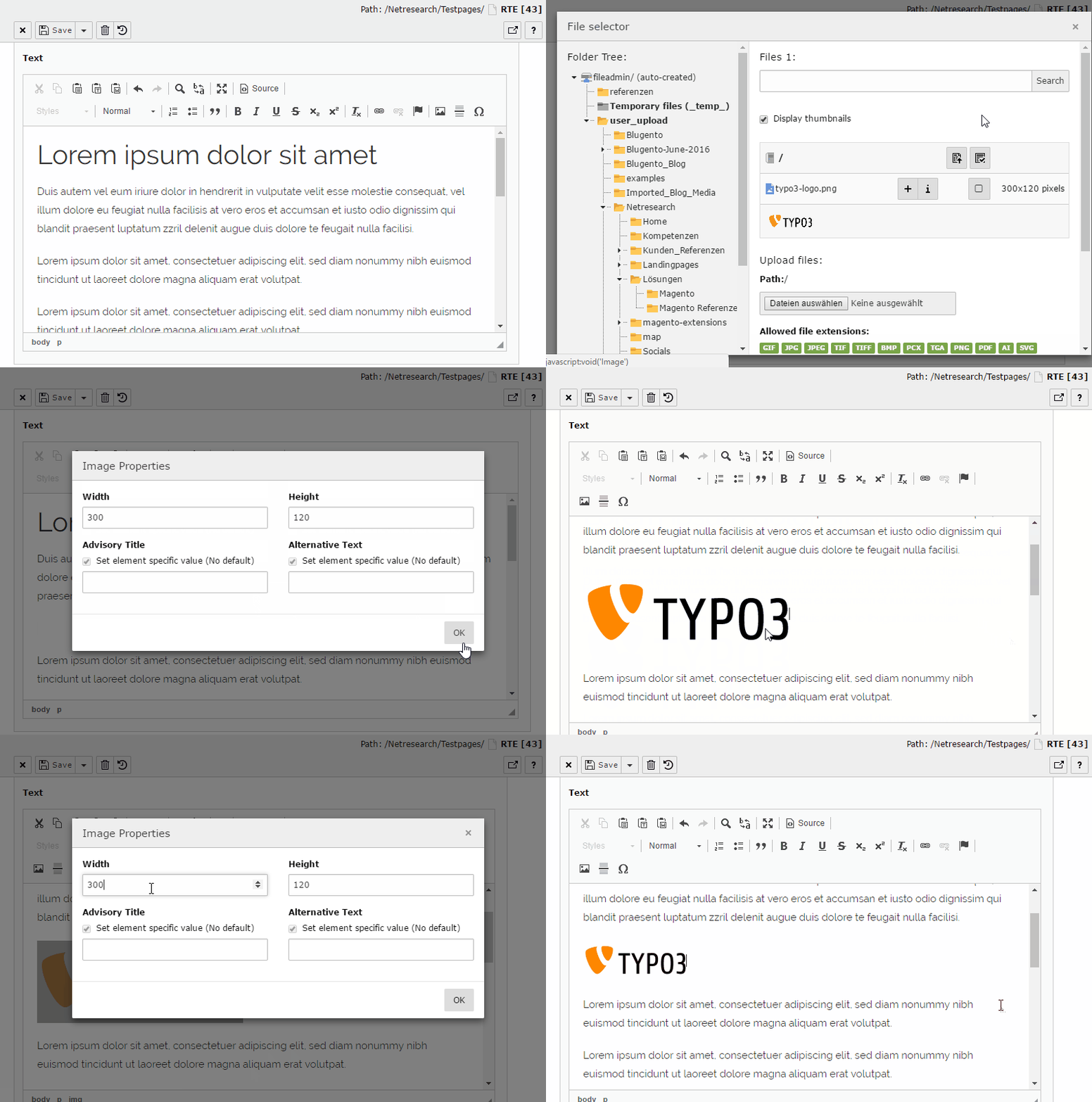
The insertimage button is automatically available after installation
Custom Configuration (Optional)
If you need to customize the RTE configuration, you can create your own preset:
Custom Preset
EXT:my_site/Configuration/RTE/Custom.yaml
imports:
  - { resource: "EXT:rte_ckeditor/Configuration/RTE/Default.yaml" }
  - { resource: "EXT:rte_ckeditor_image/Configuration/RTE/Plugin.yaml" }

editor:
  config:
    toolbar:
      items:
        - heading
        - '|'
        - bold
        - italic
        - '|'
        - insertimage
        - link
Copied!
Register Custom Preset
EXT:my_site/ext_localconf.php
$GLOBALS['TYPO3_CONF_VARS']['RTE']['Presets']['custom']
    = 'EXT:my_site/Configuration/RTE/Custom.yaml';
Copied!
Enable Custom Preset
Configuration/page.tsconfig
RTE.default.preset = custom
Copied!
Note
The default rteWithImages preset is automatically configured.
Custom presets are only needed for specific toolbar or plugin customization.