The RTE CKEditor Image extension provides comprehensive image handling capabilities
for |typo3|'s CKEditor Rich Text Editor. This extension enables editors to insert,
configure, and style images directly within the CKEditor interface, with full
integration into |typo3|'s File Abstraction Layer (FAL).
Key Features
CKEditor 5 Integration
Native CKEditor 5 plugin with full toolbar integration and TYPO3 file browser support.
TYPO3 FAL Support
Full File Abstraction Layer integration with file references, metadata, and browser.
Image Processing
Magic images, cropping, scaling with configurable quality multipliers (1x-6x).
Custom Styles
Define custom image styles (borders, shadows, alignment) via YAML configuration.
Responsive Images
Automatic srcset generation and picture element support for responsive layouts.
Performance
Native lazy loading, intersection observer fallback, and optimized rendering.
Event Architecture
PSR-14 event dispatching for custom image processing and rendering hooks.
Security
Protocol blocking, XSS prevention, file validation, and FAL-based access control.
Quality Multipliers
New in version 13.1.5
Retina (2x), Ultra (3x), and Print (6x) quality settings for high-DPI displays.
Modern Parser → Resolver → Renderer pipeline with dependency injection.
Fluid Templates
New in version 13.1.5
Customizable output via template overrides for complete rendering control.
Linked Images
New in version 13.5.0
Full link support with TYPO3 link browser integration, target options, and URL parameters.
Figure & Caption Support
Native <figure>/<figcaption> output. Add captions directly in the image dialog
-- no custom content elements needed.
Caption Width Constraint
New in version 13.6.0
Figcaptions automatically constrained to image width via max-width on <figure>.
Image Validation
New in version 13.5.0
CLI command and upgrade wizard to detect and fix broken image references and nested links.
TYPO3 v14 & PHP 8.5
New in version 13.2.0
Full compatibility with TYPO3 v14 and tested with PHP 8.5.
Why does this extension exist?
TYPO3 intentionally removed RTE image handling in v10.0, recommending structured
content (FAL relations) instead. This extension provides inline image support for
projects that need it -- legacy migrations, editorial workflows, or content tightly
coupled to surrounding text.
Extensions: cms-rte-ckeditor (included in TYPO3 core)
Note
The plugin automatically integrates with CKEditor's GeneralHtmlSupport for style
functionality. No additional configuration required.
Quick Start
Installation
Install via Composer:
composer require netresearch/rte-ckeditor-image
Copied!
The extension appears in the TYPO3 Extension Manager after installation
Changed in version 13.5.0
The RTE preset and frontend TypoScript are now provided via Site Set only.
You must enable the Site Set in your site configuration.
Step 1: Enable Site Set (Required)
Add the extension to your site dependencies:
config/sites/<site>/config.yaml
dependencies:-netresearch/rte-ckeditor-image
Copied!
This enables:
✅ Backend RTE: Registers the rteWithImages preset with insertimage button
✅ Frontend rendering: Includes TypoScript for image processing
Step 2: Clear Caches
vendor/bin/typo3 cache:flush
Copied!
Tip
Default image maxWidth
The extension's Site Set configures maxWidth = 1920 for magic images. If you
have not enabled the Site Set (e.g., when using sys_template records), TYPO3's
built-in default of 300px applies, which causes images to appear unexpectedly small.
Using Bootstrap Package or other theme extensions?
If your site uses bootstrap_package or another theme extension with Site Sets,
list this extension after them in your dependencies to override their RTE preset.
See Installation Issues for details.
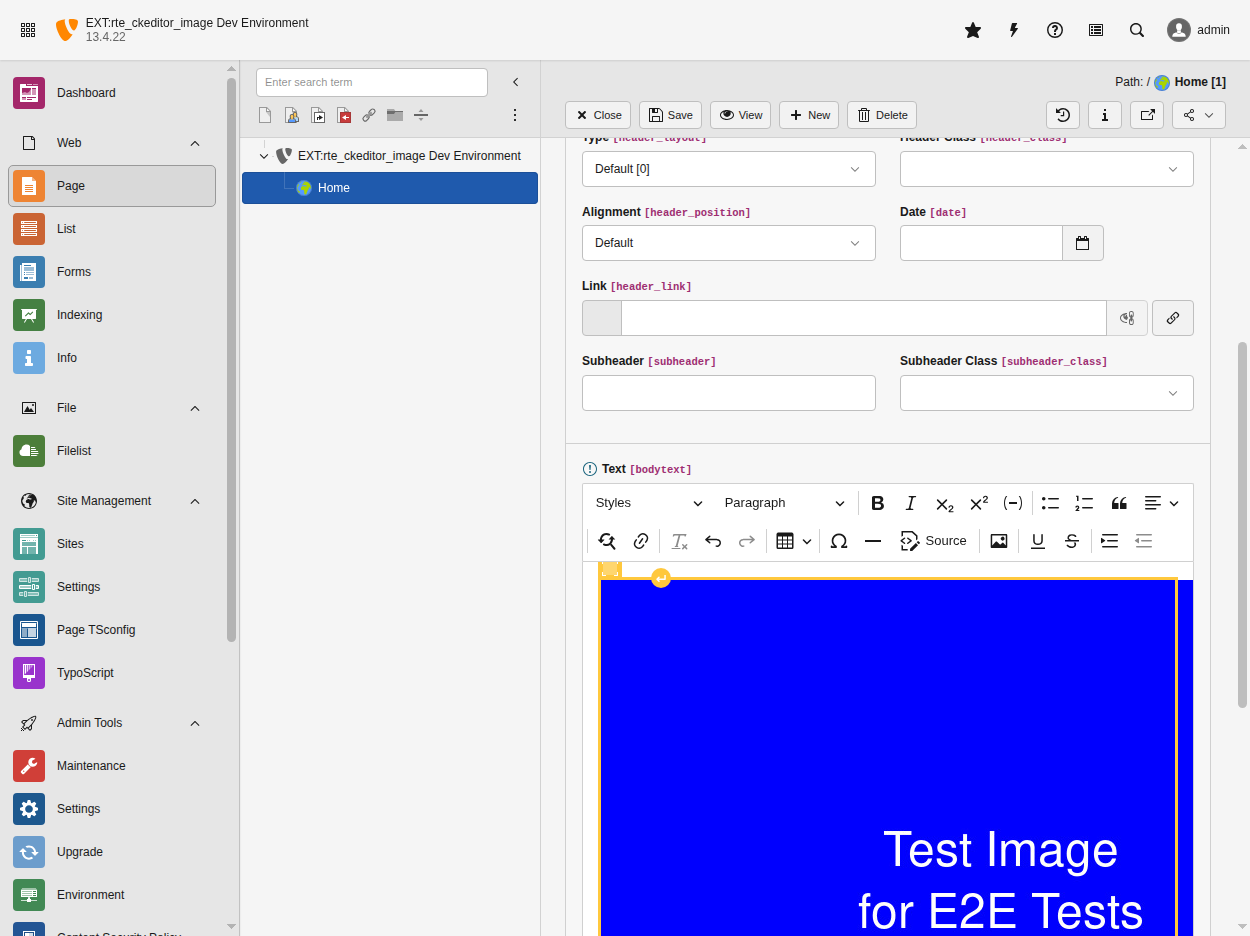
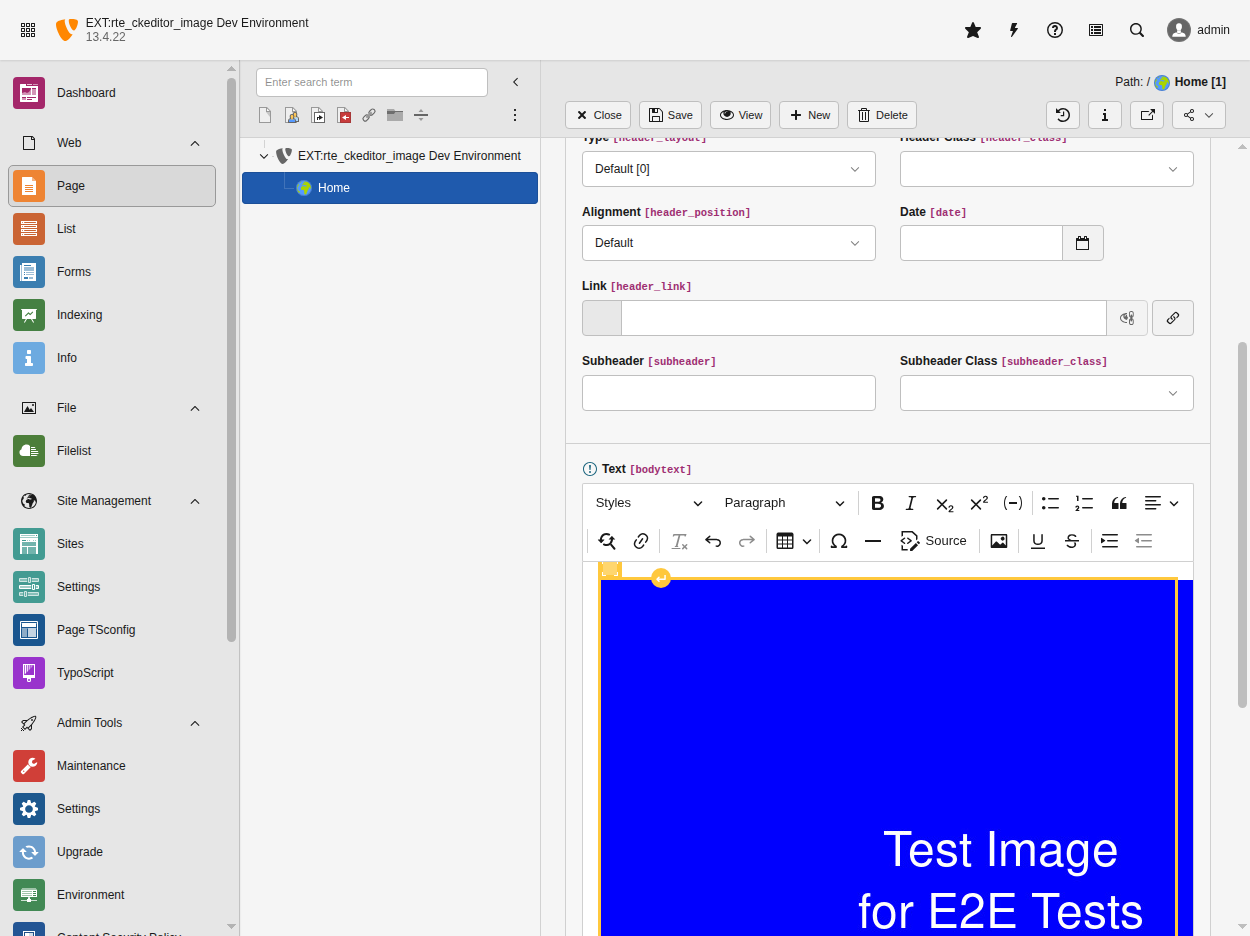
The insertimage button in the CKEditor toolbar opens the TYPO3 file browser for image selection
Custom Configuration (Optional)
If you need to customize the RTE configuration or create your own preset, see the
RTE Setup Guide for detailed instructions.
The extension provides a default preset that you can extend or override as needed.
Important
Before using this extension, please read TYPO3 Core Removal & Design Decision
to understand why TYPO3 intentionally removed this functionality and whether this extension
is the right choice for your project.
TYPO3 Core Removal & Design Decision
Important
Before installing this extension, please read this page carefully.
This extension re-implements functionality that TYPO3 core intentionally removed
in version 10.0. Understanding the reasoning behind this removal will help you make
an informed decision about whether this extension is right for your project.
What TYPO3 Removed
In TYPO3 v10.0 (Breaking #88500),
the core team removed the RTE image handling functionality:
Removed Components
RTE processing mode ("ts_images")
SoftReference Index for inline images
Magic Image processing (automatic scaling, cropping via TSConfig)
Image storage handling (RTE_imageStorageDir)
CLI cleanup command (cleanup:rteimages)
Public API methods (ImportExport->getRTEoriginalFilename(), RteHtmlParser->TS_images_rte())
Later Deprecation
In TYPO3 v12.4 (Deprecation #99237),
the MagicImageService class was deprecated with no direct migration path.
Why TYPO3 Removed This
The TYPO3 core team removed this functionality for several architectural reasons:
Obsolete Technology
CKEditor replaced RTEHtmlArea in TYPO3 v8, making the native RTE image handling
unused and obsolete.
Incomplete Implementation
The changelog explicitly states the functionality was "very incomplete" compared
to modern alternatives.
Architectural Philosophy
TYPO3 promotes structured content over inline mixed content. Storing images
as relations (FAL references) provides better:
Stay informed about TYPO3's direction regarding RTE and CKEditor.
Plan Migration
If project lifespan is long, plan eventual migration to structured content.
Conclusion
This extension serves as a pragmatic bridge between TYPO3's architectural
direction (structured content) and real-world editorial needs (inline images).
Key Takeaways:
TYPO3 intentionally removed RTE image handling for good architectural reasons
Structured content is the recommended modern approach
This extension provides backward compatibility when needed
Consider your project's specific requirements, timeline, and resources
A hybrid approach (both structured and inline) is valid
Plan for eventual migration if project lifespan is long
Questions to ask:
Do we have time/budget to migrate existing content?
Does our editorial team need inline image placement?
Are our images contextually bound to text or reusable assets?
What is our project's expected lifespan?
Can we align with TYPO3's architectural direction?
The "right" choice depends on your specific context. There is no universal answer.
These examples show how to create custom configurations that override the automatic defaults.
If you just installed the extension and it's working, you don't need these.
Minimum Custom Toolbar
# Only needed if customizing the default toolbareditor:config:toolbar:items:-insertimage
Copied!
Custom Toolbar with Specific Buttons
# Example: Custom preset with limited toolbareditor:config:toolbar:items:-bold-italic-insertimage
# Different presets for different fields
RTE.default.preset = default
RTE.config.tt_content.bodytext.preset = full
RTE.config.tt_content.header.preset = simple
Configure maximum image dimensions for automatic image processing:
RTE.default.buttons.image.options.magic.maxWidth
RTE.default.buttons.image.options.magic.maxWidth
type
integer
Default
300
Maximum width in pixels for images inserted through the RTE.
Images larger than this value will be automatically resized during processing.
Warning
The TYPO3 core default of 300px is very low and causes images to appear
unexpectedly small. The extension's Site Set overrides this to 1920px.
If you use sys_template records instead of Site Sets, you must set this
value manually.
RTE.default.buttons.image.options.magic.maxHeight
RTE.default.buttons.image.options.magic.maxHeight
type
integer
Default
1000
Maximum height in pixels for images inserted through the RTE.
Images taller than this value will be automatically resized during processing.
HTMLparser configuration for data attribute cleanup.
Using direct import gives you full control over the TypoScript load order,
allowing you to override settings (like lightbox configuration) after the import.
The extension provides default configuration. You can customize it:
Changed in version 13.1.5
The legacy
ImageRenderingController and
ImageLinkRenderingController were replaced
with unified
ImageRenderingAdapter using the new service architecture.
See Services API for details.
Frontend rendering configuration
lib.parseFunc_RTE {
tags.img = TEXT
tags.img {
current = 1
preUserFunc = Netresearch\RteCKEditorImage\Controller\ImageRenderingAdapter->renderImageAttributes
}
tags.a = TEXT
tags.a {
current = 1
preUserFunc = Netresearch\RteCKEditorImage\Controller\ImageRenderingAdapter->renderInlineLink
}
nonTypoTagStdWrap.HTMLparser.tags.img.fixAttrib {
# Remove internal data attributes from frontend
allparams.unset = 1
data-htmlarea-file-uid.unset = 1
data-htmlarea-file-table.unset = 1
# Keep zoom attributes for popup/lightbox rendering (ImageRenderingAdapter.php)# data-htmlarea-zoom.unset = 1# data-htmlarea-clickenlarge.unset = 1
data-title-override.unset = 1
data-alt-override.unset = 1
}
}
lib.parseFunc_RTE.nonTypoTagStdWrap.encapsLines.encapsTagList := addToList(img)
styles.content.image.lazyLoading = lazy
# Options: lazy, eager, auto
Copied!
Lightbox/Popup Integration
New in version 13.1.5
Default popup configuration is now provided by the extension.
Note
Optional Site Set Configuration (TYPO3 v13+)
The extension provides click-to-enlarge functionality once TypoScript is included.
However, for TYPO3 v13+ best practices, you can optionally include the extension's site set
to ensure proper loading order with
fluid_styled_content if you use it:
Option 1: Via Backend (Recommended for TYPO3 v13+)
For TYPO3 v12, you can include the static template:
Go to WEB > Template module.
Select your root page.
Edit the template.
In Includes tab, add: CKEditor Image Support (rte_ckeditor_image).
Why use site sets? TYPO3 v13 site sets provide proper dependency ordering
with
fluid_styled_content, ensuring TypoScript loads in the correct sequence.
The extension provides
lib.contentElement.settings.media.popup configuration
with sensible defaults for click-to-enlarge functionality. When editors enable
Enlarge on Click in the image dialog, images will open in a JavaScript popup window.
Default Configuration (included in the static template):
Using with Lightbox Libraries (PhotoSwipe, GLightbox, etc.):
Override the default configuration to use direct image links with custom CSS classes:
Lightbox library configuration
lib.contentElement.settings.media.popup {
    # Direct link to image for lightbox libraries
    directImageLink = 1

    # Add lightbox-specific classes and attributes
    linkParams.ATagParams.dataWrap = class="lightbox" rel="lightbox-gallery"
}
Copied!
Legacy fluid_styled_content Integration:
If using
fluid_styled_content constants, enable lightbox mode:
lib.parseFunc_RTE.nonTypoTagStdWrap.HTMLparser.tags.img {
width =
height =
# Allows TYPO3 to process dimensions
}
Copied!
Encapsulation Configuration
Image encapsulation in paragraphs
lib.parseFunc_RTE.nonTypoTagStdWrap.encapsLines {
encapsTagList := addToList(img)
remapTag.img = p
}
Copied!
Backend Preview Styling
New in version 13.5
The extension automatically registers an image-aware preview renderer for
all CTypes with RTE-enabled bodytext (e.g. text, textmedia,
textpic). This ensures images are visible in the Page module preview.
By default, preview images render at their original size. To limit image
dimensions in the backend Page module, add a custom backend stylesheet:
editor:config:style:definitions:# ... style definitions ...# Group styles in dropdowngroupDefinitions:-name:'Image Alignment'styles:['ImageLeft','Image Right','Image Center']-name:'Image Size'styles:['FullWidth','Half Width']
Copied!
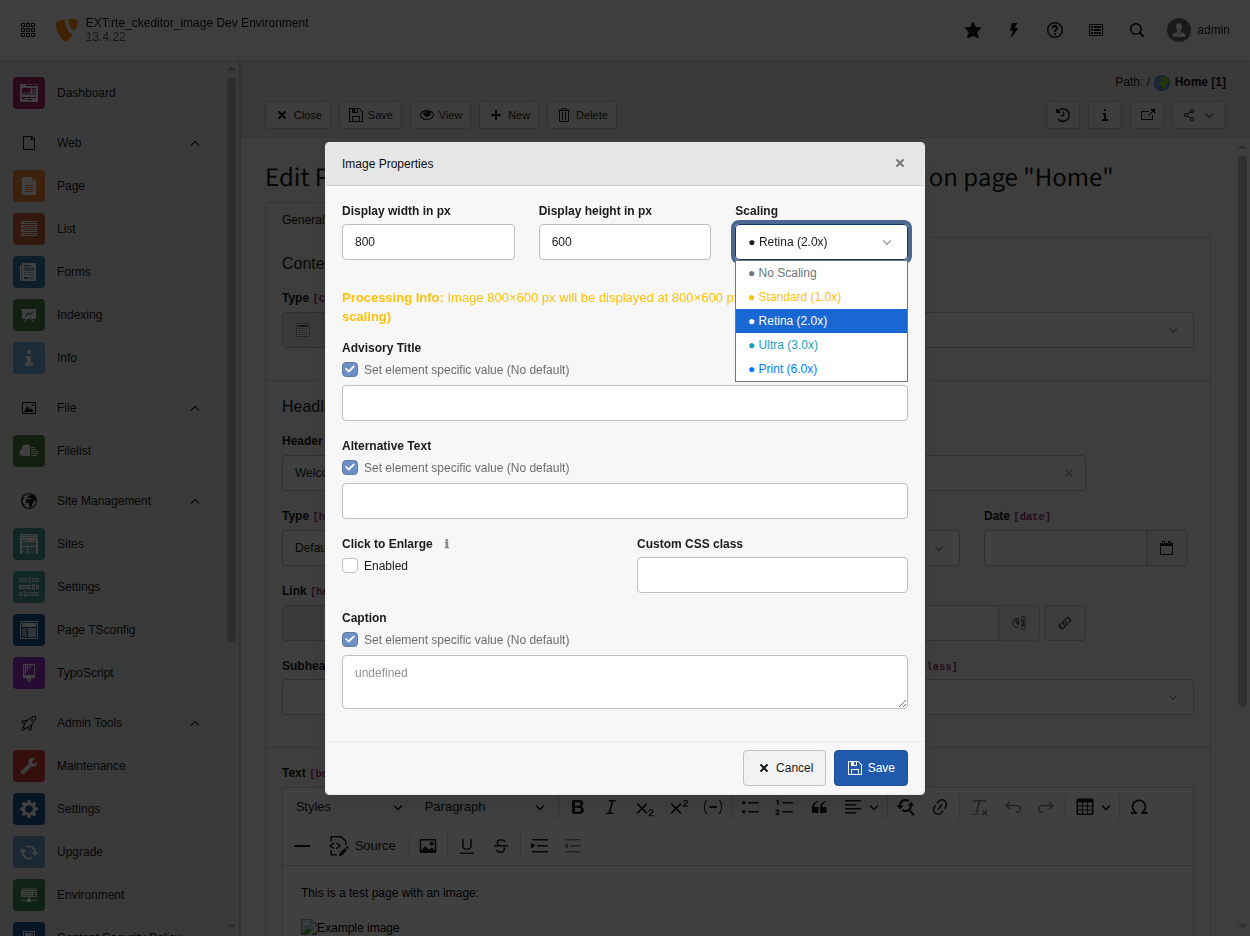
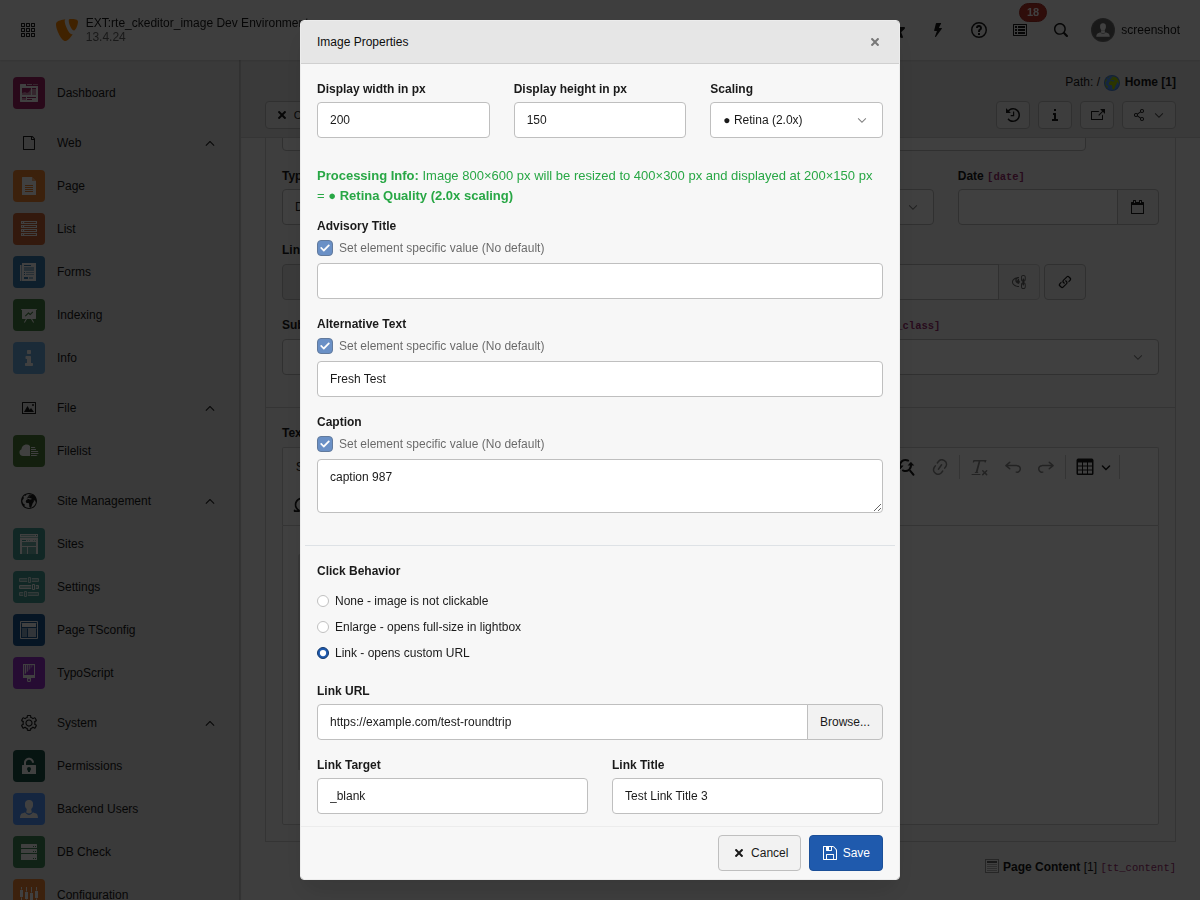
Image Dialog Fields
The image properties dialog provides the following fields when an editor double-clicks
an image or inserts a new one:
Field
Description
Width / Height
Display dimensions in pixels. Aspect ratio is locked automatically.
Quality (Scaling)
Dropdown: No Scaling, Standard (1.0x), Retina (2.0x), Ultra (3.0x), Print (6.0x).
Title
Advisory title attribute. Checkbox toggles override of FAL metadata default.
Alt Text
Alternative text attribute. Checkbox toggles override of FAL metadata default.
Caption
Figcaption text. When set, the image is wrapped in a <figure>/<figcaption> element.
Click Behavior
Radio buttons: None, Enlarge (zoom/lightbox), or Link (custom URL via link browser).
Sub-fields for CSS class, link URL, target, and title appear based on selection.
Note
Field visibility is not configurable via TSConfig.
Unlike some TYPO3 RTE features, there is currently no TSConfig option
(such as RTE.default.buttons.image.properties.removeItems) to hide individual
fields from the image dialog. All fields listed above are always shown.
If you need to hide specific fields, you can use custom CSS in a backend stylesheet
to visually hide them:
When quality multipliers are applied, the actual processing dimensions are
calculated as: display dimensions × quality multiplier, capped by maxWidth/maxHeight.
noScale Mode
Skip TYPO3 image processing entirely and use original files:
Manual toggle: Editors can enable No Scaling in the image dialog.
SVG auto-detection: SVG files automatically use noScale mode.
Original file delivery: The original file URL is used instead of processed variants.
This is useful for:
Vector graphics (SVG) that should not be rasterized.
Images already optimized for web delivery.
Situations where exact original quality is required.
SVG Support
The extension handles SVG files with special processing:
Dimension extraction: Reads dimensions from
viewBox or
width/
height attributes.
No rasterization: SVGs are never processed through ImageMagick/GraphicsMagick.
No manual configuration is required. The extension uses a PSR-14 event listener that automatically adds the
rtehtmlarea_images soft reference to all RTE fields during TCA compilation.
Extension Configuration
You can customize the automatic behavior via Extension Configuration:
This overrides the excludedTables setting. Leave empty to process all tables (recommended).
enableAutomaticPreviewRenderer
enableAutomaticPreviewRenderer
Type
boolean
Default
1 (enabled)
New in version 13.5.0
Toggle automatic registration of RteImagePreviewRenderer for all record
types with RTE-enabled bodytext fields.
When enabled, the extension registers a custom preview renderer that preserves
<img> tags in the page module preview. Without this, TYPO3's default
StandardContentPreviewRenderer strips images via strip_tags().
The preview renderer also detects broken image references and displays a
warning callout above the content preview (see
Image Reference Validation).
After changing extension configuration, clear all caches:
Clear all caches
./vendor/bin/typo3 cache:flush
Copied!
Troubleshooting Third-Party Extension Issues
Images Disappear When Saving
Symptom: Images inserted in RTE fields disappear after saving the record.
Cause: Automatic softref processing may be disabled, or the table is excluded.
Solution:
Verify automatic processing is enabled:
Check extension configuration
// Check extension configuration
$config = $GLOBALS['TYPO3_CONF_VARS']['EXTENSIONS']['rte_ckeditor_image'];
// enableAutomaticRteSoftref should be true (default)
Copied!
Check if the table is excluded:
Check table exclusion settings
// Check excludedTables and includedTablesOnly settings
debug($config['excludedTables']);
debug($config['includedTablesOnly']);
Copied!
Verify soft reference is configured in TCA:
Verify TCA softref configuration
// In TYPO3 backend console or debug output
debug($GLOBALS['TCA']['your_table']['columns']['your_field']['config']['softref']);
// Should output: "rtehtmlarea_images" or include it in comma-separated list
Copied!
Check if
data-htmlarea-file-uid attribute is preserved:
Check database content
-- Check database contentSELECT bodytext FROM tx_news_domain_model_news WHERE uid = 123;
-- Should contain: data-htmlarea-file-uid="456"
Copied!
Clear all caches and retry:
Clear all caches
./vendor/bin/typo3 cache:flush
Copied!
Automatic Processing Not Working
Symptom: RTE images are not tracked automatically in custom tables.
Cause: Event listener not registered, caches not cleared, or configuration issue.
Solution:
Verify the event listener is registered:
Check RteSoftrefEnforcer class
# Check if RteSoftrefEnforcer class exists
ls Classes/Listener/TCA/RteSoftrefEnforcer.php
Copied!
Verify Services.yaml configuration:
Check listener registration
# Check listener registration
grep -A 5 "RteSoftrefEnforcer" Configuration/Services.yaml
Copied!
Clear all caches:
Clear all caches
./vendor/bin/typo3 cache:flush
Copied!
Check if the field is RTE-enabled:
Verify RTE field configuration
// Field must have type='text' AND enableRichtext=true
debug($GLOBALS['TCA']['your_table']['columns']['your_field']['config']);
Copied!
data-htmlarea-file-uid Attribute Missing
Symptom: Images render but the
data-htmlarea-file-uid attribute is missing from saved content.
Cause: Soft reference parser not registered or not being invoked.
Solution:
Verify soft reference parser is registered:
Check softreference.parser registration
# Check Services.yaml for softreference.parser
grep -A 3 "softreference.parser" Configuration/Services.yaml
Copied!
Verify soft reference is in TCA (see "Images Disappear When Saving" above).
Clear all caches:
Clear all caches
./vendor/bin/typo3 cache:flush
Copied!
Images Not Processed in Frontend
Symptom: Images appear as
<img> tags with
data-htmlarea-file-uid in frontend HTML.
Cause: TypoScript configuration missing or incorrect.
Solution: Ensure TypoScript static template is included:
Include static template
# Include static template in your root template# Template > Info/Modify > Edit whole template record > Includes# Select: "CKEditor Image Support" for "Include static (from extensions)"
File accessible: File must not be hidden or restricted.
Storage accessible: File storage must be publicly accessible.
If validation fails, the original unprocessed content is returned.
XSS prevention
All user-controlled content is sanitized:
Caption text
Caption sanitization
// Caption is sanitized with htmlspecialchars()
$caption = htmlspecialchars($rawCaption, ENT_QUOTES | ENT_HTML5, 'UTF-8');
Copied!
Alt and title attributes
Alt and title text are sanitized before inclusion in HTML output.
CSS classes
CSS class names are validated and encoded to prevent attribute injection.
Immutable DTOs
The
ImageRenderingDto and
LinkDto are declared as
readonly:
Readonly DTO declaration
final readonly classImageRenderingDto{
// Properties cannot be modified after construction
}
Copied!
This ensures:
Data integrity: Validated data cannot be corrupted.
Audit trail: Security validation happens once, at creation.
Thread safety: No race conditions on property access.
External link security (rel="noreferrer")
Automatic rel="noreferrer" on figure-wrapped linked images, mirroring
TYPO3 typolink semantics. Closes
#799
(see CHANGELOG.md
for the version this shipped in).
Linked images that are wrapped in <figure> (e.g. when a caption is set)
are rendered through the Fluid Link.html partial, which constructs
the <a> tag directly rather than going through TYPO3's LinkFactory.
That means LinkFactory::addSecurityRelValues() — the core helper that
appends rel="noreferrer" to external target="_blank" links to prevent
referrer leakage — never ran on this code path. The extension now mirrors
the typolink semantics in PHP via the
SecurityRelComputer service.
When the rule fires
rel="noreferrer" is appended automatically when both conditions hold:
The link target opens a new browsing context — i.e. target is set
and not one of _self, _parent, _top (case-insensitive,
whitespace-tolerant per the HTML living standard).
The URL is external — defined as either:
An absolute http:// or https:// URL.
A protocol-relative URL (e.g. //example.com/image.jpg,
RFC 3986 §4.2 network-path reference) that inherits the page
scheme but resolves to a different host.
Relative paths (/fileadmin/...), fragment links (#section),
mailto: / tel: schemes, and t3:// URIs (already resolved before
this point) are treated as internal and don't trigger the addition.
Token preservation
Pre-existing rel tokens from the source <a> tag — nofollow,
sponsored, noopener, custom values — are preserved through
SecurityRelComputer::parseTokens(), which lowercases, deduplicates,
and collapses whitespace. noreferrer is added at most once; if the
source already declares it, no duplicate is appended.
Example
Editor-set link with target="_blank" and an external URL
Internal links (e.g. /about or t3://page?uid=42) and links without
a target continue to render without rel, matching typolink behavior.
SVG security
Warning
SVG files can contain embedded JavaScript and are potential XSS vectors.
The extension does not sanitize SVG content.
Recommendations:
Sanitize before upload: Use server-side SVG sanitization libraries.
Restrict uploads: Consider limiting SVG uploads to trusted users.
Content Security Policy: Implement CSP headers to mitigate XSS risks.
Note
The allowSvgImages option was removed in v13.1.5 due to security
concerns. SVG files are now handled via the standard image workflow
with automatic noScale mode.
Minimal setup guide for getting basic image functionality working quickly.
Perfect for new installations and quick starts.
🔗 Linked Images
Configure click behavior, link browser integration, and URL parameters.
Complete guide for creating linked and clickable images.
🎨 Image Styles
Configure custom image styles with Bootstrap classes, CSS groups, and style dropdowns.
Includes both framework-based and custom CSS approaches.
📱 Responsive Images
Implement responsive images with automatic srcset generation and multiple breakpoints.
Complete PHP implementation with result examples.
⭐ Advanced Features
Add lightbox functionality with PhotoSwipe and implement lazy loading for performance.
Includes both native browser lazy loading and Intersection Observer fallbacks.
🔌 Custom Extensions
Extend the image plugin with custom dialog fields, external image handling,
multi-language support, and automatic backend processing hooks.
✅ Testing
Functional and unit test examples for ensuring quality and preventing regressions.
Includes controller tests and database hook tests.
🎭 Template Overrides
Customize image rendering output by overriding Fluid templates.
Includes Bootstrap integration, PhotoSwipe lightbox, and lazy loading examples.
Complete link support with TYPO3 link browser integration, additional parameters,
and proper URL handling.
This guide covers how to create and configure linked images in CKEditor,
including the link browser integration, click behavior options, and URL parameters.
Wraps the image in a custom link. Opens the TYPO3 link browser to select
the link target.
Link Browser Integration
When "Link" click behavior is selected, editors can use TYPO3's link browser
to select link targets:
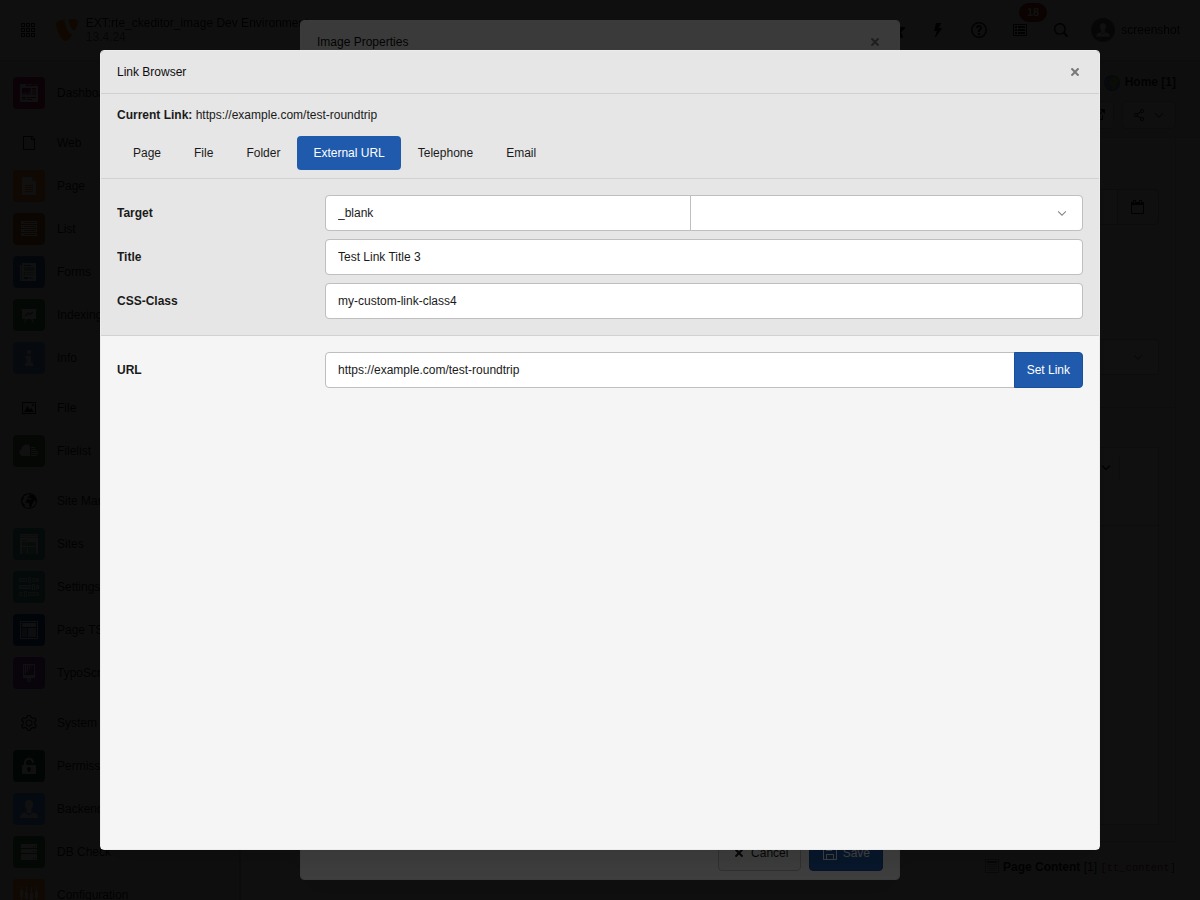
The TYPO3 Link Browser for selecting link targets
Supported Link Types
Page: Internal TYPO3 pages (t3://page?uid=123)
File: Files from FAL (t3://file?uid=456)
Folder: Folder references
URL: External URLs (https://example.com)
Email: Email links (mailto:info@example.com)
Telephone: Phone links (tel:+1234567890)
Link Attributes
Each link can have the following attributes:
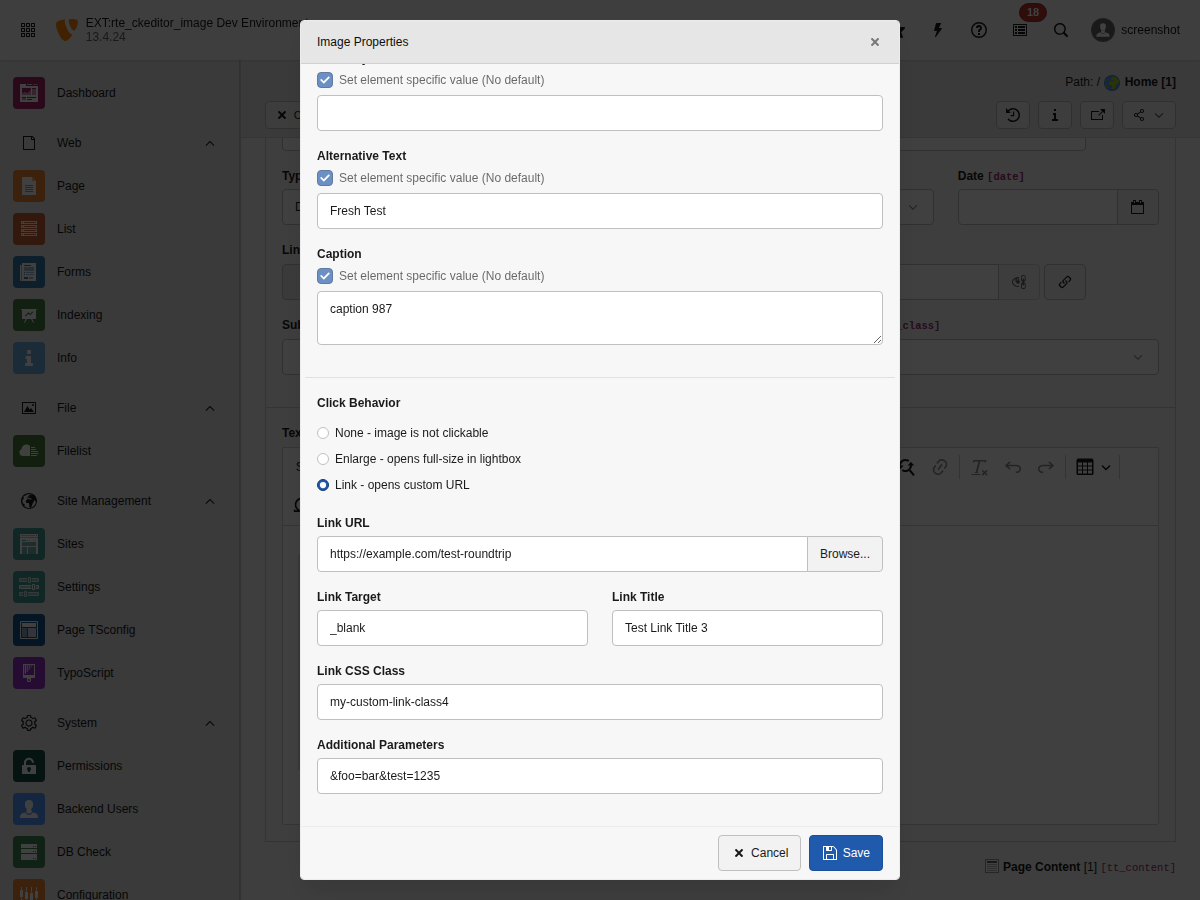
All link configuration fields in the Image Properties dialog
Link URL
The link target. Can be a TYPO3 link (t3://...) or external URL.
Link Target
Window target for the link:
(default): Same window
_blank: New window/tab
_self: Same window (explicit)
_parent: Parent frame
_top: Top frame
Link Title
Advisory title shown as tooltip on hover.
Link CSS Class
CSS classes applied to the <a> element.
Additional Parameters
URL query parameters appended to the link (e.g., &L=1&type=123).
TypoLink Format
Linked images use TYPO3's TypoLink format internally. Understanding this format
helps when debugging or customizing:
url target class "title" additionalParams
Copied!
Position
Parameter
Model Attribute
Example
1
URL
linkHref
t3://page?uid=1
2
Target
linkTarget
_blank
3
Class
linkClass
external-link
4
Title
linkTitle
"Click here"
5
Params
linkParams
&L=1&type=123
URL Parameter Handling
Additional parameters are intelligently appended to URLs:
Basic Examples
# URL without query string
/page + &L=1 → /page?L=1
# URL with existing query string
/page?foo=bar + &L=1 → /page?foo=bar&L=1
# URL with fragment (preserved at end)
/page#section + &L=1 → /page?L=1#section
# URL with both query and fragment
/page?foo=bar#section + &L=1 → /page?foo=bar&L=1#section
Copied!
PHP Implementation
The
LinkDto::getUrlWithParams() method handles all edge cases:
When selecting a new link from the link browser, all previous link attributes
are cleared automatically. This prevents stale values from being retained:
// Before: Image linked to /old-page with target="_blank" and class="old-class"// User selects new link: /new-page with no target or class// After: Only the new URL is set, old attributes are cleared// linkHref: '/new-page'// linkTarget: null (cleared)// linkClass: null (cleared)// linkTitle: null (cleared)// linkParams: null (cleared)
Copied!
This behavior ensures editors always see the actual link configuration without
inherited values from previous links.
Translations
All link-related UI labels are translatable. The following keys are available
in locallang_be.xlf:
<!-- Link field labels --><trans-unitid="labels.ckeditor.linkUrl"><trans-unitid="labels.ckeditor.linkTarget"><trans-unitid="labels.ckeditor.linkTitle"><trans-unitid="labels.ckeditor.linkCssClass"><trans-unitid="labels.ckeditor.linkParams"><trans-unitid="labels.ckeditor.linkParamsPlaceholder"><!-- Target options --><trans-unitid="labels.ckeditor.linkTargetDefault"><trans-unitid="labels.ckeditor.linkTargetBlank"><trans-unitid="labels.ckeditor.linkTargetTop"><trans-unitid="labels.ckeditor.linkTargetSelf"><trans-unitid="labels.ckeditor.linkTargetParent"><!-- Click behavior labels --><trans-unitid="labels.ckeditor.clickBehavior"><trans-unitid="labels.ckeditor.clickBehaviorNone"><trans-unitid="labels.ckeditor.clickBehaviorEnlarge"><trans-unitid="labels.ckeditor.clickBehaviorLink">
Copied!
Translations are provided for 31 languages. See Resources/Private/Language/
for the complete list.
Troubleshooting
Link not saved
Symptom: Link attributes are lost after saving.
Cause: Processing rules may be stripping link attributes.
Solution: Ensure your RTE processing configuration allows link attributes:
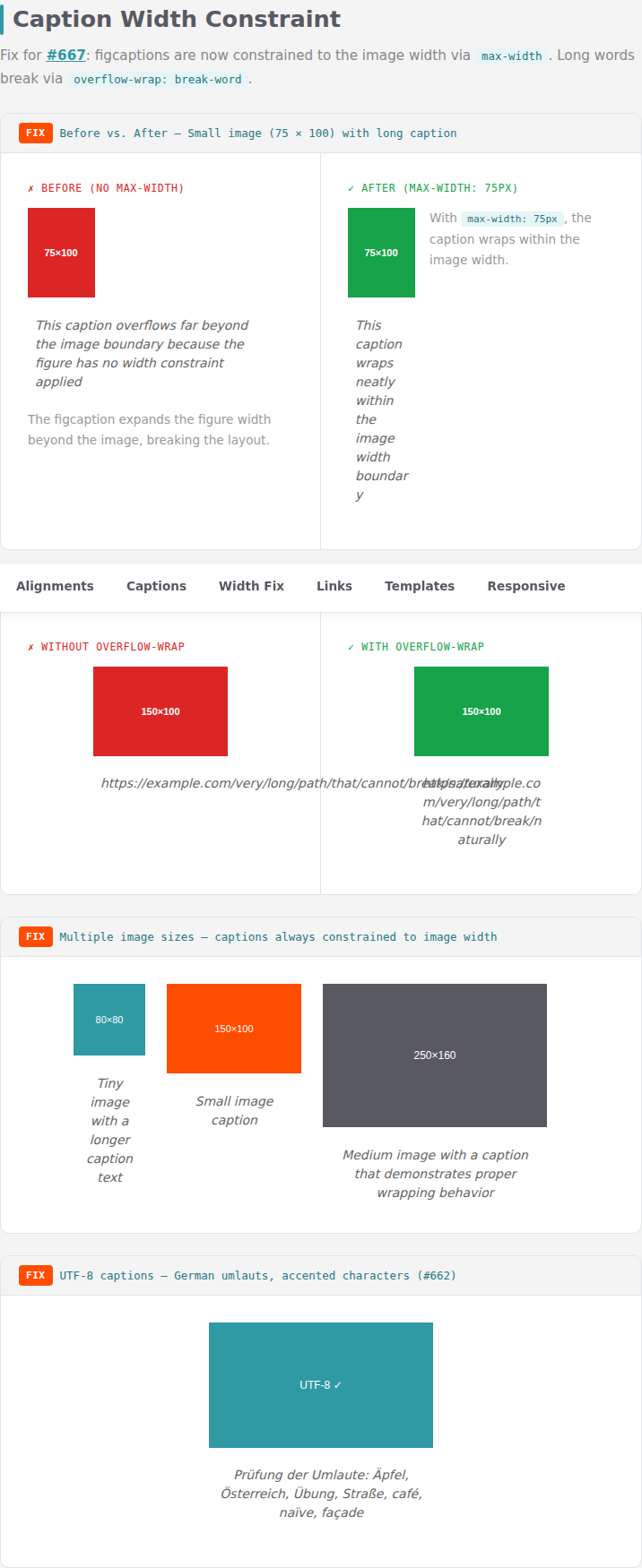
Figures with captions are automatically constrained to the image width
via an inline max-width style on the <figure> element. This
prevents long caption text from expanding the figure beyond the image
boundary.
Left: caption overflows image. Right: caption wraps within
image width.
The constraint is applied by the Fluid partial
Partials/Image/Figure.html:
Long unbreakable words or URLs in captions break via
overflow-wrap: break-word in image-alignment.css.
Native CKEditor style dropdown (advanced)
For custom styles beyond basic alignment, you can use the native CKEditor
style dropdown. This requires additional configuration.
Important
The native style dropdown is separate from the built-in balloon
toolbar buttons. Use this approach when you need custom CSS classes
(e.g., Bootstrap utilities).
Requirements
Add style to your toolbar configuration.
Define style definitions for img elements.
Ensure StyleUtils and GeneralHtmlSupport plugins are loaded
(automatic).
Configuration example
EXT:my_site/Configuration/RTE/MyPreset.yaml
imports:-{resource:"EXT:rte_ckeditor_image/Configuration/RTE/Default.yaml"}editor:config:# Add 'style' to the toolbartoolbar:items:-style# <-- Required for style dropdown-heading-'|'-insertimage-link-'|'-bold-italic# Define styles for imagesstyle:definitions:-name:'Float Left (Bootstrap)'element:'img'classes:['float-start','me-3','mb-3']-name:'Float Right (Bootstrap)'element:'img'classes:['float-end','ms-3','mb-3']-name:'Centered'element:'img'classes:['d-block','mx-auto']-name:'Rounded'element:'img'classes:['rounded']-name:'Thumbnail'element:'img'classes:['img-thumbnail']
Copied!
How to use
Insert an image.
Select the image (click on it).
Open the Style dropdown in the main toolbar.
Select a style from the dropdown.
Note
The style dropdown only shows styles applicable to the selected element.
Make sure you have the image selected when looking for image styles.
Recommendation: Start with the built-in balloon toolbar. Only configure
the native style dropdown if you need custom CSS classes beyond the basic
alignments.
Default popup configuration is now provided automatically.
The basic "Enlarge on Click" feature works out-of-the-box without additional setup.
See Frontend Rendering for details.
Popup Link Configuration
New in version 13.5.0
The popup link CSS class is now configurable via TypoScript.
By default, popup links use the CSS class popup-link. You can customize this
to integrate with your lightbox library or styling framework.
Only the class attribute is extracted from ATagParams. Other attributes
like data-*, rel, or target are not applied to the popup link.
For full attribute control, use a custom Fluid template override or PHP hook.
Note
linkClass takes precedence over the class extracted from ATagParams.
Use linkClass for simple configuration (recommended).
PhotoSwipe Lightbox
Objective: Integrate PhotoSwipe lightbox library for advanced gallery features
Note
For basic click-to-enlarge functionality, the extension provides default popup configuration.
PhotoSwipe integration is optional for advanced features like galleries, thumbnails, and touch gestures.
The extension provides six Fluid templates for different rendering contexts:
Template directory structure
Resources/Private/Templates/
├── Image/
│ ├── Standalone.html # Basic image without wrapper
│ ├── WithCaption.html # Image with <figure>/<figcaption>
│ ├── Link.html # Image wrapped in <a> tag
│ ├── LinkWithCaption.html # Linked image with caption
│ ├── Popup.html # Image with lightbox/popup link
│ └── PopupWithCaption.html # Popup image with caption
└── Partials/Image/
├── Tag.html # <img> element partial
├── TagInFigure.html # <img> without class (for figures)
├── Link.html # <a> wrapper partial
└── Figure.html # <figure> wrapper partial
Copied!
Note
This extension stores partials in Templates/Partials/ rather than the
standard TYPO3 location Partials/. When overriding, you can use either
location by configuring your partialRootPaths accordingly. For standard
TYPO3 structure in your site package, use Resources/Private/Partials/.
Template selection
The
ImageRenderingService automatically selects the appropriate template:
Condition
Template
No link, no caption
Standalone.html
No link, has caption
WithCaption.html
Has link, no popup, no caption
Link.html
Has link, no popup, has caption
LinkWithCaption.html
Has popup, no caption
Popup.html
Has popup, has caption
PopupWithCaption.html
Inline vs block rendering
Images are rendered differently depending on whether they appear as block
elements (<figure>) or inline elements (<img> within text flow).
Understanding this distinction is important when overriding templates:
Block images (<figure>):
Processed by renderFigure(). The template handles everything including
the link wrapper. Uses Link.html, LinkWithCaption.html,
Popup.html, or PopupWithCaption.html.
Inline images (<img> in text flow):
Processed by renderImageAttributes() for the <img> element and
renderInlineLink() for the <a> wrapper. The template only renders
the <img> tag — always Standalone.html. The link wrapper is
handled separately by the tags.a handler in parseFunc_RTE.
Popup images:
Both inline and block use Popup.html or PopupWithCaption.html
because popup attributes (lightbox data, click handler) require special
template handling.
Context
Link
Caption
Handler
Template
Block
No
No
renderFigure()
Standalone.html
Block
No
Yes
renderFigure()
WithCaption.html
Block
Yes
No
renderFigure()
Link.html
Block
Yes
Yes
renderFigure()
LinkWithCaption.html
Block
Popup
No
renderFigure()
Popup.html
Block
Popup
Yes
renderFigure()
PopupWithCaption.html
Inline
No
—
renderImageAttributes()
Standalone.html
Inline
Yes
—
renderImageAttributes() + renderInlineLink()
Standalone.html
Inline
Popup
—
renderImageAttributes()
Popup.html
Setting up overrides
Step 1: Create template directory
In your site package, create the override directory:
The configuration must be placed within lib.parseFunc_RTE.tags.img
(not directly in lib.parseFunc_RTE). The same configuration can be
added to tags.a and tags.figure to control the templates used
for images that are already wrapped in <a> or <figure> elements.
Step 3: Create override templates
Copy and modify only the templates you need to customize.
Available DTO properties
All templates receive the image variable containing an
ImageRenderingDto:
Available template variables
<!-- Core properties -->
{image.src} <!-- Processed image URL -->
{image.width} <!-- Display width in pixels -->
{image.height} <!-- Display height in pixels -->
{image.alt} <!-- Alternative text -->
{image.title} <!-- Title attribute -->
{image.caption} <!-- Caption text (XSS-sanitized) -->
{image.isMagicImage} <!-- Whether TYPO3 processing applied --><!-- HTML attributes -->
{image.htmlAttributes.class} <!-- CSS classes -->
{image.htmlAttributes.style} <!-- Inline styles -->
{image.htmlAttributes.loading} <!-- lazy/eager --><!-- Link properties (when linked) -->
{image.link.url} <!-- Link URL -->
{image.link.target} <!-- Link target (_blank, etc.) -->
{image.link.class} <!-- Link CSS classes -->
{image.link.isPopup} <!-- Whether popup/lightbox -->
Only override what you need: Copy only templates requiring changes.
Preserve accessibility: Always include alt attribute and maintain semantic HTML.
Keep security intact: The DTO properties are pre-sanitized. Do not apply additional encoding
that could double-escape content.
Test all contexts: Verify overrides work with captions, links, and popups.
Use native lazy loading: Prefer loading="lazy" over JavaScript solutions.
CSS classes move to figure: When images have captions, CSS classes defined on the
<img> element are applied to the <figure> wrapper instead. This ensures valid HTML5
semantics. If you need classes specifically on the <img> within a figure, create a
custom WithCaption.html template override.
Decoding attribute: The default templates include decoding="async" on all images
to improve rendering performance by allowing the browser to decode images off the main thread.
This is a modern best practice that does not affect visual output.
Whitespace is stripped: The rendering service removes whitespace between HTML tags
to prevent parseFunc_RTE from creating <p> </p> artifacts. Templates can use
readable multi-line formatting; it will be normalized. However, deliberate spacing between
inline elements will be removed.
Debugging templates
Enable Fluid debugging to inspect available variables:
Cause 2: Bootstrap Package or Theme Extension Overriding the Preset
Extensions like bootstrap_package set their own RTE.default.preset via Site Sets.
If their preset loads after ours, it overrides the rteWithImages preset.
Solution: List netresearch/rte-ckeditor-imageafter the theme package
in your site dependencies:
config/sites/<your-site>/config.yaml
dependencies:-bootstrap-package/full-netresearch/rte-ckeditor-image# Must come AFTER theme packages
Copied!
This ensures our preset loads last and overrides the theme's RTE preset.
If you use a custom RTE preset YAML file, the insertimage toolbar item must be
listed explicitly.
Solution: Ensure your custom preset includes the plugin import and toolbar item:
EXT:my_sitepackage/Configuration/RTE/Custom.yaml
imports:-{resource:"EXT:rte_ckeditor/Configuration/RTE/Default.yaml"}-{resource:"EXT:rte_ckeditor_image/Configuration/RTE/Plugin.yaml"}editor:config:toolbar:items:-heading-'|'-bold-italic-'|'-insertimage# Required for the image button-link
Copied!
Cause 4: Cache Not Cleared After Installation
TYPO3 caches RTE configuration aggressively. After installing the extension or
changing site configuration, caches must be flushed.
Solution:
vendor/bin/typo3 cache:flush
Copied!
Also clear your browser cache and do a hard reload (Ctrl+Shift+R).
Verification:
After applying the fix, check that the RTE preset is active:
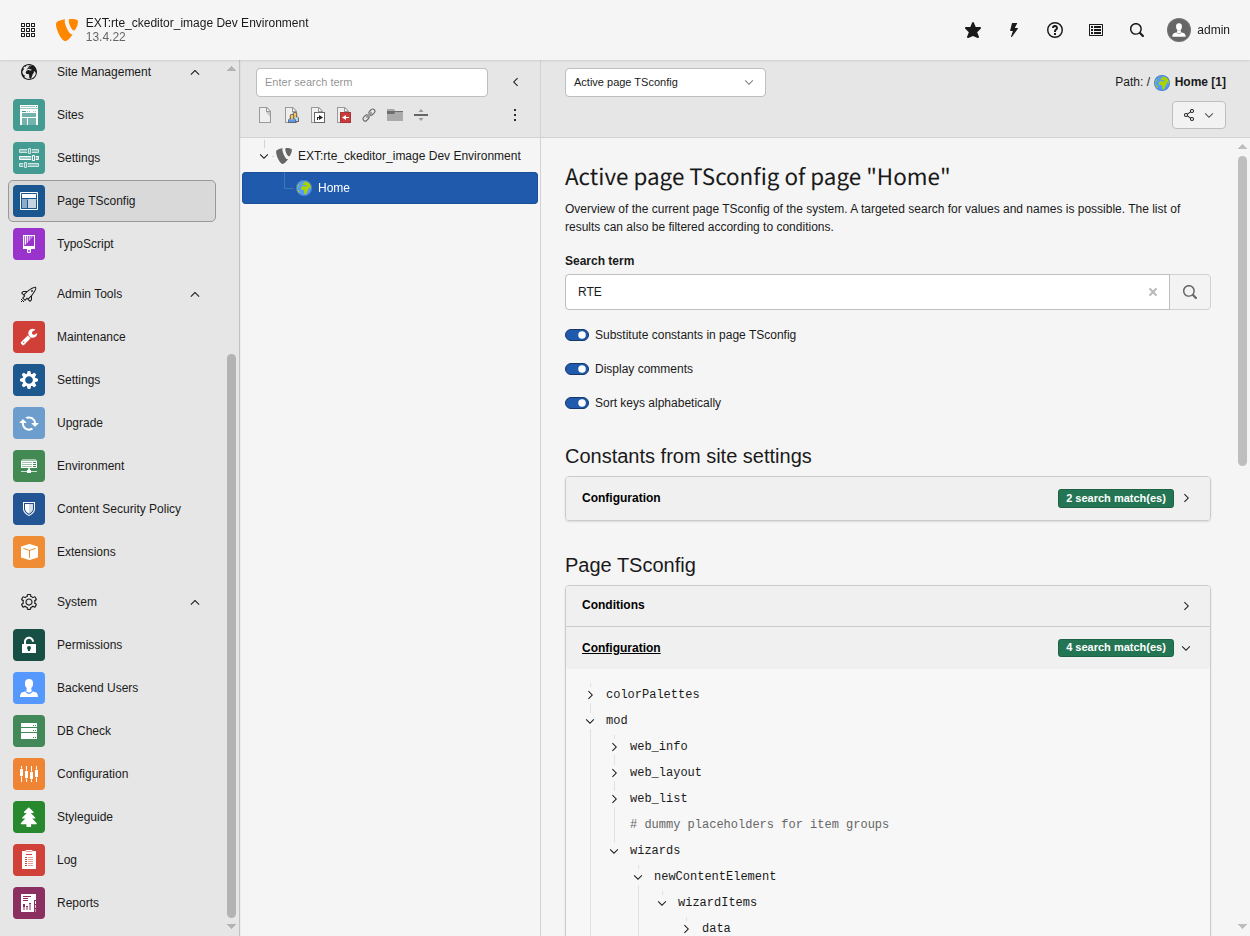
Go to Site Management > Page TSconfig
Search for RTE.default.preset
It should show rteWithImages
If it shows a different preset (e.g., bootstrap, default), the Site Set dependency
is not loaded or is being overridden.
Extension Installation Problems
Issue: Extension Not Working After TYPO3 13 Upgrade
Include CKEditor Image Support before Fluid Styled Content
Verify TypoScript:
lib.parseFunc_RTE {
    tags.img = TEXT
    tags.img {
        current = 1
        preUserFunc = Netresearch\RteCKEditorImage\Controller\ImageRenderingAdapter->renderImageAttributes
    }
}
Copied!
Warning
Always include the static template BEFORE Fluid Styled Content for proper rendering.
Issue: Click-to-Enlarge Not Working with sys_template Records (TYPO3 v13)
New in version 13.0.0
TYPO3 v13 introduced site sets as a modern alternative to sys_template records.
When sys_template records exist, site sets are bypassed, which affects extensions
that rely on site set dependencies.
Symptoms:
Images display correctly in frontend
Click-to-enlarge functionality doesn't work
Data attributes still visible in HTML output (data-htmlarea-zoom, data-htmlarea-file-uid)
Image processing hooks not executed
Cause:
In TYPO3 v13, sys_template records prevent site sets from loading. Legacy installations
like the Introduction Package use sys_template records instead of modern site sets. When
a sys_template exists on a page, TYPO3 ignores site set dependencies, so the extension's
TypoScript configuration is never loaded.
Detection:
Check if your site uses sys_template records:
SELECT uid, pid, title, include_static_file
FROM sys_template
WHERE deleted=0AND hidden=0;
Copied!
If records exist and data-htmlarea-* attributes appear in frontend HTML, the extension's
TypoScript is not being loaded.
Solution 1: Manual TypoScript Include (Quick Fix)
Add TypoScript directly to the sys_template record:
Go to WEB > Template module
Select page with sys_template record
Click Edit the whole template record
In Setup field, add:
# Include RTE CKEditor Image TypoScript<INCLUDE_TYPOSCRIPT: source="FILE:EXT:rte_ckeditor_image/Configuration/TypoScript/ImageRendering/setup.typoscript">
Copied!
Save template
Clear all caches:
./vendor/bin/typo3 cache:flush
Copied!
Solution 2: Migrate to Site Sets (Recommended for TYPO3 v13)
Modern TYPO3 v13 approach:
Remove sys_template records from pages (or set them to deleted/hidden)
Enable site set dependencies in config/sites/<site>/config.yaml:
Verify in frontend - data attributes should be removed and click-to-enlarge should work
Why This Happens:
TypoScript must be manually included via static template or import
sys_template records control TypoScript for their page tree
Bootstrap Package in sys_template may clear lib.parseFunc_RTE hooks
Load order matters - include the extension's TypoScript after theme packages but before Fluid Styled Content
Verification:
After applying fix, check frontend HTML:
<!-- Before (BROKEN): --><imgsrc="..."data-htmlarea-zoom="true"data-htmlarea-file-uid="2" /><!-- After (WORKING): --><ahref="/index.php?eID=tx_cms_showpic&file=2&..."><imgsrc="..." /></a>
Copied!
Important
sys_template records are legacy. TYPO3 v13 prefers site sets for better
dependency management and proper load order control. Migrating to site sets
is recommended for long-term maintainability.
Issue: Insert Image Button Missing with Bootstrap Package or Other Site Sets
New in version 13.1.5
Site Set dependency ordering ensures proper override behavior.
Symptoms:
Extension is installed and active
"Insert image" button missing from RTE toolbar
Page TSConfig shows RTE.default.preset = bootstrap (or another third-party preset)
Cause:
Third-party extensions like bootstrap_package use Site Sets to configure the RTE.
In TYPO3 v13, Site Sets have higher priority than extension page.tsconfig files.
Site Set configurations (bootstrap's RTE.default.preset = bootstrapoverrides ours)
When your site uses a Site Set dependency like bootstrap-package/full, it loads
after our extension's page.tsconfig and overrides our RTE preset.
Detection:
Check the active RTE preset in Page TSConfig module:
Go to Site Management → Page TSconfig
Search for RTE.default.preset
If it shows bootstrap or another preset (not rteWithImages), you have this issue
Or check your site configuration:
config/sites/<site>/config.yaml
dependencies:-bootstrap-package/full# This overrides our RTE preset!
Copied!
Solution: Add Site Set Dependency
Add netresearch/rte-ckeditor-image to your site dependencies after the overriding
package so our preset loads last:
config/sites/<site>/config.yaml
base:'https://example.com/'rootPageId:1dependencies:-bootstrap-package/full-netresearch/rte-ckeditor-image# Must come AFTER bootstrap-package
Copied!
Clear caches after updating:
./vendor/bin/typo3 cache:flush
Copied!
Why This Works:
Our Site Set (netresearch/rte-ckeditor-image) declares optionalDependencies on
bootstrap-package, so when both are listed, ours loads after bootstrap and overrides
their RTE preset with rteWithImages.
The extension's Site Set is designed to work alongside theme packages.
Simply adding it to your site dependencies is the correct solution—no
manual TSConfig overrides needed.
Image Processing Configuration
Issue: ImageMagick/GraphicsMagick Not Configured
Symptoms:
Original large images displayed instead of processed versions
# Configuration/RTE/Default.yamlimports:# Base CKEditor configuration first-{resource:"EXT:rte_ckeditor/Configuration/RTE/Default.yaml"}# Then image plugin-{resource:"EXT:rte_ckeditor_image/Configuration/RTE/Plugin.yaml"}editor:config:# Ensure plugin is not removedremovePlugins:nulltoolbar:items:-insertimage
// In browser consoledocument.querySelectorAll('img[data-htmlarea-file-uid]');
Copied!
Resolved Issues
UTF-8 characters in figcaptions
Changed in version 13.6.0
Symptoms:
German umlauts (ä, ö, ü, ß) corrupted in figcaptions on the frontend
Accented characters (é, ç, ñ) replaced with garbled text
Only figcaptions affected, image alt/title attributes rendered correctly
Cause: PHP's DOMDocument::loadHTML() defaults to ISO-8859-1
encoding, which corrupts multi-byte UTF-8 characters during HTML parsing.
Status: Fixed. All DOMDocument::loadHTML() calls now prefix the
HTML with <?xml encoding="UTF-8"> before parsing. No action required.
Inline linked images with unresolved t3:// URLs
Changed in version 13.6.0
Symptoms:
Inline linked images show t3://page?uid=123 as literal text in the
frontend href instead of the resolved URL
Links work in the backend but not on the frontend
Cause: The externalBlocks.a configuration was dead code — the
<a> tag was never listed in the externalBlocks comma list, so the
per-tag configuration was silently ignored by TYPO3's parseFunc.
Status: Fixed. Link resolution now uses tags.a with a dedicated
renderInlineLink() method in the ImageRenderingAdapter. No action
required.
Known Limitations
Figcaption line breaks
Symptoms:
Pressing Shift+Enter in figcaption does not insert a line break
Adding <br> in source mode is removed after saving
Caption text always appears on a single line
Cause: CKEditor 5's figcaption content model only supports inline
text — it does not allow <br> tags or block-level elements. The editor
strips unsupported elements during content serialization. This is a CKEditor 5
limitation, not a bug in this extension.
Workaround: Captions wrap naturally based on the figure container width.
Since version 13.6.0, the <figure> element is automatically constrained
to the image width via max-width, so captions wrap within the image
boundary without additional CSS. See Image styles for
details.
This extension provides zoom markup only, not JavaScript.
When an editor selects "Enlarge" in the image dialog, the extension outputs an
<a> link wrapping the <img> that points to the full-size image. It does
not include any JavaScript lightbox library. You must provide one yourself
or enable the built-in TYPO3 popup.
Symptoms:
Clicking an image with zoom enabled does nothing or navigates away
data-htmlarea-zoom attribute present in HTML but no lightbox appears
Image opens in a new browser window instead of a lightbox overlay
Solution for fluid_styled_content users:
If you use fluid_styled_content, enable the built-in lightbox via TypoScript constants:
Frontend Rendering for the full lightbox/popup
TypoScript configuration reference.
Issue: Unexpected rel="noreferrer" on External Linked Images
Symptoms:
External linked images (e.g. <a href="https://example.com" target="_blank">)
render with rel="noreferrer" even though the editor did not set it
Internal links (/page or t3://page?uid=42) do not receive the
attribute
Cause: This is intentional behaviour added in #799.
The Fluid Link.html partial used for figure-wrapped linked images
mirrors TYPO3 typolink security semantics — it appends rel="noreferrer"
when the target opens a new browsing context and the URL is external
(absolute http(s) or protocol-relative). Pre-existing rel tokens from
the source <a> (such as nofollow or noopener) are preserved.
Solution: No action required. To suppress the attribute (not
recommended), remove target="_blank" from the link or use an internal
URL. See External link security (rel="noreferrer") for the full rule and rationale.
Stack Overflow: Tag questions with typo3 and performance
Important
When reporting performance issues, include:
TYPO3 version
Extension version
PHP version and limits
Server specifications
Database size
Number of images
Performance measurements
Profiling data
Image Reference Validation
The extension ships a validator that detects and fixes stale or broken image
references in RTE content fields. It is available both as a CLI command and
as an Upgrade Wizard in the TYPO3 Install Tool.
Over time, image references stored inside RTE bodytext fields can become
stale. Common causes include TYPO3 major upgrades, bulk file operations in the
Filelist module, and manual database edits. The validator scans every <img>
tag that carries a data-htmlarea-file-uid attribute, resolves the
corresponding FAL file, and compares the src attribute against the file's
current public URL.
Six categories of issues are detected:
Type
Description
Auto-fixable
processed_image_src
src points to a _processed_/ URL. Processed files are
regenerated on demand and their paths change between TYPO3 versions,
so storing them as src will break after an upgrade.
Yes
src_mismatch
src does not match the FAL file's current public URL. This happens
when a file is moved or renamed in the Filelist module while existing
RTE content still references the old path.
Yes
broken_src
src is empty or missing, but a valid data-htmlarea-file-uid is
present. The correct URL can be resolved from FAL.
Yes
orphaned_file_uid
data-htmlarea-file-uid references a FAL file that no longer exists
in sys_file. The stale data-htmlarea-file-uid attribute is
removed, but no src correction is possible because the file is gone.
Yes (attribute removed)
missing_file_uid
The <img> tag has no data-htmlarea-file-uid attribute at all.
Without a file UID there is no way to determine which FAL file the
image should reference, so this issue requires manual intervention.
No
nested_link_wrapper
The <img> tag is wrapped in two or more nested <a> tags
(e.g., <a><a><img></a></a>). This typically occurs after
upgrading from older extension versions where the tags.a and
externalBlocks.a handlers both wrapped the same image. The
inner duplicate <a> wrapper is removed, preserving the outer
link and its attributes.
Yes
For fixable issues the validator replaces the src attribute with the file's
current getPublicUrl() value. The orphaned_file_uid type is treated as
fixable in the scan (it is counted and reported), but no src update is
applied because the underlying file no longer exists.
Prerequisites
The validator relies on the TYPO3 reference index (sys_refindex) to
discover which RTE fields contain image references. On a fresh installation or
after large imports, the reference index may be empty or out of date. Always
update it before running the validator:
bin/typo3 referenceindex:update
Copied!
If the validator reports "Scanned records: 0" despite images existing in RTE
content, this is almost certainly the cause.
CLI Command
The rte_ckeditor_image:validate command scans RTE content fields and
reports (or fixes) broken image references.
Dry-run (default)
Run the command without any flags to perform a read-only scan:
bin/typo3 rte_ckeditor_image:validate
Copied!
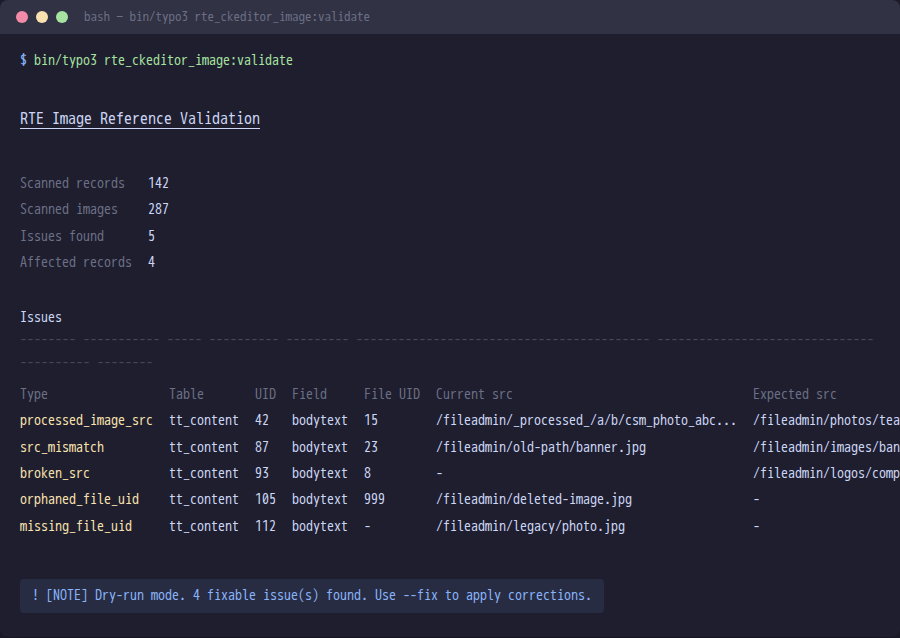
The output shows a summary of scanned records and images, followed by a table
listing every issue found, including the current src, the expected src,
and whether the issue is auto-fixable.
Example output of bin/typo3 rte_ckeditor_image:validate in dry-run mode.
Apply fixes
Add the --fix flag to write corrected src attributes back to the
database:
bin/typo3 rte_ckeditor_image:validate --fix
Copied!
Warning
--fix modifies database records directly. Always run a dry-run scan
first and create a database backup before applying fixes in production.
Skipped origins
New in version 13.9.0
Not every <img src> value can be repaired by the validator. By default the
command classifies each src and skips four out-of-scope categories:
Category
Example
Why skipped
external
https://cdn.example.com/foo.jpg
Off-site URL — not part of this TYPO3's FAL.
data
data:image/png;base64,...
Inline-encoded image, no FAL reference exists.
legacy
typo3conf/ext/some_ext/Resources/...
Pre-FAL extension path, file lives outside FAL.
securedl
/securedl/sk=.../foo.jpg
URL signed by EXT:naw_securedl / similar — the
on-disk path differs from the signed URL.
Skips are surfaced in the CLI summary as a per-origin breakdown so they
stay visible (added to the existing "Scanned records / Scanned images /
Issues found" definition list):
Skipped (out of scope)
16 total (12 external, 3 data, 1 legacy)
Copied!
Use --include to opt one or more categories back in if your environment
needs them validated:
# Re-include external URLs (the validator will then flag them as# mismatches against FAL) — useful when migrating off a CDN.
bin/typo3 rte_ckeditor_image:validate --include=external
# Re-include multiple categories at once
bin/typo3 rte_ckeditor_image:validate --include=external,legacy
# Disable all skipping (validate every <img src> regardless of origin)
bin/typo3 rte_ckeditor_image:validate --include=all
Copied!
Limit to a specific table
Use the --table (short: -t) option to restrict the scan to a single
table:
This is useful on large installations where you want to process one table at a
time or only care about a particular table.
Combining options
Options can be combined freely:
# Fix issues in tt_content only
bin/typo3 rte_ckeditor_image:validate --fix --table=tt_content
Copied!
Exit codes
Code
Meaning
0
No issues found, or all fixable issues were repaired successfully.
1
Issues were found (dry-run mode), or no fixable issues exist while
unfixable issues remain.
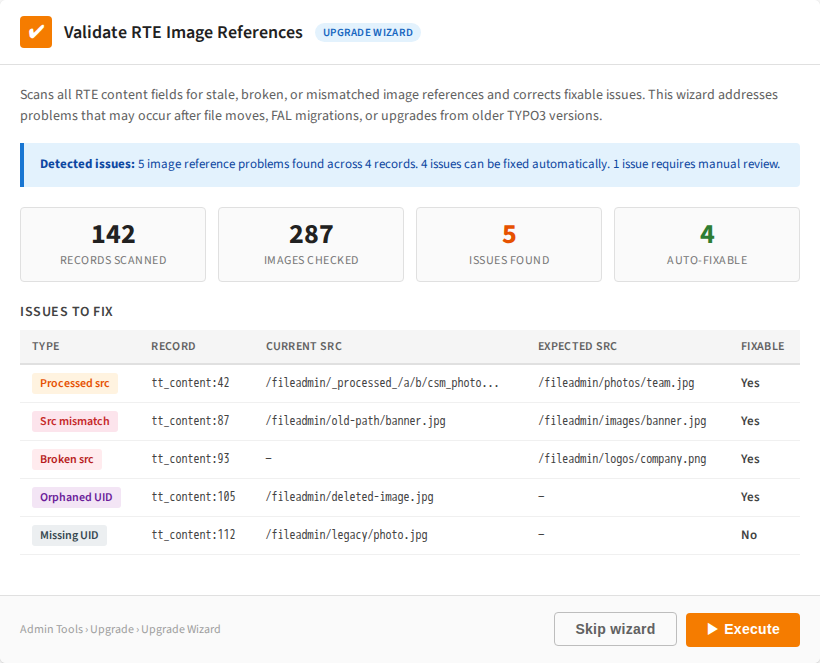
Upgrade Wizard
The same validation logic is exposed as a TYPO3 Upgrade Wizard named
Validate RTE image references.
To run it:
Open Admin Tools > Upgrade > Upgrade Wizard.
Locate Validate RTE image references in the list of available wizards.
Click Execute.
The wizard scans all RTE fields, and if fixable issues are found it
automatically applies corrections. It implements RepeatableInterface, so it
can be executed multiple times safely.
The Upgrade Wizard panel with detected issues and the Execute button.
Tip
The wizard requires the database to be up-to-date (DatabaseUpdatedPrerequisite).
Run all database schema migrations before executing this wizard.
Page Module Preview Warning
New in version 13.5.0
In addition to the CLI command and upgrade wizard, the extension now detects broken
image references directly in the TYPO3 page module preview. When a content element
contains images with validation issues, a yellow warning callout is shown above the
content preview:
This warning appears automatically for all CTypes that use the
RteImagePreviewRenderer (see RtePreviewRendererRegistrar).
The detection happens during page module rendering and requires no additional
configuration.
The same five issue types detected by the CLI command are shown in the warning:
orphaned_file_uid, src_mismatch, processed_image_src,
missing_file_uid, and broken_src.
Tip
The warning is purely informational and does not block editing. Editors can
continue working with the content element while an administrator runs the
upgrade wizard or CLI command to fix the references.
When to Use
Run the validator in the following situations:
After a TYPO3 major upgrade
Especially when upgrading from TYPO3 v10, v11, or v12 to v13+. Older
versions of TYPO3 and of this extension sometimes stored _processed_/
URLs in bodytext instead of the original file path. These processed paths
break after an upgrade because processed files are regenerated with different
names.
After bulk file operations
When files are moved or renamed in the Filelist module, the extension
updates references in RTE content automatically (via the
UpdateImageReferences listener). However, if files were moved by
other means (direct filesystem operations, TYPO3 CLI, third-party
tools), references may become stale.
As a periodic maintenance check
Run the dry-run scan periodically to detect drift before it causes
broken images in the frontend. The scan is read-only and safe to run at
any time.
This document explains the architectural structure and core components of the RTE CKEditor Image extension. For design patterns and integration details, see Design Patterns & Integration.
Three-Layer Architecture
CKEditor Plugin Layer (JavaScript)
Custom typo3image plugin
Model element definition
UI components and commands
Upcast/downcast conversions
TYPO3 Backend Layer (PHP)
Controllers for image selection and rendering
Database hooks for content processing
FAL integration
Event listeners
Frontend Rendering Layer (PHP/HTML)
TypoScript configuration
Image processing and optimization
HTML generation
System Design
The rte_ckeditor_image extension follows TYPO3's modern extension architecture with CKEditor 5 integration, providing seamless FAL (File Abstraction Layer) image management within rich text editors.
High-Level Architecture
High-level system architecture
Core Components
Backend Layer
1. Controllers (Classes/Controller/)
SelectImageController: Backend image selection wizard for FAL integration
ImageRenderingAdapter: TypoScript adapter bridging preUserFunc to modern service architecture
2. Event Listeners (Classes/Listener/)
RteSoftrefEnforcer: Auto-adds rtehtmlarea_images softref to all RTE fields
RtePreviewRendererRegistrar: Auto-registers image-aware preview renderer for all CTypes
UpdateImageReferences: Syncs src attributes when FAL files are moved or renamed
3. Database Hooks (Classes/Database/)
RteImagesDbHook: TCEmain data processing for image references
4. Data Handling (Classes/DataHandling/SoftReference/)
RteImageSoftReferenceParser: Tracks soft references for link management
This document explains the design patterns, integration approaches, and data flow used in the RTE CKEditor Image extension. For system architecture and components, see System Architecture.
Key Design Patterns
The extension employs several proven design patterns for maintainability and extensibility:
MVC Pattern - Controllers, models, and views separation
Event-Driven - PSR-14 events for extensibility
Plugin Architecture - Modular CKEditor plugin
Soft References - TYPO3 reference tracking
Command Pattern - CKEditor commands for actions
Dependency Injection
All PHP classes use Symfony's dependency injection:
The RTE CKEditor Image extension needs to provide flexible image processing options that balance quality, performance, and file size. Users need clear control over when images should be processed versus when original files should be used directly.
The system must handle various scenarios:
Different display quality requirements (web, retina displays, print)
Actual Quality: 1920/1920 = 1.0x (Standard, not Retina!)
Automatic Optimization Rules
Rule 1: SVG Files (Always Skip Processing)
Behavior: SVG files are NEVER processed regardless of settings
Rationale:
SVG is vector format that scales perfectly at any resolution
ImageMagick would rasterize SVG, losing vector benefits
Browser handles SVG scaling natively
Example:
File: logo.svg (vector)
Display Size: 400×300 px
Setting: ANY (ignored for SVG)
Processing: NONE - original SVG used
Result: Browser scales SVG natively
Copied!
Processing Info Message (Gray):
Processing Info: Vector image will not be processed (scales perfectly at any resolution).
Copied!
Rule 2: Dimensions Match Exactly (Skip Processing)
Behavior: When display dimensions exactly match original, skip processing
Rationale:
No resize needed = no quality benefit from processing
Avoid unnecessary processing overhead
Preserve original file quality
Example:
Original Image: 1920×1080 px
Display Size: 1920×1080 px
Setting: Standard (1.0x)
Processing: NONE - dimensions match exactly
Result: Original file used
Copied!
Processing Info Message (varies by scaling option):
No Scaling: Image 1920×1080 px will be used unchanged (no processing)
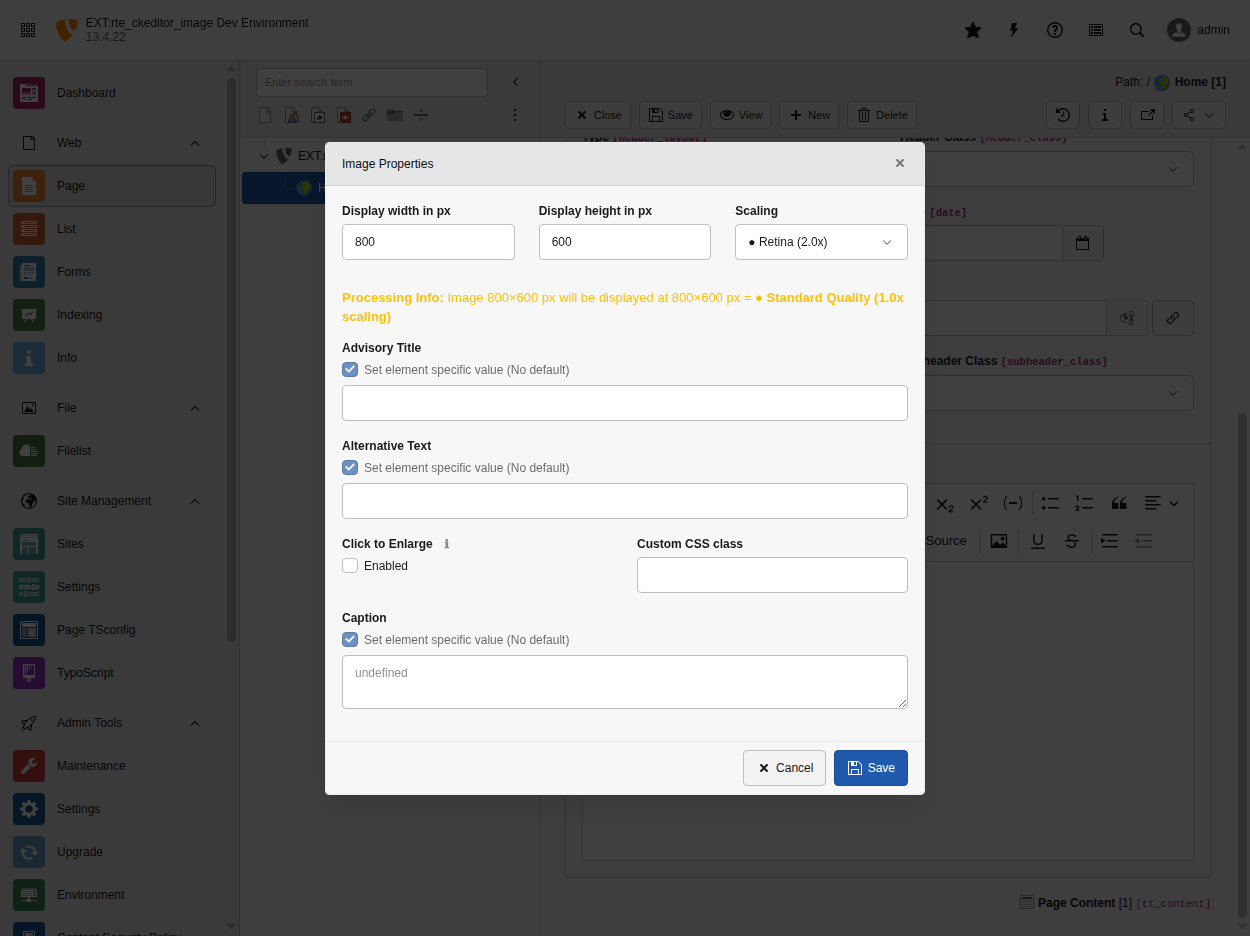
Standard (1.0x): Image 1920×1080 px will be displayed at 1920×1080 px = ● Standard Quality (1.0x scaling)
Retina (2.0x): Image 1920×1080 px will be displayed at 1920×1080 px = ● Standard Quality (1.0x scaling) [cannot achieve 2.0x]
Copied!
Note: When requested quality cannot be achieved (original image too small), the message shows the actual achievable quality.
Note: This rule is overridden by file size threshold (see Rule 4).
TYPO3 integrates CKEditor 5 as its Rich Text Editor (RTE), and images are a fundamental content element. CKEditor 5 provides comprehensive native image plugins (Image, ImageCaption, ImageToolbar, ImageResize, ImageStyle, LinkImage) with excellent WYSIWYG capabilities including:
Inline editable captions
Contextual toolbars on image click
Visual resize handles
Pre-defined image styles (alignment, sizing)
Image linking capabilities
Text alternative (alt) editing
However, TYPO3 has specific requirements for file handling through its File Abstraction Layer (FAL) that are incompatible with CKEditor 5's native image implementation.
The Question: Should we use CKEditor 5's native image plugins or implement a custom plugin specifically for TYPO3?
Decision Drivers
TYPO3 Core Requirements
FAL Integration: All files must be managed through TYPO3's File Abstraction Layer
Reference Tracking: sys_file_reference database records for all file usage
Magic Image Processing: TYPO3's automatic image optimization and variant generation
Security: File access permissions and public/non-public file handling
Backend Integration: File selector dialog and metadata management
Status: Implementation gap - can be addressed with proper editable nesting
No Contextual Toolbar: No balloon toolbar on image selection
✅ IMPLEMENTED in feature/wysiwyg-caption-fixes branch via WidgetToolbarRepository
No Visual Resize: No drag handles for resizing
Root cause: WidgetResize is NOT available in TYPO3's CKEditor 5 build (confirmed in typo3image.js:1576)
Status: Architectural limitation - cannot be implemented without CKEditor build changes
Alternative: Resize functionality available via context toolbar buttons
No Image Styles: No pre-defined alignment/sizing options
✅ IMPLEMENTED via balloon toolbar (alignment buttons: left/center/right/block)
Summary: Most gaps are implementation issues that can be addressed. Visual resize handles are an architectural limitation due to WidgetResize unavailability in TYPO3's CKEditor 5 build.
While native CKEditor 5 plugins cannot be used directly, their implementation patterns can guide our custom plugin development:
Study ImageCaption source for inline editable caption UX
Study ImageToolbar source for contextual balloon toolbar
Study ImageResize source for visual resize handle implementation
Study ImageStyle source for style dropdown integration
Goal: Achieve feature parity with native plugins while maintaining full TYPO3 FAL integration.
Revision History
Date
Version
Changes
2025-11-09
1.0
Initial ADR documenting why native CKEditor 5 plugins cannot be used with TYPO3 FAL
ADR-003: Security Responsibility Boundaries
Date
2025-12-14
Status
Accepted
Context
Code Review v13.0.1 → v13.2.x
Summary
This ADR documents the security responsibility boundaries between this extension
(netresearch/rte-ckeditor-image) and TYPO3 Core. Clear boundaries prevent
scope creep and ensure security issues are addressed by the appropriate party.
Decision
The following security responsibilities are explicitly out of scope for this
extension and are delegated to TYPO3 Core:
Out of Scope (TYPO3 Core Responsibility)
SVG Sanitization
SVG files can contain embedded JavaScript (<script> tags, event handlers)
TYPO3 FAL is responsible for validating and sanitizing uploaded SVG files
This extension only references files already accepted by TYPO3
Related issue: #474
tracks optional additional protection, but Core sanitization is primary defense
File Extension / MIME Type Validation
Ensuring a file's extension matches its actual content type
Example: Blocking a .jpg file that contains SVG/XML content
TYPO3 FAL validates this during upload via FileNameValidator and MIME checks
This extension trusts FAL's validation when referencing sys_file records
Append rel="noreferrer" on target="_blank" external links
in the figure-wrapped Fluid render path, mirroring TYPO3's
LinkFactory::addSecurityRelValues()
In scope because the Fluid Link.html partial constructs <a>
directly and does not go through LinkFactory, so Core's
security helper never executes on this path
Preserves any pre-existing rel tokens (nofollow,
sponsored, noopener); appends noreferrer at most once
Location: Service\\SecurityRelComputer::compute(),
wired in Service\\ImageResolverService::buildLinkDto() and
createDtoFromExternalImage()
Data URIs (data:image/*) bypass FAL upload validation entirely since they are
embedded inline rather than uploaded as files. Security measures are in place:
Allowed: data:image/* for legitimate inline images (Base64-encoded)
Sanitized: data:image/svg+xml content is passed through TYPO3's SvgSanitizer
to remove embedded JavaScript (<script> tags, event handlers, javascript: hrefs)
Rationale: Blocking all data URIs would break legitimate use cases (copy/paste
images from clipboard). SVG data URIs are now sanitized at render time using the
same sanitizer that TYPO3 FAL uses for uploaded SVG files, providing consistent
protection regardless of how the SVG content was introduced.
Frontend Context Processing
The RteImagesDbHook skips processing in frontend contexts rather than throwing
exceptions. This ensures DataHandler operations triggered from frontend (e.g.,
frontend editing extensions, TypoScript-based content manipulation) do not crash.
Images in frontend-saved content retain their original URLs
Magic image processing only occurs during backend saves
This is intentional to prevent breaking frontend editing workflows
Consequences
Positive:
Clear accountability for security issues
Prevents duplicate security implementations
Reduces extension complexity by leveraging Core security
Negative:
Relies on TYPO3 Core maintaining its security measures
Sites with outdated TYPO3 versions may have gaps
Mitigations:
Document minimum TYPO3 version requirements
Optional additional protections tracked in GitHub issues (#474, #475)
Users can enable stricter settings via extension configuration
The legacy
ImageRenderingController and
ImageLinkRenderingController were removed
and replaced with
ImageRenderingAdapter using the new service architecture.
See Services API for the new service-based approach.
lib.parseFunc_RTE {
tags.img = TEXT
tags.img {
current = 1
preUserFunc = Netresearch\RteCKEditorImage\Controller\ImageRenderingAdapter->renderImageAttributes
}
}
Copied!
renderInlineLink()
renderInlineLink($content, $conf, $request)
Renders inline links: resolves t3:// URLs and validates protocols.
Since parseFunc processes tags depth-first (inner first), tags.img
fires before tags.a, so this handler receives already-processed image
content and only needs to reconstruct the <a> wrapper.
param string|null $content
Content input (not used).
param array $conf
TypoScript configuration.
param ServerRequestInterface $request
Current request.
returntype
string
Returns
Rendered HTML with link wrapper.
TypoScript integration:
Link processing configuration
lib.parseFunc_RTE {
    tags.a = TEXT
    tags.a {
        current = 1
        preUserFunc = Netresearch\RteCKEditorImage\Controller\ImageRenderingAdapter->renderInlineLink
    }
}
Copied!
Service configuration
All controllers are configured in Configuration/Services.yaml:
DTOs provide type-safe data contracts between services.
Data Transfer Objects (DTOs) encapsulate validated, sanitized data for image rendering.
They are immutable (
readonly) to ensure data integrity throughout the rendering pipeline.
All security validation MUST occur in
ImageResolverService before DTO construction.
The DTO represents validated, sanitized data ready for presentation.
Properties
ImageRenderingDto class definition
final readonly classImageRenderingDto{
publicfunction__construct(
public string $src, // Image source URL (validated)
public int $width, // Display width in pixels
public int $height, // Display height in pixels
public ?string $alt, // Alternative text for accessibility
public ?string $title, // Title attribute for hover tooltip
public array $htmlAttributes, // Additional HTML attributes
public ?string $caption, // Caption text (XSS-sanitized)
public ?LinkDto $link, // Link/popup configuration
public bool $isMagicImage, // Whether TYPO3 processing enabled
){}
}
Copied!
Property details
src
src
Type
string
Required
true
The processed image URL. Always validated and safe for output.
width
width
Type
int
Required
true
Display width in pixels. Used for proper aspect ratio and layout.
height
height
Type
int
Required
true
Display height in pixels. Used for proper aspect ratio and layout.
alt
alt
Type
?string
Alternative text for accessibility (screen readers, broken images).
title
title
Type
?string
Title attribute shown as tooltip on hover.
htmlAttributes
htmlAttributes
Type
array<string,mixed>
Required
true
Additional HTML attributes such as:
class: CSS classes.
style: Inline styles.
loading: Lazy loading setting (lazy, eager).
data-*: Custom data attributes.
caption
caption
Type
?string
Caption text for
<figcaption>. Already sanitized with
htmlspecialchars().
Encapsulates link/popup configuration for linked images.
Properties
LinkDto class definition
final readonly classLinkDto{
publicfunction__construct(
public string $url, // Link URL (validated)
public ?string $target, // Link target (_blank, _self, etc.)
public ?string $class, // CSS class for link element
public ?string $params, // Additional URL parameters
public bool $isPopup, // Whether this is a popup/lightbox link
public ?array $jsConfig, // JavaScript configuration for lightbox
){}
/**
* Get URL with params properly appended.
*/publicfunctiongetUrlWithParams(): string;
}
Copied!
Property details
url
url
Type
string
Required
true
The link target URL. Validated against dangerous protocols.
target
target
Type
?string
Link target attribute (_blank, _self, _parent, _top).
class
class
Type
?string
CSS classes applied to the
<a> element.
params
params
Type
?string
New in version 13.5.0
Additional URL parameters to append to the link URL (e.g., &L=1&type=123).
These correspond to TYPO3's TypoLink additionalParams field.
The
getUrlWithParams() method handles proper concatenation:
If URL has no query string: &L=1 becomes ?L=1
If URL already has query: params are appended with &
URL fragments (#section) are preserved at the end
isPopup
isPopup
Type
bool
Required
true
Whether the link should open in a popup/lightbox instead of navigating.
jsConfig
jsConfig
Type
?array<string,mixed>
JavaScript configuration for lightbox/popup behavior:
PSR-14 is a standardized event dispatcher interface that allows decoupled components to communicate through events:
Events: Objects containing data about what happened
Listeners: Callables that respond to specific events
Dispatcher: Routes events to registered listeners
Why Use Events Over Hooks?
Feature
PSR-14 Events
Traditional Hooks
Standard
Yes (PSR standard)
No (TYPO3-specific)
Type Safety
Strong (typed events)
Weak (array parameters)
Discoverability
IDE autocomplete
Manual documentation
Testing
Easy (mock events)
Difficult (DataHandler)
Modern
PHP 7.4+ features
Legacy patterns
Event Flow
Backend Form Rendering
↓
RteCKEditor prepares configuration
↓
AfterPrepareConfigurationForEditorEvent dispatched
↓
Custom listeners can modify configuration
↓
CKEditor loads with final config
Copied!
Note
The image plugin route URL is configured declaratively via
Configuration/RTE/Plugin.yaml (externalPlugins.typo3image.route),
not through a PHP event listener.
RtePreviewRendererRegistrar
New in version 13.5.0
Namespace
Netresearch\RteCKEditorImage\Listener\TCA
Purpose
Automatically registers RteImagePreviewRenderer for all CTypes with RTE-enabled bodytext fields
Without this listener, CTypes like textmedia and textpic use TYPO3's
StandardContentPreviewRenderer, which strips <img> tags via strip_tags().
This listener ensures images inserted via CKEditor are visible in the page module
preview for all record types.
Check if enableAutomaticPreviewRenderer is enabled (default: true)
Parse inclusion/exclusion table lists from extension configuration
Iterate all TCA tables and types
For each type with RTE-enabled bodytext (via columnsOverrides or base column):
- Skip if a custom previewRenderer is already set
- Register RteImagePreviewRenderer
Configuration options:
The listener respects the same excludedTables and includedTablesOnly settings
as RteSoftrefEnforcer. See Extension Configuration.
RteSoftrefEnforcer
Namespace
Netresearch\RteCKEditorImage\Listener\TCA
Purpose
Automatically adds rtehtmlarea_images soft reference to all RTE-enabled text fields
Without soft references, images inserted via CKEditor are not tracked in TYPO3's
reference index. This means images could be lost when records are moved, copied,
or deleted. The listener scans all TCA tables, removes the obsolete images
softref, and adds the rtehtmlarea_images softref parser key to any
type=text column with enableRichtext enabled.
Updates stale src attributes when FAL files are moved or renamed
Events
AfterFileMovedEvent, AfterFileRenamedEvent
When a file is moved or renamed in TYPO3's Filelist module, the src attribute
stored in RTE HTML content becomes stale. The data-htmlarea-file-uid attribute
still points to the correct FAL file, but the src path no longer matches.
This listener detects affected records via the reference index and updates their
src attributes to the file's current public URL.
// In browser console after RTE loadsObject.values(CKEDITOR.instances)[0].config.get('style').typo3image;
// Should output: {routeUrl: '/typo3/rte/wizard/selectimage?...'}
Copied!
Common Issues
Issue: routeUrl Not Available in Plugin
Symptoms:
JavaScript error: "Cannot read property 'typo3image' of undefined"
Image selection modal doesn't open
Cause: Event listener not registered or not executing
Solution:
Verify service configuration in Configuration/Services.yaml
Clear system cache: ./vendor/bin/typo3 cache:flush --group=system
Check event listener is loaded: grep -r "event.listener" var/cache/code/di/
Issue: Multiple Listeners Conflict
Symptoms:
Configuration keys overwritten
Expected configuration missing
Cause: Later listener overwrites earlier listener's changes
Renders a backend preview of RTE HTML content by stripping disallowed tags
and truncating text while preserving HTML structure.
This ViewHelper replicates the preview logic from
RteImagePreviewRenderer for use in Content Blocks and other custom
backend preview templates where the built-in renderer is not available.
New in version 13.7.0
Arguments
html
html
Type
string
Required
true
The RTE HTML content to preview. Typically {data.bodytext} in a
Content Blocks backend preview template.
maxLength
maxLength
Type
int
Default
1500
Maximum number of text characters before truncation. When exceeded, the
text is truncated with an ellipsis (...).
HTML tags do not count toward this limit.
allowedTags
allowedTags
Type
string
Default
<img><p>
HTML tags to preserve in the preview output, in
strip_tags() format.
All other tags are stripped (their text content is kept).
Processing Pipeline
The ViewHelper processes HTML through three stages:
Sanitization — Removes control characters (\x00-\x1F),
UTF-16 surrogates, and Unicode non-characters, replacing them with
U+FFFD (replacement character).
Tag stripping — Calls
strip_tags() with the allowedTags
argument, keeping only <img> and <p> by default.
DOM-aware truncation — Parses the remaining HTML with
DOMDocument, walks the DOM tree counting text length, and
truncates at maxLength while keeping all tags properly closed.
Usage with Content Blocks
Content Blocks is the official TYPO3-endorsed successor to Mask/DCE/Flux for
creating custom content element types. Content Blocks registers its own backend
preview templates (backend-preview.html), which do not use the
built-in
RteImagePreviewRenderer.
To render RTE image previews in a Content Block, use this ViewHelper in the
block's backend preview template:
For standard tt_content types with RTE bodytext, you do not need this
ViewHelper. The built-in
RteImagePreviewRenderer handles backend
previews automatically via TYPO3's PreviewRendererInterface.
CKEditor Plugin Development
Complete documentation for the CKEditor 5 plugin implementation.
The typo3image plugin is a custom CKEditor 5 plugin that integrates TYPO3's File Abstraction Layer (FAL) with the rich text editor, enabling seamless image management within the CKEditor interface.
Plugin Components
🔌 Plugin Development
Plugin architecture, UI components, commands, and event handling
📐 Model Element
The typo3image custom element schema, attributes, and model integration
🎨 Style Integration
Style system integration with StyleUtils and GeneralHtmlSupport (critical for v13.0.0+)
↔️ Conversions
HTML ↔ Model conversion patterns for upcast and downcast transformations
🎚️ Image Quality Selector
Quality multipliers, SVG support, and dimension handling
Complete reference for the typo3image custom model element in CKEditor 5.
Overview
The typo3image is a custom model element that represents TYPO3 FAL-integrated images in the CKEditor document model. It extends CKEditor's base $blockObject and includes TYPO3-specific attributes for FAL integration, image processing, and metadata management.
CKEditor 5 uses a Model-View-Controller (MVC) architecture:
┌─────────────────────────────────────────────────┐
│ Model Layer (Data) │
│ - Abstract representation of document │
│ - Business logic and validation │
│ - typo3image element with attributes │
└──────────────────┬──────────────────────────────┘
│
│ Conversions
│
┌──────────────────▼──────────────────────────────┐
│ View Layer (DOM) │
│ - Visual representation in editor │
│ - <img> elements with HTML attributes │
│ - User sees and interacts with │
└──────────────────┬──────────────────────────────┘
│
│ Rendering
│
┌──────────────────▼──────────────────────────────┐
│ DOM (Browser) │
│ - Actual HTML in contenteditable │
│ - <img src="..." data-htmlarea-file-uid="123"/> │
└─────────────────────────────────────────────────┘
Copied!
Why Separate Model and View?
Data Integrity: Model maintains clean data structure regardless of DOM quirks
Cross-Platform: Same model can render differently on different platforms
Collaboration: Multiple users can edit same model with conflict resolution
Undo/Redo: Model changes tracked for history management
Validation: Business rules enforced in model layer
Model Elements
The extension provides two model elements for different use cases:
typo3image: Block-level images wrapped in <figure> (with optional caption)
typo3imageInline: True inline images that flow with text
In the editor, users can type text before and after inline images on the same line,
just like typing around any other inline element (bold text, links, etc.).
Toggle Command
Users can convert between block and inline via the toggleImageType command:
// Toggle current image between block and inline
editor.execute('toggleImageType');
// Check current typeconst isInline = editor.commands.get('toggleImageType').value === 'inline';
Copied!
Block → Inline Conversion:
Caption is removed (inline images cannot have captions)
Block style classes removed, image-inline added
Image becomes inline in text flow
Inline → Block Conversion:
Image wrapped in figure
image-block class added (or previous alignment class)
Image becomes block-level element
Schema Properties Explained
inheritAllFrom: '$blockObject'
Inherits all properties from CKEditor's base $blockObject:
Selectable: Can be selected like any block element
Object: Treated as atomic unit (not text content)
Focusable: Can receive focus for editing
Non-Breaking: Cannot be split by Enter key
allowIn: ['$text', '$block']
Defines where typo3image can exist:
$text: Inside text content (inline-like behavior)
$block: Inside block elements (paragraphs, divs, etc.)
Result: Images can be placed in any text flow or block context.
allowAttributes: [...]
Lists all valid attributes for the model element. Attributes not listed are stripped.
// Manual class setting
writer.setAttribute('class', 'my-class another-class', modelElement);
// Style system automatically updates this attribute// when user selects a style from dropdown
// Select element programmatically
editor.model.change(writer => {
const element = /* get element reference */;
writer.setSelection(element, 'on'); // 'on' = select element itself
});
editor.model.document.on('change:data', () => {
const changes = editor.model.document.differ.getChanges();
for (const change of changes) {
if (change.type === 'insert' && change.name === 'typo3image') {
console.log('typo3image inserted:', change.position.path);
}
}
});
Copied!
Advanced Patterns
Cloning Elements
editor.model.change(writer => {
const original = /* get typo3image element */;
// Clone with all attributesconst clone = writer.cloneElement(original);
// Insert cloneconst insertPosition = /* target position */;
writer.insert(clone, insertPosition);
});
Copied!
Batch Attribute Updates
editor.model.change(writer => {
const images = /* array of typo3image elements */;
// Apply same class to all images
images.forEach(img => {
const currentClass = img.getAttribute('class') || '';
const newClass = currentClass + ' batch-processed';
writer.setAttribute('class', newClass.trim(), img);
});
});
Copied!
Conditional Attribute Setting
editor.model.change(writer => {
const element = /* typo3image element */;
// Only set width if not already setif (!element.hasAttribute('width')) {
writer.setAttribute('width', '800', element);
}
// Update alt only if override is enabledif (element.getAttribute('altOverride')) {
writer.setAttribute('alt', customAltText, element);
}
});
Copied!
Debugging Model Elements
Inspect Element in Console
// Get selected elementconst element = editor.model.document.selection.getSelectedElement();
// Log all attributesconsole.log('Element:', element.name);
console.log('Attributes:', Array.from(element.getAttributes()));
// Log specific attributesconsole.log('src:', element.getAttribute('src'));
console.log('fileUid:', element.getAttribute('fileUid'));
console.log('class:', element.getAttribute('class'));
Complete guide to integrating the typo3image plugin with CKEditor's style system (StyleUtils and GeneralHtmlSupport).
Overview
New in version 13.0.0
Integration with GeneralHtmlSupport is now required for style functionality.
Previous versions only required StyleUtils, which caused the style dropdown
to be disabled for images.
staticget requires() {
return ['StyleUtils', 'GeneralHtmlSupport']; // Both required!
}
Copied!
Verify Style Definitions
style:definitions:-name:'My Style'element:'img'# Must be 'img', not 'image'classes:['my-class']
Copied!
Check Event Listeners
// Debug in browser consoleconst styleUtils = editor.plugins.get('StyleUtils');
console.log(styleUtils.listenerCount('isStyleEnabledForBlock'));
// Should be > 0
Copied!
Issue: Style Changes Not Applied
Symptoms:
Style selected from drop-down
No visual change to image
Class attribute not updated
Causes:
GeneralHtmlSupport event listeners not registered
Model-to-view conversion missing class attribute
CSS classes not defined in stylesheet
Solutions:
Verify GHS Listeners
const ghs = editor.plugins.get('GeneralHtmlSupport');
console.log(ghs.listenerCount('addModelHtmlClass'));
// Should be > 0
Pattern: Extract HTML attribute → map to model attribute
Mappings:
HTML Attribute
Model Attribute
Transformation
data-htmlarea-file-uid
fileUid
Direct copy
data-htmlarea-file-table
fileTable
Default: 'sys_file'
src
src
Direct copy
width
width
Default: empty string
height
height
Default: empty string
class
class
Default: empty string
alt
alt
Default: empty string
data-alt-override
altOverride
Default: false
title
title
Default: empty string
data-title-override
titleOverride
Default: false
data-htmlarea-zoom
enableZoom
Default: false
Upcast Example Flow
Input HTML:
<imgsrc="/fileadmin/image.jpg"data-htmlarea-file-uid="123"data-htmlarea-file-table="sys_file"width="800"height="600"alt="Product photo"title="Click to enlarge"class="img-fluid"data-htmlarea-zoom="true"
/>
Pattern: Read model attribute → map to HTML attribute
Reverse Mappings:
Model Attribute
HTML Attribute
Transformation
src
src
Direct copy
fileUid
data-htmlarea-file-uid
Direct copy
fileTable
data-htmlarea-file-table
Direct copy
width
width
Direct copy
height
height
Direct copy
class
class
Default: empty string
alt
alt
Default: empty string
title
title
Default: empty string
altOverride
data-alt-override
Only if true
titleOverride
data-title-override
Only if true
enableZoom
data-htmlarea-zoom
Only if true
Conditional Attributes
if (modelElement.getAttribute('titleOverride')) {
attributes['data-title-override'] = true;
}
Copied!
Pattern: Only add boolean attributes when true
Why: Cleaner HTML output, avoid unnecessary attributes
Result:
<!-- When titleOverride = true --><img...data-title-override="true" /><!-- When titleOverride = false or absent --><img... /><!-- No data-title-override attribute -->
Purpose: Immediately sync class attribute changes to view
Note
The elementToElement converter only runs on element creation. This converter handles attribute updates.
Behavior:
// User changes class via style system
editor.model.change(writer => {
writer.setAttribute('class', 'float-left mr-3', modelElement);
});
// Immediately reflected in view<imgclass="float-left mr-3"... />
When pasting HTML from external sources (websites, Word, etc.):
1. Browser Paste Event
─────────────────────►
External HTML
<img src="https://example.com/image.jpg" />
2. Upcast Attempted
─────────────────────►
Check: data-htmlarea-file-uid present? ❌
Result: Upcast skipped, treated as regular <img>
3. Fallback Handling
─────────────────────►
CKEditor default image handling
May need custom paste processor for external images
Copied!
Paste from Same Editor
1. Copy typo3image
─────────────────────►
Clipboard contains model element
2. Paste
─────────────────────►
Direct model copy (no conversion needed)
3. Result
─────────────────────►
Duplicate typo3image with same attributes
The image quality selector with SVG dimension support and multiplier-based processing.
The image dialog includes a quality selector dropdown that controls image processing
for optimal display on different devices and use cases.
Quality Options
The extension provides five quality levels for processed images:
No Scaling
No Scaling
Multiplier
N/A (original file used)
Processing
Skip image processing entirely, use original file unchanged
Indicator
● Gray
Best for:
- Pre-optimized images (WebP, optimized PNG)
- SVG files (vector graphics)
- Newsletters and email
- PDF exports
- When maximum quality is required
Standard (1.0x)
Standard (1.0x)
Multiplier
1.0x
Processing
Match display dimensions exactly
Indicator
● Yellow
Best for:
- Standard web displays
- Content images
- Balanced quality and file size
Retina (2.0x)
Retina (2.0x)
Multiplier
2.0x
Processing
2× display dimensions
Indicator
● Green
Best for:
- High-DPI displays (default)
- MacBook Retina screens
- Modern mobile devices
- Sharp images on 4K monitors
Note
This is the default quality setting for optimal display on modern devices.
Ultra (3.0x)
Ultra (3.0x)
Multiplier
3.0x
Processing
3× display dimensions
Indicator
● Cyan
Best for:
- Very sharp images required
- Large format displays
- Hero images and key visuals
Print (6.0x)
Print (6.0x)
Multiplier
6.0x
Processing
6× display dimensions
Indicator
● Blue
Best for:
- Print-quality output
- High-resolution downloads
- Professional photography
- SVG files (recommended default)
Dialog Layout
The image properties dialog features a responsive 3-row layout:
Configuration is split across several focused pages under
Integration & Configuration (RTE preset, TSConfig, frontend rendering, security,
advanced options). The full table of contents is on the
Integration index.
Usage examples and editor workflows are documented under
Examples & Use Cases. That index covers basic image insertion, captions,
linked images (including the security rel behaviour), and advanced
features.
The following screenshots are needed for the Linked Images documentation.
Quick Start with DDEV
The easiest approach is to use the existing DDEV environment:
# Start DDEV (if not running)
ddev start
# Access TYPO3 v13 backend# URL: https://v13.rte-ckeditor-image.ddev.site/typo3/# Login: admin / Joh316!!# Navigate to: Page > Home > Edit the "Regular Text Element"# Double-click the blue test image to open Image Properties dialog
Copied!
Required Screenshots
ClickBehaviorDropdown.png
Purpose: Show the Click Behavior dropdown with its three options.
Steps:
Edit the text content element on the Home page
Double-click the blue test image to open Image Properties
Purpose: Show all link fields when "Link" is selected.
Steps:
In Image Properties dialog, select "Link" from Click Behavior
Fill in example values:
- Link URL: https://example.com/page
- Link Target: _blank
- Link Title: Click for details
- Link CSS Class: image-link
- Additional Parameters: &L=1
Screenshot showing all fields populated
Dimensions: Cropped to link fields, 500px wide
LinkBrowserDialog.png
Purpose: Show the TYPO3 link browser modal.
Steps:
In Image Properties with "Link" selected
Click "Browse..." button next to Link URL
Screenshot the link browser showing Page/File/URL tabs
Dimensions: Full dialog, 800px wide
Screenshot Requirements
Format: PNG
Theme: Light mode (not dark)
Tool: Any screenshot tool (macOS: Cmd+Shift+4, Windows: Win+Shift+S)
Annotations: Use TYPO3 orange (#FF8700) for highlights if needed
Alt text: Descriptive text required for accessibility