AI Tools 

Extension key

nnaitools

Package name

nng/nnaitools

Version

12.0.0

Language

en

Author

Jonas Nitzl, David Bascom (99°)

Website

www.99grad.de

Donation

Support this project via PayPal

License

This document is published under the Creative Commons BY 4.0 license.

Rendered

Thu, 18 Dec 2025 09:23:28 +0000


TYPO3 Extension for AI-generated ALT and title texts using ChatGPT API for accessibility optimization.

Table of Contents:

Introduction 

What does it do? 

The AI Tools extension provides automatic generation of ALT and title texts for images using the OpenAI ChatGPT API. This helps improve website accessibility by ensuring all images have meaningful alternative texts.

How It Works 

Unlike most TYPO3 extensions that generate ALT and title texts for sys_file_reference records, this extension sets the metadata directly on the sys_file record.

This approach has several advantages:

  • One-time generation – Each image only needs to be processed once, regardless of how many times it's used across your website
  • Consistent texts – The same image always has the same ALT and title text, ensuring consistency
  • Lower API costs – No redundant API calls for the same image used in multiple places
  • Automatic inheritance – All sys_file_reference records automatically inherit the texts from the parent sys_file
  • Centralized management – Edit the text once, and it updates everywhere the image is used

Key Features 

  • AI-powered text generation: Uses OpenAI's GPT-4 Vision API to analyze images and generate appropriate ALT and title texts
  • Multi-language support: Generate texts in multiple languages based on your site configuration
  • Backend module: Dedicated backend module in the File section for managing image metadata
  • Bulk processing: Process multiple images at once with progress tracking
  • Per-language control: Enable or disable AI text generation for specific languages via site configuration
  • Auto-generation: Optionally auto-generate texts when file references are saved
  • Customizable prompts: Configure the AI prompt template to match your requirements

Screenshots 

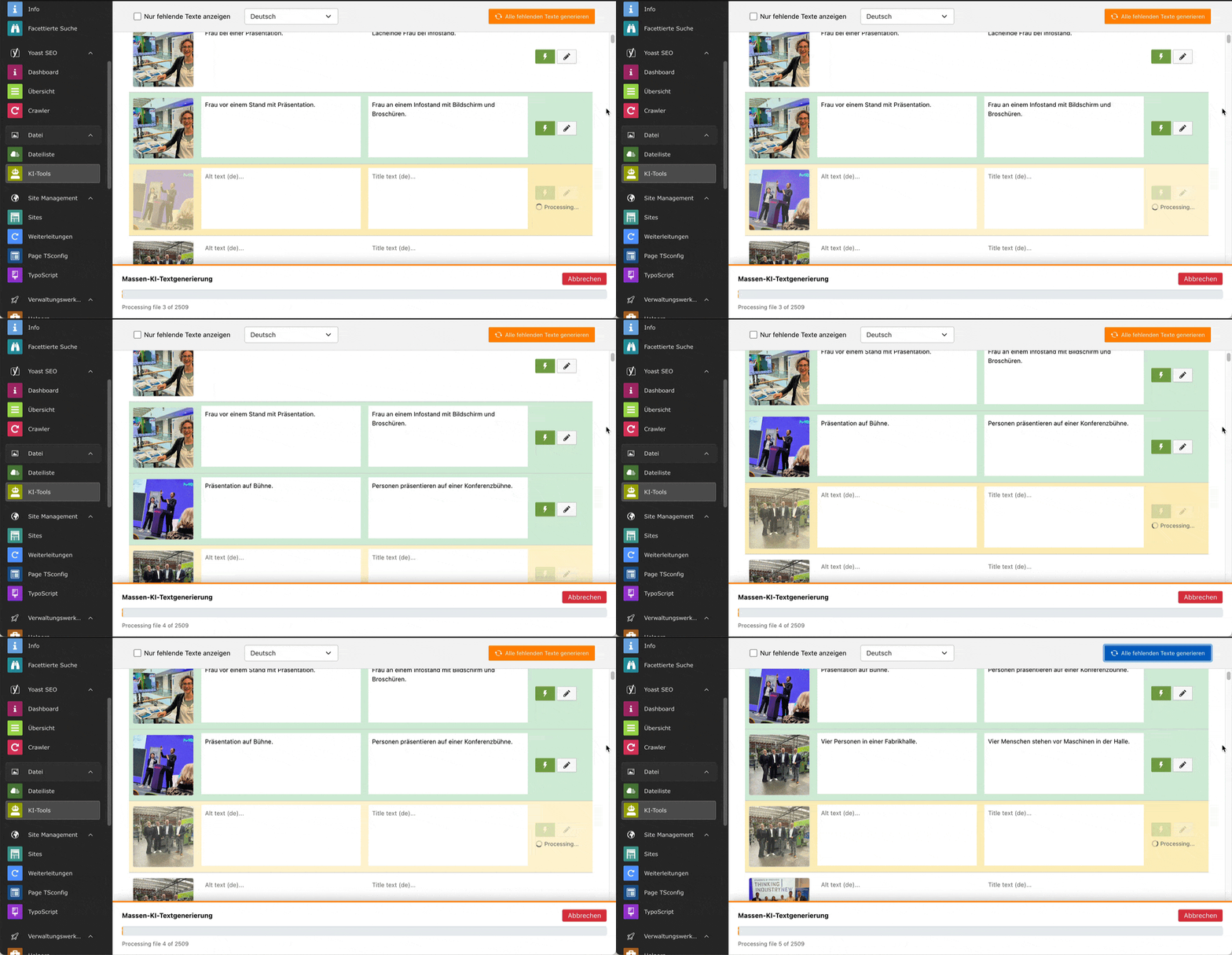
Batch Processing 

You can process all files in the fileadmin in a batch:

Batch processing of images

Process multiple images at once with progress tracking.

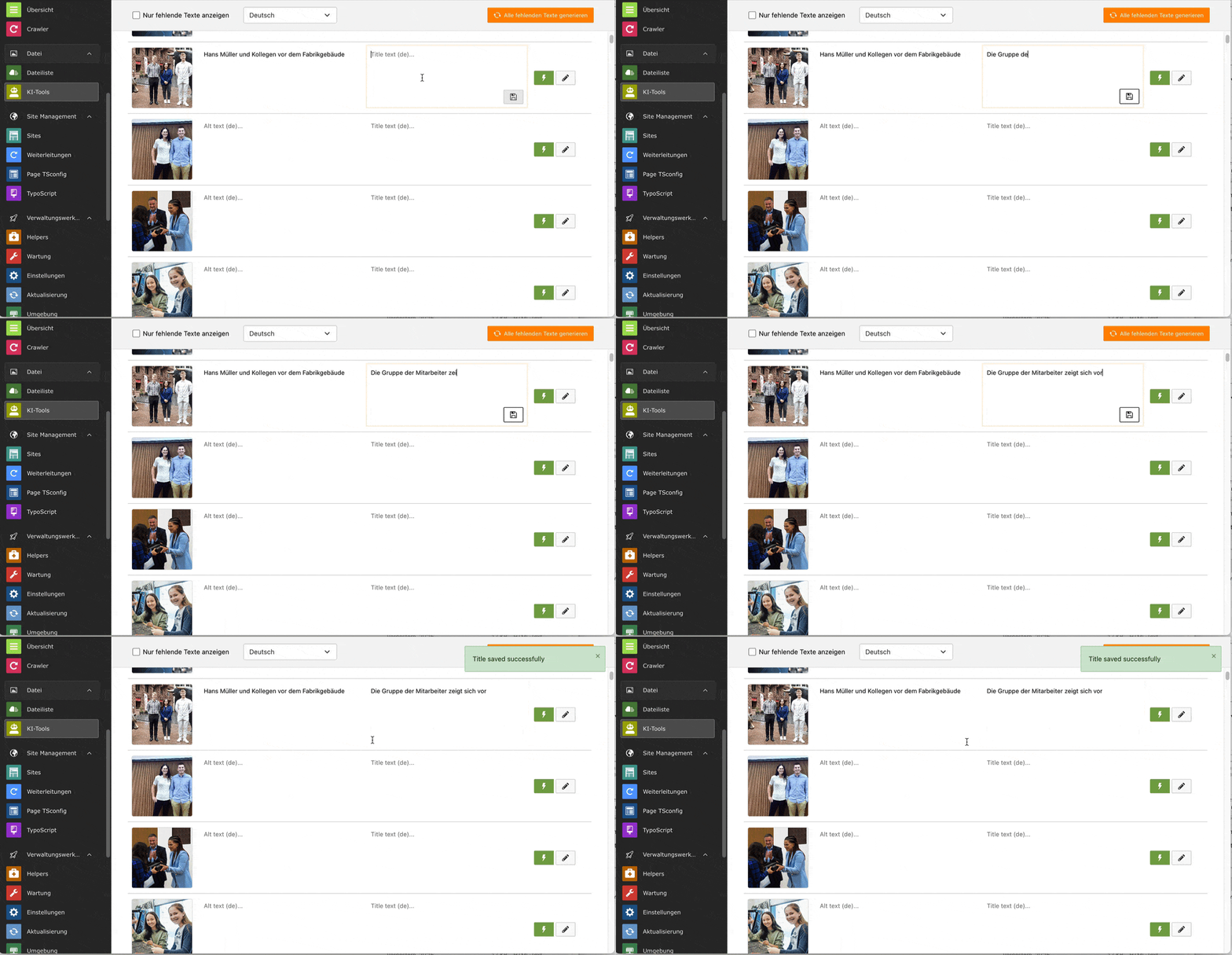
Manual Editing 

You can always manually change the texts and also use the backend module without an OpenAI account or ChatGPT key:

Manual editing of texts

Edit ALT and title texts manually in the backend module.

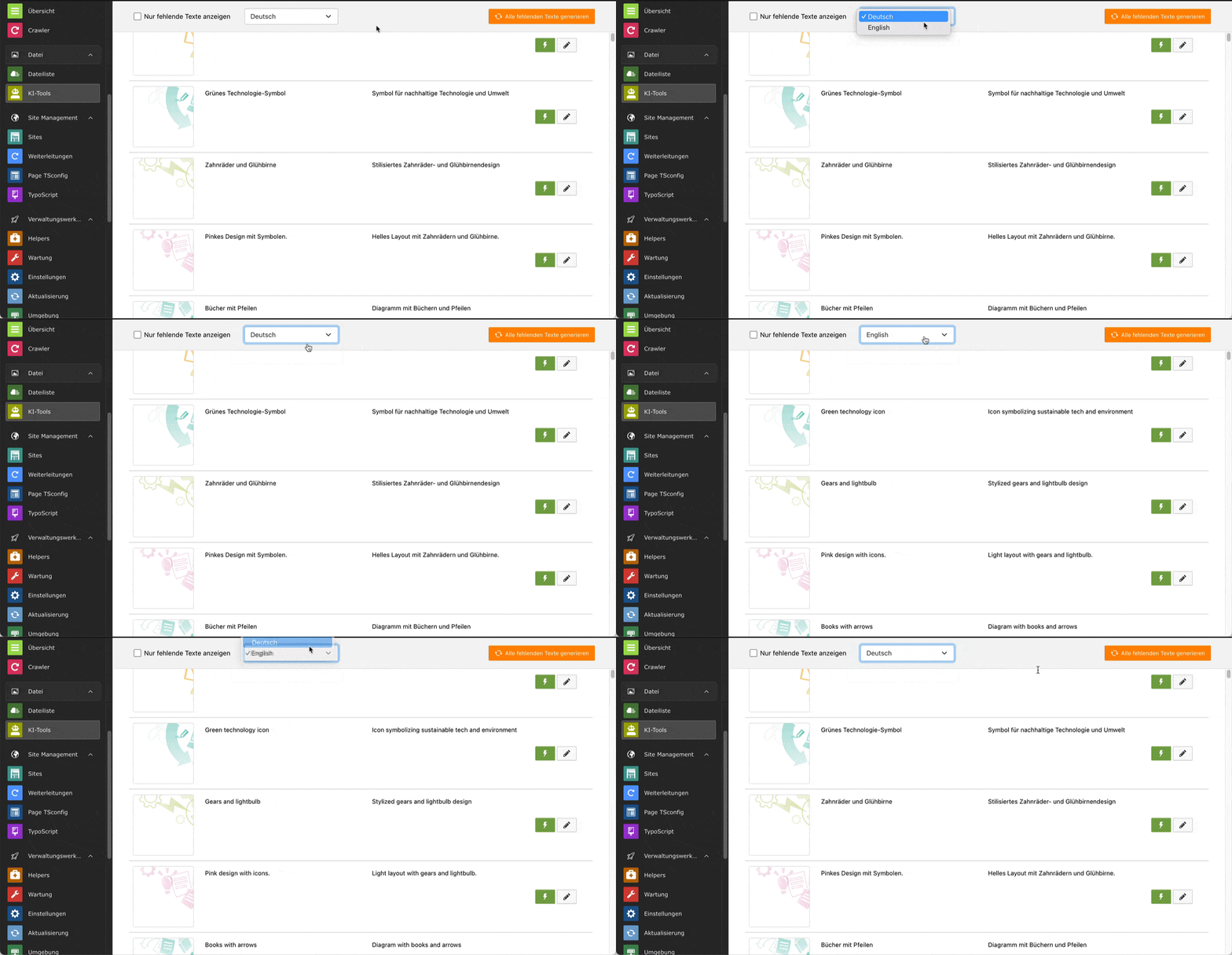
Language Switching 

All translations at one place:

Switching between languages

Switch between languages using the dropdown selector.

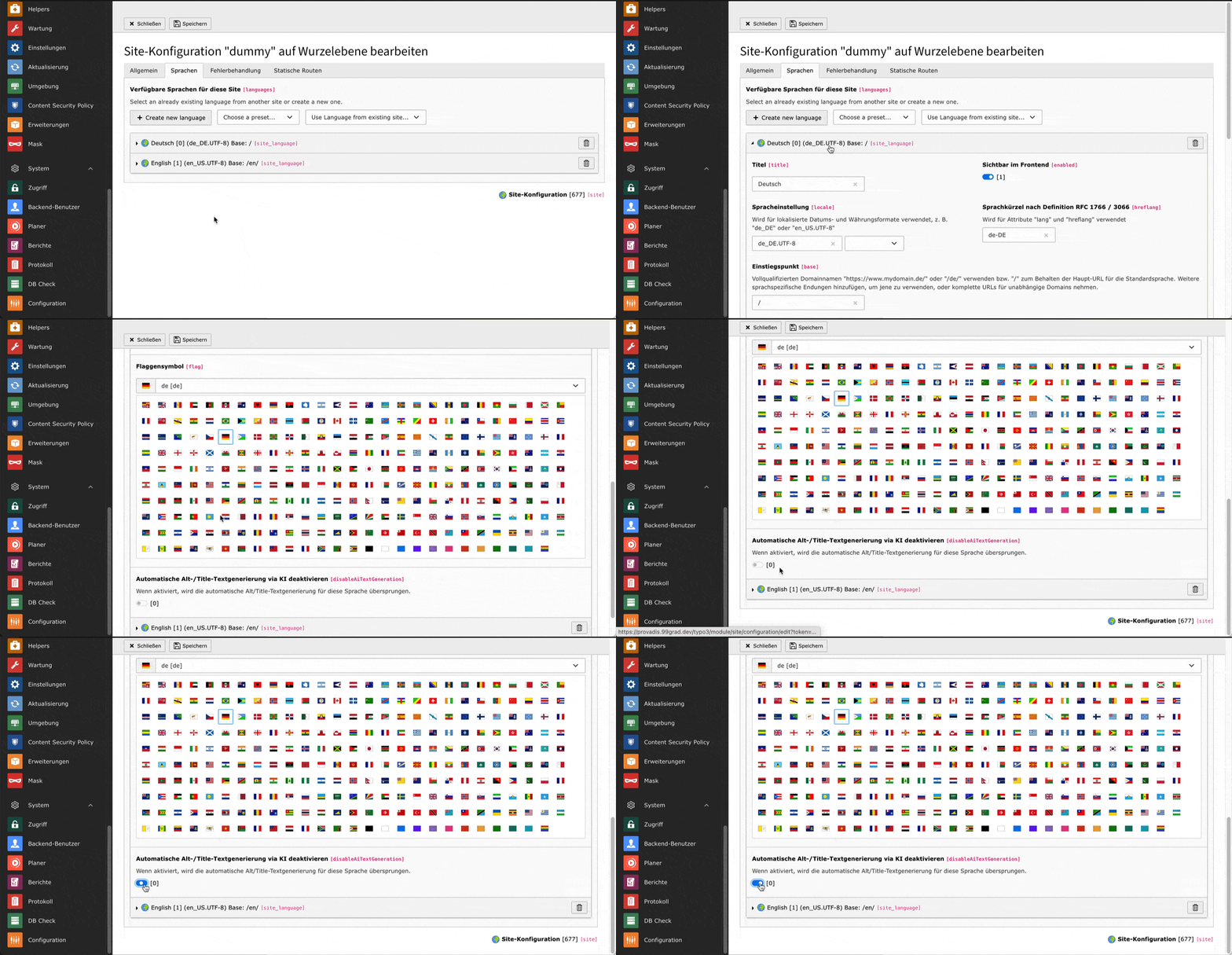
Disable Languages 

Languages can be excluded from the AI translation in the site configuration:

Disabling languages for AI translation

Configure which languages should use AI text generation.

Auto-Generation 

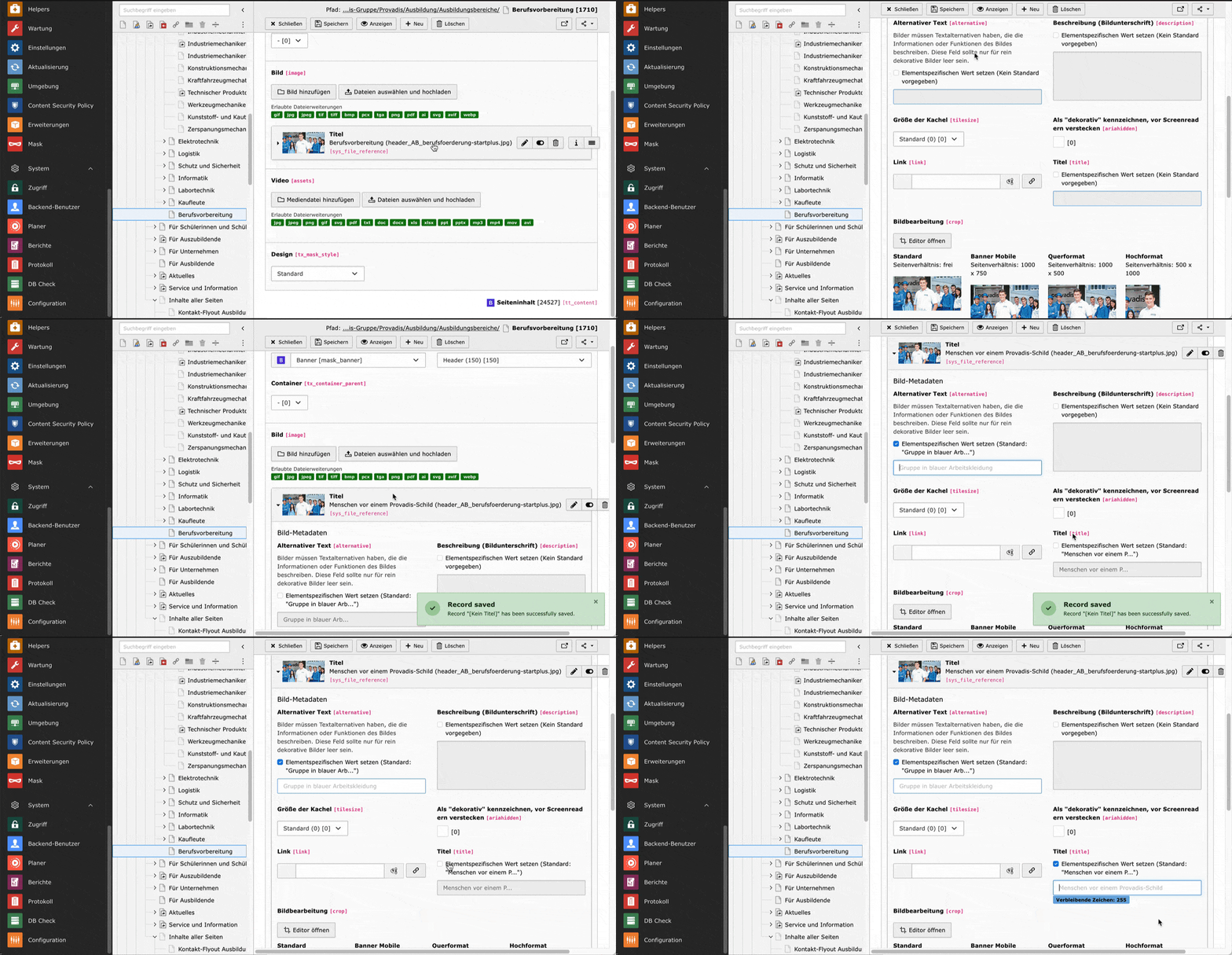
The sysFile texts are generated during save (can be disabled in the Extension Manager) but can be overridden individually for every sysFileReference:

Auto-generation of texts

Automatic text generation on save with individual override options.

Requirements 

  • TYPO3 12.4 LTS
  • PHP 8.1 or higher
  • OpenAI API key with access to GPT-4 Vision models
  • nnhelpers extension (for database utilities)

Support This Project 

If you find this extension useful, please consider supporting its development:

Your support helps us maintain and improve this extension.

Privacy Notice 

Installation 

Installation via Composer 

The recommended way to install this extension is via Composer:

composer require nng/nnaitools
Copied!

Installation via TER 

Alternatively, you can install the extension from the TYPO3 Extension Repository (TER):

  1. Go to Admin Tools > Extensions
  2. Search for "nnaitools"
  3. Click the import icon to install the extension

After Installation 

  1. Activate the extension in the Extension Manager
  2. Clear all caches
  3. Configure the extension settings (see Configuration)
  4. Assign backend user permissions for the module

Dependencies 

This extension requires:

  • nnhelpers: Database utility functions (automatically installed via Composer)

Support This Project 

This extension is free and open source. If it helps you improve your website's accessibility, please consider supporting its development:

Configuration 

Extension Configuration 

Configure the extension in Admin Tools > Settings > Extension Configuration > nnaitools.

API Key 

Type

string

Default

(empty)

Your OpenAI API key for accessing the ChatGPT API.

How to obtain an API key 

  1. Go to OpenAI Platform
  2. Create an account or sign in
  3. Navigate to API Keys in your account settings (https://platform.openai.com/api-keys)
  4. Click "Create new secret key"
  5. Copy the key immediately (it won't be shown again)
  6. Paste the key into the extension configuration

API URL 

Type

string

Default

https://api.openai.com/v1/chat/completions

The OpenAI API endpoint URL. Usually you don't need to change this unless you're using a proxy or alternative API provider.

Model 

Type

string

Default

gpt-4o-mini

The OpenAI model to use for image analysis. Recommended models:

  • gpt-4o-mini - Fast and cost-effective, good for most use cases
  • gpt-4o - More capable but slower and more expensive

Exclude Path Patterns 

Type

text (multiline)

Default

(empty)

Regex patterns to exclude certain image paths from processing. Enter one pattern per line.

Example:

/fileadmin/templates/.*
/fileadmin/_processed_/.*
.*placeholder.*
Copied!

Auto-generate on Save 

Type

boolean

Default

false

When enabled, the extension will automatically generate ALT and title texts when a sys_file_reference record is saved and the texts are missing.

Image Detail Level 

Type

options (low, high, auto)

Default

low

Controls the image resolution sent to OpenAI for analysis:

  • low - Images are resized to 512px (cheapest option, fastest)
  • high - Images can be up to 2048px (more detail, higher cost)
  • auto - Let OpenAI decide the appropriate resolution

Prompt Template 

Type

text

Default

Analyze this image and create a very short ALT text (max. 50 characters) and a title text (max. 100 characters) for accessibility. {LANGUAGES} Reply only with valid JSON.

The prompt sent to the AI for generating texts. Use {LANGUAGES} as a placeholder for the language-specific instructions that will be automatically inserted based on your site configuration.

Cost Control Settings 

The extension provides built-in cost tracking and limiting to help you manage API expenses.

Cost per Input Tokens 

Type

string

Default

0.00015

The cost in USD per 1000 input/prompt tokens. This is used to calculate estimated costs.

Default value corresponds to gpt-4o-mini pricing.

Cost per Output Tokens 

Type

string

Default

0.0006

The cost in USD per 1000 output/completion tokens.

Default value corresponds to gpt-4o-mini pricing.

Max Cost Limit 

Type

string

Default

(empty)

Maximum allowed cost in USD before blocking API requests. Leave empty for no limit.

When a limit is set:

  • API requests will be blocked once the limit is reached
  • A warning icon appears in the backend module toolbar
  • Bulk processing will automatically stop
  • The limit resets when you reset the token statistics

Example: Set to 5.00 to limit spending to $5 USD.

Site Language Configuration 

You can disable AI text generation for specific languages in your site configuration.

  1. Go to Site Management > Sites
  2. Edit your site configuration
  3. For each language, you'll find a checkbox "Disable the automatic alt-/title-text generation via AI"
  4. Check this box to exclude the language from AI text generation

When a language is disabled:

  • It will appear grayed out in the backend module's language dropdown
  • No texts will be generated for this language during bulk processing
  • The language will be skipped in auto-generation

Backend User Permissions 

To allow backend users access to the AI Tools module:

  1. Go to System > Backend Users
  2. Edit the user or user group
  3. Under Access Lists > Modules, enable File > AI Tools

Support This Project 

If this extension saves you time and helps improve your website's accessibility, please consider supporting its development:

Your contribution helps us maintain, improve, and add new features to this extension.

Usage 

Backend Module 

The AI Tools backend module is located in the File section of the TYPO3 backend, below the Filelist module.

Overview 

The module displays a table of all images that need ALT or title texts:

  • Preview: Thumbnail of the image (click to open full size)
  • ALT Text: The alternative text for each language
  • Title Text: The title text for each language
  • Actions: Buttons for generating texts and editing the file

Language Selection 

Use the language dropdown at the top to switch between languages. The table columns will update to show the texts for the selected language.

Languages that have AI text generation disabled in the site configuration will appear grayed out and cannot be selected.

Generating Texts 

Single Image 

Click the lightning bolt icon (⚡) in the Actions column to generate ALT and title texts for a single image. The texts will be generated for all enabled languages.

Bulk Processing 

  1. Use the checkboxes to select multiple images
  2. Click "Generate for selected" to process all selected images
  3. A progress indicator will show the current status
  4. Generated texts will appear in the table as they are completed

Editing Texts 

You can manually edit any generated text:

  1. Click in the textarea containing the text
  2. Make your changes
  3. Click the save icon (💾) next to the field to save

Filtering Images 

The module provides several filter options:

  • Show only images with missing texts: Filter to images that need attention
  • Language filter: Show texts for a specific language
  • Pagination: Navigate through large image collections

Token Statistics and Cost Overview 

The backend module displays real-time token usage and cost information in the toolbar.

Token Display 

The toolbar shows:

  • Total Tokens: Sum of all consumed tokens (input + output)
  • Estimated Cost: Calculated costs based on configured token prices
  • Cost Limit: The configured maximum (or "no limit" if not set)
  • Warning Icon: Appears when the cost limit has been exceeded

Cost Calculation 

Costs are calculated using the formula:

Estimated Cost = (Input Tokens / 1000 × costPerInputTokens) + (Output Tokens / 1000 × costPerOutputTokens)
Copied!

The default values correspond to gpt-4o-mini pricing:

  • Input: $0.00015 per 1K tokens
  • Output: $0.0006 per 1K tokens

You can adjust these values in the Extension Configuration if you use a different model.

Resetting Statistics 

Click the trash icon (🗑️) in the toolbar to reset all token statistics. This will:

  • Set all token counters to zero
  • Reset the estimated cost to $0.00
  • Clear the cost limit warning (if displayed)

Auto-Generation 

When Auto-generate on Save is enabled in the extension configuration, the extension will automatically generate texts when:

  1. A sys_file_reference record is saved
  2. The ALT text or title text is empty
  3. The referenced file is an image

This works for all enabled languages in your site configuration.

API Response Format 

The extension expects the OpenAI API to return a JSON response in this format:

{
  "de": {
    "alt": "German ALT text",
    "title": "German title text"
  },
  "en": {
    "alt": "English ALT text",
    "title": "English title text"
  }
}
Copied!

The language keys correspond to the two-letter ISO codes from your site configuration.

Support This Project 

Enjoying this extension? Help us keep it maintained and add new features:

Every contribution, no matter how small, is greatly appreciated!

Known Problems 

API Rate Limits 

The OpenAI API has rate limits that may affect bulk processing of large image collections. If you encounter rate limit errors, try:

  • Processing images in smaller batches
  • Waiting a few minutes between bulk operations
  • Upgrading your OpenAI API plan for higher limits

Image Size Limitations 

Very large images may take longer to process or fail due to API timeouts. The extension automatically uses optimized image URLs, but extremely large files may still cause issues.

Multi-Site Environments 

The extension automatically detects the current site based on the HTTP host. In complex multi-site setups, ensure your site configurations have correct base and baseVariants settings.

Cache Issues 

After changing extension configuration or site language settings, clear all TYPO3 caches to ensure the changes take effect.

Reporting Issues 

If you encounter any problems, please report them on the extension's issue tracker.

Support This Project 

Found a solution to a problem? Consider giving back:

Your support helps us fix bugs and improve the extension.