RemoteDevs comments 

Extension key

rd_comments

Package name

remotedevs/rd-comments

Version

1.0

Language

en

Author

Abhay Rathod & Karan Anjara

License

This document is published under the Open Publication License.

Rendered

Tue, 24 Mar 2026 07:28:10 +0000


This extension implements a nested comment system with frontend rendering and a backend admin panel, built using Extbase, Fluid, and modern TYPO3 features.


Quick Start 

A quick introduction on how to install and use rd_comments.

Introduction 

Introduction to the extension, its goals, and main concepts.

User Manual 

Learn how to use the backend module, configure the plugin, and manage comments.

Administration 

This section provides a detailed explanation of constants in rd_comments.

Developer Notes 

Minimal technical reference for extension maintainers or contributors.

Support 

Need help or want to contribute? Here's where to start.

Introduction 

The rd_comments extension provides a clean, threaded comment system for TYPO3, designed specifically to extend the functionality of the popular EXT:news extension by Georg Ringer.

It enables site visitors to post comments and nested replies on news articles, encouraging community engagement, discussion, and feedback directly on the website. In addition to the frontend features, the extension includes a backend module to help moderators review and manage comments effectively.

This extension is built on Extbase and Fluid, making it easy to customize, extend, and integrate into any TYPO3 project that uses EXT:news.

Why Use rd_comments? 

  • Ideal for blogs, magazines, or news portals using EXT:news
  • Fully integrated with TYPO3’s backend for easy comment management
  • Flexible templating for frontend display
  • Designed with clean code structure and best practices for TYPO3 extension development

Key Features 

  • Seamless integration with EXT:news
  • Support for nested (infinite-depth) replies
  • Frontend form for submitting comments
  • Backend module for reviewing and deleting comments
  • Built with Extbase and Fluid templates
  • Developer-friendly and easy to extend

Quick start 

  1. Install the extension:

    • Install via Composer or place the extension in typo3conf/ext/
    composer require remotedevs/rd-comments
    Copied!
  2. Add TypoScript setup:

    • Include the TypoScript constants and setup files
    • This enables default configuration and frontend rendering
  3. Create initial content and connect to news:

    • Set up the recommended page structure
    • Add news records using EXT:news
    • Ensure the comment section is rendered on the detail view
  4. Create a comment:

    • Enable commenting on the news detail page
    • Users can post comments and reply to existing ones

---

Quick installation 

In a composer-based TYPO3 installation you can install the extension rd_comments via composer:

composer require remotedevs/rd-comments
Copied!

In TYPO3 installations above version 11.5, the extension will be automatically installed. You do not have to activate it manually.

Update the database schema 

Open your TYPO3 backend with system-maintainer permissions.

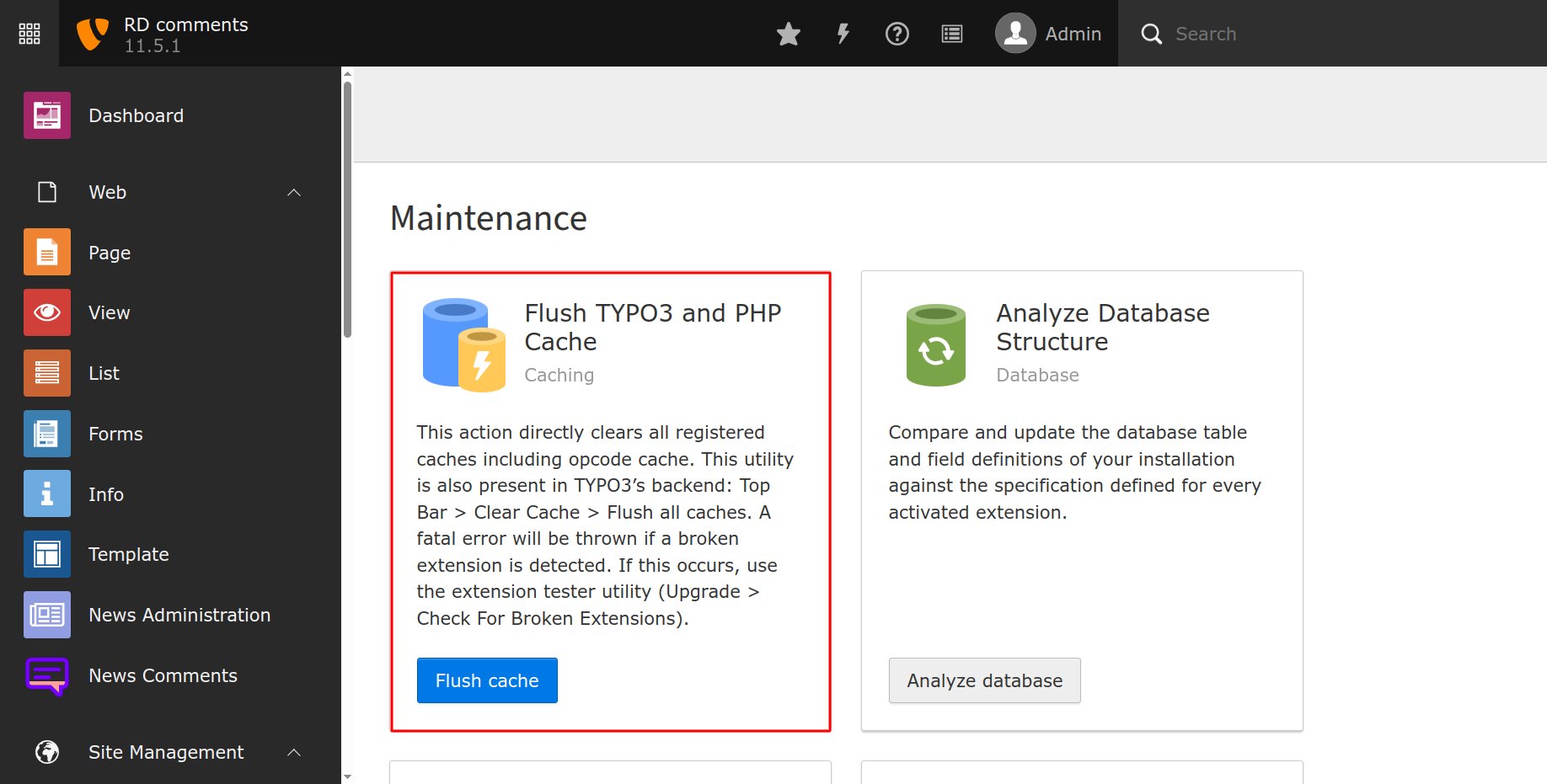
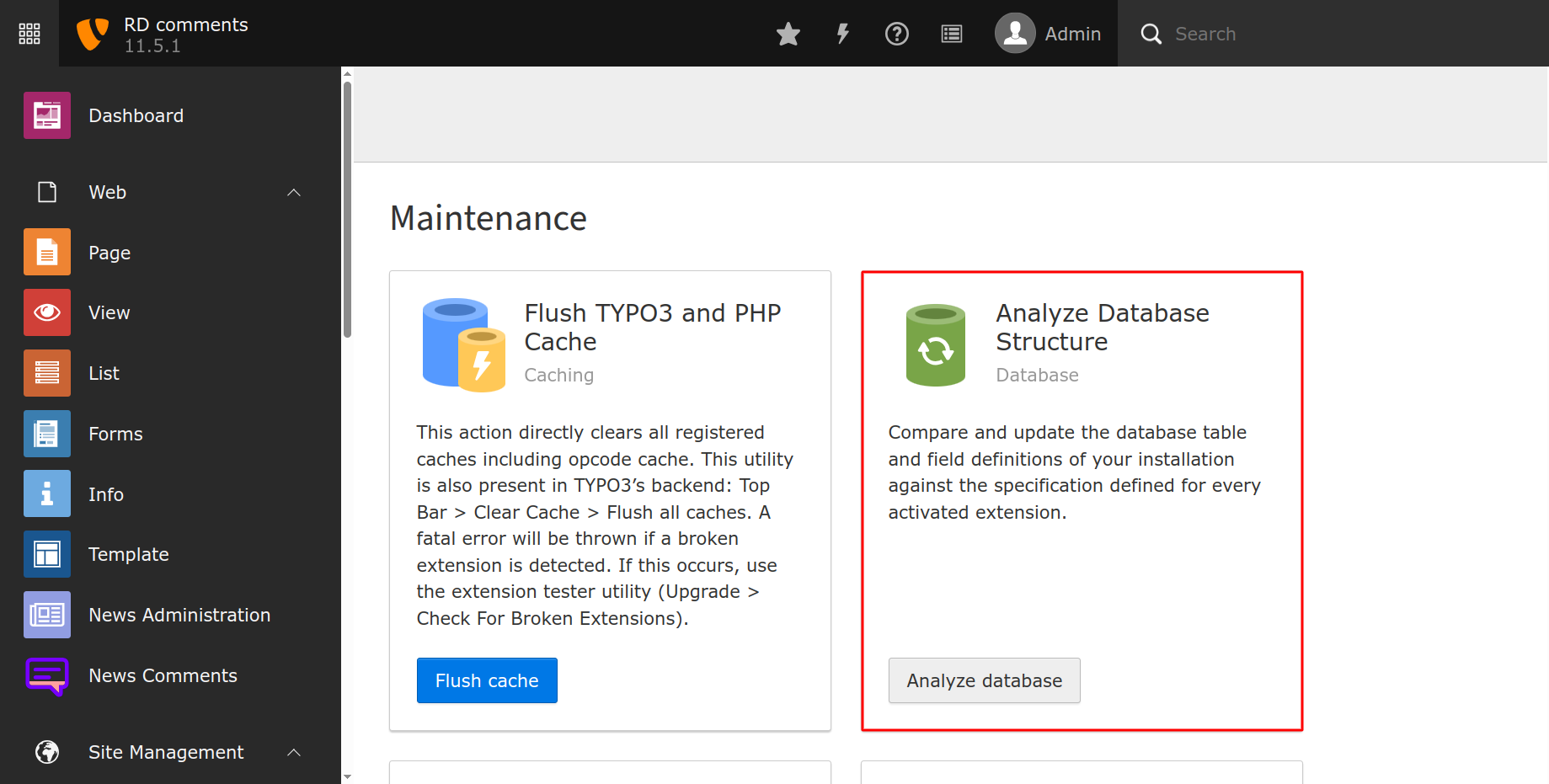
In the module menu to the left, navigate to Admin Tools > Maintenance, then click on Analyze database and apply all suggested changes.

TYPO3 Analyze Database screen

Clear all caches 

In the same module Admin Tools > Maintenance, you can also conveniently clear all caches by clicking the button Flush cache.

TYPO3 Flush Cache screen

Quick configuration 

Adding TypoScript setup 

To enable the default behavior and frontend output of the rd_comments extension, you need to include its TypoScript configuration.

In the TYPO3 backend, go to the Web > Template module and select your root page. Make sure a TypoScript template record exists.

Switch the view to Info/Modify and click Edit the whole template record to open the template editor.

Include TypoScript for RD Comments

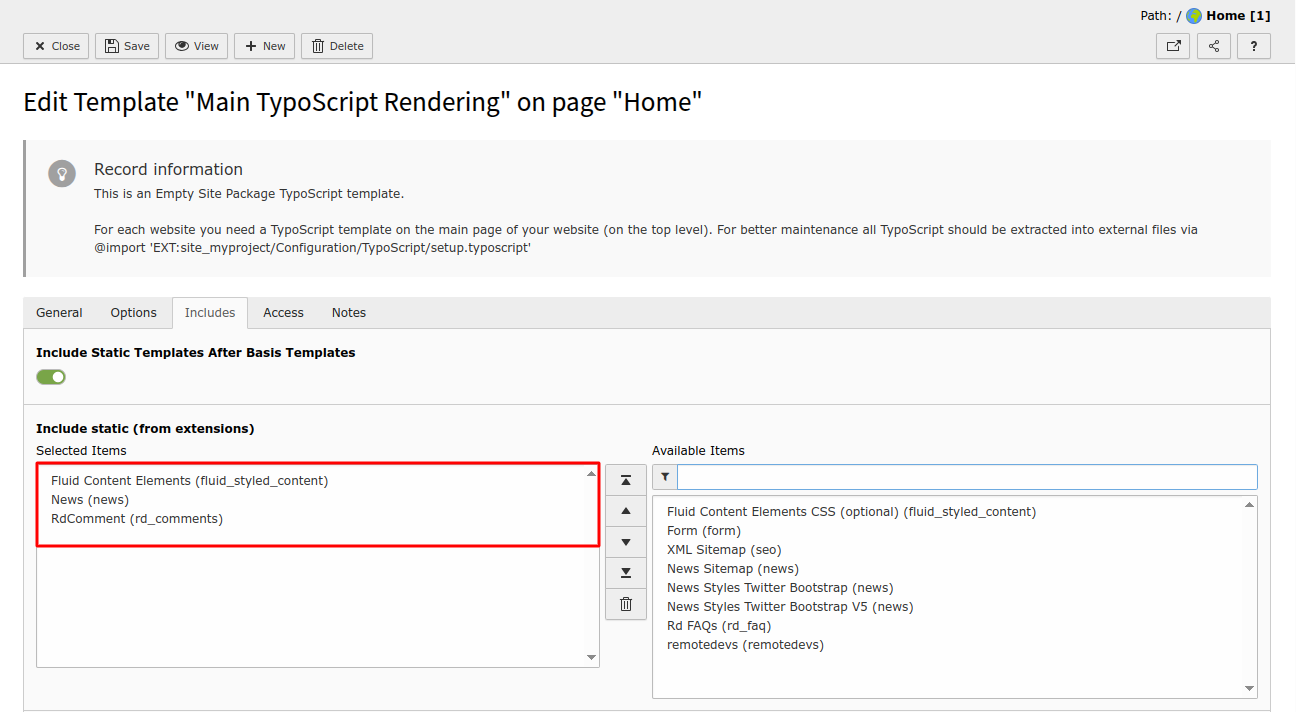
Go to the Includes tab and add the following static template from the list:

  • RD Comments (rd_comments)

This step loads all required TypoScript settings to display the comment form and comment threads in the frontend automatically.

If needed, you can override the default configuration using TypoScript constants or by modifying the templates.

Create initial content for news 

Create news records 

You must first create some news articles using the EXT:news extension.

Create a news record
  1. Go to the Web > List module
  2. Select the News & Comment Storage folder
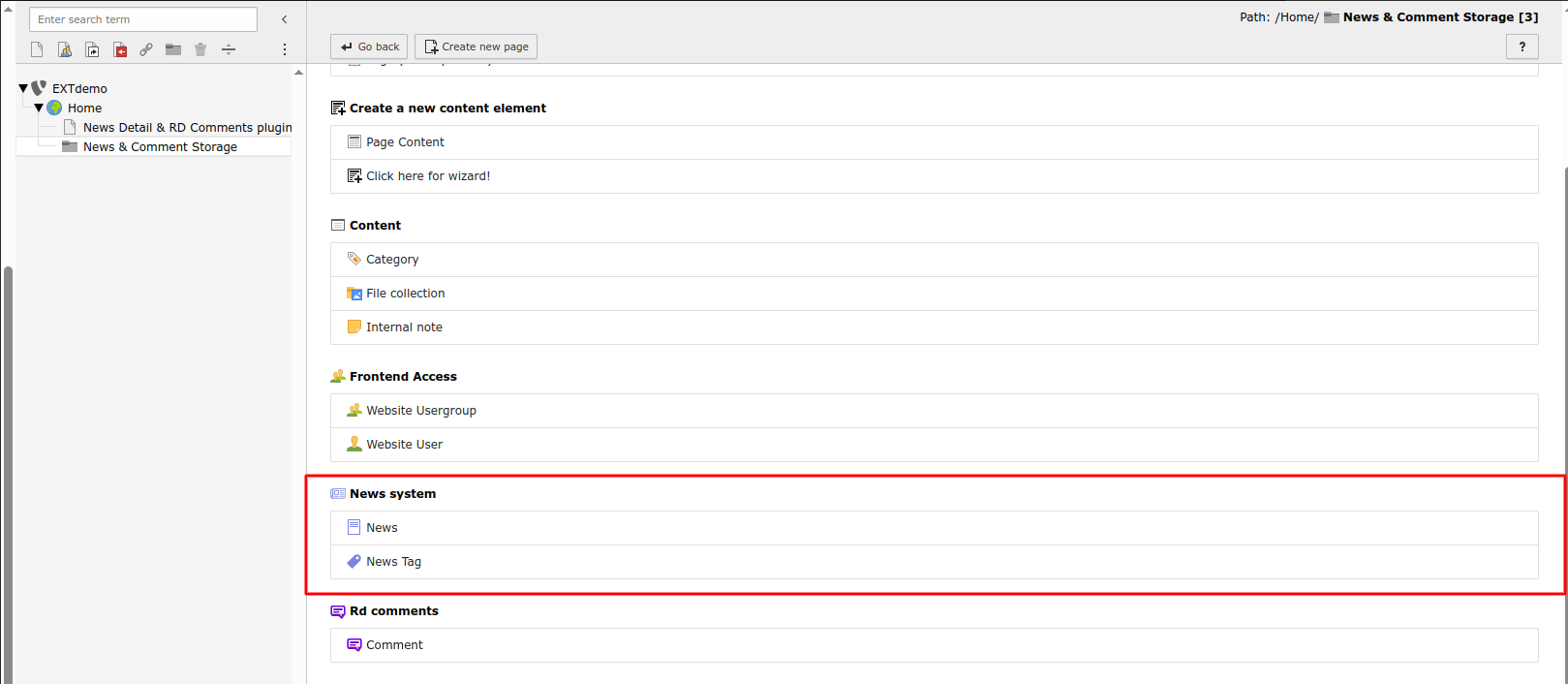
  3. Click Create new record and choose News
  4. Fill in required fields such as Title, Teaser, and Content
  5. Click Save

Configure News Detail View 

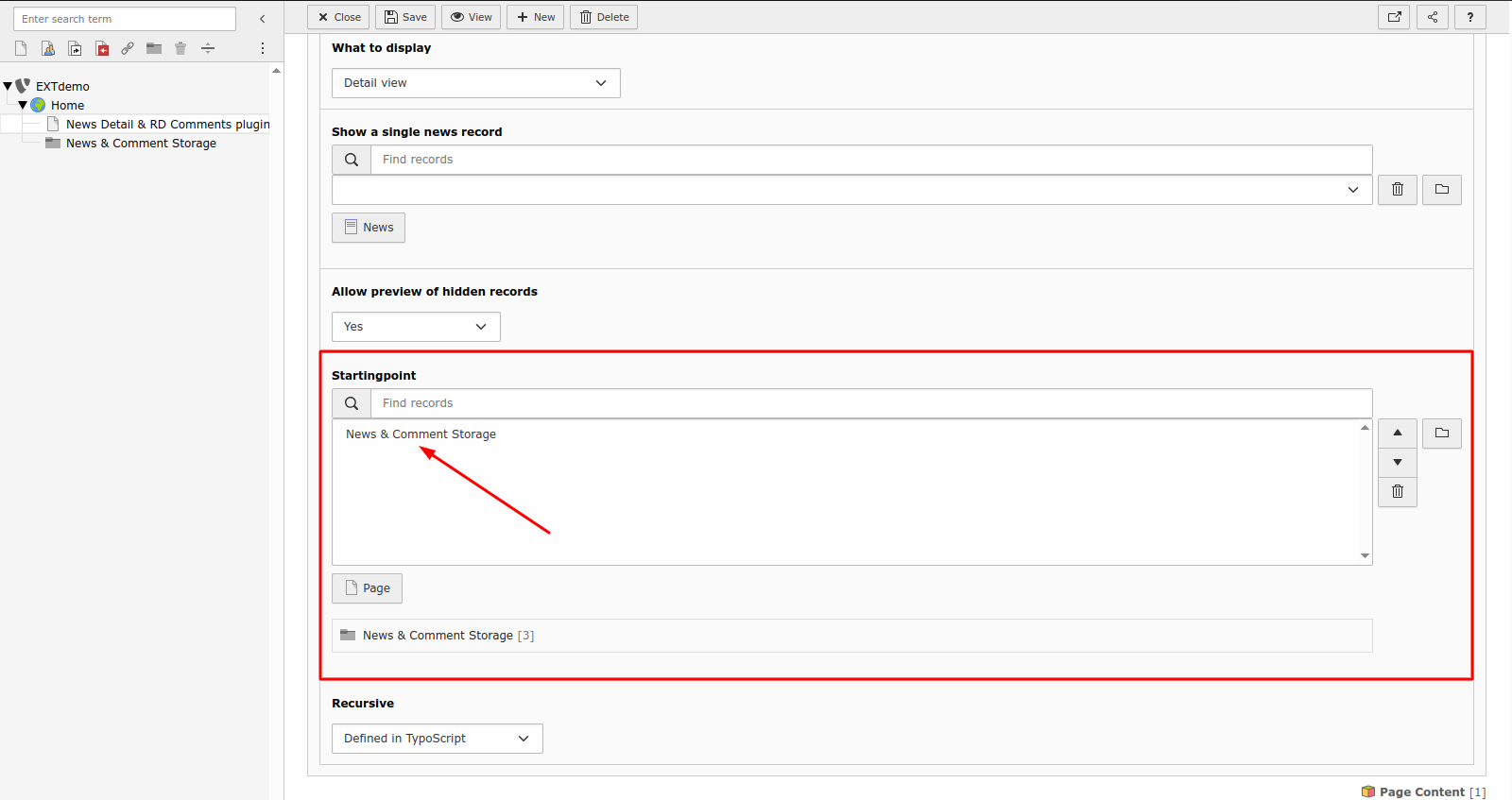
To display the full article on the detail page, configure the News plugin for Detail view.

Add News plugin for Detail View
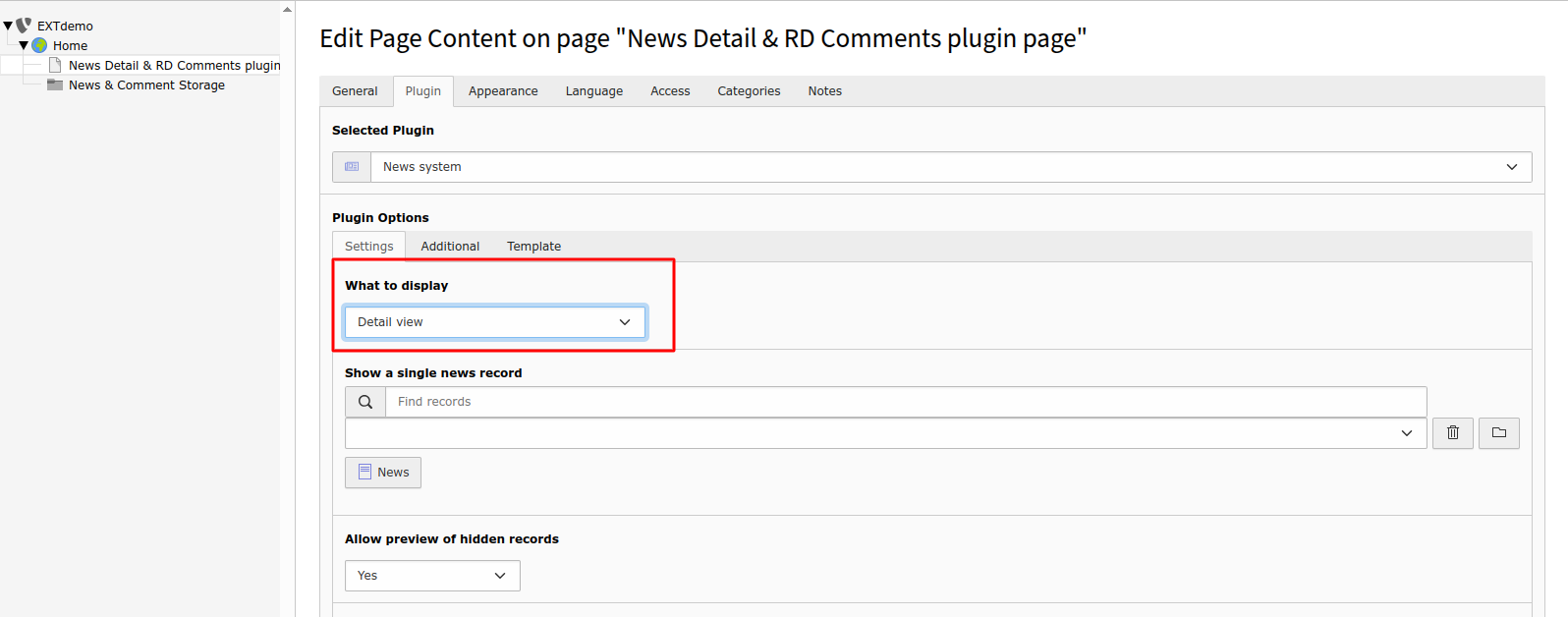
  1. On the News Detail page, add a new content element: News Plugin
  2. In the plugin settings, choose Detail view as the What to display option

Now assign the storage folder:

Set the News Storage Page UID
  1. Under the Plugin tab: - Set the Starting Point / Storage Page to your News & Comment Storage folder - Click Save

Add the RD Comments plugin 

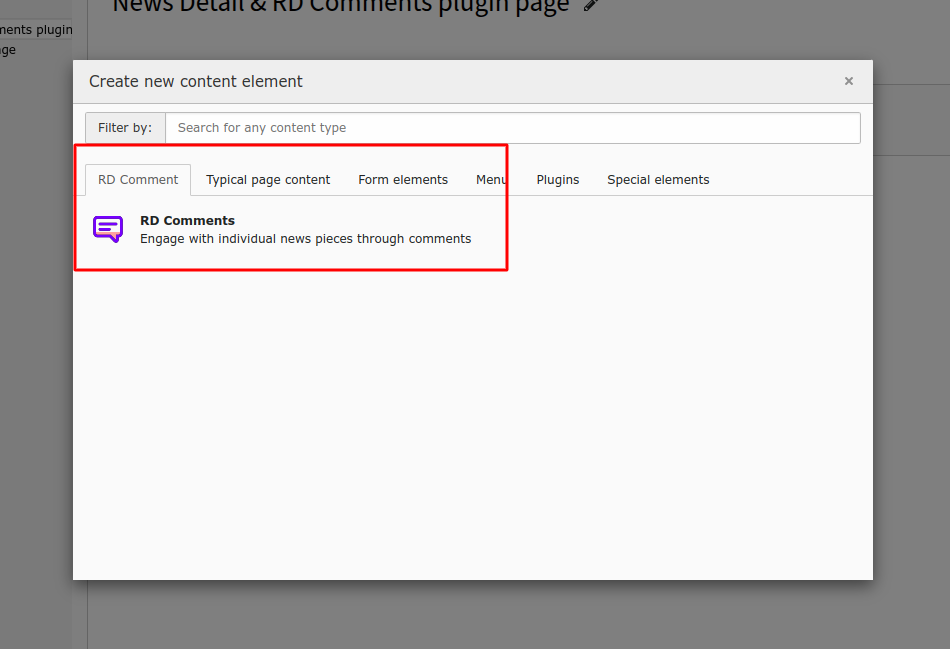
Add the RD Comments plugin to show the comment thread and form.

Add RD Comments plugin to News Detail page
  1. On the same News Detail page, add another content element: RD Comments > Comments
Select Comment Storage Folder
  1. In the plugin settings: - Set the Record Storage Page to the News & Comment Storage

Check the frontend 

When visiting the News List page in the frontend, you should see:

  • A list of news articles
  • Each article links to its corresponding detail view
  • The detail page shows the article and a threaded comment section below

For layout and styling customization, see the Frontend rendering of comments section.

Frontend rendering of comments 

Once you've added both the News detail plugin and the RD Comments plugin on the same page and linked the correct storage folder, the comment section is automatically rendered below the news article.

What appears on the frontend 

After everything is set up, visiting a news detail page will show:

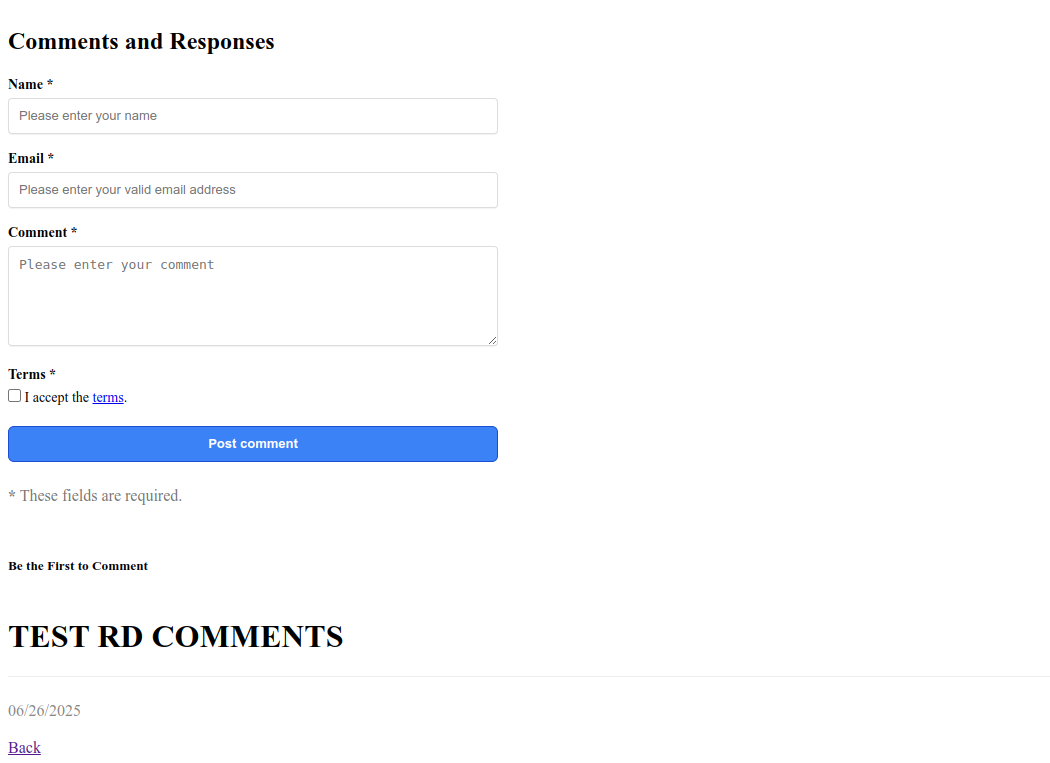
  • A comment form allowing users to post new comments or reply to existing ones
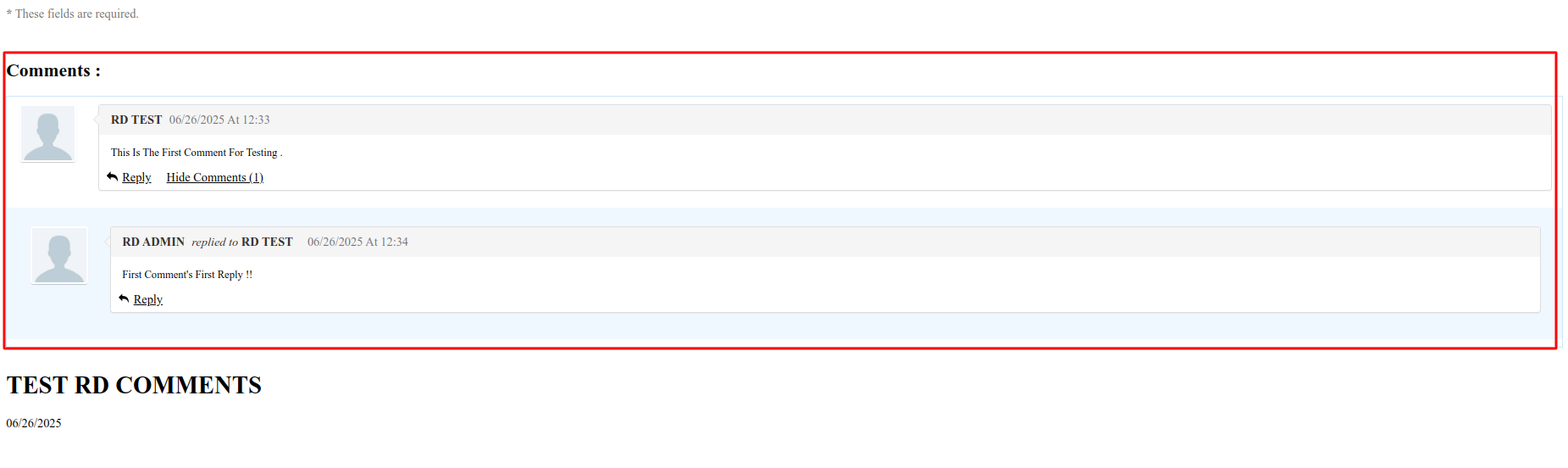
  • A threaded comment display showing all comments related to the news article, including replies (if any exist)
Comment submission form Display of threaded comments

No additional configuration is required for this output to appear. The extension automatically connects each comment to the currently displayed news article.

RD Comments Module 

The RD Comments backend module provides editors and administrators with a streamlined interface to manage all comments submitted via the frontend. This includes viewing, replying, moderating, and deleting user comments directly from the TYPO3 backend.

Accessing the module 

To open the RD Comments module:

  1. Log into the TYPO3 backend.
  2. In the left-hand sidebar, locate and click on News Comments.
  3. The module will open a dedicated interface listing all the comments stored in the system.

Initial state (no comments) 

When there are no comments associated with any news records, the module will display No news items found with comments. It confirms that the module is working but no data has been submitted yet.

Empty RD Comments module view

This is how the module will render if no comments are available for any news records.

Commented state (with data) 

When comments exist, the module displays a structured list of news records that contain comments. Each news record section can be expanded to view associated comments.

RD Comments module view with threaded comments
  • News records are listed in the left sidebar or collapsible sections.
  • Comments are shown in a threaded structure under each news record.

Each news block represents a news item that has at least one comment. These blocks are ordered by the most recently commented news first, meaning the news record with the latest user interaction appears at the top.

The title of each block displays:

  • The news title, so editors can easily identify the article.
  • The corresponding UID of the news record, helping to cross-reference it with other backend modules.

Each individual comment entry includes:

  • The commenter's name and email (if available)
  • The comment content
  • The reply button
  • The delete button
  • The timestamp on the right-hand side showing when the comment was posted

⚙️ The date and time format displayed here is based on the following TypoScript constants:

You can modify these formats in your constants.typoscript or via the Constant Editor to suit your preferred regional or display format but it will render only in frontend not in backend module.

Database Storage 

All comments managed in this module are stored in the tx_rdcomments_domain_model_comment table. Threaded relationships are managed via:

  • parent: points to the UID of the parent comment (for replies)
  • pid: indicates the storage folder used

Next Steps 

Comment Threading and Nesting 

This section explains how comments and replies are rendered in the RD Comments backend module using a threaded, yet visually flat, structure.

Overview 

Each comment is displayed under the news item it belongs to. If a comment is a reply to another, it is shown directly below its parent. While the backend doesn't use visual indentation for nesting, it clearly indicates the reply chain through labeling.

Threading supports infinite depth, and parent-child relationships are preserved even in a flat layout.

Rendering Structure 

Unlike traditional threaded views, the RD Comments module uses a flat structure. Replies appear beneath their parent comment with slight variation based on the reply level:

Level Rendered As Example
Level 0 (Root) Main comment under the news item John Doe: "Great update!"
Level 1 (Reply) Flat reply (no Replied by: label) Lisa Smith: "I agree! Especially the new admin panel."
Level 2+ (Reply) Flat reply with Replied by: label showing replier’s name Lisa Smith Replied by: Mark Lee: "Me too!"

Each comment block includes: - Commenter's name and email - Replied by: label (for replies beyond the first level), showing the name of the user who replied - Message content - Action buttons (Delete, Show Replies, Hide Replies)

Visual Hierarchy Example 

UID: 123 — News Title: "TYPO3 12 Released"

  • John Doe (john@example.com)
    "This update is fantastic!"

  • Lisa Smith (lisa@example.com)
    "I agree! Especially the new admin panel."

  • Lisa Smith Replied by: Mark Lee (mark@example.com)
    "Same here. Although I had some upgrade issues."

  • Mark Lee Replied by: Admin (admin@typo3.org)
    "Hi Mark, please refer to the migration guide."

  • John Doe Replied by: Tom Ray (tom@example.com)
    "The UX improvements are really helpful."

UID: 124 — News Title: "TYPO3 Migration Tips"

  • Alice Grey (alice@example.com)
    "Will this be compatible with all existing extensions?"

  • Alice Grey Replied by: Dev Team (devs@typo3.org)
    "Most of them, yes. A compatibility list is available."
Copied!

Visual Threading Example 

Below is a real screenshot of how threaded comments are displayed inside the backend module:

Example of threaded comment structure in RD Comments module

This visual shows: - Flat rendering of root comments and their replies - The Replied by: label that clearly connects child to parent comment - Grouping under each news title and UID for better context

Key UI Behavior 

  • Comments are grouped under their respective news records.
  • Only nested replies beyond the first level display the Replied by: label (from parent to replier).
  • The layout remains flat — there is no indentation for child comments.
  • Replies can be toggled using Show/Hide Replies buttons.
  • Comments are sorted chronologically within their thread (newest first).
  • The Delete button allows moderators to remove any comment, including replies.

Next Steps 

Show, Hide & Delete Buttons 

This section explains the action buttons available in the RD Comments backend module and how editors can interact with comments and their replies.

Available Actions 

Each comment block in the backend includes a set of intuitive action buttons that allow moderators and editors to manage discussion threads.

Action Description
Show Replies Reveals all direct and nested replies under this comment. Helps follow the conversation thread.
Hide Replies Collapses the displayed replies to reduce visual clutter.
Delete Permanently removes the comment and all its replies from the backend view. In the database, a soft-delete is applied.

Behavior Details 

  • Show Replies toggles the visibility of all replies under a comment without reloading the page.
  • Hide Replies collapses visible replies for better focus.
  • When a comment is deleted: - A flash message appears at the top: “Comment deleted successfully.” - The comment is immediately removed from the backend, along with all of its nested replies. - In the database: - The deleted field in the tx_rdcomments_domain_model_comment table is set to 1 - This applies recursively to all nested replies of the deleted comment. - There is no "Deleted" label or placeholder — the entire thread is removed from view.

Visual Example 

Action buttons in RD Comments backend

In this example: - The Show Replies button reveals replies to the comment. - The Hide Replies button collapses them again. - The Delete button removes the entire comment thread from the interface.

Flash Message Notification 

After a comment (and its replies) are deleted, the RD Comments module displays a confirmation message at the top of the screen.

Flash message shown after successful comment deletion
  • This message confirms the deletion action with the text: “Comment deleted successfully.”
  • It appears only once per delete operation and automatically disappears after reloading the page.

Best Practices 

  • Use Show/Hide Replies to manage complex threads during moderation.
  • Be cautious with Delete, as it removes the entire comment thread, including replies.

Next Steps 

List Module View for Comments (Read-Only) 

Overview 

In addition to the custom RD Comments backend module, all submitted comments are stored as TYPO3 records and are accessible in the List module. This module provides a direct way to review, hide, or unhide comments in a traditional list view, especially for bulk actions or auditing.

Accessing the List Module 

To view RD Comments in the List module:

  1. Log into the TYPO3 backend.
  2. From the left navigation pane, select the List module.
  3. Navigate to and click on the storage folder where your RD Comments records are stored.
  4. You will see a list of all comment records associated with the news items.

Moderation via Visibility 

Unlike the RD Comments module, the List module does not provide threaded interaction. However, it has a powerful feature for moderation: the visibility toggle.

  • Each comment record has a "Visibility" (hidden) toggle field.
  • You can hide a comment instead of deleting it.
  • Hidden comments are not rendered on the frontend and do not appear in the RD Comments module view.
  • The comment remains in the database and can be restored by simply unchecking the "hidden" box.
Comment records shown in the TYPO3 List module with visibility toggle

This is especially helpful when: - You want to temporarily remove inappropriate or spam content without losing conversation context. - You need a reversible moderation option. - Editors want to review or revise content before making it public again.

Displayed Fields 

The List module view shows key details of each comment:

The List module view for RD Comments showing comment details
  • Author name and email
  • Comment content
  • term acceptance status
  • Parameter link to the related comment (for threaded discussions)
  • If the comment is a root comment (not a reply), it will also list its replies in read-only format beneath it.

Replies Rendering in Read-Only View 

When a root comment (i.e., not a reply) is selected in the List module, the system also displays its associated nested replies in a grouped, read-only format.

This gives administrators a complete view of the discussion thread without requiring navigation to the RD Comments module.

Nested replies shown beneath a root comment in read-only List module view

This feature is helpful for:

  • Viewing full conversation threads at a glance.
  • Making moderation decisions based on reply context.
  • Auditing comment activity from a single entry point.

Use Cases 

  • Moderate without delete: Hide a comment for review without erasing it permanently.
  • Restore hidden content easily by unchecking the hidden box.
  • Audit comment chains using parent-child references in the parent field.

Best Practices 

  • Prefer hiding over deleting when moderation is temporary.
  • Always double-check the storage folder path for consistency.
  • Set permissions appropriately so only trusted users can modify visibility in this view.

Next Steps 

Administration Manual 

This section explains how to configure the RD Comments extension using TypoScript constants. These constants control how comments behave on the frontend, how records are stored, and how to override the default Fluid templates for customization.

You can define constants in two ways:

  • Through the Constant Editor in the TYPO3 backend
  • Or directly via the constants.typoscript file in your sitepackage

Configuration Overview 

Constant | Explanation
plugin.tx_rdcomments_rdcomment.persistence.storagePid Page ID where comment records are stored. Set this to the SysFolder or page where your comment data should be saved. Required for frontend to work.
plugin.tx_rdcomments_rdcomment.settings.termsRequired

Enables a "Terms & Conditions" checkbox in the comment form.

  • 1: Enable (visitors must accept terms to submit a comment
  • 0: Disable
plugin.tx_rdcomments_rdcomment.settings.termsTypolinkParameter| The link to your Terms & Conditions page.
plugin.tx_rdcomments_rdcomment.settings.dateFormat Defines how comment dates appear in the frontend. Supported values: - F j Y → "June 30 2025" - Y-m-d → "2025-06-30" - m/d/Y → "06/30/2025" - d/m/Y → "30/06/2025" - d.m.Y → "30.06.2025"
plugin.tx_rdcomments_rdcomment.settings.timeFormat Defines how comment time appears in the frontend. Supported values: - g:i a → "2:45 pm" (12-hour lowercase) - g:i A → "2:45 PM" (12-hour uppercase) - H:i → "14:45" (24-hour format)

Best Practices 

  • Always set the storagePid to a page where news and comments are stored .
  • Enable termsRequired to comply with legal policies (like GDPR).
  • Choose a dateFormat and timeFormat that match your site’s language and regional preferences.

Next Steps 

Developer Notes 

This section provides technical notes for developers and integrators working with the RD Comments extension.

Before You Begin 

To ensure the extension functions correctly, please review the following requirements and preparations:

  • Storage Page: Set the plugin.tx_rdcomments_rdcomment.persistence.storagePid constant. Without this, comments will not be stored or displayed.
  • Include jQuery (if needed): If your site doesn't already include jQuery, make sure it's available globally before the comment script loads. RD Comments does not auto-include jQuery anymore.
  • Terms & Conditions (optional): If termsRequired is enabled, configure termsTypolinkParameter to avoid broken links on the frontend.
  • Frontend Plugin: Place the RD Comments Plugin on the desired detail pages (e.g., news or blog detail). Otherwise, the comment form and threads won't appear.

What You Can Customize 

The extension supports full frontend customization using Fluid templates. You can override these paths in your SitePackage:

Constant Purpose
plugin.tx_rdcomments_rdcomment.view.templateRootPath Override full views (e.g., Comment/List.html)
plugin.tx_rdcomments_rdcomment.view.partialRootPath Override UI blocks (e.g., reply form or metadata)
plugin.tx_rdcomments_rdcomment.view.layoutRootPath Override HTML wrapper/layout structure

Fluid View Inheritance 

If you override only specific templates, be sure to copy the necessary partials or layouts that your custom template depends on. For example:

  • If you override Comment/List.html, make sure Comment/Item.html and any related partials still exist or are overridden as needed.

Template Tips 

  • The default templates use Bootstrap 5 classes and Font Awesome.
  • The comment thread is recursively rendered via a partial loop in frontend .
  • Font Awesome icons are only included if you configure it yourself (the extension doesn't load them automatically anymore).

Styling and Script Integration 

The RD Comments extension relies on specific CSS and JavaScript logic to render and handle the comment interface. If you're planning to customize or override the frontend design, keep the following in mind:

⚠️ Do not remove the JS/CSS configurations blindly — doing so will break the functionality (e.g., the comment box will not appear or reply toggles will not work).

### What You Should Do

  • Customize with care:

    You can override the visual design of the comment system, but be extremely cautious not to disrupt required structural elements.

  • Keep all functional class names unchanged:

    Do not remove or rename classes from the original HTML structure. These classes are used by JavaScript to toggle replies, render nested forms, animate scroll behavior, and control button states.

### Summary

If you're modifying the design of the comments section:

  • Don't strip or rename HTML classes, as they are tied to JavaScript functionality
  • Avoid removing JS/CSS unless you've completely reimplemented all required behavior
  • Make sure reply toggling, nested form rendering, and scroll behaviors work as expected
  • Always test your changes across devices and languages to maintain full frontend compatibility

Best Practices 

  • Use TypoScript constants to override paths — don’t modify core extension files.

Support 

If you need help using or extending the rd_comments extension, or if you’d like to report a bug, contribute a feature, or ask a question — here’s how to get in touch:


📬 GitHub Repository 

You can report bugs, request features, or contribute to the codebase via GitHub:

🔗 https://github.com/remote-devs/rd_comments

Please check the existing issues before opening a new one.


💬 TYPO3 Slack 

Join the TYPO3 Slack workspace and post your questions in: