RemoteDevs FAQ

Extension key

rd_faq

Package name

remotedevs/rd-faq

Version

1.0

Language

en

Author

Solanki Payal & Contributors

License

This document is published under the GPL-2.0-or-later License.

Rendered

Fri, 06 Jun 2025 10:35:11 +0000


This FAQ Extension allows you to manage and display questions and answers easily in the frontend.


Quick start

A quick introduction on how to use this extension.

Introduction

Introduction to the FAQs extension, general information.

Editors manual

Learn how to use the FAQs module, configure the plugin, and manage FAQs.

Support

Resources and contact info for support.
Introduction

This chapter provides an overview of the features and functionalities of the TYPO3 CMS extension "rd_faq".

What does it do?

This extension implements a flexible FAQ (Frequently Asked Questions) system using modern TYPO3 practices and technologies.

Best practice by design

  • Built with Extbase & Fluid for clean architecture
  • User-friendly FAQ plugin with categories and answers
  • Customizable output via Fluid templates
  • Manage FAQs using the List module in the storage folder
  • Frontend plugin to list FAQs with category filters
  • Language support and localization ready
  • Clean separation of domain models: FAQ, Category
  • Easy to extend or integrate with other extensions

The RemoteDevs FAQ extension makes it ridiculously easy to manage and display FAQs — like an interactive knowledge base for TYPO3.

– Feedback from an early adopter

Quick installation

In a composer-based TYPO3 installation you can install the extension EXT:rd_faq via Composer:

composer require remotedevs/rd-faq
Copied!

In TYPO3 installations above version 13.0, the extension will be automatically installed. You do not have to activate it manually.

If you are using an older version of TYPO3 or have a legacy installation without Composer, check out the installation chapter for manual installation steps.

Update the database schema

Open your TYPO3 backend with system maintainer permissions.

Then go to:

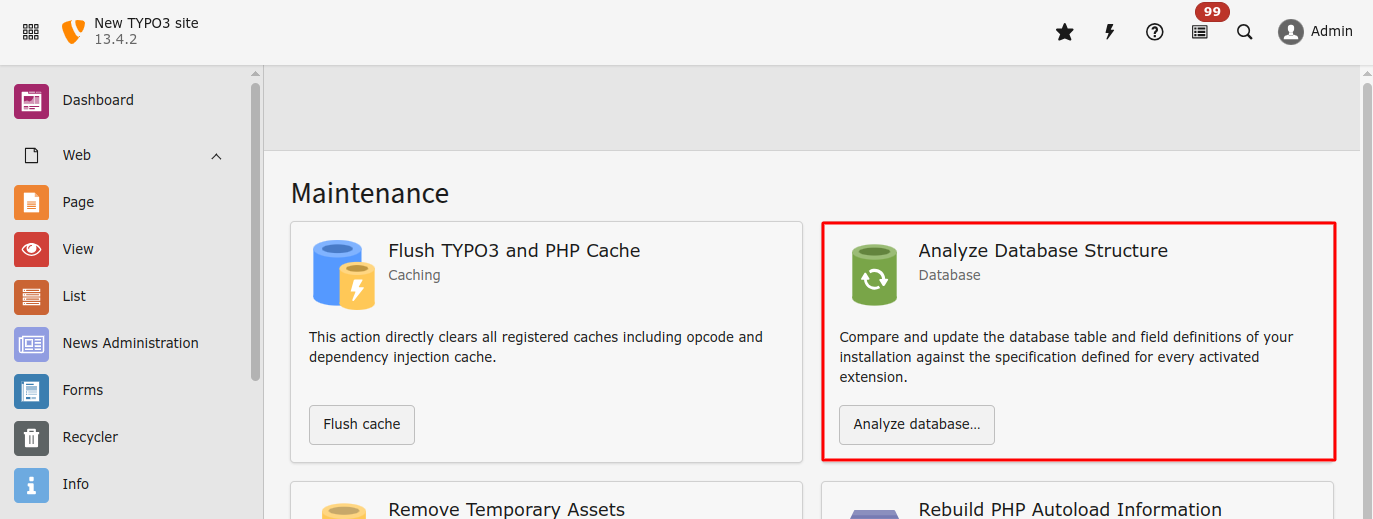
Admin Tools > MaintenanceAnalyze Database → Click Create to apply all changes.

Analyze database in TYPO3

Clear all caches

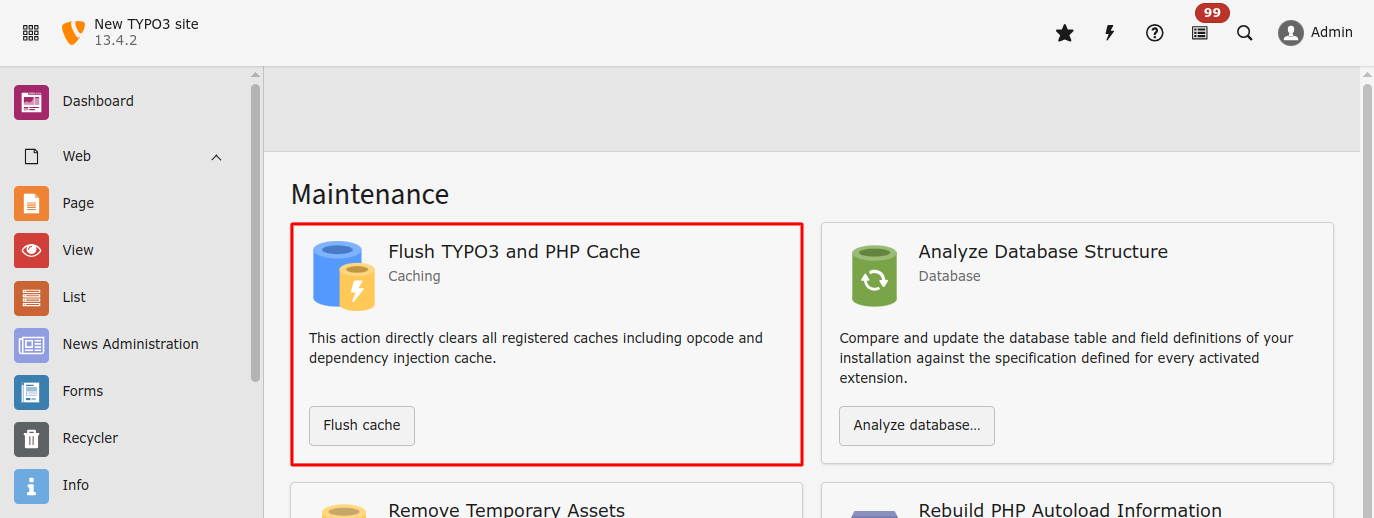
Still in Admin Tools > Maintenance, click the button:

Flush Cache to clear all TYPO3 caches.

Flush TYPO3 cache

Editors manual

FAQ Records

Add or edit FAQ entries with question, answer and optional metadata.

FAQ Categories

Organize FAQs into categories for better navigation and filtering.

Plugin Configuration

Configure how FAQs are shown in the frontend (accordion, category filter, etc).

Field Reference

Overview of all available fields in FAQ records and what they do.

FAQ Records

This section explains how editors can create, edit, and manage FAQ records.

Creating a new FAQ

  1. Go to the List module in the backend.
  2. Select the page where your FAQ records are stored.
  3. Click the + Create new record button.
  4. Choose FAQ from the list of available record types.
Creating a new FAQ record

FAQ Fields

When creating or editing a FAQ record, you will see the following fields:

  • Title – The question text that will be visible to frontend users.
  • Description – The detailed answer shown when the FAQ is expanded.
  • Category – (Optional) Assign this FAQ to a category for filtering or grouping.
  • Image – An optional image related to the FAQ.
  • Slug – A URL-friendly version of the title.
FAQ record form with fields

Tips

  • Keep your questions short and clear.
  • Use the RTE (Rich Text Editor) in the answer field to format content (bold, links, lists).
  • Assign categories if your plugin is configured to display them grouped or filtered.

Editing Existing FAQs

  1. Navigate to the List module.
  2. Select the page with FAQ records.
  3. Click the pencil icon next to the FAQ you want to edit.
Editing an existing FAQ

Categories

Categories help group and organize your FAQ entries so that users can filter or view questions by topic.

Creating categories

To add or manage categories:

  1. Go to the backend module: Web > List.
  2. Open the folder where your FAQ records are stored (e.g., "FAQ Storage").
  3. Click the + Create new record button at the top.
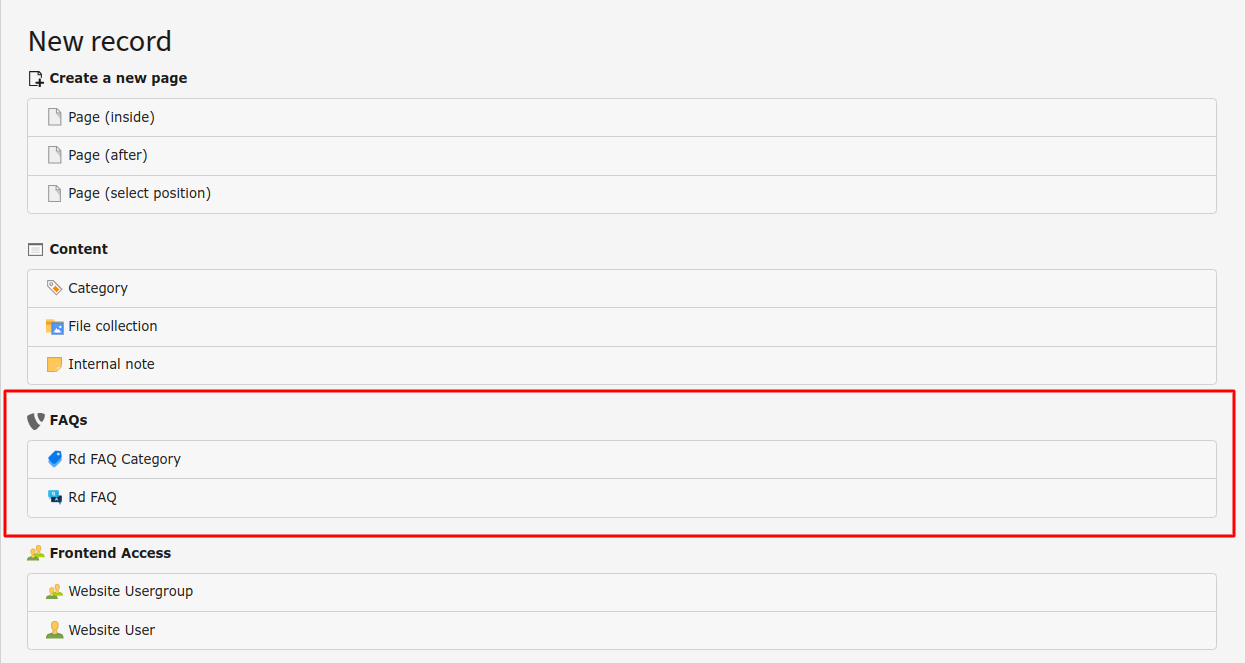
  4. Under the list of available record types, choose FAQ Category.
  5. Enter a name for the category (e.g., "Payments", "Returns", "Technical Issues").
  6. Save the record.
Create FAQ Category

Clicking on "Create new record" and selecting "FAQ Category"

Form fields for adding/editing an FAQ category

Assigning categories to FAQ records

When editing or creating an FAQ:

  1. In the General or Relations tab, look for the field Category.
  2. Select one or more categories that apply to the question.
  3. Save the FAQ record.

Using categories in the frontend

If your FAQ plugin supports filtering, users will be able to filter questions by the categories you defined. You can also use TypoScript or Fluid template logic to render only FAQs from specific categories on different pages.

Plugin

The FAQ plugin is used to display frequently asked questions (FAQs) on the frontend with sorting, pagination, category filtering, and custom templates.

It can be added to a page by creating a content element of type Plugin and selecting the plugin type FAQ System.

Selecting FAQ Plugin in backend

Selecting the FAQ plugin

Plugin settings overview:

FAQ List View

The default view displays a list of FAQ records. Several options can be configured through the plugin:

Sorting

  • Short By: Select the field used to sort the FAQ list (e.g., title).
  • Direction of Sorting: Ascending or descending order.

Limit Records

  • Display Maximum Record: Set the maximum number of FAQs to display (leave empty to show all).

Category Mode

Use this section to filter FAQs based on assigned categories. The following 5 category modes are available:

  • Show All Category FAQs (ignore): Display all FAQ records, ignoring their categories.
  • Show FAQ with Selected Category (OR) (or): Show FAQs that belong to any of the selected categories.
  • Show FAQ with Selected Category (AND) (and): Show FAQs that belong to all selected categories.
  • Don't Show FAQ with Selected Category (NOTOR) (notor): Exclude FAQs that belong to any of the selected categories.
  • Don't Show FAQ with Selected Category (NOTAND) (notand): Exclude FAQs that belong to all of the selected categories.

Other category-related options:

  • Include Subcategories: Also include FAQs from the subcategories of selected categories.
  • Filter by Item: Enable frontend filtering based on selected categories.
  • Selected Category: Manually pick one or more categories to filter by.

Pagination

You can enable pagination for long FAQ lists:

  • Enable Pagination: Toggle to activate pagination.
  • Display Items Per Page: Number of FAQs shown per page (default: 10).
  • Maximum Number of Pages: Limit how many pages are created (default: 10).

Template Layout

  • Select Template Layout: Choose between predefined layout templates (e.g., default, accordion). Custom layouts can be added in your sitepackage.

To register custom layouts, use the following TypoScript:

tx_rdfaq.templateLayouts {
    1 = FAQ-layout
}
Copied!

This will add a new option called FAQ-layout to the Template Layout dropdown in the backend plugin settings.

Template layout Code add in Page TSconfig

Template layout Code add in Page TSconfig

Output of added FAQ layout in Page TSconfig

Output of added FAQ layout in Page TSconfig

You can use any number to identify your layout and any label to describe it.

Now it is possible to use a condition in the template to change the layouts, and load a different partial:

<f:if condition="{faqs}">
  <f:then>
    <div class="faq-container">
      <h1><f:translate key="tx_faq_domain_model_faq.heading" /></h1>
      <f:flashMessages />
      <div class="faq-accordion">
        <f:if condition="{settings.templateLayout} == 1">
          <f:then>
            <f:for each="{faqs}" as="faq" iteration="iterator">
                <f:render partial="List/Item-new" arguments="{_all}" />
            </f:for>
          </f:then>
          <f:else>
            <f:for each="{faqs}" as="faq">
              <div class="faq-accordion-item">
                <f:render partial="Item" arguments="{_all}" />
              </div>
            </f:for>
          </f:else>
        </f:if>
      </div>
    </div>
  </f:then>
  <f:else>
      <div class="no-faq-found">
        <f:translate key="list_nofaqfound"  extensionName="rd_faq"/>
    </div>
  </f:else>
</f:if>
Copied!

As you can see in this example a different partial is loaded if the layout 1 is used.

Additional Settings

  • Disable Overwrite Demand: Prevents TypoScript from overriding plugin settings. Keep this checked if you want full control via the content element settings.
  • Storage Page: Select the page (or folder) where FAQ records are stored. This ensures the plugin loads data from the right place.

FAQ Record Fields

Each FAQ record in the backend includes several fields that define its content and behavior. These are used by the plugin to render the FAQ list on the frontend.

Title

Title

This is the main question or heading of the FAQ. It's shown as the clickable item in accordion frontend layouts.

Slug

Slug

A URL-friendly version of the title. It is auto-generated from the title but can be customized. The slug is used in the FAQ detail page URL if enabled.

Description

Description

This is the full answer to the FAQ question. It supports rich text formatting and can include links, and lists,.

Image

Image

An optional image related to the FAQ. It can help illustrate the answer visually or act as an icon beside the question.

Allowed file extensions:

  • .jpg
  • .jpeg
  • .png
  • .gif
  • .svg

Category

Category

Assign one or more categories to the FAQ. Categories are used for filtering in the plugin settings and frontend filtering options.

Pro tip: If subcategories exist, they can be included in the filter if the plugin is configured to include subcategories.

Filter by item

Filter by item

Toggle this field to allow the specific FAQ to appear as a filterable item when category or tag filters are shown on the frontend.

Support

Need help? We got you.

The RemoteDevs FAQ extension is built to be dev- and editor-friendly, but if you run into issues or have questions, here's how you can get support:

Where to Get Help

  • Report issues or bugs If you discover a bug or want to request a feature, create an issue in the extension's GitHub repository: https://github.com/payal-remotedevs/remotedevs-faq
  • Ask the dev team For direct support, contact the authors or contributors listed in the extension details.
  • TYPO3 Slack / Forums You can also reach out via the TYPO3 Slack community or forums under extension development/help channels.

Documentation Resources

You can always check the following docs for help:

  • Quick start – Learn how to get it running ASAP
  • Editors manual – Everything backend users need
  • reference – For devs needing deep-dive configs

License Info

This extension is open source and published under the GPL-2.0-or-later license.

For licensing details and terms of use, check: https://opencontent.org/openpub

Still stuck?

If the docs don't cut it and you're still lost, just drop a line to the maintainers — we're here to help.

Author

Solanki Payal & Contributors

Extension key

rd_faq

Version

1.0

Quick configuration

Include TypoScript template

It is necessary to include at least the basic TypoScript provided by this extension.

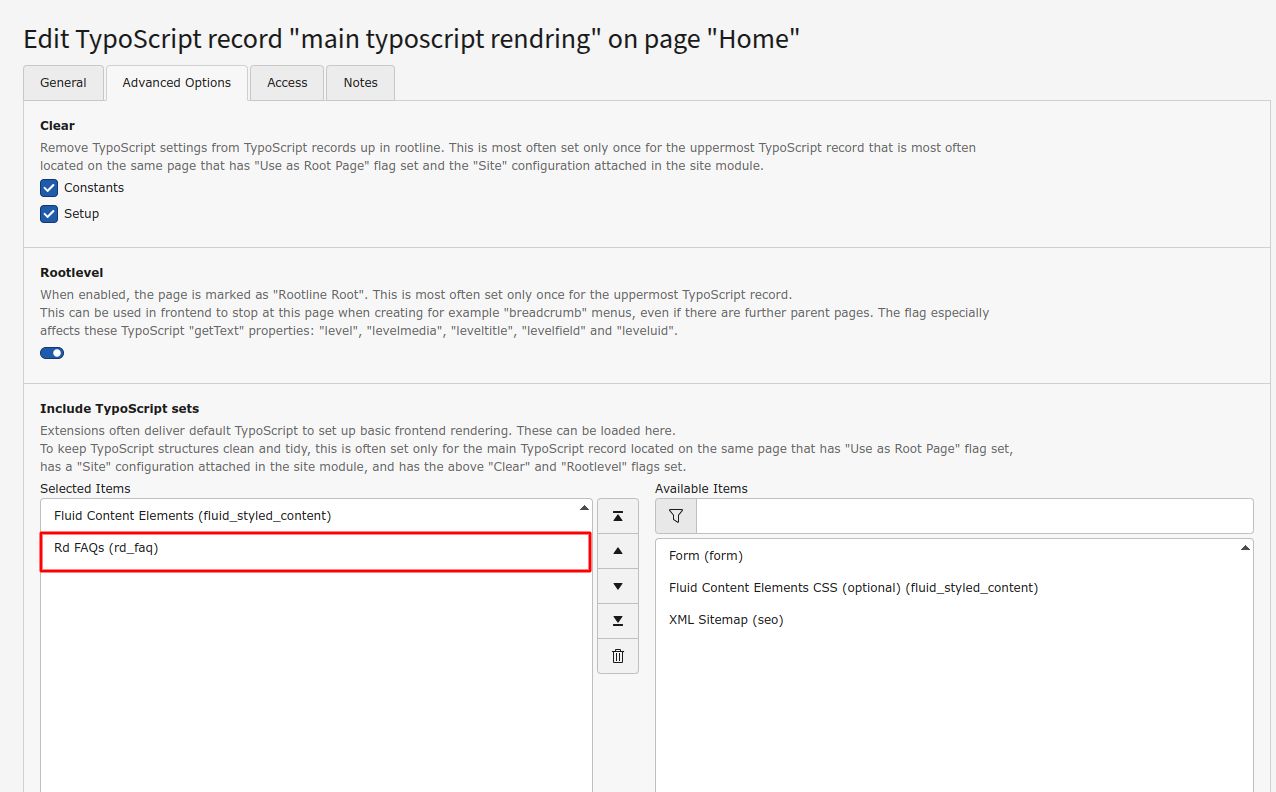
Go to the module Site Management > TypoScript and choose your root page. It should already contain a TypoScript template record. Switch to the dropdown menu and select Edit TypoScript Record and click on Edit the whole template record.

Include TypoScript in TYPO3

Switch to the tab Include TypoScript sets and add the following templates from the list on the right: FAQ (rd_faq).

Create some initial content

Create FAQ records

Before anything can be shown on the frontend, you need to create some FAQ records.

Create FAQ record
  1. Go to the module Web > List
  2. Select the folder page "FAQ Storage" you created earlier
  3. Click the icon Create new record, then choose Rd F A Q
  4. Fill in the fields like Title, Description, and Category. Click Save

Add Plugin to display FAQ in the frontend

You’ll now add the FAQ Plugin to a regular page to display your records.

Add FAQ Plugin
  1. Go to Web > Page and open your display page (e.g., FAQ Page)
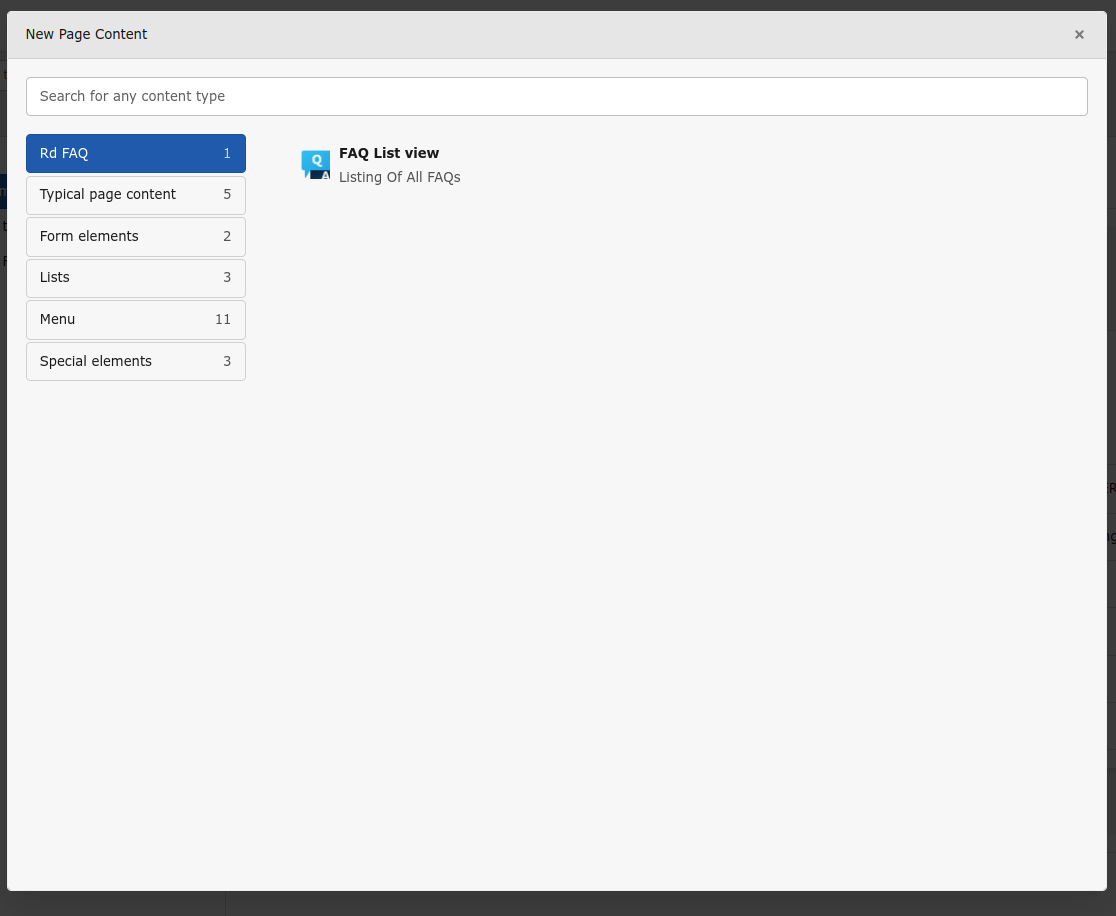
  2. Click to add a new content element
  3. Choose F A Q > List Of FAQs
  4. Switch to the tab Plugin

    • Fill in the fields like Short By, Category mode, and Selected Category
    • Set the Storage Page to the FAQ Storage folder
    • Adjust other options if needed

Check your frontend

Open the FAQ display page on the frontend. Your created FAQ records should now be visible.

Wanna customize how the questions/answers are styled or grouped? Slide into the Viewing of Field chapter to learn more.