The TYPO3 Crawler is an extension which provides possibilities, from both
the TYPO3 backend and from CLIm that helps you with you cache and e.g.
search index.
The Crawler implements several PSR-14 events, that you can use to "hook" into
if you have certain requirements for your site at the given time.
It features an API that other extensions can plug into. Example of this
is "indexed_search" which uses crawler to index content defined by
its Indexing Configurations. Other extensions supporting it are
"staticpub" (publishing to static pages) or "cachemgm" (allows
recaching of pages).
The requests of URLs is specially designed to request TYPO3 frontends
with special processing instructions. The requests sends a TYPO3
specific header in the GET requests which identifies a special action.
For instance the action requested could be to publish the URL to a
static file or it could be to index its content - or re-cache the
page. These processing instructions are also defined by third-party
extensions (and indexed search is one of them). In this way a
processing instruction can instruct the frontend to perform an action
(like indexing, publishing etc.) which cannot be done with a request
from outside.
Screenshots
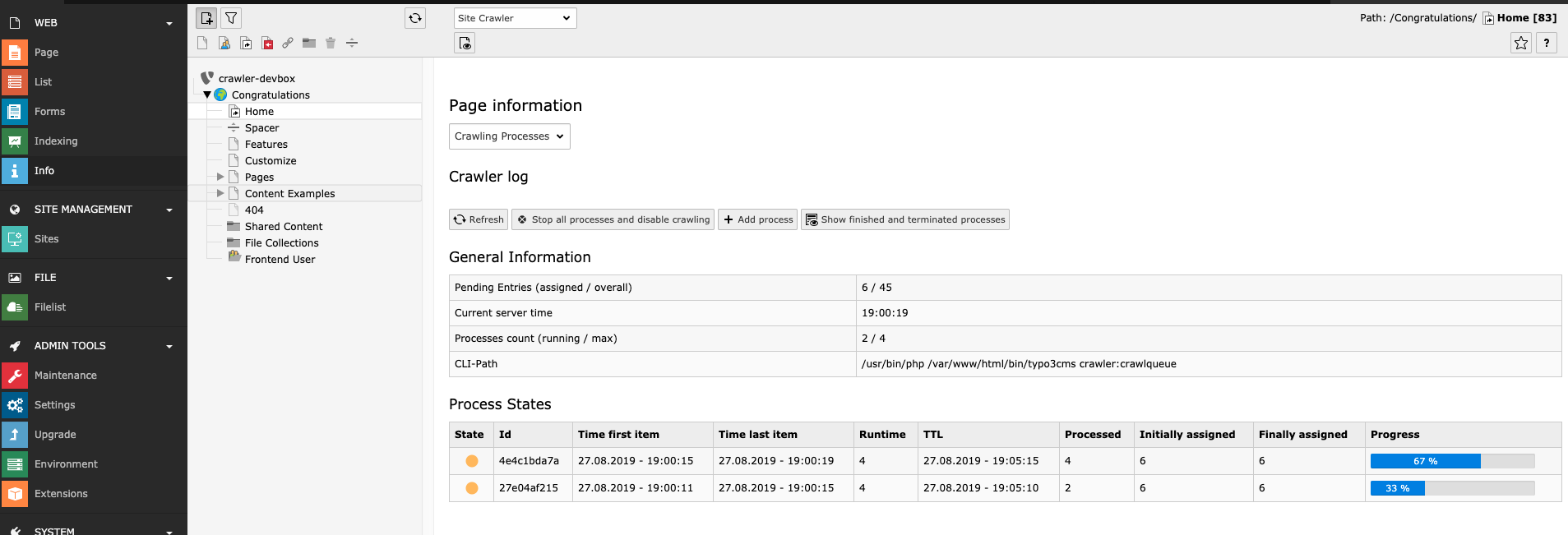
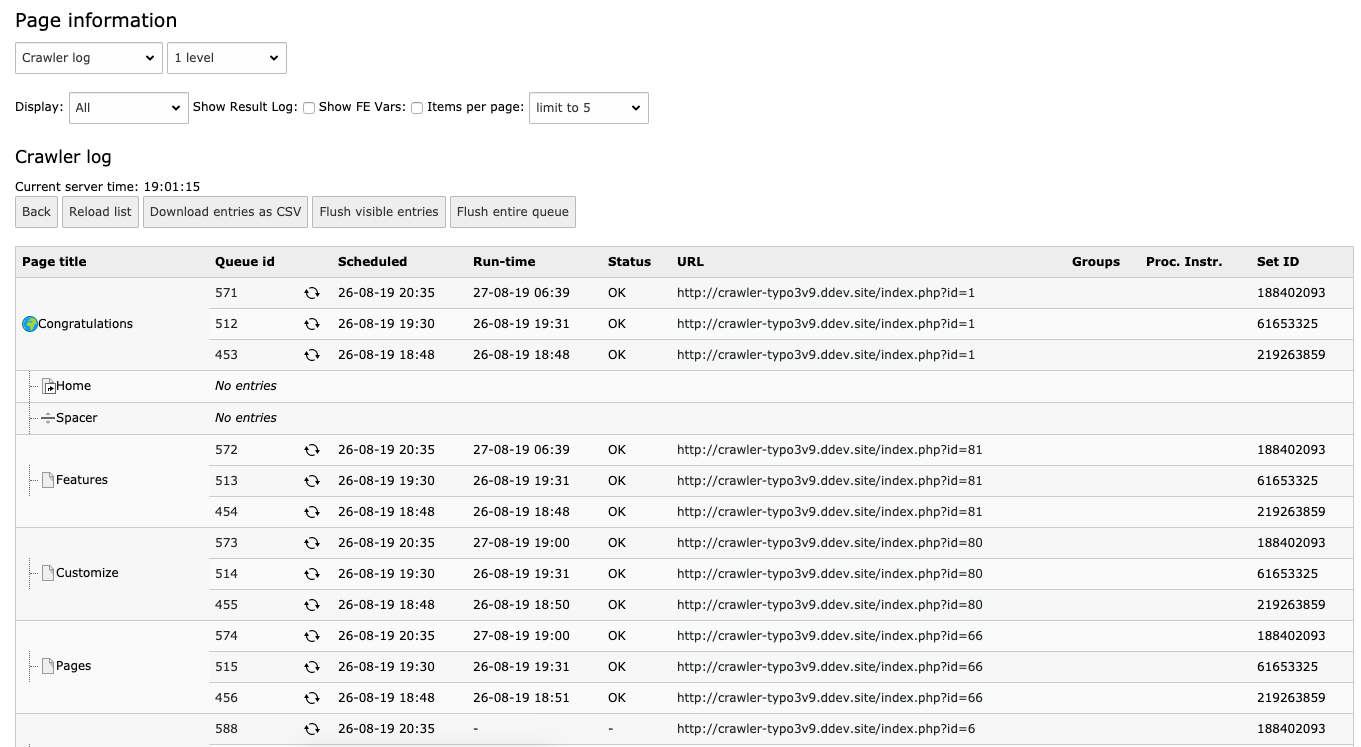
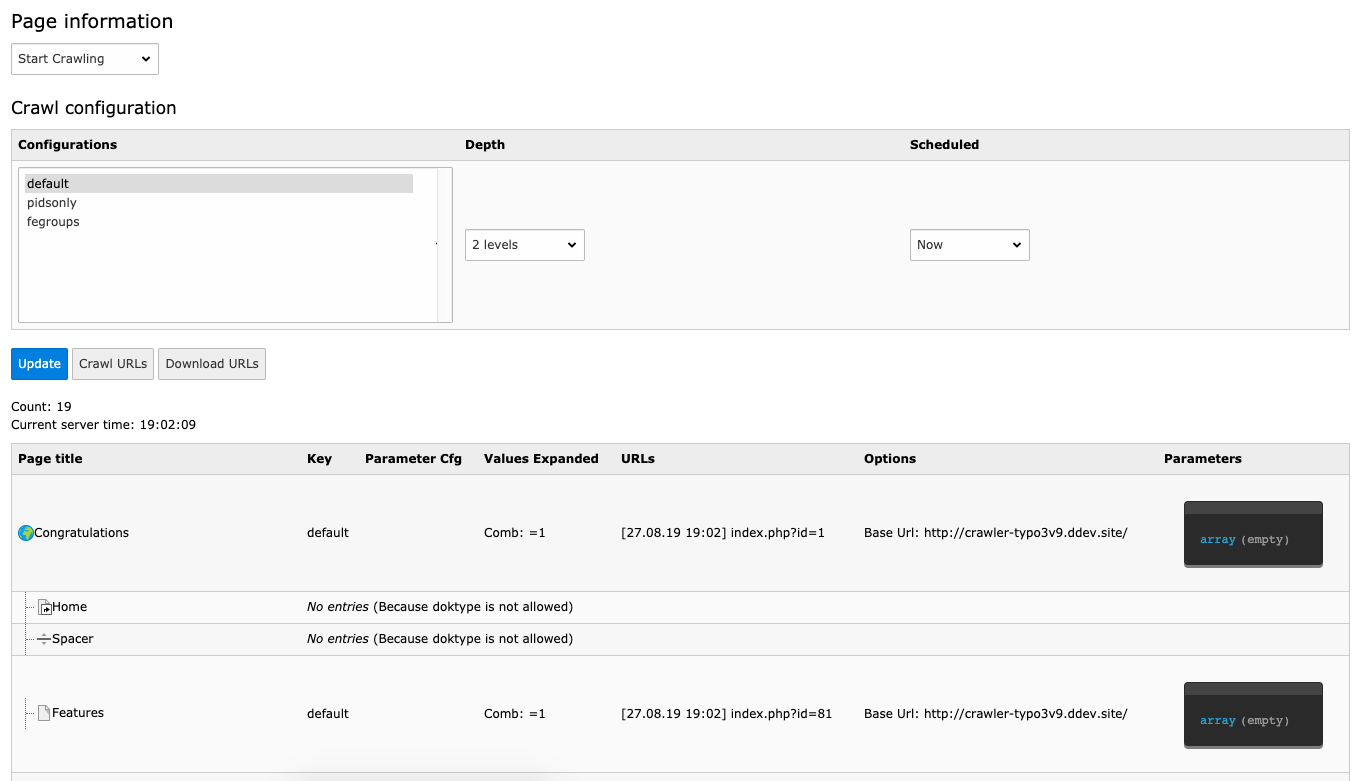
The extension provides a backend module which displays the queue and log and
allows execution and status check of the "cronscript" from the backend for
testing purposes.
A lot of options were added to the extension manager configuration,
that allow settings to improve and enable new crawler features:
Backend configuration: Settings
Backend configuration: Queue
Configuration records
Formerly configuration was done by using pageTS (see below). This is
still possible (fully backwards compatible) but not recommended.
Instead of writing pageTS simply create a configuration record (table:
tx_crawler_configuration) and put it on the topmost page of the
pagetree you want to affect with this configuration.
The fields in these records are related to the pageTS keys described
below.
Fields and their pageTS equivalents
General
Backend configuration record: General
Name
Corresponds to the "key" part in the pageTS setup e.g.
tx_crawler.crawlerCfg.paramSets.myConfigurationKeyName
Comma separated list of page ids which should not be crawled.
You can do recursive exclusion by adding uid+depth e.g. 6+3,
this will ensure that all pages including pageUid 6 and 3 levels down
will not be crawled.
Configuration
Parameter configuration. The values of GET variables are according to a
special syntax. See also: :ref:`paramSets.[key]
<crawler-tsconfig-paramSets-key>`
Processing instruction parameters
Options for processing instructions. Will be defined in the respective third
party modules. See also: :ref:`paramSets.[key].procInstrParams
List of processing instructions, eg. "tx_indexedsearch_reindex" from
indexed_search to send for the request. Processing instructions are
necessary for the request to perform any meaningful action, since they
activate third party activity.
The news extensions is one of the most used extensions in the TYPO3 CMS. This
configuration is made under the assumption with a page tree looking similar to this:
Example Pagetree of EXT:news setup
If you want to have a Crawler Configuration that matches this, you can add
following to the PageTS for PageId 56.
tx_crawler.crawlerCfg.paramSets {
tx_news = &tx_news_pi1[controller]=News&tx_news_pi1[action]=detail&tx_news_pi1[news]=[_TABLE:tx_news_domain_model_news; _PID:58; _WHERE: hidden = 0]
tx_news {
pidsOnly = 57
}
}
# _PID:58 is the Folder where news records are stored.# pidSOnly = 57 is the detail-view PageId.
Copied!
Now you can add the News detail-view pages to the crawler queue and have them in
the cache and the indexed_search index if you are using that.
Respecting Categories in News
On some installations news is configured in such a way, that news of category A
have their detail view on one page and news of category B have their detail view on
another page. In this case it would still be possible to view news of category A on
the detail page for category B (example.com/detail-page-for-category-B/news-of-category-A).
That means that each news article would be crawled twice - once on the detail page
for category A and once on the detail page for category B. It is possible to use a
PSR-14 event with news to prevent this.
On both detail pages include this typoscript setup:
plugin.tx_news.settings {
    # categories and categoryconjunction are not considered in detail view, so they must be overridden
    overrideFlexformSettingsIfEmpty = cropMaxCharacters,dateField,timeRestriction,archiveRestriction,orderBy,orderDirection,backPid,listPid,startingpoint,recursive,list.paginate.itemsPerPage,list.paginate.templatePath,categories,categoryConjunction
    # see the news extension for possible values of categoryConjunction
    categoryConjunction = AND
    categories = <ID of respective category>
    detail.errorHandling = pageNotFoundHandler
}
Copied!
and register an event listener in your site package.
Note that this does more than just prevent articles from being indexed twice. It
actually prevents articles from being displayed on a page that is supposed to show
only articles of a certain category!
Executing the queue
The idea of the queue is that a large number of tasks can be submitted
to the queue and performed over longer time. This could be interesting
for several reasons;
To spread server load over time.
To time the requests for nightly processing.
And simply to avoid max_execution_time of PHP to limit processing
to 30 seconds!
A "cron-job" refers to a script that runs on the server with time
intervals.
For this to become reality you must ideally have a cron-job set up.
This assumes you are running on Unix architecture of some sort. The
crontab is often edited by
crontab -e and you should insert a line
like this:
This will run the script every minute. You should try to run the
script on the command line first to make sure it runs without any
errors. If it doesn't output anything it was successful.
You will need to have a user called _cli_ and you must have PHP installed
as a CGI script as well in /usr/bin/.
The user _cli_ is created by the framework on demand if it does not exist
at the first command line call.
Make sure that the user _cli_ has admin-rights.
In the CLI status menu of the Site Crawler info module
you can see the status:
Status page in the backend
This is how it looks just after you ran the script. (You can also see
the full path to the script in the bottom - this is the path to the
script as you should use it on the command line / in the crontab)
If the cron-script stalls there is a default delay of 1 hour before a
new process will announce the old one dead and run a new one. If a
cron-script takes more than 1 minute and thereby overlaps the next
process, the next process will NOT start if it sees that the "lock-
file" exists (unless that hour has passed).
The reason why it works like this is to make sure that overlapping
calls to the crawler CLI script will not run parallel processes. So
the second call will just exit if it finds in the status file that the
process is already running. But of course a crashed script will fail
to set the status to "end" and hence this situation can occur.
Run via backend
To process the queue you must either set up a cron-job on your server
or use the backend to process the queue:
Process the queue via backend
You can also (re-)crawl single URLs manually from within the Crawler
log view in the info module:
Crawl single URLs via backend
Building and Executing queue right away (from cli)
An alternative mode is to automatically build and execute the queue
from the command line in one process. This doesn't allow scheduling of
task processing and consumes as much CPU as it can. On the other hand
the job is done right away. In this case the queue is both built and
executed right away.
If you run it you will see a list of options which explains usage.
<startPageUid>
<startPageUid>
Type
integer
Page Id of the page to use as starting point for crawling.
<configurationKeys>
<configurationKeys>
Type
string
Configurationkey:
Comma separated list of your crawler configurations. If you use the
crawler configuration records you have to use the "name" if you're
still using the old TypoScript based configuration you have to use the
configuration key which is also a string.
Examples:
re-crawl-pages,re-crawl-news
Copied!
--number <number>
--number <number>
Type
integer
Specifies how many items are put in the queue per minute. Only valid
for output mode "queue".
--mode <mode>
--mode <mode>
Type
string
Default
queue
Output mode: "url", "exec", "queue"
url : Will list URLs which wget could use as input.
queue: Will put entries in queue table.
exec: Will execute all entries right away!
--depth <depth>
--depth <depth>
Type
integer
Default
0
Tree depth, 0-99.
How many levels under the 'page_id' to include. By default, no additional levels are included.
Example
We want to crawl pages under the page "Content Examples" (uid=6) and 2 levels down, with the default crawler configuration.
At this point you have three options for "action":
Commit the URLs to the queue and let the cron script take care of it
over time. In this case there is an option for setting the amount of
tasks per minute if you wish to change it from the default 30. This is
useful if you would like to submit a job to the cron script based
crawler everyday.
Add "--mode queue"
This is also the default setting, so unless you want it to be explicit visible, you don't need to add it.
List full URLs for use with wget or similar. Corresponds to pressing
the "Download URLs" button in the backend module.
Commit and execute the queue right away. This will still put the jobs
into the queue but execute them immediately. If server load is no
issue to you and if you are in a hurry this is the way to go! It also
feels much more like the "command-line-way" of things. And the status
output is more immediate than in the queue.
As seen in Executing the queue you can execute the queue in
multiple ways, but it's no fun doing that manually all the time.
With the Crawler you have the possibility to add Scheduler Tasks to be executed
on a give time. The Crawler commands are implemented with the Symfony Console,
and therefore they can be configured with the Core supported
Execute console commands (scheduler) task.
So how to setup crawler scheduler tasks:
Add a new Scheduler Task
Select the class Execute console commands
Select Frequency for the execution
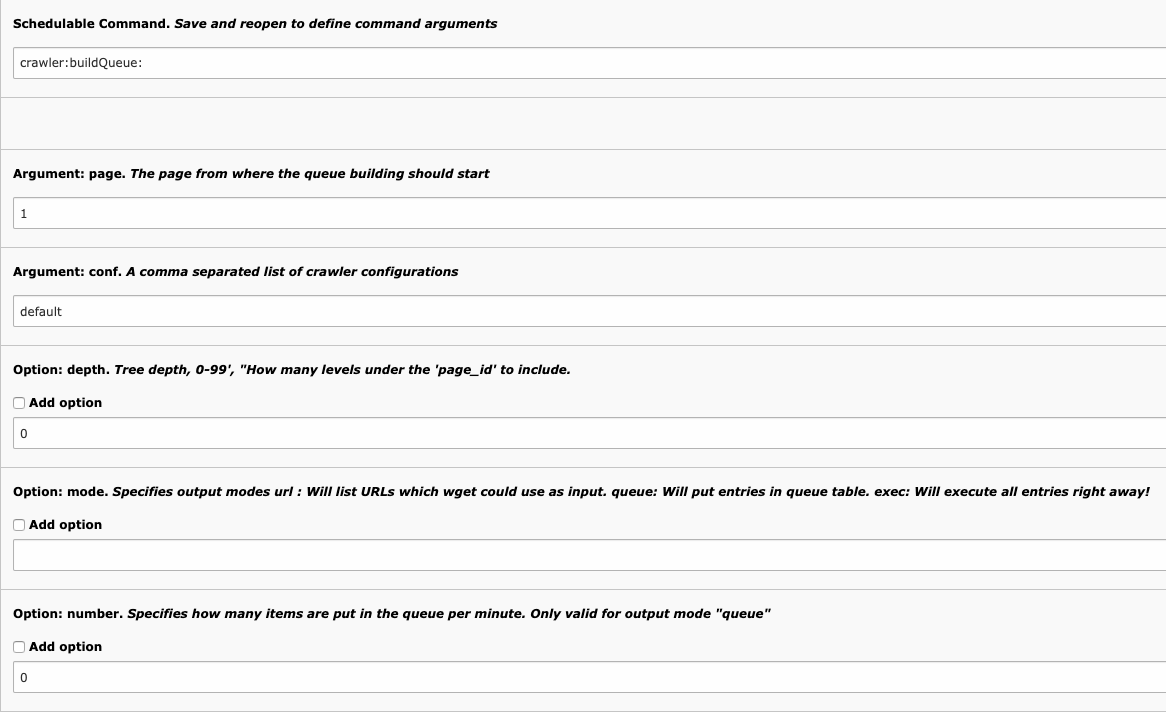
Go to section Schedulable Command. Save and reopen to define
command arguments at the bottom.
Select e.g. crawler:buildQueue (press save)
Select the options you want to execute the queue with, it's important to
check the checkboxes and not only fill in the values.
Now you can save and close, and your scheduler tasks will be running as
configured.
This section is made to show different use cases for the crawler, and what value
it can bring by installing it. The crawler has transformed over the years to
have multiple use cases. If you have some that is not listed here, feel free
to make a PR or issue on https://github.com/tomasnorre/crawler.
To have a website that is fast for the end-user is essential, therefore having a
warm cache even before the first user hits the newly deployed website, will be
beneficial, so how could one achieve this?
The crawler have some command line tools (hereafter cli tools) that can be used,
during deployments. The cli tools is implemented with the symfony/console
which have been standard in TYPO3 for a while.
There are 3 commands that can be of you benefit during deployments.
vendor/bin/typo3 crawler:flushQueue
vendor/bin/typo3 crawler:buildQueue
vendor/bin/typo3 crawler:processQueue
You can see more on which parameters they take in Run via command controller,
this example will provide suggestion on how you can set it up, and you can
adjust with additional parameters if you like.
Create crawler configuration
First we need a crawler configuration these are stored in the database. You
can add it via the backend, see Configuration records.
It's suggested to select the most important pages of the website and add
them to a Crawler configuration called e.g. deployment:
Crawler configuration record
Hint
Let's say your website has frontend users with one or multiple user
groups. In this case you need to create multiple crawler
configurations: For every possible combination of User groups that a
user can have you need to create a individual crawler configuration.
All those crawler configurations need to be added to the
crawler:processQueue command to be considered. If you miss this
some user get a warmed up cache but those with a combination of
user groups which was not taken into account in a crawler configuration
will get an uncached page.
Build the queue
With this only pages added will be crawled when using this configuration. So
how will we execute this from CLI during deployment? I don't know which
deployment tool you use, but it's not important as long as you can execute
shell commands. What would you need to execute?
# Done to make sure the crawler queue is empty, so that we will only crawl important pages.
$ vendor/bin/typo3 crawler:flushQueue all
# Now we want to fill the crawler queue,# This will start on page uid 1 with the deployment configuration and depth 99,# --mode exec crawles the pages instantly so we don't need a secondary process for that.
$ vendor/bin/typo3 crawler:buildQueue 1 deployment --depth 99 --mode exec# Add the rest of the pages to crawler queue and have the processed with the scheduler# --mode queue is default, but it is added for visibility,# we assume that you have a crawler configuration called default
$ vendor/bin/typo3 crawler:buildQueue 1 default --depth 99 --mode queue
Copied!
Process the queue
The last step will add the pages to the queue, and you would need a scheduler
task setup to have them processed. Go to the Scheduler module and
do following steps:
Add a new Scheduler Task
Select the Execute console commands
Select Frequency for the execution
Go to section Schedulable Command. Save and reopen to define
command arguments at the bottom.
Select crawler:processQueue (press save)
Select the options you want to execute the queue with, it's important to
check the checkboxes and not only fill in the values.
Options of the task
With there steps you will have a website that is faster by the first visit after
a deployment, and the rest of the website is crawled automatically shortly
after.
#HappyCrawling
Indexed Search
The TYPO3 Crawler is quite often used to regenerate the index
of Indexed Search.
Frontend indexing setup
Here we will configure indexed_search to automatically index pages when
they are visited by users in the frontend.
Make sure you do not have
config.no_cache
set in your TypoScript configuration - this prevents indexing.
Admin Tools > Settings > Extension configuration > indexed_search:
Make sure "Disable Indexing in Frontend" is disabled
(thus frontend indexing is enabled).
Web > List: In your site root, create a new "Indexing Configuration" record.
Type: Page tree
Depth: 4
Access > Enable: Activate it
Save.
Edit the page settings of a visible page and make sure that
Behaviour > Miscellaneous > Include in search is activated.
View this page in the frontend.
Web > Indexing > Detailed statistics: The page you just visited
is shown as "Indexed" now - with Filename, Filesize and indexing
timestamp.
If this did not work, clear both frontend and all caches.
Getting frontend indexing to work is crucial for the rest of this How-To.
Crawler setup
Now that frontend indexing works, it's time to configure crawler
to re-index all pages - instead of relying on visitors to trigger
indexing:
Admin Tools > Settings > Extension configuration > indexed_search:
Enable "Disable Indexing in Frontend", so that indexing only happens through
the crawler.
Web > List: In your site root, create a new "Crawler configuration" record.
Do a manual crawl on command line. "23" is the site root page UID:
$ ./vendor/bin/typo3 crawler:buildQueue 23 crawl-mysite --depth 2 --mode exec -vvv

Executing 2 requests right away:
[19-08-25 14:13] http://example.org/ (URL already existed)
[19-08-25 14:13] http://example.org/faq (URL already existed)
<warning>Internal:  (Because page is hidden)</warning>
<warning>Tools:  (Because doktype "254" is not allowed)</warning>
Processing

http://example.org/ (tx_indexedsearch_reindex) =>

OK:
   User Groups:

http://example.org/faq (tx_indexedsearch_reindex) =>

OK:
   User Groups:

2/2 [============================] 100%  1 sec/1 sec  42.0 MiB
Copied!
Web > Indexing: All pages should be indexed now.
Nightly crawls
We want crawler to run automatically at night:
Create the first scheduler task that will create a list with page URLs
that the second task will crawl.
System > Scheduler > +:
"Class" is "Execute console commands"
"Frequency" is every night at 2 o'clock: 0 2 * * *
"Schedulable Command" must be "crawler:buildQueue"
Save and continue editing:
"Argument: page" must be the UID of the site root page (23)
"Argument: conf" is crawl-mysite
"Option: depth" must be enabled and set to 99
Save.
Run the task manually, either via the scheduler module in the backend
or via command line:
$ ./vendor/bin/typo3 scheduler:run --task=1 -f -vv
Task #1 was executed
Copied!
(1 is the scheduler task ID)
Verify that the pages have been queued by looking at
Web > Info > Site Crawler > Crawler log > 2 levels.
The pages have a timestamp in the "Scheduled" column.
Create the second scheduler task that will index all the page URLs
queued by the first task:
System > Scheduler > +:
"Class" is "Execute console commands"
"Frequency" is every 10 minutes: */10 * * * *
"Schedulable Command" must be "crawler:processQueue"
Save and continue editing:
"Option: amount" should be 50, or any value that the system is
able to process within the 10 minutes.
Save.
Run the task manually, again via the scheduler module in the backend
(only if it's a small page!) or via command line:
$ ./vendor/bin/typo3 scheduler:run --task=2 -f -vv
Task #2 was executed
Copied!
This crawl task will run much longer that the queue task.
Verify that the pages have been indexed by looking at
Web > Indexing.
All queued pages should have an index date now.
Web > Info > Site Crawler > Crawler log > 2 levels
should show a timestamp in the "Run-time" column, as well as
OK in the "Status" column.
This completes the basic crawler setup.
Every night at 2:00, all pages will be re-indexed in batches of 50.
With this feature, you will automatically add pages to the crawler queue
when you are editing content on the page, unless it's within a workspace, then
it will not be added to the queue before it's published.
This functionality gives you the advantages that you would not need to keep track
of which pages you have edited, it will automatically be handle on next crawler
process task, see Executing the queue. This ensure that
your cache or e.g. Search Index is always up to date and the end-users will see
the most current content as soon as possible.
Clear Page Single Cache
As the edit and clear page cache function is using the same dataHandler hooks,
we have an additional feature for free. When you clear the page cache for a specific
page then it will also be added automatically to the crawler queue. Again this will
be processed during the next crawler process.
Clearing the page cache
Page is added to the crawler queue
Pollable processing instructions
Changed in version 13.0.0
The pollable functionality has been removed, as it was never really used
to my knowledge, if we need to reimplement it, we would go a different route.
Please reach out, if you need this functionality.
Some processing instructions are never executed on the "client side"
(the TYPO3 frontend that is called by the crawler). This happens for
example if a try to staticpub a page containing non-cacheable
elements. That bad thing about this is, that staticpub doesn't have
any chance to tell that something went wrong and why. That's why we
introduced the "pollable processing instructions" feature. You can
define in the ext_localconf.php file of your extension that this
extension should be "pollable" bye adding following line:
In this case the crawler expects the extension to tell if everything
was ok actively, assuming that something went wrong (and displaying
this in the log) is no "success message" was found.
In your extension than simple write your "ok" status by calling this:
If you want to optimize the crawling process for speed (instead of low
server stress), maybe because the machine is a dedicated staging
machine you should experiment with the new multi process features.
In the extension settings you can set how many processes are allowed to
run at the same time, how many queue entries a process should grab and
how long a process is allowed to run. Then run one (or even more)
crawling processes per minute. You'll be able to speed up the crawler quite a lot.
But choose your settings carefully as it puts loads on the server.
Backend configuration: Processing
Hooks
Register the following hooks in ext_localconf.php of your extension.
excludeDoktype Hook
By adding doktype ids to following array you can exclude them from
being crawled:
You can register your own PSR-14 Event Listener and extend the functionality of the
TYPO3 Crawler. In this section you will see which events that you can listen too.
With this event, you can implement your own logic whether a page should be skipped
or not, this can be basically a skip by uid, like in the example below. It can
also be a more complex logic that determines if it should be skipped or not.
Let's say you don't want to crawl pages with SEO priority 0.2 or lower.
This would then be the place to add your own listener to Modify the Skip Page logic
already implemented.
This event enables you to trigger, e.g a Vanish Ban for a specific URL after it's freshly
crawled. This ensures that your varnish cache will be up to date as well.
The InvokeQueueChangeEvent enables you to act on queue changes, it can be
e.g. automatically adding new processes. The event takes a Reason as arguments
which gives you more information about what has happened and for GUI also by
whom.
<?phpdeclare(strict_types=1);
namespaceMyVendor\MyExtension\EventListener;
useAOE\Crawler\Event\InvokeQueueChangeEvent;
finalclassInvokeQueueChangeEventListener{
publicfunction__invoke(InvokeQueueChangeEvent $invokeQueueChangeEvent){
$reason = $invokeQueueChangeEvent->getReasonText();
// You can implement different logic based on reason, GUI or CLI
}
}
Copied!
Register your event listener in Configuration/Services.yaml
AfterUrlAddedToQueueEvent gives you the opportunity to trigger desired actions based on
e.g. which fields are changed. You have uid and fieldArray present for evaluation.
<?phpdeclare(strict_types=1);
namespaceMyVendor\MyExtension\EventListener;
useAOE\Crawler\Event\AfterUrlAddedToQueueEvent;
finalclassAfterUrlAddedToQueueEventListener{
publicfunction__invoke(AfterUrlAddedToQueueEvent $afterUrlAddedToQueueEvent): void{
// Implement your wanted logic, you have the `$uid` and `$fieldArray` information
}
}
Copied!
Register your event listener in Configuration/Services.yaml
This event can be used to check or modify a queue record before adding it to
the queue. This can be useful if you want certain actions in place based on, let's
say Doktype or SEO Priority.
<?phpdeclare(strict_types=1);
namespaceMyVendor\MyExtension\EventListener;
useAOE\Crawler\Event\BeforeQueueItemAddedEvent;
finalclassBeforeQueueItemAddedEventListener{
publicfunction__invoke(BeforeQueueItemAddedEvent $beforeQueueItemAddedEvent){
// Implement your wanted logic, you have the `$queueId` and `$queueRecord` information
}
}
Copied!
Register your event listener in Configuration/Services.yaml
The AfterQueueItemAddedEvent can be helpful if you want a given action after
the item is added. Here you have the queueId and fieldArray information for you
usages and checks.
<?phpdeclare(strict_types=1);
namespaceMyVendor\MyExtension\EventListener;
useAOE\Crawler\Event\AfterQueueItemAddedEvent;
finalclassAfterQueueItemAddedEventListener{
publicfunction__invoke(AfterQueueItemAddedEvent $afterQueueItemAddedEvent){
// Implement your wanted logic, you have the `$queueId` and `$fieldArray` information
}
}
Copied!
Register your event listener in Configuration/Services.yaml
Some website has a quite large number of pages. Some pages are logically more
important than others e.g. the start-, support-, product-, you name it-pages.
These important pages are also the pages where we want to have the best caching
and performance, as they will most likely be the pages with the most changes and
the most traffic.
With TYPO3 10 LTS the sysext/seo introduced among other things, the
sitemap_priority, which is used to generate an SEO optimised sitemap.xml
where page priorities are listed as well. Their priorities will most likely be higher the
more important the page is for you and the end-user.
This logic is something that we can benefit from in the Crawler as well. A
Website with let us say 10.000 pages, will have different importance depending on
the page you are at. Therefore we have changed the functionality of the crawler,
to take the value of this field, range from 0.0 to 1.0, into consideration when
processing the crawler queue. This means that if you have a page with high priority
for your sitemap, it will also be crawled first when a new crawler process is
added.
This ensures that we will always crawl the pages that have the highest importance to
you and your end-user based on your sitemap priority. We choose to
reuse this field, to not have editors doing work that is more or less similar twice.
If you don't want to use this functionality, it's ok. You can just ignore the
options that the sysext/seo gives you and all pages will by default get a priority
0.5, and therefore do not influence the processing order as everyone will have the
same priority.
The existing SEO tab will be used to set priorities when editing
pages.
The SEO tab will contain the sitemap_priority field
With the crawler release 9.1.0 we have changed the data stores in crawler queue
from serialized to json data. If you are experiencing problems with the old data
still in your database, you can flush your complete crawler queue and the
problem should be solved.
$ vendor/bin/typo3 crawler:flushQueue all
Copied!
Make Direct Request doesn't work
If you are using direct request, see Extension Manager Configuration,
and it doesn't give you any result, or that the scheduler tasks stalls.
It can be because of a faulty configured TrustedHostPattern, this can be
changed in the LocalConfiguration.php.
Crawler want process all entries from command line
The crawler won't process all entries at command-line-way. This might
happened because the php run into an time out, to avoid this you can
call the crawler like:
If you experiences that the crawler queue only adds one url to the queue, you
are probably on a new setup, or an update from TYPO3 8LTS you might have some
migration not executed yet.
Please check the Upgrade Wizard, and check if the
Introduce URL parts ("slugs") to all existing pages is marked as
done, if not you should perform this step.
If you update the extension from older versions you can run into following error:
SQL error: 'Field 'sys_domain_base_url' doesn't have a default value'
Copied!
Make sure to delete all unnecessary fields from database tables. You can do
this in the backend via Analyze Database Structure tool or if you
have TYPO3 Console
installed via command line command
vendor/bin/typo3cms database:updateschema.
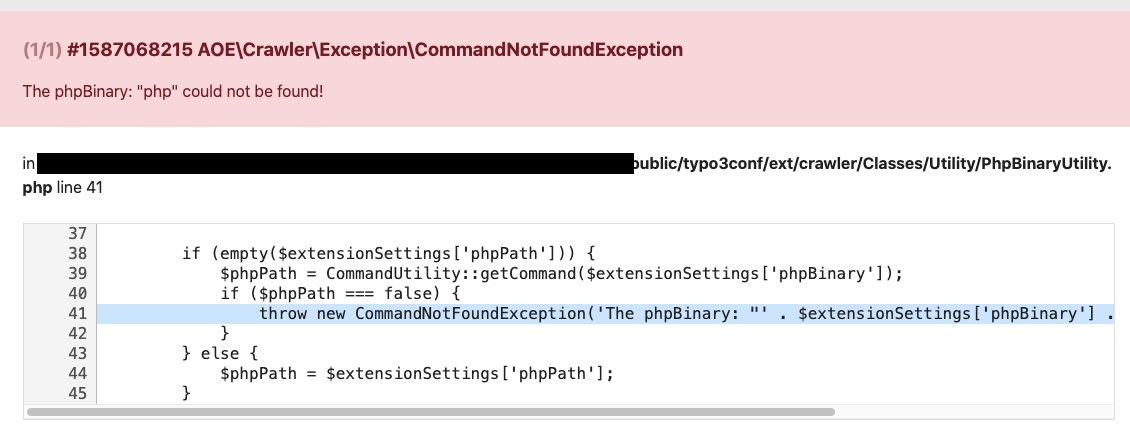
TYPO3 shows error if the PHP path is not correct
In some cases you get an error, if the PHP path is not set correctly. It occures
if you select the Site Crawler in Info-module.
Error message in Info-module
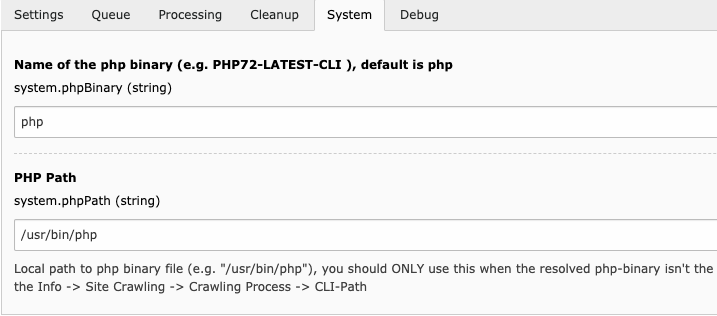
In this case you have to set the path to your PHP in the Extension configuration.
Correct PHP path settings in Extension configuration
Please be sure to add the correct path to your PHP. The path in this screenshot
might be different to your PHP path.
Info Module throws htmlspecialchars() expects parameter 1 to be string
We have had a bug in the Crawler for a while, which I had difficulties
figuring out. The bug is cause by a problem with the CrawlerHook in the
TYPO3 Core, as this is remove in TYPO3 11.
I will not try to provide a fix for this, but only a workaround.
Workaround
The problem appears when the Crawler Configuration and the Indexed_Search Configuration are stored on the same page. The workaround is then to move the Indexed_Search Configuration to a different page. I have not experience any side-effects on this change, but if you do so, please report them to me.
Here a int value is submitted instead of a String. This is a change that goes more than 8 years back.
So surprised that it never was a problem before.
Crawler Log shows "-" as result
In Crawler v11.0.0 after introducing PHP 8.0 compatibility. We are influenced by a bug in the PHP itself
https://bugs.php.net/bug.php?id=81320, this bugs make the Crawler status an invalid JSON and can therefore
not render the correct result. It will display the result in the Crawler Log as -.
Even though the page is correct crawler, the status is incorrect, which is of course not desired.
Workaround
On solution can be to remove the php8.0-uploadprogress package from your server. If this version is below
1.1.4, this will trigger the problem. Removing the package can of course be a problem if you are depending on it.
If possible, better update it to 1.1.4 or higher, then the problem should be solved as well.
Site config baseVariants not used
An issue was reported for the Crawler, that the Site Config baseVariants was not respected by the Crawler.
https://github.com/tomasnorre/crawler/issues/851, it turned out that crawler had problems with ApplicationContexts
set in .htaccess like in example.
<IfModule mod_rewrite.c>
   # Rules to set ApplicationContext based on hostname
   RewriteCond %{HTTP_HOST} ^(.*)\.my\-site\.localhost$
   RewriteRule .? - [E=TYPO3_CONTEXT:Development]
   RewriteCond %{HTTP_HOST} ^(.*)\.mysite\.info$
   RewriteRule .? - [E=TYPO3_CONTEXT:Production/Staging]
   RewriteCond %{HTTP_HOST} ^(.*)\.my\-site\.info$
   RewriteRule .? - [E=TYPO3_CONTEXT:Production]
</IfModule>