Installation 

Install this extension via Composer:

composer require traw/powermail-salesforce
Copied!

Alternatively, add it to your project's composer.json file:

"require": {
    "typo3/cms-core": "^12 || ^13",
    "traw/powermail-salesforce": "^1.0"
}
Copied!

If the package evoweb/extender is installed (for example as a dependency of another extension), this extension will automatically use its mechanisms to extend the Form and Field models. No additional configuration is required.

Configuration 

After installation, make sure to include the extension's Site-Set or Typoscript Template.

If you don't need to enable the debug mode, no further configuration is necessary.

Backend user settings 

All settings described in the Editors manual are configured as exclude fields.

This means each field must be explicitly allowed for the editor user or user group.

Allow relevant fields 

Switch to the Backend Users > Backend user groups module

Edit the appropriate user group and switch to the Access Rights tab.

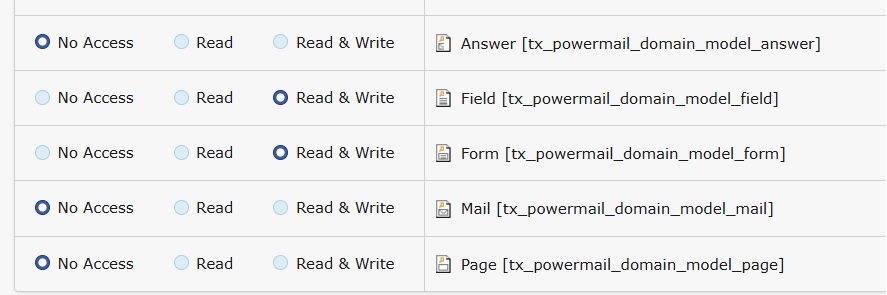
EXT:powermail's Form and Field tables permissions

Allow EXT:powermail's Form and Field tables

In the Allowed excludefields section of the same group, follow these steps to enable the necessary fields:

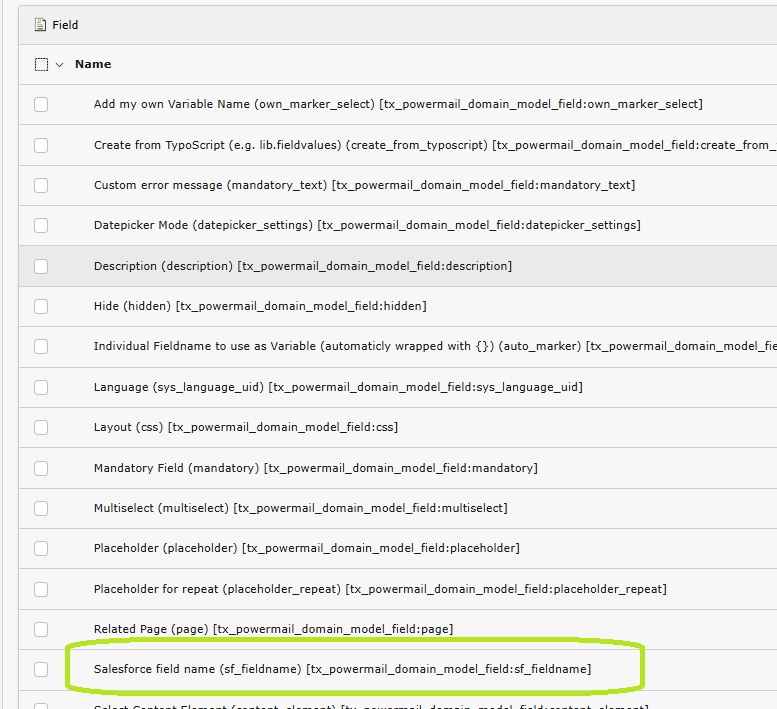
  1. Go to the Field table. Here, the administrator decides which fields the editor is allowed to see and use. Allow the following fields:

    • Salesforce field name (sf_fieldname) [tx_powermail_domain_model_field:sf_fieldname]
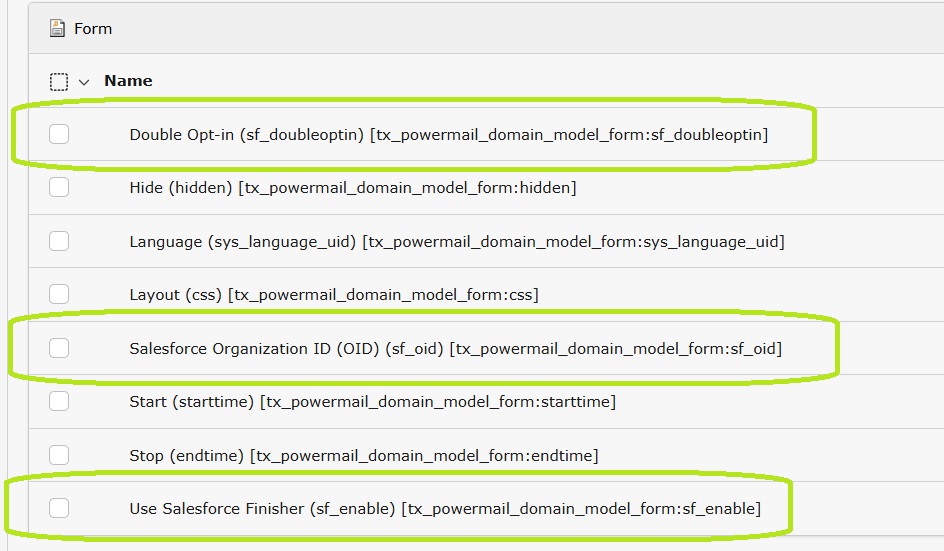
  2. Go to the Form table. The administrator determines which fields are accessible to the editor. Allow the following fields:

    • Use Salesforce Finisher (sf_enable) [tx_powermail_domain_model_form:sf_enable]
    • Salesforce Organization ID (OID) (sf_oid) [tx_powermail_domain_model_form:sf_oid]
Fields to allow in the Field table

Allow the applicable fields for the Field table

Fields to allow in the Form table

Allow the applicable fields for the Form table

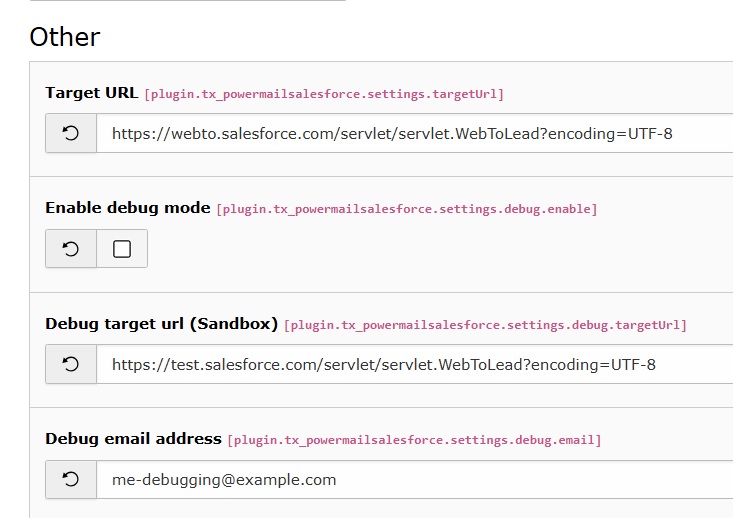
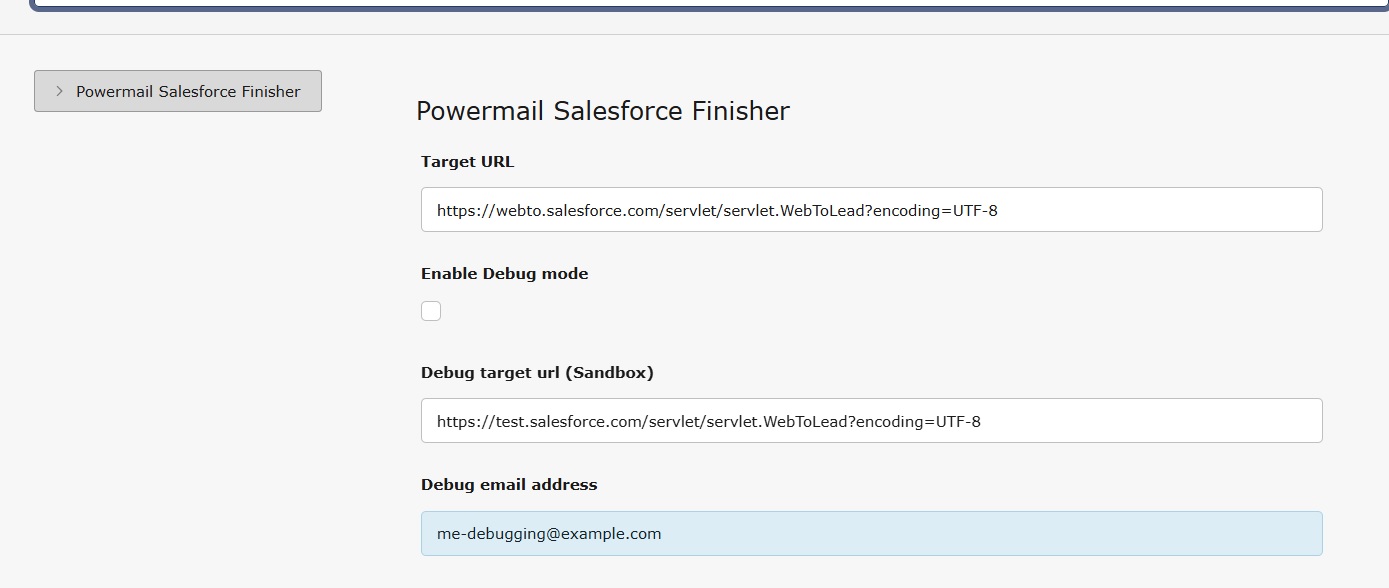
Debug mode 

Depending on how you included the extension's configuration you have 2 options:

A) via Constants editor/ TypoScript Constants 

Constant Editor settings

Use the constant editor to enable debug mode (Don't forget your email address!)

B) via Site Settings 

Site settings

Use the site settings to enable debug mode (Don't forget your email address!)

Debugging checklist 

In case data is not transferred, here are a few things you can check:

  1. Did you include the extension's Typoscript (Either in Sys-Template or Site Settings)?
  2. Is the field Use Salesforce Finisher enabled in the affected form?
  3. Is the Salesforce Organization ID (OID) correct in the affected form?
  4. Did you enable/ disabled Debug Mode?

Editors Manual 

This chapter describes how to manage the connection between Powermail forms and Salesforce.

Forms 

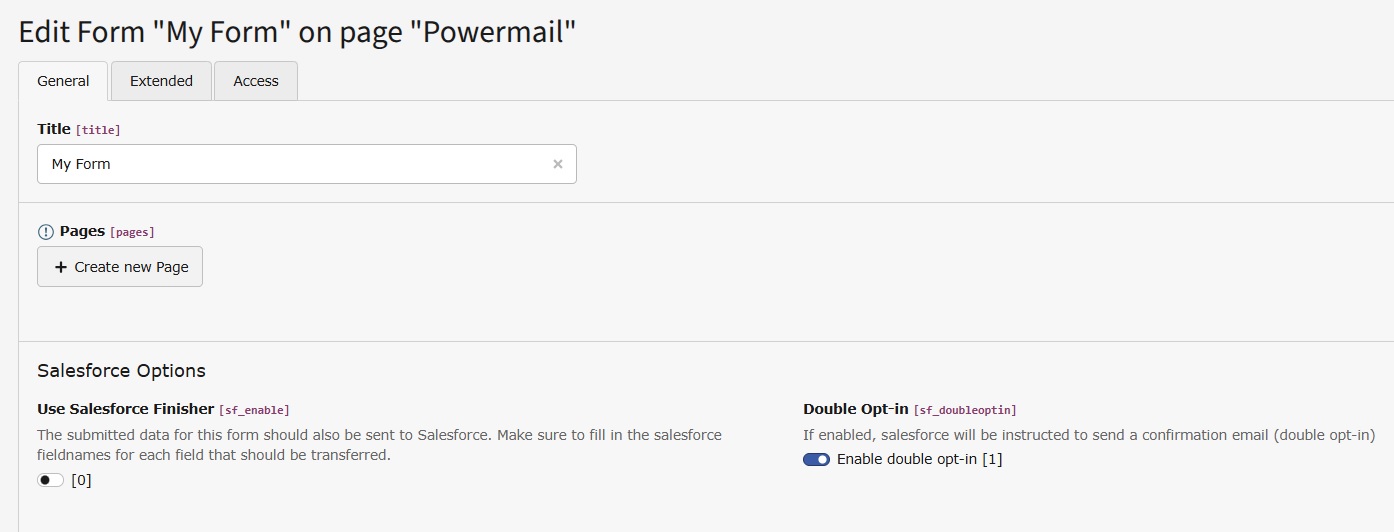
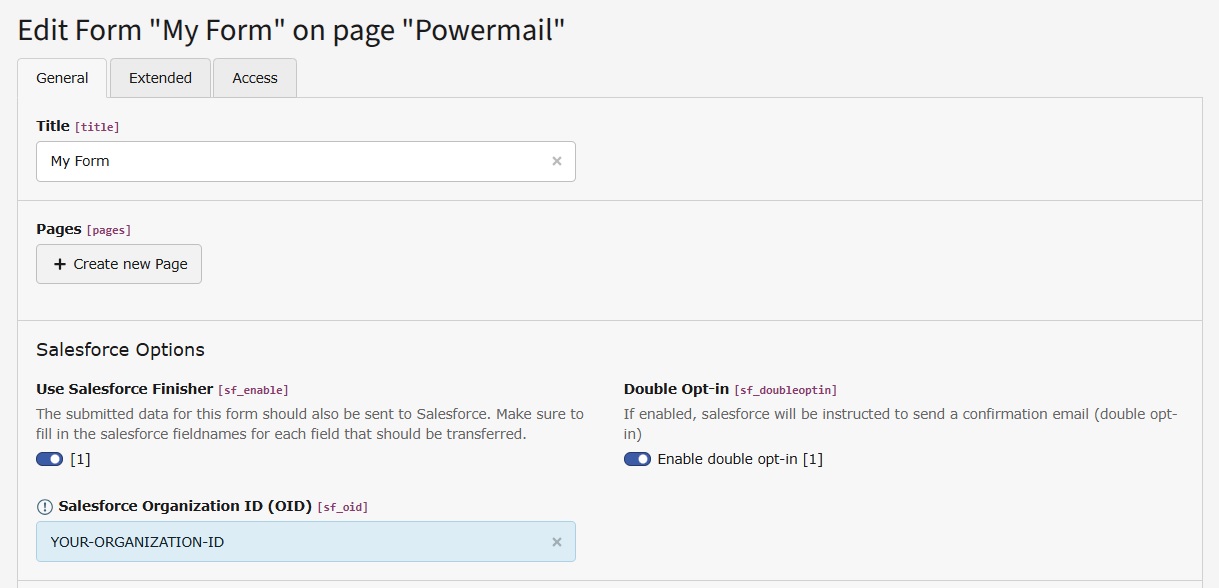
With this extension the powermail Forms get 3 extra fields at the bottom.

Use Salesforce Finisher 

If enabled, the submitted data for this form is transmitted to Salesforce after submit.

Salesforce Organization ID (OID) 

Enter your Salesforce Organization ID / orgId / OID. This is required if you enable the Salesforce Finisher for this form.

Configuration in a Form when Salesforce Finisher is disabled

Configuration in a Form when Salesforce Finisher is disabled

Configuration in a Form

Configuration in a Form when Salesforce Finisher is enabled

Fields 

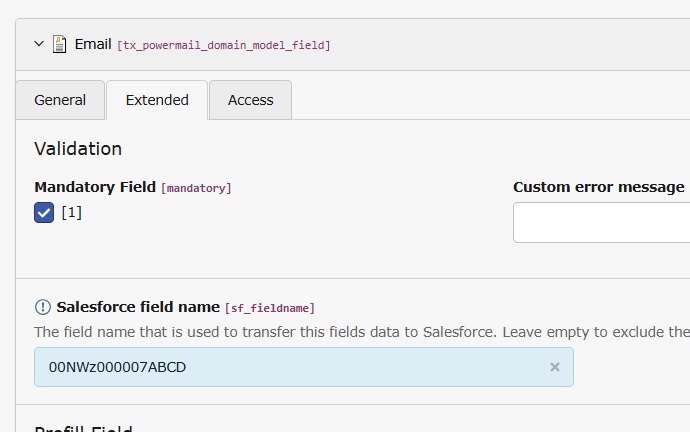
With this extension the powermail Fields get 1 extra field in the extended tab:

Salesforce field name 

Depending on your configuration in Salesforce WebToLead, enter the fieldname of the WebToLead-Form

Configuration in a Field

Configuration in a Field

Transmitting specific values 

For select, multiselect, checkbox or radio fields, make sure the correct values are submitted.

The values that are transmitted to Salesforce must exactly match the values configured in WebToLead.

Example 1 A typical data protection checkbox should only transfer the value 1 when checked

Enter the checkbox text followed by |1:

By checking this checkbox I say that I checked the Lorem ipsum data protection|1
Copied!

Example 2: A single select box with some very specific values

We use the same approach, enter the labels followed by | and the value that should be transmitted:

– Keine –|
Produkt 1|Product_Value_foo
Produkt 2|Product_Value_bar
Produkt 3|Product_Value_baz
Copied!

See Option examples for selectbox

Powermail plugin 

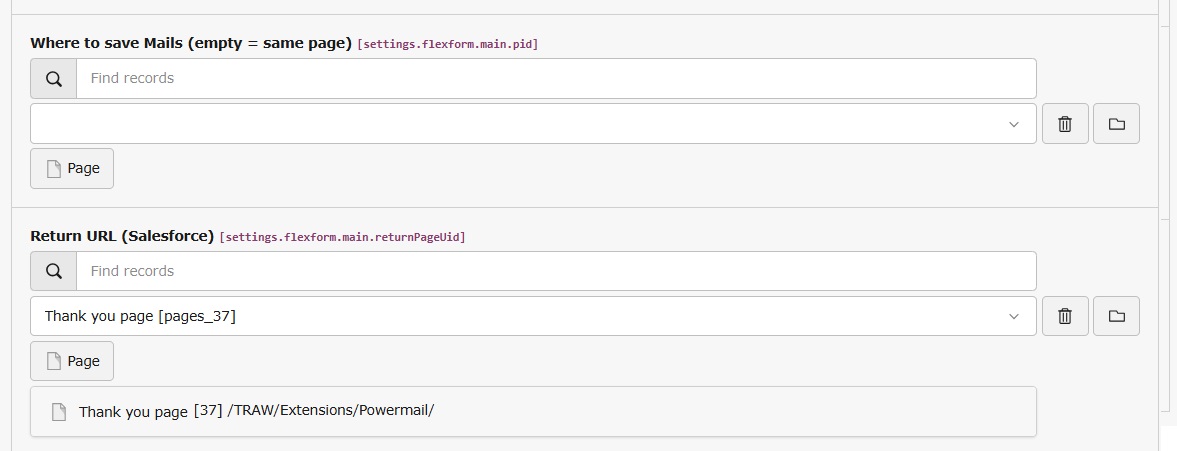
In the powermail plugin there's a new optional field to set the Salesforce Return URL

This field is used to generate the Return URL, which is transmitted to Salesforce.WebToLead

If the field is empty, the field Redirect to any other Page after submit field is used instead.

If that field is empty as well, the uid of the page where the form is rendered is used instead.

Return URL field in the plugin

Return URL field in the plugin

Sitemap