Video VTT 

Extension key

video_vtt

Package name

traw/video-vtt

Version

main

Language

en

Authors

Thomas Rawiel and contributors

Rendered

Wed, 03 Dec 2025 18:35:55 +0000


What does it do? 

Video VTT extends the file metadata of video files. You can add text tracks and time-based data. (see WebVTT_API)

Additionally, the extension extends the TYPO3 video functionality with poster images and more video controls


Editors manual 

Learn how to use the video controls, set up text-tracks and time-based data or add a poster image to your video

Administrators manual 

Install EXT:video_vtt, learn how to configure the extension for your editors

Table of Contents
Installation 

The extension needs to be installed like any other extension of TYPO3 CMS. Get the extension by one of the following methods:

  1. Use composer: Run

    composer require traw/video-vtt
    Copied!

    in your TYPO3 installation.

  2. Get it from the Extension Manager: Switch to the module Admin Tools > Extensions. Switch to Get Extensions and search for the extension key video_vtt and import the extension from the repository.
  3. Get it from typo3.org: You can always get current version from TER by downloading the zip version. Upload the file afterwards in the Extension Manager.

Configuration 

After installation, no additional configuration is needed.

Only the backend user settings have to be changed

Backend user settings 

All settings described in the Editors manual are configured as exclude fields.

This means each field must be explicitly allowed for the editor user or user group.

Allow text-tracks and video controls 

Switch to the Backend Users > Backend user groups module

Edit the appropriate user group and switch to the Access Rights tab.

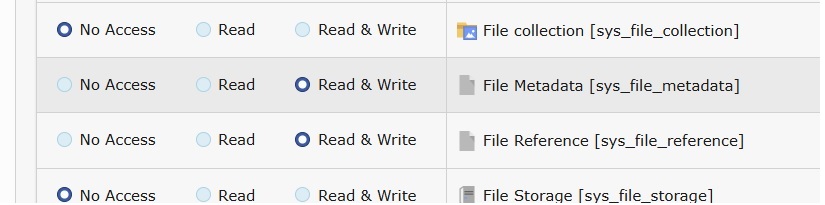
File Metadata and File Reference tables permissions

Allow the File Metadata and File Reference tables

In the Allowed excludefields section of the same group, follow these steps to enable the necessary fields:

  1. Go to the File Metadata table. Here, the administrator decides which fields the editor is allowed to see and use. Allow the following fields:
  • Poster Image (poster) [sys_file_metadata:poster]
  • Text Tracks and Time-based Data (tracks) [sys_file_metadata:tracks]
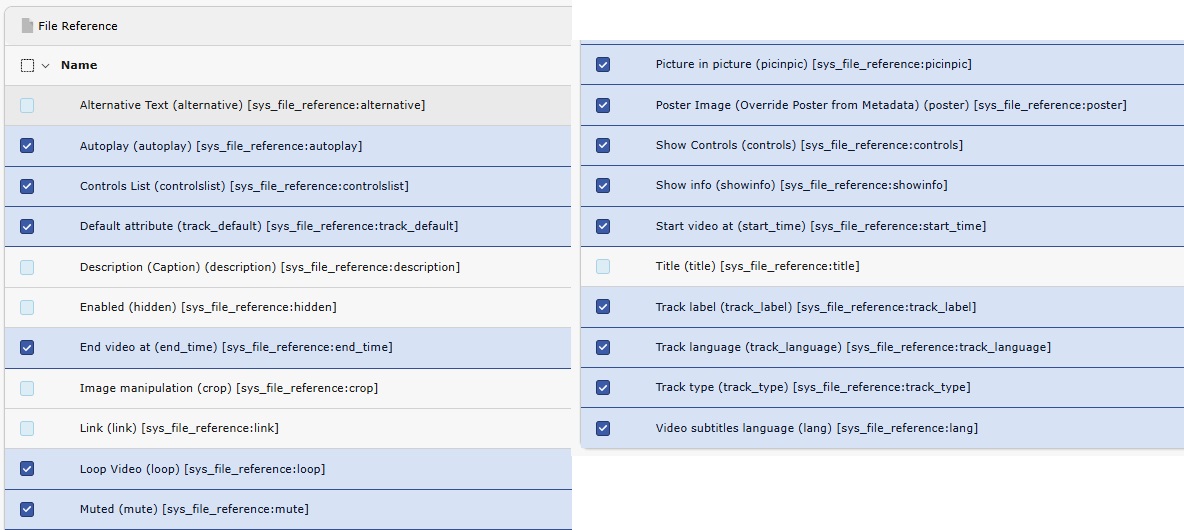
  1. Go to the File Reference table. The administrator determines which fields are accessible to the editor. Allow the following fields:

    • Video Controls:
      • Loop Video (loop) [sys_file_reference:loop]
      • Muted (mute) [sys_file_reference:mute]
      • Show Controls (controls) [sys_file_reference:controls]
      • Show info (showinfo) [sys_file_reference:showinfo]
      • Picture in picture (picinpic) [sys_file_reference:picinpic]
      • Controls List (Chromium Browsers) (controlslist) [sys_file_reference:controlslist]
      • Start video at (start_time)
      • End video at (end_time)
      • Video subtitles language (lang)
    • Poster Image:
      • Poster Image (Override Poster from Metadata) (poster) [sys_file_reference:poster]
    • Tracks and time-based data:
      • Default attribute (track_default) [sys_file_reference:track_default]
      • Track label (track_label) [sys_file_reference:track_label]
      • Track language (track_language) [sys_file_reference:track_language]
      • Track type (track_type) [sys_file_reference:track_type]
Fields to allow in the File Reference table

Allow the applicable fields for the File Reference table

Text tracks and time-based data 

Switch to the module File > Filelist.

Select the video you want to add the VTT file to, then edit its metadata

Switch to the Video tab, then add or upload one or more VTT files.

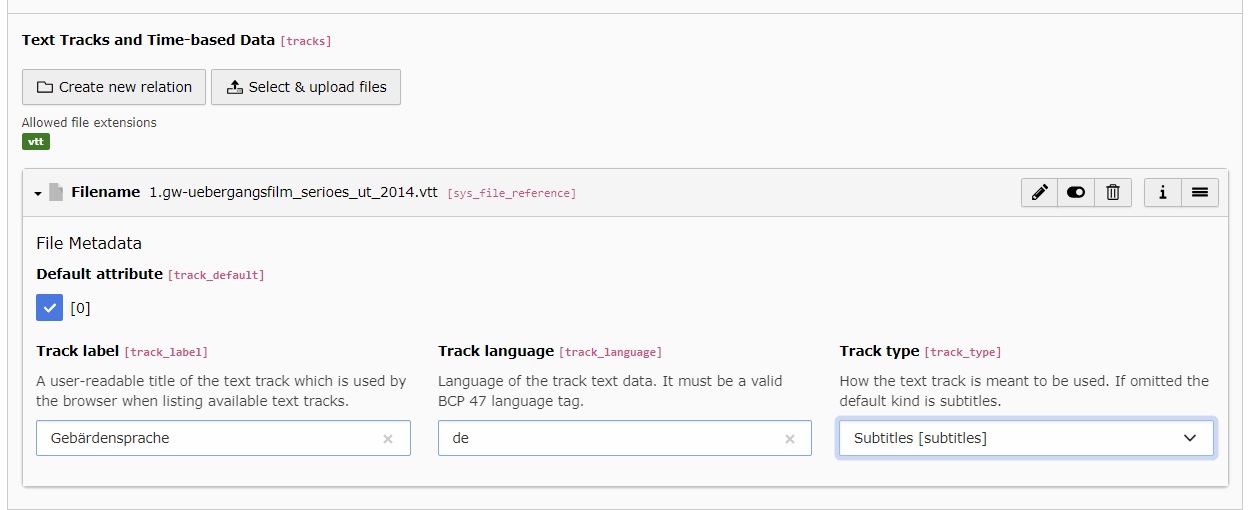
Add VTT file(s) to self-hosted video

Add VTT file(s) to a self-hosted video in the backend

Available text track fields 

Track label

A user-readable title of the text track which is used by the browser when listing available text tracks.

Track language

Language of the track text data. It must be a valid BCP 47 language tag. (e.g. de, en, etc.)

Track type

How the text track is meant to be used. (subtitles, captions, chapters, etc.)

Default attribute

When active, adds the 'default' attribute to the rendered track.

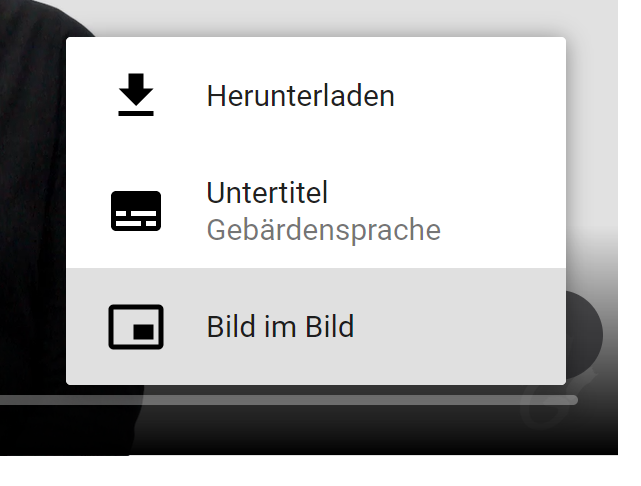
Frontend rendering in the default video player

Example frontend rendering in the default video player

Video controls 

For YouTube, Vimeo and self-hosted videos you can set certain attributes which are added to the video tag in the frontend.

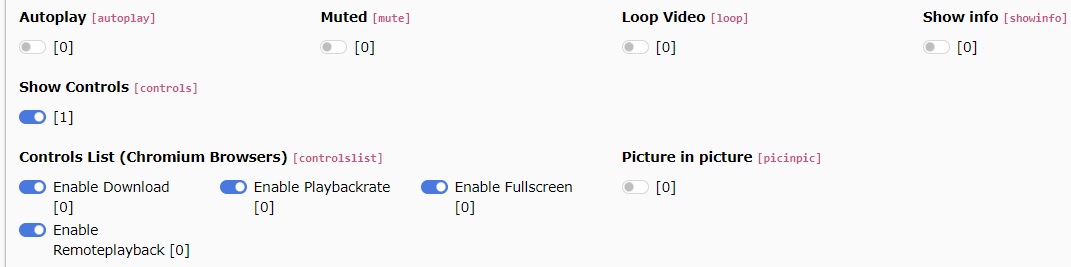
Available control switches in a video file reference

Available control switches in a video file reference

List of available video controls 

The following options allow you to customize the behavior and appearance of your videos. Each control may apply to different video sources—YouTube, Vimeo, or self-hosted video files. Check the notes for which types each option affects.

Autoplay

Automatically play the video when the website is loaded.

Muted

Mute the video.

Loop Video

Automatically restart the video when it’s finished playing.

Show info

Show YouTube-specific information like the video title or uploader before playback begins.

Show Controls

Display the player’s controls (play button, time track, etc.).

Controls List (Chromium Browsers)

Additional controls available in Chromium browsers (Google Chrome, MS Edge, etc.). Requires Show Controls to be enabled.

YouTube & Vimeo: Fullscreen only

Self-hosted videos: Fullscreen, Enable Download, Enable Playback Rate, Enable Remote Playback

Picture in Picture

Add picture-in-picture mode for the video.

Start video at

Begin playback at a specific point in the video instead of starting from the beginning. Enter the time in seconds.

End video at

Stop playback at a specific point in the video rather than playing until the end. Enter the time in seconds.

Video subtitles language

Select the language for the YouTube subtitles. Only languages available for the current video will be applied. When set, subtitles are automatically loaded and displayed in the chosen language.

Poster Image 

For self-hosted videos, e.g. mp4 you can add a poster image that is added to the video.

You can set a poster image either in the video's metadata or in the file reference of the content element where the video is used.

Add poster image in file metadata 

Switch to the module File > Filelist.

Select the video where you want to add the poster image and edit the metadata of the file

Edit video metadata

Click the pencil button to edit the video's metadata

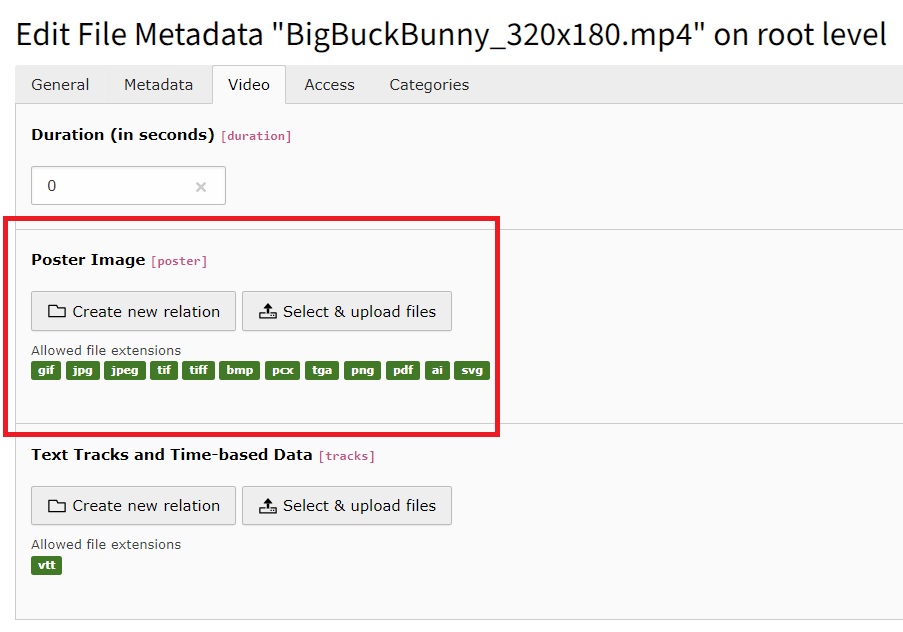
Switch to the Video tab and add or upload an image for the Poster image field

Switch to the video tab and add an image

Add an existing or upload a new image file, that should be used as the video's poster image

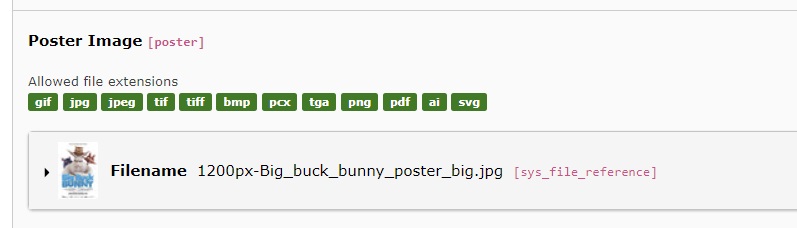
Image has been added

When the image has been added, click Save

Add poster image in file references 

For example in a textmedia element.

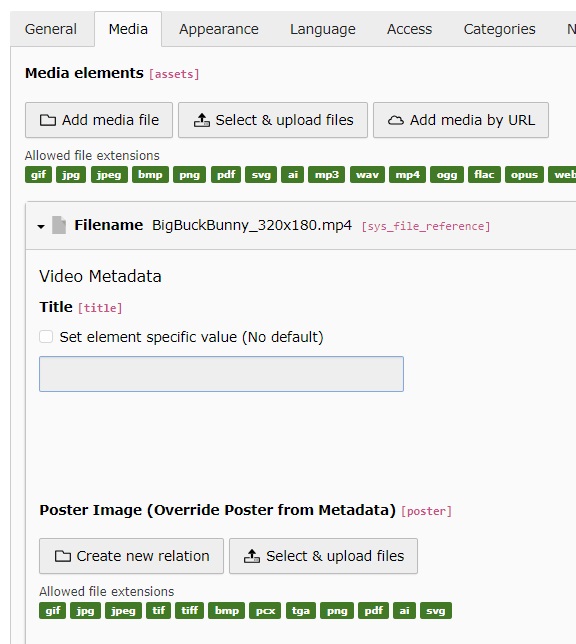
Add your video. In the video file reference you can now add your poster image

Switch to the video tab and add an image

Add an existing or upload a new image file, that should be used as the video's poster image

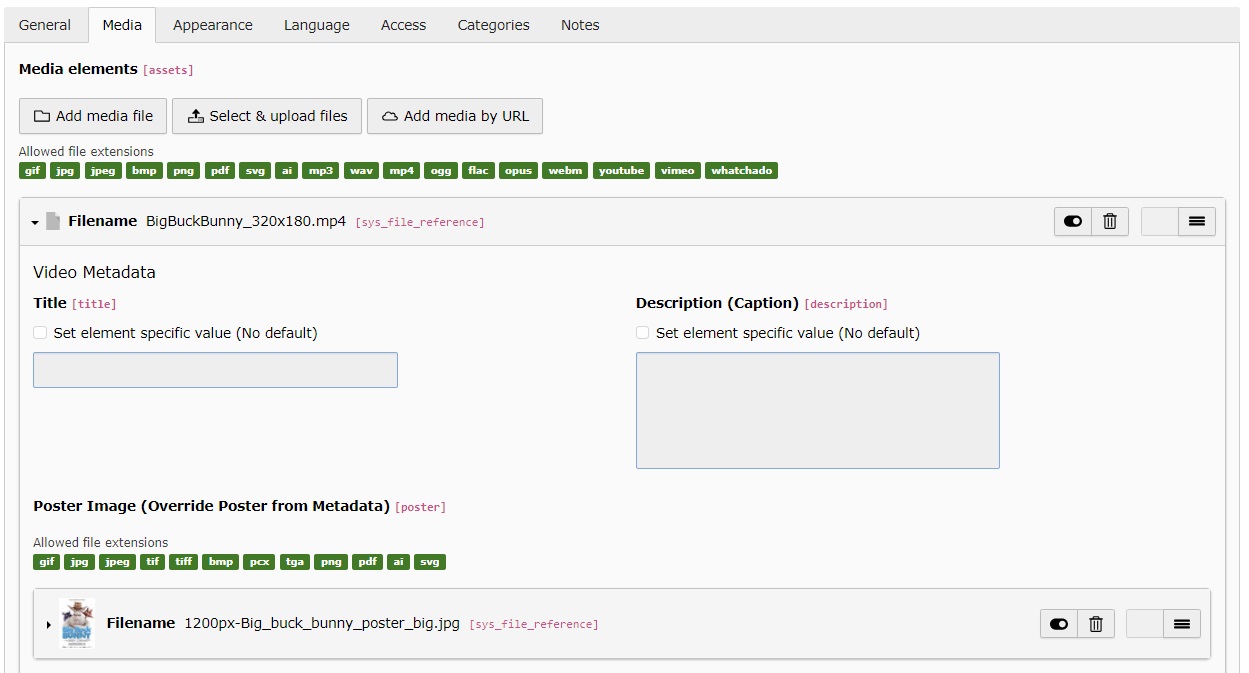
Image has been added

When the image has been added, click Save