A11y by default 

Extension key

a11y_by_default

Package name

web-vision/a11y-by-default

Version

main

Language

en

Author

Markus Hofmann

License

This document is published under the Open Publication License available from http://www.opencontent.org/openpub/

Rendered

Fri, 03 Jul 2026 16:47:54 +0000

The content of this document is related to TYPO3, a GNU/GPL CMS/Framework available from www.typo3.org.

Table of Contents
Introduction 

What does it do? 

A11y by default adds an accessibility checker to the TYPO3 backend. It scans the page currently selected in the page tree and shows the accessibility problems it finds directly where editors and developers already work, without leaving the backend or installing anything outside of TYPO3.

The scan itself happens in your browser: the extension renders the page through TYPO3's own "View page" mechanism (the same technique used for page previews) and then runs an accessibility testing engine against that rendered output. Because the page is rendered through your own backend session, the scan always reflects what a real visitor with your access rights would see, and no report data is ever written to the database: every scan is generated fresh.

Key features 

  • Two scanning engines: axe-core (recommended) and HTML CodeSniffer are both bundled and can be switched per scan. See Choosing a scanning engine for the difference between them.
  • Editor/developer classification: every finding is labelled as something an editor can fix in the content, or something that requires a template or CSS change. The classification is based on whether the offending markup actually correlates with database content (Issue classification).
  • Developer Corner: the technical, template-facing findings are hidden from editors by default and only shown to backend users or groups that have been explicitly granted access (Developer Corner access).
  • Page Layout integration: a summary of open issues is shown as a hint above the Page module, with a direct link into the accessibility module (Page Layout hint).
  • No data persistence: nothing the module finds is stored; every scan is generated on demand and discarded once you navigate away.
  • Multilingual backend: the module and its findings are translated into every language officially supported by the TYPO3 core.

What it is not 

A11y by default is an automated aid, not a certification. Automated tools can only detect a subset of WCAG success criteria; issues that depend on judgement (for example, whether alternative text is meaningful, not just present) still need a human review. The module shows a disclaimer to this effect on every page of the accessibility module. If a page needs to be certified as accessible, that certification still has to come from a qualified accessibility audit.

Quick start 

  1. Install the extension via Composer or the Extension Manager (Installation).
  2. Open the Accessibility module in the Web section of the backend.
  3. Select a page from the page tree; the module renders it and starts the accessibility scan.
  4. Review the results, grouped by severity, and follow the fix hints shown for each finding.

Screenshots 

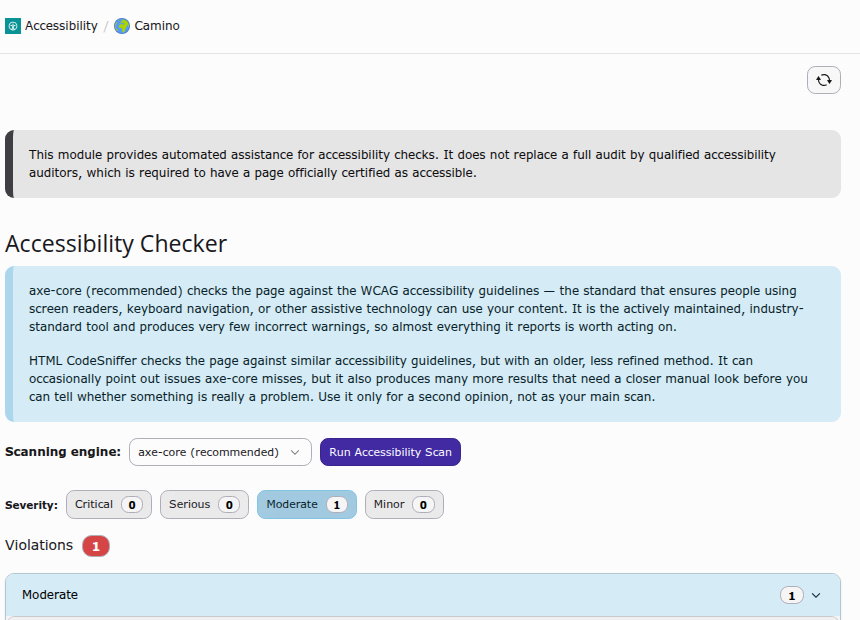
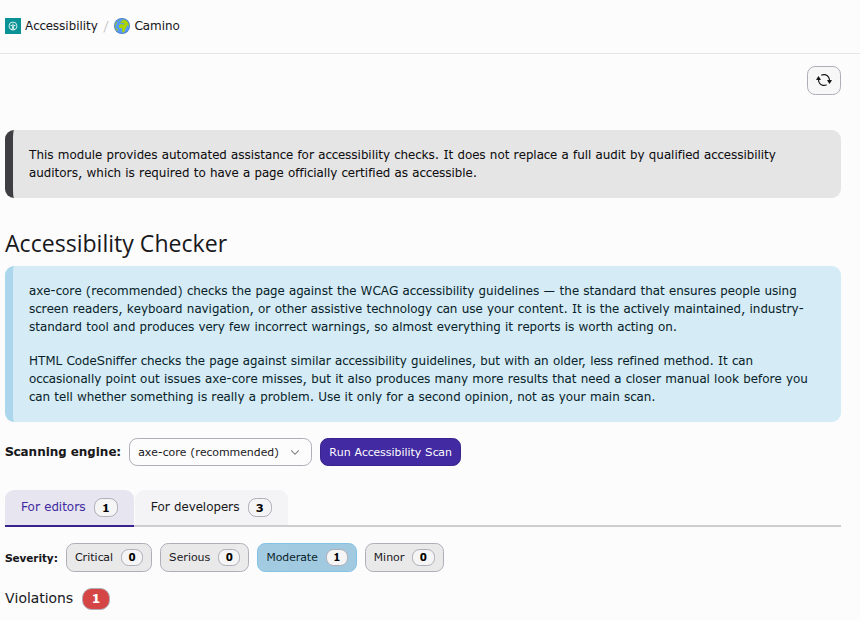
The Accessibility module, showing the audit disclaimer, an explanation of the two available scanning engines, and the list of violations found on the selected page.

The Accessibility module for a selected page, with the scanning engine explanation and the first violations found.

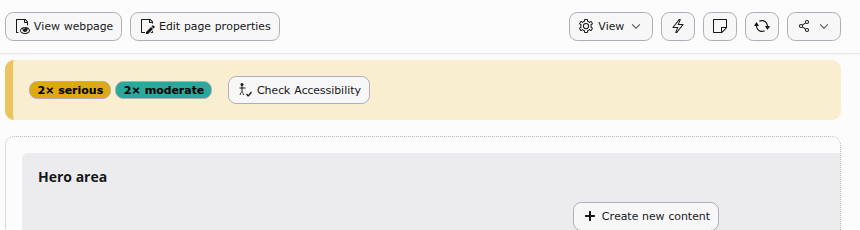
A hint banner above the Page module listing the number of serious and moderate accessibility issues found on the page, with a button to open the Accessibility module.

The Page module shows a hint whenever accessibility issues were found on the current page, with a direct link into the module.

Installation 

The extension has to be installed like any other TYPO3 CMS extension. You can download the extension using one of the following methods:

only the extension itself
composer require -W \
   'web-vision/a11y-by-default':'~1.0.0@dev'
Copied!
  1. Switch to the module System > Extensions.
  2. Switch to Get Extensions
  3. Search for the extension key a11y_by_default
  4. Import the extension from the repository.
  1. Get current version from TER by downloading the zip version. Alternatively, get the zip from the Github Releases page.
  2. Switch to the module System > Extensions.
  3. Enable upload Upload Extension
  4. Select or drag extension ZIP archive and upload the file

Compatibility 

This extension supports:

Extension version TYPO3 Version PHP version Supported Composer TER
1.x 14.3.x 8.2, 8.3, 8.4, 8.5 yes web-vision/a11y-by-default a11y_by_default
1.x 13.4.x 8.2, 8.3, 8.4, 8.5 yes web-vision/a11y-by-default a11y_by_default

Next steps 

Once the extension is active, the Accessibility module immediately appears in the Web section for administrators. Non-administrator backend users only see the module once their backend group has been granted access to it, the same way as for any other TYPO3 backend module. See Configuration for the accessibility-specific settings, in particular the Developer Corner permission.

Configuration 

This section describes the available configuration options for the Accessibility Checker.

Extension Configuration 

There are no global settings in the Extension Configuration (Admin Tools > Settings > Extension Configuration). The extension works out of the box once it is activated and the module has been made accessible to the relevant backend users (see Next steps).

Developer Corner access 

By default, the Accessibility module only shows editor-relevant findings. The more technical, template-facing findings, grouped under the For developers tab, are hidden unless the current backend user has been explicitly granted access to the Developer Corner. Administrators and system maintainers always have this access, regardless of the setting described below.

The permission is stored on both Backend users and Backend user groups, as a checkbox on a dedicated Accessibility Checker tab. It is enough to enable it on either the user or one of its groups.

  1. Go to Administration > Users, then use the Backend users dropdown to switch between the Backend users and Backend user groups lists.
  2. Edit the desired user or group.
  3. Open the Accessibility Checker tab.
  4. Toggle Grant access to developer corner.
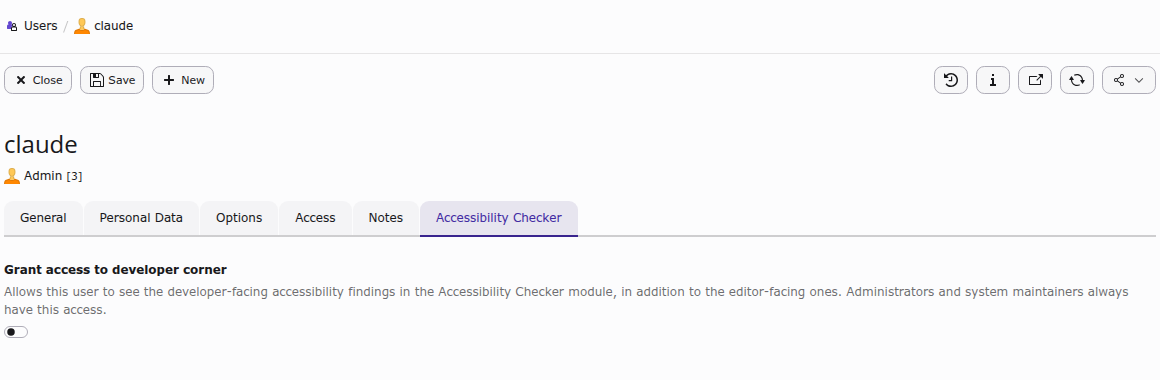
The Accessibility Checker tab on a Backend user record, showing the "Grant access to developer corner" toggle and its description.

The Accessibility Checker tab on a Backend user record.

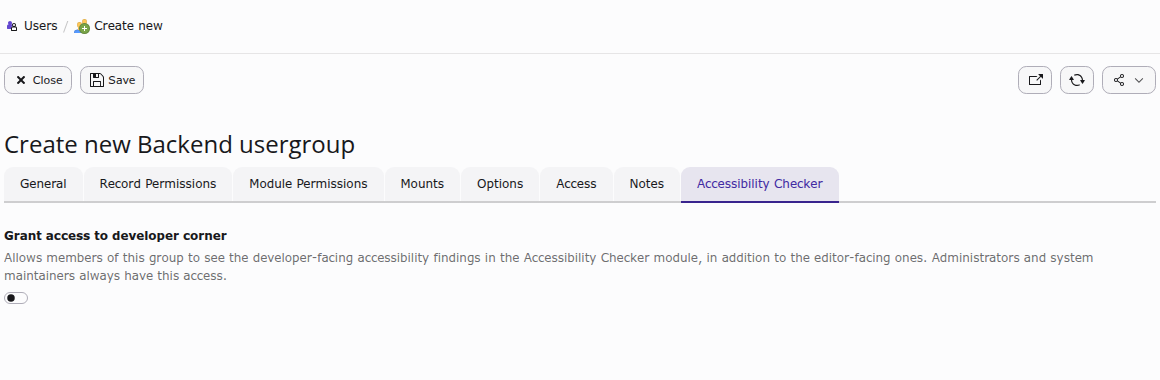
The Accessibility Checker tab on a Backend user group record, showing the same "Grant access to developer corner" toggle.

The same tab on a Backend user group record. Granting access here applies to every member of the group.

Once saved, users with this permission see an additional For developers tab in the Accessibility module the next time they open it (see Developer Corner).

Engine selection 

The scanning engine is chosen from the Scanning engine dropdown at the top of the Accessibility module, next to the Run Accessibility Scan button:

  • axe-core (recommended and selected by default): the actively maintained, industry-standard engine. It produces very few false positives.
  • HTML CodeSniffer: an older engine with a different rule set. It can surface issues axe-core misses, but also produces more results that need a closer manual look. It is best used for a second opinion, not as the primary scan.

The choice only applies to the current scan; the dropdown resets to axe-core the next time the module is opened. See Choosing a scanning engine for more detail on how the two engines differ.

User's Manual 

This section describes how to use the Accessibility Checker in the TYPO3 backend.

Accessing the module 

Once installed and activated, you will find a new module Accessibility in the Web section of the backend.

  1. Click on the Accessibility module.
  2. Select a page from the page tree on the left.

If you cannot see the module at all, ask your administrator to grant your backend user or group access to it (Next steps).

Running a scan 

The scan starts automatically as soon as you select a page. The module renders the page through TYPO3's "View page" mechanism, the same technique used for page previews, so the result reflects exactly what you would see as a visitor with your own access rights, inside your current backend session. You can re-run the scan at any time with the Run Accessibility Scan button, for example after switching the scanning engine.

Choosing a scanning engine 

Use the Scanning engine dropdown to pick which engine performs the scan:

  • axe-core (recommended, selected by default) checks the page against the WCAG guidelines with an actively maintained, industry-standard engine. It produces very few incorrect warnings, so almost everything it reports is worth acting on.
  • HTML CodeSniffer checks similar guidelines with an older, less refined method. It can occasionally catch issues axe-core misses, but also produces many more results that need a closer manual look. Use it only for a second opinion, not as your main scan.

Viewing results 

By default, every editor sees the same view: results grouped into four severity levels (Critical, Serious, Moderate and Minor), with a filter row that lets you show or hide each severity. Each severity group can be expanded to a list of findings.

The default Accessibility module view, showing only the editor-relevant findings, with no separate tab for developer findings.

The default view: severity filters and the findings that apply to the currently logged in editor.

Below the violations, a separate Needs review section lists findings the scanning engine could not automatically classify as passing or failing; these always need a manual look.

Expanding a finding 

Each finding can be expanded further to show:

  • a plain-language description of the problem and how to fix it,
  • who is responsible for fixing it (see Who is responsible for a finding),
  • a button to jump directly to editing the affected content element, where the finding is linked to editable content,
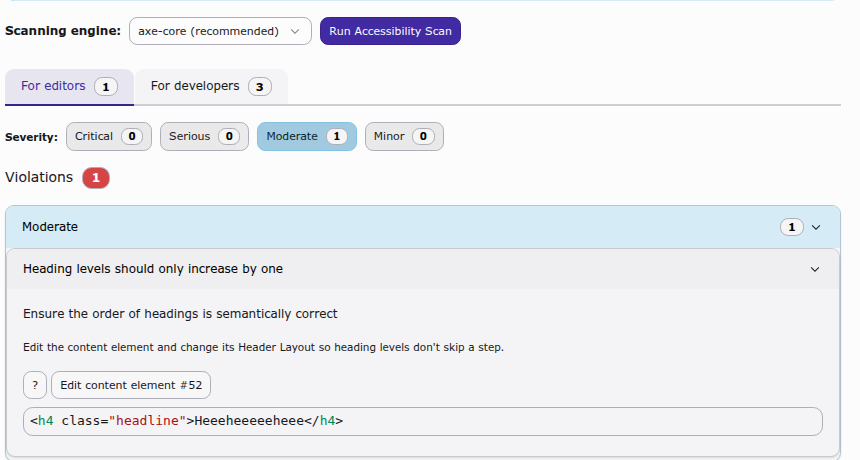
  • the exact HTML markup that triggered the finding, shown in a read-only code viewer.
An expanded accessibility finding, showing its description, a button to edit the affected content element, and the offending HTML markup in a read-only code viewer.

An expanded finding, with its fix hint, an edit shortcut, and the offending markup.

Who is responsible for a finding 

Every finding is classified as something an editor can fix by editing page or content element fields, or something a developer has to fix in the Fluid template or CSS. The classification looks at whether the offending markup actually correlates with content stored in the pages or tt_content tables. See Issue classification for the technical details.

  • Typically editor-fixable: missing image alternative text (image-alt, input-image-alt, area-alt), non-descriptive link text (link-name), or a heading level that skips a step (heading-order), as long as the heading or link comes from a content element rather than the page template.
  • Always developer-fixable: missing page landmarks (landmark-one-main, region), a missing skip-navigation link (bypass), missing or invalid lang attributes (html-has-lang, html-lang-valid), insufficient color contrast (color-contrast), and similar template-level or CSS-level issues.

This classification is shown for every finding regardless of your permissions; the optional Developer Corner, described next, only changes how many of the developer-fixable findings you get to see.

Optional: developer findings 

The screenshot above is what every editor sees by default. Backend users or groups can additionally be granted access to the Developer Corner (Developer Corner access), an optional permission that reveals the technical, template-facing findings that most editors do not need.

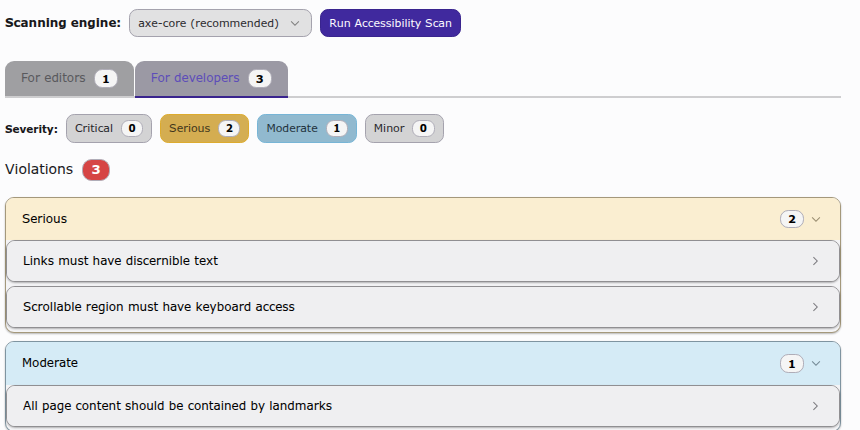
Once granted, the module splits its results into a For editors and a For developers tab, each with its own severity counts.

The "For developers" tab in the Accessibility module, showing severity-grouped findings such as "Links must have discernible text" and "Scrollable region must have keyboard access".

With Developer Corner access, an additional For developers tab appears next to the default editor findings.

See Developer Corner for the technical background on this optional access gate.

Page Layout hint 

When working in the Page module, a hint banner appears above the page content whenever accessibility issues were found on the current page. It summarizes the number of issues per severity and links directly into the Accessibility module for that page.

A hint banner above the Page module content, listing "2x serious" and "2x moderate" with a "Check Accessibility" button.

The Page module hint for a page with open accessibility findings.

Limitations 

The Accessibility module provides automated assistance only; it does not replace a full audit by qualified accessibility auditors, which is required before a page can officially be certified as accessible. See What it is not.

Frequently Asked Questions 

Why does the scan take a few seconds? 

The extension uses the "View Module" technique to render the page exactly as it would appear to a visitor. This involves a full rendering of the page by TYPO3, which can take some time depending on the complexity of your page and server performance.

Can I scan protected pages or pages with access restrictions? 

Yes. Since the scan runs in your browser using your current backend session, the "View Module" can render any page you have permissions to view in the backend.

Can I scan my entire website at once? 

No. The Accessibility Checker is designed for a page-by-page audit while you are working on a specific page. For full-site audits, we recommend using external tools or CI/CD integrations.

Why do different engines show different results? 

Different engines (axe-core and HTML CodeSniffer) use different rule sets and algorithms to detect accessibility issues. It is common for them to highlight different aspects or have varying severity levels for the same issue. We recommend reviewing results from both engines for a comprehensive audit.

Why don't I see a "For developers" tab? 

The developer-facing findings are only shown to backend users who have been explicitly granted Developer Corner access, either directly or through one of their backend groups. Administrators and system maintainers always have this access. See Developer Corner access for how to grant it to other users.

Can a green result be used as proof my site is accessible? 

No. The module provides automated assistance only, and automated tools can only detect a subset of WCAG success criteria. A page without findings may still have accessibility problems that require human judgement to catch. If you need your site officially certified as accessible, that certification has to come from a qualified accessibility audit. See What it is not.

Developer Corner 

This section provides technical details for developers working on or with the extension.

Technical implementation 

The extension is built as a plain TYPO3 backend controller (not using Extbase), registered via the #[AsController] attribute. It leverages TYPO3 core's "View page" mechanism (PreviewUriBuilder) to obtain a preview URL for the selected page, which the frontend JavaScript then loads into a hidden iframe and scans in the browser; no scanning happens on the server, and no results are ever persisted.

Issue classification 

Findings are classified as editor or developer responsibility by checking whether the offending HTML element correlates with content actually delivered from the database, specifically the pages and tt_content tables for the current page (ContentFactsService and IssueClassificationService). If a match is found, the finding is attributed to the editor who can fix it by editing that record; otherwise it is attributed to the developer who maintains the Fluid template or CSS.

This correlation deliberately does not rely on markers or data attributes added by fluid_styled_content. It is derived from the actual database content, so classification keeps working with custom or third-party content rendering.

Developer Corner access gate 

The For developers tab and its findings are only rendered when DeveloperCornerAccessService::hasAccess() returns true for the current backend user: always for administrators and system maintainers, otherwise only if the tx_a11ybydefault_developer_corner flag is set on the user record or on one of its backend groups (see Developer Corner access). Editors without this access only ever receive the editor-facing findings from the controller: the developer-facing data is not included in the page payload at all, not merely hidden with CSS.

The "For developers" tab in the Accessibility module, showing severity-grouped findings such as "Links must have discernible text" and "Scrollable region must have keyboard access".

The For developers tab, only visible to users with Developer Corner access.

Read-only markup viewer 

Each finding shows the exact HTML markup that triggered it in a read-only code viewer (the <a11y-code-viewer> custom element). It is built directly on the CodeMirror packages TYPO3's backend already loads via its importmap, combining EditorState.readOnly with EditorView.editable(false) so the markup is displayed without a focusable, blinking-caret editor. Viewers mount lazily via IntersectionObserver as their accordion panel is expanded, to avoid paying for a CodeMirror instance per hidden finding.

Scanning engines 

The extension bundles two scanning engines, both running client-side in the browser against the rendered page:

  1. axe-core (default)
  2. HTML CodeSniffer (user-selectable per scan)

Compatibility handling 

The extension supports both TYPO3 v13 and v14. Where core APIs differ between versions, the extension checks for availability at runtime rather than branching on the version number. For example, the contextual (side-panel) record edit route introduced in v14 is only wired up if ContextualRecordEditController exists.

Translations 

All user-facing labels are translated into every language officially supported by the TYPO3 core, using standard XLIFF files under Resources/Private/Language/. When adding new labels to locallang.xlf, locallang_mod.xlf or locallang_db.xlf, only the English source needs updating manually; translations are expected to be contributed or maintained through the usual TYPO3 localization tooling.

Build process 

The frontend assets (TypeScript, built via Rollup) must be built before the extension is used from a working copy. The project uses a runTests.sh script, the same one used by TYPO3 core, to manage the build environment.

# Install dependencies
./Build/Scripts/runTests.sh -s npmInstall

# Build assets
./Build/Scripts/runTests.sh -s buildJs
Copied!

Testing 

The extension follows TYPO3's testing standards, using the TYPO3 Testing Framework for PHP and Jest for TypeScript.

PHP testing 

# Unit tests
./Build/Scripts/runTests.sh -s unit

# Functional tests
./Build/Scripts/runTests.sh -s functional
Copied!

JavaScript testing 

Unit tests for the TypeScript sources are located in Build/TypeScript/tests/, mirroring the structure of Build/TypeScript/src/.

# Lint JavaScript
./Build/Scripts/runTests.sh -s lintJs
Copied!