Frontend Edit

Extension key

xima_typo3_frontend_edit

Package name

xima/xima-typo3-frontend-edit

Version

1.5

Language

en

Author

Konrad Michalik & contributors

License

This extension documentation is published under the CC BY-NC-SA 4.0 (Creative Commons) license.


This extension provides an edit button for editors within frontend content elements.

Introduction

A quick overview about the main features provided by this extension.

Installation

Instructions on how to install this extension and which TYPO3 and PHP versions are currently supported.

Configuration

Learn how to configure the extension in various ways. This includes extension configuration and the usage of the configuration utility.

How it works

A detailed explanation of the inner workings of the extension.

Developer corner

A quick overview of the possibilities for extending the extension

FAQ

A collection of frequently asked questions.

Introduction

What does it do?

This extension provides an edit button for editors within frontend content elements.
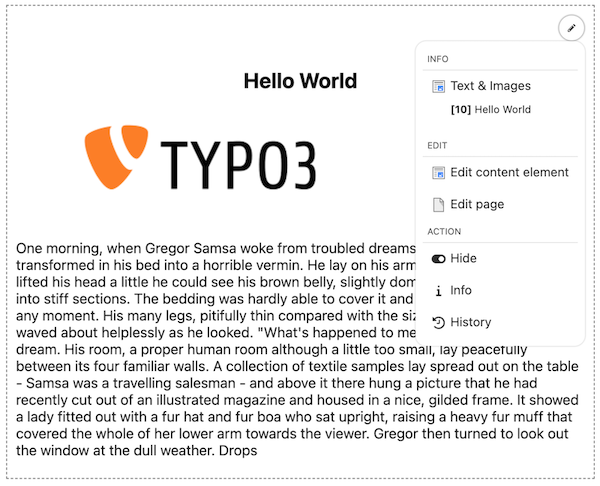
Frontend Edit Preview

The extension has been developed to provide a simple and lightweight solution to easily start the editing of content elements from the frontend and thus reduce the gap between frontend and backend. Therefore a simple javascript is injected into the frontend, which generates action links to the TYPO3 backend with the corresponding edit views.

Support

There are several ways to get support for this extension:

License

This extension is licensed under GNU General Public License 2.0 (or later).

Installation

Requirements

  • PHP 8.1 - 8.4
  • TYPO3 11.5 LTS - 13.4 LTS

Installation

Require the extension via Composer (recommended):

composer require xima/xima-typo3-frontend-edit
Copied!

Or download it from the TYPO3 extension repository.

Configuration

Include the static TypoScript template "Frontend edit" or directly import it in your sitepackage:

Configuration/TypoScript/setup.typoscript
@import 'EXT:xima_typo3_frontend_edit/Configuration/TypoScript/setup.typoscript'
Copied!

Configuration

The extension is ready to use without any further setup.

You can also adapt the extension to your needs, switch single menu entries and also disable the functionality.

Learn what configuration options are available on the following pages:

TypoScript

Adjust the typoscript constants to restrict the usage of the frontend edit:

setup.typoscript
plugin.tx_ximatypo3frontendedit {
    settings {
        # Ignore content elements by several criteria
        ignorePids =
        ignoreCTypes =
        ignoreListTypes =
        ignoreUids =

        # Adjust the default menu structure by setting an entry to "0" to disable it
        defaultMenuStructure {
            div_info =
            header =
            div_edit =
            edit =
            edit_page =
            div_action =
            hide =
            move =
            info =
            history =
        }
    }
}
Copied!

User Settings

Go to User Settings > Edit and advanced functions > Disable frontend edit

The following options can be set in the user settings:

tx_ximatypo3frontendedit_disable

tx_ximatypo3frontendedit_disable
Type
boolean
Default
0

Backend user can easily disable the whole frontend edit functionality within their user settings.

How it works

On page load a script calls an ajax endpoint, to fetch information about all editable (by the current backend user) content elements on the current page.

The script then injects (if it's possible) an edit menu into the frontend for each editable content element.

This is only possible, if the content element "c-ids" (Content Element IDs) are available in the frontend template, e.g. "c908". By default the fluid styled content elements provide these ids.

HTML output of a content element
<div id="c10" class="frame frame-default frame-type-textpic frame-layout-0">
    ...
</div>
Copied!

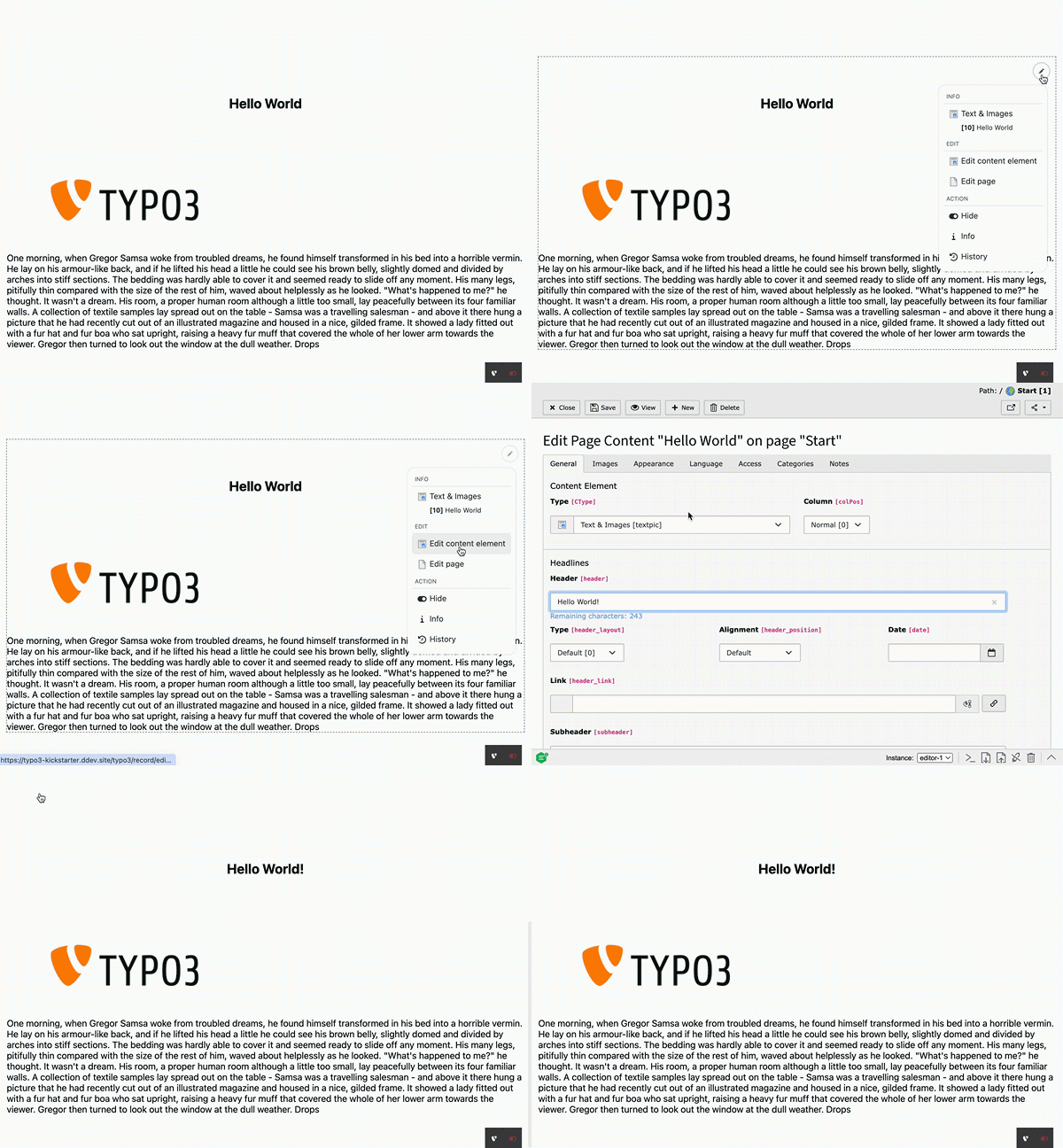
The rendered dropdown menu links easily to the corresponding edit views in the TYPO3 backend.

Frontend Edit Screencast

For an easy edit workflow a "save and close" button is added to the edit form, which redirects the user directly back to the frontend. Disable this function within the extension settings, if you don't want this behaviour.

PSR-14 Events

Use the FrontendEditDropdownModifyEvent to modify the edit menu to your needs. You can add, remove or modify buttons for specific content elements. See the example below:

Classes/EventListener/ModifyFrontendEditListener.php
<?php

declare(strict_types=1);

namespace Vendor\Package\EventListener;

use TYPO3\CMS\Backend\Routing\UriBuilder;
use TYPO3\CMS\Core\Imaging\IconFactory;
use TYPO3\CMS\Core\Utility\GeneralUtility;
use Xima\XimaTypo3FrontendEdit\Enumerations\ButtonType;
use Xima\XimaTypo3FrontendEdit\Event\FrontendEditDropdownModifyEvent;
use Xima\XimaTypo3FrontendEdit\Template\Component\Button;

class ModifyFrontendEditListener
{
    public function __construct(protected readonly IconFactory $iconFactory, protected readonly UriBuilder $uriBuilder)
    {
    }

    public function __invoke(FrontendEditDropdownModifyEvent $event): void
    {
        $contentElement = $event->getContentElement();
        $menuButton = $event->getMenuButton();

        // Example 1
        // Append a custom button (after the existing edit_page button) for your plugin to e.g. edit the referenced entity
        if ($contentElement['CType'] === 'list' && $contentElement['list_type'] === 'custom_plugin_name') {
            $menuButton->appendAfterChild(new Button(
                'Edit entity',
                ButtonType::Link,
                $this->uriBuilder->buildUriFromRoute(
                    'record_edit',
                    [
                        'edit' => [
                            'custom_entity' => [
                                $contentElement['custom_entity_uid'] => 'edit',
                            ],
                        ],
                        'returnUrl' => $event->getReturnUrl(),
                    ],
                )->__toString(),
                $this->iconFactory->getIcon('content-idea', 'small')
            ),
            'edit_page',
            'edit_custom_entity'
            );
        }

        // Example 2
        // Remove existing buttons
        $menuButton->removeChild('div_action');

        $event->setMenuButton($menuButton);
    }
}
Copied!

Don't forget to register your event listener via PHP attributes (TYPO3 >= 13):

Classes/EventListener/ModifyFrontendEditListener.php
#[AsEventListener(
    identifier: 'ext-some-extension/modify-frontend-edit-listener',
)]
Copied!

or register the event listener in your Services.yaml:

Configuration/Services.yaml
services:
Vendor\Package\EventListener\ModifyFrontendEditListener:
    tags:
        - name: event.listener
            identifier: 'ext-some-extension/modify-frontend-edit-listener'
Copied!

Data Attributes

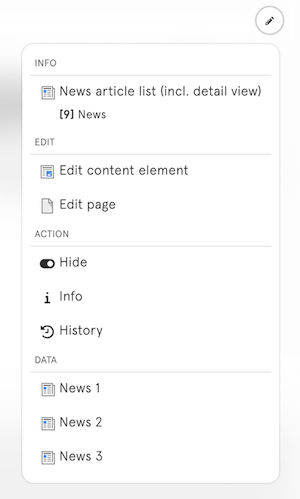
Additionally, there is an option to extend your fluid template to provide data for extra dropdown menu entries, e.g. edit links to all news entries within a list plugin.

Custom Fluid Template
<div class="news-item">
    ...
    <xtfe:data label="{news.title}" uid="{news.uid}" table="tx_news_domain_model_news" icon="content-news" />
</div>
Copied!

This generates a hidden input element with the provided data (only if the frontend edit is enabled). Within the parent content element (e.g. the whole list plugin), a new "data" section will show up on the dropdown menu to list all edit links.

Frontend Edit Extended Data Entries

Keep in mind, that this only works if the parent content element has a c-id and offer one of the following data combinations:

  • Edit record link (provide uid and table of the desired record, the link to the TYPO3 backend will be generated automatically)
  • Custom edit url (provide a custom url)

Custom Styling

The dropdown was styled to not disturb the frontend layout. You can easily adjust the styling by providing an additional css or js file within your ext_localconf.php which will be loaded together with the frontend edit resources:

ext_localconf.php
$GLOBALS['TYPO3_CONF_VARS']['EXTENSIONS']['xima_typo3_frontend_edit']['registerAdditionalFrontendResources'][] = 'EXT:custom_extension/Resources/Public/Css/Custom.css';
Copied!

FAQ

Why is the frontend edit menu not displayed on my page / for my content element?

There may be a number of reasons for this:

Backend user session

Are you currently logged into the TYPO3 backend? Otherwise the frontend edit will not working.

Backend user permission

Does your user have all permissions to edit the page as well as the content elements?

TypoScript

Is the TypoScript template "Frontend edit" included in your sitepackage? Do you have declared the constants to restrict the usage of the frontend edit?

Content Element IDs

Make sure that the content element "c-ids" (Content Element IDs) are available within your frontend template, e.g. "c908".

Content Element on current Page

For now only all content elements on the current page are "editable". So if you're using some kind of inheritance, e.g. for your footer, this content can't be edited. Maybe I will find a smarter solution for this in the future.

Debug

Check the network tab for the initial ajax call (something like /?type=1729341864 with the information about the editable content elements and the according dropdown menus.

After closing the edit form will I redirected to the wrong frontend location, e.g. to the root page

This could be caused by a strict referer header in your request. If the return url could not be determined correctly, you can force the url generation by pid and language in the extension setting: forceReturnUrlGeneration.