SAV Library Mvc 

Extension key

sav_library_mvc

Version

14.3

Language

en

Description

he SAV Library Mvc is entirely

makes it possible to directly build extensions without any PHP coding,
thanks to simple configuration parameters using the SAV Library Kickstarter as an extension editor. Multiple views of the data including forms can be generated.
Keywords

sav_library_kickstarter, extension generator

Copyright

2010

Author

Laurent Foulloy

Email

yolf.typo3@orange.fr

License

This document is published under the Open Content License available from http://www.opencontent.org/opl.shtml

Rendered

Fri, 07 Aug 2026 12:24:29 +0000

The content of this document is related to TYPO3, a GNU/GPL CMS/Framework available from www.typo3.org.

Table of Contents 

Introduction 

What Does it Do? 

The SAV Library Mvc is the library required to run extension generated by means of the SAV Library Kickstarter when the library type Mvc is used.

The SAV Library Kickstarter generates extensions without any PHP coding, thanks to simple configuration parameters. It includes:

  • Creation of multiple views of the data,
  • Front end input of the data,
  • Views with folders,
  • Simple interface in the Kickstarter with Context Sensitive Help,
  • Generation of emails,
  • Data export,
  • Many other features.

The latest developments of the SAV Library Mvc extension are available in GitHub ( SAV Library Mvc ).

Changing the Default Template for the Views 

The extension sav_library_mvc comes with default templates for the views. Templates, layouts, partials are respectively in the directory Resources/Private/Templates/Default, Resources/Private/Layouts and Resources/Private/Partials. They can be changed in TypoScript as follows:

plugin.tx_yourExtensionNameWithoutUnderscores.templateRootPath = yourTemplateRootPath
plugin.tx_yourExtensionNameWithoutUnderscores.layoutRootPath = yourLayoutRootPath
plugin.tx_yourExtensionNameWithoutUnderscores.partialRootPath = yourPartialRootPath
Copied!

Flexform Associated With the Plugin 

The configuration of each generated extension is done by means of a flexform. The flexform has four folders:

  • General
  • Input controls
  • Advanced
  • Help pages

General Folder 

  1. Help: click on the word Help to access to this section of the documentation.
  2. Select form: use this selector to select the form name. Let use recall that the sav_library_mvc makes it possible to build several forms associated with the same extension, thus providing different views of your tables.
  3. Show all if no filter: if set, all items are displayed if no filter is applied, for example by means of the sav_filters extension.
  4. If no information available: use the selector to choose what to display when no information are available.
  5. Max number of items : maximum number of items that will be displayed in a page. If set to 0, all items are displayed.

Input Controls Folder =====================

  1. Help: click on the word Help to access to this section of the documentation.
  2. Allow authenticated FE users to input data: if set, frontend inputs are allowed by authenticated users (set by default).
  3. Allowed groups: if you select user groups, user must belong to one of these groups to be allowed to input data in the frontend.
  4. Input Admin field: put here a field under the form fieldName. This will restrict the input to users that have Admin right for this field in their TSConfig. For example, if one user has extKey_Admin=value1,value2 in his TSConfig, he/she will be allowed to edit or delete items for which fieldName is equal to value1 or value2 for the extension extKey. The fields or the folders which have the attribute editAdminPlus= 1; can be modified if the user has the Admin+ rights. For example, if the TSConfig is extKey_Admin=value1+,value2 , the user is an Admin+ for the records where fieldName is equal to value1 and just Admin for the records where fieldName is equal to value2. Users become Super Admin if their TSConfig is extKey_Admin=\*.

  1. No “new” button: no new button is added to the form. It means that you can modify existing records but you cannot create new record.
  2. No “edit” button: an edit button will not be added in front of the records in List views.
  3. No “delete” button: a delete button will not be added in front of the records in List views.
  4. Add a “delete” button only for records created by the user : add a delete button only for records created by the user.
  5. Input start date: if set, inputs in the frontend will not be possible before this date.
  6. Input end date: if set, inputs in the frontend will not be possible after this date.
  7. Apply date limit: use the selector to set either Nobody, All, Admin plus users, All excluding Super Admin. The date limit is applied according to this selector.

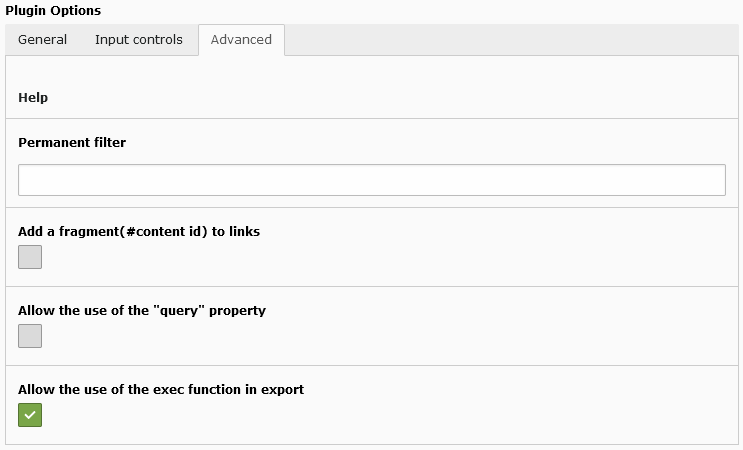
Advanced Folder 

  1. Help: click on the word Help to access to this section of the documentation.
  2. Permanent filter: you can use this field to add a WHERE clause part to the WHERE clause of the form query.
  3. Add a fragment (# content id) to links: the content id is added as a fragment to the links.
  4. SELECT query to allow data to be displayed (if void display is always allowed): the SELECT query entered in this field is used to check if data can be displayed. It the query result is not empty the access is granted. It may be used in very specific cases to protect access to the data. Because it is very specific, for security reasons, only admin users can fill this field when needed.
  5. Allow the use of the “query” property: the query property makes it possible to execute queries in Edit or Update views. Because any query may be executed, for security reasons, only admin users can check this field when this property is needed.
  6. Allow the use of the exec function in export: The use of the php exec function is allowed in export which makes the execution of text processors possible, for example.

Routing - "Speaking URLs" With SAV Library Mvc 

The SAV Library Kickstarter generated the configuration for Speaking URLs in the file Configuration/Routes/Default.yaml of the extension.

Import this file in the config.yaml file of your site using the imports instruction.

imports:
  - resource: 'EXT:sav_librarymvc_example0/Configuration/Routes/Default.yaml' 

Copied!

The following configuration illustrates the configuration for the sav_librarymvc_example0 extension.

routeEnhancers:
  SavLibrarymvcExample0:
    type: Extbase
    extension: SavLibrarymvcExample0
    plugin: Default
    routes:
      - routePath: '/savlibrarymvcexample0/test'
        _controller: 'Test::list'
      - routePath: '/savlibrarymvcexample0/test/{special}'
        _controller: 'Test::list'
      - routePath: '/savlibrarymvcexample0/test/single/{special}'
        _controller: 'Test::single'
      - routePath: '/savlibrarymvcexample0/test/edit/{special}'
        _controller: 'Test::edit'
      - routePath: '/savlibrarymvcexample0/test/delete/{special}'
        _controller: 'Test::delete'
      - routePath: '/savlibrarymvcexample0/test/subform/delete/{special}'
        _controller: 'Test::deleteInSubform'
      - routePath: '/savlibrarymvcexample0/test/subform/up/{special}'
        _controller: 'Test::upInSubform'
      - routePath: '/savlibrarymvcexample0/test/subform/down/{special}'
        _controller: 'Test::downInSubform'
      - routePath: '/savlibrarymvcexample0/test/file/delete/{special}'
        _controller: 'Test::deleteFile'
    requirements:
      special: '[a-z0-9\-]+'
Copied!

Adding a Filter to the Export Selector 

When there are many export configurations associated to an extension in the same page, it can be useful to apply a filter in order to limit the number of entries in the selector.

The following TypoScript configuration will add an input field which will be used in a LIKE statement for the query creating the selector options:

plugin.tx_yourExtensionNameWithoutUnderscores.showFilterInExport = 1
Copied!

Fill the filter field and click on the load button to restrict the selector content.

Changing the Date Picker Default Configurations 

Style Sheet 

There are several style sheets provided with the date picker. The default CSS is calendar-win2k-2.css. You can change the default CSS at the extension level or library level by using the following TypoScript configuration:

plugin.tx_yourExtensionNameWithoutUnderscores.datePicker.stylesheet = yourStyleSheet
plugin.tx_savlibrarymvc.datePicker.stylesheet = yourStyleSheet
Copied!

For example:

plugin.tx_savlibrarymvc.datePicker.stylesheet = EXT:sav_library_mvc/Classes/DatePicker/css/calendar-tas.css

Copied!

Tooltip and Title Bar Formats 

The date format of the tooltip (footer bar of the date picker) or the title bar can be changed at the extension or library level by the following TypoScript configuration:

plugin.tx_yourExtensionNameWithoutUnderscores.datePicker.format.toolTipDate = yourFormat
plugin.tx_savlibrarymvc.datePicker.format.toolTipDate =  yourFormat

plugin.tx_yourExtensionNameWithoutUnderscores.datePicker.format.titleBarDate = yourFormat
plugin.tx_savlibrarymvc.datePicker.format.titleBarDate =  yourFormat
Copied!

Default values for the title bar is %B, %Y and depends on the language for the tool tip (see the variable Calendar._TT[“TT_DATE_FORMAT”] in files in the directory Classes/DatePicker/lang).

Exporting Data 

A flexible feature to export data is available in SAV Library Mvc.

Rights for exporting data 

Exporting data is user and extension oriented, therefore rights must be given at the user level for one or several extensions.

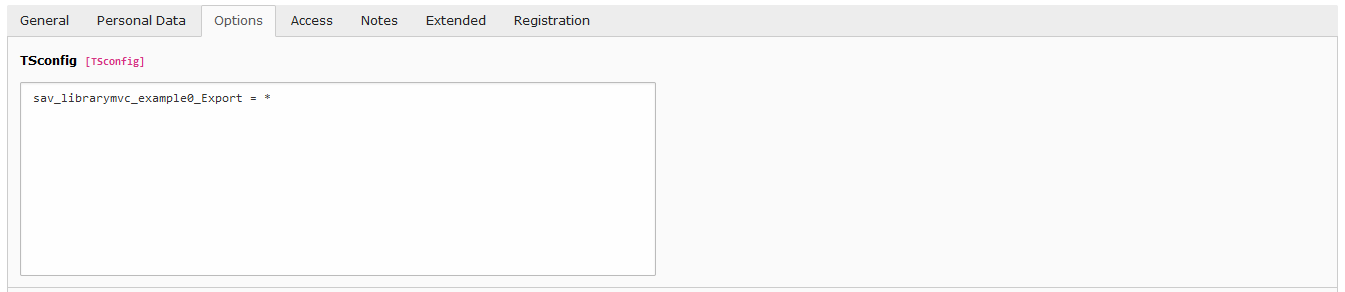
For example, to give the rights to a given user to export data from the test extension sav_librarymvc_example0, edit the Options folder of this user configuration and add the following line.

sav_librarymvc_example0_Export = *
Copied!

Once the rights are set, a new icon is shown in the title bar of the List view.

Configuration 

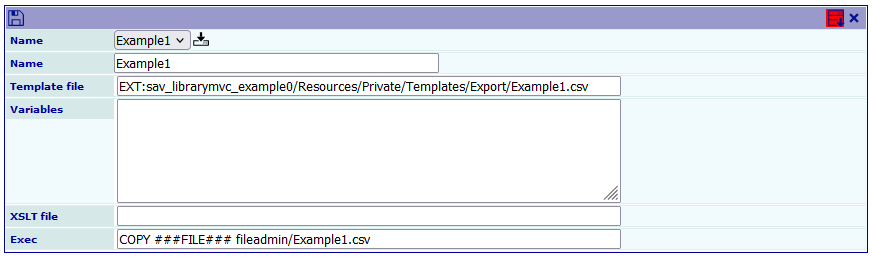
Click on the previous icon to enter in the export form. Select the configuration and click on the Load export configuration icon.

The extension sav_librarymvc_example0 provides several templates to illustrate the export feature. The templates are in the directory Resources/Private/Templates/Export.

The template Example1.csv exports the fields field1 and the date provided by field4 in the CSV format. During the export process, ###FILE### represents the temporary file. The Exec field is used to copy the tempory file to fileadmin/Example1.csv.

Writing templates 

Templates are parsed by Fluid. They may contain all conventional Fluid ViewHelpers. Special ViewHelpers are provided to remove empty lines and to execute queries. The template Example1.csv is shown below.

<sav:removeEmptyLines>

<sav:query name="items">
SELECT 
    field1, 
    FROM_UNIXTIME(field4) AS field4
FROM 
    tx_savlibrarymvcexample0_domain_model_table1
WHERE 
    NOT deleted
    AND NOT hidden
</sav:query>

<f:for each="{items}" as="item">
"{item.field1}";"{item.field4}"
</f:for>

</sav:removeEmptyLines>
Copied!

Using variables 

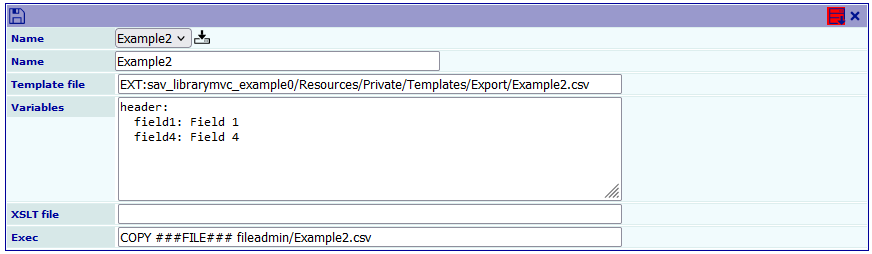
Variables expressed in Yaml can be passed to templates.

In this example, using the template Example2.csv, the variable header is defined and used to generate headers for the columns.

<sav:removeEmptyLines>

<sav:query name="items">
SELECT 
    field1, 
    FROM_UNIXTIME(field4) AS field4
FROM 
    tx_savlibrarymvcexample0_domain_model_table1
WHERE 
    NOT deleted
    AND NOT hidden
</sav:query>

"{header.field1}";"{header.field4}"
<f:for each="{items}" as="item">
"{item.field1}";"{item.field4}"
</f:for>

</sav:removeEmptyLines> 
Copied!

More Complex Exec Commands 

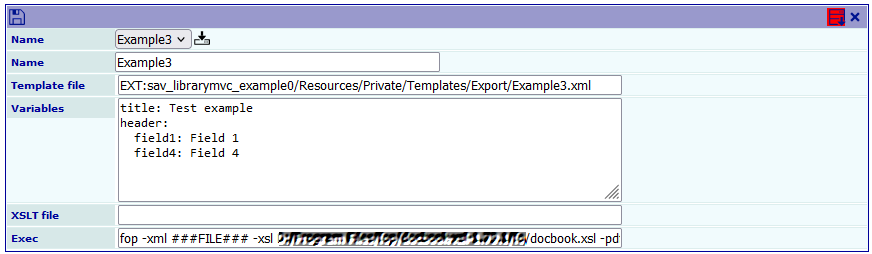
Let us illustrate this feature with the generation of a DocBook article containing the same information as the CSV files in the previous examples.

The template Example3.xml is now a XML file containing DocBook tags. The variables title and header are respectively used to set the title of the article and the headers for the DocBook table columns.

The field XSLT file may use to process the XML temporary file generated by the Fluid template parser.

<?xml version="1.0" encoding="UTF-8"?>
<!DOCTYPE article
  PUBLIC "-//OASIS//DTD DocBook XML V4.5//EN" "https://www.oasis-open.org/docbook/xml/4.5/docbookx.dtd">
<sav:removeEmptyLines>

<sav:query name="items">
SELECT 
    field1, 
    FROM_UNIXTIME(field4) AS field4
FROM 
    tx_savlibrarymvcexample0_domain_model_table1
WHERE 
    NOT deleted
    AND NOT hidden
</sav:query>

<article lang="en">
  <title>{title}</title>
  <informaltable>
    <tgroup cols="2" align="left" colsep="1" rowsep="1">
      <thead>
        <row>
          <entry align="center">{header.field1}</entry>
          <entry align="center">{header.field4}</entry>
        </row>
      </thead>
      <tbody>
        <f:for each="{items}" as="item">
        <row>
          <entry>{item.field1}</entry>
          <entry>{item.field4}</entry>
        </row>
        </f:for>
      </tbody>
    </tgroup>
  </informaltable>
</article>
</sav:removeEmptyLines> 
Copied!

The Exec field contains the command to generate the PDF file using the FOP DocBook processor (https://xmlgraphics.apache.org/fop/). In the following command, replace Path_to_the_fo_directory_of_the_fop_processor by the path to the fo directory of the FOP processor. The marker ###SITEPATH### is replaced by the public path.

fop -xml ###FILE### -xsl Path_to_the_fo_directory_of_the_fop_processor/docbook.xsl -pdf ###SITEPATH###/fileadmin/test.pdf
Copied!

The result is the PDF file test.pdf in the fileadmin directory.

Changelog 

Version Changes
14.3.0
  • Compatibility changed to TYPO3 13.4.x and 14.3.x.
11.5.0
  • Compatibility changed to TYPO3 10.4.x and 11.5.x.
9.5.0 Compatibility with TYPO3 7.6 removed. - Compatibility changed to TYPO3 9.5.x
1.1.0
  • Processing for RichTextEditor modified.
  • Compatibility changed to TYPO3 8.9.x
  • composer.json added
  • Vendor name changed
1.0.1
  • Controller improved
1.0.0
  • New beta version
0.0.2
  • Processing for the flexform selector "If no available information" added.
  • Small bugs corrected.
0.0.1
  • First public release.