2 Clicks for External Media 

Version

14.1

Language

en

Author

Gregor Hermens

Email

gregor.hermens@a-mazing.de

License

This extension documentation is published under the CC BY-NC-SA 4.0 (Creative Commons) license

Render external video and iframe content with privacy in mind: User has to click on placeholder to load the actual content. You can configure individual placeholder content and the option for permanent activation on a per target host basis.

TYPO3

The content of this document is related to TYPO3, a GNU/GPL CMS/Framework available from www.typo3.org.

Community Documentation:

This documentation is community documentation for the TYPO3 extension media2click

It is maintained as part of this third party extension.

If you find an error or something is missing, please: Report a Problem

Extension Manual

This documentation is for the TYPO3 extension media2click.

For Contributors

You are welcome to help improve this guide. Just click on "Edit me on GitHub" on the top right to submit your change request.

Sitemap

For Editors

For Developers

JavaScript 

media2click provides a JavaScript API for easy integration with other privacy tools, i.e. the privacy banner of your choice.

JavaScript API 

media2click.js exposes these methods:

media2click.setLifetime(lifetime) 

Parameter data type:
integer
Return data type:
void

Sets the consent lifetime to the number of days given.

media2click.setCookieLifetime(lifetime) 

Parameter data type:
integer
Return data type:
void

Alias of media2click.setLifetime(). Kept for compatibility reasons.

media2click.getActiveHosts() 

Return data type:
array

Returns an array of all currently activated hosts.

media2click.isActiveHost(host) 

Parameter data type:
string
Return data type:
boolean

Returns the current activation status of the given host.

media2click.addHost(host) 

Parameter data type:
string
Return data type:
boolean

Activate the host and update the cookie. Returns true if the host identifier is valid and the host is active.

media2click.removeHost(host) 

Parameter data type:
string
Return data type:
boolean

Deactivate the host and update the cookie. Returns true if the host identifier is valid and the host is inactive.

media2click.updateStorageData() 

Return data type:
void

Update the stored list of accepted hosts.

media2click.updateCookie() 

Return data type:
void

Alias of media2click.updateStorageData(). Kept for compatibility reasons.

media2click.activateAllForHost(host) 

Parameter data type:
string
Return data type:
boolean

Immediately activate the content of all content elements attached to the given host. Returns false if the host identifier is invalid.

Best Practice 

The initialization of the media2click object ist delayed until the document is in a complete ready state. If this leads to undefined variable errors, use something like this:

document.onreadystatechange = function () {
  if (document.readyState === 'complete') {
    if (typeof media2click === 'undefined') {
      if (typeof m2cLifetime === 'undefined' || isNaN(m2cLifetime)) {
        const media2click = new Media2Click();
      } else {
        const media2click = new Media2Click(m2cLifetime);
      }
    }

   /* your code here ... */
  }
};
Copied!

Sitemap 

Introduction 

What does it Do? 

The iframes of YouTube/Vimeo videos or other external content are replaced by a placeholder. The website visitor has to click on this placeholder to load the actual content from it's external source. No data is submitted to the external source before this click. This helps to fully comply with GDPR requirements.

If configured accordingly, this activation can be made permanent and switched off again. The placeholder can be configured to show individual text, logo and background image or even use it's own FLUID template on a per host basis.

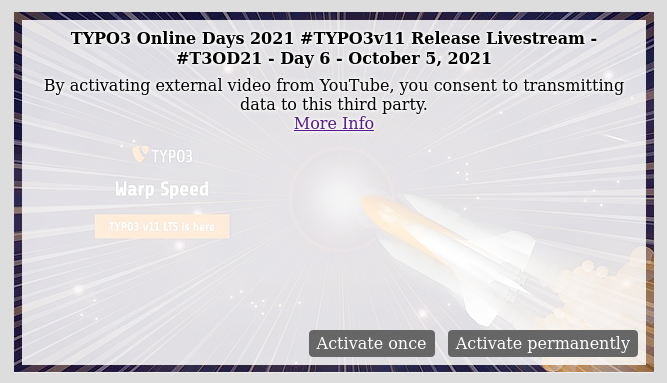
Frontend Example

Frontend example of YouTube video

User's Manual 

Video 

If set up correctly, no special attention is required from editors. You can set the video to autoplay, so the visitor only needs to click once to start the video.

iFrame 

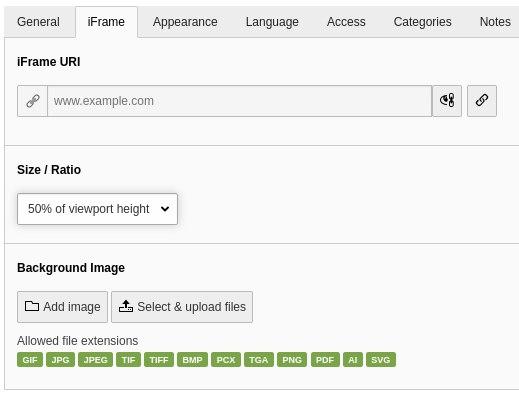
Use the content element of type "iFrame with consent":

CE "iFrame with consent" Form

CE "iFrame with consent" Form

You can choose an aspect ratio or height for the iframe and add a background image for the placeholder.

Any Content 

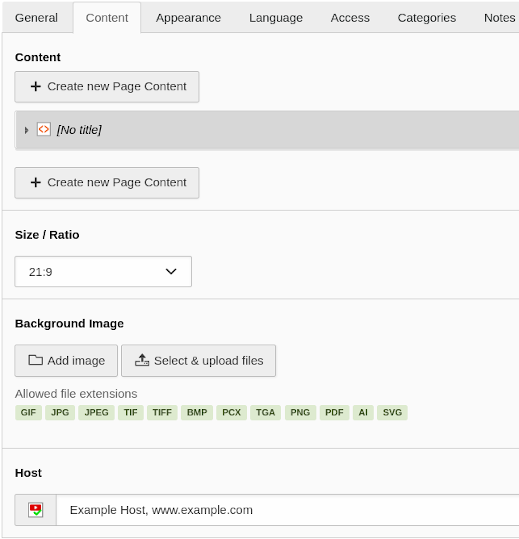
Use the content element of type "Content with consent":

CE "Content with consent" Form

CE "Content with consent" Form

Add any content element to be displayed after activation only. This is primarily meant to be used with the HTML content element, if the external content needs more than just an iframe or script to be included.

The activated content is rendered inside an iframe. All script and styling context of your site will not be accessible, so the content has to be completely self-sufficent.

You can choose an aspect ratio or height for the iframe and add a background image for the placeholder.

The related host has to be selected from the list of configured hosts, as it can not be detected from the content.

If the content is empty, the placeholder is not rendered at all. See Empty Content for the necessary prerequisites.

Installation 

Admin rights are required to install and activate an extension.

Composer mode 

If your TYPO3 installation uses Composer, install the latest version of this extension through:

composer require amazing/media2click
Copied!

If you are not using the latest version of the extension, you need to add a version constraint, for example:

composer require amazing/media2click:"^2.0"
Copied!

Installing the extension prior to TYPO3 11.4 

Before TYPO3 11.4 it was still necessary to manually activate extensions installed via Composer using the Extension Manager. Activate it as follows:

  • Navigate to Admin Tools > Extensions > Installed Extensions
  • Search for media2click
  • Activate the extension by clicking on the Activate button in the A/D column

Legacy mode 

If you are working with a TYPO3 installation that does not use Composer, install the extension in the Extension Manager:

  • Navigate to Admin Tools > Extensions > Get Extensions.
  • Click on Update now
  • Search for media2click
  • Click Import and install on the side of the extension entry

and activate it:

  • Navigate to Admin Tools > Extensions > Installed Extensions
  • Search for media2click
  • Activate the extension by clicking on the Activate button in the A/D column

Administration 

Basic Setup 

Advanced Setup 

If individual placeholder content or permanent activation is required 

  • Globally allow permanent activation via the Constant Editor: enablePermanently
  • Set up a page of type sysfolder to hold the host data.
  • Set storagePid to this sysfolder's uid via the Constant Edtior: storagePid
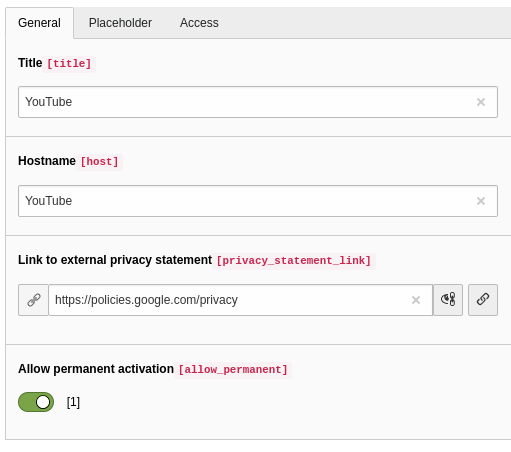
  • Using the list module, add a host configuration to your storage page for every target host that needs individual placeholder content or permanent activation. For videos, you have to use "YouTube" and "Vimeo" as hostnames:
Host Configuration Form: General

Example host configuration for YouTube videos

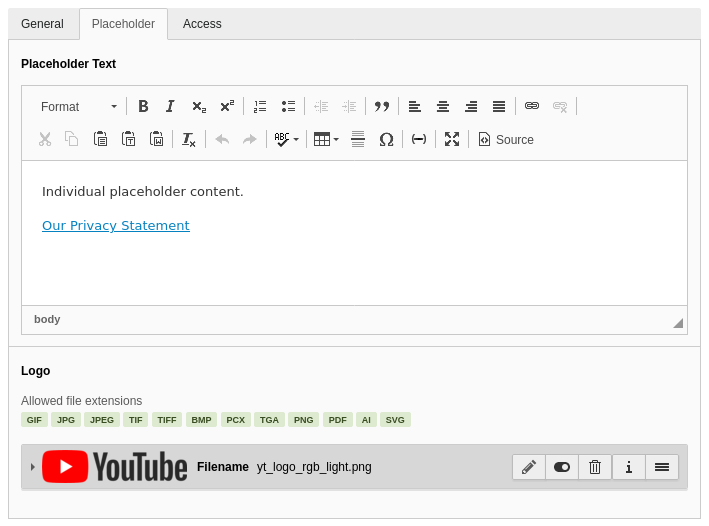
  • You can add individual placeholder content and/or a logo in the placeholder tab:
Host Configuration Form: Placeholder

Example host configuration for YouTube videos

  • Set privacyPid to the uid of your privacy statement page via the Constant Edtior: privacyPid
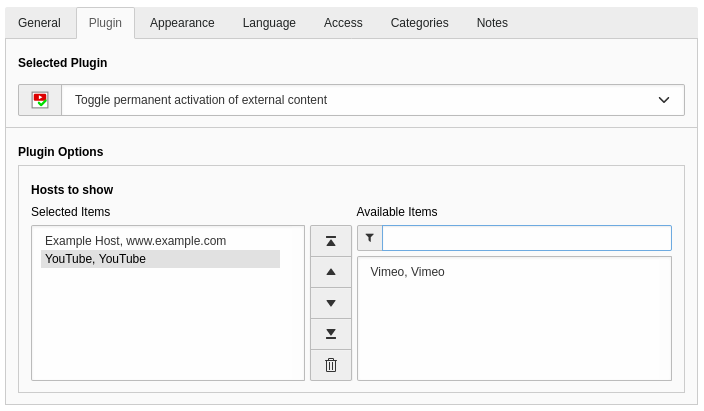
  • Insert content elements of type "Toggle permanent activation of external content" on your privacy statement page. You can filter the list of shown hosts in the plugin options:
Plugin form

Plugin BE form

Individual Host Templates 

If individual text and logo is not enough, you can configure individual fluid templates for your hosts' placeholders: Just add a file named after the host in Fluid Styled Contents' partial root paths. For example for the host www.example.com this file would be named (...)/Partials/Media2click/Placeholder/www.example.com.html

There is an example template for www.example.com included in this extension.

Empty Content 

If the content of the "Content with consent" content element is empty (whitespace only), the placeholder is not rendered at all.

E.g. with the TYPO3 Content Elements based on Fluid extension, you have to adapt the layout to remove all frame and anchor markup from your embedded content elements. See Overriding the Fluid templates for details.

Configuration 

TypoScript Constants 

Properties of plugin.media2click. Use the Constant Editor to change these settings:

enable 

Property:
enable
Data type:
boolean
Description:
Enable the extension's functionality
Default:
0

enablePermanently 

Property:
enablePermanently
Datatype:
boolean
Description:
Generally allow or disallow the permanent activation of accordingly configured target hosts.
Default:
0

showTitle 

Property:
showTitle
Data type:
boolean
Description:
Enable display of the video's title as the palceholder's title
Default:
1

showPreviewImage 

Property:
showPreviewImage
Data type:
boolean
Description:
Enable display of the video's preview image
Default:

1

Properties:

maxWidth: integer
Maximum width
maxHeight: integer
Maximum height

cookieLifetime 

Property:
cookieLifetime
Data type:
t3tsref:data-type-intplus
Description:
Lifetime of stored data in days. A value < 1 disables storage and thereby any permanent activation. Storage no longer uses cookies, but the name is kept for compatibility reasons.
Default:
7

templateRootPath 

Property:
templateRootPath
Data type:
string
Description:
Path to your Fluid templates

partialRootPath 

Property:
partialRootPath
Data type:
string
Description:
Path to your Fluid partials

layoutRootPath 

Property:
layoutRootPath
Data type:
string
Description:
Path to your Fluid layouts

privacyPid 

Property:
privacyPid
Data type:
integer
Description:
Page id of your privacy statement page
Default:
0

storagePid 

Property:
storagePid
Data type:
integer
Description:
Page id of your storage page with the individual target host configuration
Default:
0

TypoScript Setup 

All configuration is forwarded to the renderer classes via the settings of the corresponding FLUIDTEMPLATE and the additionalConfig attribute of the Fluid media viewhelper. Therefore all settings are not interpreted as TypoScript, but just used as is. It's not possible to use additional TypoScript to dynamically change these attributes.

For FluidStyledContent content elements, everything has to be set up in lib.contentElement.settings.media.additionalConfig.

For the News extension, use plugin.tx_news.settings.detail.media.video.additionalConfig.

As stated above, there is no interpreting of TypoScript inside a FLUIDTEMPLATE's settings. So you can not use the reference operator '=<' to reuse the settings of lib.contentElement in another FLUIDTEMPLATE, but have to use the copy operator '<'.

These parameters are available:

enable2click 

Property:
enable2click
Data type:
boolean
Description:
Enable the extension's functionality. Set via Constant Editor.
Default:
0

placeholderContent 

Property:
placeholderContent
Data type:
array of keys
Description:
Parent property to all settings regarding the content of the placeholder
Properties:
.showTitle: boolean
If enabled, the Fluid media tag's title attribute is shown as the palceholder's title. Set via Constant Editor.
.showPreviewImage: boolean
Show preview image if available. Set via Constant editor.
.previewMaxWidth: integer
Maximum width of preview image. Set via Constant Editor.
.previewMaxHeight: integer
Maximum height of preview image. Set via Constant Editor.
.cObject: cObject

This cObject is used for rendering the placeholder. If this cObject is a FLUIDTEMPLATE, some useful values are passed to the fluid template as settings:

.settings: array of keys

Settings for the FLUIDTEMPLATE cObject. You can add your own properties according to the needs of your custom templates.

Default Properties:
.videoProvider: string
Provider of the video, i.e. "YouTube" or "Vimeo". Usefull to adapt the placeholder content, i.e. link to the proper privacy statement.
.showTitle: boolean
see above
.title: string
The title of the video
.width: integer
The calculated width of the video iframe
.height: integer
The calculated height of the video iframe
.previewImage: string
Path to the preview image relative to the web root
.enablePermanently: boolean
Show the button for permanent activation if configured for this host.
.privacyPid: integer
Target page for the "More Info" link. Set via Constant Editor.

Change Log 

Breaking Changes 

Version 13.0.0 / Version 14.0.0 

The version number now aligns with the highest compatible TYPO3 core version.

The list of permanently allowed hosts is now stored in local storage instead of a cookie. If a cookie is found, its content is merged into local storage and the cookie is deleted.

Version 3.0.0 

The JavaScript has been rewritten to provide a clean API. If you relied on the variables and functions previously in the global scope, you have to adapt your code to the new API.

Version 2.0.0 

Some FLUID template variables have been renamed to be less generic. If you use your own templates, you have to adapt them accordingly.

The classic rendering method has been removed.

Version 1.3.2 

As of version 1.3.2, the classic rendering method is deprecated. It will be removed in version 2.0.0.

Version 0.3 

Version 0.3 introduces the cObject rendering method for the placeholder. This method is enabled by default and uses a FLUIDTEMPLATE cObject for rendering and XLIFF language files for localization.

If you changed the default wraps or texts in your installation, this may be a breaking change. Use the Constant Editor to disable cObject based rendering.

You should consider adapting your installation to the new rendering, as the classic rendering method will be deprecated in a future version.