Jobs Extension 

Extension Key

jobapplications

Version

4.0

Language

en, de

Copyright

2020

Author

it.x informationssysteme gmbh: Stefanie Döll, Benjamin Jasper

Email

typo-itx@itx.de

License

This extension documentation is published under the GNU General Public License 3 (GPLv3) license

This extension provides you with the ability to create and manage job posting.

People can apply for these by using the supplied application form to have the referenced contact receive the application via email and/or the backend module, which features a basic application management system.

See the full feature list here: Features

TYPO3

The content of this document is related to TYPO3 CMS, a GNU/GPL CMS/Framework available from typo3.org .

Community Documentation:

This documentation is community documentation for the TYPO3 Jobapplications extension

It is maintained as part of this third party extension.

If you find an error or something is missing, please: Report a Problem

Sitemap:

Sitemap

Introduction 

What does it do? 

This extension provides you with the ability to create and manage job postings.

People can apply to a posting by using the supplied application form resulting in the referenced contact receiving the application via email and/or the backend module, which features a basic application management system.

Features 

Manage job postings 

  • list view and detail page
  • create location records and contact person records to link with the job posting
  • shipped with a bootstrap layout, which provides easy customizability
  • comes with a bootstrap.css file so it works out of the box
  • add images for the list and detail view
  • write your own page title for the detail page by using placeholders
  • use frontend filters for job posting attributes "Division", "Career Level", "Emplyoment Type" and "Location"
  • time at which date the posting should go live and possibly end
  • support for TYPO3 categories
  • OpenGraph data automatically populated
  • Structured data for Google Jobs integration

Application Form 

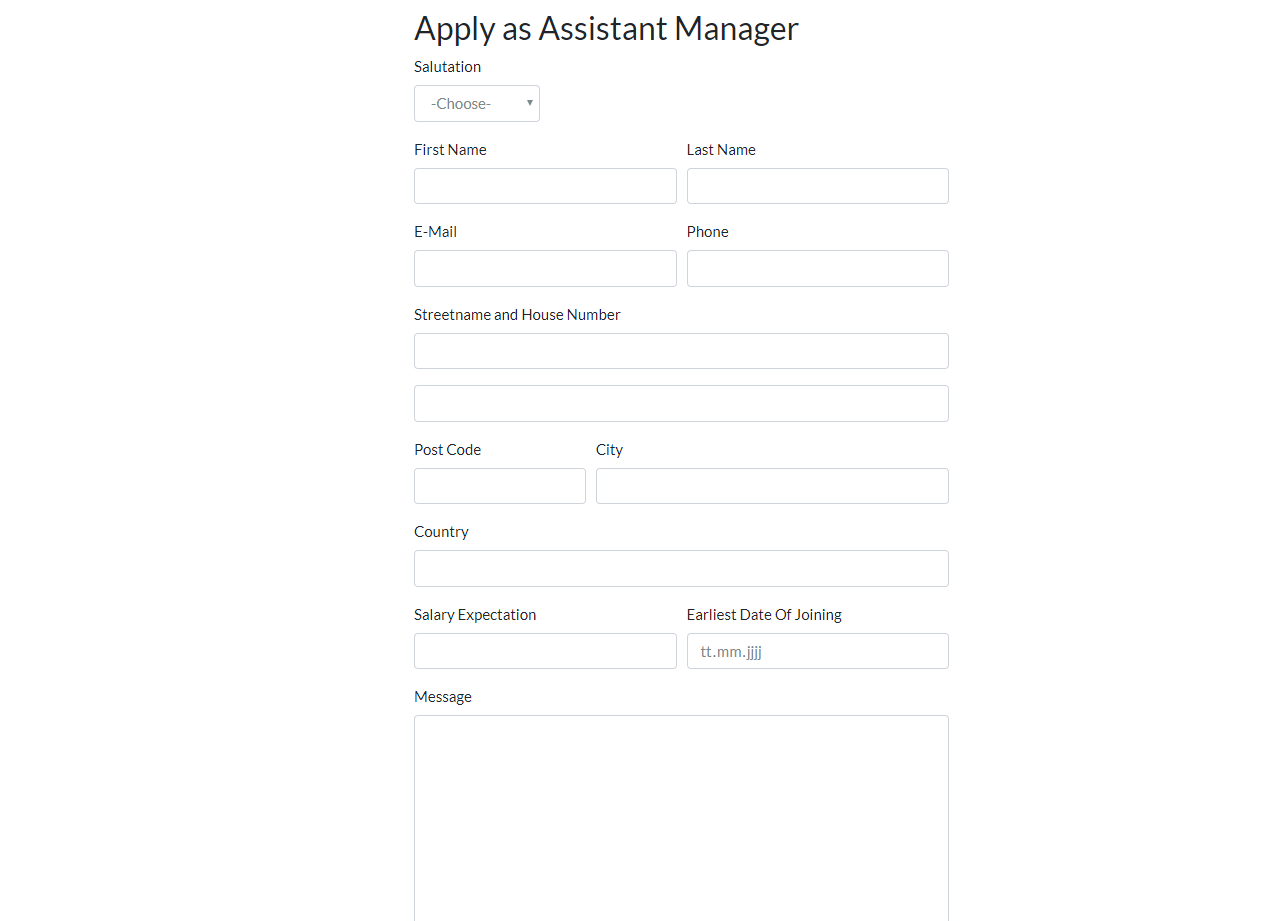
  • fully fledged application form with standard fields like name, email, phone, address as well as optional fields like "Salary Expectation", "Earliest Date of Joining" and a "Message" field.
  • supports pdf file uploads
  • have four single file upload fields or one multi file upload field
  • privacy agreement checkbox, which links to your privacy agreement page
  • forward the applicant to a success page with a customized message which again supports placeholders for the applicants name

Application Management 

  • configure if an email should be sent to the referenced contact and/or a specific email address
  • configure if the applicant should receive a confirmation email, where the text can be specified with the use of placeholders.
  • supports application status managment
  • configurable scheduler tasks for application deletion and anonymization based on age and status
  • option to not save the application and only send the emails
  • Backend module for viewing, sorting, filtering, archiving and deleting the applications
  • link a jobapplications extension contact person to a backend user to have a personalized experience viewing the applications

Screenshots 

Screenshot of list page

Screenshot of list page

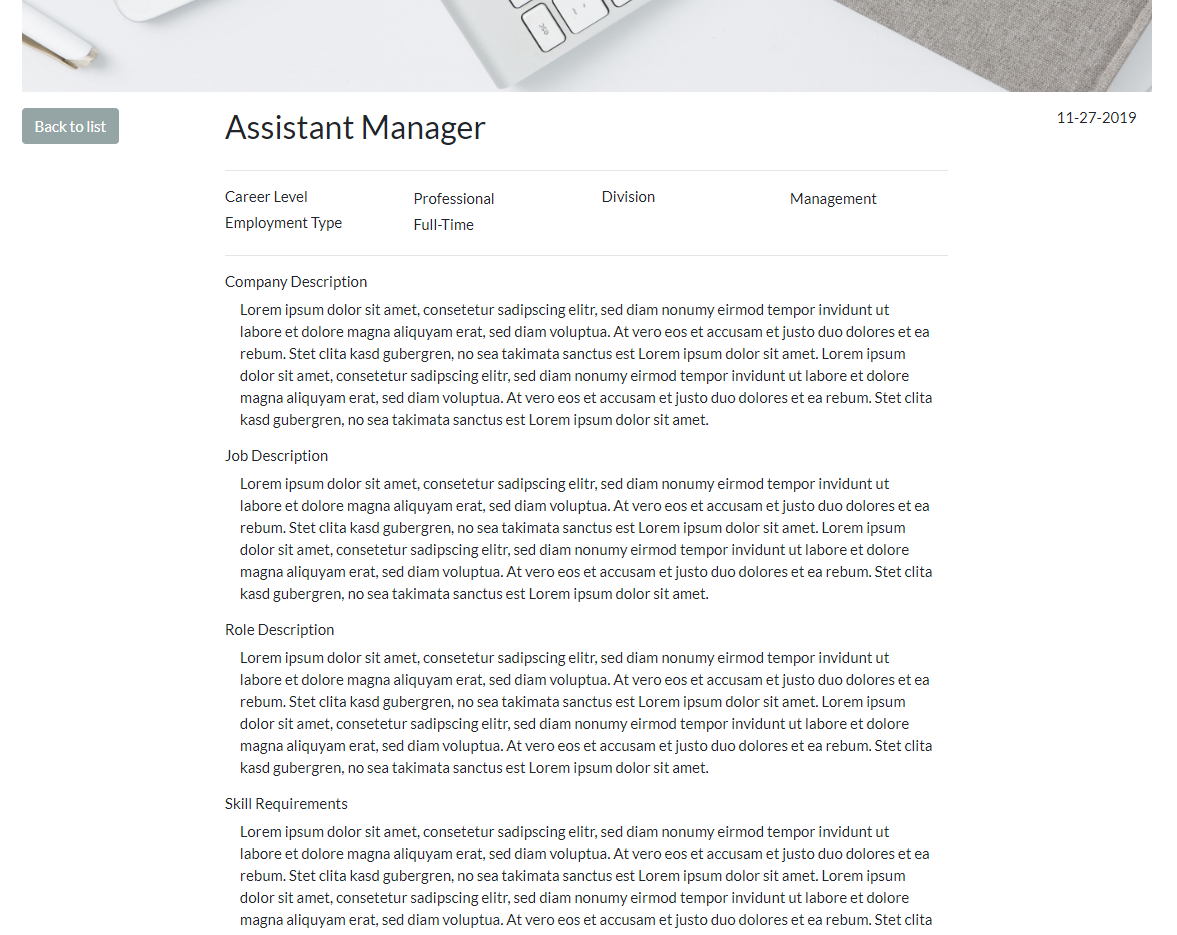
Screenshot of the detail page

Screenshot of the job postings detail page

Screenshot of the application form

Screenshot of the application form

This is how the standard bootstrap frontend will look like.

Of course you can easily override these templates via typoscript.

Installation 

Target group: Administrators

The extension is installed as any other extension. You can install it via composer by typing

composer require itx/jobapplications
Copied!

or the Extension Manager in the Backend or install it locally for example directly from |project_repository|. Please make sure to switch to the Maintainance tool and push the buttons analyse database structure and flush cache.

Include Static Typoscript 

You have to include the static typoscript file the Jobapplications extension provides.

  1. Switch to the root page of your site.
  2. Switch to the Template module and select Info/Modify.
  3. Press the link Edit the whole template record and switch to the tab Includes.
  4. Select Jobapplications (jobapplications) at the field Include static (from extensions):
  5. Here you can also include the Bootstrap entry, provided by the jobapplications extension, to have a working default layout.
  6. Also to have working default filters jQuery is required. If not already included elsewhere, you can include a jQuery version via a static template.

Create a secure file storage 

If your planning to use the application form, create a secure file storage, that is not accessible from the web (if not present already). You can read here how to configure it and set it up: Filestorage for applications. This step is optional, but highly recommended.

Route Enhancers 

For making the URL readable there is a file provided which can be imported in config->sites->main->config.yaml or copied and modified. This file is provided in the extension folder in Configuration->Routes->Default.yaml.

The provided Route Enhancers enhances the listview, detailview and applicationform.

Sitemap Example 

Here is an example of a sitemap provider configuration for the extension. Fill in "xxx" with the corresponding ids.

  jobs {
provider = TYPO3\CMS\Seo\XmlSitemap\RecordsXmlSitemapDataProvider
config {
   table = tx_jobapplications_domain_model_posting
   sortField = uid
   lastModifiedField = tstamp
   pid = xxx
   recursive = 0
   url {
	  pageId = xxx
	  fieldToParameterMap {
		 uid = tx_jobapplications_detailview[posting]
	  }
	  additionalGetParameters {
		 tx_jobapplications_detailview.controller = Posting
		 tx_jobapplications_detailview.action = show
	  }
   }
}
  }
Copied!

Users Manual 

Basic plugin setup guide 

Start by creating a folder (or more than one) to attach the Jobapplications Extension records to. For this example we will use a single folder, though you can split the system records into different folders as well. Having the folder set up we now create the pages needed for the extension to work.

Basically there are four pages that each have a Jobapplications Plugin on them: The Job posting list page, the Detail View Page, the Application form page and the Success Page. Simply create all of these pages and name them as you want. You can leave them be for the moment. We will go over each page in detail in the following section.

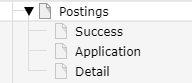
Page Tree

A proposal for the order of the pages. You can do this as you please though.

List page 

Let's start with the Job posting list page. Here you will be able to see all your postings in a list view.

Make sure you are in page mode and click +Content. In the popup window select the Plugins tab and select Jobapplications. Having done that you can give the plugin a name and then change to the Plugin Tab.

Here are all the settings located. First of all make sure to select the correct plugin in the Selected Plugin Dropdown. On this page this is the Jobapplications: Posting Plugin.

Below that you have the setting for where you have to set the Detail Page. Simply click on the Page Button and select the page you created as the detail page in the beginning. Equally as important is to set the Record Storage Page (which you can find at the bottom) to the folder where the job postings will be located. Between that there are other settings as well:

Detail view and Application form on same page 

You can put them on the same page. The application form plugin will automatically fetch the correct posting.

Number of postings per page 

This defines how many postings are displayed on a paginated page.

Show only postings of 

This setting allows you to filter the postings shown based on which categories they are assigned to. For example this can be useful if you want to have an extra page for the apprenticeship postings, so that there are no postings of another category. You have to create category system records for this to work, which then can be referenced by the job posting record.

Detail Page 

Create a new plugin and go into its settings as described above already.

Make sure the correct plugin is selected. In this case it is the Jobapplications: Detail View plugin. Also make sure you selected the correct record storage page.

Application Module 

Here you can change the status of the application system being available, meaning for the end users that there will be a button, where they can get to the application form.

This enables the setting where you have to set the application page. That means if you dont want the application system enabled you can stop here.

Define page title 

In this option you can specify the page title. You have the posting title with the placeholder %postingTitle% available. If left empty the default title defined by the extenion takes place.

Show contact 

This setting simply lets you decide whether you want to display the contact in the template.

Show contact photo 

Here you can specify if the photo of the contact should be displayed.

Show title of location 

This setting provides a possibility to not show the title of the location. This is useful if you only want to show the address of the location.

Enter a Google Maps API Key 

This has no effect yet. It will come in use in a future update.

Application Page 

This time the selected plugin should be Jobapplications: Application Form.

Set the success page and repository the same as on the previous pages.

Define page title 

In this option you can specify the page title. You have the posting title with the placeholder %postingTitle% available. If left empty the default title defined by the extenion is used.

Should the referenced contact receive an email? 

When this option is enabled the contact which was referenced by the posting will get an email with all the information the applicant provided including attachments. Make sure to specify the Email to applicant sender email and the Email to applicant sender name.

Should new applications be sent to a specific email address? 

This does the same thing as the previous settings only that this time an email can be specified. Make sure to specify the Email to applicant sender email and the Email to applicant sender name.

Should an email be sent to the applicant? 

With this setting enabled, new fields will show up, so you can enter the texts for the email.

  • Email to applicant subject

    Placeholder:

    • posting title: %postingTitle%
  • Email to applicant text

    Placeholder:

    • posting title: %postingTitle%
    • applicant salutation: %applicantSalutation%
    • applicant first name: %applicantFirstName%
    • applicant last name: %applicantLastName%

Should applications be saved in the backend? 

When this is disabled applications are not getting persisted in the record folder you selected for this plugin. This can be useful if you want to handle your whole application system via email.

Show "Salary Expectation" field 

Enables or disables Salary Expectation field.

Show "Earliest Date Of Joining" field 

Enables or disables Earliest Date Of Joining field.

Show "Message" field 

Enables or disables Message field

Maximum message number of characters: 

Maximum characters for the message field.

Enable a honeypot for extra spam protection 

With this option a honeypot field and a time validation is added to the form. A honeypot field is a not visible field. If it contains any values, the chances are high that a bot filled out the form. The timestamp validation checks how long it took to fill out the form. If it took less than 1 second, it was probably a bot instead of a real user.

Unsolicited application 

If you want to have a form for an unsolicited application, just place the plugin on the desired page. If the page does not receive a posting parameter, it automatically acts as an unsolicited application form. In the template you can change the title for this field. The emails contain the information unsolicited application and applications in the backend won't be linked to postings. If you configured the plugin to send mails to the contact, make sure to overwrite the defaultContactMailAddress, defaultContactFirstName, defaultContactLastName settings with your custom values.

Success page 

This page will be called when the applicants application was successfully sent. The plugin here: Jobapplications: Application Success Page

The job of this plugin is to provide a success message which is personalized to the applicant. It either easily integrates with other content elements on the page or the template is easily customizable to your own needs.

Enter message 

Placeholders:

  • Lastname: %lastName%
  • Firstname: %firstName%
  • Salutation: %salutation%
  • Posting Title: %postingTitle%

When the applicant entered divers or nothing as salutation the salutation will be automatically replaced with the applicants first name.

Extra: Contact plugin 

There is a plugin named Jobapplications: Contact Display which simply shows the selected contacts that are defined in the plugin settings. This can be useful to include as a contact section in another page.

There is also an option to enter a header text. This can be useful if you want to use this plugin as section.

Extension Configuration 

This can be found in Settings->Extension Configuration->Configure Extensions->jobapplications

General 

Override the automatically fetched server upload file size limit 

Here you can choose to provide a custom upload file size limit, that gets shown in the frontend and checked in backend. This must be a smaller than or equal the value the server sets. Specifiy the value in kilobytes.

Allowed application upload file types 

Here you can specify multiple file types by naming their extension by using the following notation: .pdf,.docx,.xlsx . Fallback is .pdf.

Slug behaviour 

Slug behavior:"uniqueInSite": The same slug can be used for postings in different sites. Use this setting only if no posting records are shared between sites. "unique" means that the same posting title will lead to different slug names.

Template constants 

In the Template Constant Editor the plugin registered a few settings.

Simply select PLUGIN.TX_JOBS.

Enable Google Jobs 

Here you can enable Google Jobs. The data for it will be automatically generated based on the posting data. Just make sure you have selected a company name in the typoscript configuration as well.

Make sure to also setup the Sitemap to have search engines index the job postings.

Company Name 

The company name is used to generate the Google Jobs data. This is required when Google Jobs is enabled.

Filestorage for applications 

This is where you can configure a seperate non publicly accessible file storage where all application files are saved. The value is the uid of a file storage. The default value is the auto created fileadmin, which is not recommended to use.

The file storage must be browsable and writable, but not publicly accessible. Depending on your setup you might have to do more than just deactivate the flag. See the documentation here

Change template path 

Here you can override the default templates.

Change CSS path 

If you want a different Bootsrap.css or even a very different .css file you can change its path here.

Use single file upload 

This is enabled by default to ensure extension backwards compatiblity. By disabling this field the multi file upload field is activated.

Send Email as HTML or Text or Both 

This setting only has an effect in TYPO3 v10. You can choose to send out emails as their html, text or both combined versions. There are email templates, for both the html and text versions.

Send email without any personal application data (privacy protection) 

To avoid privacy issues, we recommend enabling this feature. When this function is enabled, only information about a new application without personal data is sent as an email.

Tasks 

There are two console commands implemented to manage applications that are not needed anymore or have to be removed for privacy law reasons.

Both of them feature two additional settings:

  1. Age in days

    This determines the age the application must have. It is measured from the creation date of the application until now.

  2. Status consideration

    This setting decides whether the task should only delete applications that are in an end status (see Status record if you don't know what that means).

    This is only useful if the application administration and its statuses are used.

Clean up old applications 

This task simply deletes all applications and its files, that qualified for removal. How this is determined is described above.

Anonymize old applications 

This task anonymizes every application that qualified for removal information with three asterisks *****, except for the city name, country, privacy agreement confirmation, referenced job posting and the creation time.

This could be needed for following applicable law.

For Editors 

Setup records 

For adding records go into your folder(s) where you want to store the jobs system records via the list module.

Click the '+' and you will see all the records that are available.

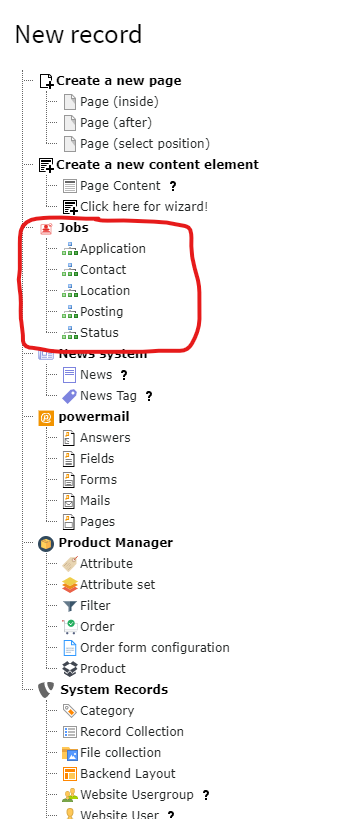
Records

The ones marked in red are created by the Jobapplications Extension.

Language and hidden 

All of these records feature changing the language and hiding the element.

Contact record 

This record is used to reference a contact person in a job posting.

Personal information 

Enter the first and last name of the contact, their email, phone, division and possibly a picture. This data will then be displayed in the frontend, when this contact is referenced by a posting.

Backend user 

With this setting a backend user can be referenced. This is useful if the Jobapplications-Application-Managment-Backendmodule is used as it allows the extension to personalize the experience.

Location record 

This record can also be referenced by a posting to provide information about the whereabouts of the position.

Applicant Location Requirement record 

This record can also be referenced by a posting to provide information about the location e.g. Country/State/City from which working from homeoffice is possible. If you are not sure if your location falls under one of the previously mentioned options or you want to reference, for example a union of countries like the EU or an rough area of the world/continent/timezone, you can use the value Administrative Area.

Name 

The location record expects a name, which will be shown in the frontend by default. There is however a setting in the plugin settings of the Detailview Plugin to hide the name so only the address will be shown and the name can be for internal use only.

Address 

These fields are simply used to provide the address.

Latitude & longitude 

These don't have an effect yet. It is planned however that these can be used to show a google map in the detail view of the posting.

Posting record 

This is probably the most important record of this extension. With this record the actual job posting is created. Keep in mind that apart from the title field every field that was left empty won't be displayed in the frontend.

Title & division/department 

The title is the main identifier of the posting. The department field will be what defines the content of one of the filters and therefore should not be empty.

Location & contact 

These are both of the fields that were mentionend before. They reference the location and contact record. One of each type can be selected of all of the records previously created.

Date posted 

The date posted will be shown in the frontend, and is also the datePosted field in Google Jobs context. It has no effect though whether the posting will be shown or not.

Publish date & valid through 

These two dates decide when the posting is published or taken down again. The Valid through field is optional, meaning it can stay empty which results in the posting staying active until its manually taken down. The valid through field is used for Google Jobs as well.

Base salary 

This is another optional entry. You may enter numbers as well as text. This entry is especially useful for Google Jobs. The extension will fetch the input value if available automatically and assign the currency defined in the extension settings.

This means any currency input into this field is only for cosmetics in the frontend. The actual currency must be defined in the extension settings. This behaviour may be improved in the future.

Career level 

This field defines what career level the applicant should have.

Examples for this could be: career starters, professionally experienced, ...

Employment type 

This setting has a select list which should cover every type, as they are copied from Google Jobs, which means the types do correspond directy with the ones used for Google Jobs.

Terms of employment 

This field can be used to describe the terms in a simple and short way.

E.g.: fixed-term contract, temporary-contract, open-ended contract

Homeoffice Possible 

Only check this field on postings where the job can or is required to be executed 100% in an homeoffice setting.

Location Restriction 

If the homeoffice setting is enabled you need to specify which locations the applicant is allowed to work from. It is required to pick at least one location when the homeoffice setting is enabled on a posting to satisfy the Google Jobs requirement. To specify said locations use the Applicant Location Requirement records or create a new one.

Slug 

In the advanced settings tab you can find the slug. This represents how the url of this posting will look like. It will be automatically generated when the posting is saved, but it is also possible to specify it yourself.

Texts 

In this tab the actual content of the posting is specified. There are a multitude of sections available. These can be filled via the Rich Text Editors on an as-needed basis.

Images 

In this tab both of the posting images can be specified. The posting can have a list view image, which as the name says will only be dispayed in the list view, and a detail view image, which represents a header picture in the default Bootstrap template.

Categories 

Every posting can be assigned to one or more TYPO3 categories. These are system records that have to be created manually. These can be created in a seperate folder for the sake of clarity. Then they will show up in this tab, ready to be activated.

Status record 

These records are only of good use if you use the Application-Managment-Backend-Module. They serve an organizational purpose.

Each application can have a status. When a new application arrives it is then assigned to the first status. Which one this is can be specified via a setting in the status record. This setting should only be enabled once in all of the statuses to ensure the system is working correctly.

Each status has follower statuses, which enables you to build your own workflows. Because its quite time consuming to create all of those statuses yourself an option to import a stack of default statuses is included. This form can be found in the settings of the backend module.

There is also a setting in the status record that, if enabled makes the status an end status. This means the applications in this status are cleared to leave the system via either being deleted or anonymized by tasks executed by the scheduler. The behaviour of these tasks can be specified when creating the task (Tasks).

Application record 

The application records should not be created manually as they are created automatically when an applicant applies. Because the layout of the backend list module is quite complex for reading the applications we developed a backend module which is explained in the following section.

Application managment 

You can find the application managment by clicking the Application Module.

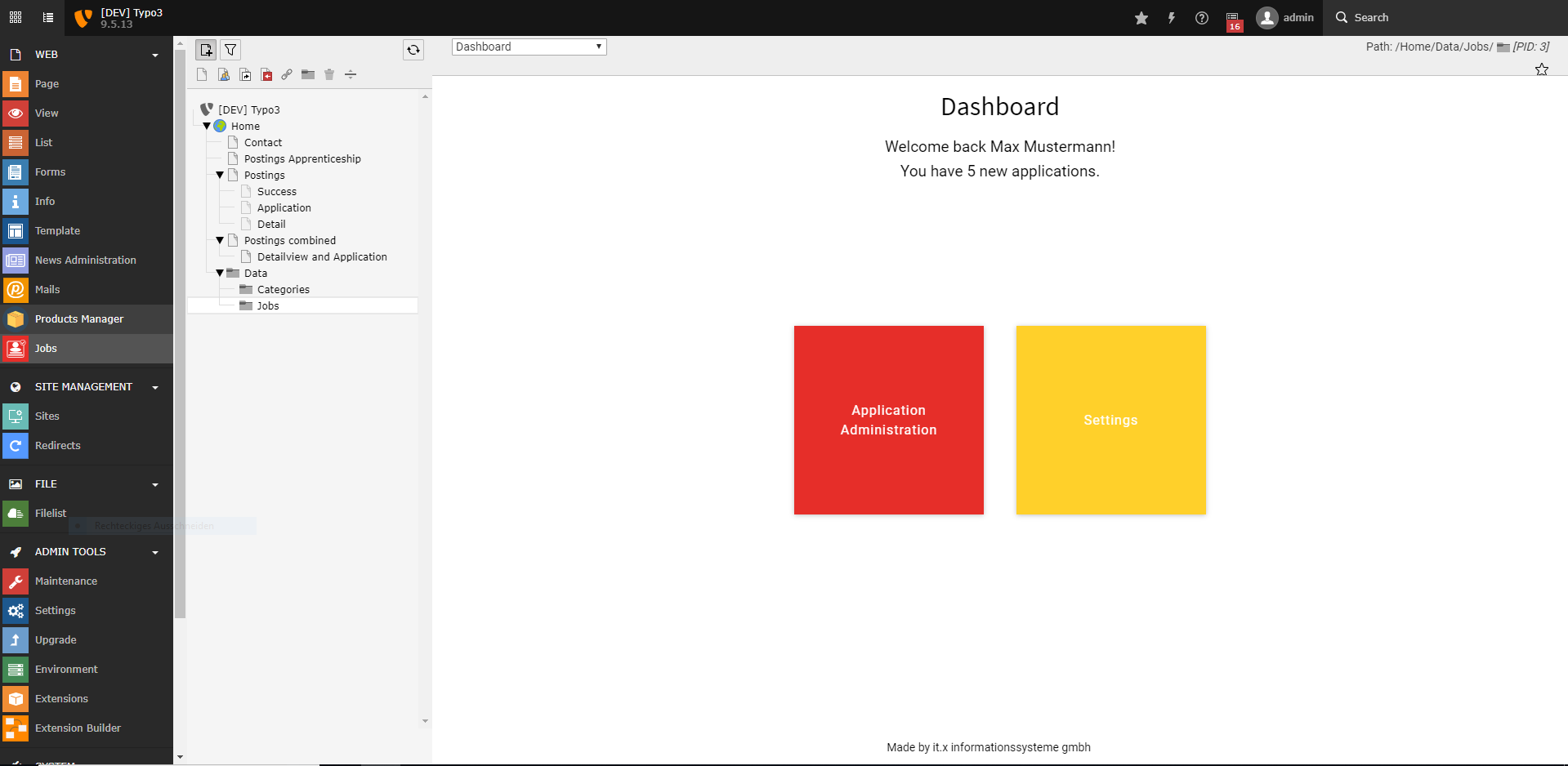
If your backend user account is connected to a Jobapplications Extension Contact you will be greeted with the number of new applications.

Backend Module Dashboard

The "dasboard" in the backend module

If you have admin rights you will see a Settings Button. This is only for importing statuses at the moment. Otherwise you have a single button Application Administration. Clicking it will bring you directly to the Application-Overview.

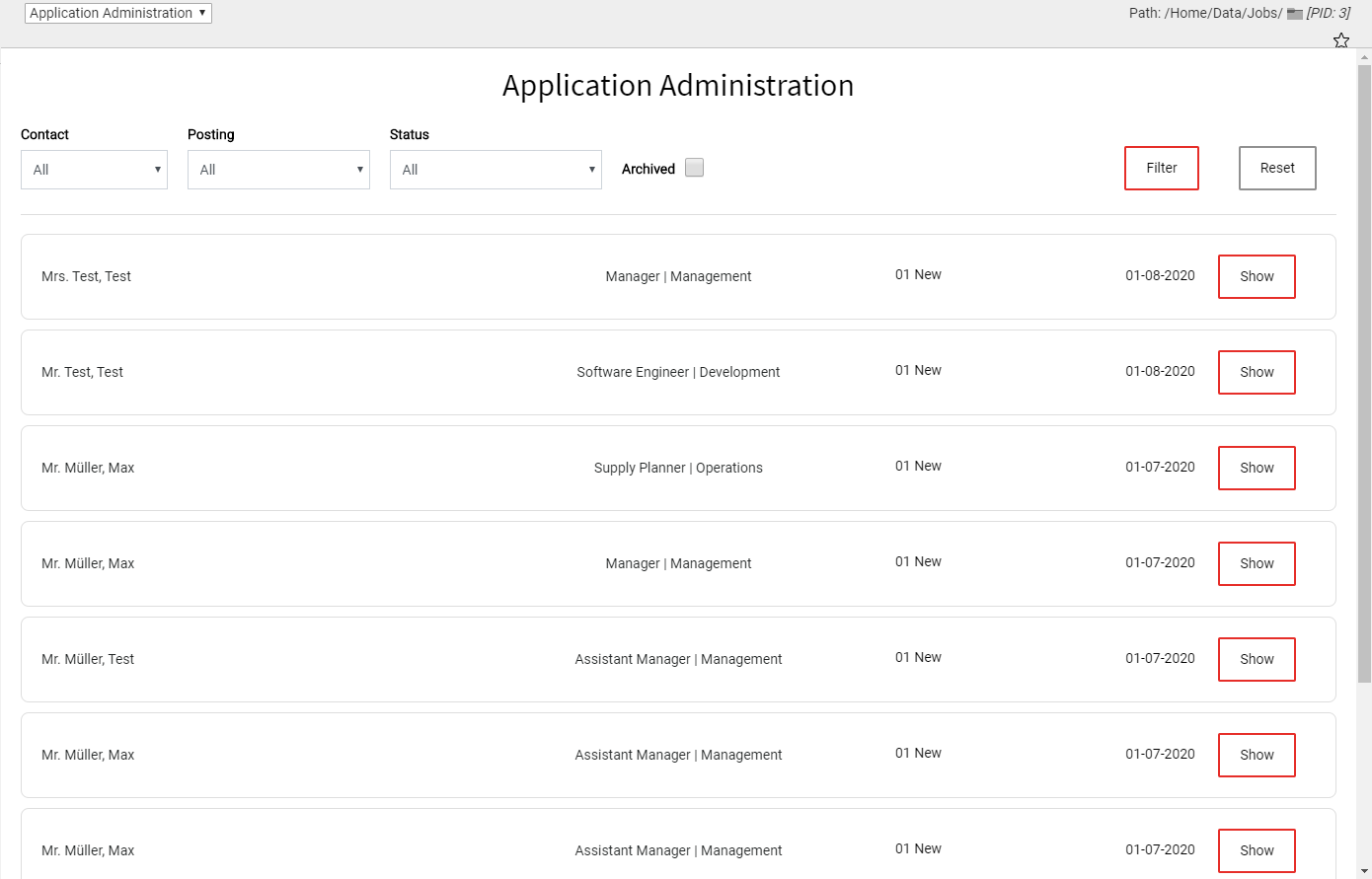
Application Overview 

Backend Module Overview

The application administration overview

Here, all applications are visible. To make things easier there are some filters implementented, which should help the recruiter to have a view of the exact applications he/she wants to see. As already mentioned above there is a status system implemented. In the list overview the status can be clicked on to select the new status, resulting in the status changing instantly.

It is also possible to click on the job posting in the middle of the entry to filter for this exact posting. To read the whole application in more detail you can click either on the name of the applicant on the left or the Show button on the right.

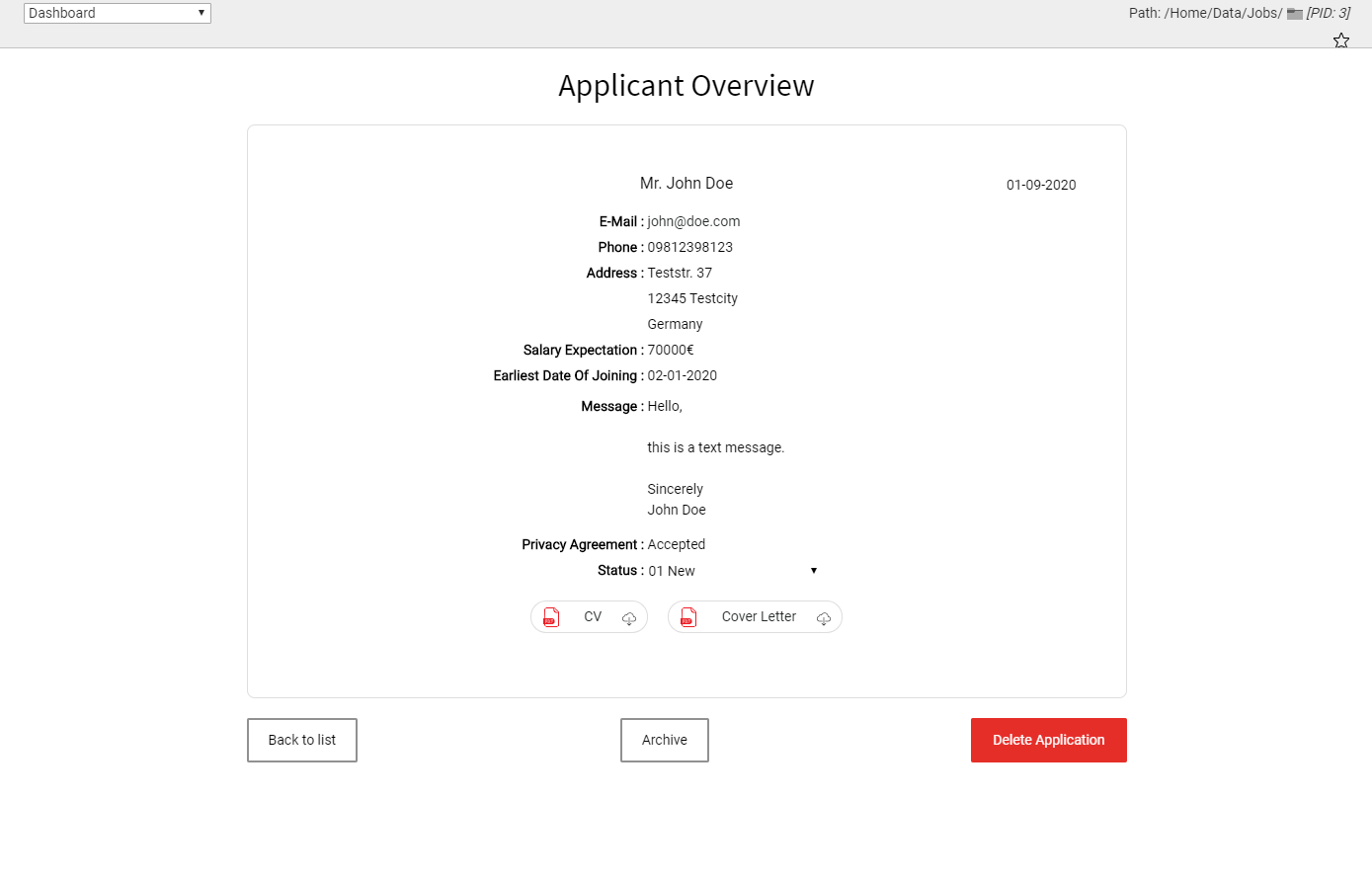
Application Detail view 

In this view all of the information available from the application is displayed.

Backend Module Application Detail View

Detail view

In the same way as in the overview, the status is changeable here as well. Below the applicants information, the files, which the applicant uploaded via the application form are presented. These can simply be downloaded by clicking on the corresponding button.

There is another function to organize the applications: With a click on Archive the application will not be shown anymore in the overview. You can see if the application was archived by looking at the grey background visible in the detail view as well as in the list view.

Also there is a button Delete Application to remove the application from the system. This removes the application record and all files related to this application. This is irreversible.

Settings 

This is for admins only.

Generate Statuses 

Generates template statuses (see above).

For Developers 

Events 

There are a few events provided which mainly happen before postings or applications are being assigned to the view.

You can simply find them by taking a look into ITXJobapplicationsEvent. If you think you need more events than are already provided feel free to contact us via GitHub or E-Mail.

Custom Filters 

If you want to have custom filters you can do that by performing three steps.

  1. Configure every filter you want in TypoScript settings, like the default config:

    filter {
       repositoryConfiguration {
          division {  // Relation name: This is the name you should assign the form element property and the constraint property
             relation = division // Define the relation a la Repository query e.g.: posting.contact.email
             relationType = equals // choose equals, contains or in. This depends on the given relation
          }
    
          careerLevel {
             relation = careerLevel
             relationType = equals
          }
    
          employmentType {
             relation = employmentType
             relationType = contains
          }
    
          location {
             relation = location
             relationType = contains
          }
       }
    }
    Copied!
  2. Override the Constraint model, add your custom properties with getters and setters
  3. Override the PostingController, by extending the Default one and override the function getFilterOptions() This function defines what the filterOptions are. You can write queries to find the options automatically or supply constant ones. The data generated by this function gets cached, so perfomance wont be a problem. Also remember to clear all caches after changing something in the filter options.

    // Function returns an array, matching the configured filters from above
    public function getFilterOptions($categories): array
    {
       return [
          'division' => $this->postingRepository->findAllDivisions($categories),
          'careerLevel' => $this->postingRepository->findAllCareerLevels($categories),
          'employmentType' => $this->postingRepository->findAllEmploymentTypes($categories),
          'location' => $this->locationRepository->findAll($categories)->toArray(),
       ];
    }
    Copied!
  4. Last but not least you have to edit the frontend template, so it includes your new filters. You can take the default filters as an example, but basically you have access to the filter options and the user selected filter options in variable called constraint. The controller is also preconfigured to work with both single- and multiselects.

Sitemap 

below normal contents