Usage
TL;DR
- Navigation to the sysfolder/page where the Call to Actions are going to live
- Create a new content element and select Call to Action
- Fill in the fields applicable then Save and close
- Navigate to the page you wish to show the CTA on
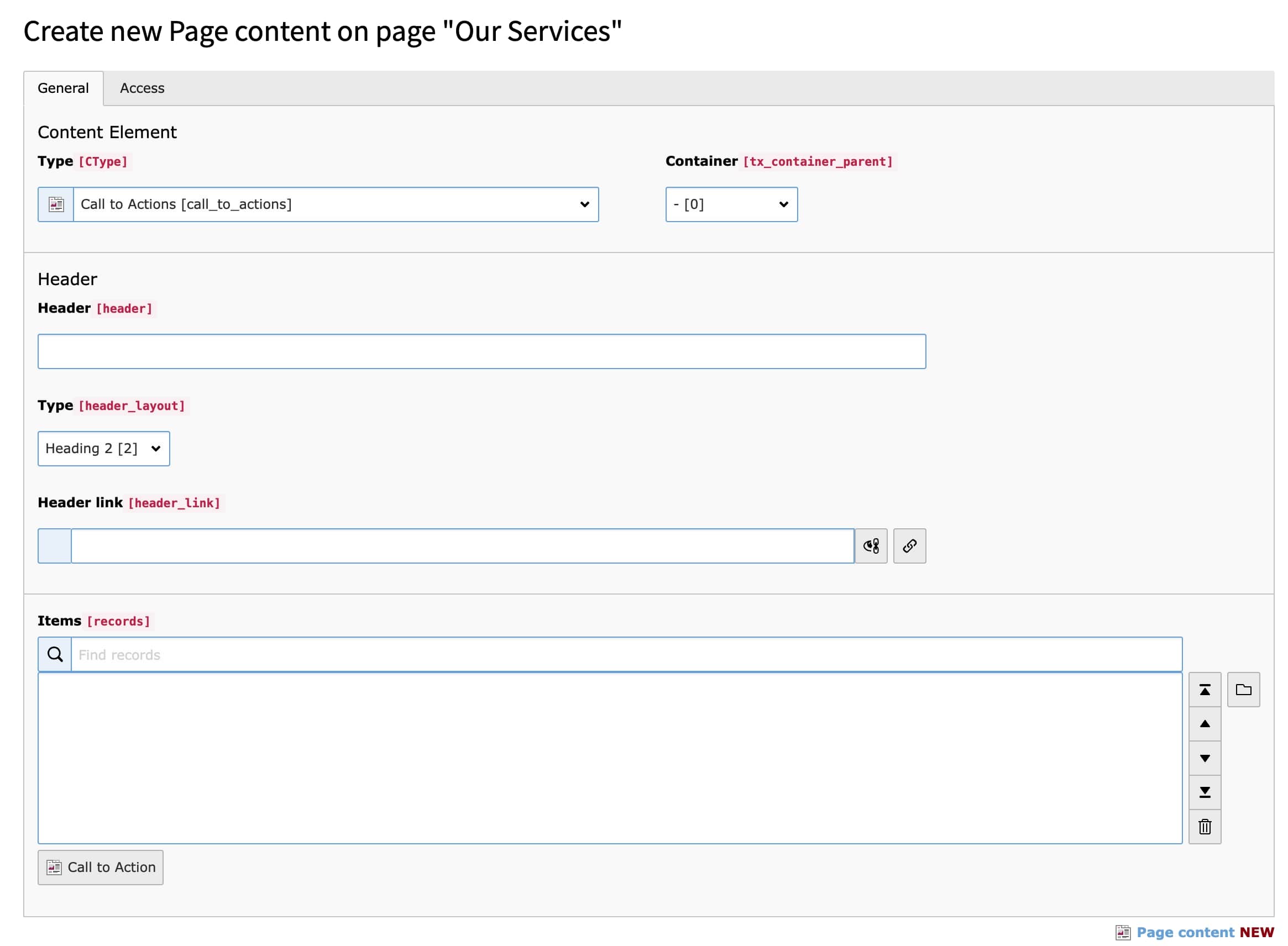
- Create a new content element, under "Plugins" select "Call to Actions"
- In the records field, select the CTA(s) you wish to display
Steps
-
Create new CTA
Once installed, it is best to create a sysfolder to house your Call to Actions, however this isn't a requirement and they can live anywhere on the site.
Navigate to List view and create a new content element
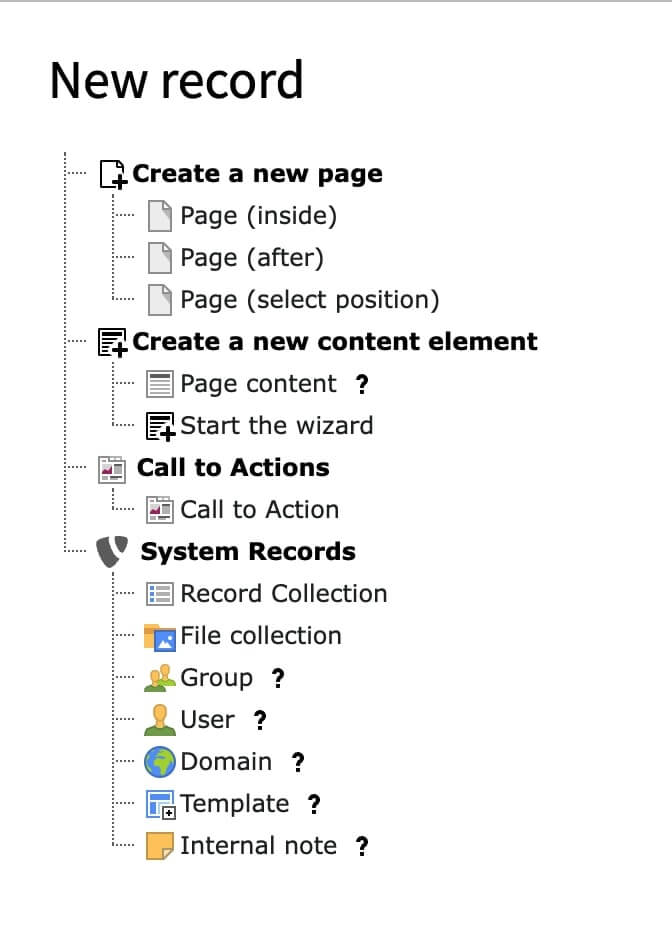
-
Enter CTA details
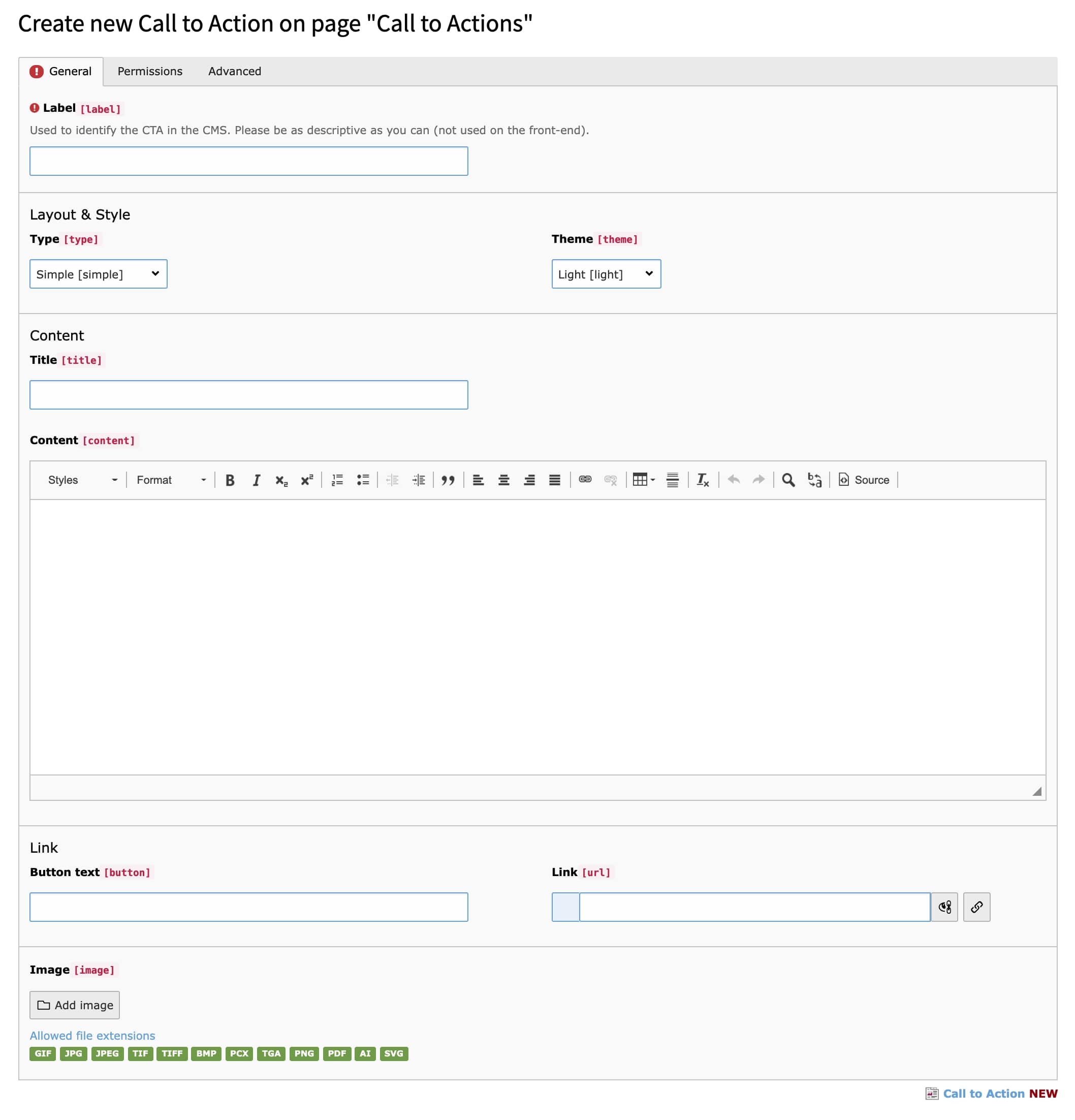
Fill in the fields required, some extra details
- The label field is only used internally, for identifying in list views and when selecting
- Theme and Type is used for CSS styling, however you could use fluid conditionals to change the display & layout - these can be customised
- Buttons/links are only shown if link text & url are filled in
- The image is rendered at the top of the CTA (but can be changed by customising the template)
-
Create the Content Element
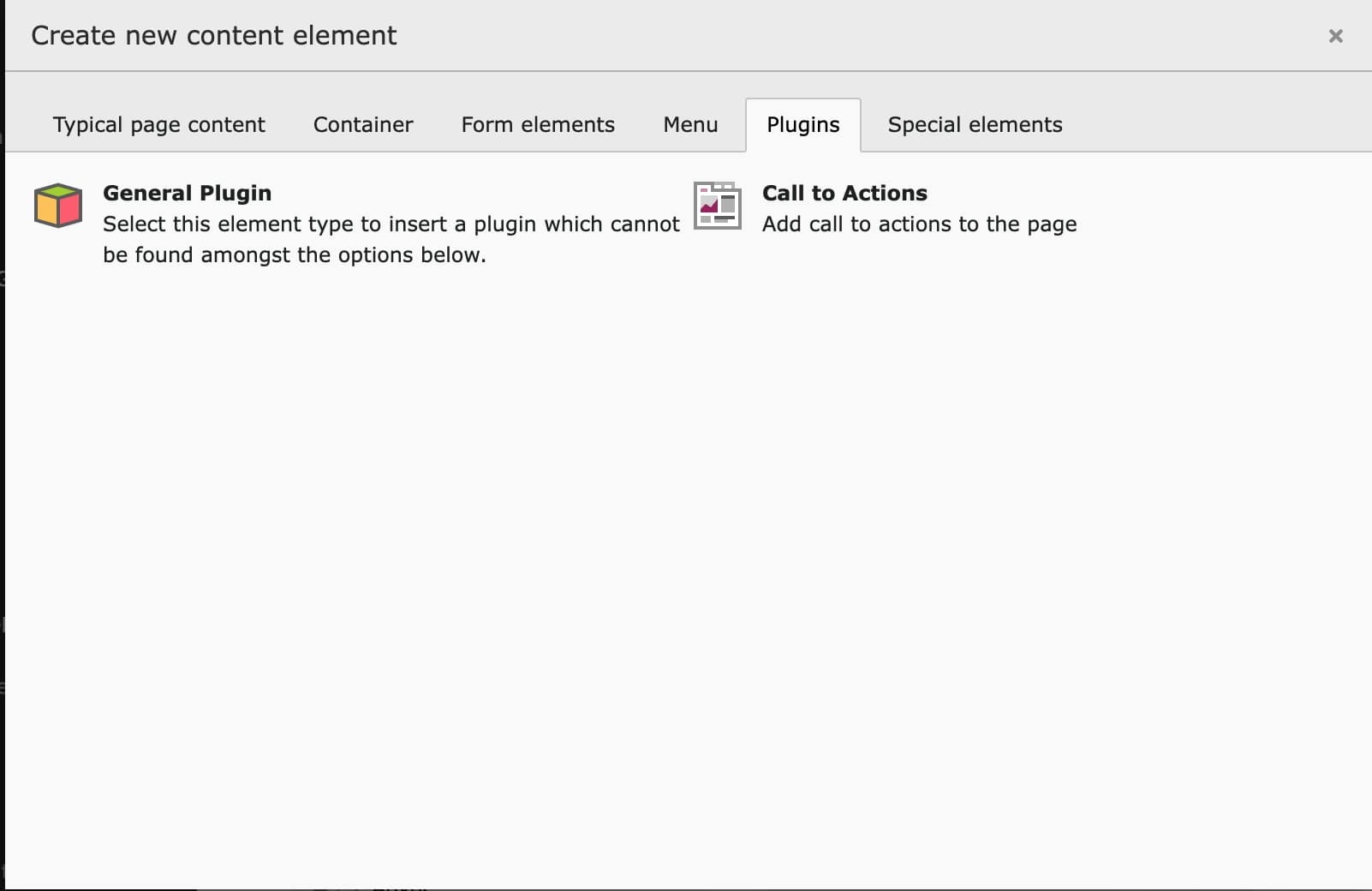
Navigate the the page you wish to show the CTA on and create a new content element. Under the "Plugins" tab you should be able to add a "Call to Actions" element
-
Select the Records
Using the Items (Records), select the records you want to show