Calendarize - Flexible TYPO3 Calendar

Rendered

Wed, 20 Aug 2025 14:35:25 +0000

Classification

calendarize

Keywords

forEditors, forAdmins, forBeginners, forIntermediates

Author

Tim Lochmüller

Email

tim@fruit-lab.de

Language

en

What does it do?

Calendarize is a flexible calendar for TYPO3. The aim of the extension is NOT the base structure of events (location, category etc.). The aim of the extension is the timely representation of ExtBase models (any kind) in a index. Further more the extension is shipped with different calendar views.

Report bugs and ideas to: https://github.com/lochmueller/calendarize

Credits

  • Tim Lochmüller – typo3.fruit-lab.de / typo3blogger.de
  • Max Kalus – auxnet.de
  • Paul Beck - teamgeist-medien.de / blog.teamgeist-medien.de
  • https://github.com/iconic/open-iconic for the icon (png / svg). Thank you!

Enter your name to the list, if your are contribute via github to the calendarize project. Thank you!

Getting started

The tutorial will show you use the basic usage of the calendarize extension in TYPO3. This requires the first steps of the installation to be completed.

The event record stores information, whereas the plugin is used to render these records in the frontend.

  1. Create an Event

    1. Create or select a sysfolder to store the records.
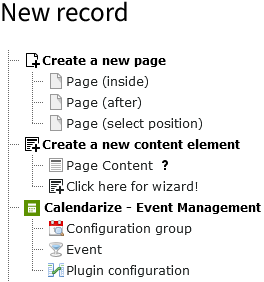
    2. In the list module choose Create a new record in the top bar. Click on Event under Calendarize - Event Management.

      New record dialog
    3. Fill in the field Title.
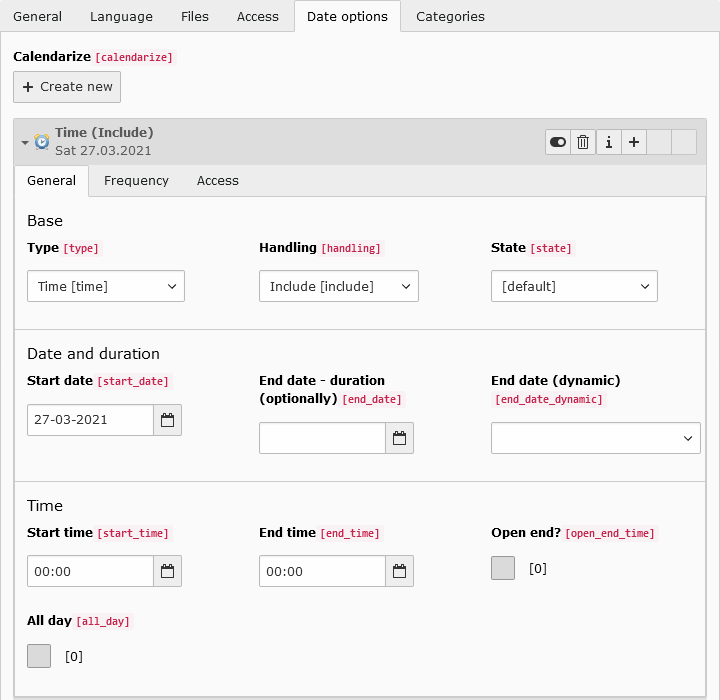
    4. Navigate to the tab Date options and create a Calendarize configuration by clicking on Create new
    5. Fill in the field Start date with a date in the near future.

      Event record in the Date Options tab
    6. Save and close the record.
  2. Add a plugin

    1. Create or select a page for listing and showing the events.
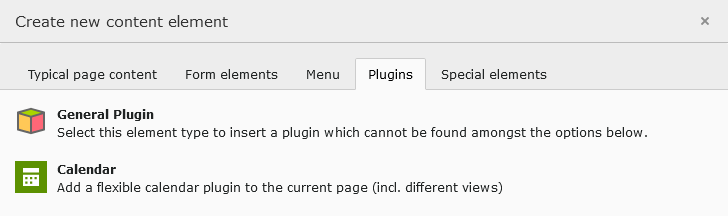
    2. In the page module add a new content element. Under the tab Plugins choose Calendar.

      Create content dialog on the plugins page
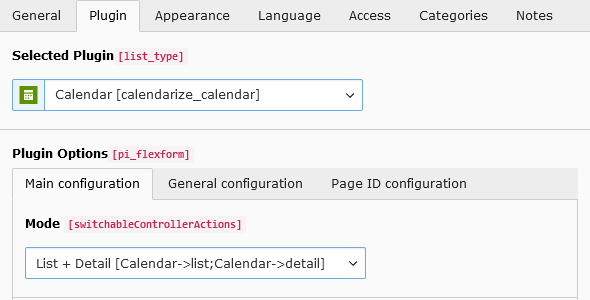
    3. You can find the plugin settings within the tab Plugin.
    4. Select the mode List + Detail.

      Plugin settings with List + Detail selected
    5. Navigate to the subtab General Configuration. Fill the field Startingpoint by selecting the folder from the beginning.
    6. Save the record.
  3. Check the result

    Load the page in the frontend. You should see your created event. A click on the title should show the record on the detail page.

Create recurring event with exceptions

This tutorial will show you how to create a recurring event with exceptions / excluded dates.

Scenario

In this example an event is repeated every friday. It should be limited to a specific time span and exclude the school holidays. Instead of excluding every single date in each event, a configuration group is used. Through this the exceptions can be reused in multiple events and easier maintained.

Realization

  1. Create a configuration group

    1. Create a new configuration group
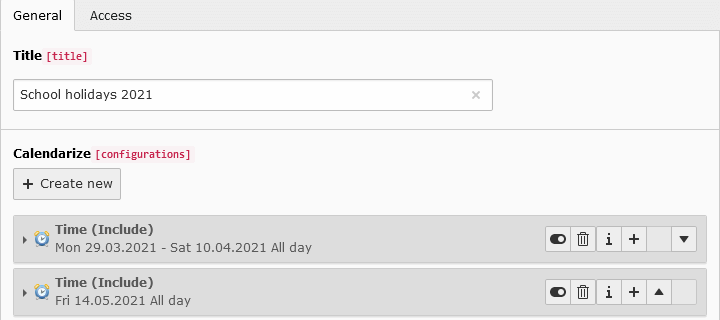
    2. Add configurations with time frames which should be excluded (Handling should still be Include)

      New configuration group with multiple configurations
  2. Create a recurring event

    1. Create an Event and fill in the mandatory fields.
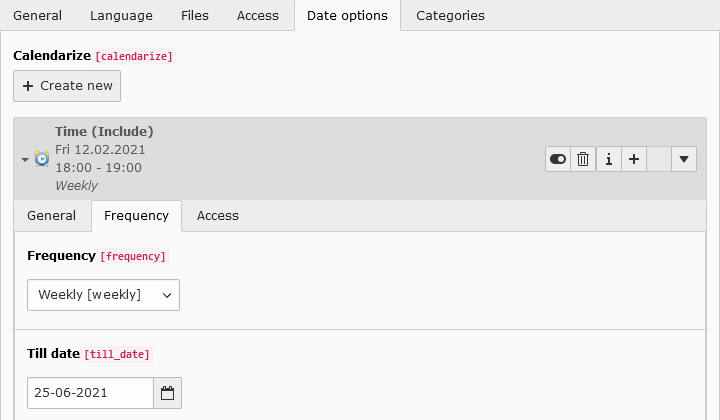
    2. Add a configuration with a weekly frequency and a till date.

      Event configuration on the frequency tab
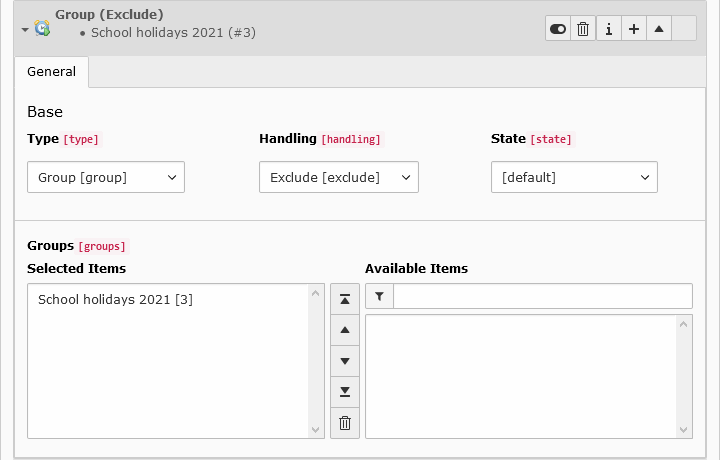
    3. Add an additional configuration and set Type to Group and the Handling to Exclude.
    4. Fill in the field Groups by selecting the previously created group.

      Event configuration on the frequency tab
    5. Save and repeat this for other events.
  3. Check the result

    Inspect the dates in Calendarize (Information - Save to refresh...) or in the frontend.

Plugin

Filter by categories

The listed events in a plugin can be filtered by categories. The categories can be selected in the categories tab of the content element (not in the plugin options) or in the Plugin Configuration.

Plugin configuration with categories tab highlighted

Category conjunction

New in version 13

It is possible to define how multiple categories are handled. If the event requires at least one (OR) or all (AND) categories to be displayed.

Category conjunction setting with 'all', 'or' and 'and'

categoryConjunction

categoryConjunction
type

string

Default

or

Scope

Plugin

The category conjunction defines if and how the categories are treated. If no category is configured, no filter is applied (all events are shown).

[all] (Don't care, show all)
There is no restriction based on categories, even if categories are defined.
[or] (Show items with selected categories (OR))
All event records which belong to at least one of the selected categories are shown.
[and] (Show items with selected categories (AND))
All event records which belong to all selected categories are shown.

Installation

This is the installation process of the extension:

  1. Install the extension with the extension manager or composer

    composer req lochmueller/calendarize
    Copied!
  2. Include the static TypoScript configuration Calendarize (calendarize) in your TypoScript template

    Static include inside Typoscript template
  3. Create a new folder in your page tree, where you create events and related records like configuration groups.
  4. Depending on your needs, create a TYPO3 page for event listing, event details and registration.
  5. Include the plugin “Calendarize” and configure the plugin settings.
  6. Configure extension TypoScript settings depending in your constant editor on your needs.

Configuration

The configuration of the calendarize is very straightforward. Please install the extension and include the Static Extension TypoScript to your TypoScript. After that, the extension is working in the frontend.

Via the constant editor, you can adapt template path and feed options. There are also options for date and time formats and limits for browesable views like the month view. Please check the constant editor for all options.

The last step is, place the plugins on your pages. The view is always related to the configured PIDs. That means, if you create a month view and set a detailPid, the template will render detail links to events. If you leave the detailPid empty and select the monthPid, no events are in the output and the month view is a "small month view". Just try same combinations :)

XML Sitemap for TYPO3

The sitemap includes links to all indices.

Basic sitemap

plugin.tx_seo {
  config {
    xmlSitemap {
      sitemaps {
        ext_calendarize {
          provider = TYPO3\CMS\Seo\XmlSitemap\RecordsXmlSitemapDataProvider
          config {
            table = tx_calendarize_domain_model_index
            pid = <page id(s) containing records>
            url {
              pageId = {$plugin.tx_calendarize.settings.defaultDetailPid}
              fieldToParameterMap {
                uid = tx_calendarize_calendar[index]
              }
              additionalGetParameters {
                tx_calendarize_calendar.controller = Calendar
                tx_calendarize_calendar.action = detail
              }
              useCacheHash = 1
            }
          }
        }
      }
    }
  }
}
Copied!

Scheduler

There is a scheduler command controller for re-indexing the current event structures. This is only a helper scheduler task, if there are external processes that create new events without triggering the index. It is recommended to configure the scheduler task (command controller) to run every night.

Import ICS / ICal Calendar

An external ICS calendar can be imported with a scheduler task. For this the scheduler task creates default events on the given pid. If an event already exists (determined by UID inside importId) on ANY pid, the event only gets updated. For your own events implement the ImportSingleIcalEventListener.

  1. Add a new Scheduler Task
  2. Select the class Execute console commands
  3. Select Frequency for the execution
  4. Go to section Schedulable Command. Save and reopen to define command arguments at the bottom.
  5. Select calendarize:import (press save)
  6. Select the options you want to execute the queue with, it's important to check the checkboxes and not only fill in the values.

Arguments

Argument Description Example
icsCalendarUri The URI of the iCalendar ICS https://calendar.google.com/calendar/ical/de.german%23holiday@group.v.calendar.google.com/public/basic.ics
pid The page ID to create new elements 10
since (optional) Imports all events since the given date. You can use relative and absolute PHP dates. Note: For recurring even only the start date is relevant.

2020-07-23

-10 days

Supported properties

The iCalendar format specification is complex, so only a subset of properties is supported.

The generation of (event) configurations currently support following properties :

  • UID
  • start / end date and time
  • allday events
  • duration (composer only)
  • status (e.g. CANCELLED) (STATUS)
  • recurring configuration (RRULE)

    • frequency (daily, weekly, monthly, yearly) (FREQ)
    • interval (INTERVAL)
    • until / last date (UNTIL)
    • the number of occurrences (COUNT)
    • (simple) recurrences with monthly/yearly frequencies (e.g. every first Monday into the month) (BYDAY, BYSETPOS)

In addition to them the default event makes use of:

  • title (SUMMARY)
  • description (DESCRIPTION)
  • location (LOCATION)
  • organizer (ORGANIZER)

Remove outdated events

Outdated events can either be hidden or removed with a scheduler task.

The events are determined by looking at the index, where the end date has to be older than the waitingPeriod (relative to today). This must be true for all indices of a single event. This task also supports custom events.

  1. Add a new Scheduler Task
  2. Select the class Execute console commands
  3. Select Frequency for the execution
  4. Go to section Schedulable Command. Save and reopen to define command arguments at the bottom.
  5. Select calendarize:cleanup (press save)
  6. Select the options you want to execute the queue with.

URL Rewrite / Speaking URLs

An introduction and a reference for configuration can be found in the official documentation.

Exemplary / Standard configuration

The extension ships with an exemplary routeEnhancer. This can be included by adding the following import to the site configuration.

imports:
  - { resource: "EXT:calendarize/Configuration/Yaml/RouteEnhancers.yaml" }
Copied!

You may want to adapt these configurations to your own needs with e.g. different year ranges. For this copy the relevant sections to your own configuration file.

Linkhandler

With a proper configuration of linkhandler function you can select events in Link wizards and RTE. Details at https://usetypo3.com/linkhandler.html This configuration is enabled by default.

Page TS Config
TCEMAIN {
  linkHandler {
    tx_calendarize_domain_model_event {
      handler = TYPO3\CMS\Backend\LinkHandler\RecordLinkHandler
      label = Events
      configuration {
        table = tx_calendarize_domain_model_event
        storagePid = xxx
        hidePageTree = 1
      }
      scanAfter = page
    }
  }
}
Copied!

Migration from cal to calendarize

This will help you to migrate data from cal to calendarize.

Requirements

Migration

Migration of records

The migration is an upgrade wizard and listed inside the admin tool. Inside the Upgrade > Upgrade Wizard and you should be listed as "Migrate cal event structures to the new calendarize event structures. [...]".

It is also possible to execute the wizard from the command line.

# Run using the identifier 'calendarize_calMigration'
./vendor/bin/typo3 upgrade:run calendarize_calMigration
Copied!

Changed in version 8.2.0

The identifier was formerly called HDNET\\Calendarize\\Updates\\CalMigrationUpdate.

Migration of plugins

The plugins of cal can partially be migrated to plugins of calendarize. For this take a look at sypets/cal2calendarize.

Migrated tables

The wizard uses the default event model and places the result in the same folder as the old records. To keep track of already migrated records, the import_id is a combination of calMigration: and the old uid.

Events

The basic / common fields of Calendar Events (tx_cal_event) get migrated to the Event model. For most date options a Configuration record is used.

Event Exception (Groups)

Event exceptions are used to exclude dates in recurring events and can be grouped.

Event Exception Groups (tx_cal_exception_event_group) get migrated to Configuration Groups. The corresponding Event Exceptions (tx_cal_exception_event) become single Configurations and are added to the group. Finally the group gets added to the Events with excluded Handling.

Categories

Older versions of cal (< 2.0) used its own table cal_category for categories. These will be migrated to sys_categories of TYPO3. The newer version using sys_categories is also supported.

Calendar, Locations, Attendees, Deviations

These record types are currently NOT migrated.

Not migrated

Be aware that some things are not migrated:

  • Templates
  • TypoScript configurations
  • (Plugins)
  • Some fields and tables (e.g. calendar, locations, attendees, deviations, ...)
  • Deviations
  • Additionally fields by other extensions
  • ...

Workspaces

EXT:calendarize support Workspaces since version v11. Because of the "special handling" of the index calculation some words for this...

Handling

The index calculation are based on the configurations. That means, if you change a event configuration in a Workspace, there is no 1:1 relation between a Live and a Draft/Workspace record. That is the why the extension handle the Index records in a special way. First point is, that the index table is part of the Workspace/Versioning mechanism, but is excluded in the Workspace Backend module. So it is not required to publish every single Index of an Event. The Index will be recalculated after the publish process so there are always the right one.

Next point are the Index records: If you change a Event in a Workspace, ALL live Index records are marked as deleted in the current Workspace and the Indexer create Live-Placeholder and Workspace Index records. So there will be no relation between a Live Index and a Workspace Index, because all Indices are created new. That do not mean, that the publishing create new Index records in Live!

Note. Every "version record" trigger the live record index process in front of the own index process.

Selection

The "reindexAll" (via Scheduler) but also the single index process take care, that the Live version is always the first in the index process and after the Live Index the Workspace records are created.

Scheduler

I suggest to enable the "reindex all" command in the scheduler to cleanup the index in the right way.

Language menu on calendarize detail pages

If a language menu is rendered on a detail page and the languages are configured to use a strict mode, the following snippet helps you to setup a proper menu. If no translation exists, the property available is set to false - just as if the current page is not translated.

Usage

20 = TYPO3\CMS\Frontend\DataProcessing\LanguageMenuProcessor
20 {
  languages = auto
  as = languageNavigation
}
21 = HDNET\Calendarize\DataProcessing\DisableLanguageMenuProcessor
21 {
  menus = languageNavigation
}
Copied!

The property menus is a comma-separated list of MenuProcessor.

If a language menu is rendered on a detail page and the languages are configured to use a strict mode this data processor can be used:

If no translation exists, the property available in the LanguageMenuProcessor is set to false - just as if the current page is not translated.

Own events

The concept of the calendarize extension is the creation of own models and tables that should be part of the calendar output.

Configuration

Calendarize needs a configuration to handle your own model. A common practice is to store this in a static function (e.g. Classes/Register.php).

EXT:some_extension/Classes/Register.php
$configuration = [
    // Unique Key for the register (e.g. you Extension Key + "Event")
    'uniqueRegisterKey' => 'MyEvent',
    // Title for your events (this is shown in the FlexForm configuration of the Plugins)
    'title'             => 'My Event',
    // Name of your model
    'modelName'         => \HDNET\MyExtension\Domain\Model\MyEvent::class,
    // Partials identifier (HTML) for your event (in most cases unique)
    'partialIdentifier' => 'MyEvent',
    // Table name of your event table
    'tableName'         => 'tx_myextension_domain_model_myevent',
    // If true, your event requires at least one event configuration
    'required'          => true,

    // [OPTIONAL] All classNames used for the extended models
    'subClasses'        => array of classnames,
    // [OPTIONAL] Field name of the configurations, default is 'calendarize' (recommended)
    'fieldName'         => 'calendarize'
];
Copied!

This configuration is then registered to calendarize by adding it to your ext_localconf.php:

EXT:some_extension/ext_localconf.php
$configuration = [...];
\HDNET\Calendarize\Register::extLocalconf($configuration);
Copied!

Additionally, you need to add the TCA configuration for the event configuration and information field:

EXT:some_extension/Configuration/TCA/Overrides/<tx_extension_domain_model_event>.php
\HDNET\Calendarize\Register::createTcaConfiguration($configuration);
Copied!

Change preview count

To modify the amount of items shown in the preview you can change the amount in the TCA override. 10 items are displayed by default.

EXT:some_extension/Configuration/TCA/Overrides/<tx_extension_domain_model_event>.php
$GLOBALS['TCA']['tx_myextension_domain_model_myevent']['columns']['calendarize_info']['config']['parameters']['items'] = 25;
Copied!

Features

Your own events can use same features directly of the calendarize integration. The features are in the folder EXT:calendarize/Classes/Features/ The following features are currelty in the calendarize extension:

  • BookingInterface - The event is bookable by the internal booking process
  • FeedInterface - The event is rendered in the different Feeds like Atom & RSS
  • KeSearchIndexInterface - The event is indexed via the calendarize default indexer in your ke_search index
  • SpeakingUrlInterface - The event is used to generate a base slug for the indices

Speaking URLs - Slugs

A slug is a unique name for an resource. The index has an slug field for all indices and can be used to map a "speaking URL" segment to an index. Since an event can produce multiple indices, we need an extra logic to generate unique slugs for them.

Slug structure

The slug of an index consists out of multiple parts:

{1:base-slug}-{2?:slug-suffix}-{3?:regular-core-conflict-counter}
Copied!
  1. base-slug

    Speaking part of the slug for each event using the SpeakingUrlInterface (or a fallback method).

  2. slug-suffix (optional)

    Additionally date suffix for events with multiple occurrences.

  3. regular-core-conflict-counter (optional)

    Counting suffix to prevent duplicates, if the previous slug already exists.

Custom base slug for own events

The SpeakingUrlInterface can be used to generate the base slug for events. Implement this interface in your event model and return a value e.g. a title or slug. Alternatively, you could name your slug field slug or path_segment.

Extend the slug generation

The slugs are generated inside SlugService and can be expanded by using the following PSR-14 events:

  • BaseSlugGenerationEvent
  • SlugSuffixGenerationEvent

SlugSuffixGenerationEvent example

This example shows how to add a custom suffix to the slug, in this case the start time of the event. A resulting slug could look like test-20201103-1715.

<?php

declare(strict_types=1);

namespace MyVendor\MyExtension\EventListener;

use HDNET\Calendarize\Event\SlugSuffixGenerationEvent;

final class AddEventTimeSlugListener
{
    public function __invoke(SlugSuffixGenerationEvent $event): void
    {
        // Optional: some additional checks, e.g. based on Model or page id (pid)
        // Get the start_time (seconds since day start) from the record
        $startTime = $event->getRecord()['start_time'];
        // Add to the existing slug (e.g. test-20201103) the current time (17:15)
        // resulting in test-20201103-1715
        $newSlug = $event->getSlug() . '-' . date('Hi', $startTime);
        // Update the slug
        $event->setSlug($newSlug);
    }
}
Copied!

Then register the event in your extension's Configuration/Services.yaml:

services:
  # ...
  MyVendor\MyExtension\EventListener\AddEventTimeSlugListener:
    tags:
      - name: event.listener
        identifier: 'addEventTimeSlug'
Copied!

See Using and dispatching events in extensions for more details on implementing PSR-14 events.

Bookings

The extension only provides interfaces for the booking system and does not process or store the submitted data. This is up to custom extensions.

Needs to be implemented

  • PSR-14 Event listener for GenericActionAssignmentEvent (className=BookingController)

    • Contains the BookingRequest with the submitted data
  • Processing the booking

    • Database
    • Email notification
    • Configuration
    • ...
  • For custom data fields

    • Custom BookingRequest (like DefaultBookingRequest)
    • Custom HTML template (Templates/Booking/Booking.html)
  • For custom events

    • Add the feature BookingInterface to your event

TypoScript

You can render every EXT:calendarize view also directly with TypoScript. The example below renders a single event into the TS PAGE object. Please replace the markers with the right values:

page.9999 =< tt_content.list.20.calendarize_calendar
page.9999 {
  switchableControllerActions {
    Calendar {
      1 = single
    }
  }

  settings < plugin.tx_calendarize.settings
  settings {
    # Base on the event configuration table. CSV
    singleItems = ###EVENT_TABLE_NAME###_###EVENT_UID###
    # Note: perhaps also other Event configurations
    configuration = Event
  }
  persistence.storagePid = ###YOUR_STORAGE_FOLDER###
}
Copied!

PageTSConfig

You can enable the generation of a preview link. Please configure the regular "detail" page of the indeces and link to the page including the "extensionConfiguration" parameter. EXT:calendarize will redirect you to the next index entry (to the last, if there is no future entry).

TCEMAIN.preview {
  tx_calendarize_domain_model_event {
    # Your ID with the detail PID here
    previewPageId = 22
    useDefaultLanguageRecord = 0
    fieldToParameterMap {
      uid = tx_calendarize_calendar[event]
    }
    additionalGetParameters {
      # Change this to your EXT:calendarize event
      tx_calendarize_calendar.extensionConfiguration = Event
      tx_calendarize_calendar.action = detail
      tx_calendarize_calendar.controller = Calendar
    }
  }
}
Copied!

Changing paths of the template

Please do never change templates directly in the resources folder of the extensions, since your changes will get overwritten by extension updates.

Configure your TypoScript setup like shown below:

plugin.tx_calendarize {
  view {
    templateRootPaths {
      150 = your/new/path/
    }
    partialRootPaths {
      150 = your/new/path/
    }
    layoutRootPaths {
      150 = your/new/path/
    }
  }
}
Copied!

Doing so, you can just override single files from the original templates. The calendarize templates are always the fallback (position 50). Alternatively you can change the constants:

plugin.tx_calendarize.view.templateRootPath
plugin.tx_calendarize.view.partialRootPath
plugin.tx_calendarize.view.layoutRootPath
Copied!

Theses constants are used at position 100 in the TS setup of the calendarize extension.

Snippets

Get the event title of the current page (e.g. for Breadcrumb navigations):

lib.eventTitle = CONTENT
lib.eventTitle {
  table = tx_calendarize_domain_model_event
  select {
    # YOUR Staorge PID here
    pidInList = XXXXXX
    selectFields = tx_calendarize_domain_model_event.*
    join = tx_calendarize_domain_model_index ON tx_calendarize_domain_model_event.uid = tx_calendarize_domain_model_index.foreign_uid AND tx_calendarize_domain_model_index.foreign_table="tx_calendarize_domain_model_event"
    where.data = GP:tx_calendarize_calendar|index
    where.intval = 1
    where.wrap = tx_calendarize_domain_model_index.uid=|
  }
  renderObj = TEXT
  renderObj.field = title
  renderObj.htmlSpecialChars = 1
}
page.1000 < lib.eventTitle
page.1000.wrap = <h3>|</h3>
Copied!

All known problems are listed on GitHub in the issue tracker at https://github.com/lochmueller/calendarize/issues

If you find a bug or have a feature request for this extension, please create an issue in the issue tracker on GitHub.

Known problems

  1. The configuration record has starttime, endtime and hidden attributes. This values control the index building process. By concept the index is built just once (on save). So: If you use this field, please add the scheduler task in a short-term interval to get the right index records.

Extension Configuration

Some general settings can be configured in the Extension Configuration.

  1. Go to Admin Tools > Settings > Extension Configuration
  2. Choose calendarize

The settings are described here in detail:

Properties

Basic

Disable default event disableDefaultEvent

disableDefaultEvent

disableDefaultEvent
type

boolean

Default

Disable the default event table in the list view and in the registration.

Frequency limit per item frequencyLimitPerItem

frequencyLimitPerItem

frequencyLimitPerItem
type

int+

Default

300

Set the maximum level of iteration of frequency events to avoid endless indexing.

Disable date in speaking URL disableDateInSpeakingUrl

disableDateInSpeakingUrl

disableDateInSpeakingUrl
type

boolean

Default

Disable the date in the speaking URL generation.

Till Days tillDays

tillDays

tillDays
type

int+

Default
 

Maximum of (future) days for which indices should be created (per default based on start date, if till days is relative is true then based on the current day). The frequency limit per item is still active, make sure to set the value high enough.

It is also possible to leave this blank and set the value per configuration item.

Till Days Past tillDaysPast

tillDaysPast

tillDaysPast
type

int+

Default
 

Maximum of (past) days for which indices should be created (does only make sense if till days relative is enabled). The frequency limit per item is still active, make sure to set the value high enough.

It is also possible to leave this blank and set the value per configuration item.

Till Days Relative tillDaysRelative

tillDaysRelative

tillDaysRelative
type

boolean

Default
 

Defines if till days and till days past are based on the start date or based on the current day.

It is also possible to leave this blank and set the value per configuration item.

Respect times in time frame constraints respectTimesInTimeFrameConstraints

respectTimesInTimeFrameConstraints

respectTimesInTimeFrameConstraints
type

boolean

Default

Per default IndexRepository->addTimeFrameConstraints() only checks start_date and end_date. If you want the actual times to be respected (e.g. if settings.overrideStartRelative is set to now) enable this option.

Configuration

tbd.

Configuration Group

tbd.

Event

tbd.