
Managing configurations
Configurations define use-case-specific presets that combine a model with a system prompt and generation parameters. Extension developers reference configurations by identifier in their code.
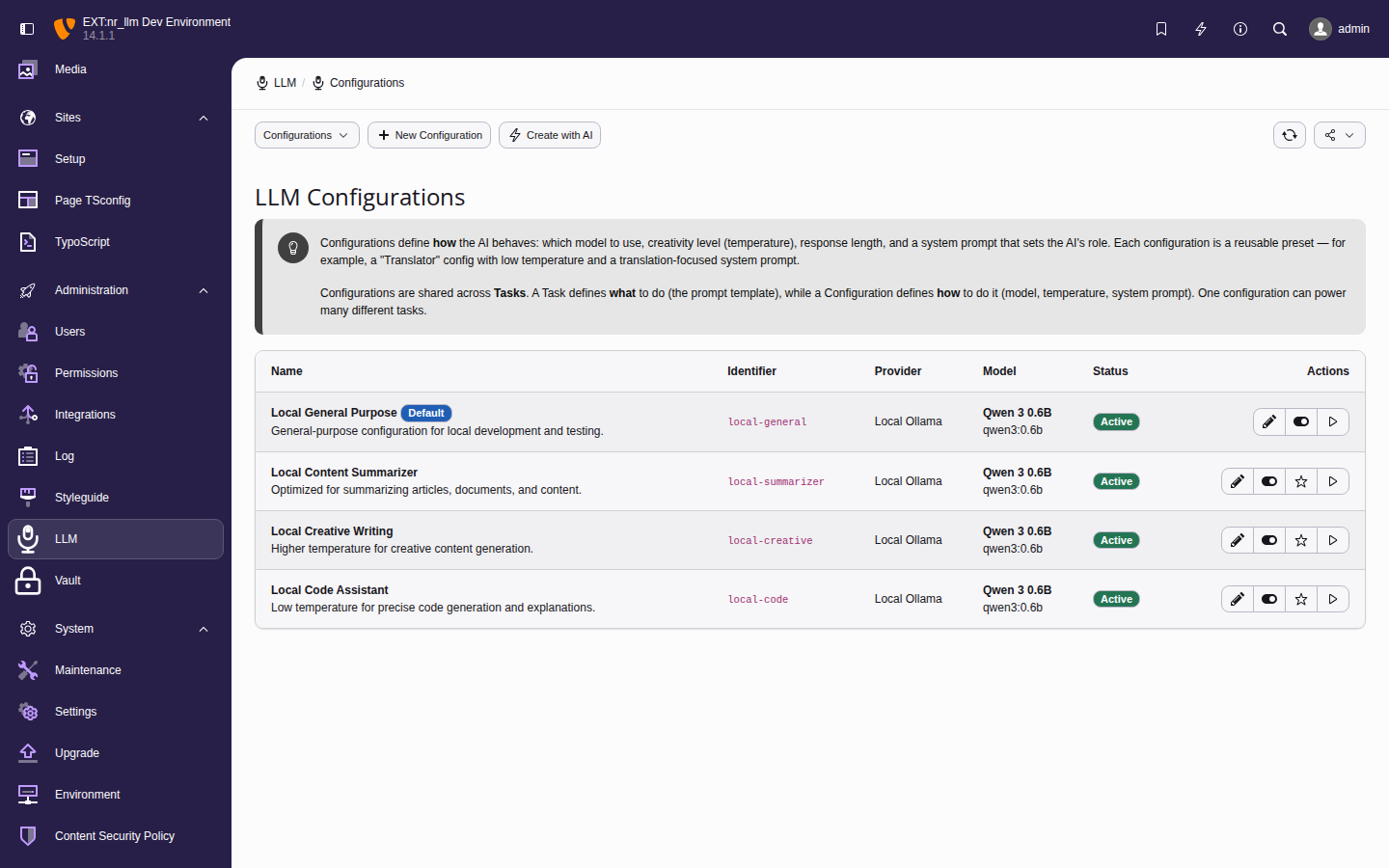
The configuration list showing each entry's linked model, use-case type, and key parameters.
Adding a configuration manually
- Navigate to Admin Tools > LLM > Configurations.
- Click Add Configuration.
-
Fill in the required fields:
- Identifier
- Unique slug for programmatic access
(e.g.,
blog-summarizer). - Name
- Display name (e.g.,
Blog Post Summarizer). - Model
- Select the model to use.
- System Prompt
- The system message that sets the AI's behavior and context.
- Optionally adjust temperature (0.0-2.0), top_p,
frequency/presence penalty, max tokens, and
use-case type (
chat,completion,embedding,translation). - Click Save.
Tip
Use the Configuration wizard to generate all fields from a plain-language description of your use case.
Importing configuration presets
Extensions consuming nr_llm can declare the configurations they need as presets (ADR-056). When at least one declared preset has not been imported yet, the configuration list shows a Pending presets panel above the records.
Each pending preset row shows the preset's name, identifier, description, and a requirement check:
- Satisfiable — an active model currently matches the preset's requirements; the model that would be used right now is named. Click Import to create the configuration record with one confirmation.
- Not satisfiable — no active model matches; the first missing requirement is named. The Import button stays disabled until you configure a matching provider and model.
Imported records are normal criteria-mode configurations: the model is resolved at runtime from the providers and models you configured, and you can edit or delete the record like any other. The panel disappears once no presets are pending.
If a consuming extension later changes its preset declaration, the imported configuration is flagged with a Preset changed badge in the list. This is a hint only — the record is never updated automatically; review and adjust it manually if needed.
Testing a configuration
Click Test Configuration on any row. The test sends a short prompt to the model and shows the response, model ID, and token usage.
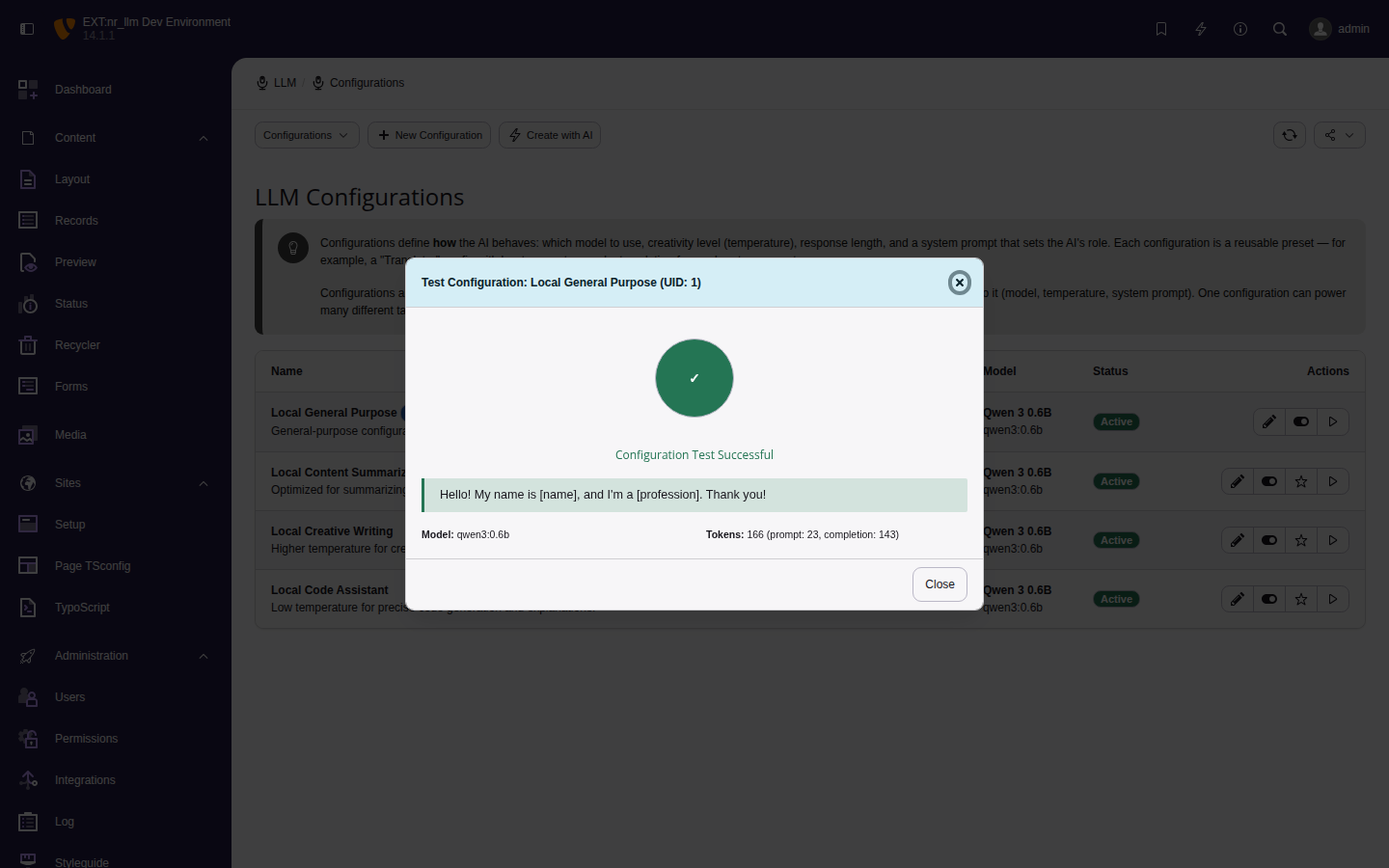
Successful configuration test with token count.
Editing configurations
Click a configuration row to edit. Changes take effect immediately for any extension code that references this configuration's identifier — no code deployment needed.