
AI-powered wizards
The extension includes AI-powered wizards that use your existing LLM providers to generate configurations and tasks automatically. This reduces manual setup to a minimum.
Setup wizard
The setup wizard guides first-time configuration in five steps:
- Connect — enter your provider endpoint and API key.
- Verify — test the connection.
- Models — fetch available models from the provider API.
- Configure — create an initial configuration with system prompt and parameters.
- Save — run a test prompt to confirm everything works.
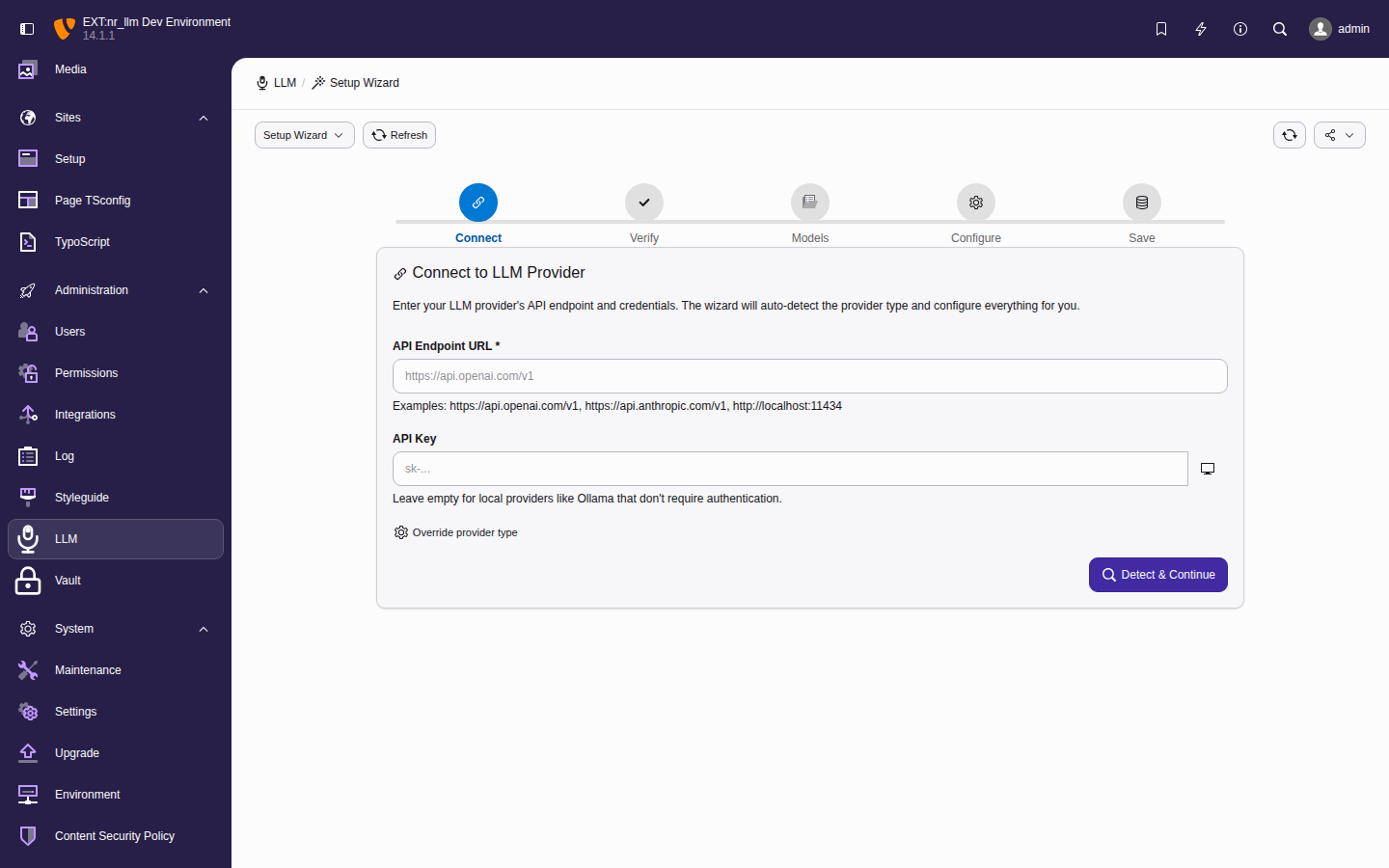
The setup wizard walks through provider creation, connection testing, model fetching, configuration, and a test prompt in five steps.
Access it from the Dashboard when no providers are configured, or via the setup wizard link at any time.
Configuration wizard
The configuration wizard generates a complete LLM configuration using AI. Instead of filling in each field manually, describe your use case in plain language and the wizard generates everything.
- Navigate to Admin Tools > LLM > Configurations.
- Click Create with AI.
- Describe your use case (e.g., "summarize blog posts in three sentences").
- The wizard generates: identifier, name, system prompt, temperature, and all other parameters.
- Review and click Save.
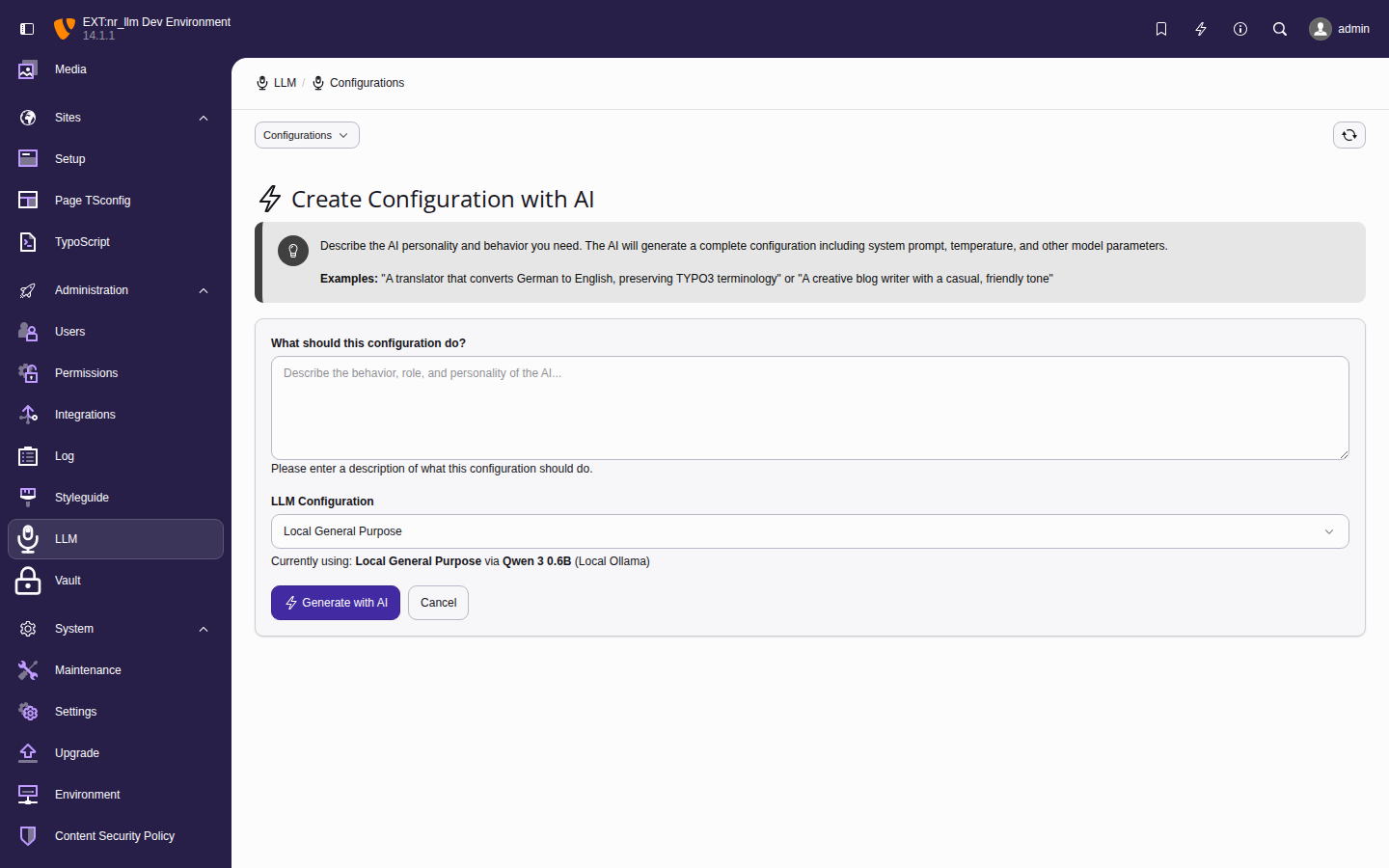
The configuration wizard generates all fields from a natural-language description.
Task wizard
The task wizard creates a complete task setup — a task and a dedicated configuration — in one step.
- Navigate to Admin Tools > LLM > Tasks.
- Click Create with AI.
- Describe the task (e.g., "extract the five most important keywords from an article").
- The wizard generates: a task with prompt template, a configuration with system prompt and parameters, and a model recommendation.
- Review and click Save.
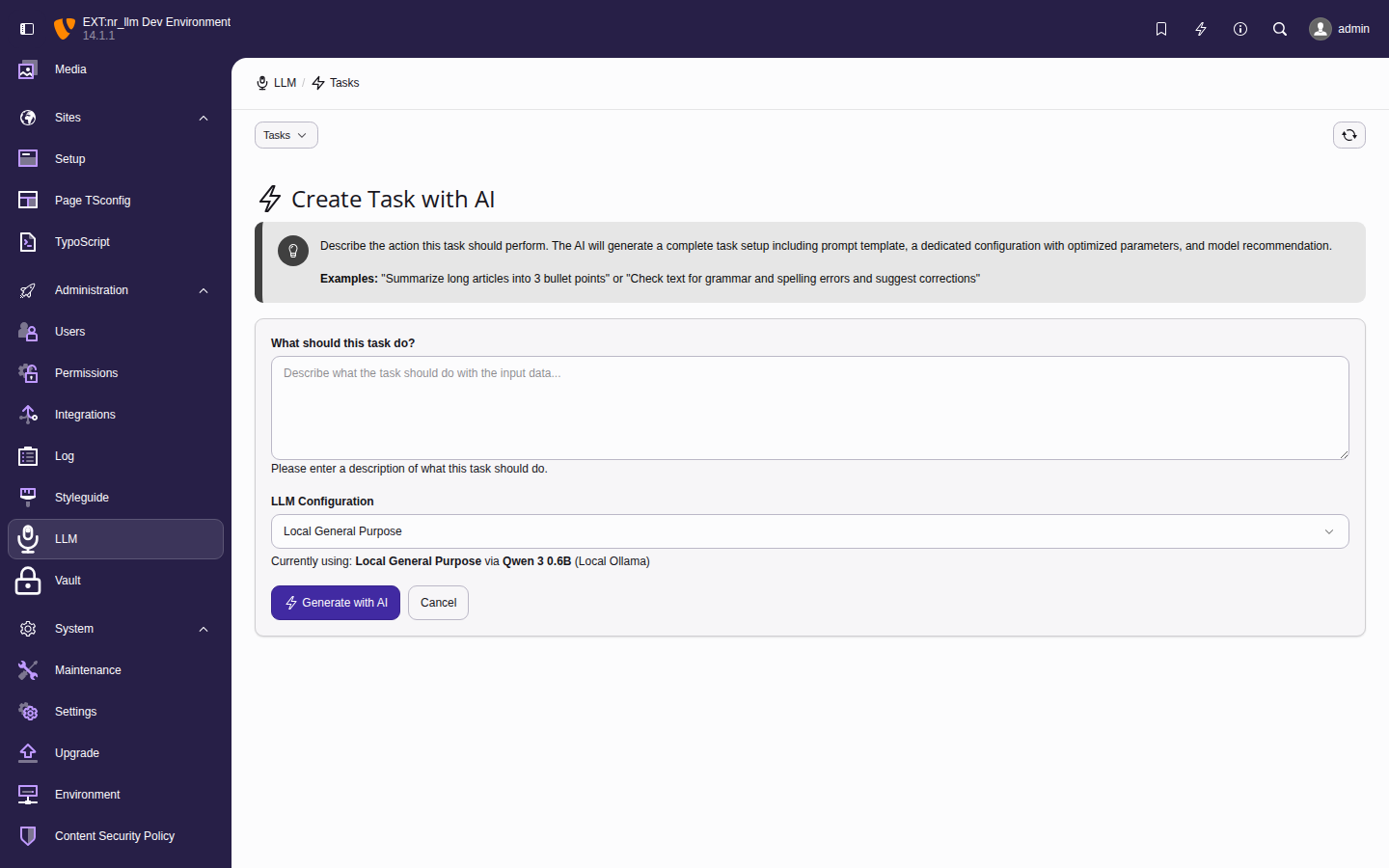
The task wizard generates a complete task and configuration from a description.
Model discovery
On the model edit form, use the Fetch Models button to query the provider API. This auto-populates available models with their capabilities, context length, and pricing metadata.
What the capability checkboxes are seeded with
Discovery writes only the capabilities the provider's own response states. How much that is differs per provider:
| Provider | Reported by the API |
|---|---|
| Mistral | chat, tools, vision (per-model capabilities) |
| OpenRouter | chat, tools, vision (supported_parameters,
architecture.input_modalities) |
| Ollama | chat, tools, vision, embeddings (/api/show,
Ollama 0.6 and newer) |
| Gemini | chat, streaming, embeddings
(supportedGenerationMethods); vision and
tools come from the built-in table for known
model ids |
| Anthropic | chat, vision, tools, streaming for every model the listing returns — it returns Claude chat models only, and they all have them |
| OpenAI | from the built-in table, keyed by model id; an
id outside it is seeded from its prefix
(dall-e-, tts-, whisper-) and
otherwise chat alone |
| Groq | chat only — the listing carries no capability field at all |
Where the API reports nothing, the record is seeded with the narrowest true statement rather than a guess. Check the capability checkboxes after discovery and tick what the model actually does: the field is yours to edit, and configurations that select models by criteria match against it.
Note
Models discovered by an earlier version carry capabilities that were partly guessed from the model name. Run Fetch Models again after upgrading, or correct the checkboxes by hand — an upgrade cannot tell an operator's deliberate edit from a stale seed, so it does not overwrite either.
Recommended workflow
For a fresh installation:
- Run the Setup wizard from the dashboard to create your first provider, fetch models, and test a configuration.
- Use the Configuration wizard to create additional use-case configurations (one per use case in your extensions).
- Use the Task wizard to create reusable prompt templates for editors.
- Share configuration identifiers with your
extension developers — they reference them
in code via
$configRepository->findByIdentifier('...').
For ongoing maintenance:
- Add providers when you need additional AI services or separate prod/dev keys.
- Fetch models periodically to pick up new models from providers.
- Edit configurations to tune prompts and parameters — changes take effect immediately without code deployment.