
Installation
Prerequisites
- TYPO3 12.4 LTS, TYPO3 13.4 LTS, or TYPO3 14.x
- PHP 8.2, 8.3, 8.4, or 8.5
- HTTPS is required for WebAuthn (except for
localhostduring development) - A configured TYPO3 encryption key
(
$GLOBALS['TYPO3_CONF_VARS']['SYS']['encryptionKey'], minimum 32 characters)
Installation via Composer
This is the recommended way to install the extension:
Install via Composer
composer require netresearch/nr-passkeys-be
Copied!
Activate the extension
After installation, activate the extension in the TYPO3 backend:
- Go to Admin Tools > Extensions
- Search for "Passkeys Backend Authentication"
- Click the activate button
Or use the CLI:
Activate via CLI
vendor/bin/typo3 extension:activate nr_passkeys_be
Copied!
Database schema update
The extension adds a tx_nrpasskeysbe_credential table. After
activation, run the database schema update:
- Go to Admin Tools > Maintenance > Analyze Database Structure
- Apply the suggested changes
Or use the CLI:
Update database schema via CLI
vendor/bin/typo3 database:updateschema
Copied!
Verify the installation
After activation:
-
The TYPO3 backend login page should show a Sign in with a passkey button below the Login button.
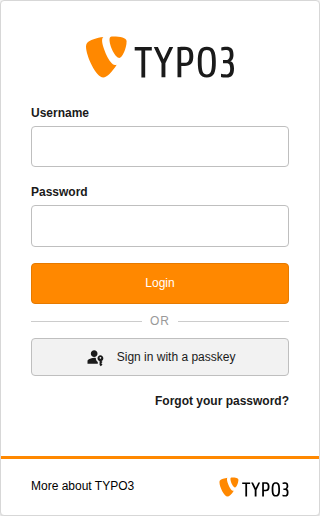
The passkey button appears below the Login button, separated by an "or" divider.
- In User Settings, a "Passkeys" section should appear where authenticated users can register their first passkey.
Note
HTTPS is mandatory for WebAuthn to function. The only exception is
localhost for local development. If you are running TYPO3
behind a reverse proxy, ensure that the TYPO3_SSL environment
variable or the [SYS][reverseProxySSL] configuration is set
correctly.