
Usage
Registering a passkey
Before you can use passwordless login, you need to register at least one passkey:
- Log in to the TYPO3 backend with your regular password.
- Go to User Settings (click your avatar in the top-right corner).
- Find the Passkeys section.
- Enter a descriptive name in the text field (e.g. "MacBook TouchID" or "Office YubiKey"). The default is "Passkey".
- Click Add Passkey.
- Your browser will prompt you to create a passkey using your preferred authenticator (TouchID, Windows Hello, YubiKey, etc.).
- After successful registration the passkey appears in the list and the name input resets for the next registration.
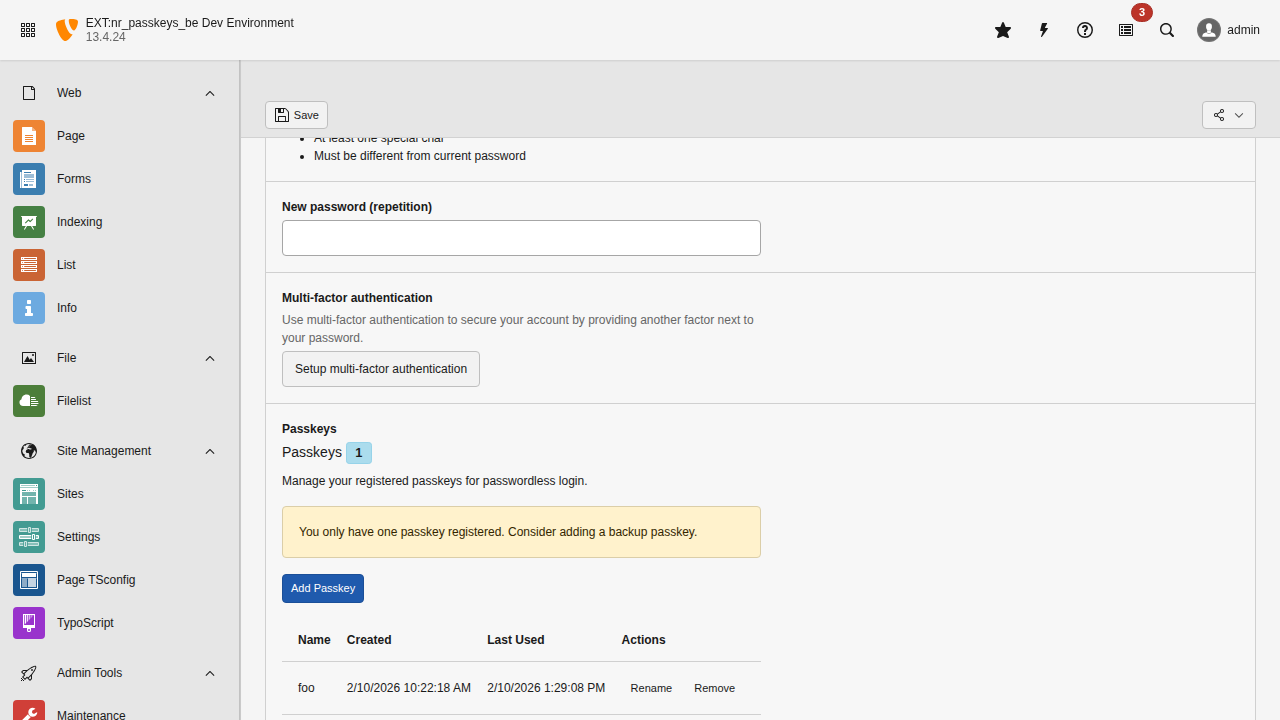
Manage your passkeys in the User Settings module.
You can register multiple passkeys for the same account -- for example, one on your laptop and one on a hardware security key.
Logging in with a passkey
Discoverable login (default)
With discoverableLoginEnabled enabled (the default):
- Navigate to the TYPO3 backend login page.
- The browser may automatically show available passkeys in an autofill dropdown (Conditional UI).
- Select your passkey.
- Verify with your authenticator.
- You are logged in without typing a username.
Note
Discoverable login requires that the passkey was registered as a resident credential (stored on the authenticator). Most modern authenticators do this by default.
Username-first flow
When discoverableLoginEnabled is set to false:
- Navigate to the TYPO3 backend login page.
- Enter your username.
- Click Sign in with a passkey.
- Your browser will prompt you to verify with your authenticator.
- Upon successful verification, you are logged in.
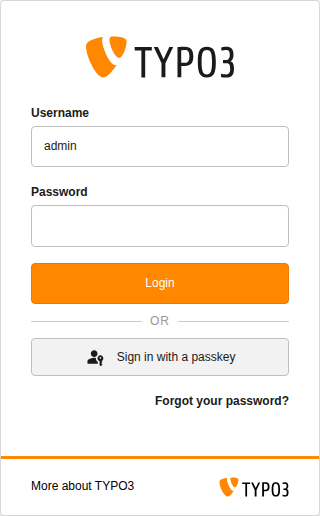
Enter your username, then click Sign in with a passkey.
Error handling
If a passkey login fails (for example, the server cannot verify the assertion), a passkey-specific error message is shown on the login page:
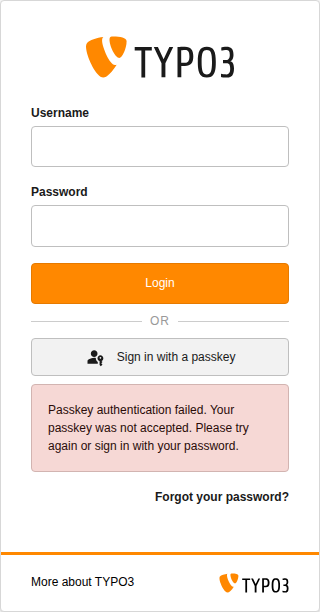
A clear error message tells you the passkey was not accepted.
Note
A passkey is itself multi-factor (device possession plus a biometric or
PIN), so by default the extension skips TYPO3's additional MFA challenge
after a successful passkey login. This is controlled by the
skipMfaOnPasskeyAuth setting, which is enabled by default. If an
administrator disables it, you will also complete TYPO3's MFA verification
after passkey authentication. Password logins are unaffected and always
follow TYPO3's MFA configuration.
Managing your passkeys
In User Settings > Passkeys, you can:
- View all your registered passkeys with their labels, creation dates, and last-used timestamps.
- Rename a passkey by clicking its label and entering a new name (max 128 characters).
- Remove a passkey you no longer need.
Important
If disablePasswordLogin is enabled, you cannot remove your last remaining passkey. This prevents you from locking yourself out of the system.
Fallback to password login
By default, password login remains available. If a user does not have a passkey registered or their authenticator is unavailable, they can still log in with their regular TYPO3 password.
This fallback can be disabled with the disablePasswordLogin setting.
When passkey setup is required
Your administrator may configure passkey enforcement for your user group. When this happens, you will see an interstitial page after logging in that prompts you to register a passkey.
The interstitial page explains the benefits of passkeys and offers two options:
- Set up now -- Takes you directly to User Settings > Passkeys where you can register a passkey (see Usage above).
- Skip for now -- Dismisses the prompt for the current session. This option is only available during the grace period.
Note
The grace period is a window (e.g. 14 days) set by your administrator. During this time, you can skip the setup prompt and continue working. A countdown shows how many days remain: "You have N days remaining to set up your passkey."
Once the grace period expires, the Skip for now option disappears and you must register a passkey before you can access the TYPO3 backend.
Tip
Register your passkey early, even during the grace period. Passkeys provide stronger security than passwords and make logging in faster -- a single touch or glance replaces typing a password.
If your group's enforcement level is set to Enforced, there is no grace period at all. The setup prompt appears immediately after login and cannot be skipped.