
Configuration
LLM provider setup
The Cowriter extension uses the nr-llm extension for LLM provider configuration. Configure your preferred provider in the nrllm:configuration-backend-module.
Supported providers
- OpenAI - GPT-5.x series, o-series reasoning models
- Anthropic Claude - Claude 4.5 Opus, Sonnet, Haiku
- Google Gemini - Gemini 3 Pro, Flash
- OpenRouter - Access to 100+ models from multiple providers
- Mistral - Mistral Large, Medium, and open models
- Groq - Ultra-fast inference with Llama, Mixtral
Configuration steps
- Navigate to Admin Tools > LLM Management
- Add a provider (e.g., OpenAI with your API key)
- Create a model configuration
- Create an LLM configuration and set it as default
Tip
See the nr-llm provider configuration for detailed provider configuration options.
RTE configuration
There are two ways to configure the CKEditor integration:
Option 1: Using static PageTSconfig
If you don't have a custom RTE configuration, include the static PageTSconfig:
- Go to your root page
- Open Page Properties > Resources
- Add the static PageTSconfig from t3_cowriter
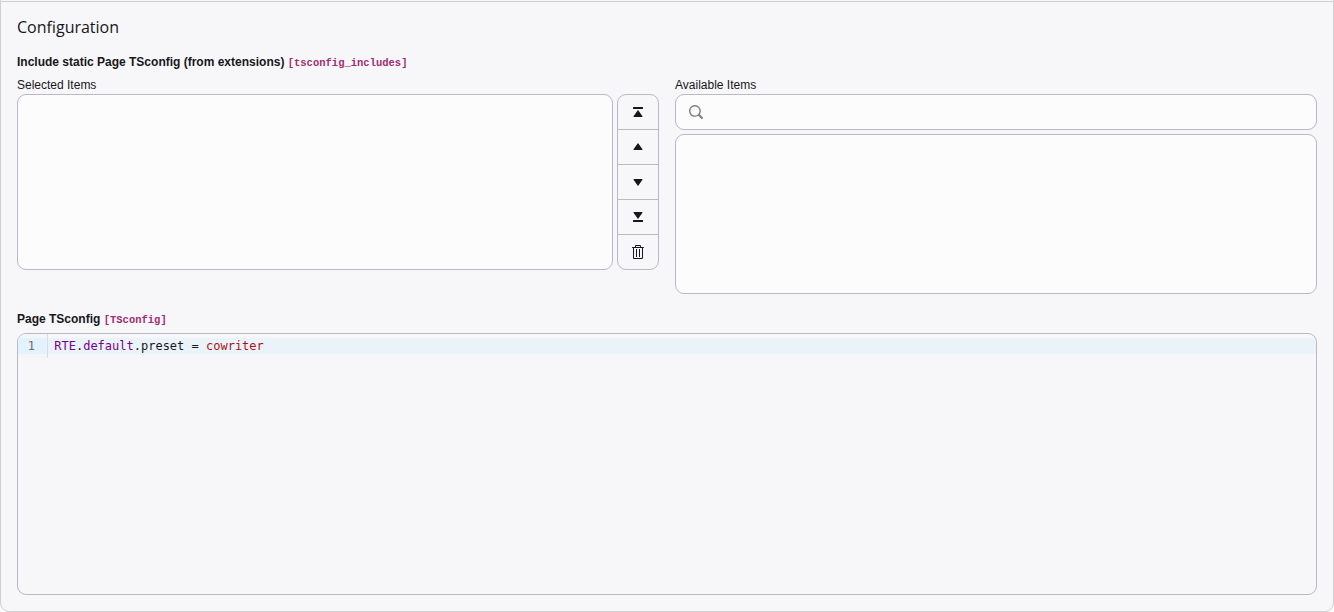
The Page TSconfig field with RTE.default.preset = cowriter.
Option 2: Custom RTE configuration
If you have your own RTE configuration file
(your_), add the Cowriter module:
editor:
  config:
    importModules:
      - { module: '@netresearch/t3_cowriter/cowriter', exports: ['Cowriter'] }
    toolbar:
      items:
        - cowriter
        - cowriterVision
        - cowriterTranslate
- cowriterTemplatesThe four toolbar items are:
cowriter- Main dialog — task-based content generation with preview
cowriterVision- Generate image alt text via LLM vision analysis
cowriterTranslate- Inline translation dropdown (10 languages)
cowriterTemplates- Open the Cowriter dialog with a task pre-selected
Tip
You can include only the toolbar items you need. For example, if you
only want the main dialog and translation, omit cowriterVision
and cowriterTemplates.
Task configuration
The Cowriter dialog shows tasks from
the nr-llm extension with category = 'content'. Default tasks
(Improve, Summarize, Extend, Fix Grammar, Translate EN/DE) are seeded
during installation.
Adding custom tasks
- Navigate to Admin Tools > LLM Management
- Create a new task record with
category = 'content' - Set a descriptive name and identifier
- Write a prompt template using
{{input}}as the placeholder for user content
Rewrite the following text in a more engaging tone, suitable for
a marketing audience. Output ONLY the rewritten text without
explanations.

{{input}}Tip
Tasks can have their own LLM configuration. If a task has no configuration assigned, the request's configuration or the default configuration is used as fallback.
Rate limiting
The Cowriter enforces a rate limit of 20 requests per minute per
backend user. When the limit is exceeded, the API returns HTTP 429
with a Retry-After header.
Security considerations
The Cowriter extension routes all LLM requests through the TYPO3 backend, ensuring that:
- API keys are never exposed to the frontend
- All requests are authenticated via TYPO3's backend session
- Error conditions are logged for debugging
Warning
Always configure your LLM provider's API key in the backend. Never expose API keys in frontend JavaScript or client-accessible files.
Troubleshooting
Translation not working
If the translate button shows "Translation failed", check:
- An LLM provider is configured and marked as default in Admin Tools > LLM Management
- The provider's API key is valid and not expired
- The provider supports the
translationfeature - Check the TYPO3 system log for detailed error messages
No tasks in dropdown
If the Tasks dropdown shows "No tasks configured":
- Navigate to Admin Tools > LLM Management > Tasks
- Create at least one task with
category = 'content' - Make sure the task record is not hidden or deleted
- Reload the page in the browser to refresh the task list
API key rejected
If you see "The LLM provider rejected the API key":
- Check the provider configuration in the LLM module
- Verify the API key is correct and has not been revoked
- Some providers require specific permissions or billing setup
Rate limit exceeded
The Cowriter allows 20 requests per minute per backend user. If you
hit the limit, wait a moment and try again. The Retry-After
response header indicates when the limit resets.