
Usage
Using the AI Cowriter
Once the extension is installed and configured:
- Open any content element with a rich text field in the TYPO3 backend
- You will see a new AI Cowriter button in the CKEditor toolbar
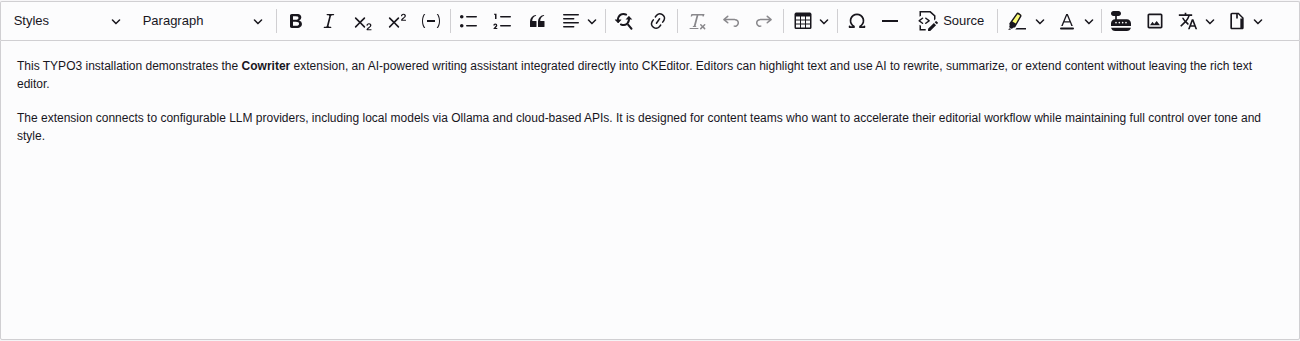
The Cowriter button appears at the right end of the CKEditor toolbar.
- Optionally select the text you want to process (or leave empty to use the full content element)
- Click the Cowriter button — a dialog opens
Task-based dialog
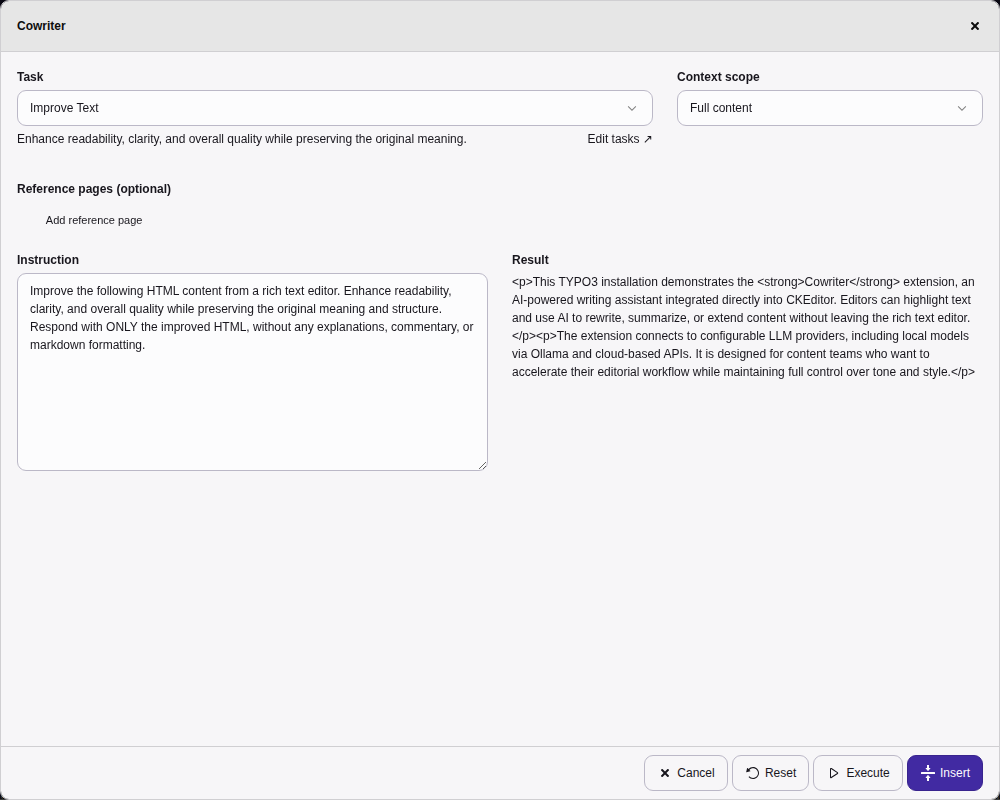
The Cowriter dialog with task selection, context scope, and additional instructions.
The Cowriter dialog lets you choose what to do with your content:
- Task selection
- Choose from predefined tasks like "Improve Text", "Summarize", "Extend / Elaborate", "Fix Grammar & Spelling", or translations. Each task has a description shown below the dropdown. You can also select "Custom instruction" to write a freeform prompt.
- Context scope
-
Control how much context the AI receives:
- Selection — only the highlighted text (pre-selected when you have a selection)
- Full content — the entire editor content
- Content element — the full tt_content record
- Page content — all content on the current page
- Parent page / Grandparent page — include ancestor page content for broader context
Options that require a record context (Content element and above) are disabled when the record cannot be detected.
- Reference pages (optional)
- Add pages whose content should be included as reference material. Search by title or UID, and specify a relation label (e.g., "style guide", "reference material").
- Additional instructions (optional)
- Add ad-hoc rules for the current request, e.g., "Write in formal tone" or "Keep sentences short".
- Execute and preview
-
Click Execute to send the request to the LLM. The result appears in a preview area with model and token usage info. You can then:
- Click Insert to replace the content in the editor
- Click Reset to clear the result and adjust settings
- Click Execute again to refine the result (the previous output becomes the new input)
- Click Cancel to discard
Available tasks
Tasks are configured in the
nr-llm extension (tx_nrllm_task table) with
category = 'content'. The following default tasks are provided:
| Task | Description |
|---|---|
| Improve Text | Enhance readability and quality while preserving meaning |
| Summarize | Create a concise summary of the content |
| Extend / Elaborate | Add depth, detail, and examples |
| Fix Grammar & Spelling | Correct grammar and spelling with minimal changes |
| Translate to English | Translate content to English |
| Translate to German | Translate content to German |
Tip
You can add custom tasks by creating new records in
Admin Tools > LLM Management with
category = 'content'. Use {{input}} in the prompt template
as placeholder for the user's content.
Inline translation
The Translate dropdown in the CKEditor toolbar lets you translate selected text without opening the full dialog.
- Select the text you want to translate
- Click the Translate button (globe icon) in the toolbar
- Choose the target language from the dropdown
- A notification confirms the translation is in progress
- The selected text is replaced with the translation
Supported languages:
- German, English, French, Spanish, Italian
- Dutch, Portuguese, Polish, Japanese, Chinese
The translation uses the default
LLM configuration from the
nr-llm extension. Administrators can optionally pass a
configuration parameter via the API to route translations
through a specific LLM provider (e.g. DeepL or a dedicated
translation model).
Note
Inline translation requires text to be selected. A warning notification appears if no text is selected. For translating entire content elements, use the task-based dialog instead.
Tip
Translation preserves HTML formatting. If you select bold or linked text, the formatting is maintained in the translated output.
Alt text generation
The Vision button (image icon) generates alt text for images using LLM vision analysis.
- Click on an image in the editor to select it
- Click the Vision button in the toolbar
- A notification confirms the analysis is in progress
- The alt text is set on the image automatically
Note
You must select an image before clicking the Vision button. A warning notification appears if no image is selected.
Tip
This is useful for accessibility compliance — generate descriptive alt text for images without leaving the editor.
Tasks shortcut
The Tasks dropdown (document icon) lets you open the Cowriter dialog with a specific task pre-selected, skipping the task selection step.
- Click the Tasks button (document icon) in the toolbar
- Select a task from the dropdown (tasks are loaded from nr-llm)
- The Cowriter dialog opens with the chosen task pre-selected
- Review, optionally adjust instructions, and execute
Tasks are loaded once when you first open the dropdown and cached for the duration of the editing session. If you create new tasks in the LLM module, reload the page to see them in the dropdown.
Note
If no tasks with category = 'content' are configured, a
notification guides you to the LLM module to create them.
Model override
You can override the default model for a specific prompt by using the
#cw: prefix followed by the model identifier:
#cw:gpt-5.2-thinking Write a detailed technical analysis of our API architectureThe model name must match a model available in your configured LLM provider. Valid model names follow the pattern: alphanumeric characters, hyphens, underscores, dots, colons, and forward slashes.
Tip
This feature is useful for switching to a reasoning model (like gpt-5.2-thinking
or claude-opus-4-5) for complex prompts while keeping a faster model as the default.