
Configuration
Turn on T3Planet Credits from AI Foundation and manage limits and top-ups.
Path: AI Foundation > AI Providers
Before you start
- AI Foundation (
EXT:ns_t3af) installed and active - Server can reach the T3Planet API
Activate Credits
- Open AI Foundation > AI Providers.
- Choose T3Planet Credits.
- Confirm if asked.
- Click Activate if shown.
- If no AI Universe license contact is available, enter name and email in the free-credits form, accept the privacy notice, then continue.
- Wait for success → page reloads.
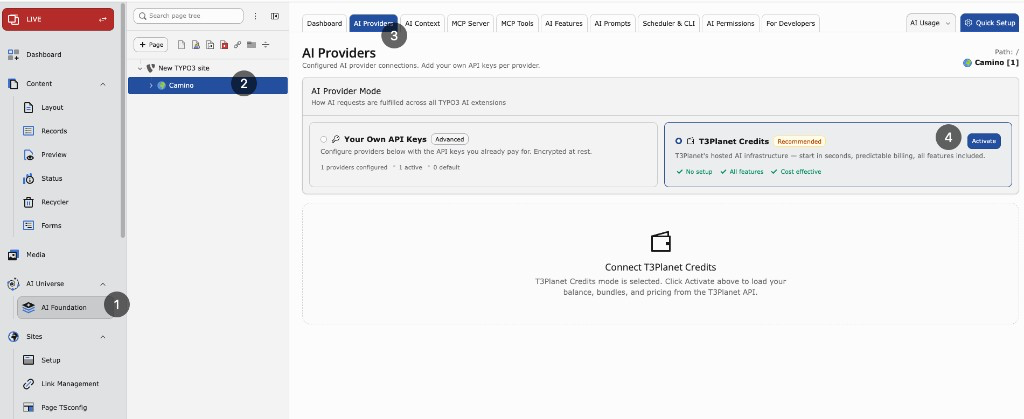
Select T3Planet Credits, then click Activate.
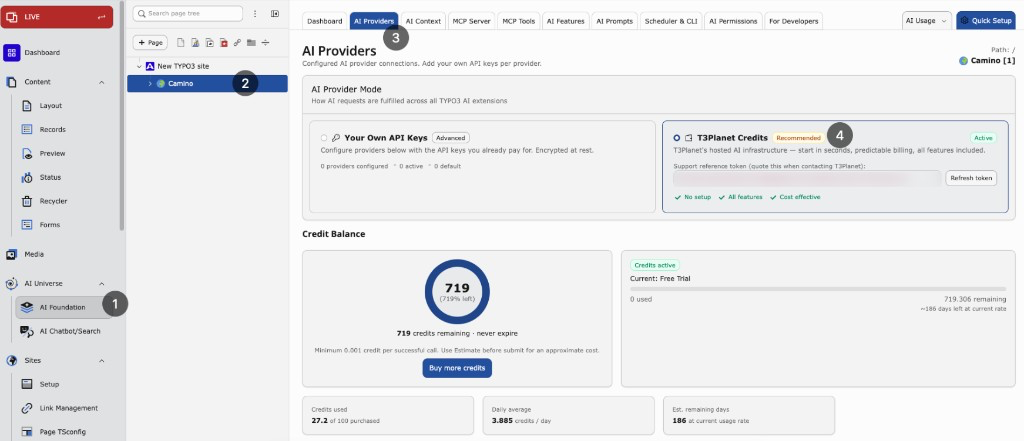
After activation — T3Planet Credits active, balance panel, and Buy more credits.
Note
If Activate fails, check that the server can reach the T3Planet API and try again. When no license contact exists, complete the free-credits name/email form. See Troubleshooting for common fixes.
After activation
When Credits is active:
- Billable AI calls go through T3Planet and use your credit balance
- Usage is logged in AI Usage as
t3planet_credits - Credits panels appear and the own provider list is hidden
- Balance is available on the Dashboard and Credits panel
- Switching back to Your Own API Keys restores your saved providers
Group limits
Set per-group usage caps in AI Foundation > AI Permissions.
- Open AI Permissions.
- Select the backend usergroup.
- Configure credit-related limits for that group.
What can be capped:
- Monthly credit limit — Maximum credits the group may use per month
- Daily request limit — Maximum AI requests the group may send per day
Administrator users are exempt from these caps.
Buy more credits
When your balance is low, open Buy more credits on the Credits panel or Dashboard. You complete purchase on the T3Planet checkout page; invoices stay in your T3Planet account.
Warning
If T3Planet returns a rate-limit message, wait for the shown cooldown before retrying.