
Introduction
What does it do?
The Focal Point Editor extension enhances TYPO3's native image handling by allowing editors to define focal points for images. A focal point marks the most important area of an image – the part that should always remain visible, regardless of how the image is cropped or scaled.
This is particularly useful for:
- Responsive images: Ensure the subject of a photo remains visible across all device sizes and aspect ratios
- Portrait photography: Keep faces visible when images are cropped
- Product images: Ensure the product remains centered in all crop variants
- Hero images: Maintain focus on key visual elements across different layouts
Features
- Interactive Editor: Click directly on the image to set the focal point
- Per-Variant Focal Points: Define different focal points for each crop variant (e.g., landscape, portrait, square)
- Visual Feedback: See focal points displayed on crop previews in the backend
- Fluid ViewHelpers: Easy integration in frontend templates with ready-to-use ViewHelpers
- CSS Object-Position: Generate CSS
object-positionvalues automatically - Non-Destructive: Focal points are stored separately from the image and crop data
How it works
The extension adds a new field to sys_file_reference that stores focal point
coordinates as JSON. Each crop variant can have its own focal point, stored as
percentage-based coordinates (0-1 range):
{
  "default": {"x": 0.5, "y": 0.3},
  "landscape": {"x": 0.9, "y": 0.712},
  "portrait": {"x": 0.2, "y": 0.5}
}The coordinates represent:
x: 0= left edge,x: 1= right edgey: 0= top edge,y: 1= bottom edge
Screenshots
Backend Editor
The focal point editor appears below the crop options in the file reference editing form. Click the "Fokus-Punkt bearbeiten" button to open the modal editor. The focal point is displayed as a visual indicator on each crop variant preview.
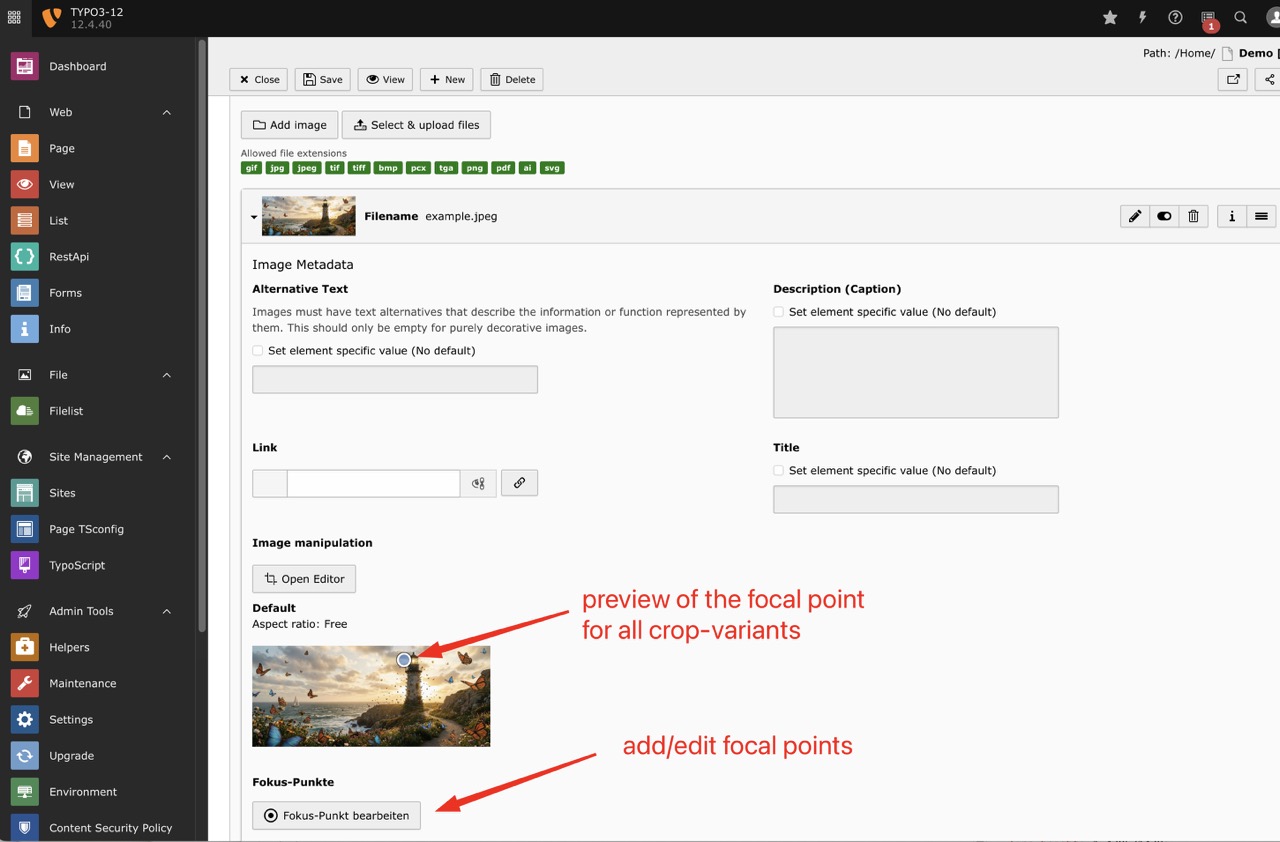
The "Fokus-Punkt bearbeiten" button appears below the crop variants, showing a preview of the focal point position on each crop.
Modal Editor
The modal shows all available crop variants as thumbnails. Select a variant and click on the image to set the focal point. A green indicator on the thumbnail shows which variants have focal points defined.
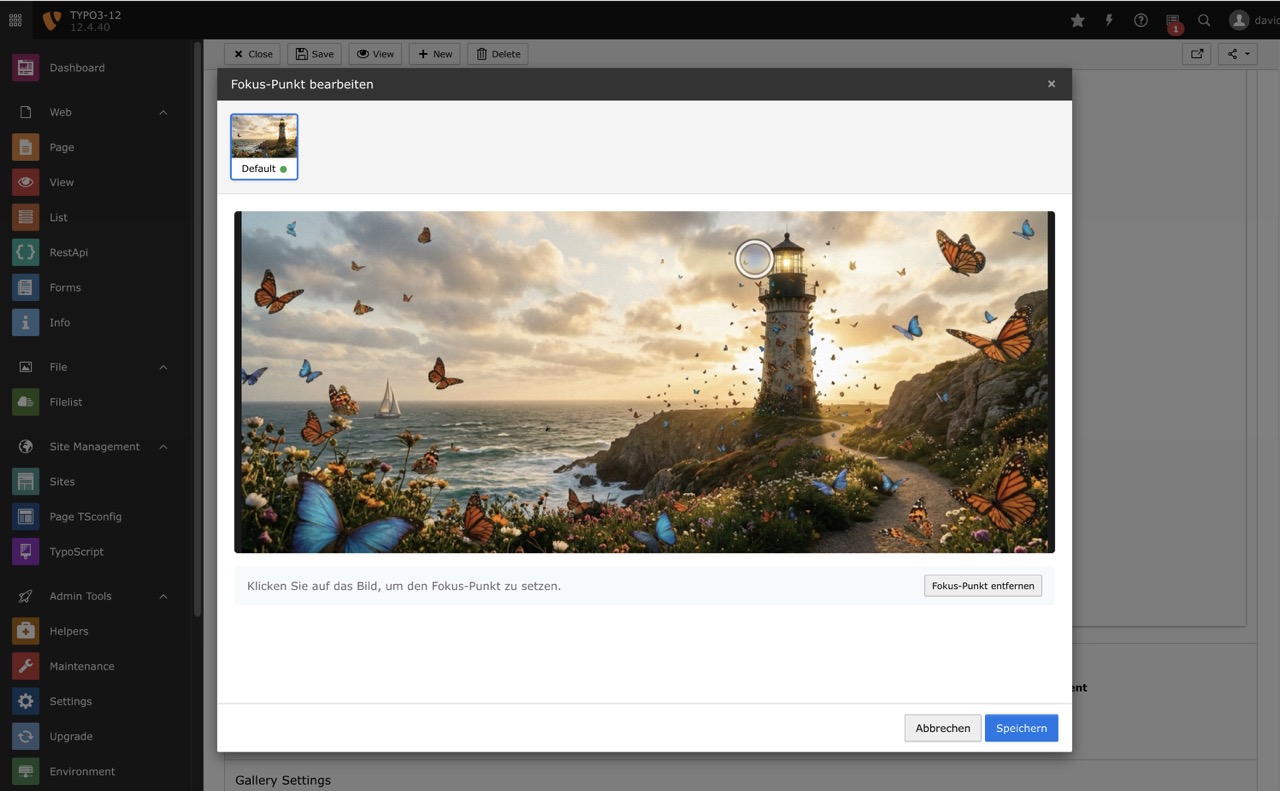
The modal editor allows setting individual focal points for each crop variant. Click anywhere on the image to position the focal point.
Frontend Result
Using the ViewHelpers, the focal point is applied via CSS object-position. This
ensures the important part of the image remains visible regardless of container size.
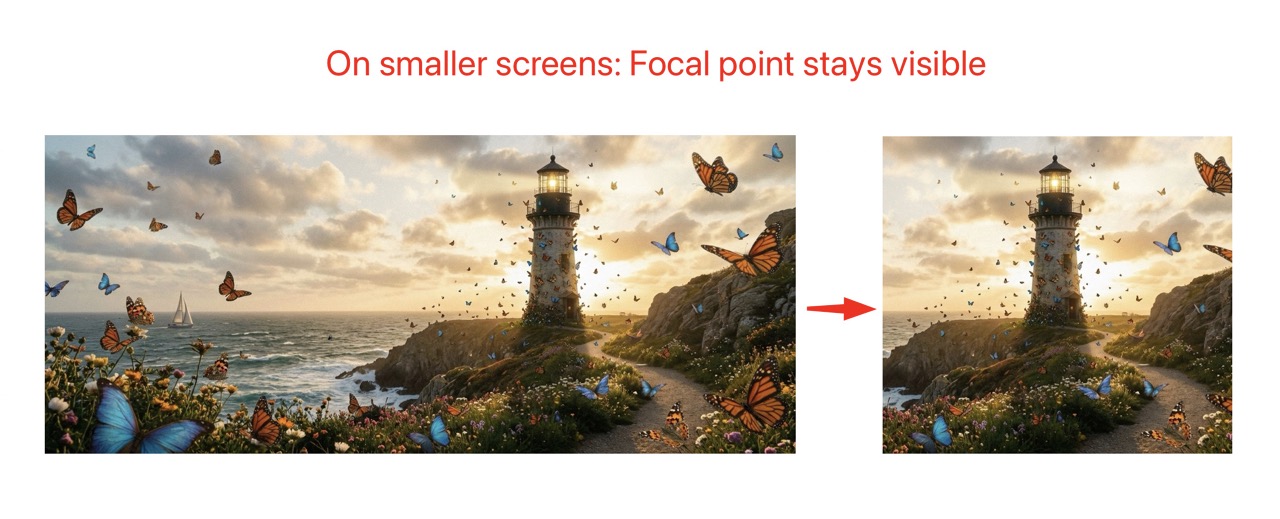
The focal point keeps the subject visible when the container is scaled or the image is displayed in different aspect ratios.
Use Cases
Responsive Hero Images
A hero image might be displayed as a wide banner on desktop but as a square on mobile. By setting appropriate focal points for each variant, you ensure the subject remains visible in both cases.
Portrait Galleries
When displaying portraits in different aspect ratios (e.g., 3:4 for cards, 1:1 for avatars), focal points ensure faces are always visible and properly positioned.
E-Commerce Product Images
Product images often need to be displayed in various formats. Focal points help maintain product visibility across different layouts and crop variants.