
Seminar Manager (seminars)
- Extension Key
seminars
- Language
en, de
- Copyright
2005-2022, Oliver Klee, typo3-coding@oliverklee.de
- Maintainer
Oliver Klee, typo3-coding@oliverklee.de
- License
- Rendered
2022-09-26 18:47
The content of this document is related to TYPO3 - a GNU/GPL CMS/Framework available from www.typo3.org
English Manual
Introduction
If you like this extension, please submit a rating for it in the TER.
What does it do?
This extension allows you to create and manage a list of seminars, workshops, lectures, theater performances and other events as an overview or as detailed descriptions. In addition, it allows front-end users to register for these events.
Particularly, you can manage speakers, seminar sites and organizers and use them for the seminars. You can get an overview of how many people have registered for which seminar.
Key features
event topic records for events that occur more than once
searchable front-end plug-in with list view and detailed single view of upcoming events
selector widget to filter the list of events in the list view
online registration and unregistration for front-end users, including automatic confirmation e-mail and live update of available seats
early bird prices are possible
categories and target groups for events
dependencies between topics, e.g. users need to be registered for “communication” and “speaking” before they can register for “facilitation”
“my events” list for logged-in front-end users, showing for which events they have signed up
front-end list of registrations for an event (visible to participants and editors)
front-end countdown to the next upcoming event
back-end module for managing seminars, speakers, organizers, seminar sites, payment methods and registrations
front-end editing of event records
publishing workflow for events entered in the front end
files can be attached to each event
CSV export of events and registrations of an event
the front-end output is mostly valid XHTML
visual design is done using only CSS
mostly accessible front-end output, works with the sb_accessiblecontent extension (for version 0.8.0, the extension's accessibility will be thoroughly checked for accordance with W3C WAI, section 508 and BITV guidelines)
currently full German, English, Dutch, Danish, Italian, French and Russian localization, including a switch between formal and informal language (e.g.,“Sie”/”Du” in German)
the front-end plug-in can be configured via TypoScript and Flexforms
automatic configuration check that quickly leads to a working configuration
the code follows the TYPO3 coding guidelines
the extension is actively developed
is tested with Firefox, Safari and IE7 and 8 (if you need IE6 compatibility, this might require additional work on our side)
Screenshots
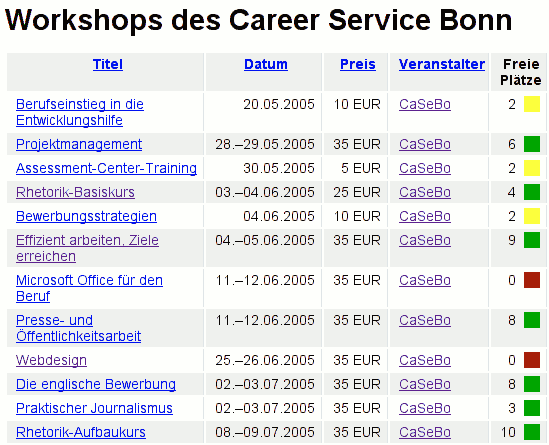 Illustration 1: This is a front-end list a seminars. Note
the color-coded number of vacancies in the last column.
Illustration 1: This is a front-end list a seminars. Note
the color-coded number of vacancies in the last column.
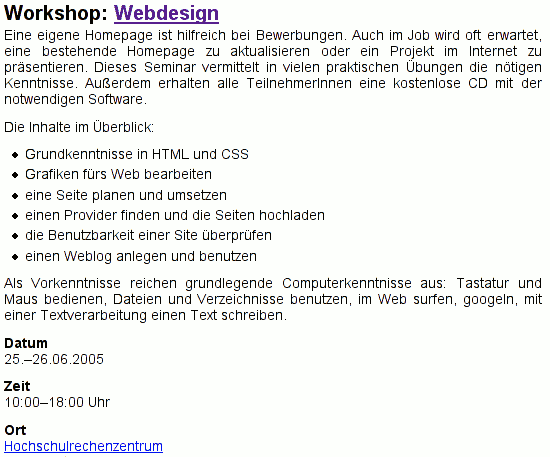 Illustration 2: This is the top of a front-end detailed view
for a seminar.
Illustration 2: This is the top of a front-end detailed view
for a seminar.
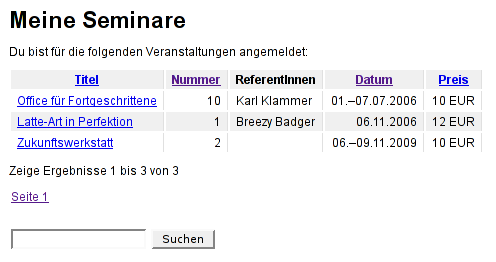 Illustration 3: This is the “my events” list for a logged-in
front-end user.
Illustration 3: This is the “my events” list for a logged-in
front-end user.
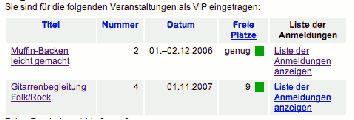 Illustration 4: This is the “my editor events” list where FE
users that have been granted access may view the list of registrations
for an event (this is useful e.g., for the organizers or the
speakers).
Illustration 4: This is the “my editor events” list where FE
users that have been granted access may view the list of registrations
for an event (this is useful e.g., for the organizers or the
speakers).
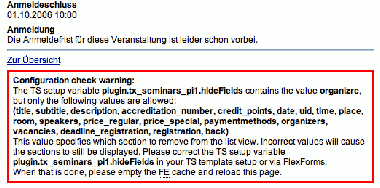 Illustration 5: This is the automatic configuration check
(here: on the details page) having something to complain about.
Illustration 5: This is the automatic configuration check
(here: on the details page) having something to complain about.
Seeing this extension in action
Give it a try!
If you would like to test the extension yourself, there is a DDEV-based TYPO3 distribution with this extension installed and some test records ready to go.
Live examples
If you would like your site to be listed here, please drop the extension author a short e-mail.
Credits
Thanks go to the following persons for contributing code, bug fixes or localizations or for doing code reviews:
Alexander Maringer
Andreas Balzer (German translation of the manual)
Andre Dittmar (list view hook)
Benjamin Schulte
Bernd Schönbach
Christian Hennecke (proofreading of the manual)
Christoph Taubmann
David Lenherr (German tutorial)
Donatas Elvikis
FrançoisSuter (FR localization)
Frank Schepers (NL localization)
Franz Ripfel
Irina Kuznecova (RU localization)
John Boyd-Rainey
Jörn Dost
Kees van der Hall (NL localization)
Klaus Brinch (DK localization)
Lars Dyhr (DK localization)
Maik Müller
Mario Rimann
Martin Rebetez (FR localization)
Mathias Uhl
Matthias Krappitz
Mauro Lorenzutti (IT localization)
Moritz Mark
Nickolas A. Shadrin (RU localization)
Nico Deblauwe (Dutch manual)
Niels Pardon
Oliver Hader (TCEmain hook)
Philipp Kitzberger
Ralph Brugger
Roman Benz
Saskia Metzler
Sebastian Wittig (icons)
Simon Harhues
Sinian Zhang
Stefan Galinski
Thomas Pforte
Sponsorship
Development of this extension has been funded by the following organizations and persons:
Career Service Bonn (CaSeBo)
CITRUS * Agentur für E-Marketing und Neue Medien
Geek Space 9 GmbH (formerly known as IT:Agenten GmbH)
edv-rose
f.com GmbH + Co. KG
FGS Kommunikation
Hochschule für angewandte Wissenschaften Würzburg-Schweinfurt
Kompetenzzentrum IT am Staatlichen Schulamt für den Landkreis Offenbach und die Stadt Offenbach am Main
Leo Führinger
lucidlogic
Max Weickl
Michael Bakonyi – Neue Medien
Ralf Thierfelder
Reiner Schmidt
Rob De Vries
SONNENDEQ * Form + eFunktion
thinkhouse GmbH
Thomas Waurick
ZfDB OHG
Dutch manual
There is a Dutch manual in Documentation/dutch-manual.pdf (credits go to Nico Deblauwe).
Keeping up-to-date and getting support
Please do not contact the extension author for free support! Please use the newsgroup/mailing list instead so that other people can read your question and benefit from the answers as well.
Paid services offered by the author
The extension author offers the following paid services (please ask for prices):
personal support via e-mail or phone
installation and configuration
upgrade to the latest version (for a fixed fee per year)
bug fixes
new features
Free public support
We have an (English-speaking) newsgroup/mailing list on lists.typo3.org (where all the TYPO3 newsgroups and mailing lists are hosted). All announcements like new versions or security issues will be sent to all members of this list. In addition, free public support is provided on this list. Please note that we don’t guarantee that you’ll get replies to all your questions there or that replies will be within 24hours.
The mailing list: Please subscribe at the information page of the mailing list . It's free, and you can always unsubscribe yourself if needed. To send a message to this mailing list, just send it to: typo3-project-seminars@lists.typo3.org
The newsgroup: To access the newsgroup, you just need to configure your news-reade r with these settings:
a
Server:
b
lists.typo3.org
a
Port:
b
119 (which is the default)
a
Group name:
b
typo3.project.seminars
The mailing list and newsgroup are synced, so you just need one of them to stay informed.
Get a service level agreement (SLA)
This extension is part of the service level agreements (SLAs) offered by the coders.care project.
Your help is wanted!
We’d like to get more people into the development team for this extension. If you would like to help in one of the following areas, pleas drop the extension author an e-mail:
fixing bugs
improving or translating the manual
implementing new features
implementing hooks
testing
translation
If you would like to help with some code-related tasks, this will be a great learning opportunity. We are proud of the quality extensions and can provide you with detailed, helpful feedback on your work.
Installation
Installing the extension
Conflicting extensions: This extension cannot be installed if you have one of the following extensions installed:
sourceopt
Required extensions: This extension requires the following TYPO3 extensions to be installed beforehand:
static_info_tables
oelib
mkforms
felogin : If you want FE users to be able to log in so that they can register for events, you should also install a login extension like felogin .
sr_feuser_register (optional): If you want FE users to create their accounts themselves, a self-registration extension like sr_feuser_register is recommended.
onetimeaccount (optional): If you want users to be able to register for events without having to use a FE login, please use the onetimeaccount extension.
Then you can install this extension.
In the Extension Manager, there will be some options. Make sure to save these options at least once (even if you don’t change them). The default values are good for starters.
You can disable the automatic configuration check when this extension is installed and you have finished the complete configuration for the BE and the FE. Disabling the automatic configuration check will improve performance a bit. When you upgrade to a newer version of the extension, you should enable it again and check whether there are any warnings on the FE pages with the plug-in on it.
Disable “Select topic records from all pages” only in one of the following two cases:
if you have really a lot (like about 20 or more) event topic records
if you already have created lots of complete event records and you now are just starting to use the topic/date separation for events
You can enable “Manual sorting of events” if you want to apply manual sorting (with the little up/down arrows) to events in the back end. By default, events are sorted by begin date. Note: This setting only applies to the back end and has no effect on the front end whatsoever.
You can choose the “Format of e-mails for attendees” to send text e-mail, HTML e-mail or HTML e-mail if the user enabled it. So that HTML e-mail will be sent to the attendee of an event.
In your TS setup, please set config.language and config.locale_all so the extension will use the correct language in the front end.
Upgrading the extension across TYPO3 and PHP version upgrades
Recommended upgrade path with all affected extensions
To accommodate the multiple dependencies to PHP and TYPO3 versions as well as between the extensions, this is the recommended upgrade path (with the component to upgrade in each step marked bold):
PHP 7.0, TYPO3 8.7, seminars 3.4, oelib 3.6.1, mkforms 9.5.4, rn__base 1.11.4, static_info_tables 6.8.0
PHP 7.2, TYPO3 8.7, seminars 3.4, oelib 3.6.1, mkforms 9.5.4, rn__base 1.11.4, static_info_tables 6.8.0
PHP 7.2, TYPO3 8.7, seminars 3.4, oelib 3.6.1, mkforms 9.5.4, rn__base 1.13.2, static_info_tables 6.8.0
PHP 7.2, TYPO3 9.5, seminars 3.4, oelib 3.6.1, mkforms 9.5.4, rn__base 1.13.2, static_info_tables 6.8.0
PHP 7.2, TYPO3 9.5, seminars 3.4, oelib 3.6.1, mkforms 9.5.4, rn__base 1.13.2, static_info_tables 6.9.5
PHP 7.2, TYPO3 9.5, seminars 4.0, oelib 3.6.1, mkforms 9.5.4, rn__base 1.13.2, static_info_tables 6.9.5
PHP 7.2, TYPO3 9.5, seminars 4.0, oelib 4.0*, **mkforms 10.0.0, rn__base 1.13.2, static_info_tables 6.9.5
PHP 7.2, TYPO3 9.5, seminars 4.1, oelib 4.0, mkforms 10.0.0, rn__base 1.13.2, static_info_tables 6.9.5
PHP 7.2, TYPO3 10.4, seminars 4.1, oelib 4.0, mkforms 10.0.0, rn__base 1.13.2, static_info_tables 6.9.5
PHP 7.4, TYPO3 10.4, seminars 4.1, oelib 4.0, mkforms 10.0.0, rn__base 1.13.2, static_info_tables 6.9.5
Following this order, you will be able keep all affected extensions installed all the time.
Important things to do when upgrading from seminars 3.x to 4.x
The TypoScript template files have been renamed from *.txt to
*.typoscript. If you are directly referencing any of these files,
you will need to upgrade your references.
All PHP classes are now namespaced. If you are using any XCLASSes, you will need to update those accordingly.
The hook interfaces have been updated to use namespaced classes, and some deprecated hooks have been removed. If you are using any hooks, please update you hook classes.
All images and attachments have been migrated to FAL. Please run the seminars upgrade wizards to automatically update you data.
The feature for uploading images and attachments in the FE editor has been removed. If you are using a custom HTML template for the FE editor, you will need to remove the corresponding subparts.
Regarding flexforms and TS setup
After having installed this extension (and the required extensions) via the extension manager, a few more steps are necessary to get the extension up and running:
IMPORTANT: All non-empty changes at the flexforms of the plug-in overwrite the settings of the corresponding TS setup. Empty data in the flexforms don't overwrite non-empty data from the TS setup, so if you want to overwrite non-empty values with empty values, you can enter a space or a comma (depending on the field).
Get a front-end user login (any possibly registration) running
Choose a login box extension and a front-end user registration extension, install and configure them. On my site, I use felogin and sr_feuser_register , but you may want to use others. You can leave out the front-end user registration extension if you don't want front-end users to be able to create their own accounts.
If you use the extension sr_feuser_register , make sure that the salutation modes of that extension and the seminars extension are the same so that your users get a consistent experience.
Make sure that you make the following fields required, or this extension won't work properly: name, email, username
If a user is on the detail view page of an event and wants to register, he's shown a link to the login page. The URL provided there contains the information to redirect the user directly to the registration page after login. Important: This feature works only with felogin !
It is possible to show the events title and date on the login page, by setting up the event headline view on the login page.To do so, insert a page content element on the login page containing the seminars plug- inand set the view to „event headline.“If a user clicks on the register link of an event, the title and date of the event will be shown on the login page.
Set up the plug-in
First, include the *MKFORMS - Basics (mkforms)* template in your site template under “Include static (from extensions).”
Below that, include the *Seminars* static template. It is important that you include this template below the MKFORMS template.
If your site does not use jQuery by default, also include the following static template:
MKFORMS JQuery-JS (mkforms)
Then configure the plug-in in your TS template setup or the plug-in flexforms. The properties are listed in the reference.
Please note than when using flexforms, you need to set the corresponding values at all relevant instances of the plug-in: It doesn't do to specify the fields for the online registration in the seminar list front-end plug-in—you need to set these fields in the online registration front-end plug-in.
You can use this TypoScript setup template for setting all required values for a basic setup:
plugin.tx_seminars {
  # PID of the sysfolder where event registrations (attendances) will be stored
  attendancesPID =
}

# localizations for strings in e-mails and some FE parts go here (the example is for German)
plugin.tx_seminars._LOCAL_LANG.de {
}

plugin.tx_seminars_pi1 {
  # PID of the sysfolder that contains all the event records (e.g., the starting point)
  pages =

  # PID of the FE page that contains the event list
  listPID =

  # PID of the FE page that contains the single view
  detailPID =

  # PID of the FE page that contains the "my events" list
  myEventsPID =

  # PID of the FE page that contains the seminar registration plug-in
  registerPID =

  # PID of the FE page that contains the login form or onetimeaccount
  loginPID =

  # PID of the thank-you page that will be displayed after a FE user has registered for an event
  thankYouAfterRegistrationPID =

  # PID of the page that will be displayed after a FE user has unregistered from an event
  pageToShowAfterUnregistrationPID =
}

# localizations for FE-only parts go here (the example is for German)
plugin.tx_seminars_pi1._LOCAL_LANG.de {
}

# here you can change stuff like the number of items per page etc.
plugin.tx_seminars_pi1.listView {
}
Note that the notification e-mail to the organizer and the list view show the headings even for empty fields, while the single view and the notification e-mail to the participant remove the headings for some seminar properties (not all, just where it makes sense).
Creating system folders
In addition to the website_users_folder , you need to create some system folders for storing records needed by this extension.
If you don’t have many events and you can keep the overview even if the event dates and the registrations are on one page each, you can create a minimal SysFolder structure like this:
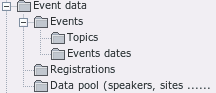 Illustration 6: SysFolder structure for minimum
requirements
Illustration 6: SysFolder structure for minimum
requirements
If you have only one page with one list view for the events, you can have all current event records in one system folder:
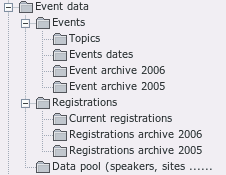 Illustration 7: All current events in one folder
If it is okay for to have the registrations for all organizers arrive in one system folder or if you have only one organizer, you only need one folder for the registrations:
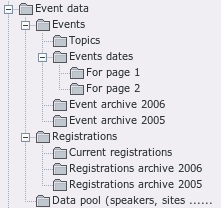 Illustration 8: Registrations for all organizers in one
folder
Illustration 8: Registrations for all organizers in one
folder
The following system folder structure is proposed for a full-blown installation with lots of events and different organizers that manage their registrations independently: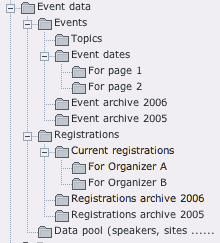 Illustration 9: Full blown installation
If you create these folders outside of the site root page with the template, you still need to create a template for them and “include static (from extensions)” in that template, or else the back-end module will not be able to use the extension's default configuration (e.g., the date and time format, so that date won't get displayed in the back-end module).
Setting access rights
The user groups who should be able to manage seminars should have:
the module Web > Events in their module list
write access to the following tables (may be split into several groups): Seminars, Speakers, Registrations, Seminar Sites, Organizers, Payment Methods
allowed excludefields: Seminars: hide, Seminars: start, Seminars: stop ( only set this for users who really need it and know the difference between start/stop for FE display and start/stop of the seminar hours )
other needed excludefields from the event records
the corresponding system folders in their DB mounts
If you want to enter registrations manually for participants who don't have a front-end user account yet, or if you want to be able to edit the front-end user data, you need to set the following access rights as well:
write access to the following tables (may be split into several groups): front-end users, addresses
allowed excludefields: front-end user: name, address, phone email, zip code, city, inactive; address: mobile
the front-end users system folder in their DB mounts
Adding pages to the front end
If your site does not use the online registration feature, you have to explicitly disable that feature.
Your page structure can then look like this:
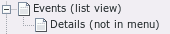 Illustration 10: Page structure for a setup without
online registration
Illustration 10: Page structure for a setup without
online registration
Usually, you’ll want to use this extension with the online registration feature. For this, the minimal page structure will look like this (note that you still need to set a sr_feuser_register if you want user self-registration):
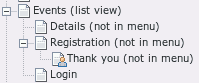 Illustration 11: Page structure for a minimal setup with
online registration
Illustration 11: Page structure for a minimal setup with
online registration
For a full-blown registration with several list views, two archive pages, the “my events page” (where a user can see the events to which they have signed up), registrations lists for participants and s and front-end editing, the page structure would look like this (usually, you only need some of these pages):
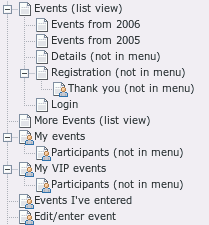 Illustration 12: Page structure for a full-blown setup
If you want users to be able register manually, then build up a front- end user system for your site. Remember which group corresponds to “confirmed front-end users.”If you wish to utilize the additional fields for the table front-end users, you'll need to set up sr_feuser_register for this. In that extension's documentation, you'll find a tutorial about how to add fields to the registration form.
Add a page (which we called “ *Events (list view)* ” in the illustrations) that will contain the list view.
Add a page (“ *Details (not in menu)* ”) that will contain the detail view.
Add a “Seminar Manager”-plug-in content element to both of these pages (from step 2 and 3) and set the corresponding types to “Event List”/”Event single view”. Set the content element's ”Starting Point” to the SysFolder that contains (or will contain) the seminar records (what we called “ *Event Data* ” in Illustrations 1-4). The element on “ *Events (list view)* ” will show the seminar list and the detailed seminar view will be shown on “ *Details (not in menu).”* Usually, this content element doesn't have any access restrictions.If you would like to show only the seminars from certain organizers, put the seminar records for the organizers on separate pages, and add only the corresponding pages as starting pages for the plug-in.
Add a page (which we called “ *Registration (not in menu)* ” in the illustrations) that will be the registration page. Important: The Seminar Manager creates links to this page (for example from the list- and detailed view and as a redirect parameter after login) – this will fail if this page is access restricted. Don't hide this page and don't apply user restrictions to the page itself! A good way is to mark the page as “hide in menu,” but the page must be accessible for all visitors, independent of their login status (logged in or not).
Add a “Seminar Manager” plug-in content element. Set the type to “Event Registration.” Set the content element's start pages to the page or pages that contain (or will contain) the seminar records.
Add another page that will be shown after a user has registered for an event. Put some thank-you message on the page. If you would like the single view for the event for which the user has just registered to display on this page, you can also add a Seminar Manager plug-in with the type “event list.” Set this page to “hide in the menu”.
Add another page that will contain the “my events” list (if you want to use that feature). Set the page access to “show at any login.”
Add a “Seminar Manager”-plug-in content element to that page and set the type to “My Events.” Set the content element's start pages to the page or pages that contain (or will contain) the seminar records. This element then works like the “Event List” content type, but it will only show those events to which the currently logged-in front-end user has signed up. If you want this list to show all events instead of current and upcoming, set “Only show events from this time-frame” to “all events” (you'll probably want to do this).
[optional] To show the countdown in the front-end, simply add a “Seminar Manager”-plug-in content element at the page/column where you want it to be shown. In the settings of this content element, just select “Countdown to the next event” from the “what to show” drop-down list.
Using the sr_feuser_register autologin feature
If you use sr_feuser_register with autologin, you need to set the following constants so this works:
plugin.tx_srfeuserregister_pi1 {
  enablePreviewRegister = 0
  enableAdminReview = 0
  enableEmailConfirmation = 0
}
In addition, you'll need to edit the TEMPLATE_CREATE_SAVED subpart in the sr_feuser_register HTML template and remove this line:
<input type="hidden" name="redirect_url" value="" />
Enabling unregistration
To enable users to unregister themselves from events (using the “my events” page), you need two things:
Unregistration deadline: You either can set individual unregistration deadlines in the events for which unregistration should be possible, or you can set a global deadline for all events using plugin.tx_seminars.unregistrationDeadlineDaysBeforeBeginDate.
Waiting list: By default, unregistration is only possible if an event is full and has some people on its waiting list. If you want to enable unregistration if the waiting list is empty (or if there is no waiting list), you can use plugin.tx_seminars.allowUnregistrationWithEmptyWaitingList = 1.
Setting up a list of categories
The category list shows all categories for which there are events in the selected system folders and in the selected time-frame. If your events are not assigned to any categories, the category list will be empty.
The category names are linked to the list view, filtered by that category (in other words: only events from the selected category are displayed).
This tutorial assumes that you already have set up a list view of your events.
Add a front-end page.
Add a “Seminar Manager”-plug-in content element to this page and set the type to “Category List.”
Select the page that contains the list view (this page will be used for creating the links).
Optional: Select the system folders (and recursion depth) that contain the events for which you would like to list the categories. If you select nothing, events from all system folders will be taken into account.
Optional: Select the time-frame from which you the events should be selected. If you select nothing, current and upcoming event will be taken into account.
Save and close.
Setting up the front-end registration lists
This feature allows front-end users who have signed up for an event to see who has signed up for that event as well, e.g., for forming car pools or for coordination before the event takes place. In addition, this allows so-called editors (e.g., speakers or organizers of that event) to see that list as well. Both features are disabled by default. When using this feature, make sure that this complies with your privacy policy!
Both lists are set up separately. Even if you useboth lists, they need to be set up separately.
You can enter a list of FE user field names that will be displayed in the registration lists using the TS setup variable plugin.tx_seminars_pi1.showFeUserFieldsInRegistrationsList. The default is to only display the attendees' names.
Setting up the front-end registration lists for attendees
Please note that there is no fine-grained access rights system: Either you allow all attendees to view the registration lists for all events for which they have signed up, or you don't.
If there is no “my events” page yet, create one. This page will show all events for which a FE user has signed up.
Add a new page.
Set the page access to “show at any login.”
Add a new content element “General Plugin.”
Set the element's plug-in type to “Seminar Manager,” set it to display the “my events” list and set the element's starting point to your SysFolder(s) with the event records. You'll probably want to also set the time-frame for this list to “all events” instead of the default value “current and upcoming events.”
Now add a second page for the registration lists (preferably a sub page of the “my events” page), set it to not appear in the menu and set the page access to “show at any login.”
Add a new content element “General Plugin.”
Set the element's plug-in type to “Seminar Manager” and set it to display the “list of registrations (for attendees).”
Now return to the page with the “my events” list and edit that content element again.
Under “Page that contains the list of registrations (for attendees):”, select the page you've just created.
If you would like the registration lists to be linked from the normal list view, edit the seminar list and also select the page with the registrations list under “Page that contains the list of registrations (for attendees):”.
Setting up the front-end registration lists for managers
Please note that this feature has a rather fine-grained access right system: For each event, you can specify which FE users should be allowed to view the registration lists of that particular event.
Create a “editors” FE-user group.
Edit the events for which some FE users should be allowed to view the registration lists. Add those FE users in the section“Front-end users that are allowed to see the list of registrations” of the corresponding event records. For example, you could allow the speakers or the organizers to see the registrations list. In addition, add the corresponding FE users to the FE user group “editors.”
Set up a “my editable events” page. This page will list exactly those events for which that particular FE user is set as an editor.
Add a new page.
Set the page access to “editors.”
Add a new content element “General Plugin.”
Set the element's plug-in type to “Seminar Manager,” set it to display the “my editable events” list and set the element's starting point to your SysFolder(s) with the event records. You'll probably want to also set the time-frame for this list to “all events” instead of the default value “current and upcoming events.”
Now add a second page for the registration lists (preferably a sub page of the “my events” page), set it to not appear in the menu and set the page access to “editors.”
Add a new content element “General Plugin.”
Set the element's plug-in type to “Seminar Manager” and set it to display the “list of registrations (for editors).”
Now return to the page with the “my events” list and edit that content element again.
Under “Page that contains the list of registrations (for editors):”, select the page you've just created.
If you would like the registration lists to be linked from the normal list view, edit the seminar list and also select the page with the registrations list under “Page that contains the list of registrations (for editors):”. Please note that in case a FE user is both an attendee and an editor for an event, the link to the registration list for editors will take precedence.
Setting up the Scheduler task
This extension offers a Scheduler Task to trigger actions. It can be configured to send reminders to the events' organizers
if a confirmed event is about to begin, or
if the speakers' cancelation deadline of a neither confirmed nor canceled event has just passed.
The reminders are e-mails with a localized text and the list of registrations appended as CSV.
To setup the CLI, do the following:
Set up the Scheduler as described in the manual of the Scheduler extension.
Choose/create a FE page where to do some TS setup configuration for the Scheduler task and configure the following:
Set the option “ sendCancelationDeadlineReminder ” to 1 to enable the cancellation deadline reminder.
For the option “ sendEventTakesPlaceReminderDaysBeforeBeginDate ”, set the number of days before an upcoming event, when to send a reminder to the organizers. Setting zero will disable this reminder about an event taking place.
In order to customize the appended CSV, the options “ filenameForRegistrationsCsv ”, “ fieldsFromFeUserForEmailCsv ”, “ fieldsFromAttendanceForEmailCsv ” and “ showAttendancesOnRegistrationQueueInEmailCsv ” are relevant. Please consider the corresponding section about CSV-File Attachmentfor more details.
Add a seminars Scheduler task and provide UID of the page with the configuration.
CSV-File Attachment
The mails send via Scheduler can contain a CSV file with the registrations to the event the mail is sent for. To customize the contents of the CSV file use the following options:
“ fieldsFromAttendanceForEmailCsv ” and “ fieldsFromFeUserForEmailCsv ” customize the fields which are exported in the CSV file. Please note that the CSV files always contains the columns for the data from the registration records first and then data from the corresponding FE user record.
“ filenameForRegistrationsCsv ” determines the name of the attached CSV file.
“ showAttendancesOnRegistrationQueueInEmailCsv ” determines whether registrations on the waiting list, should also be exported via CSV.
** Daily digest of new registrations **
The Scheduler task also can send a (usually daily) digest of new registration. This functionality can be enabled and configured via TypoScript setup in the namespace plugin.tx_seminars.registrationDigestEmail.
The emails will use the language that has been set as default language for the Scheduler back-end user.
Testing the configuration
This extension has an automatic configuration checking feature which will check pretty much all configuration settings of this extension for sanity. If it has found anything that needs to be fixed, it will display a big red box with a message. This message will contain information about the following things:
what that particular setting is about,
which values are allowed, and
which values are incorrect.
To make sure that your configuration is correct, please log in as a front-end user and visit all of your pages that contain the Seminar Manager plugin-in. In the back end, please visit the back-end module.
The configuration check slightly decreases the performance of this extension. When your configuration is finished and approved by the checking feature, you can disable the feature in the extension manager.
Note: This feature still is pretty new and edgy. If you think that a particular warning message isn't correct (or you think that a a particular check is missing), please take a minute and file a bug in the bug tracker.
Configuration
Changing the HTML template
This extension uses a couple of different HTML templates:
template path
template path
contents
contents
TS setup variable
TS setup variable
template path
Resources/Private/Templates/Mail/e-mail.html
contents
automatic e-mails
TS setup variable
plugin.tx_seminars.templateFile ( not in flexforms)
template path
pi1/seminars_pi1.tmpl
contents
most front-end output
TS setup variable
plugin.tx_seminars _pi1 .templateFile (also in flexforms)
template path
Resources/Private/Templates/FrontEnd/RegistrationEditor.html
contents
event registration form
TS setup variable
plugin.tx_seminars _pi1 .registrationEditorTemplateFile
template path
Resources/Private/Templates/FrontEnd/EventEditor.html
contents
event editing form
TS setup variable
plugin.tx_seminars _pi1 .eventEditorTemplateFile
Note: Do not change the HTML templates directly in the extension directory as then your changes will be overwritten when you upgrade the extension to a new version. Make a copy and modify the copy instead:
Copy the corresponding template file to a convenient directory, e.g.,to fileadmin/template/.
Set the corresponding TS setup variable to the path of your new template. For the pi1 templates, you can also use the flexforms of the plug-in for setting the location.
Change the template to your liking.
Configuring prices
You can set up to six different prices for each event: a “standard price” and a “special” price, e.g., for students and people in full employment (each of them can also be saved as an early bird price). In addition, there a two prices including full boarding (“regular” and “special”). In the registration form, the user can select the price to pay.
Events for free: In the single view, the standard price always gets displayed (even if it is 0.00), while the special price only gets displayed if it is not 0.00. This means that if you need to enter a price that is 0.00 (e.g., as a special discount), you need to enter this as the standard price and enter the non-zero price as the special price even if the non-free price technically is the standard price.
The early bird prices will only have an effect if you also define an early bird deadline (until when these prices are valid). If no early bird price is set or the deadline has already passed by, these prices won't be visible in the front end.
If you have only one price per seminar, you can configure the list view to not display the special price column (look in the reference for details). In addition, you might want to set some of the following options to just display “price” instead of “standard price”:
For the front-end view:
plugin.tx_seminars_pi1.generalPriceInList
plugin.tx_seminars_pi1.generalPriceInSingle
For the e-mails to the attendees:
plugin.tx_seminars.generalPriceInMail
If you have two prices for some or all seminars, you can change the default labels “regular price” and “special price,” e.g., to “Adults” and “Children.” You can change them using these variables:
For the front-end list view and detail view:
plugin.tx_seminars_pi1._LOCAL_LANG. language .label_price_regular / price_regular_early / price_regular_board / price_special / price_special_early / price_special_board
For the e-mails to the attendees and the drop-down box in the registration form:
plugin.tx_seminars._LOCAL_LANG. language .label_price_regular / price_regular_early / price_regular_board / price_special / price_special_early / price_special_board
Replace “ language ” with your two-letter language code if you use a language other than English, e.g., “de” for German. Use “default” as language code for English.
Changing the localized strings
You can change most of the localized strings that are used on the front end and for the e-mails. (The localized strings for the back end cannot be changed.)
When you want to change some strings, please don't change locallang.xlf directly as these changes would get overwritten on the next update. Instead, do it like this:
Find out the language code of the language for which you'd like to change a string. The language code for English is “default” and the language code for German is “de.” All other languages have two-letter codes as well.
Find out whether the string which you'd like to change is in locallang.xlf or FrontEnd/locallang.xlf.
Find out the array key for that corresponding string.
In your TS setup, set the following (replacing language with your language code and key with the corresponding array key):
plugin.tx_seminars._LOCAL_LANG. language.key (for strings from locallang.xlf) or
plugin.tx_seminars_pi1._LOCAL_LANG. language.key (for strings from FrontEnd/locallang.xlf)
Adding links to the terms & conditions page
On the second registration page, you can have up to two “terms & conditions” checkboxes. If you would like the checkbox labels to link to the page containing the terms & conditions (or if you would like to open that page as a pop-up), you can use some HTML for the checkbox label. For example, this will add a link to the first terms & conditions checkbox for a German site:
plugin.tx_seminars_pi1._LOCAL_LANG.de.label_terms = <a href="/index.php?id=1106&type=11" onclick="popup(this.href); return false">Die Allgemeinen Geschäftsbedingungen</a> habe ich gelesen und erkenne sie hiermit an.
You can do the same for the label_terms_2 label.
Configuring CSS
The extension provides its own basic set of CSS styles (which work best with a white background and if you're already using a CSS-based design and css_styled_content). These stylesheets usually get included automatically. However, if you have set disableAllHeaderCode = 1 and want to use the provided stylesheet , you need to include the stylesheet typo3conf/ext/seminars/pi1/seminars_pi1.css manually into your page header.
Classes for table rows
The TR elements of the list view already have a few classes automatically set:
listrow-odd for every other row, starting with the second row
tx-seminars-pi1-canceled for canceled events
tx-seminars-pi1-owner if the logged-in FE user had entered this event record
Configuring the colored square for the number of vacancies
In the list view, the color of the squares in the vacancies column is configured using CSS. The table cell for the vacancies has three CSS classes:
tx-seminars-pi1-vacancies
tx-seminars-pi1-vacancies-x with x being replaced by the exact number of vacancies (which may be 0)
tx-seminars-pi1-vacancies-available if there is at least one vacancy
tx-seminars-pi1-vacancies-cancelled if the event has been cancelled
tx-seminars-pi1-deadline-over if the registration deadline for that event has passed
The square itself also has a CSS class:
tx-seminars-pi1-square
This allows you to configure the color of the square in detail, depending on the number of vacancies. The default style sheet uses:
green for more at least three vacancies
yellow for one or two vacancies
red for “no vacancies” and for canceled seminars
The corresponding part of the default CSS file looks like this. You can do this likewise in your own style sheet:
.tx-seminars-pi1-vacancies-available .tx-seminars-pi1-square {
background-color: #00a500;
color: inherit;
}
.tx-seminars-pi1-vacancies-2 .tx-seminars-pi1-square, .tx-seminars- pi1-vacancies-1 .tx-seminars-pi1-square {
background-color: #ffff3c;
color: inherit;
}
.tx-seminars-pi1-vacancies-0 .tx-seminars-pi1-square, .tx-seminars- pi1-cancelled .tx-seminars-pi1-square {
background-color: #c30000;
color: inherit;
}
Setting up the “multiple seats” feature
In the default configuration, this extension allows each user to register only one seat per event. This can be changed if you need users to register more than one seat per registration (e.g., when you use this extension for a theater, or you would like companies to register all their attendees in one go).
Please note that this doesn't enable users to register multiple times—it just allows them to enter the number of seats for their registration.
This is what needs to be changed:
For the back-end user group managing the registrations, enable the excludefield Attendances: number of seats . If you would like the attendee to also enter the names of the other attendees, please also add Names of the attendees.
Enable the seats field for the notification e-mail to the organizers by adding seats to plugin.tx_seminars.showAttendanceFieldsInNotificationMail . If you would like the attendee to also enter the names of the other attendess, please also add attendees_names .
Enable the seats field in the online registration form by adding seats to plugin.tx_seminars_pi1.showRegistrationFields . If you would like the attendee to also enter the names of the other attendees, please also add attendees_names . Please note that this value also specifies the order of the form fields on the front end.
If the field seats is not filled in (i.e., the registration is for 0 seats), the registration is counted as 1 seat.
Please note the the number of seats currently is not included in the automated e-mail to the user. This will be implemented in a later version of this extension.
Changing the company field (in the billing address in the registration form) from input field to textarea
This can easily be done via TS setup:
plugin.tx_seminars_pi1.form.registration.step1.elements {
  company = renderlet:TEXTAREA
  company.custom = rows="3" cols="20"
}
Setting up front-end editing
Only do this if you really trust your users to only enter serious events and no fun or test records.
Front-end users in the configured FE user group can edit an event either if they are the owner of that event, or if they are a manager for that event (or in the general “managers” front-end user group) and front-end editing is enabled for managers.
Create a system folder where front-end created event records will be stored. If you like, you can also use your existing event records folder for that. Either way, note the PID of this system folder.
Create a front-end user group for the front-end users that are allowed to enter and edit event records in the front end. Write down the UID of that group.
Add all front-end users that should beallowed to enter and edit events to that group.
Create a page “Enter/edit events” and allow access exclusively to users of that front-end user group.
Add a Seminar Manager plug-in to that page and set its type to “Event Editor.”
In the tab “Front-end editing,” select the front-end group that is allowed to edit events. Alternatively, you can set this using the TS setup variable plugin.tx_seminars_pi1.eventEditorFeGroupID.
Select the system folder where the created events will be stored. Alternatively, you can set this using the TS setup variable plugin.tx_seminars_pi1.createEventsPID.
Select the the page that will be shown when an event has been saved. This can be the page with the user-entered events (which we will create in the next page) or a separate thank-you page. Alternatively, you can set this using the TS setup variable plugin.tx_seminars_pi1.eventSuccessfullySavedPID.
Create a page “Events which I have entered” (or “My events”) and allow access exclusively to users of that front-end user group.
Add a Seminar Manager plug-in to that page and set its type to “Events which I have entered.”
In the first tab, select the system folder where front-end-created events are stored as data source from where to fetch the event records.
In the second tab, you probably want to select “all events” as time- frame.
In the tab “Front-end editing,” select the front-end group that is allowed to edit events. Alternatively, you can set this using the TS setup variable plugin.tx_seminars_pi1.eventEditorFeGroupID.
Select the page with the event editor plug-in (that is the page which you have just created). Alternatively, you can set this using the TS setup variable plugin.tx_seminars_pi1.eventEditorPID.
Setting up the default editors feature
You can assign editors (front-end users) to each single event. These editors are allowed to see all registrations for the events where he/she is manually added as an editor.
If you want to allow a group of editors to see the registrations of all events, you can add all those editors to a group. Just add the UID of that group to the TS configuration plugin.tx_seminars_pi1.defaultEventVipsFeGroupID .
After clearing the cache, all members of that group will see all events on their “my editor events” page, and will be able to see the registrations list of all those events.
You can also set the group's uid in the flexform configuration or the plugin. But you will need to set it for each plug-in(on every page). It's easier to set it via TypoScript setup on a global page.
Setting up front-end editing for Managers
You can add so called Managers (formerly VIPs) to each event who can access – if set up by you - a special list view of their events.
If you want you can allow your Managers to edit their events by setting the TypoScript setup variable plugin.tx_seminars_pi1.mayManagersEditTheirEvents to 1.
Setting up the countdown
The countdown will show the time left (in words) until the next event starts. Only upcoming events with a begin date/time will be selected for this. If no matching event is found, a message will be shown instead.
To set this up, follow these easy steps:
At the page/column where you want the countdown to be shown, add a new “Seminar Manager”-plug-in content element.
In the settings of this new content element, select “Countdown to the next event” from the “what to display” dropdown list.
You can change the visual appearance by changing the CSS or the HTML template. But please don't change them in the extension's directory (or all changes will be lost upon the next update of the extension).
Preselection in the list view URL
If you are linking to the list view from other pages, you can preselect stuff in the URL (by using the variables from the list view filter form):
&tx_seminars_pi1[place][]=1
&tx_seminars_pi1[event_type][]=3
&tx_seminars_pi1[category]=1
&tx_seminars_pi1[country][]=DE etc. (the uppercase ISO 3166 alpha2 code)
&tx_seminars_pi1[city][]=Berlin
&tx_seminars_pi1[language][]=EN (the uppercase ISO 639 alpha2 code)
This also works with combinations of these:
&tx_seminars_pi1[event_type][]=3&tx_seminars_pi1[place][]=3
&tx_seminars_pi1[place][]=1&tx_seminars_pi1[category]=1
You can not only preselect categories, but also specify search phrases directly in the URL. To do so, just add this to the URL of the page that contains the seminars list view:
&tx_seminars_pi1[sword]=searchphrase
If you want to use whitespaces make sure you replace them with %20, e.g.:
&tx_seminars_pi1[sword]=I%20am%20searching%20something
It's not necessary to have a search field on the list view activated. So you can specify search phrases in the URL to filter your results without offering the opportunity to specify other search phrases.
If you want to specify search phrases for a page by default without specifying parameters in the URL, just enter this to your Typoscript Setup:
plugin.tx_seminars_pi1._DEFAULT_PI_VARS.sword = searchphrase
If anyone opens this page, only trainings that match your search will be displayed.
Users manual
List of available record types
a

b
single event
c
This is the default event record type when you create an event record. You can change the record type to “topic” or “date.”
a

b
topic for multiple events
c
This event record type represents a topic for a series of events. It contains the basic data, for example the title and the description. After you have created a topic record, you can start entering date records for it.
a

b
date
c
This event record type represents a date for a series of events (a topic).
a

b
registration
c
These records get created when someone signs up for an event (or for the waiting list). Technically, they are the connection between an event and a person (represented by a front-end user).
a

b
organizer
c
These records contain the sender for the thank-you e-mail sent to the attendees upon registration. In addition, registration notifications are sent to this e-mail address.
a

b
payment method
c
Payment methods are available for selection in the event registration.
a

b
speaker
c
Speakers get listed in the list view and the single view, but they don’t receive any e-mails.
a

b
target group
c
Target groups of events are merely displayed, but don’t limit the registration in any way.
Examples: Adults, teenagers, single parents, sociologists.
a

b
time slow
c
Time slots are created within event records. They are used to represent a scenario like an event taking place on Friday from 14-18 o’clock and on Saturday from 10-14 o’clock.
a

b
place
c
Places (event sites) are displayed in the list view and the single view.
a

b
skill
c
These records are skills which can be associated with the speakers. Currently, the skills are not displayed in the front-end yet (missing feature).
a

b
lodging option
c
Lodging options are available for selection on the registration page.
a

b
food option
c
Food options are available for selection on the registration page.
a

b
event type
c
Each event can be associated with exactly one event type, for example workshop, evening class, talk or discussion group. The event type is displayed in the list view and the single view.
a

b
checkbox for the registration page
c
These are options available on the registration page.
a

b
category
c
Each event can be associated with several categories, for example theory seminars or examination preparation courses.
The back-end module “Events”
This module provides easy-to-use access on event records, organizers, speakers and registrations.
Important: Only the records of the currently selected sysfolder get displayed. This means that you need to select different sysfolders if your records are located in several sysfolders (for examples you registrations might be places somewhere different than your event records).
Records that are created via this back-end module are saved in the currently selected sysfolder, too.
Tab: Events
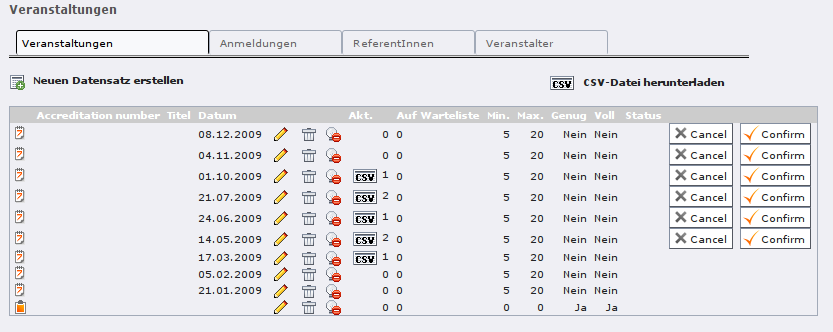 Abbildung 13: Tab "Events" in the back-end module “Events”
Column/GUI element
Column/GUI element
Meaning
Meaning
Column/GUI element
 Create new record
Meaning
creates a new event record in the selected sysfolder
Column/GUI element
 download as CSV
Meaning
downloads all events as CSV file which can be opened e.g. in Excel
Column/GUI element
Meaning
Record type:
a
b
Single event
a
b
Topic for multiple events
a
b
Date (for a topic)
Column/GUI element
accreditation number
Meaning
manually assigned number for an event (can also be empty)
Column/GUI element
title
Meaning
the event’s title
Column/GUI element
date
Meaning
the event’s date
Column/GUI element

Meaning
edit an event
Column/GUI element

Meaning
delete an event
Column/GUI element

Meaning
temporarily hide an event
Column/GUI element
act.
Meaning
 the current number of registrations; the CSV button creates
the registration as a CSV download which can be opened e.g. in Excel
the current number of registrations; the CSV button creates
the registration as a CSV download which can be opened e.g. in Excel
Column/GUI element
queue
Meaning
the number of registrations on the waiting list (if the event has a waiting list)
Column/GUI element
min.
Meaning
how many registrations are needed for the event to take place
Column/GUI element
max.
Meaning
how many seats there are for this event in total
Column/GUI element
enough
Meaning
whether the event has enough registrations to take place
Column/GUI element
full
Meaning
whether the event is fully-booked
Column/GUI element
status
Meaning
canceled, confirmed or planned (neutral)
Column/GUI element
Button “cancel”
Meaning
cancels the event and send and e-mail to all registered participants (using an e-mail form)
Column/GUI element
Button “confirm”
Meaning
marks the event as confirmed and send and e-mail to all registered participants (using an e-mail form)
Canceling an event
If an event needs to be canceled, you can cancel it by clicking on the “Cancel” button. This also sends an e-mail to all registered participants:
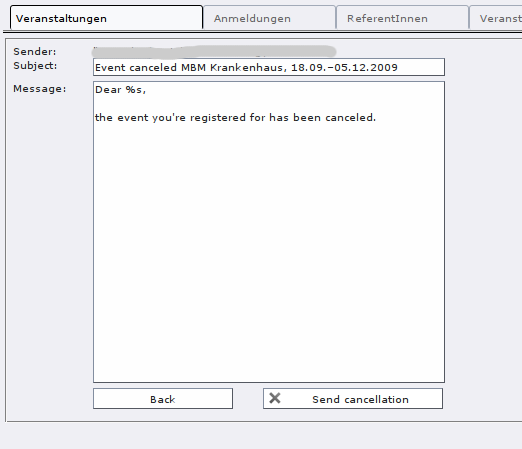 Abbildung 14: canceling an event
In the e-mail form, there already is a default text which you can edit before sending the e-mail. The placeholder %s will automatically be replaced with the participant’s name.
A canceled event still will be visible in front end, but is clearly recognizable as canceled (so that you don’t get tons of “Where can I find information about the event on the web site?” request after canceling it ;-) ). Registration for canceled events is not possible.
Marking an event as confirmed
When you feel sure that an event is certain to take place (if enough participants have signed up and you’ve got the speakers’ okay), you can mark an event as confirmed by using the “Confirm” button. This also sends an e-mail to the registered participants:
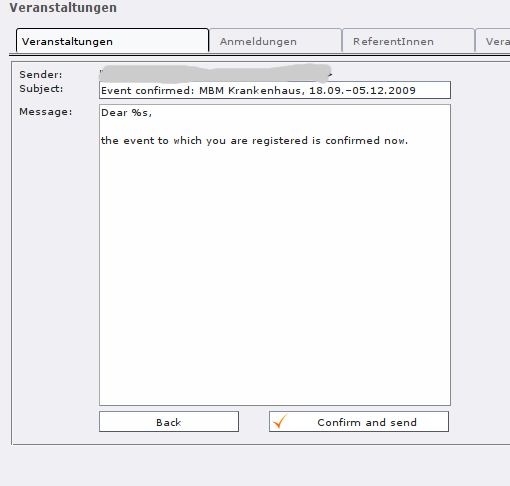 Abbildung 15: marking an event as confirmed
Signing up for a confirmed event still is possible (as long as there are any vacancies); only the text in the confirmation e-mail is a bit different.
Tab: Registrations
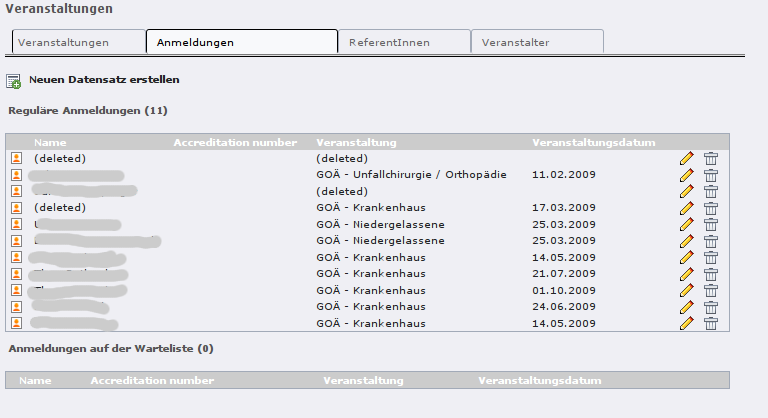 Abbildung 16: Tab "Registrations" in the back-end module
“Events”
Abbildung 16: Tab "Registrations" in the back-end module
“Events”
In this tab, all registration records of the currently selected sysfolder are displayed (i.e., of all events).
The first list Regular registrations contains those registrations that are not on the waiting list.
Tab: Speakers
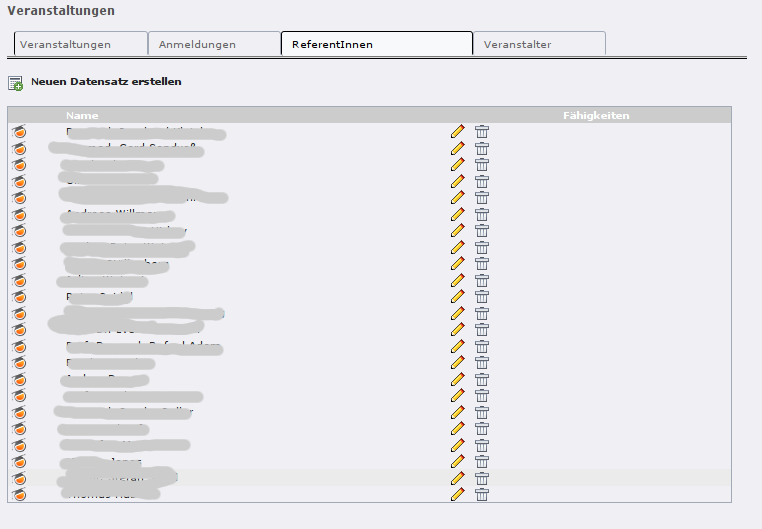 Abbildung 17: Tab "Speakers" in the back-end module
“Events”
Abbildung 17: Tab "Speakers" in the back-end module
“Events”
In this tab, all speaker records of the currently selected sysfolder are displayed (i.e., of all events).
Tab: Organizers
In this tab, all organizer records of the currently selected sysfolder are displayed (i.e., of all events).
Managing registrations
Registration for an event is possible until the registration deadline. If the event has no such deadline, registration is possible until the start of the event.
When a logged-in front-end user registers for a seminar, the following happens:
It is checked whether it still is possible to register for that seminar and the user still hasn't registered for that seminar yet. Note: If you need to allow the same front-end user to register for the same event multiple times, you can allow this in the event record.
The user can enter some information about their attendance, e.g., special interests, previous knowledge about the seminar subject, lodging or food preferences. This can be configured via plugin.tx_seminars_pi1.showRegistrationFields.
In addition, the user can select a price, food options and other options. The total price then is calculated from the selected price and the number of seats.
An attendance record is entered into the database (into the page configured via plugin.tx_seminars.attendancesPID or, if the first organizer for that event has a system folder for registrations configured, in that page), making the connection between this front- end user and the corresponding seminar. The statistics for that seminar are immediately updated in the back end and front end, preventing overbooked seminars.
A thank-you e-mail is sent to the front-end user using the first organizer of that seminar record as From: address and that organizer's e-mail footer. The thank-you e-mail also has a disclaimer if the event is planned and not confirmed yet. The disclaimer, says that the user will be informed if this event will be confirmed.
A notification e-mail is sent to that seminar's organizers (all of them, not just the first), using the attendee's e-mail address as From: address.
Additional notification e-mails are sent if the event reaches the minimum limit of registrations to be held, or if the event gets fully booked. These notifications go to all organizers of this event, the first organizer's e-mail address is used as sender.These mails will only be sent, if they are activated in the TypoScript setup. By default, the mails will be sent.
The user will be redirected to the thank-you page.
The booked event will be visible on the “my events” page.
From the “my events” page the user has the possibility to unregister from an event. When a user unregisters the corresponding attendances record will be marked as hidden.
Displaying the seminar and registration statistics and details
Back-end module “Events”: The back-end module "Events" has four different tabs:
Events
Registrations
Speakers
Organizers
By clicking on a tab, you can access the according submodule. Each submodule shows a list of records of the according type on the currently selected page or sysfolder (e.g., the submodule "Events" shows a list of events).
It is possible to delete, to modify or to create new records within the back-end module if the back-end user has the rights to do this. He can also cancel or confirm an event and send an e-mail about this to the attendees.
CSV export: In the event list, you can also export the events on the current page or the list of registrations of an event as CSV.
CSV export of events
At the top in the event list in the back-end module Events , you’ll find a button named Export as CSV that will save the data of all events on the current page as CSV.
CSV export of registrations
In the event list in the back-end module Events , you’ll find a button named CSV that will save the data of the registrations for that particular event as CSV, also including data from the registered FE user. Please note that the CSV files contains the columns for the data from the registration records first and then data from the corresponding FE user record. The columns used for the export of registrations is determined by the two following configuration variables “ fieldsFromFeUserForCsv ” and “ fieldsFromAttendanceForCsv ” . If you want to export the registrations on the waiting queue, you have to set “ showAttendancesOnRegistrationQueueInCSV ” to true.
The CSV export can be configured via TS Setup in plugin.tx_seminars for the page where the event records are located. Please see the reference for details.
CSV export of registrations is only available if:
the event has at least one registration, and
the logged-in BE user has read access to the events table and the registrations table, and
the logged-in BE user has read access to all pages where the registrations for that particular event are stored
Changing, deleting and entering registrations
You can edit, delete and enter registration records using W eb > Lists as well as the back-end module Events .
Unregistering from an event
Front-end users can unregister themselves from an event using the “my events” view if they are logged in and all of the following conditions are met:
The event has an unregistration deadline set (or a global unregistration deadline has been set), and the deadline has not passed yet.
There are registrations on the waiting list, or the extension is configured to allow unregistration even if the waiting list is empty.
Entering payments
You can also use this extension to record payments from participants for their seminar. If you have received a payment (be in in cash, bank transfer, credit card or whatever), edit the corresponding registration record and fill in the following fields:
Has paid: Note that this field will go away soon. Instead, if someone has paid will be deducted by whether a payment date has been entered. So make sure to set a payment date for all attendances that have been paid.
Date of payment (if this field is set, an attendance is considered as paid, so always enter the date when you enter a payment)
Method of payment (optional, use it if you like to track this)
Tracking who has attended a seminar and who hasn't
If you want to record who has attended a seminar and who hasn't (e.g., for certificates), you can edit the corresponding registration record and fill in this field:
Has attended
Linking to single seminar records
If you would like to link to the detailed description for a seminar (from other seminar descriptions or from any other page), you can use this format:
<URL of seminar listing page>?tx_seminars_pi1[showUid]=<UID of the seminar>
For example, if the URL of the seminar listing page is http://www.casebo.de/casebo-workshops.html and you would like to the seminar with the UID 27, the complete URL to that seminar would be this:
http://www.casebo.de/casebo- workshops.html?tx_seminars_pi1[showUid]=27
(In the links from the list view, the URLs contain an addition ampersand after the question mark, but that can be ignored.)
Publishing events created in the front-end editor
Depending on the publish settings in the editors group, you can use a publishing workflow for events that are created in the FE-editor. To establish a workflow you need to set the following configurations:
set the publish settings of the editor group in the backend. Possible settings are:
publish immediately
hide newly created records
hide edited and new records
Add a reviewer to the editor group. This reviewer must be a back-end user with a valid e-mail address.
After setting this, depending on the publish settings of the editor group, events which will be created in the front-end event editor will be hidden by default and have the status 'pending.' In this case the reviewer will receive an e-mail with a publishing link when the event is hidden by the FE-editor. This mail contains a link to publish this event. When the event is published it is no longer hidden, and can be seen by all website visitors.
Reference
There are two sections in TS setup that contain setting for this extension: plugin.tx_seminars and plugin.tx_seminars_pi1.
Setup common for front-end plug-in and back-end module in plugin.tx_seminars
You can configure the plug-in using your TS template setup in the form plugin.tx_seminars. property = value. The values in this table can only be configured using your TypoScript setup, but not via flexforms.
Property
Property:
Data type
Data type:
Description
Description:
Default
Default:
Property
enableRegistration
Data type
boolean
Description
Set this to 0 if you don't use the registration feature for this site and would like to disable the configuration check for this.
Default
1
Property
skipRegistrationCollisionCheck
Data type
boolean
Description
whether the registration collision check should be skipped for all events
Default
0
Property
templateFile
Data type
string
Description
File name of the HTML template for e-mail
Default
EXT:seminars/Resources/Private/Templates/Mail/e-mail.html
Property
salutation
Data type
string
Description
switch whether to use formal/informal language for some shared code (in e-mails, some labels and some error messages).Allowed values are:formal | informal
Default
formal
Property
hideFieldsInThankYouMail
Data type
string
Description
comma-separated list of section names that shouldn't be displayed in the thank-you e-mail to the user
allowed values are in: hello, title, uid, ticket_id, price, seats, to tal_price,attendees_names,lodgings,accommodation,foods,food,checkbox es, kids, accreditation_number, credit_points, date, time, place, room,paymentmethod, billing_address,interests,url, footer,planned_disclaimer,unregistration_notice
Default
credit_points,billing_address,kids,planned_disclaimer
Property
cssFileForAttendeeMail
Data type
string
Description
the CSS file for the HTML e-mail to the attendees
Default
EXT:seminars/Resources/Private/CSS/thankYouMail.css
Property
generalPriceInMail
Data type
boolean
Description
whether to use the label “Price” for the standard price (instead of “standard price”) in e-mail to the participant
Default
Property
hideFieldsInNotificationMail
Data type
string
Description
Comma-separated list of section names from the registration that shouldn't be displayed in the notification e-mail to the organizers. These fields are the big blocks in that e-mail, and some are further divided.
Allowed values are in:
summary: the attendee's name, the event title and the event date
seminardata: date from the seminar record, configurable via showSeminarFieldsInNotificationMail
feuserdata: data from the front-end user record, configurable via showFeUserFieldsInNotificationMail
attendancedata: data from the attendance record, configurable via showAttendanceFieldsInNotificationMail
Default
Property
showSeminarFieldsInNotificationMail
Data type
string
Description
comma-separated list of field names from seminars that should be mentioned in the notification e-mail to the organizers (in the “seminardata” section)allowed values are in: uid, event_type, title, subtitle, titleanddate, date, time, accreditation_number, credit_points, room, place, speakers, price_regular, price_regular_early, price_special, price_special_early, attendees,allows_multiple_registrations,attendees_min, attendees_max, vacancies, enough_attendees, is_full, notes
Default
title,uid,event_type,date,place,price_regular,price_regular_early, price_special,price_special_early,attendees,vacancies,enough_atten dees,is_full
Property
showFeUserFieldsInNotificationMail
Data type
string
Description
comma-separated list of field names from fe_users that should be mentioned in the notification e-mail to the organizers (in the “feuserdata” section)allowed values are all column names from fe_users.
Default
username,name,email,address,zip,city,telephone
Property
showAttendanceFieldsInNotificationMail
Data type
string
Description
comma-separated list of field names from attendances that should be mentioned in the notification e-mail to the organizers (in the “attendancedata” section)allowed values are in: uid, interests, expectations, background_knowledge, lodgings, accommodation, foods, food, known_from, notes, checkboxes, price, seats, total_price, attendees_names, kids, method_of_payment, gender, name, address, zip, city, country, telephone, email
Default
uid,price,seats,total_price,method_of_payment,gender,name,address,z ip,city,country,telephone,email,interests,expectations,background_kno wledge,known_from,notes
Property
sendAdditionalNotificationEmails
Data type
boolean
Description
Whether to send the additional notification e-mails to the organizers or not. Additional notification mails are sent if for example an event gets full.
Default
1 (= active)
Property
sendNotification
Data type
boolean
Description
Whether to send a notification to the organizers if a user has registered.
Default
1 (= active)
Property
sendNotificationOnUnregistration
Data type
boolean
Description
Whether to send a notification to the organizers if a user has unregistered.
Default
1 (= active)
Property
sendNotificationOnRegistrationForQueue
Data type
boolean
Description
Whether to send a notification to the organizers if someone registered for the queue.
Default
1 (= active)
Property
sendNotificationOnQueueUpdate
Data type
boolean
Description
Whether to send a notification to the organizers if the queue has been updated.
Default
1 (= active)
Property
sendConfirmation
Data type
boolean
Description
Whether to send a confirmation to the user after the user has registered.
Default
1 (= active)
Property
sendConfirmationOnUnregistration
Data type
boolean
Description
Whether to send a confirmation to the user if the user has unregistered.
Default
1 (= active)
Property
sendConfirmationOnRegistrationForQueue
Data type
boolean
Description
Whether to send a confirmation to the user if the user has registered for the queue.
Default
1 (= active)
Property
sendConfirmationOnQueueUpdate
Data type
boolean
Description
Whether to send a confirmation to the user if the queue has been updated.
Default
1 (= active)
Property
addRegistrationCsvToOrganizerReminderMail
Data type
boolean
Description
Whether to add the CSV file of the registrations when sending the reminder e-mail to the organizers.
Default
0 (=inactive)
Property
timeFormat
Data type
string
Description
the time format (in strftime format)
Default
%H:%M
Property
dateFormatYMD
Data type
string
Description
the strftime format code for the full date (change this to your local date format)
Default
%d.%m.%Y
Property
currency
Data type
string
Description
ISO 4217 alpha 3 code of the currency to be used, must be valid
Default
EUR
Property
showTimeOfRegistrationDeadline
Data type
boolean
Description
whether to also show the time of the registration deadline instead of just the date
Default
0
Property
showTimeOfEarlyBirdDeadline
Data type
boolean
Description
whether to also show the time of the early bird deadline instead of just the date
Default
0
Property
showTimeOfUnregistrationDeadline
Data type
boolean
Description
whether to also show the time of the unregistration deadline instead of just the date
Default
0
Property
unregistrationDeadlineDaysBeforeBeginDate
Data type
integer
Description
Number of days before the start of an event until unregistration is possible. (If you want to disable this feature just leave the value empty.)
Default
Property
allowRegistrationForStartedEvents
Data type
boolean
Description
whether registration should be possible even if an event has already started
Default
0
Property
allowRegistrationForEventsWithoutDate
Data type
Boolean
Description
Whether registration for events without a date is possible
Default
0
Property
allowUnregistrationWithEmptyWaitingList
Data type
Boolean
Description
Whether unregistration is possible even when there are no registrations on the waiting list yet.
Default
0
Property
showVacanciesThreshold
Data type
integer
Description
If there are at least this many vacancies, “enough” (localized) is displayed instead of the exact number.
Set this to a number higher than the highest number of vacancies if you want the exact number to be always displayed.
Default
10
Property
showToBeAnnouncedForEmptyPrice
Data type
boolean
Description
whether events that have no standard price set should have “to be announced” as price instead of “free”
Default
0
Property
charsetForCsv
Data type
string
Description
The charset for the CSV export, e.g., utf-8, iso-8859-1 or iso-8859-15. The default is iso-9959-15 because Excel has problems with importing utf-8.
Default
Iso-8859-15
Property
filenameForEventsCsv
Data type
string
Description
the filename proposed for CSV export of event lists
Default
events.csv
Property
filenameForRegistrationsCsv
Data type
string
Description
the filename proposed for CSV export of registration lists
Default
registrations.csv
Property
fieldsFromEventsForCsv
Data type
string
Description
comma-separated list of field names from tx_seminars_seminars that will be used for CSV exportAllowed values are in:uid, tstamp, crdate, title, subtitle, teaser, description, event_type, accreditation_number, credit_points, date, time, deadline_registration, deadline_early_bird, place, room, lodgings, foods, speakers, partners, tutors, leaders, price_regular, price_regular_early, price_regular_board, price_special, price_special_early, price_special_board, additional_information, payment_methods, organizers, attendees_min, attendees_max, attendees, vacancies, enough_attendees, is_full, cancelled
Default
uid,title,subtitle,description,event_type,date,time,place,room,speake rs,price_regular,attendees,attendees_max,vacancies,is_full
Property
fieldsFromFeUserForCsv
Data type
string
Description
comma-separated list of field names from fe_users that will be used for CSV export
Default
name,company,address,zip,city,country,telephone,email
Property
fieldsFromAttendanceForCsv
Data type
string
Description
comma-separated list of field names from tx_seminars_attendances that will be used for CSV export
Default
uid,price,total_price,method_of_payment,interests,expectations,back ground_knowledge,known_from,notes
Property
showAttendancesOnRegistrationQueueInCSV
Data type
boolean
Description
wether to show attendances on the registration queue in the CSV export or not
Default
0
Property
fieldsFromFeUserForEmailCsv
Data type
string
Description
comma-separated list of field names from fe_users that will be used for CLI CSV export
Default
name,company,address,zip,city,country,telephone,email
Property
fieldsFromAttendanceForEmailCsv
Data type
string
Description
comma-separated list of field names from tx_seminars_attendances that will be used for CLI CSV export
Default
uid,price,total_price,method_of_payment,interests,expectations,back ground_knowledge,known_from,notes
Property
showAttendancesOnRegistrationQueueInEmailCsv
Data type
boolean
Description
whether to show attendances on the registration queue in the CLI CSV export or not
Default
0
Eigenschaft
addExcelSpecificSeparatorLineToCsv
Datentyp
boolean
Beschreibung
whether to add the Excel-specific "sep=;" line to the CSV
Standardwert
0
Property
sendCancelationDeadlineReminder
Data type
boolean
Description
whether to send a cancellation deadline reminder to the organizers
Default
0
Property
sendEventTakesPlaceReminderDaysBeforeBeginDate
Data type
integer
Description
how many days before an events' begin date the organizers should be reminded about this event via e-mail, zero disables the reminder
Default
0
Property
automaticSpecialPriceForSubsequentRegistrationsBySameUser
Data type
boolean
Description
Set this to 1 to hide the special price for the first registration of a user and to automatically offer the special price for the 2nd, 3rd etc. registrations of the same user.
Default
0
Property
attendancesPID
Data type
page_id
Description
PID of the sysfolder where event registrations (attendances) will be stored
Default
None
[tsref:plugin.tx_seminars]
Setup for the Seminar Manager front-end plug-in in plugin.tx_seminars_pi1
You can configure the plug-in using flexforms of the front-end plug-in (for most values) or your TS template setup in the form plugin.tx_seminars_pi1. property = value.
If your want to set a value for all instances of the plug-in in one place, use the TS template setup. If you use flexforms, make sure to set the values at all relevant instances of the plug-in: It doesn't do to specify the fields for the online registration in the seminar list front-end plug-in—you need to set these fields in the online registration front-end plug-in.
Note: If you set any non-empty value in the flexforms, this will override the corresponding value from TS Setup.
Property
Property:
Data type
Data type:
Description
Description:
Default
Default:
Property
enableRegistration
Data type
boolean
Description
Set this to 0 if you don't use the registration feature for this site and would like to disable the configuration check for this.
Default
1
Property
numberOfClicksForRegistration
Data type
integer
Description
number of clicks to registration (valid options are 2 or 3)
Default
3
Property
what_to_display
Data type
string
Description
The kind of front-end plug-in to display. Allowed values are in: seminar_list, single_view, topic_list, my_events, my_vip_events, seminar_registration, list_registrations, list_vip_registrations, edit_event, my_entered_events, countdown, category_list, event_headline This must be set using flexforms.
Default
seminar_list
Property
templateFile
Data type
string
Description
location of the HTML template for the FE plugin
Default
EXT:seminars/pi1/seminars_pi1.tmpl
Property
eventEditorTemplateFile
Data type
string
Description
location of the front-endevent editor template file
Default
EXT:seminars/Resources/Private/Templates/FrontEnd/EventEditor.html
Property
registrationEditorTemplateFile
Data type
string
Description
location of the template file for the registration form
Default
EXT:seminars/Resources/Private/Templates/FrontEnd/RegistrationEditor.h tml
Property
salutation
Data type
string
Description
Switch whether to use formal/informal language on the front end.Allowed values are:formal | informal
Default
formal
Property
showSingleEvent
Data type
integer
Description
The UID of an event record. If an event is selected, the plug-inalways shows the single view of this event and not the list.
This must be set using flexforms.
Default
Property
timeframeInList
Data type
string
Description
the time-frame from which events should be displayed in the list view. Select one of these keywords:all, past, pastAndCurrent, current, currentAndUpcoming, upcoming, deadlineNotOver, today
Default
currentAndUpcoming
Property
hideColumns
Data type
string
Description
comma-separated list of column names that shouldn't be displayed in the list view, e.g. organizers,price_special
The order of the elements in this list has no influence on the output.Allowed values are in: category, title,subtitle,uid, event_type, language, accreditation_number, credit_points, teaser, speakers, date, time, expiry, place, city, country, seats, price_regular, price_special, total_price, organizers, target_groups, attached_files, vacancies, status_registration, registration, list_registrations, status, edit, imagePlease note that some columns will only be shown if a front-end user currently is logged in.
Default
Image,category,subtitle,event_type,language,accreditation_number,cre dit_points,teaser,time,expiry,place,country,price_special,speakers,t arget_groups,attached_files,status
Property
hideFields
Data type
string
Description
comma-separated list of field names that shouldn't be displayed in the detail view, e.g. organizers,price_special
The order of the elements in this list has no influence on the output.Allowed values are in: event_type, title, subtitle, language, description, accreditation_number, credit_points, category, date, uid, time, place, room, expiry, speakers, partners, tutors, leaders, p rice_regular,price_board_regular,price_special,price_board_speci al,additional_information, target_groups, attached_files, paymentmethods, target_groups, organizers, vacancies, deadline_registration, otherdates, eventsnextday, registration, back, image, requirements, dependencies
Default
credit_points,eventsnextday
Property
hideSearchForm
Data type
boolean
Description
whether to show the search form in the list view
Default
0
Property
displaySearchFormFields
Data type
string
Description
comma-separated list of search options which should be shown in the search widget. If no field is displayed the search widget will be hidden. Allowed values are in: event_type, language, country, city, place, full_text_search, date, age, organizer, price, categories
Default
Property
limitListViewToCategories
Data type
string
Description
comma-separated list of category UIDs to filter the list view for, leave empty to have no such filter
Default
Property
limitListViewToPlaces
Data type
string
Description
comma-separated list of place UIDs to filter the list view for, leave empty to have no such filter
Default
Property
limitListViewToOrganizers
Data type
string
Description
comma-separated list of organizer UIDs to filter the list view for, leave empty to have no such filter
Default
Property
showOnlyEventsWithVacancies
Data type
boolean
Description
whether to show only events with vacancies on in the list view
Default
0
Property
seminarImageListViewHeight
Data type
integer
Description
the maximum height of the image of a seminar in the list view
Default
43
Property
seminarImageListViewWidth
Data type
integer
Description
the maximum width of the image of a seminar in the list view
Default
70
Property
hidePageBrowser
Data type
boolean
Description
whether to show the page browser in the list view
Default
0
Property
hideCanceledEvents
Data type
boolean
Description
whether to show canceled events in the list view
Default
0
Property
sortListViewByCategory
Data type
boolean
Description
whether the list view should always be sorted by category (before applying the normal sorting)
Default
0
Property
categoriesInListView
Data type
string
Description
whether to show only the category title, only the category icon or both. Allowed values are: icon, text, both
Default
both
Property
generalPriceInList
Data type
boolean
Description
whether to use the label “Price” as column header for the standard price (instead of “Standard price”)
Default
0
Property
generalPriceInSingle
Data type
boolean
Description
whether to use the label “Price” as heading for the standard price (instead of “Standard price”) in the detailed view and on the registration page
Default
0
Property
omitDateIfSameAsPrevious
Data type
boolean
Description
whether to omit the date in the list view if it is the same as the previous item's (useful if you often have several events at the same date)
Default
0
Property
showOwnerDataInSingleView
Data type
boolean
Description
whether to show the owner data in the single view
Default
0
Property
ownerPictureMaxWidth
Data type
integer
Description
the maximum width of the owner picture in the single view
Default
250
Property
accessToFrontEndRegistrationLists
Data type
string
Description
who is allowed to view the list of registrations on the front end; allowed values are: attendees_and_managers, login, world
Default
attendees_and_managers
Property
allowCsvExportOfRegistrationsInMyVipEventsView
Data type
boolean
Description
whether to allow the CSV export in the "my VIP events" view
Default
0
Property
mayManagersEditTheirEvents
Data type
boolean
Description
whether managers may edit their events
Default
0
Property
eventFieldsOnRegistrationPage
Data type
string
Description
list of comma-separated names of event fields that should be displayed on the registration page (the order doesn't matter)Allowed values are in: uid,title,price_regular,price_special,vacancies
Default
title,price_regular,price_special,vacancies
Property
showRegistrationFields
Data type
string
Description
comma-separated list of tx_seminars_attendances DB fields to show for the online registrationThe order of the values is not relevant.Allowed values are in:step_counter, price,method_of_payment, account_number, bank_code, bank_name, account_owner, billing_address, company, gender, name, address, zip, city, country, telephone, email,interests, expectations, background_knowledge, accommodation, food, known_from, seats, registered_themselves,attendees_names, kids, lodgings, foods, checkboxes, notes, total_price, feuser_data, billing_address, registration_data, terms, terms_2
Note: billing_address enabled the summary of all billing address fields for the second registration page. To get this to work correctly, you also need to enable the particular fields for a separate billing addres that should be displayed on the first registration page, for example: name, address, zip, city
Default
step_counter,price,method_of_payment,lodgings,foods,checkboxes,inte rests,expectations,background_knowledge,known_from,notes,total_pric e,feuser_data,billing_address,registration_data,terms_2
Property
registerThemselvesByDefaultForHiddenCheckbox
Data type
boolean
Description
whether the logged-in user should be registered themselves by default in the registration form (only applicable if the checkbox is hidden)
Default
1
Property
showFeUserFieldsInRegistrationForm
Data type
string
Description
fe_users DB fields to show for in the registration form
Default
name,company,address,zip,city,country,telephone,email
Property
showFeUserFieldsInRegistrationFormWithLabel
Data type
string
Description
fe_users DB fields on the registration form that should be displayed with a label
Default
telephone,email
Property
numberOfFirstRegistrationPage
Data type
integer
Description
the displayed number of the first registration page (for "step x of y")
Default
1
Property
numberOfLastRegistrationPage
Data type
integer
Description
the displayed number of the last registration page (for "step x of y")
Default
2
Property
maximumBookableSeats
Data type
integer
Description
the maximum number of seats that can be booked in one registration
Default
10
Property
showSpeakerDetails
Data type
boolean
Description
whether to show detailed information of the speakers in the single view; if disabled, only the names will be shown
Default
1
Property
showSiteDetails
Data type
boolean
Description
whether to show detailed information of the locations in the single viewif disabled, only the name of the locations will be shown
Default
1
Property
limitFileDownloadToAttendees
Data type
boolean
Description
whether file downloads are limited to attendees only
Default
1
Property
showFeUserFieldsInRegistrationsList
Data type
string
Description
comma-separated list of FEuser fields to show in the list of registrations for an event
Default
name
Property
showRegistrationFieldsInRegistrationList
Data type
string
Description
comma-separated list of registration fields to show in the list of registrations for an event
Default
None
Property
logOutOneTimeAccountsAfterRegistration
Data type
boolean
Description
Whether one-time FE user accounts will be automatically logged out after they have registered for an event.
Note: This does not affect regular FE user accounts in any way.
Default
1
Property
enableSortingLinksInListView
Data type
boolean
Description
whether to add sorting links to the headers in the list view
Default
1
Property
linkToSingleView
Data type
string
Description
when to link to the single view: always, never, onlyForNonEmptyDescription
Default
always
Property
whether to send an additional notification e-mail from the FE editor to the reviewers when a new record has been created
Data type
boolean
Description
sendAdditionalNotificationEmailInFrontEndEditor
Default
0
Property
speakerImageWidth
Data type
integer
Description
width of the speaker image in the event single view
Default
150
Property
speakerImageHeight
Data type
integer
Description
height of the speaker image in the event single view
Default
150
Property
pages
Data type
integer
Description
PID of the sysfolder that contains all the event records (e.g. the starting point)
Default
None
Property
recursive
Data type
integer
Description
level of recursion that should be used when accessing the startingpoint
Default
None
Property
listPID
Data type
page_id
Description
PID of the FE page that contains the event list
Default
None
Property
detailPID
Data type
page_id
Description
PID of the FE page that contains the single view
Default
None
Property
myEventsPID
Data type
page_id
Description
PID of the FE page that contains the "my events" list
Default
None
Property
registerPID
Data type
page_id
Description
PID of the FE page that contains the seminar registration plug-in
Default
None
Property
thankYouAfterRegistrationPID
Data type
page_id
Description
PID of the thank-you page that will be displayed after a FE user has registered for an event
Default
None
Property
sendParametersToThankYouAfterRegistrationPageUrl
Data type
boolean
Description
Whether to send GET parameters to the thank-you-after-registration- page-URL.
Default
1
Property
createAdditionalAttendeesAsFrontEndUsers
Data type
boolean
Description
whether to create FE user records for additional attendees (in addition to storing them in a text field)
Default
0
Property
sysFolderForAdditionalAttendeeUsersPID
Data type
page_id
Description
UID of the sysfolder in which FE users created as additional attendees in the registration form get stored
Default
Property
userGroupUidsForAdditionalAttendeesFrontEndUsers
Data type
string
Description
comma-separated list of front-end user group UIDs to which the FE users created in the registration form will be assigned
Default
Property
pageToShowAfterUnregistrationPID
Data type
page_id
Description
PID of the page that will be displayed after a FE user has unregistered from an event
Default
None
Property
sendParametersToPageToShowAfterUnregistrationUrl
Data type
boolean
Description
Whether to send GET parameters to the thank-you-after-registration- page-URL.
Default
1
Property
loginPID
Data type
page_id
Description
PID of the FE page that contains the login form or onetimeaccount
Default
None
Property
registrationsListPID
Data type
page_id
Description
PID of the page that contains the registrations list for participants
Default
None
Property
registrationsVipListPID
Data type
page_id
Description
PID of the page that contains the registrations list for editors
Default
None
Property
eventEditorFeGroupID
Data type
integer
Description
UID of the FE user group that is allowed to enter and edit event records in the FE
Default
None
Property
defaultEventVipsFeGroupID
Data type
integer
Description
UID of the FE user group that is allowed to see the registrations of all events
Default
None
Property
eventEditorPID
Data type
page_id
Description
PID of the page where the plug-in for editing events is located
Default
None
Property
createEventsPID
Data type
page_id
Description
PID of the sysfolder where FE-created events will be stored
Default
None
Property
createAuxiliaryRecordsPID
Data type
page_id
Description
PID of the sysfolder where FE-created auxiliary records will be stored
Default
None
Property
eventSuccessfullySavedPID
Data type
page_id
Description
PID of the page that will be shown when an event has been successfully entered on the FE
Default
None
Property
displayFrontEndEditorFields
Data type
String
Description
comma-separated list of the fields to show in the FE-editor; allowed values are: subtitle,accreditation_number, credit_points, categories, event_type, cancelled, teaser,description, additional_information, begin_date, end_date, begin_date_registration, deadline_early_bird, deadline_registration, needs_registration, allows_multiple_registrations, queue_size, offline_attendees, attendees_min, attendees_max, target_groups, price_regular, price_regular_early, price_regular_board, price_special, price_special_early, price_special_board, payment_methods, place, room, lodgings, foods, speakers, leaders, partners, tutors, checkboxes, uses_terms_2, attached_file_box, notes
Default
subtitle,accreditation_number,credit_points,categories,event_type,c ancelled,teaser,description,additional_information,begin_date,end_d ate,begin_date_registration,deadline_early_bird,deadline_registra tion,needs_registration,allows_multiple_registrations,queue_size,o ffline_attendees,attendees_min,attendees_max,target_groups,price_ regular,price_regular_early,price_regular_board,price_special,pri ce_special_early,price_special_board,payment_methods,place,room,l odgings,foods,speakers,leaders,partners,tutors,checkboxes,uses_terms_2,attached_file_box,notes
Property
requiredFrontEndEditorFields
Data type
String
Description
comma-separated list of the event fields which are required to be filled in the FE editor; allowed values are: subtitle, accreditation_number, credit_points, categories, event_type, cancelled, teaser, description, additional_information, begin_date, end_date, begin_date_registration, deadline_early_bird, deadline_registration, needs_registration, allows_multiple_registrations, queue_size, attendees_min, attendees_max, offline_attendees, target_groups, price_regular, price_regular_early, price_regular_board, price_special, price_special_early, price_special_board, payment_methods, place, room, lodgings, foods, speakers, leaders, partners, tutors, checkboxes, uses_terms_2, attached_file_box, notes
Default
Property
requiredFrontEndEditorPlaceFields
Data type
String
Description
comma-separated list of the place fields which are required to be filled in the FE editor; allowed values are: address, zip, city, country, homepage, directions
Default
city
Property
bankTransferUID
Data type
record_id
Description
UID of the payment method that corresponds to "bank transfer", used for input validation in the registration form
Default
None
Property
externalLinkTarget
Data type
string
Description
The target for external links in seminars.
Default
None
Property
seminarImageSingleViewWidth
Data type
integer
Description
the maximum width of the image of a seminar in the single view
Default
260
Property
seminarImageSingleViewHeight
Data type
integer
Description
the maximum height of the image of a seminar in the single view
Default
160
Property
allowFrontEndEditingOfSpeakers
Data type
boolean
Description
whether to allow front-end editing of speakers
Default
0
Property
allowFrontEndEditingOfPlaces
Data type
boolean
Description
whether to allow front-end editing of places
Default
0
Property
allowFrontEndEditingOfCheckboxes
Data type
boolean
Description
whether to allow front-end editing of checkboxes
Default
0
Property
allowFrontEndEditingOfTargetGroups
Data type
boolean
Description
whether to allow front-end editing of target groups
Default
0
[tsref:plugin.tx_seminars_pi1]
Setup for the list view
For the list view, there are some additional configuration option that can only be set using the TS setup in the form plugin.tx_seminars_pi1.listView. property = value. Those values can not be set via Flexforms.
Property
Property:
Data type
Data type:
Description
Description:
Default
Default:
Property
orderBy
Data type
string
Description
The default sort order in list view. Allowed values are:category, title, uid, event_type, accreditation_number, credit_points, speakers, date, time, place, price_regular, price_special, organizers, vacancies
Default
date
Property
descFlag
Data type
boolean
Description
whether to show the list view ordered in ascending (=0) or descending order (=1)
Default
0
Property
results_at_a_time
Data type
integer
Description
The number of events that shall be displayed per page
Default
20
Property
maxPages
Data type
integer
Description
the number of neighboring pages to list in the page browser
Default
5
[tsref:plugin.tx_seminars_pi1.listView]
Setup for the registration digest email
These configuration options can only be set via TypoScript setup within the plugin.tx_seminars.registrationDigestEmail namespace, not via flexforms.
These settings only affect the seminars Scheduler task.
Property
Property:
Data type
Data type:
Description
Description:
Default
Default:
Property
enable
Data type
boolean
Description
whether to send out the emails when the seminars Scheduler task is executed
Default
0
Property
fromEmail
Data type
string
Description
email address of the sender
Default
Property
fromName
Data type
string
Description
name of the sender (optional)
Default
Property
toEmail
Data type
string
Description
email address of the recipient
Default
Property
toName
Data type
string
Description
name of the recipient (optional)
Default
Property
htmlTemplate
Data type
string
Description
path to the fluid template for the HTML email
Default
EXT:seminars/Resources/Private/Templates/Mail/RegistrationDigest.html
Property
plaintextTemplate
Data type
string
Description
path to the fluid template for the plaintext email
Default
EXT:seminars/Resources/Private/Templates/Mail/RegistrationDigest.txt
[tsref:plugin.tx_seminars.registrationDigestEmail]
Constants for the Seminar-Manager front-end plug-in in plugin.tx_seminars_pi1
You can configure the plug-in using your TS template constant in the form plugin.tx_seminars_pi1. property = value.
Property
Property:
Data type
Data type:
Description
Description:
Default
Default:
Property
cssFile
Data type
string
Description
location of the CSS file (set as empty to not include the file)
Default
EXT:seminars/pi1/seminars_pi1.css
[tsref:plugin.tx_seminars_pi1]
Hooks
Warning
Using hooks requires in-depth knowledge of PHP classes, implementation of interfaces and seminars object internals.
Hooks allow extending the functionality of seminars without using XCLASSes. There are hooks for these parts of seminars:
Please contact us if you need additional hooks.
Important
seminars is undergoing a major rewriting to keep up with modern TYPO3 programming techniques. We try to keep changes as small as possible. Please inform yourself about changes by reading CHANGELOG.md, the DocBlocks of interfaces you implement and this chapter of the documentation before updating to a new seminars major version.
Hooks for the single view
There is a hook into the single view. It is executed just before the template
gets rendered to HTML. You may set custom markers or change existing values for
markers. See also Classes/Frontend/DefaultController.php for available
properties and methods.
Register your class that implements \OliverKlee\Seminars\Hooks\Interfaces\SeminarSingleView
like this in ext_localconf.php of your extension:
$GLOBALS['TYPO3_CONF_VARS']['EXTCONF']['seminars'][\OliverKlee\Seminars\Hooks\Interfaces\SeminarSingleView::class][]
    = \Tx_Seminarspaypal_Hooks_EventSingleView::class;
Implement the methods required by the interface:
use OliverKlee\Seminars\Hooks\Interfaces\SeminarSingleView;

class Tx_Seminarspaypal_Hooks_SingleView implements SeminarSingleView
{
    /**
     * Modifies the seminar details view.
     *
     * This function will be called for all types of seminars (single events, topics, and dates).
     *
     * @param DefaultController $controller the calling controller
     */
    public function modifySingleView(DefaultController $controller): void
    {
        // Your code here
    }
}
Hooks for the list view
There are 4 hooks into the list view(s). First hook is called just before the seminar bag (the seminars to show in the list) or the registration bag (the seminars a user is registered for) is build. It is always called, even when there will be an empty list.
The other hooks are called during seminar list table creation:
just before the table header is rendered to HTML
just before a table row for a certain seminar or registration is rendered to HTML
in case of a my_event list: right after the row hook mentioned above
just before the table footer is rendered to HTML
In these hooks you may set custom markers or change existing values for markers. See also
Classes/Frontend/DefaultController.php for available properties and methods.
The hook to the seminar or registration bag building process allows for changing
the seminars/registrations shown in the list. You may add more filters or remove
existing ones. See also Classes/BagBuilder/AbstractBagBuilder.php,
Classes/BagBuilder/EventBagBuilder.php and Classes/BagBuilder/Registration.php
for available properties and methods.
There are 7 types of lists your implementation must handle:
topic list (topic_list)
seminar list (seminar_list)
my seminars (my_events)
my VIP seminars (my_vip_events)
my entered events (my_entered_events)
events next day (events_next_day)
other dates (other_dates)
The last two list types (events next day and other dates) are part of the single view, but handled as fully rendered seminar lists (including bag building).
Register your class that implements \OliverKlee\Seminars\Hooks\Interfaces\SeminarListView
like this in ext_localconf.php of your extension:
$GLOBALS['TYPO3_CONF_VARS']['EXTCONF']['seminars'][\OliverKlee\Seminars\Hooks\Interfaces\SeminarListView::class][]
    = \Tx_Seminarspaypal_Hooks_ListView::class;
Implement the methods required by the interface:
use OliverKlee\Seminars\Hooks\Interfaces\SeminarListView;

class Tx_Seminarspaypal_Hooks_ListView implements SeminarListView
{
    /**
     * Modifies the list view seminar bag builder (the item collection for a seminar list).
     *
     * Add or alter limitations for the selection of seminars to be shown in the
     * list.
     *
     * @see AbstractBagBuilder::getWhereClausePart()
     * @see AbstractBagBuilder::setWhereClausePart()
     *
     * This function will be called for these types of seminar lists: "topics", "seminars",
     * "my vip seminars", "my entered events", "events next day", "other dates".
     *
     * @param DefaultController $controller the calling controller
     * @param EventBagBuilder $builder the bag builder
     * @param string $whatToDisplay the flavor of list view: 'seminar_list', 'topic_list',
     *        'my_vip_events', 'my_entered_events', 'events_next_day' or 'other_dates'
     */
    public function modifyEventBagBuilder(
        DefaultController $controller,
        EventBagBuilder $builder,
        string $whatToDisplay
    ): void {
        // Your code here
    }

    /**
     * Modifies the list view registration bag builder (the item collection for a "my events" list).
     *
     * Add or alter limitations for the selection of seminars to be shown in the
     * list.
     *
     * @see AbstractBagBuilder::getWhereClausePart()
     * @see AbstractBagBuilder::setWhereClausePart()
     *
     * This function will be called for "my events" lists only.
     *
     * @param DefaultController $controller the calling controller
     * @param RegistrationBagBuilder $builder the bag builder
     * @param string $whatToDisplay the flavor of list view ('my_events' only?)
     */
    public function modifyRegistrationBagBuilder(
        DefaultController $controller,
        RegistrationBagBuilder $builder,
        string $whatToDisplay
    ): void {
        // Your code here
    }

    /**
     * Modifies the list view header row in a seminar list.
     *
     * This function will be called for all types of seminar lists ("topics",
     * "seminars", "my seminars", "my vip seminars", "my entered events",
     * "events next day", "other dates").
     *
     * @param DefaultController $controller the calling controller
     */
    public function modifyListHeader(DefaultController $controller): void
    {
        // Your code here
    }

    /**
     * Modifies a list row in a seminar list.
     *
     * This function will be called for all types of seminar lists ("topics",
     * "seminars", "my seminars", "my vip seminars", "my entered events",
     * "events next day", "other dates").
     *
     * @param DefaultController $controller the calling controller
     */
    public function modifyListRow(DefaultController $controller): void
    {
        // Your code here
    }

    /**
     * Modifies a list view row in a "my seminars" list.
     *
     * This function will be called for "my seminars" , "my vip seminars",
     * "my entered events" lists only.
     *
     * @param DefaultController $controller the calling controller
     */
    public function modifyMyEventsListRow(DefaultController $controller): void
    {
        // Your code here
    }

    /**
     * Modifies the list view footer in a seminars list.
     *
     * This function will be called for all types of seminar lists ("topics",
     * "seminars", "my seminars", "my vip seminars", "my entered events",
     * "events next day", "other dates").
     *
     * @param DefaultController $controller the calling controller
     */
    public function modifyListFooter(DefaultController $controller): void
    {
        // Your code here
    }
}
Hooks for the selector widget
There is a hook into the selector widget of the list view. If the selector widget
is activated, the hook is executed just before the template gets rendered to HTML.
You may set custom markers or change existing values for markers. See also
Classes/Frontend/SelectorWidget.php for available properties and methods.
Register your class that implements \OliverKlee\Seminars\Hooks\Interfaces\SeminarSelectorWidget
like this in ext_localconf.php of your extension:
$GLOBALS['TYPO3_CONF_VARS']['EXTCONF']['seminars'][\OliverKlee\Seminars\Hooks\Interfaces\SeminarSelectorWidget::class][]
    = \Tx_Seminarspaypal_Hooks_EventSelectorWidget::class;
Implement the methods required by the interface:
use OliverKlee\Seminars\Hooks\Interfaces\SeminarSelectorWidget;

class Tx_Seminarspaypal_Hooks_EventSelectorWidget implements SeminarSelectorWidget
{
    /**
     * Modifies the seminar widget, just before the subpart is fetched.
     *
     * This function will be called for all types of seminar lists, if `displaySearchFormFields` is configured for it.
     *
     * @param SelectorWidget $selectorWidget
     * @param EventBag $seminarBag the seminars used to create the selector widget
     */
    public function modifySelectorWidget(
        SelectorWidget $selectorWidget,
        EventBag $seminarBag
    ): void {
        // Your code here
    }
}
Hooks for the registration form
There are 3 hooks into the registration form rendering:
just before the registration form header is rendered to HTML
just before the registration form is rendered to HTML
just before the registration form footer is rendered to HTML
You may set custom markers or change existing values for markers in the header and footer hooks.
See also Classes/Frontend/DefaultController.php for available properties and methods.
The registration form is rendered by the builder class in Classes/Frontend/RegistrationForm.php.
It handles the registration or unregistration in 1 or 2 pages according to configuraton. Depending on
the page shown, the previously entered values and if it is an unregistration or not the values in the
form may be set or not. If you add custom fields to the form you also need to handle storage and
retrieval in DB for them according to the page/state of the (un)registration process as well as
validation via mkforms.
Register your class that implements \OliverKlee\Seminars\Hooks\Interfaces\SeminarRegistrationForm
like this in ext_localconf.php of your extension:
$GLOBALS['TYPO3_CONF_VARS']['EXTCONF']['seminars'][\OliverKlee\Seminars\Hooks\Interfaces\SeminarRegistrationForm::class][]
    = \Tx_Seminarspaypal_Hooks_SeminarRegistrationForm::class;
Implement the methods required by the interface:
use OliverKlee\Seminars\Hooks\Interfaces\SeminarRegistrationForm;

class Tx_Seminarspaypal_Hooks_SeminarRegistrationForm implements SeminarRegistrationForm
{
    /**
     * Modifies the header of the seminar registration form.
     *
     * @param DefaultController $controller the calling controller
     */
    public function modifyRegistrationHeader(DefaultController $controller): void
    {
        // Your code here
    }

    /**
     * Modifies the seminar registration form.
     *
     * @param DefaultController $controller the calling controller
     * @param RegistrationForm $registrationEditor the registration form
     */
    public function modifyRegistrationForm(
        DefaultController $controller,
        RegistrationForm $registrationEditor
    ): void {
        // Your code here
    }

    /**
     * Modifies the footer of the seminar registration form.
     *
     * @param DefaultController $controller the calling controller
     */
    public function modifyRegistrationFooter(DefaultController $controller): void
    {
        // Your code here
    }
}
Hooks for the registration notification emails
There are the following hooks into the registration notification emails:
just before the attendee notification template is rendered to plain text
just before the attendee notification template is rendered to HTML
just before the attendee notification is sent
just before the organizer notification is sent
just before the additional organizer notifications are sent
You may set custom markers or change existing values for markers in the template hooks.
See also Classes/Model/Registration.php for available properties and methods.
The plain text hook is always called, because a HTML email always contains a plain text version, too.
The HTML hook is called only if emails are sent as HTML.
With the other hooks you may modify the complete MailMessage object (e.g. sender or receiver addresses,
subject line or the complete body). See also sysext/core/Classes/Mail/MailMessage.php for
available properties and methods.
Register your class that implements \OliverKlee\Seminars\Hooks\Interfaces\RegistrationEmail
like this in ext_localconf.php of your extension:
$GLOBALS['TYPO3_CONF_VARS']['EXTCONF']['seminars'][\OliverKlee\Seminars\Hooks\Interfaces\RegistrationEmail::class][]
    = \Tx_Seminarspaypal_Hooks_RegistrationEmail::class;
Implement the methods required by the interface:
use OliverKlee\Seminars\Hooks\Interfaces\RegistrationEmail;

class Tx_Seminarspaypal_Hooks_RegistrationEmail implements RegistrationEmail
{
    /**
     * Modifies the attendee "Thank you" email just before it is sent.
     *
     * You may modify the recipient or the sender as well as the subject and the body of the email.
     *
     * @param string $emailReason Possible values:
     *          - confirmation
     *          - confirmationOnUnregistration
     *          - confirmationOnRegistrationForQueue
     *          - confirmationOnQueueUpdate
     */
    public function modifyAttendeeEmail(
        MailMessage $email,
        Registration $registration,
        string $emailReason
    ): void {
        // Your code here
    }

    /**
     * Modifies the attendee "Thank you" email body just before the subpart is rendered to plain text.
     *
     * This method is called for every confirmation email, even if HTML emails are configured.
     * The body of a HTML email always contains a plain text version, too.
     *
     * You may modify or set marker values in the template.
     *
     * @param Registration $registration
     * @param string $emailReason Possible values:
     *          - confirmation
     *          - confirmationOnUnregistration
     *          - confirmationOnRegistrationForQueue
     *          - confirmationOnQueueUpdate
     */
    public function modifyAttendeeEmailBodyPlainText(
        Template $emailTemplate,
        Registration $registration,
        string $emailReason
    ): void {
        // Your code here
    }

    /**
     * Modifies the attendee "Thank you" email body just before the subpart is rendered to HTML.
     *
     * This method is called only, if HTML emails are configured for confirmation emails.
     *
     * You may modify or set marker values in the template.
     *
     * @param Registration $registration
     * @param string $emailReason Possible values:
     *          - confirmation
     *          - confirmationOnUnregistration
     *          - confirmationOnRegistrationForQueue
     *          - confirmationOnQueueUpdate
     */
    public function modifyAttendeeEmailBodyHtml(
        Template $emailTemplate,
        Registration $registration,
        string $emailReason
    ): void {
        // Your code here
    }

    /**
     * Modifies the organizer notification email just before it is sent.
     *
     * You may modify the recipient or the sender as well as the subject and the body of the email.
     *
     * @param string $emailReason Possible values:
     *        - notification
     *        - notificationOnUnregistration
     *        - notificationOnRegistrationForQueue
     *        - notificationOnQueueUpdate
     */
    public function modifyOrganizerEmail(
        MailMessage $email,
        Registration $registration,
        string $emailReason
    ): void {
        // Your code here
    }

    /**
     * Modifies the organizer additional notification email just before it is sent.
     *
     * You may modify the recipient or the sender as well as the subject and the body of the email.
     *
     * @param string $emailReason Possible values:
     *          - 'EnoughRegistrations' if the event has enough attendances
     *          - 'IsFull' if the event is fully booked
     *          see RegistrationManager::getReasonForNotification()
     */
    public function modifyAdditionalEmail(
        MailMessage $email,
        Registration $registration,
        string $emailReason
    ): void {
        // Your code here
    }
}
Hooks for the salutation in all e-mails to the attendees
It is also possible to extend the salutation used in the e-mails with the following hook:
modifySalutation for tx_seminars_EmailSaluation which is called just before the salutation is returned by getSalutation
To use this hook, you need to create a class with a method named modifySalutation. The method in your class should expect two parameters. The first one is a reference to an array with the following structure:
array('dear' => String, 'title' => String, 'name' => String)
The second parameter is an user object FrontEndUser.
Your class then needs to be included and registered like in this example:
// register my hook objects
$GLOBALS['TYPO3_CONF_VARS']['EXTCONF']['seminars']['modifyEmailSalutation'][] = \MyVendor\MyExt\Hooks\ModifySalutationHook::class;
Hooks for the date and time span creation
There are hooks into the date and time span creation of the seminars. If at any place a date or time span
is required, these hooks are called to allow modification of the date or time span assembling. See also
Classes/OldModel/AbstractTimeSpan.php for details about the default methods.
Register your class that implements \OliverKlee\Seminars\Hooks\Interfaces\DateTimeSpan
like this in ext_localconf.php of your extension:
$GLOBALS['TYPO3_CONF_VARS']['EXTCONF']['seminars'][\OliverKlee\Seminars\Hooks\Interfaces\DateTimeSpan::class][]
    = \Tx_Seminarspaypal_Hooks_DateTimeSpan::class;
Implement the methods required by the interface:
use OliverKlee\Seminars\Hooks\Interfaces\DateTimeSpan;

class Tx_Seminarspaypal_Hooks_DateTimeSpan implements DateTimeSpan
{
    /**
     * Modifies the date span string.
     *
     * This allows modifying the assembly of start and end date to the date span.
     * E.g., for Hungarian: '01.-03.01.2019' -> '2019.01.01.-03.'.
     *
     * The date format for the date parts are configured in TypoScript (`dateFormatYMD` etc.).
     * Get them from `$dateTimeSpan->getConfValueString('dateFormatYMD')` etc. The event
     * dates are also retrievable:
     * `$beginDateTime = $dateTimeSpan->getBeginDateAsTimestamp();`
     * `$endDateTime = $dateTimeSpan->getEndDateAsTimestamp();`
     *
     * @param string $dateSpan the date span produced by `AbstractTimeSpan::getDate()`
     * @param AbstractTimeSpan $dateTimeSpan the date provider
     * @param string $dash the glue used by `AbstractTimeSpan::getDate()` (may be HTML encoded)
     *
     * @return string the modified date span to use
     */
    public function modifyDateSpan(
        string $dateSpan,
        AbstractTimeSpan $dateTimeSpan,
        string $dash
    ): string
    {
        // Your code here
    }

    /**
     * Modifies the time span string.
     *
     * This allows modifying the assembly of start and end time to the time span.
     * E.g., for Hungarian: '9:00-10:30' -> '9:00tol 10:30ban'.
     *
     * The time format for the time parts is configured in TypoScript (`timeFormat`).
     * Get it from `$dateTimeSpan->getConfValueString('timeFormat')`. The event
     * times are also retrievable:
     * `$beginDateTime = $dateTimeSpan->getBeginDateAsTimestamp();`
     * `$endDateTime = $dateTimeSpan->getEndDateAsTimestamp();`
     *
     * @param string $timeSpan the time span produced by `AbstractTimeSpan::getTime()`
     * @param AbstractTimeSpan $dateTimeSpan the date provider
     * @param string $dash the glue used by `AbstractTimeSpan::getTime()` (may be HTML encoded)
     *
     * @return string the modified time span to use
     */
    public function modifyTimeSpan(
        string $timeSpan,
        AbstractTimeSpan $dateTimeSpan,
        string $dash
    ): string
    {
        // Your code here
    }
}
Hooks for the e-mails sent from the back-end module
The hook classes need to be registered and written like this:
$GLOBALS['TYPO3_CONF_VARS']['EXTCONF']['seminars']['backEndModule'][]
      = \tx_seminarspaypal_Hooks_BackEndModule::class;
It's used like this:
class BackEndModuleHook implements BackEndModule {
      /**
     * Modifies the general e-mail sent via the back-end module.
     *
     * Note: This hook does not get called yet. It is just here so the interface
     * is finalized.
     *
     * @param Registration $registration
     *        the registration to which the e-mail refers
     */
      public function modifyGeneralEmail(Registration $registration, MailMessage $eMail): void {…}

      /**
     * Modifies the confirmation e-mail sent via the back-end module.
     *
     * @param OliverKlee\Seminars\Model\Registration $registration
     *        the registration to which the e-mail refers
     */
      public function modifyConfirmEmail(Registration $registration, MailMessage $eMail): void {…}

      /**
     * Modifies the cancelation e-mail sent via the back-end module.
     *
     * Note: This hook does not get called yet. It is just here so the interface
     * is finalized.
     *
     * @param Registration $registration
     *        the registration to which the e-mail refers
     */
       public function modifyCancelEmail(Registration $registration, MailMessage $eMail): void {…}
Hooks for the backend registration list
There are 3 hooks into the backend registration list. The hooks are called during backend registration list creation:
just before the table header is rendered to HTML
just before a table row for a certain registration is rendered to HTML
just before the table footer is rendered to HTML
In these hooks, you may set custom markers or change existing values for markers. For
available properties and methods, see Classes/Model/Registration.php of seminars
and Classes/Template.php of extension oelib.
There are 2 types of lists your implementation must handle:
List of regular registrations (REGULAR_REGISTRATIONS)
List of enqueued registrations (REGISTRATIONS_ON_QUEUE)
Register your class that implements \OliverKlee\Seminars\Hooks\Interfaces\BackendRegistrationListView
like this in ext_localconf.php of your extension:
$GLOBALS['TYPO3_CONF_VARS']['EXTCONF']['seminars'][\OliverKlee\Seminars\Hooks\Interfaces\BackendRegistrationListView::class][]
    = \Tx_Seminarspaypal_Hooks_BackendRegistrationListView::class;
Implement the methods required by the interface:
use OliverKlee\Seminars\Hooks\Interfaces\BackendRegistrationListView;

class Tx_Seminarspaypal_Hooks_BackendRegistrationListView implements BackendRegistrationListView
{
    /**
     * Modifies the list row template content just before it is rendered to HTML.
     *
     * This method is called once per list row, but the row may appear in the list of regular registrations or the
     * list of registrations on queue. Check $registrationsToShow (can be one of
     * `::REGISTRATIONS_ON_QUEUE` and `::REGULAR_REGISTRATIONS`) to distinguish.
     *
     * @param Registration $registration
     *        the registration the row is made from
     * @param Template $template the template that will be used to create the registration list
     * @param iRegistrationsList::REGISTRATIONS_ON_QUEUE|RegistrationsList::REGULAR_REGISTRATIONS $registrationsToShow
     */
    public function modifyListRow(
        Registration $registration,
        Template $template,
        int $registrationsToShow
    ): void {
        // Your code here
    }

    /**
     * Modifies the list heading template content just before it is rendered to HTML.
     *
     * This method is called twice per list: First for the list of regular registrations, then for the list of
     * registrations on queue. Check $registrationsToShow (can be one of
     * `::REGISTRATIONS_ON_QUEUE` and `::REGULAR_REGISTRATIONS`) to distinguish.
     *
     * @param RegistrationBag $registrationBag
     *        the registrationBag the heading is made for
     * @param Template $template the template that will be used to create the registration list
     * @param int $registrationsToShow
     *        the type of registration shown in the list
     */
    public function modifyListHeader(
        RegistrationBag $registrationBag,
        Template $template,
        int $registrationsToShow
    ): void {
        // Your code here
    }

    /**
     * Modifies the complete list template content just before it is rendered to HTML.
     *
     * This method is called twice per list: First for the list of regular registrations, then for the list of
     * registrations on queue. Check $registrationsToShow (can be one of
     * `::REGISTRATIONS_ON_QUEUE` and `::REGULAR_REGISTRATIONS`) to distinguish.
     *
     * @param RegistrationBag $registrationBag
     *        the registrationBag the table is made for
     * @param Template $template the template that will be used to create the registration list
     * @param int $registrationsToShow
     *        the type of registration shown in the list
     */
    public function modifyList(
        RegistrationBag $registrationBag,
        Template $template,
        int $registrationsToShow
    ): void {
        // Your code here
    }
}
Hooks for the CSV generation of registration lists
There is a hook into the CSV generation of registration lists to modify the generated CSV text.
Register your class that implements \OliverKlee\Seminars\Hooks\Interfaces\RegistrationListCsv
like this in ext_localconf.php of your extension:
$GLOBALS['TYPO3_CONF_VARS']['EXTCONF']['seminars'][\OliverKlee\Seminars\Hooks\Interfaces\RegistrationListCsv::class][]
    = \Tx_Seminarspaypal_Hooks_RegistrationListCsv::class;
Implement the methods required by the interface:
use OliverKlee\Seminars\Hooks\Interfaces\RegistrationListCsv;

class Tx_Seminarspaypal_Hooks_RegistrationListCsv implements RegistrationListCsv
{
    /**
     * Modifies the rendered CSV string.
     *
     * This allows modifying the complete CSV text right before it is delivered.
     *
     * @param string $csv the CSV text produced by `AbstractRegistrationListView::render()`
     * @param AbstractRegistrationListView $registrationList the CSV data provider
     *
     * @return string the modified CSV text to use
     */
    public function modifyCsv(string $csv, AbstractRegistrationListView $registrationList): string
    {
        // Your code here
    }
}
Hooks for the data sanitization on TCE validation
There is a hook into the data handler to additionaly manipulate seminars FlexForm data during TCE validation (just before storing the data). You may apply additional constraints and dynamically adjust values (e.g. registration deadline = begin date - 14 days).
TCE validation is a TYPO3-defined process. seminars gets the form values from the content element's FlexForm and stores required changes of the values into the database.
Register your class that implements \OliverKlee\Seminars\Hooks\Interfaces\DataSanitization
like this in ext_localconf.php of your extension:
$GLOBALS['TYPO3_CONF_VARS']['EXTCONF']['seminars'][\OliverKlee\Seminars\Hooks\Interfaces\DataSanitization::class][]
    = \Tx_Seminarspaypal_Hooks_DataSanitization::class;
Implement the methods required by the interface:
use OliverKlee\Seminars\Hooks\Interfaces\DataSanitization;

class Tx_Seminarspaypal_Hooks_DataSanitization implements DataSanitization
{
    /**
     * Sanitizes event data values.
     *
     * The TCE form event values need to be sanitized when storing them into the
     * database. Check the values with additional constraints and provide the modified
     * values to use back in a returned array.
     *
     * @param int $uid
     * @param mixed[] $data the events data as stored in database
     *
     * @return mixed[] the data to change, [] for no changes
     */
    public function sanitizeEventData(int $uid, array $data): array
    {
        // Your code here
    }
}
Development Workflow
The developers mailing list and wiki
We have a page in the TYPO3 wiki for storing texts, drafts and other stuff.
We use the mailing list/newsgroup on lists.netfielders.de for talking about development.
Changing or customizing the extension
If you want to change the extension itself, it is highly recommended to contact the developers and contribute your changes back to the project. This has several advantages:
You can still get further updates of the extension without having to apply your changes again.
The extension developers can help you integrate your code better with the other parts of the extension.
Other users of the extension can benefit from your contributions.
Development workflow and coding style guidelines
The development workflow and the coding style guidelines for this extension are the in the manual of the extension oelib .
Release checklist
The following points are checked before a new version is released. This workflow is started as soon as all open to-do items for the upcoming version are done. Responsible for this is the chief developer (Oliver Klee).
If this is a major release, drop this extension’s DB tables and re- create them.
Run all unit tests.
Remove completed tasks from the “Known Problems” part of this manual.
Enter the release date for the current milestone in the changelog.
Remove the directory tests/ and all .svn directories.
Check the Extension Manager if there are no warnings.
Generate a new ext_emconf.php (updating the MD5 hashes for all files).
Upload the extension to the TER.
Check in the actual ext_emconf.php to the SVN (comment: new version).
Create an SVN tag.
If this is a major release:
Create an SVN branch.
Enter the next milestone in the bug tracker.
Change the version number in ext_emconf.php to x.y.99 and check in the changes to the trunk (not the branch!).
Move maintenance bugs to the next maintenance version.
Remove the old upgrade notes in the trunk manual and new notes for the next version.
Enter the new (upcoming) version into changelog.txt.
Enter the just-released version in the bug tracker.
Important: Wait until the new version appears in the TER (this may take some time).
Update the extension on the translation server (Mario)
Inform the persons that are known users of this extension and persons that were in contact with the development team (concerning this extension).
Spread the official announcement to the newsgroup.
Do a party :-)
Helping out
For this extension, there are still many unimplemented feature ideas. Help is very welcome! There are several ways in which you can help:
Reporting bugs
If you find any bugs or would like to propose a feature, please report the issue in the bug tracker:
https://github.com/oliverklee/ext-seminars/issues
Make sure to provide the following data when reporting a bug:
the version of this extension which you're using
the version numbers of TYPO3, PHP and MySQL
what steps need to be taken to reproduce the bug (1. click here, 2. enter this ...)
what you expect to happen
what actually happens instead
Buying some work
Besides the described possibilities, you can also pay the author's time to fix a certain bug, implement a certain feature for you or generally dedicate some time to this extension (there always are small things to do that improve this extension without directly being related to a special feature). The overall development speed depends on funding.
Do-it-yourself
If you want to provide a patch for just a single bug or feature, the simplest way is to e-mail a tested patch to Oliver (see below).
If you want to help with more than one bug or feature, you're very welcome to join the extension development team. Please create yourself an account for the bug tracker.
Before you begin to create some piece of code for this extension, please
Read the development workflow as described above
Get yourself the current files from the SVN repository (always work on the latest version of the files!). If you are working on more than one item, it is highly recommended to have a separate SVN tree for each task so that applying and creating patches is easy.
Maybe it wouldn't be wrong to contact Oliver before working - just for cross-checking.
Then do your work and check the following points:
Make sure your code works on your local installation (test it!).
Create a patch and either attach it to a bug report or send it to a member of the development team for this extension to give it a peer review.
As soon as the review process is finished, we'll take care of integrating your code to the SVN.
Known problems
Many feature ideas still are unimplemented. Feel free to provide code or pay for the author's time.
The seminar hours are displayed without a unit, e.g. “17:00” instead of “17:00 h”.
All registrations (paid and unpaid) are counted for the seminar statistics.
In some cases, the list view in the front-end plug-in may be empty. Do this:
Check that all seminars lie within the configured time window for the list view (the default is current and upcoming events). Events without a begin date/time always appear as an upcoming event.
It doesn't work to have the seminar manager and the online registration on the same page (you will get an error message in the registration plug-in). Do this:
Put them on separate pages and set plugin.tx_seminars_pi1.listPID and plugin.tx_seminars_pi1.registerPID.
All non-empty changes at the flexforms of the plug-in overwrite the settings of the corresponding TS setup. Empty data in the flexforms don't overwrite non-empty data from the TS setup.
The search in the list view covers pretty most of what is visible in the single view except for the payment methods (this is intended).
If the maximum upload file size in PHP is set to a lower value than the one in TYPO3, the FE editor does not show an error message if one tries to upload a too large file.
The time-slot wizard in the TCEforms is available in Composer-mode only as this feature makes use of a third-party library.
The inlining of CSS in HTML emails is available in Composer-mode only as this feature makes use of a third-party library.
The front-end editor does not work with MySQL/MariaDB in strict mode. You will need to remove STRICT_TRANS_TABLES from sql_mode:
# This is required for the seminars FE editor to graciously convert "" to 0
# for integer columns (which is a shortcoming of the "mkforms" extension).
sql_mode=ERROR_FOR_DIVISION_BY_ZERO,NO_AUTO_CREATE_USER,NO_ENGINE_SUBSTITUTION
Compatibility with TYPO3 11LTS/11.5
If you would like to use this extension with TYPO3 11LTS/11.5, please consider supporting the crowdfunding campaign to help make this happen.
Deutsches Handbuch
Einleitung
Diese deutsche Übersetzung haben Andreas Balzer und David Lenherr angefertigt.
Bitte beachten Sie, dass dieses deutsche Manual in manchen Punkten eventuell weniger aktuell als der englische Original sein kann. Einige Teile sind außerdem noch nicht übersetzt.
Was tut diese Erweiterung?
Diese Erweiterung erlaubt es Ihnen, Seminare, Workshops, Vorlesungen, Theatervorführungen und andere Veranstaltungen in Listen zu erstellen und in Übersichts- und Einzelansichten zu verwalten. Zusätzlich können sich Frontend-Benutzern für die Veranstaltungen anmelden.
Im Detail können Sie ReferentInnen, Veranstaltungsorte und Veranstalter verwalten und diese den Veranstaltungen zuordnen. Sie können außerdem einen Überblick darüber erhalten, wie viele Personen sich für welches Seminar angemeldet haben.
Hauptmerkmale
Wiederkehrende Veranstaltungen mittels besonderer Veranstaltungsarten- Datensätzen
Durchsuchbares Frontend-Plugin mit Listenansicht und detaillierter Einzelansicht bevorstehender Veranstaltungen
Auswahl-Widget zur Filterung der Veranstaltungen in der Listenansicht
Onlineanmeldung für Frontend-Benutzer inklusive automatischer Bestätigungs-E-Mail sowie einer Übersicht über die noch verfügbaren Plätze
Teilnehmer können sich auch wieder abmelden
Frühbucherrabatte sind möglich
Veranstaltungskategorien und Zielgruppen
Abhängigkeiten zwischen Themen, zum Beispiel dass Benutzer für „Kommunikation“ und „Rhetorik“ angemeldet sein müssen, bevor sie sich für „Moderation“ anmelden können
„Meine Veranstaltungen“ zeigt eingeloggten Frontend-Benutzern, für welche Veranstaltungen sie angemeldet sind
Frontend-Liste der angemeldeten Teilnehmer für eine Veranstaltung (sichtbare für die Teilnehmer und Benutzer mit besonderen Rechten)
im Frontend Countdown bis zur nächsten Veranstaltung
Backend-Module zum Verwalten von Veranstaltungen, Anmeldungen, Rednern, Organisatoren, Zahlungsmethoden
Frontend-Bearbeitung der Veranstaltungen (durch Frontend-Benutzer)
Veröffentlichungs-Workflow für Veranstaltungen die im Frontend erstellt wurden.
Dateien können für jede Veranstaltung angehängt werden
CSV-Export der Veranstaltungsliste und der Anmeldungen für eine Veranstaltung
größtenteils valides XHTML 1.0 strict
Die visuelle Darstellung wird ausschließlich über CSS gesteuert.
größtenteils barrierearmer Code im Frontend, funktioniert auch mit der Erweiterung sb_accessiblecontent
Zur Zeit werden die Sprachen Deutsch, Englisch, Niederländisch, Dänisch, Italienisch, Französisch und Russisch unterstützt. Des Weiteren gibt es eine Konfigurationsmöglichkeit, um zwischen formeller und informeller Sprache zu wechseln. (Beispiel: “Sie”/”Du” im Deutschen)
Das Frontend-Plugin kann mittels TypoScript und Flexforms konfiguriert werden.
Eine automatische Prüfung der Konfiguration führt schnell zu einer funktionierenden Installation.
Der Quelltext wurde nach den TYPO3 Programmierrichtlinien programmiert.
Die Erweiterung wird aktiv weiterentwickelt.
ist mit Firefox, Safari und IE7 und 8 getestet (falls Sie IE6-Kompatibilität benötigen, könnten dafür noch Änderungen erforderlich sein)
Screenshots
Illustration 1: Diese ist eine Veranstaltungsliste im
Frontend. Beachten Sie die farbige Statusanzeige für die freien Plätze
in der letzten Spalte.
Illustration 2: Dies ist der obere Teil der Frontend-
Detailansicht für eine Veranstaltung.
Illustration 3: Dies ist die „Meine Veranstaltungen“-Liste
für eingeloggte Frontend-Nutzer.
Illustration 4: Dies ist die „Meine editierbaren
Veranstaltungen“-Liste für Frontend-Nutzer mit besonderen Rechten, die
sich die Liste der registrierten Teilnehmer für eine Veranstaltung
anschauen können. (Dies ist beispielsweise für die Organisatoren oder
Redner einer Veranstaltung nützlich).
Illustration 5: Dies ist die automatische Prüfung der
Konfiguration (hier auf der Detailseite), die sich über etwas
beschwert.
Auf dem Laufenden bleiben und Support bekommen
Bitte kontaktieren Sie den Autor der Erweiterung nicht für kostenlosen Support.
Bezahlte Dienste des Autors
Der Autor der Extension bietet die folgenden Dienstleistungen gegen Bezahlung an (fragen Sie bei Interesse bitte nach den Preisen):
persönlicher Support per E-Mail oder Telefon
Installation und Konfiguration
Updates auf die aktuelle Version (gegen eine feste Gebühr pro Jahr)
Bug-Fixes
neue Features
Ein Service-Level-Agreement (SLA) buchen
Diese Extension wird durch die Service-Level-Agreements (SLAs) abgedeckt, die das coders.care-Project anbietet.
Ihre Mithilfe wird gesucht!
Wir würden gerne mehr Menschen in das Entwicklungsteam für diese Extension bekommen. Wenn Sie in einem der folgenden Bereiche mithelfen möchten, wäre es nett, wenn Sie dem Autor der Extension eine Mail schicken könnten:
Fehler beheben
das Handbuch verbessern oder übersetzen
neue Features implementieren
Hooks implementieren
testen
übersetzen
Wenn Sie beim Programmieren helfen möchten, ist das außerdem eine großartige Gelegenheit zum Lernen. Wir sind stolz auf die Qualität dieser Extension und können Ihnen detailliertes, hilfreiches Feedback zu Ihren Patches geben.
Installation
Die Erweiterung installieren
Inkompatible Erweiterungen: Diese Erweiterung kann nicht installiert werden, wenn eine der folgenden Erweiterungen installiert ist:
sourceopt
Benötigte Erweiterungen: Diese Erweiterung benötigt die folgenden TYPO3- Erweiterungen auf Ihrem Server:
static_info_tables
oelib
mkforms
felogin: Wenn Sie möchten, dass sich Frontend-Benutzer einloggen und für Veranstaltungen anmelden können, sollten Sie eine Login- Erweiterung benutzen (oder Sie verwenden die Loginfunktionen des Systems).
sr_feuser_register (optional): Wenn Sie möchten, dass sich Frontend- Benutzer ihre Accounts selbst erstellen können, benötigen Sie eine Erweiterung wie sr_feuser_register .
onetimeaccount (optional): Wenn Sie möchten, dass sich die TeilnehmerInnen zu Veranstaltungen anmelden können, ohne dass diese sich vorher einen Frontend-Benutzer-Account einrichten müssen, können Sie die onetimeaccount -Erweiterung benutzen.
Anschließend können Sie die Erweiterung installieren.
Ende des überarbeiteten/übersetzen Teils
Im Extension-Manager gibt einige Konfigurationseinstellungen. Bitte speichern Sie diese Einstellungen einmal (auch wenn Sie sie nicht ändern). Die Standardwerte sind für den Einstieg okay.
Sie können die automatische Konfigurationsprüfung deaktivieren, wenn die Extension installiert und die vollständige Konfiguration für das Backend und Frontend abgeschlossen wurde. Ein deaktivieren der automatischen Konfiguratiopnsprüfung wird die Geschwindigkeit ein bisschen verbessern. Wenn Sie die Extension auf eine neuere Version upgraden sollten Sie die automatische Konfigurationsprüfung wieder aktivieren und überprüfen, ob Warnungen auf Seiten erscheinen, auf denen das Plugin verwendet wird.
Deaktivieren Sie“Select topic records from all pages” ausschließlich in einem der folgenden Fälle:
wenn Sie eine größere Anzahl (bspw. Mehr als 20) Veranstaltungen haben
wenn Sie bereits eine große Anzahl an vollständigen Veranstaltungen haben und jetzt nur damit beginnen, die Thema/Datum Trennung für Veranstaltungen zu verwenden.
Sie können “Manual sorting of events” aktivieren, wenn Sie eine manuelle Sortierung (mit den kleinen aufwärts/abwärts Pfeilen) der Veranstaltungen im Backend wünschen. Als Standard werden Veranstaltungen nach dem Startdatum sortiert. Hinweis: Diese Konfiguration gilt nur für das Backend und hat keine Auswirkung auf das Frontend oder andere Bereiche.
Sie können bei „Format of e-mails for attendees“ auswählen ob Sie E-Mails im Text- oder HTML-Format verschicken wollen, oder ob das Benutzerabhängig gemacht werden soll.
Bitte setzen Sie in Ihrem TS-Setup außerdem config.language und config.locale_all, damit die Extension im Frontend die korrekte Sprache benutzt.
Die Extension zusammen mit TYPO3 und PHP über mehrere Versionen aktualisieren
Empfohlene Upgrade-Reihenfolge mit allen beteiligten Extensions
Dies ist die empfohlene Aktualisierungsreihenfolge, um den zahlreichen Abhängigkeiten zu PHP- und TYPO3-Versionen sowie der Extensions untereinander gerecht zu werden. Die Komponente, die im jeweiligen Schritt zu aktualisieren ist, ist fett markiert.
PHP 7.0, TYPO3 8.7, seminars 3.4, oelib 3.6.1, mkforms 9.5.4, rn_base 1.11.4, static_info_tables 6.8.0
PHP 7.2, TYPO3 8.7, seminars 3.4, oelib 3.6.1, mkforms 9.5.4, rn_base 1.11.4, static_info_tables 6.8.0
PHP 7.2, TYPO3 8.7, seminars 3.4, oelib 3.6.1, mkforms 9.5.4, rn_base 1.13.2, static_info_tables 6.8.0
PHP 7.2, TYPO3 9.5, seminars 3.4, oelib 3.6.1, mkforms 9.5.4, rn_base 1.13.2, static_info_tables 6.8.0
PHP 7.2, TYPO3 9.5, seminars 3.4, oelib 3.6.1, mkforms 9.5.4, rn_base 1.13.2, static_info_tables 6.9.5
PHP 7.2, TYPO3 9.5, seminars 4.0, oelib 3.6.1, mkforms 9.5.4, rn_base 1.13.2, static_info_tables 6.9.5
PHP 7.2, TYPO3 9.5, seminars 4.0, oelib 4.0*, **mkforms 10.0.0, rn_base 1.13.2, static_info_tables 6.9.5
PHP 7.2, TYPO3 9.5, seminars 4.1, oelib 4.0, mkforms 10.0.0, rn_base 1.13.2, static_info_tables 6.9.5
PHP 7.2, TYPO3 10.4, seminars 4.1, oelib 4.0, mkforms 10.0.0, rn_base 1.13.2, static_info_tables 6.9.5
PHP 7.4, TYPO3 10.4, seminars 4.1, oelib 4.0, mkforms 10.0.0, rn_base 1.13.2, static_info_tables 6.9.5
Wenn Sie diese Reihenfolge einhalten, sollten Sie alle beteiligten Extensions zu jeder Zeit installiert lassen können.
Zu beachtende Dinge beim Upgrade von seminars 3.x zu 4.x
Die TypoScript-Dateien wurde von *.txt zu *.typoscript
umbenannt. Falls Sie diese Dateien direkt referenzieren, passen Sie bitte
Ihre Referenzen entsprechend an.
Alle PHP-Klassen benutzen jetzt Namespaces. Falls Sie XCLASSes benutzen, passen Sie diese bitte entsprechend an.
Die Hook-Interfaces wurden auf die genamespaceten Klassen umgestellt, und die deprecateten Hooks wurden entfernt. Bitte passen Sie Ihre Hooks entsprechend an.
Alle Bilder und Anhänge wurden auf FAL umgestellt. Bitte benutzen Sie die Upgrade-Wizards, um Ihre Daten automatisch zu migrieren.
Das Feature zum Upload von Bildern und Anhängen im FE-Editor wurde entfernt. Falls Sie ein eigenes HTML-Template für den FE-Editor benutzen, entfernen Sie bitte die entsprechenden Subparts aus Ihrem HTML-Template.
Hinweise zu Flexforms und TS-Setup
Nachdem die Extension (und die benötigten Extension der Vorraussetzungsliste) durch den Extension-Manager installiert wurden, sind noch ein paar Schritte nötig, um die Extension nutzen zu können:
Wichtig: Alle Veränderungen in den Flexform - Feldern, die nicht leer sind, überschreiben die Konfiguration des entsprechenden TS Setup. Leere Daten in den Flexform – Feldern überschreiben die Daten des TS Setups nicht. Wenn Sie die TS Setup Daten überschreiben möchten, können Sie ein Leerzeichen oder ein Komma eintragen (entsprechend dem Feld).
Konfiguration eines Frontend-Benutzer-Logins (egal welche Login-Erweiterung)
Wählen sie eine Loginbox- und eine Frontendregistrierungsextension und installieren und konfigurieren Sie diese. Auf meiner Internetseite nutze ich die felogin und sr_feuser_register , aber Sie können auch andere nutzen. Sie können die Frontendregistrierung auch weglassen, wenn Sie nicht möchten, dass Frontendnutzer eigene Accounts erstellen können.
Wenn Sie die Extension sr_feuser_register nutzen, stellen Sie bitte sicher, dass die Anredungsform der sr_feuser_register Extension mit der seminars Extension übereinstimmt, sodass Ihre Nutzer ein einheitliches Gesamtbild erhalten.
Stellen Sie sicher, dass Sie die folgenden Felder als “required” konfiguriert sind, da sonst die Extension nicht richtig funktionieren wird: name, email, username
Wenn ein Nutzer sich auf der Detailseite befindet und sich für eine Veranstaltung registrieren möchte, so wird ihm ein Link zur Loginseite angezeigt. Die angegebene URL beinhaltet eine Information, um den Nutzer nach dem Login zur Veranstaltungsregistrierung zurückzuschicken. Wichtig: Dieses Feature funktioniert nur mit felogin !
Es besteht die Möglichkeit auf der Login-Seite den Titel und das Datum der veranstaltung anzeigen zu lassen, für die der User sich registrieren möchte.Dazu muss auf der Login-Seite eine content element, mit dem Seminars Plugin eingefügt werden. Dort muss dann die Ansicht auf Veranstaltungsüberschrift gestellt werden. Nun wird wenn der User sich für eine Veranstaltung registrieren möchte, auf der Login-Seite der Titel und das Datum der Veranstaltung angezeigt.
Das Plugin konfigurieren
Inkludieren Sie zuerst das statische Extension-Template *MKFORMS - Basics (mkforms)* in in Ihrem Seitentemplate unter “Include static (from extensions)”.
Inkludieren Sie danach das statische Extension-Template *Seminars* in in Ihrem Seitentemplate. Wichtig ist, dass Sie dieses Template nach dem MKFORMS-Template einbinden.
Wenn Ihre Seite nicht ohnehin schon jQuery einbindet, binden Sie noch folgendes statisches Template ein:
MKFORMS JQuery-JS (mkforms)
Dann konfigurieren Sie das Plugin in Ihrem TS template setup oder in den Plugin Flexforms. Die Eigenschaften sind in der Referenz aufgeführt.
Bitte beachten Sie, dass wenn Sie Flexforms nutzen, Sie die betreffenden Werte in allen relevanten Instanzen des Plugins setzen müssen. Es reicht nicht aus, die Felder für die Onlineanmeldung in der Seminarliste des Frontend Plugins zu setzen – Sie müssen diese Werte in der Onlineanmeldung des Frontend Plugins ebenfalls setzen.
Sie können die folgende TypoScript-Setup-Vorlage benutzen, um alle erforderlichen Werte für eine kleine Installation zu setzen:
plugin.tx_seminars {
  # PID des Ordners, in dem Anmeldungen gespeichert werden
  attendancesPID =
}

# Übersetzungen der Texte in Mails und einige FE-Teilen kommen hierhin (das Beispiel ist für Deutsch)
plugin.tx_seminars._LOCAL_LANG.de {
}

plugin.tx_seminars_pi1 {
  # PID des Ordners, das die Veranstaltungsdatensätze enthält
  pages =

  # PID der FE-Seite, die die Listenansicht enthält
  listPID =

  # PID der FE-Seite, die die Einzelansicht enthält
  detailPID =

  # PID der „Meine Veranstaltungen“-Seite
  myEventsPID =

  # PID der FE-Seite mit der Veranstaltungsanmeldung
  registerPID =

  # PID der FE-Seite mit dem Login bzw. onetimeaccount
  loginPID =

  # PID der FE-Seite, die man nach erfolgreicher Anmeldung zu einer Veranstaltung sehen soll
  thankYouAfterRegistrationPID =

  # PID der Seite, die man nach erfolgreicher Abmeldung von einer Seite sehen soll
  pageToShowAfterUnregistrationPID =
}

# Übersetzungen FE-spezifischen Texte kommen hierhin (das Beispiel ist für Deutsch)
plugin.tx_seminars_pi1._LOCAL_LANG.de {
}

# hier können Sie Dinge wie die Anzahl der Veranstaltungen pro Seite etc. ändern
plugin.tx_seminars_pi1.listView {
}
Beachten Sie, dass die Benachrichtigungsemail für den Veranstalter and die Listenansicht die Überschriften ebenfalls für leere Felder anzeigen, während die Einzelansicht und die Benachrichtigungsemail für die registrierten Teilnehmer die Überschrift für einige Eigenschaften entfernen. (nicht alle, nur wo es sinnvoll ist).
Erstellen der Systemordner
Zusätzlich zum website_users_folder müssen Sie einige Systemordner erstellen, um die Records zu speichern, die von dieser Extension benötigt werden.
Wenn Sie nicht viele Veranstaltungen haben und Sie den Überblick auch behalten, wenn die Veranstaltungsdaten und die Teilnehmerregistrierungen jeweils auf einer Seite stehen, dann können Sie eine Minimalstruktur wie diese hier benutzen:
Illustration 6: minimale Ordnerstruktur
Wenn Sie nur eine Seite mit einer Listenansicht der Veranstaltungen haben, können Sie alle aktuellen Veranstaltungen in einem Systemordner speichern: Illustration 7: alle aktuellen Veranstaltungen im selben
Ordner
Wenn es in Ordnung ist, dass die Teilnehmerregistrierungen für alle Veranstalter in einem Systemordner gespeichert werden oder wenn Sie nur einen Veranstalter haben, so benötigen Sie nur einen Systemordner für die Anmeldungen:
Illustration 8: Anmeldungen für alle Veranstalter im selben
Ordner
Die folgende Systemordnerstruktur wird für eine vollständige Installation empfohlen, in der eine größere Anzahl von Veranstaltungen und verschiedenen Veranstaltern existiert, wobei die Veranstalter ihre Teilnehmer unabhängig verwalten können sollen:
Illustration 9: vollständige, sehr große Installation
Wenn Sie diese Ordner außerhalb der Root Seite (Die Rootseite müsste ein Template haben) erstellen, müssen trotzdem ein Template für diese Ordner erstellen und ein statisches Extension Template (“include static (from extensions)”) in dieses Template einbinden, da sonst das BE-Modul nicht in der Lage ist, die Standardkonfiguration der Extension zu nutzen. (bsp.: Das Datum- und Zeitformat würde im BE- Modul nicht angezeigt werden)
Zugriffsrechte setzen
Die Nutzergruppen, die in der Lage sein sollen, Veranstaltungen zu verwalten, sollten folgende Einstellungen haben:
das Modul Web > Veranstaltungen in ihrer Modulliste
Schreibrechte auf die folgenden Tabellen (may be split into several groups): Seminars, Speakers, Registrations, Seminar Sites, Organizers, Payment Methods
allowed excludefields: Seminars: hide, Seminars: start, Seminars: stop ( only set this for users who really need it and know the difference between start/stop for FE display and start/stop of the seminar hours )
the corresponding system folders in their DB mounts
If you want to enter registrations manually for participants who don't have a front-end user account yet, or if you want to be able to edit the front-end user data, you need to set the following access rights as well:
write access to the following tables (may be split into several groups): front-end users, addresses
allowed excludefields: front-end user: name, address, phone, email, zip code, city, inactive; address: mobile
the front-end users system folder in their DB mounts
Seiten zum Frontend hinzufügen
Wenn Ihre Site kein Online-Anmeldungen für Veranstaltungen benutzen soll, müssen Sie dieses Feature explizit ausschalten.
Ihre Seitenbaum sieht dann so aus:
Illustration 10: Seitenstruktur für eine Installation ohne
Online-Anmeldung
Usually, you’ll want to use this extension with the online registration feature. For this, the minimal page structure will look like this (note that you still need to set a sr_feuser_register if you want user self-registration):
Illustration 11: Seitenstruktur für eine minimale
Installation mit Online-Anmeldung
For a full-blown registration with several list views, two archive pages, the “my events page” (where a user can see the events to which they have signed up), registrations lists for participants and editors and front-end editing, the page structure would look like this (usually, you only need some of these pages):
Illustration 12: Seitenstruktur einer vollständigen
Installation
If you want users to be able register manually, then build up a front- end user system for your site. Remember which group corresponds to “confirmed front-end users”.If you wish to utilize the additional fields for the table front-end users, you'll need to set up sr_feuser_register for this. In that extension's documentation, you'll find a tutorial about how to add fields to the registration form.In static/tx_srfeuserregister_pi1_tmpl.tmpl, there is a modified template where all new seminar fields for registration are included. The fields to the INVITE and PREVIEW sections have not been added in the template yet.
Add a page (which we called “ *Events (list view)* ” in the illustrations) that will contain the list view.
Add a page (“ *Details (not in menu)* ”) that will contain the detail view.
Add a “Seminar Manager”-plug-in content element to both these pages (from step 2 and 3) and set the corresponding types to “Event List”/”Event single view”. Set the content element's ”Starting Point” to the SysFolder that contains (or will contain) the seminar records (what we called “ *Event Data* ” in Illustrations 1-4). The element on “ *Events (list view)* ” will show the seminar list and the detailed seminar view will be shown on “ *Details (not in menu)”* . Usually, this content element doesn't have any access restrictions.If you would like to show only the seminars from certain organizers, put the seminar records for the organizers on separate pages, and add only the corresponding pages as starting pages for the plug-in.
Add a page (which we called “ *Registration (not in menu)* ” in the illustrations) that will be the registration page. Important: The Seminar Manager creates links to this page (for example from the list- and detailed view and as a redirect parameter after login) – this will fail if this page is access restricted. Don't hide this page and don't apply user restrictions to the page itself! A good way is to mark the page as “hide in menu”, but the page must be accessible for all visitors, independent of their login status (logged in or not). You can define restrictions on whether a user may see content elements on this page for each content element. Do it as described in the next steps.
To the registration page, add a text content element. Set the content element access to “hide at login”. Write something like this into the element and set the link to the front-end user login page:“Please <link login-page>log in first</link> before registering for a seminar.”If you like, you can also add a link to the front-end user registration page (to spare the user one click).
Add a second “Seminarmanager”-plug-in content element. Set the type to “Event Registration”. Set the content element's start pages to the page or pages that contain (or will contain) the seminar records. Set the access to confirmed_users_group .
Add another page that will be shown after a user has registered for an event. Put some thank-you message on the page. If you would like the single view for the event for which the user has just registered to display on this page, you can also add a Seminar Manager plug-in with the type “event list”. Set this page to “hide in the menu”.
Add another page that will contain the “my events” list (if you want to use that feature). Set the page access to “show at any login”.
Add a “Seminarmanager”-plug-in content element to that page and set the type to “My Events”. Set the content element's start pages to the page or pages that contain (or will contain) the seminar records. This element then works like the “Event List” content type, but it will only show those events to which the currently logged-in front-end user has signed up. If you want this list to show all events instead of current and upcoming, set “Only show events from this time-frame” to “all events” (you'll probably want to do this).
[optional] To show the countdown in the front-end, simply add a “Seminarmanager”-plug-in content element at the page/column where you want it to be shown. In the settings of this content element, just select “Countdown to the next event” from the “what to show” dropdown list.
Das Autologin-Feature von sr_feuser_register benutzen
Wenn Sie sr_feuser_register mit dem Autologin-Feature benutzen, benötigen Sie folgende Einstellungen in den Konstanten, damit alles funktioniert:
plugin.tx_srfeuserregister_pi1 {
  enablePreviewRegister = 0
  enableAdminReview = 0
  enableEmailConfirmation = 0
}
Weiterhin ist es wichtig, dass Sie das HTML-Template von sr_feuser_register bearbeiten und im Subpart TEMPLATE_CREATE_SAVED die folgende Zeile löschen:
<input type="hidden" name="redirect_url" value="" />
Abmeldungen erlauben
Damit sich Benutzer von Veranstaltungen wieder abmelden können (über die „Meine Veranstaltungen“-Liste), ist Folgendes zu wichtig:
Abmeldefrist: Sie können entweder in den Veranstaltungen, für die eine Abmeldung möglich sein soll, individuelle Abmeldefristen eintragen, oder Sie können eine globale Abmeldefrist für alle Veranstaltungen setzen: plugin.tx_seminars.unregistrationDeadlineDaysBeforeBeginDate
Warteliste: In der Standardeinstellung ist eine Abmeldung nur bei Veranstaltungen möglich, bei denen schonAnmeldungen auf der Warteliste stehen. Um Abmeldungen auch für Veranstaltungen einzuschalten, die keine oder eine leere Warteliste haben, können Sie diese Einstellung benutzen: plugin.tx_seminars.allowUnregistrationWithEmptyWaitingList = 1.
Eine Kategorienliste anlegen
Die Kategorienliste zeigt alle Kategorien, für die es in den ausgewählten Systemordnen und im gewählten Zeitraum Veranstaltungen gibt. Wenn Sie Ihre Veranstaltungen keinen Kategorien zugeordnet haben, wird die Kategorienliste daher leer sein.
Die Namen der Kategorien sind mit der Listenansicht verlinkt, gefiltert nach der Kategorie (mit anderen Worten: Es werden nur Veranstaltungen mit der ausgewählten Kategorie angezeigt).
Diese Anleitung geht davon aus, dass Sie schon eine Listenansicht für Ihre Veranstaltungen angelegt haben.
Legen Sie eine Frontend-Seite an.
Fügen Sie Sie ein Seminarmanager-Plugin hinzu und setzen Sie den Type auf „Kategorienliste“.
Wählen Sie die Seite aus, auf der Ihre Listenansicht liegt (diese Seite wird das Ziel der verlinkten Kategorientitel sein).
Optional: Wählen Sie die Systemordner (plus Rekursionstiefe) aus, in den die Veranstaltungsdatensätze liegen, deren Kategorien sie anzeigen möchten. Wenn Sie hier nichts auswählen, werden die Kategorien alle Veranstaltungen von allen Systemordnern angezeigt.
Optional: Wählen Sie den Zeitraum aus, aus dem Veranstaltungen berücksichtigt werden sollen. Wenn Sie hier nichts auswählen, werden laufenden und zukünftige Veranstaltungen berücksichtigt.
Speichern und schließen Sie das Plugin.
Setting up the front-end registration lists
This feature allows front-end users who have signed up for an event to see who has signed up for that event as well, eg. for forming car pools or for coordination before the event takes place. In addition, this allows so-called editors (eg. speakers or organizers for that event) to see that list as well. Both features are disabled by default. When using this feature, make sure that this complies with your privacy policy!
Both lists are set up separately. Even if you useboth lists, they need to be set up separately.
You can enter a list of FE user field names that will be displayed in the registration lists using the TS setup variable plugin.tx_seminars_pi1.showFeUserFieldsInRegistrationsList. The default is to only display the attendee's names.
Setting up the front-end registration lists for attendees
Please note that there is no fine-grained access rights system: Either you allow all attendees to view the registration lists for all events for which they have signed up, or you don't.
If there is no “my events” page yet, create one. This page will show all events for which a FE user has signed up.
Add a new page.
Set the page access to “show at any login”.
Add a new content element “General Plugin”.
Set the element's plug-in type to “Seminarmanager”, set it to display the “my events” list and set the element's starting point to your SysFolder(s) with the event records. You'll probably want to also set the time-frame for this list to “all events” instead of the default value “current and upcoming events”.
Now add a second page for the registration lists (preferably a sub page of the “my events” page), set it to not appear in the menu and set the page access to “show at any login”.
Add a new content element “General Plugin”.
Set the element's plug-in type to “Seminarmanager” and set it to display the “list of registrations (for attendees)”.
Now return to the page with the “my events” list and edit that content element again.
Under “Page that contains the list of registrations (for attendees):”, select the page you've just created.
If you would like the registration lists to be linked from the normal list view, edit the seminar list and also select the page with the registrations list under “Page that contains the list of registrations (for attendees):”.
Setting up the front-end registration lists for editors
Please note that this feature has a rather fine-grained access right system: For each event, you can specify which FE users should be allowed to view the registration lists of that particular event.
Create a “editors” FE-user group.
Edit the events for which some FE users should be allowed to view the registration lists. Add those FE users in the section“Front-end users that are allowed to see the list of registrations” of the corresponding event records. Forexample, you could allow the speakers or the organizers to see the registrations list. In addition, add the corresponding FE users to the FE user group “editors”
Set up a “my editable events” page. This page will list exactly those events for which that particular FE user is set as an editor.
Add a new page.
Set the page access to “editors”.
Add a new content element “General Plugin”.
Set the element's plug-in type to “Seminarmanager”, set it to display the “my editable events” list and set the element's starting point to your SysFolder(s) with the event records. You'll probably want to also set the time-frame for this list to “all events” instead of the default value “current and upcoming events”.
Now add a second page for the registration lists (preferably a sub page of the “my events” page), set it to not appear in the menu and set the page access to “editors”.
Add a new content element “General Plugin”.
Set the element's plug-in type to “Seminarmanager” and set it to display the “list of registrations (for editors)”.
Now return to the page with the “my events” list and edit that content element again.
Under “Page that contains the list of registrations (for editors):”, select the page you've just created.
If you would like the registration lists to be linked from the normal list view, edit the seminar list and also select the page with the registrations list under “Page that contains the list of registrations (for editors):”. Please note that in case a FE user is both an attendee and an editor for an event, the link to the registration list for editors will take precedence.
Benutzung des Scheduler-Tasks
Die Seminars-Erweiterung stellt eine Scheduler-Task zur Verfügung, mit dem Funktionen man von Erinnerungs-E-Mails versenden kann:
wenn ein fest zugesagtes Seminar in Kürze anfängt
wenn die Frist zum Absagen eines Seminars, das bisher weder fest zugesagt noch abgesagt ist, gerade abläuft
Die versendeten E-Mails enthalten einen lokalisierten Text und im Anhang eine CSV-Datei mit der aktuellen Teilnehmerliste.
Die folgenden Dinge sind zu konfigurieren:
Richten Sie den Scheduler ein, wie es im Manual der Scheduler-Extension beschrieben ist.
Für die TS Setup-Konfiguration des CLI ist eine beliebige FE Seite auszuwählen/zu erstellen. Auf dieser Seite muss folgendes konfiguriert werden:
Die Option “ sendCancelationDeadlineReminder ” muss auf 1 gesetzt werden um die Erinnerung an die Absagefrist zu aktivieren.
Die Option “ sendEventTakesPlaceReminderDaysBeforeBeginDate ” muss auf die Anzahl Tage vor Seminarbeginn gesetzt werden, wann eine Erinnerung darüber, dass das Seminar stattfindet verschickt werden soll. Ist die Anzahl Tage 0, so ist diese Erinnerungs-E-Mail deaktiviert.
Um die angehängte CSV-Datei anzupassen sind sie Optionen “ filenameForRegistrationsCsv ”, “ fieldsFromFeUserForEmailCsv ”, “ fieldsFromAttendanceForEmailCsv ” und “ showAttendancesOnRegistrationQueueInEmailCsv ” relevant. Weitere Informationen über diese Optionen befinden sich im Abschnitt über CSV- Dateianhang.
Legen Sie eine Seminars-Scheduler-Task an und geben Sie die UID der Seite mit der Konfiguration an.
CSV-Dateianhang
Die E-Mails, die mit dem Scheduler-Task gesendet werden, können eine CSV-Datei als Anhang enthalten, welche die Anmeldung, der zur Mail zugehörigen Veranstaltung enthält. Um diese Datei zu modifizieren benutzen Sie bitte die folgenden Optionen:
“ fieldsFromAttendanceForEmailCsv ” und “ fieldsFromFeUserForEmailCsv ” bestimmen die Felder, die in der CSV- Datei exportiert werden. Bitte beachten Sie, dass immer zuerst die Daten der Registrierung und danach erst die Daten des Benutzers in der CSV-Datei stehen.
“ filenameForRegistrationsCsv ” bestimmt den Dateinamen der angehängten CSV-Datei.
“ showAttendancesOnRegistrationQueueInEmailCsv ” bestimmt, ob Registrierungen auf der Warteliste ebenfalls mit exportiert werden sollen oder nicht.
** Tägliche Zusammenfassung neuer Anmeldungen **
Der Scheduler-Task kann auch eine (normalerweise tägliche) Zusammenfassung der neuen Anmeldungen verschicken. Diese Funktionalität wird per TypoScript-Setup im Namespace plugin.tx_seminars.registrationDigestEmail konfiguriert und aktiviert.
Die Mails werden in der Sprache erstellt, die für den Scheduler-BE-User als Default-Sprache eingestellt ist.
Testing the configuration
This extension has an automatic configuration checking feature which will check pretty much all configuration settings of this extension for sanity. If it has found anything that needs to be fixed, it will display a big red box with a message. This message will contain information about the following things:
what that particular setting is about
which values are allowed
which values are incorrect
To make sure that your configuration is correct, please log in as a front-end user and visit all of your pages that contain the Seminarmanager plugin-in. In the back end, please visit the back-end module.
The configuration check slightly decreases the performance of this extension. When your configuration is finished and approved by the checking feature, you can disable the feature in the extension manager.
Note: This feature still is pretty new and edgy. If you think that a particular warning message isn't correct (or you think that a a particular check is missing), please take a minute and file a bug in the bug tracker.
Konfiguration
Das HTML-Template ändern
Die extension benutzt verschiedene Templates:
template path
template path
contents
contents
TS setup variable
TS setup variable
template path
Resources/Private/Templates/Mail/e-mail.html
contents
automatic e-mails
TS setup variable
plugin.tx_seminars.templateFile ( not in flexforms)
template path
pi1/seminars_pi1.tmpl
contents
most front-end output
TS setup variable
plugin.tx_seminars _pi1 .templateFile (also in flexforms)
template path
Resources/Private/Templates/FrontEnd/RegistrationEditor.html
contents
event registration form
TS setup variable
plugin.tx_seminars _pi1 .registrationEditorTemplateFile
template path
Resources/Private/Templates/FrontEnd/EventEditor.html
contents
event editing form
TS setup variable
plugin.tx_seminars _pi1 .eventEditorTemplateFile
Note: Do not change the HTML templates directly in the extension directory as then your changes will be overwritten when you upgrade the extension to a new version. Make a copy and modify the copy instead:
Copy the corresponding *.tmpl file to a convenient directory, e.g.to fileadmin/template/.
Set the corresponding TS setup variable to the path of your new template. For the pi1 template, you can also use the flexforms of the plug-in for setting the location.
Change the template to your liking.
Configuring prices
You can set up to six different prices for each event: a “standard price” and a “special” price, e.g. for students and people on the job (each of them can also be saved as an early bird price). In addition, there a two prices including full boarding (“regular” and “special”). In the registration form, the user can select the price to pay.
Events for free: In the single view, the standard price always gets displayed (even if it is 0.00), while the special price only gets displayed if it is not 0.00. This means that if you need to enter a price that is 0.00 (eg. as a special discount), you need to enter this as the standard price and enter the non-zero price as the special price even if the non-free price technically is the standard price.
The early bird prices will only have an effect if you also define an early bird deadline (until when these prices are valid). If no early bird price is set or the deadline has already passed by, these prices won't be visible in the front end.
If you have only one price per seminar, you can configure the list view to not display the special price column (look in the reference for details). In addition, you might want to set some of the following options to just display “price” instead of “standard price”:
For the front-end view:
plugin.tx_seminars_pi1.generalPriceInList
plugin.tx_seminars_pi1.generalPriceInSingle
For the e-mails to the attendees:
plugin.tx_seminars.generalPriceInMail
If you have two prices for some or all seminars, you can change the default labels “regular price” and “special price”, e.g. to “Adults” and “Children”. You can change them using these variables:
For the front-end list view and detail view:
plugin.tx_seminars_pi1._LOCAL_LANG. language .label_price_regular / price_regular_early / price_regular_board / price_special / price_special_early / price_special_board
For the e-mails to the attendees and the drop-down box in the registration form:
plugin.tx_seminars._LOCAL_LANG. language .label_price_regular / price_regular_early / price_regular_board / price_special / price_special_early / price_special_board
Replace “ language ” with your two-letter language code if you use a language other than English, e.g. “de” for German. Use “default” as language code for English.
Die übersetzten Texte ändern
Sie können die meisten Texte ändern, die im Front-end und in den E-Mails benutzt werden. (Die lokalisierten Texte im Back-end können nicht geändert werden.)
Wenn Sie einige lokalisierte Texte ändern möchten, bearbeiten Sie bitte nicht direkt die Dateien locallang.xlf, da Änderungen in diesen Dateien beim nächsten Update überschrieben werden würden. Stattdessen können Sie Folgendes tun:
Find out the language code of the language for which you'd like to change a string. The language code for English is “default” and the language code for German is “de”. All other languages have two-letter codes as well.
Find out whether the string which you'd like to change is in locallang.xlf or FrontEnd/locallang.xlf.
Find out the array key for that corresponding string.
In your TS setup, set the following (replacing language with your language code and key with the corresponding array key):
plugin.tx_seminars._LOCAL_LANG. language.key (für Texte aus locallang.xlf) oder
plugin.tx_seminars_pi1._LOCAL_LANG. language.key (für Texte aus FrontEnd/locallang.xlf)
Stylesheets (CSS) konfigurieren
The extension provides its own basic set of CSS styles (which work best with a white background and if you're already using a CSS-based design and css_styled_content). These stylesheets usually get included automatically. However, if your have set disableAllHeaderCode = 1 and want to use the provided stylesheet , you need to include the stylesheet typo3conf/ext/seminars/pi1/seminars_pi1.css manually into your page header.
Classes for table rows
The TR elements of the list view already have a few classes automatically set:
listrow-odd for every other row, starting with the second row
tx-seminars-pi1-canceled for canceled events
tx-seminars-pi1-owner if the logged-in FE user had entered this event record
Configuring the colored square for the number of vacancies
In the list view, the color of the squares in the vacancies column is configured using CSS. The table cell for the vacancies has three CSS classes:
tx-seminars-pi1-vacancies
tx-seminars-pi1-vacancies-x with x being replaced by the exact number of vacancies (which may be 0)
tx-seminars-pi1-vacancies-available if there is at least one vacancy
tx-seminars-pi1-vacancies-cancelled if the event has been canceled
tx-seminars-pi1-deadline-over if the registration deadline for that event has passed
The square itself also has a CSS class:
tx-seminars-pi1-square
This allows you to configure the color of the square in detail, depending on the number of vacancies. The default stylesheet uses:
green for more at least three vacancies
yellow for one or two vacancies
red for “no vacancies” and for canceled seminars
The corresponding part of the default CSS file looks like this. You can do this likewise in your own style sheet:
.tx-seminars-pi1-vacancies-available .tx-seminars-pi1-square {
background-color: #00a500;
color: inherit;
}
.tx-seminars-pi1-vacancies-2 .tx-seminars-pi1-square, .tx-seminars- pi1-vacancies-1 .tx-seminars-pi1-square {
background-color: #ffff3c;
color: inherit;
}
.tx-seminars-pi1-vacancies-0 .tx-seminars-pi1-square, .tx-seminars- pi1-cancelled .tx-seminars-pi1-square {
background-color: #c30000;
color: inherit;
}
Setting up the “multiple seats” feature
In the default configuration, this extension allows each user to register only one seat per event. This can be changed if you need users to register more than one seat per registration (e.g. when you use this extension for a theater, or you would like companies to register all their attendees in one go).
Please note that this doesn't enable users to register multiple times—it just allows them to enter the number of seats for their registration.
This is what needs to be changed:
For the back-end user group managing the registrations, enable the excludefield Attendances: number of seats . If you would like the attendee to also enter the names of the other attendess, please also add Names of the attendees.
Enable the seats field for the notification e-mail to the organizers by adding seats to plugin.tx_seminars.showAttendanceFieldsInNotificationMail . If you would like the attendee to also enter the names of the other attendess, please also add attendees_names .
Enable the seats field in the online registration form by adding seats to plugin.tx_seminars_pi1.showRegistrationFields . If you would like the attendee to also enter the names of the other attendess, please also add attendees_names . Please note that this value also specifies the order of the form fields on the front end.
If the field seats is not filled in (ie. the registration is for 0 seats), the registration is counted as 1 seat.
Please note the the number of seats currently is not included in the automated e-mail to the user. This will be implemented in a later version of this extension.
Das Firma-Feld in der Rechnungsadresse im Anmeldeformular von einem Input-Feld auf ein Textarea ändern
Dies lässt sich per TS leicht ändern:
plugin.tx_seminars_pi1.form.registration.step1.elements {
  company = renderlet:TEXTAREA
  company.custom = rows="3" cols="20"
}
Setting up front-end editing
Only do this if you really trust your users to only enter serious events and no fun or test records.
Front-end users can edit an event either if they are the owner of that event, or if they are a manager for that event (or in the general “managers” front-end user group) and front-end editing is enabled for managers.
Create a system folder where front-end created event records will be stored. If you like, you can also use your existing event records folder for that. Either way, note the PID of this system folder.
Create a front-end user group for the front-end users that are allowed to enter and edit event records in the front end. Write down the UID of that group.
Add all front-end users that should beallowed to enter and edit events to that group.
Create a page “Enter/edit events” and allow access exclusively to users of that front-end user group.
Add a Seminarmanager plug-in to that page and set its type to “Event Editor”.
In the tab “Front-end editing”, select the front-end group that is allowed to edit events. Alternatively, you can set this using the TS setup variable plugin.tx_seminars_pi1.eventEditorFeGroupID.
Select the system folder where the created events will be stored. Alternatively, you can set this using the TS setup variable plugin.tx_seminars_pi1.createEventsPID.
Select the the page that will be shown when an event has been saved. This can be the page with the user-entered events (which we will create in the next page) or a separate thank-you page. Alternatively, you can set this using the TS setup variable plugin.tx_seminars_pi1.eventSuccessfullySavedPID.
Create a page “Events which I have entered” (or “My events”) and allow access exclusively to users of that front-end user group.
Add a Seminarmanager plug-in to that page and set its type to “Events which I have entered”.
In the first tab, select the system folder where front-end-created events are stored as data source from where to fetch the event records.
In the second tab, you probably want to select “all events” as time- frame.
In the tab “Front-end editing”, select the front-end group that is allowed to edit events. Alternatively, you can set this using the TS setup variable plugin.tx_seminars_pi1.eventEditorFeGroupID.
Select the page with the event editor plug-in (that is the page which you have just created). Alternatively, you can set this using the TS setup variable plugin.tx_seminars_pi1.evenEditorPID.
Setting up the default editors feature
You can assign editors (front-end users) to each single event. These editors are allowed to see all registrations for the events where he/she is manually added as an editor.
If you want to allow a group of editors to see the registrations of all events, you can add all those editors to a group. Just add the UID of that group to the TS configuration plugin.tx_seminars_pi1.defaultEventVipsFeGroupId .
After clearing the cache, all members of that group will see all events on their “my editable events” page, and will be able to see the registrations list of all those events.
You can also set the group's uid in the flexform configuration or the plugin. But you will need to set it for each plugin (on every page). It's easier to set it via TypoScript setup on a global page.
Die Front-End Bearbeitung für Verwalter einrichten
Sie können so genannte Verwalter (ehemals VIPs) zu jeder ihrer Veranstaltungen hinzufügen, welche dann – sofern von Ihnen eingerichtet – eine spezielle Listenansicht mit deren Veranstaltungen erhalten.
Wenn Sie möchten, können Sie Ihren Verwaltern das Bearbeiten deren Veranstaltungen erlauben in dem Sie im TypoScript Setup die Variable plugin.tx_seminars_pi1.mayManagersEditTheirEvents auf 1 setzen.
Setting up the countdown
The countdown will show the time left (in words) until the next event starts. Only upcoming events with a begin date/time will be selected for this. If no matching event is found, a message will be shown instead.
To set this up, follow these easy steps:
At the page/column where you want the countdown to be shown, add a new “Seminarmanager”-plug-in content element.
In the settings of this new content element, select “Countdown to the next event” from the “what to display” dropdown list.
You can change the visual appearance by changing the CSS or the HTML template. But please don't change them in the extension's directory (or all changes will be lost upon the next update of the extension)
Vorauswahl in der URL der Listenansicht
Wenn Sie von anderen Seiten auf die Listenansicht verlinken, können Sie über die URL eine Vorauswahl angeben (indem Sie die Variablen aus dem Filterformular der Listenansicht benutzen):
&tx_seminars_pi1[place][]=1
&tx_seminars_pi1[event_type][]=3
&tx_seminars_pi1[category]=1
&tx_seminars_pi1[country][]=DE etc. (der ISO 3166 alpha2-Code in Großbuchstaben)
&tx_seminars_pi1[city][]=Berlin
&tx_seminars_pi1[language][]=EN (der ISO 639 alpha2-Code in Großbuchstaben)
Dies funktioniert auch in Kombination:
&tx_seminars_pi1[event_type][]=3&tx_seminars_pi1[place][]=3
&tx_seminars_pi1[place][]=1&tx_seminars_pi1[category]=1
Benutzerhandbuch
Liste der verfügbaren Datentypen
a
b
Einzelveranstaltung
c
Dies ist der Standard-Seminar-Datensatztyp, wenn Sie einen Veranstaltungsdatensatz anlegen. Sie können den Datensatz auf „Thema“ oder „Termin“ umändern.
a
b
Thema für Veranstaltungsreihen
c
Dieser Seminar-Datensatztyp stellt ein Thema für eine Veranstaltungsreihe dar und enthält die Grunddaten (z.B. Titel und Beschreibung). Sie können zu diesem Thema dann Termindatensätze anlegen.
a
b
Termin für Veranstaltungsreihen
c
Diese Seminar-Datensatztype stellt einen Termin für eine Veranstaltungsreihe (eine Thema) dar.
a
b
Anmeldung
c
Diese Datensätze werden erzeugt, wenn sich jemand für eine Veranstaltungs anmeldet (oder für die Warteliste). Sie sind die Verbindung zwischen einer Veranstaltung und einer Person (einem Front- end-Benutzer).
a
b
Veranstalter
c
Diese Datensätze enthalten den Absender der Anmelde-Mails an die Teilnehmer. Außerdem gehen die Anmeldebenachrichtigungen an die darin hinterlegte Mailadresse.
a
b
Zahlungsart
c
Zahlungsarten stehen bei der Anmeldung zu einer Veranstaltung zur Auswahl.
a
b
ReferentIn
c
ReferentInnen werden auf der Listen- und Einzelansicht lediglich dargestellt, erhalten aber keine Mail.
a
b
Zielgruppe
c
Zielgruppen von Veranstaltungen werden nur dargestellt, schränken die Anmeldung aber nicht ein. Beispiele: Erwachsene, Jugendliche, Alleinerziehende, SoziologInnen.
a
b
Zeitblock
c
Zeitblöcke werden innerhalb eines Veranstaltungsdatensatzes angelegt, um beispielsweise abzubilden, dass ein Seminar Freitag 14-18 Uhr und Samstag von 10-14 Uhr stattfindet.
a
b
Veranstaltungsort
c
Veranstaltungsorte werden in der Listen- und Einzelansicht dargestellt.
a
b
Fähigkeit
c
Dies sind Fähigkeiten, die den ReferentInnen zugeordnet werden. Diese werden im Front-end bisher noch nicht dargestellt.
a
b
Unterbringungsmöglichkeit
c
Die Unterbringungsmöglichkeiten einer Veranstaltung stehen bei der Anmeldung zur Auswahl.
a
b
Verpflegungsmöglichkeit
c
Die Verpflegungsmöglichkeiten einer Veranstaltung stehen bei der Anmeldung zur Auswahl.
a
b
Veranstaltungsart
c
Jede Veranstaltung kann genau einer Veranstaltungsart zugeordnet werden, zum Beispiel Workshop, Abendkurs, Vortrag oder Repititorium. Die Veranstaltungsart wird in der Listen- und Einzelansicht dargestellt.
a
b
Checkbox bei der Anmeldung
c
Dies sind Optionen, die bei der Anmeldung zur Auswahl stehen.
a
b
Kategorie
c
Jede Veranstaltung kann mehreren Kategorien zugeordnet werden, zum Beispiel Methodenseminare, Fortbildungen und Prüfungskurse.
Das Back-end-Modul „Veranstaltungen“
Dieses Modul bietet den komfortablen Zugriff auf Veranstaltungsdatensätze, Veranstalter, ReferentInnen und Anmeldungen.
Wichtig: Es werden immer nur die Datensätze des ausgewählten Ordners dargestellt. Das bedeutet, dass Sie zwischendurch einen anderen Ordner auswählen, wenn Ihre Datensätze (zum Beispiel die Veranstaltungen und die Anmeldungen) in unterschiedlichen Ordnern liegen.
In diesem Back-end-Modul erstellte Datensätze werden ebenfalls im gerade ausgewählten Ordner angelegt.
Tab: Veranstaltungen
Abbildung 13: Tab "Veranstaltungen" im Back-end-Modul
"Veranstaltungen"
Spalte/Bedienelement
Spalte/Bedienelement
Bedeutung
Bedeutung
Spalte/Bedienelement
Neuen Datensatz erstellen
Bedeutung
erstellt einen neuen Veranstaltungsdatensatz im ausgewählten Ordner
Spalte/Bedienelement
CSV-Datei herunterladen
Bedeutung
lädt alle Veranstaltungen in dieser Liste als CSV-Datei herunter, die sich unter anderem in Excel öffnen lässt
Spalte/Bedienelement
Bedeutung
Art des Datensatzes:
a
b
Einzelveranstaltung
a
b
Thema einer Veranstaltungsreihe
a
b
Termin einer Veranstaltungsreihe
Spalte/Bedienelement
Akkreditierungsnummer
Bedeutung
manuell vergebene Nummer der Veranstaltung (kann auch leer sein)
Spalte/Bedienelement
Titel
Bedeutung
Titel der Veranstaltung
Spalte/Bedienelement
Datum
Bedeutung
Datum der Veranstaltung
Spalte/Bedienelement
Bedeutung
Veranstaltung bearbeiten
Spalte/Bedienelement
Bedeutung
Veranstaltung löschen
Spalte/Bedienelement
Bedeutung
Veranstaltung (vorübergehend) ausblenden
Spalte/Bedienelement
Akt.
Bedeutung
Anzahl der aktuellen Anmeldungen; der CSV-Button lädt die
Anmeldungen zu dieser Veranstaltung als CSV-Datei herunter, die sich
unter anderem in Excel öffnen lässt
Spalte/Bedienelement
Auf Warteliste
Bedeutung
Anzahl der Anmeldungen auf der Warteliste (falls die Veranstaltung eine Warteliste hat)
Spalte/Bedienelement
Min.
Bedeutung
wie viele Anmeldungen diese Veranstaltung benötigt, um stattfinden zu können
Spalte/Bedienelement
Max.
Bedeutung
wie viele Plätze es insgesamt für diese Veranstaltung gibt
Spalte/Bedienelement
Genug
Bedeutung
ob die Veranstaltung genug Anmeldungen hat, um stattfinden zu können
Spalte/Bedienelement
Voll
Bedeutung
ob alle Plätze dieser Veranstaltung belegt sind
Spalte/Bedienelement
Status
Bedeutung
abgesagt, fest zugesagt oder in Planung (neutral)
Spalte/Bedienelement
Button „absagen“
Bedeutung
sagt die Veranstaltung ab und schickt (per Mailformular) eine E-Mail an die angemeldeten Teilnehmer
Spalte/Bedienelement
Button „zusagen“
Bedeutung
sagt die Veranstaltung fest zu und schickt (per Mailformular) eine E-Mail an die angemeldeten Teilnehmer
Eine Veranstaltung absagen
Wenn eine Veranstaltung ausfällt, können Sie diese mit einem Klick auf den „Absagen“-Button absagen und eine Mail an die angemeldeten TeilnehmerInnen verschicken:
Abbildung 14: eine Veranstaltung absagen
In dem Mailformular wird bereits ein Text vorgegeben, den Sie vor dem Abschicken bearbeiten können. Der Platzhalter %s wird automatisch durch den Namen der Teilnehmerin/des Teilnehmers ersetzt.
Eine abgesagte Veranstaltung ist im Front-end weiterhin sichtbar (so dass Sie nicht nach dem Absagen nicht haufenweise Anfragen „Wo finde ich Ihre Veranstaltung denn auf der Website?“ erhalten ;-), ist aber deutlich als abgesagt erkennbar. Eine Anmeldung für abgesagte Veranstaltungen ist nicht möglich.
Eine Veranstaltung fest zusagen
Wenn Sie sicher sind, dass eine Veranstaltung stattfinden kann (weil sich genügend Leute angemeldet haben und die ReferentInnen ihr Okay gegeben haben), können Sie eine Veranstaltung mit einem Klick auf den „Zusagen“-Button fest zusagen und eine Mail an die angemeldeten TeilnehmerInnen verschicken:
Abbildung 15: eine Veranstaltung fest zusagen
Anmeldungen für eine fest zugesagte Veranstaltung sind weiterhin möglich (solang noch Plätze frei sind); lediglich der Text in der Bestätigungsmail ist etwas geändert.
Tab: Anmeldungen
Abbildung 16: Tab "Anmeldungen" im Back-end-Modul
"Veranstaltungen"
In diesem Tab werden alle Anmeldungsdatensätze des ausgewählten Ordners dargestellt (also von allen Veranstaltungen).
Die erste Liste reguläre Anmeldungen enthält die Anmeldungen, die nicht auf der Warteliste sind.
Tab: ReferentInnen
Abbildung 17: Tab "ReferentInnen" im Back-end-Modul
"Veranstaltungen"
In diesem Tab werden alle ReferentInnen-Datensätze des ausgewählten Ordners dargestellt (also von allen Veranstaltungen).
Tab: Veranstalter
In diesem Tab werden alle Veranstalter-Datensätze des ausgewählten Ordners dargestellt (also von allen Veranstaltungen).
Erstellung eines Seminars in Web > Liste
F
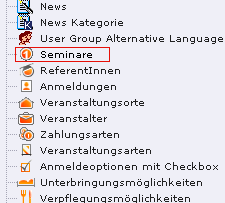 Illustration 18: Auswahl des Datentyps für den neuen
Datensatz
Illustration 18: Auswahl des Datentyps für den neuen
Datensatz
ür das Management der Seminare, wechseln wir in das Modul Liste .Die Seminare und deren Anmeldungen werden in dem Seitenbaum unter Zusatzseiten im Ordner Seminare abgelegt.Um ein neues Seminar zu erstellen klicken wir auf das Symbol des Ordners Seminare und wählen im Kontextmenu die Option „Neu“
Wir erhalten die Ansicht Neuer Datensatz im Content Frame. Dort wählen wir den Datensatz „Seminare“ aus.
I
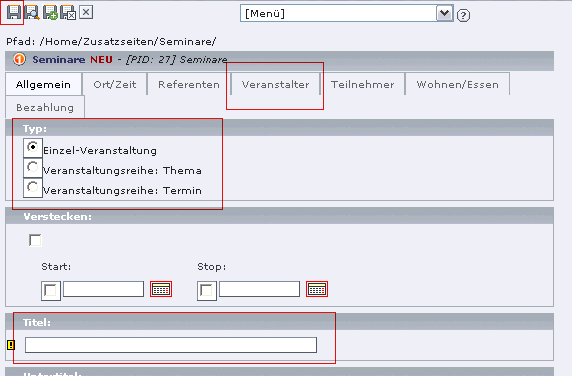 Illustration 19: Eingabe der Grunddaten einer
Veranstaltung
Illustration 19: Eingabe der Grunddaten einer
Veranstaltung
- n der nun eingeblendeten Maske müssen wir folgende Punkte zuerst definieren:- Den Typ der Veranstaltung(Bei einmaligen Seminaren, kann der Typ
Einzelveranstaltung gewählt werden. Bei wiederkehrenden Seminaren muss zuerst eine Veranstaltungsreihen Thema erstellt werden welche dann durch die einzelnen Veranstaltungsreihe Termine angesprochen werden kann.
Der Titel des Seminars
Und der Veranstalter
Danach speichern wir den Datensatz und ergänzen folgende Tabs mit allen nötigen Informationen:
Ort/Zeit
Referenten
Teilnehmer
Wohnen/Essen
Bezahlung
Die Tabs verteilen sich bei den Veranstaltungsreihen auf die beiden Datensätze.
Folgende Felder werden in diesen Tabs zur Verfügung gestellt und im Frontend angezeigt:
Untertitel
Bild (nur für die Seminartypen Einzelveranstaltung und Thema)
Kategorien
Anreißertext (für die Listenansicht)
Beschreibung (hier kann HTML verwendet werden, falls erwünscht)
Veranstaltungsart
Sprache
Seminarstart
Seminarende
Anmelde-Deadline
Frühbucher-Deadline
Lizenzablauf: wie lange eine Anmeldung als Voraussetzung für eine andere Anmeldung gültig ist
Veranstaltungsort
Raumnummer
Referenten
Standardpreis
Frühbucher-Standardpreis
Spezialpreis
Frühbucher-Spezialpreis
Erlaubte Zahlungsarten
Registration notwendig (sollte immer aktiv sein)
Mindestbesucherzahl zur Durchführung des Seminars
Maximalbesucherzahl zur Durchführung des Seminars
ob der automatische Kollisionscheck (d.h. das Teilnehmer sich nicht für eine Veranstaltung anmelden können, wenn sie bereits für eine Veranstaltung zu dieser Zeit angemeldet sind) für diese Veranstaltung ausgeschaltet werden soll
Themen, für die ein Benutzer angemeldet sein muss, bevor er sich für dieses Thema anmelden kann (nur bei Themendatensätzen)
Themen, für deren Anmeldung dieses Thema Voraussetzung ist (nur bei Themendatensätzen)
Alle interne Notizfelder sind (wie es der Name schon sagt) nur für interne Informationen und werden nicht im Frontend angezeigt.
Zeitblöcke
Wenn ein Seminar nicht an allen Tagen zur gleichen Zeit stattfindet (zum Beispiel Freitag von 14-18 Uhr, Samstag von 10-18 Uhr und Sonntag von 10-14 Uhr), dann können Sie im Seminar-Datensatz so genannte Zeitblöcke anlegen, um dies einzugeben und im Front-end korrekt darzustellen:
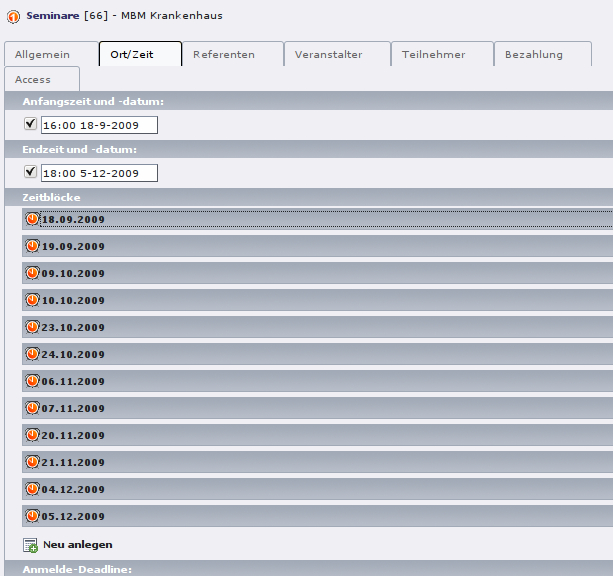 Abbildung 20: Zeitblöcke eingeben
Sie können bei jedem Zeitblock Zeit, Ort, Einlass und ReferentInnen angeben (falls diese nicht bei der gesamten Veranstaltung gleich sind).
Wichtig: Bitte geben Sie die Zeitblöcke bei der Bearbeitung der Veranstaltung ein. (Wenn Sie Zeitblöcke direkt in der Listenansicht eingeben, werden die Zeitblöcke keiner Veranstaltung zugeordnet.)
Seminar-Organisation
A
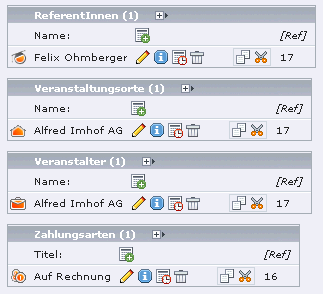 Illustration 21: Hilfsdatensätze in der Listenansicht
lle Datensätze welche zur Verwaltung der Grundinformationen dienen, werden im Ordner Seminar Organisation abgelegt. Alle benötigten Datensätze sind bereits angelegt., können aber von den Redakteuren angepasst oder ergänzt werden. Veranstalter verwalten ^^^^^^^^^^^^^^^^^^^^^^
Um einen Veranstalter zu bearbeiten, klicken wir auf das Bleistift des entsprechenden Datensatzes.Die zu bearbeitenden Felder werden in diesem Absatz weiter unten beschrieben.
U
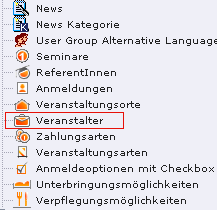 Illustration 22: Auswahl des Typs "Veranstalter" beim
Anlegen eines Datensatzes
Illustration 22: Auswahl des Typs "Veranstalter" beim
Anlegen eines Datensatzes
m einen neuen Organisator anzulegen, klicken wir wieder auf das Symbol des Ordners Seminar Organisation und wählen im Kontextmenu die Option „Neu“Dort wählen wir denn im Content Frame die Option „Veranstalter“ (Bild rechts)
Der Veranstalter Datensatz enthält alle Informationen über den Veranstalter wie:
Name: (benötigt), wird im Frontend angezeigt
Website : URL inkl. http:// - wird ebenfalls im Frontend angezeigt
E-Mail Adresse: (benötigt und muß eine gültige Adresse sein), Die Information einer Anmeldung wird an diese Adresse gesendet. Zudem wird diese Adresse als „von“ Adresse für das Bestätigungsmail an den Seminar Anmelder verwendet. – Wird nicht im Frontend angezeigt.
Bestätigungs Text: (Dieser Text ist nicht zwingend, sollte aber trotzdem mit ein paar netten Worten gefüllt werden, da dieser Inhalt als Endtext in die Bestätigung eingefügt wird
Ordner : (optional)
Kategorien verwalten
Um Kategorien zu bearbeiten oder neu anzulegen, ist das gleiche Vorgehen wie bei den Veranstaltern anzuwenden. Sie können Veranstaltungen keiner, einer oder mehreren Kategorien zuordnen.
Referenten verwalten
Um einen Referenten zu bearbeiten oder neu anzulegen, ist das gleiche Vorgehen wie bei den Veranstaltern anzuwenden.
Folgende Felder sind öffentlich und werden im Frontend angezeigt:
Name (benötigt)
Firma des Referenten
Website des Referenten
Beschreibung: (Hier kann auch HTML Code eingesetzt werden)
Die folgenden Felder sind für die interne Information und werden nicht im Frontend angezeigt:
Veranstaltungsorte verwalten
Um einen Verwaltungsort zu bearbeiten oder neu anzulegen, ist das gleiche Vorgehen wie bei den Veranstaltern anzuwenden.
Folgende Felder sind öffentlich und werden im Frontend angezeigt:
Titel (benötigt)
Adresse (hier kann HTML eingefügt werden falls erwünscht)
Land (aus vordefinierter Liste)
Website: URL, inkl. http://
Anfahrtsbeschreibung (hier kann HTML oder ein Bild eingefügt werden)
Das Feld interne Notiz ist wie es der Name schon sagt nur für interne Informationen gedacht und wird nicht im frontend angezeigt.
Hinweis: In einem Seminar Datensatz kann noch zusätzlich eine Raumnummer eingegeben werden falls benötigt.
Seminarnummer bearbeiten
Standardmäßig wird den Seminaren eine eindeutige Nummer vergeben.
Sie können aber auch in dem Feld Akkreditierungsnummer eine eigene Nummer eingeben.
Anmeldungen verwalten
Die Anmeldung für eine Veranstaltung ist bis zur Anmelde-Deadline der entsprechenden Veranstaltung möglich. Falls eine Veranstaltung keine solche Deadline hat, ist die Anmeldung bis zum Veranstaltungsbeginn möglich.
Wenn ein eingeloggter Benutzer sich für ein Seminar anmeldet, passiert Folgendes:
Es wird kontrolliert ob das gewählte Seminar noch Plätze frei hat und ob sich der Benutzer schon für dieses Seminar angemeldet hat (falls die Checkbox für Mehrfach-Anmeldung nicht aktiviert ist).
Der Benutzer kann seine zusätzlichen Infos angeben indem er die restlichen Felder ausfüllt.
Ein Anmeldungsdatensatz wird angelegt und die Verknüpfung zu den FE- Benutzerdaten erstellt. Im Backend wird die Statistik automatisch aktualisiert
Eine Bestätigungs-E-Mail wird an die E-Mail-Adresse des Benutzers gesendet (mit der E-Mail-Adresse des ersten Veranstalters als Absender). Wenn der Benutzer sich für ein Seminar angemeldet hat, dass noch nicht bestätigt wurde, wird ein Hinweis an die Mail angehängt, der ebend dieses besagt und darauf hinweist, dass der Benutzer noch eine E-Mail erhalten wird, wenn die Veranstaltung bestätigt wurde.
Eine Benachrichtigungs-E-Mail wird an alle Veranstalter dieser Veranstaltung gesendet.
Ein zusätzliches E-Mail wird an den Organisator gesendet falls das Seminar die Mindestanforderungen zur Durchführung erfüllt hat oder falls das Seminar voll ist.
Eine Dankeschön-Meldung für den User erscheint auf der Website
Anmeldestatistik anzeigen
Um sich die Statistiken der Anmeldungen genauer anzusehen, gibt es verschiedene Möglichkeiten:
Im Modul Veranstaltungen den Ordner Seminare auswählen.
Im Modul Liste können Sie im Ordner Seminare die Anmeldungen und deren Details sehen.Ebenfalls werden dort die Infos über die Seminare (Anzahl Anmeldungen, ist voll, oder hat genug Anmeldungen) angezeigt.Zusätzliche Informationen über die Anmeldungen erhalten Sie in einem Popup Fenster indem Sie auf das Info Icon des entsprechenden Datensatzes klicken.
Anmeldungen ändern
Änderungen wie löschen einer Anmeldung oder hinzufügen von Informationen können folgendermassen umgesetzt werden:
Im Modul Liste das Bleistift des entsprechenden Datensatz klicken und die Änderungen anbringen.
Im Modul Veranstaltungen in den Tabs Veranstaltungen und Anmeldungen das gleiche Vorgehen wie bei dem Modul Liste . Hier können sie zusätzlich die Zusammenfassung der Anmeldungen als CSV Datei downloaden und lokal weiter verarbeiten falls gewünscht.
Abmeldung von einem Seminar
User können sich selbst online von einem Seminar wieder abmelden, wenn alle folgende Bedingungen erfüllt sind:
Es wurde für die Veranstaltung eine Abmeldefrist gesetzt (oder eine globale Abmeldefrist), und die Frist ist noch nicht abgelaufen.
Es befinden sich Anmeldungen auf der Warteliste, oder es ist konfiguriert, dass eine Abmeldung auch dann möglich ist, wenn die Warteliste leer ist.
Falls eine Abmeldung jedoch per Telefon oder per Mail eintrifft, so sollte folgendes Vorgehen angewendet werden
Im Backend manuell den entsprechenden Datensatz löschen (Siehe Anmeldungen ändern).
Bezahlung erfolgt
Sie können ebenfalls im Datensatz der Anmeldung die Zahlungsinformationen im Backend verwalten falls erwünscht.Folgende Felder stehen dabei im Modul Veranstaltungen/Anmeldungen zur Verfügung:
Hat bezahlt
Datum der Bezahlung
Zahlungsart (Diverse Bankinformationen können hier ebenfalls eingegeben werden)
Entering and managing event types
On the same system folder that contains the speakers and organizers, you can create event types. At the moment an event type record consist of only a title field. You can assign none or exactly one event type to an event record. If you assign no event type to an event, the default event type from TS setup will be used.
The field is hidden in the list view by default.
Using lodging and food options
You can create “lodging options” and “food options” records that will be available in the registration form. After you have created these records, you can select them in the event records; the corresponding options then will be displayed in the registration for for this event and get saved in the registration record.
Displaying the seminar and registration statistics and details
Back-end module “Events”: The back-end module "Events" has four different tabs:
Events
Registrations
Speakers
Organizers
By clicking on a tab, you can access the according submodule. Each submodule shows a list of records of the according type on the currently selected page or sysfolder (e.g. the submodule "Events" shows a list of events).
It is possible to delete, to modify or to create new records within the back-end module if the back-end user has the rights to do this.
CSV export: In the event list, you can also export the events on the current page or the list of registrations of an event as CSV.
CSV export of events
At the top in the event list in the back-end module Events , you’ll find a button named Export as CSV that will save the data of all events on the current page as CSV.
CSV export of registrations
In the event list in the back-end module Events , you’ll find a button named CSV that will save the data of the registrations for that particular event as CSV, also including data from the registered FE user. Please note that the CSV files contains the columns for the data from the registration records first and then data from the corresponding FE user record.
The CSV export can be configured via TS Setup in plugin.tx_seminars for the page where the event records are located. Please see the reference for details.
CSV export of registrations is only available if:
the event has at least one registration, and
the logged-in BE user has read access to the events table and the registrations table, and
the logged-in BE user has read access to all pages where the registrations for that particular event are stored
Changing, deleting and entering registrations
You can edit, delete and enter registration records using W eb > Lists as well as the back-end module Events .
Unregistering from an event
Front-end users currently cannot unregister themselves from events. This is a missing feature. As a workaround, do this:
In the back end, manually delete the corresponding registration record.
Then go to Web > Seminars and use the “Update Statistics” function.
Entering payments
You can also use this extension to record payments from participants for their seminar. If you have received a payment (be in in cash, bank transfer, credit card or whatever), edit the corresponding registration record and fill in the following fields:
Has paid: Note that this field will go away soon. Instead, if someone has paid will be deducted by whether a payment date has been entered. So make sure to set a payment date for all attendances that have been paid.
Date of payment (if this field is set, an attendance is considered as paid, so always enter the date when you enter a payment)
Method of payment (optional, use it if you like to track this)
Tracking who has attended a seminar and who hasn't
If you want to record who has attended a seminar and who hasn't (eg. for certificates), you can edit the corresponding registration record and fill in this field:
Has attended
Linking to single seminar records
If you would like to link to the detailed description for a seminar (from other seminar descriptions or from any other page), you can use this format:
<URL of seminar listing page>?tx_seminars_pi1[showUid]=<UID of the seminar>
For example, if the URL of the seminar listing page is http://www.casebo.de/casebo-workshops.html and you would like to the seminar with the UID 27, the complete URL to that seminar would be this:
http://www.casebo.de/casebo- workshops.html?tx_seminars_pi1[showUid]=27
(In the links from the list view, the URLs contain an addition ampersand after the question mark, but that can be ignored.)
Rollen für Veranstaltungen
Veranstalter können in der Frontend-Listenansicht und Einzelansicht angezeigt werden. Jede Veranstaltung muss mindestens einen Veranstalter haben. Die Veranstalter erhalten eine E-Mail, wenn sich jemand zu einer Veranstaltung anmeldet oder davon abmeldet. Außerdem wird der erste Veranstalter einer Veranstaltung als Absender für die E-Mails an die Teilnehmer benutzt. Daher muss jeder Veranstalter zwingend eine gültige E-Mail-Adresse besitzen.
TeilnehmerInnen sind die Frontend-Benutzer, die für eine Veranstaltung angemeldet sind. Sie können ihre Anmeldungen in der „meine Veranstaltungen“-Liste einsehen. Die Kontaktdaten der Teilnehmer werden in den Frontend-Benutzer-Datensätzen gespeichert, nicht in den Anmeldungsdatensätzen. Die Extension kann so konfiguriert werden, dass Teilnehmer die Daten der anderen Teilnehmer im Frontend einsehen können.
ReferentInnen sind die Personen, die eine Veranstaltung leiten (oder dort sprechen). Eine Veranstaltung kann mehrere Referenten haben (oder auch gar keine). Die Referenten werden in der Listen- und Einzelansicht dargestellt. Die Referenten werden nicht für E-Mails benutzt, so dass sie keine E-Mail-Adresse haben müssen. Wenn Referenten die Teilnehmerlisten einer Veranstaltung einsehen können sollen, muss ihr jeweiliger Frontend-Benutzer dafür als Veranstaltungsmanager eingetragen sein.
Partner, Kursbegleitung und Kursleitung sind einfach ReferentInnen mit einer anderen Überschrift.
Besitzer sind die Frontend-Benutzer, die eine Veranstaltung im Frontend angelegt haben. Sie können ihre Veranstaltungen in der Liste „Veranstaltungen, die ich eingegeben habe“ anzeigen.
Verwalter/VIPs sind spezielle Frontend-Benutzer, die Anmeldungslisten für Veranstaltungen einsehen dürfen (in der Liste „meine verwalteten Veranstaltungen“). Die Extension kann so konfiguriert werden, dass alle Benutzer einer bestimmten Frontend- Benutzergruppe als Verwalter fungieren. Außerdem kann konfiguriert werden, dass Verwalter im Frontend die Veranstaltungen auch bearbeiten können.
Veranstaltungen veröffentlichen, die im Fronend-Editor erstellt wurden
Um den Veröffentlichungs-Workflow zu benutzen müssen einige Einstellungen im Backend vorgenommen werden. In der Gruppe der Frontend-Benutzer die eine Veranstaltung im Frontend-Editor erstellen/bearbeiten können, müssen Veröffentlichungseinstellung gesetzt werden. Diese kann folgende Werte enthalten
sofort Veröffentlichen
neue Veranstaltungen versteckten
bearbeitete und neue Veranstaltungen verstecken
Nun muss in der Gruppe noch ein BE-Benutzer eingestellt werden, der Freischaltmails bekommt. Hierbei ist es wichtig, dass der BE-Benutzer eine gültige E-Mail Adresse hat.
Wenn diese Einstellungen vorgenommen wurden, werden je nach Einstellung in der Gruppe neue oder auch berarbeitete Veranstaltungen nach dem Anlegen/Bearbeiten automatisch versteckt und mit dem Status „ausstehend“ versehen.
Wenn eine Veranstaltung versteckt wird, bekommt der BE-Benutzer, der in der Gruppe eingestellt ist, eine E-Mail mit einem Freischaltlink mit der die Veranstaltung veröffentlicht werden kann. Diese bekommt dann den Status veröffentlicht und kann im Frontend angezeigt werden.
Referenz
There are two sections in TS setup that contain setting for this extension: plugin.tx_seminars and plugin.tx_seminars_pi1.
Setup common for front-end plug-in and back-end module in plugin.tx_seminars
You can configure the plug-in using your TS template setup in the form plugin.tx_seminars. property = value. The values in this table can only be configured using your TypoScript setup, but not via flexforms.
Eigenschaft
Eigenschaft:
Datentyp
Datentyp:
Beschreibung
Beschreibung:
Standardwert
Standardwert:
Eigenschaft
enableRegistration
Datentyp
boolean
Beschreibung
Set this to 0 if you don't use the registration feature for this site and would like to disable the configuration check for this.
Standardwert
1
Eigenschaft
skipRegistrationCollisionCheck
Datentyp
boolean
Beschreibung
whether the registration collision check should be skipped for all events
Standardwert
0
Eigenschaft
templateFile
Datentyp
string
Beschreibung
File name of the HTML template for e-mail
Standardwert
EXT:seminars/Resources/Private/Templates/Mail/e-mail.html
Eigenschaft
salutation
Datentyp
string
Beschreibung
switch whether to use formal/informal language for some shared code (in e-mails, some labels and some error messages).Allowed values are:formal | informal
Standardwert
formal
Eigenschaft
hideFieldsInThankYouMail
Datentyp
string
Beschreibung
comma-separated list of section names that shouldn't be displayed in the thank-you e-mail to the user
allowed values are in: hello, title, uid, ticket_id, price, seats, to tal_price,attendees_names,lodgings,accommodation,foods,food,checkbox es, kids, accreditation_number, credit_points, date, time, place, room, paymentmethod, billing_address,interests,url, footer,planned_disclaimer,unregistration_notice
Standardwert
credit_points,billing_address,kids,planned_disclaimer
Eigenschaft
cssFileForAttendeeMail
Datentyp
string
Beschreibung
the CSS file for the HTML e-mail to the attendees
Standardwert
EXT:seminars/Resources/Private/CSS/thankYouMail.css
Eigenschaft
generalPriceInMail
Datentyp
boolean
Beschreibung
whether to use the label “Price” for the standard price (instead of “standard price”) in e-mail to the participant
Standardwert
Eigenschaft
hideFieldsInNotificationMail
Datentyp
string
Beschreibung
Comma-separated list of section names from the registration that shouldn't be displayed in the notification e-mail to the organizers. These fields are the big blocks in that e-mail, and some are further divided.
Allowed values are in:
summary: the attendee's name, the event title and the event date
seminardata: date from the seminar record, configurable via showSeminarFieldsInNotificationMail
feuserdata: data from the front-end user record, configurable via showFeUserFieldsInNotificationMail
attendancedata: data from the attendance record, configurable via showAttendanceFieldsInNotificationMail
Standardwert
Eigenschaft
showSeminarFieldsInNotificationMail
Datentyp
string
Beschreibung
comma-separated list of field names from seminars that should be mentioned in the notification e-mail to the organizers (in the “seminardata” section)allowed values are in: uid, event_type, title, subtitle, titleanddate, date, time, accreditation_number, credit_points, room, place, speakers, price_regular, price_regular_early, price_special, price_special_early, attendees, needs_registration,allows_multiple_registrations,attendees_min, attendees_max, vacancies, enough_attendees, is_full, notes
Standardwert
title,uid,event_type,date,place,price_regular,price_regular_early, price_special,price_special_early,attendees,vacancies,enough_atten dees,is_full
Eigenschaft
showFeUserFieldsInNotificationMail
Datentyp
string
Beschreibung
comma-separated list of field names from fe_users that should be mentioned in the notification e-mail to the organizers (in the “feuserdata” section)allowed values are all column names from fe_users.
Standardwert
username,name,email,address,zip,city,telephone
Eigenschaft
showAttendanceFieldsInNotificationMail
Datentyp
string
Beschreibung
comma-separated list of field names from attendances that should be mentioned in the notification e-mail to the organizers (in the “attendancedata” section)allowed values are in: uid, interests, expectations, background_knowledge, lodgings, accommodation, foods, food, known_from, notes, checkboxes, price, seats, total_price, attendees_names, kids, method_of_payment, gender, name, address, zip, city, country, telephone, email
Standardwert
uid,price,seats,total_price,method_of_payment,gender,name,address,z ip,city,country,telephone,email,interests,expectations,background_kno wledge,known_from,notes
Eigenschaft
sendAdditionalNotificationEmails
Datentyp
boolean
Beschreibung
Whether to send the additional notification e-mails to the organizers or not. Additional notification mails are sent if for example an event gets full.
Standardwert
1 (= active)
Eigenschaft
sendNotification
Datentyp
boolean
Beschreibung
Whether to send a notification to the organizers if a user has registered.
Standardwert
1 (= active)
Eigenschaft
sendNotificationOnUnregistration
Datentyp
boolean
Beschreibung
Whether to send a notification to the organizers if a user has unregistered.
Standardwert
1 (= active)
Eigenschaft
sendNotificationOnRegistrationForQueue
Datentyp
boolean
Beschreibung
Whether to send a notification to the organizers if someone registered for the queue.
Standardwert
1 (= active)
Eigenschaft
sendNotificationOnQueueUpdate
Datentyp
boolean
Beschreibung
Whether to send a notification to the organizers if the queue has been updated.
Standardwert
1 (= active)
Eigenschaft
sendConfirmation
Datentyp
boolean
Beschreibung
Whether to send a confirmation to the user after the user has registered.
Standardwert
1 (= active)
Eigenschaft
sendConfirmationOnUnregistration
Datentyp
boolean
Beschreibung
Whether to send a confirmation to the user if the user has unregistered.
Standardwert
1 (= active)
Eigenschaft
sendConfirmationOnRegistrationForQueue
Datentyp
boolean
Beschreibung
Whether to send a confirmation to the user if the user has registered for the queue.
Standardwert
1 (= active)
Eigenschaft
sendConfirmationOnQueueUpdate
Datentyp
boolean
Beschreibung
Whether to send a confirmation to the user if the queue has been updated.
Standardwert
1 (= active)
Eigenschaft
addRegistrationCsvToOrganizerReminderMail
Datentyp
boolean
Beschreibung
Whether to add the CSV file of the registrations when sending the reminder e-mails to the organizers.
Standardwert
0 (=inactive)
Eigenschaft
timeFormat
Datentyp
string
Beschreibung
the time format (in strftime format)
Standardwert
%H:%M
Eigenschaft
dateFormatYMD
Datentyp
string
Beschreibung
the strftime format code for the full date (change this to your local date format)
Standardwert
%d.%m.%Y
Eigenschaft
currency
Datentyp
string
Beschreibung
ISO 4217 alpha 3 code of the currency to be used, must be valid
Standardwert
EUR
Eigenschaft
showTimeOfRegistrationDeadline
Datentyp
boolean
Beschreibung
whether to also show the time of the registration deadline instead of just the date
Standardwert
0
Eigenschaft
showTimeOfEarlyBirdDeadline
Datentyp
boolean
Beschreibung
whether to also show the time of the early bird deadline instead of just the date
Standardwert
0
Eigenschaft
showTimeOfUnregistrationDeadline
Datentyp
boolean
Beschreibung
whether to also show the time of the unregistration deadline instead of just the date
Standardwert
0
Eigenschaft
unregistrationDeadlineDaysBeforeBeginDate
Datentyp
integer
Beschreibung
Number of days before the start of an event until unregistration is possible. (If you want to disable this feature just leave the value empty.)
Standardwert
Eigenschaft
allowRegistrationForStartedEvents
Datentyp
boolean
Beschreibung
whether registration should be possible even if an event has already started
Standardwert
0
Eigenschaft
allowRegistrationForEventsWithoutDate
Datentyp
Boolean
Beschreibung
Whether registration for events without a date is possible
Standardwert
0
Eigenschaft
allowUnregistrationWithEmptyWaitingList
Datentyp
Boolean
Beschreibung
Whether unregistration is possible even when there are no registrations on the waiting list yet.
Standardwert
0
Eigenschaft
showVacanciesThreshold
Datentyp
integer
Beschreibung
If there are at least this many vacancies, “enough” (localized) is displayed instead of the exact number.
Set this to a number higher than the highest number of vacancies if you want the exact number to be always displayed.
Standardwert
10
Eigenschaft
showToBeAnnouncedForEmptyPrice
Datentyp
boolean
Beschreibung
whether events that have no standard price set should have “to be announced” as price instead of “free”
Standardwert
0
Eigenschaft
charsetForCsv
Datentyp
string
Beschreibung
The charset for the CSV export, e.g., utf-8, iso-8859-1 or iso-8859-15. The default is iso-9959-15 because Excel has problems with importing utf-8.
Standardwert
Iso-8859-15
Eigenschaft
filenameForEventsCsv
Datentyp
string
Beschreibung
the filename proposed for CSV export of event lists
Standardwert
events.csv
Eigenschaft
filenameForRegistrationsCsv
Datentyp
string
Beschreibung
the filename proposed for CSV export of registration lists
Standardwert
registrations.csv
Eigenschaft
fieldsFromEventsForCsv
Datentyp
string
Beschreibung
comma-separated list of field names from tx_seminars_seminars that will be used for CSV exportAllowed values are in:uid, tstamp, crdate, title, subtitle, teaser, description, event_type, accreditation_number, credit_points, date, time, deadline_registration, deadline_early_bird, place, room, lodgings, foods, speakers, partners, tutors, leaders, price_regular, price_regular_early, price_regular_board, price_special, price_special_early, price_special_board, additional_information, payment_methods, organizers, attendees_min, attendees_max, attendees, vacancies, enough_attendees, is_full, cancelled
Standardwert
uid,title,subtitle,description,event_type,date,time,place,room,speake rs,price_regular,attendees,attendees_max,vacancies,is_full
Eigenschaft
fieldsFromFeUserForCsv
Datentyp
string
Beschreibung
comma-separated list of field names from fe_users that will be used for CSV export
Standardwert
name,company,address,zip,city,country,telephone,email
Eigenschaft
fieldsFromAttendanceForCsv
Datentyp
string
Beschreibung
comma-separated list of field names from tx_seminars_attendances that will be used for CSV export
Standardwert
uid,price,total_price,method_of_payment,interests,expectations,back ground_knowledge,known_from,notes
Eigenschaft
showAttendancesOnRegistrationQueueInCSV
Datentyp
boolean
Beschreibung
wether to show attendances on the registration queue in the CSV export or not
Standardwert
0
Eigenschaft
fieldsFromFeUserForEmailCsv
Datentyp
string
Beschreibung
comma-separated list of field names from fe_users that will be used for CLI CSV export
Standardwert
name,company,address,zip,city,country,telephone,email
Eigenschaft
fieldsFromAttendanceForEmailCsv
Datentyp
string
Beschreibung
comma-separated list of field names from tx_seminars_attendances that will be used for CLI CSV export
Standardwert
uid,price,total_price,method_of_payment,interests,expectations,back ground_knowledge,known_from,notes
Eigenschaft
showAttendancesOnRegistrationQueueInEmailCsv
Datentyp
boolean
Beschreibung
whether to show attendances on the registration queue in the CLI CSV export or not
Standardwert
0
Eigenschaft
addExcelSpecificSeparatorLineToCsv
Datentyp
boolean
Beschreibung
whether to add the Excel-specific "sep=;" line to the CSV
Standardwert
0
Eigenschaft
sendCancelationDeadlineReminder
Datentyp
boolean
Beschreibung
whether to send a cancelation deadline reminder to the organizers
Standardwert
0
Eigenschaft
sendEventTakesPlaceReminderDaysBeforeBeginDate
Datentyp
integer
Beschreibung
how many days before an events' begin date the organizers should be reminded about this event via e-mail, zero disables the reminder
Standardwert
0
Property
automaticSpecialPriceForSubsequentRegistrationsBySameUser
Data type
boolean
Description
Set this to 1 to hide the special price for the first registration of a user and to automatically offer the special price for the 2nd, 3rd etc. registrations of the same user.
Default
0
Eigenschaft
attendancesPID
Datentyp
page_id
Beschreibung
PID des Ordners, in dem Anmeldungen gespeichert werden
Standardwert
None
[tsref:plugin.tx_seminars]
Setup for the Seminarmanager front-end plug-in in plugin.tx_seminars_pi1
You can configure the plug-in using flexforms of the front-end plug-in (for most values) or your TS template setup in the form plugin.tx_seminars_pi1. property = value.
If your want to set a value for all instances of the plug-in in one place, use the TS template setup. If you use flexforms, make sure to set the values at all relevant instances of the plug-in: It doesn't do to specify the fields for the online registration in the seminar list front-end plug-in—you need to set these fields in the online registration front-end plug-in.
Note: If you set any non-empty value in the flexforms, this will override the corresponding value from TS Setup.
Eigenschaft
Eigenschaft:
Datentyp
Datentyp:
Beschreibung
Beschreibung:
Standardwert
Standardwert:
Eigenschaft
enableRegistration
Datentyp
boolean
Beschreibung
Set this to 0 if you don't use the registration feature for this site and would like to disable the configuration check for this.
Standardwert
1
Eigenschaft
numberOfClicksForRegistration
Datentyp
integer
Beschreibung
number of clicks to registration (valid options are 2 or 3)
Standardwert
3
Eigenschaft
what_to_display
Datentyp
string
Beschreibung
The kind of front-end plug-in to display. Allowed values are in: seminar_list, single_view, topic_list, my_events, my_vip_events, seminar_registration, list_registrations, list_vip_registrations, edit_event, my_entered_events, countdown, category_list, event_headline This must be set using flexforms.
Standardwert
seminar_list
Eigenschaft
templateFile
Datentyp
string
Beschreibung
location of the HTML template for the FE plugin
Standardwert
EXT:seminars/pi1/seminars_pi1.tmpl
Eigenschaft
eventEditorTemplateFile
Datentyp
string
Beschreibung
location of the front end event editor template file
Standardwert
EXT:seminars/Resources/Private/Templates/FrontEnd/EventEditor.html
Eigenschaft
registrationEditorTemplateFile
Datentyp
string
Beschreibung
location of the template file for the registration form
Standardwert
EXT:seminars/Resources/Private/Templates/FrontEnd/RegistrationEditor.h tml
Eigenschaft
salutation
Datentyp
string
Beschreibung
Switch whether to use formal/informal language on the front end.Allowed values are:formal | informal
Standardwert
formal
Eigenschaft
showSingleEvent
Datentyp
integer
Beschreibung
The UID of an event record. If an event is selected, the plugin always shows the single view of this event and not the list.
This must be set using flexforms.
Standardwert
Eigenschaft
timeframeInList
Datentyp
string
Beschreibung
the time-frame from which events should be displayed in the list view. Select one of these keywords:all, past, pastAndCurrent, current, currentAndUpcoming, upcoming, deadlineNotOver, today
Standardwert
currentAndUpcoming
Eigenschaft
hideColumns
Datentyp
string
Beschreibung
comma-separated list of column names that shouldn't be displayed in the list view, e.g. organizers,price_special
The order of the elements in this list has no influence on the output.Allowed values are in: category, title,subtitle,uid, event_type, language, accreditation_number, credit_points, teaser, speakers, date, time, expiry, place, city, country, seats, price_regular, price_special, total_price, organizers, target_groups, attached_files, vacancies, status_registration, registration, list_registrations, status, editPlease note that some columns will only be shown if a front-end user currently is logged in.
Standardwert
category,subtitle,event_type,language,accreditation_number,credit_p oints,teaser,time,expiry,place,country,price_special,speakers,target_groups,attached_files,status
Eigenschaft
hideFields
Datentyp
string
Beschreibung
comma-separated list of field names that shouldn't be displayed in the detail view, e.g. organizers,price_special
The order of the elements in this list has no influence on the output.Allowed values are in: event_type, title, subtitle, language, description, accreditation_number, credit_points, category, date, uid, time, place, room, expiry, speakers, partners, tutors, leaders, p rice_regular,price_board_regular,price_special,price_board_speci al,additional_information, paymentmethods, target_groups, attached_files, organizers, vacancies, deadline_registration, otherdates, eventsnextday, registration, back, image, requirements, dependencies
Standardwert
credit_points,eventsnextday
Eigenschaft
hideSearchForm
Datentyp
boolean
Beschreibung
whether to show the search form in the list view
Standardwert
0
Eigenschaft
displaySearchFormFields
Datentyp
string
Beschreibung
comma-separated list of search options which should be shown in the search widget. If no field is displayed the search widget will be hidden. Allowed values are in: event_type, language, country, city, place, full_text_search, day, age, organizer, price, categories
Standardwert
Eigenschaft
hidePageBrowser
Datentyp
boolean
Beschreibung
whether to show the page browser in the list view
Standardwert
0
Eigenschaft
hideCanceledEvents
Datentyp
boolean
Beschreibung
whether to show canceled events in the list view
Standardwert
0
Eigenschaft
limitListViewToCategories
Datentyp
string
Beschreibung
comma-separated list of category UIDs to filter the list view for, leave empty to have no such filter
Standardwert
Eigenschaft
limitListViewToPlaces
Datentyp
string
Beschreibung
comma-separated list of place UIDs to filter the list view for, leave empty to have no such filter
Standardwert
Eigenschaft
limitListViewToOrganizers
Datentyp
string
Beschreibung
comma-separated list of organizer UIDs to filter the list view for, leave empty to have no such filter
Standardwert
Eigenschaft
showOnlyEventsWithVacancies
Datentyp
boolean
Beschreibung
whether to show only events with vacancies on in the list view
Standardwert
0
Eigenschaft
seminarImageListViewHeight
Datentyp
integer
Beschreibung
the maximum height of the image of a seminar in the list view
Standardwert
43
Eigenschaft
seminarImageListViewWidth
Datentyp
integer
Beschreibung
the maximum width of the image of a seminar in the list view
Standardwert
70
Eigenschaft
sortListViewByCategory
Datentyp
boolean
Beschreibung
ob die Listenansicht immer nach Kategorien sortiert werden soll (bevor die normale Sortierung angewendet wird)
Standardwert
0
Eigenschaft
categoriesInListView
Datentyp
string
Beschreibung
whether to show only the category title, only the category icon or both. Allowed values are: icon, text, both
Standardwert
both
Eigenschaft
generalPriceInList
Datentyp
boolean
Beschreibung
whether to use the label “Price” as column header for the standard price (instead of “Standard price”)
Standardwert
0
Eigenschaft
generalPriceInSingle
Datentyp
boolean
Beschreibung
whether to use the label “Price” as heading for the standard price (instead of “Standard price”) in the detailed view and on the registration page
Standardwert
0
Eigenschaft
omitDateIfSameAsPrevious
Datentyp
boolean
Beschreibung
whether to omit the date in the list view if it is the same as the previous item's (useful if you often have several events at the same date)
Standardwert
0
Eigenschaft
showOwnerDataInSingleView
Datentyp
boolean
Beschreibung
whether to show the owner data in the single view
Standardwert
0
Eigenschaft
ownerPictureMaxWidth
Datentyp
integer
Beschreibung
the maximum width of the owner picture in the single view
Standardwert
250
Eigenschaft
accessToFrontEndRegistrationLists
Datentyp
string
Beschreibung
who is allowed to view the list of registrations on the front end; allowed values are: attendees_and_managers, login, world
Standardwert
attendees_and_managers
Eigenschaft
allowCsvExportOfRegistrationsInMyVipEventsView
Datentyp
boolean
Beschreibung
Legt fest ob es erlaubt ist auf den CSV Export der Anmeldungen von der „meine verwalteten Veranstaltungen“-Ansicht aus zuzugreifen
Standardwert
0
Eigenschaft
mayManagersEditTheirEvents
Datentyp
boolean
Beschreibung
Legt fest ob Verwalter ihre Veranstaltungen bearbeiten dürfen
Standardwert
0
Eigenschaft
eventFieldsOnRegistrationPage
Datentyp
string
Beschreibung
list of comma-separated names of event fields that should be displayed on the registration page (the order doesn't matter)Allowed values are in: uid,title,price_regular,price_special,vacancies
Standardwert
title,price_regular,price_special,vacancies
Eigenschaft
showFeUserFieldsInRegistrationForm
Datentyp
string
Beschreibung
fe_users DB fields to show for in the registration form
Standardwert
name,company,address,zip,city,country,telephone,email
Eigenschaft
showFeUserFieldsInRegistrationFormWithLabel
Datentyp
string
Beschreibung
fe_users DB fields on the registration form that should be displayed with a label
Standardwert
telephone,email
Eigenschaft
showRegistrationFields
Datentyp
string
Beschreibung
comma-separated list of tx_seminars_attendances DB fields to show for the online registrationThe order of the values is not relevant.Allowed values are in:step_counter, price,method_of_payment, account_number, bank_code, bank_name, account_owner, billing_address, company, gender, name, address, zip, city, country, telephone, email,interests, expectations, background_knowledge, accommodation, food, known_from, seats, registered_themselves, attendees_names, kids, lodgings, foods, checkboxes, notes, total_price, feuser_data, billing_address, registration_data, terms, terms_2
Note: billing_address enabled the summary of all billing address fields for the second registration page. To get this to work correctly, you also need to enable the particular fields for a separate billing addres that should be displayed on the first registration page, for example: name, address, zip, city
Standardwert
step_counter,price,method_of_payment,lodgings,foods,checkboxes,inte rests,expectations,background_knowledge,known_from,notes,total_pric e,feuser_data,billing_address,registration_data,terms_2
Property
registerThemselvesByDefaultForHiddenCheckbox
Data type
boolean
Description
ob sich der eingeloggte Benutzer per Default im Anmeldeformular auch selbst anmeldet (nur wirksam, wenn die Checkbox im Anmeldeformular ausgeblendet ist)
Default
1
Eigenschaft
numberOfFirstRegistrationPage
Datentyp
integer
Beschreibung
the displayed number of the first registration page (for "step x of y")
Standardwert
1
Eigenschaft
numberOfLastRegistrationPage
Datentyp
integer
Beschreibung
the displayed number of the last registration page (for "step x of y")
Standardwert
2
Property
maximumBookableSeats
Data type
integer
Description
the maximum number of seats that can be booked in one registration
Default
10
Eigenschaft
showSpeakerDetails
Datentyp
boolean
Beschreibung
whether to show detailed information of the speakers in the single view; if disabled, only the names will be shown
Standardwert
1
Eigenschaft
showSiteDetails
Datentyp
boolean
Beschreibung
whether to show detailed information of the locations in the single viewif disabled, only the name of the locations will be shown
Standardwert
1
Eigenschaft
limitFileDownloadToAttendees
Datentyp
boolean
Beschreibung
whether file downloads are limited to attendees only
Standardwert
1
Eigenschaft
showFeUserFieldsInRegistrationsList
Datentyp
string
Beschreibung
comma-separated list of FEuser fields to show in the list of registrations for an event
Standardwert
name
Eigenschaft
showRegistrationFieldsInRegistrationList
Datentyp
string
Beschreibung
comma-separated list of registration fields to show in the list of registrations for an event
Standardwert
None
Eigenschaft
logOutOneTimeAccountsAfterRegistration
Datentyp
boolean
Beschreibung
Whether one-time FE user accounts will be automatically logged out after they have registered for an event.
Note: This does not affect regular FE user accounts in any way.
Standardwert
1
Property
enableSortingLinksInListView
Data type
boolean
Description
whether to add sorting links to the headers in the list view
Default
1
Property
linkToSingleView
Data type
string
Description
when to link to the single view: always, never, onlyForNonEmptyDescription
Default
always
Property
whether to send an additional notification e-mail from the FE editor to the reviewers when a new record has been created
Data type
boolean
Description
sendAdditionalNotificationEmailInFrontEndEditor
Default
0
Eigenschaft
speakerImageWidth
Datentyp
integer
Beschreibung
Breite des Speaker-Bildes in der Veranstaltungs-Einzelansicht
Standardwert
150
Eigenschaft
speakerImageHeight
Datentyp
integer
Beschreibung
Höhe des Speaker-Bildes in der Veranstaltungs-Einzelansicht
Standardwert
150
Eigenschaft
pages
Datentyp
integer
Beschreibung
PID des Ordners, das die Veranstaltungsdatensätze enthält
Standardwert
None
Eigenschaft
recursive
Datentyp
integer
Beschreibung
level of recursion that should be used when accessing the startingpoint
Standardwert
None
Eigenschaft
listPID
Datentyp
page_id
Beschreibung
PID der FE-Seite, die die Listenansicht enthält
Standardwert
None
Eigenschaft
detailPID
Datentyp
page_id
Beschreibung
PID der FE-Seite, die die Einzelansicht enthält
Standardwert
None
Eigenschaft
myEventsPID
Datentyp
page_id
Beschreibung
PID der „Meine Veranstaltungen“-Seite
Standardwert
None
Eigenschaft
registerPID
Datentyp
page_id
Beschreibung
PID der FE-Seite mit der Veranstaltungsanmeldung
Standardwert
None
Eigenschaft
thankYouAfterRegistrationPID
Datentyp
page_id
Beschreibung
PID der FE-Seite, die man nach erfolgreicher Anmeldung zu einer Veranstaltung sehen soll
Standardwert
None
Eigenschaft
sendParametersToThankYouAfterRegistrationPageUrl
Datentyp
boolean
Beschreibung
Wether to send GET parameters to the thank-you-after-registration- page-URL.
Standardwert
1
Eigenschaft
pageToShowAfterUnregistrationPID
Datentyp
page_id
Beschreibung
PID der Seite, die man nach erfolgreicher Abmeldung von einer Seite sehen soll
Standardwert
None
Eigenschaft
sendParametersToPageToShowAfterUnregistrationUrl
Datentyp
boolean
Beschreibung
Wether to send GET parameters to the thank-you-after-registration- page-URL.
Standardwert
1
Eigenschaft
createAdditionalAttendeesAsFrontEndUsers
Datentyp
boolean
Beschreibung
whether to create FE user records for additional attendees (in addition to storing them in a text field)
Standardwert
0
Eigenschaft
sysFolderForAdditionalAttendeeUsersPID
Datentyp
page_id
Beschreibung
UID of the sysfolder in which FE users created as additional attendees in the registration form get stored
Standardwert
Eigenschaft
userGroupUidsForAdditionalAttendeesFrontEndUsers
Datentyp
string
Beschreibung
comma-separated list of front-end user group UIDs to which the FE users created in the registration form will be assigned
Standardwert
Eigenschaft
loginPID
Datentyp
page_id
Beschreibung
PID der FE-Seite mit dem Login bzw. onetimeaccount
Standardwert
None
Eigenschaft
registrationsListPID
Datentyp
page_id
Beschreibung
PID of the page that contains the registrations list for participants
Standardwert
None
Eigenschaft
registrationsVipListPID
Datentyp
page_id
Beschreibung
PID of the page that contains the registrations list for editors
Standardwert
None
Eigenschaft
eventEditorFeGroupID
Datentyp
integer
Beschreibung
UID of the FE user group that is allowed to enter and edit event records in the FE
Standardwert
None
Eigenschaft
defaultEventVipsFeGroupID
Datentyp
integer
Beschreibung
UID of the FE user group that is allowed to see the registrations of all events
Standardwert
None
Eigenschaft
eventEditorPID
Datentyp
page_id
Beschreibung
PID of the page where the plug-in for editing events is located
Standardwert
None
Eigenschaft
createEventsPID
Datentyp
page_id
Beschreibung
PID of the sysfolder where FE-created events will be stored
Standardwert
None
Eigenschaft
createAuxiliaryRecordsPID
Datentyp
page_id
Beschreibung
PID of the sysfolder where FE-created auxiliary records will be stored
Standardwert
None
Eigenschaft
eventSuccessfullySavedPID
Datentyp
page_id
Beschreibung
PID of the page that will be shown when an event has been successfully entered on the FE
Standardwert
None
Eigenschaft
displayFrontEndEditorFields
Datentyp
String
Beschreibung
comma-separated list of the fields to show in the FE-editor allowed values are: subtitle,accreditation_number, credit_points, categories, event_type, cancelled, teaser,description, additional_information, begin_date, end_date, begin_date_registration, deadline_early_bird, deadline_registration, needs_registration, allows_multiple_registrations, queue_size, offline_attendees, attendees_min, attendees_max, target_groups, price_regular, price_regular_early, price_regular_board, price_special, price_special_early, price_special_board, payment_methods, place, room, lodgings, foods, speakers, leaders, partners, tutors, checkboxes, uses_terms_2, attached_file_box, notes
Standardwert
subtitle,accreditation_number,credit_points,categories,event_type,c ancelled,teaser,description,additional_information,begin_date,end_d ate,begin_date_registration,deadline_early_bird,deadline_registra tion,needs_registration,allows_multiple_registrations,queue_size,a ttendees_min,attendees_max,target_groups,offline_attendees,price_ regular,price_regular_early,price_regular_board,price_special,pri ce_special_early,price_special_board,payment_methods,place,room,l odgings,foods,speakers,leaders,partners,tutors,checkboxes,uses_terms_2,attached_file_box,notes
Eigenschaft
requiredFrontEndEditorFields
Datentyp
String
Beschreibung
comma-separated list of the event fields which are required to be filled in the FE editor; allowed values are: subtitle, accreditation_number, credit_points, categories, event_type, cancelled, teaser, description, additional_information, begin_date, end_date, begin_date_registration, deadline_early_bird, deadline_registration, needs_registration, allows_multiple_registrations, queue_size, attendees_min, attendees_max, offline_attendees, target_groups, price_regular, price_regular_early, price_regular_board, price_special, price_special_early, price_special_board, payment_methods, place, room, lodgings, foods, speakers, leaders, partners, tutors, checkboxes, uses_terms_2, attached_file_box, notes
Standardwert
Eigenschaft
requiredFrontEndEditorPlaceFields
Datentyp
String
Beschreibung
comma-separated list of the place fields which are required to be filled in the FE editor; allowed values are: address, zip, city, country, homepage, directions
Standardwert
city
Eigenschaft
externalLinkTarget
Datentyp
string
Beschreibung
Das Zielfenster für externe Links in seminars.
Standardwert
Nichts
Eigenschaft
seminarImageSingleViewWidth
Datentyp
integer
Beschreibung
the maximum width of the image of a seminar in the single view
Standardwert
260
Eigenschaft
seminarImageSingleViewHeight
Datentyp
integer
Beschreibung
the maximum height of the image of a seminar in the single view
Standardwert
160
Eigenschaft
allowFrontEndEditingOfSpeakers
Datentyp
boolean
Beschreibung
whether to allow front-end editing of speakers
Standardwert
0
Eigenschaft
allowFrontEndEditingOfPlaces
Datentyp
boolean
Beschreibung
whether to allow front-end editing of places
Standardwert
0
Eigenschaft
allowFrontEndEditingOfCheckboxes
Datentyp
boolean
Beschreibung
whether to allow front-end editing of checkboxes
Standardwert
0
Eigenschaft
allowFrontEndEditingOfTargetGroups
Datentyp
boolean
Beschreibung
whether to allow front-end editing of target groups
Standardwert
0
[tsref:plugin.tx_seminars_pi1]
Setup for the list view
For the list view, there are some additional configuration option that can only be set using the TS setup in the form plugin.tx_seminars_pi1.listView. property = value. Those values can not be set via Flexforms.
Eigenschaft
Eigenschaft:
Datentyp
Datentyp:
Beschreibung
Beschreibung:
Standardwert
Standardwert:
Eigenschaft
orderBy
Datentyp
string
Beschreibung
The default sort order in list view. Allowed values are:category, title, uid, event_type, accreditation_number, credit_points, speakers, date, time, place, price_regular, price_special, organizers, vacancies
Standardwert
date
Eigenschaft
descFlag
Datentyp
boolean
Beschreibung
whether to show the list view ordered in ascending (=0) or descending order (=1)
Standardwert
0
Eigenschaft
results_at_a_time
Datentyp
integer
Beschreibung
The number of events that shall be displayed per page
Standardwert
20
Eigenschaft
maxPages
Datentyp
integer
Beschreibung
the number of neighboring pages to list in the page browser
Standardwert
5
[tsref:plugin.tx_seminars_pi1.listView]
Einstellungen für die Email mit der Anmeldungsübersicht
Diese Einstellungen können ausschließlich per TypoScript-Setup im Namespace plugin.tx_seminars.registrationDigestEmail gesetzt werden, nicht per Flexforms.
Diese Einstellungen wirken sich ausschließlich auf den seminars-Scheduler-Task aus.
Eigenschaft
Eigenschaft:
Datentyp
Datentyp:
Beschreibung
Beschreibung:
Standardwert
Standardwert:
Eigenschaft
enable
Datentyp
boolean
Beschreibung
ob der seminars-Scheduler-Task die Anmeldungszusammenfassungen verschicken soll
Standardwert
0
Eigenschaft
fromEmail
Datentyp
string
Beschreibung
Mailadresse des Absenders
Standardwert
Eigenschaft
fromName
Datentyp
string
Beschreibung
Name des Absenders (optional)
Standardwert
Eigenschaft
toEmail
Datentyp
string
Beschreibung
Mailadresse des Empfängers
Standardwert
Eigenschaft
toName
Datentyp
string
Beschreibung
Name des Empfängers (optional)
Standardwert
Property
htmlTemplate
Data type
string
Description
Pfad zum Fluid-Template für die HTML-Email
Default
EXT:seminars/Resources/Private/Templates/Mail/RegistrationDigest.html
Property
plaintextTemplate
Data type
string
Description
path to the fluid template for the plaintext email
Default
Pfad zum Fluid-Template für die Text-Email
[tsref:plugin.tx_seminars.registrationDigestEmail]
Konstanten für das Seminarmanager Front-end-Plug-in in plugin.tx_seminars_pi1
Sie können das Plug-in mittels Ihrer TypoScript Template Constants in der Form plugin.tx_seminars_pi1. property = value konfigurieren .
Eigenschaft
Eigenschaft:
Datentyp
Datentyp:
Beschreibung
Beschreibung:
Standardwert
Standardwert
Eigenschaft
cssFile
Datentyp
string
Beschreibung
Pfad der CSS Datei (geben Sie einen leeren Wert an, um keine CSS Datei einzubinden)
Standardwert
EXT:seminars/pi1/seminars_pi1.css
[tsref:plugin.tx_seminars_pi1]
Hooks
Warning
Um Hooks nutzen zu können, benötigen Sie tiefgehende Kenntnisse über PHP-Klassen, die Implementation von Interfaces und der seminars-Objekt-Interna.
Mit Hilfe von Hooks erweitern Sie die Funktionalität von seminars, ohne XCLASSen zu nutzen. Es gibt Hooks in diese Teile von seminars:
Bitte nehmen Sie Kontakt zu uns auf, wenn Sie weitere Hooks benötigen.
Important
seminars wird derzeit grundlegend überarbeitet, um es an die Weiterentwicklung von TYPO3-Programmiertechniken anzupassen. Wir bemühen uns, die Änderungen so gering wie möglich zu halten. Informieren Sie sich über Änderungen in CHANGELOG.md, den DocBlocks der Interfaces, die Sie implementieren, und in diesem Kapitel der Dokumentation, bevor Sie auf eine neue Haupt-Version updaten.
Hooks zur Einzelansicht
Es gibt einen Hook in die Einzelansicht. Er wird aufgerufen, bevor das Template zu HTML
umgewandelt wird. Sie können damit eigene Marker ausfüllen oder bestehende Marker-Werte
verändern. Für Details zu Eigenschaften und Methoden siehe Classes/Frontend/DefaultController.php.
Ihre Klasse, die \OliverKlee\Seminars\Hooks\Interfaces\SeminarSingleView implementiert,
machen Sie seminars in ext_localconf.php Ihrer Extension bekannt:
$GLOBALS['TYPO3_CONF_VARS']['EXTCONF']['seminars'][\OliverKlee\Seminars\Hooks\Interfaces\SeminarSingleView::class][]
    = \Tx_Seminarspaypal_Hooks_EventSingleView::class;
Implementieren Sie die benötigten Methoden gemäß dem Interface:
use OliverKlee\Seminars\Hooks\Interfaces\SeminarSingleView;

class Tx_Seminarspaypal_Hooks_SingleView implements SeminarSingleView
{
    /**
     * Modifies the seminar details view.
     *
     * This function will be called for all types of seminars (single events, topics, and dates).
     */
    public function modifySingleView(DefaultController $controller): void
    {
        // Hier Ihr Code
    }
}
Hooks zur Listenansicht
Es gibt 4 Hooks in die Listenansicht(en). Der erste Hook wird vor der Erstellung der Seminar-Bag (die in der Liste auszugebenden Seminare) oder der Registrierungen-Bag (die Seminare, für die sich ein Benutzer angemeldet hat) aufgerufen. Der Hook wird immer aufgerufen, auch wenn die Liste leer sein wird.
Die übrigen Hooks werden während der Erstellung der Seminar-Listen-Tabelle aufgerufen:
Bevor der Tabellenkopf in HTML umgewandelt wird
Bevor eine Tabellenzeile zu einem bestimmten Seminar oder einer Registrierung in HTML umgewandelt wird
Im Fall der my_event Liste: direkt nach dem oben genannten Zeilen-Hook
Bevor der Tabellenfuß in HTML umgewandelt wird
In diesen Hooks können Sie eigene Marker ausfüllen oder vorhandene Marker-Werte ändern. Zu
verfügbaren Eigenschaften und Methoden siehe Classes/Frontend/DefaultController.php.
Der Hook in die Erstellung der Seminar- oder Registrierungen-Bag erlaubt es, die für die Liste
ausgewählten Seminare bzw. Reqistrierungen zu beeinflussen. Sie können neue Filter hinzufügen oder
bestehende Filter entfernen. Details dazu finden Sie in Classes/BagBuilder/AbstractBagBuilder.php,
Classes/BagBuilder/EventBagBuilder.php und Classes/BagBuilder/Registration.php.
Sie müssen 7 Listenarten bei Ihrer Implementation beachten:
Themen Liste (topic_list)
Termin Liste (seminar_list)
Meine Seminare (my_events)
Meine VIP-Seminare (my_vip_events)
Von mir angelegte Seminare (my_entered_events)
Termine am nächsten Tag (events_next_day)
Andere Termine (other_dates)
Die letzten beiden Listenarten (Termine am nächsten Tag und Andere Termine) gehören zur Einzelansicht, werden aber als komplette Listenansicht behandelt (inklusive Erstellung der Seminar-Bag).
Ihre Klasse, die \OliverKlee\Seminars\Hooks\Interfaces\SeminarListView implementiert,
machen Sie seminars in ext_localconf.php Ihrer Extension bekannt:
$GLOBALS['TYPO3_CONF_VARS']['EXTCONF']['seminars'][\OliverKlee\Seminars\Hooks\Interfaces\SeminarListView::class][]
    = \Tx_Seminarspaypal_Hooks_ListView::class;
Implementieren Sie die benötigten Methoden gemäß dem Interface:
use OliverKlee\Seminars\Hooks\Interfaces\SeminarListView;

class Tx_Seminarspaypal_Hooks_ListView implements SeminarListView
{
    /**
     * Modifies the list view seminar bag builder (the item collection for a seminar list).
     *
     * Add or alter limitations for the selection of seminars to be shown in the
     * list.
     *
     * @see AbstractBagBuilder::getWhereClausePart()
     * @see AbstractBagBuilder::setWhereClausePart()
     *
     * This function will be called for these types of seminar lists: "topics", "seminars",
     * "my vip seminars", "my entered events", "events next day", "other dates".
     *
     * @param DefaultController $controller the calling controller
     * @param EventBagBuilder $builder the bag builder
     * @param string $whatToDisplay the flavor of list view: 'seminar_list', 'topic_list',
     *        'my_vip_events', 'my_entered_events', 'events_next_day' or 'other_dates'
     */
    public function modifyEventBagBuilder(
        DefaultController $controller,
        EventBagBuilder $builder,
        string $whatToDisplay
    ): void {
        // Hier Ihr Code
    }

    /**
     * Modifies the list view registration bag builder (the item collection for a "my events" list).
     *
     * Add or alter limitations for the selection of seminars to be shown in the
     * list.
     *
     * @see AbstractBagBuilder::getWhereClausePart()
     * @see AbstractBagBuilder::setWhereClausePart()
     *
     * This function will be called for "my events" lists only.
     *
     * @param DefaultController $controller the calling controller
     * @param RegistrationBagBuilder $builder the bag builder
     * @param string $whatToDisplay the flavor of list view ('my_events' only?)
     */
    public function modifyRegistrationBagBuilder(
        DefaultController $controller,
        RegistrationBagBuilder $builder,
        string $whatToDisplay
    ): void {
        // Hier Ihr Code
    }

    /**
     * Modifies the list view header row in a seminar list.
     *
     * This function will be called for all types of seminar lists ("topics",
     * "seminars", "my seminars", "my vip seminars", "my entered events",
     * "events next day", "other dates").
     *
     * @param DefaultController $controller the calling controller
     */
    public function modifyListHeader(DefaultController $controller): void
    {
        // Hier Ihr Code
    }

    /**
     * Modifies a list row in a seminar list.
     *
     * This function will be called for all types of seminar lists ("topics",
     * "seminars", "my seminars", "my vip seminars", "my entered events",
     * "events next day", "other dates").
     *
     * @param DefaultController $controller the calling controller
     */
    public function modifyListRow(DefaultController $controller): void
    {
        // Hier Ihr Code
    }

    /**
     * Modifies a list view row in a "my seminars" list.
     *
     * This function will be called for "my seminars" , "my vip seminars",
     * "my entered events" lists only.
     *
     * @param DefaultController $controller the calling controller
     */
    public function modifyMyEventsListRow(DefaultController $controller): void
    {
        // Hier Ihr Code
    }

    /**
     * Modifies the list view footer in a seminars list.
     *
     * This function will be called for all types of seminar lists ("topics",
     * "seminars", "my seminars", "my vip seminars", "my entered events",
     * "events next day", "other dates").
     *
     * @param DefaultController $controller the calling controller
     */
    public function modifyListFooter(DefaultController $controller): void
    {
        // Hier Ihr Code
    }
}
Hooks zum Selector-Widget
Es gibt einen Hook in das Selector-Widget der Listenansicht. Er wird aufgerufen,
bevor das Template zu HTML umgewandelt wird, wenn in der Listenansicht das
Selector-Widget aktiviert ist. Sie können damit eigene Marker befüllen oder
bestehende Marker-Werte verändern. Für Details zu Eigenschaften und Methoden
siehe Classes/Frontend/SelectorWidget.php.
Ihre Klasse, die \OliverKlee\Seminars\Hooks\Interfaces\SeminarSelectorWidget implementiert,
machen Sie seminars in ext_localconf.php Ihrer Extension bekannt:
$GLOBALS['TYPO3_CONF_VARS']['EXTCONF']['seminars'][\OliverKlee\Seminars\Hooks\Interfaces\SeminarSelectorWidget::class][]
    = \Tx_Seminarspaypal_Hooks_EventSelectorWidget::class;
Implementieren Sie die benötigten Methoden gemäß dem Interface:
use OliverKlee\Seminars\Hooks\Interfaces\SeminarSelectorWidget;

class Tx_Seminarspaypal_Hooks_EventSelectorWidget implements SeminarSelectorWidget
{
    /**
     * Modifies the seminar widget, just before the subpart is fetched.
     *
     * This function will be called for all types of seminar lists, if `displaySearchFormFields` is configured for it.
     *
     * @param SelectorWidget $selectorWidget
     * @param EventBag $seminarBag the seminars used to create the selector widget
     */
    public function modifySelectorWidget(
        SelectorWidget $selectorWidget,
        EventBag $seminarBag
    ): void {
        // Hier Ihr Code
    }
}
Hooks zum Registrierungsformular
Es gibt 3 Hooks in das Registrierungsformular:
Bevor der Formularkopf in HTML umgewandelt wird
Bevor das Formular selbst in HTML umgewandelt wird
Bevor der Formularfuß in HTML umgewandelt wird
Im Formularkopf und -fuß können Sie eigene Marker ausfüllen oder vorhandene Marker-Werte ändern. Zu
verfügbaren Eigenschaften und Methoden dafür siehe Classes/Frontend/DefaultController.php.
Das Registrierungsformular wird von einer eigenen PHP-Klasse erstellt: Classes/Frontend/RegistrationForm.php.
Es bearbeitet sowohl Registrierung alsauch Abmeldung auf einer oder 2 Formularseiten gemäß der Konfiguration.
Je nachdem, auf welcher Seite man sich befindet bzw. ob es sich um eine Abmeldung handelt, sind bereits Formularwerte
eingetragen oder nicht. Wenn Sie eigene Formularfelder hinzufügen wollen, müssen Sie die Speicherung in die DB und das
Ausfüllen passend zu Seite und Status innerhalb des Registrierungs- bzw. Abmeldeprozesses behandeln. Eine Validierung
erfolgt bei Bedarf durch mkforms (nicht über diese Hooks).
Ihre Klasse, die \OliverKlee\Seminars\Hooks\Interfaces\SeminarRegistrationForm implementiert,
machen Sie seminars in ext_localconf.php Ihrer Extension bekannt:
$GLOBALS['TYPO3_CONF_VARS']['EXTCONF']['seminars'][\OliverKlee\Seminars\Hooks\Interfaces\SeminarRegistrationForm::class][]
    = \Tx_Seminarspaypal_Hooks_SeminarRegistrationForm::class;
Implementieren Sie die benötigten Methoden gemäß dem Interface:
use OliverKlee\Seminars\Hooks\Interfaces\SeminarRegistrationForm;

class Tx_Seminarspaypal_Hooks_SeminarRegistrationForm implements SeminarRegistrationForm
{
    /**
     * Modifies the header of the seminar registration form.
     *
     * @param DefaultController $controller the calling controller
     */
    public function modifyRegistrationHeader(DefaultController $controller): void
    {
        // Hier Ihr Code
    }

    /**
     * Modifies the seminar registration form.
     *
     * @param DefaultController $controller the calling controller
     * @param RegistrationForm $registrationEditor the registration form
     */
    public function modifyRegistrationForm(
        DefaultController $controller,
        RegistrationForm $registrationEditor
    ): void {
        // Hier Ihr Code
    }

    /**
     * Modifies the footer of the seminar registration form.
     *
     * @param DefaultController $controller the calling controller
     */
    public function modifyRegistrationFooter(DefaultController $controller): void
    {
        // Hier Ihr Code
    }
}
Hooks zu den Emails der Registrierungsbenachrichtigungen
Es gibt folgende Hooks in die Emails der Registrierungsbenachrichtigungen:
bevor das Template für die Teilnehmer-Benachrichtigung in Plain-Text umgewandelt wird
bevor das Template für die Teilnehmer-Benachrichtigung in HTML umgewandelt wird
bevor die Teilnehmer-Benachrichtigung abgeschickt wird
bevor die Benachrichtigung an die Organisatoren abgeschickt wird
bevor zusätzliche Statusinformationen an die Organisatoren abgeschickt werden
In den Template-Hooks können Sie eigene Marker ausfüllen oder vorhandene Marker-Werte ändern. Zu
verfügbaren Eigenschaften und Methoden dafür siehe Classes/Model/Registration.php.
Der Plain-Text-Hook wird immer aufgerufen, denn eine HTML-Email enthält auch eine Plain-Text-Version.
Der HTML-Hook wird nur aufgerufen, wenn auch HTML-Emails versandt werden.
Die übrigen Hooks erlauben das Verändern des gesamten Mail-Objektes (z.B. Absender- oder
Empfänger-Adressen, Betreffzeile oder den gesamten Body). Zu verfügbaren Eigenschaften und Methoden
siehe Classes/Mail.php aus der Extension oelib.
Ihre Klasse, die \OliverKlee\Seminars\Hooks\Interfaces\RegistrationEmail implementiert,
machen Sie seminars in ext_localconf.php Ihrer Extension bekannt:
$GLOBALS['TYPO3_CONF_VARS']['EXTCONF']['seminars'][\OliverKlee\Seminars\Hooks\Interfaces\RegistrationEmail::class][]
    = \Tx_Seminarspaypal_Hooks_RegistrationEmail::class;
Implementieren Sie die benötigten Methoden gemäß dem Interface:
use OliverKlee\Seminars\Hooks\Interfaces\RegistrationEmail;

class Tx_Seminarspaypal_Hooks_RegistrationEmail implements RegistrationEmail
{
    /**
     * Modifies the attendee "Thank you" email just before it is sent.
     *
     * You may modify the recipient or the sender as well as the subject and the body of the email.
     *
     * @param string $emailReason Possible values:
     *          - confirmation
     *          - confirmationOnUnregistration
     *          - confirmationOnRegistrationForQueue
     *          - confirmationOnQueueUpdate
     */
    public function modifyAttendeeEmail(
        MailMessage $email,
        Registration $registration,
        string $emailReason
    ): void {
        // Hier Ihr Code
    }

    /**
     * Modifies the attendee "Thank you" email body just before the subpart is rendered to plain text.
     *
     * This method is called for every confirmation email, even if HTML emails are configured.
     * The body of a HTML email always contains a plain text version, too.
     *
     * You may modify or set marker values in the template.
     *
     * @param Registration $registration
     * @param string $emailReason Possible values:
     *          - confirmation
     *          - confirmationOnUnregistration
     *          - confirmationOnRegistrationForQueue
     *          - confirmationOnQueueUpdate
     */
    public function modifyAttendeeEmailBodyPlainText(
        Template $emailTemplate,
        Registration $registration,
        string $emailReason
    ): void {
        // Hier Ihr Code
    }

    /**
     * Modifies the attendee "Thank you" email body just before the subpart is rendered to HTML.
     *
     * This method is called only, if HTML emails are configured for confirmation emails.
     *
     * You may modify or set marker values in the template.
     *
     * @param Registration $registration
     * @param string $emailReason Possible values:
     *          - confirmation
     *          - confirmationOnUnregistration
     *          - confirmationOnRegistrationForQueue
     *          - confirmationOnQueueUpdate
     */
    public function modifyAttendeeEmailBodyHtml(
        Template $emailTemplate,
        Registration $registration,
        string $emailReason
    ): void {
        // Hier Ihr Code
    }

    /**
     * Modifies the organizer notification email just before it is sent.
     *
     * You may modify the recipient or the sender as well as the subject and the body of the email.
     *
     * @param string $emailReason Possible values:
     *        - notification
     *        - notificationOnUnregistration
     *        - notificationOnRegistrationForQueue
     *        - notificationOnQueueUpdate
     */
    public function modifyOrganizerEmail(
        MailMessage $email,
        Registration $registration,
        string $emailReason
    ): void {
        // Hier Ihr Code
    }

    /**
     * Modifies the organizer additional notification email just before it is sent.
     *
     * You may modify the recipient or the sender as well as the subject and the body of the email.
     *
     * @param string $emailReason Possible values:
     *          - 'EnoughRegistrations' if the event has enough attendances
     *          - 'IsFull' if the event is fully booked
     *          see RegistrationManager::getReasonForNotification()
     */
    public function modifyAdditionalEmail(
        MailMessage $email,
        Registration $registration,
        string $emailReason
    ): void {
        // Hier Ihr Code
    }
}
Hooks for the salutation in all e-mails to the attendees
It is also possible to extend the salutation used in the e-mails with the following hook:
modifySalutation for tx_seminars_EmailSaluation which is called just before the salutation is returned by getSalutation
To use this hook, you need to create a class with a method named modifySalutation. The method in your class should expect two parameters. The first one is a reference to an array with the following structure:
array('dear' => String, 'title' => String, 'name' => String)
The second parameter is an user object FrontEndUser.
Your class then needs to be included and registered like in this example:
// register my hook objects
$GLOBALS['TYPO3_CONF_VARS']['EXTCONF']['seminars']['modifyEmailSalutation'][] = \MyVendor\MyExt\Hooks\ModifySalutationHook::class;
Hooks zur Erstellung Datums- und Zeitspannen
Es gibt Hooks in die Erstellung der Datums- und Zeitspannen der Seminare. Wenn an irgendeiner Stelle
eine Datums- oder Zeitspanne ausgegeben werden soll, werden diese Hooks aufgerufen und erlauben das
Anpassen der Zusammensetzung. Für die Standard-Zusammensetzung siehe
Classes/OldModel/AbstractTimeSpan.php.
Ihre Klasse, die \OliverKlee\Seminars\Hooks\Interfaces\DateTimeSpan implementiert,
machen Sie seminars in ext_localconf.php Ihrer Extension bekannt:
$GLOBALS['TYPO3_CONF_VARS']['EXTCONF']['seminars'][\OliverKlee\Seminars\Hooks\Interfaces\DateTimeSpan::class][]
    = \Tx_Seminarspaypal_Hooks_DateTimeSpan::class;
Implementieren Sie die benötigten Methoden gemäß dem Interface:
use OliverKlee\Seminars\Hooks\Interfaces\DateTimeSpan;

class Tx_Seminarspaypal_Hooks_DateTimeSpan implements DateTimeSpan
{
    /**
     * Modifies the date span string.
     *
     * This allows modifying the assembly of start and end date to the date span.
     * E.g., for Hungarian: '01.-03.01.2019' -> '2019.01.01.-03.'.
     *
     * The date format for the date parts are configured in TypoScript (`dateFormatYMD` etc.).
     * Get them from `$dateTimeSpan->getConfValueString('dateFormatYMD')` etc. The event
     * dates are also retrievable:
     * `$beginDateTime = $dateTimeSpan->getBeginDateAsTimestamp();`
     * `$endDateTime = $dateTimeSpan->getEndDateAsTimestamp();`
     *
     * @param string $dateSpan the date span produced by `AbstractTimeSpan::getDate()`
     * @param AbstractTimeSpan $dateTimeSpan the date provider
     * @param string $dash the glue used by `AbstractTimeSpan::getDate()` (may be HTML encoded)
     *
     * @return string the modified date span to use
     */
    public function modifyDateSpan(
        string $dateSpan,
        AbstractTimeSpan $dateTimeSpan,
        string $dash
    ): string
    {
        // Hier Ihr Code
    }

    /**
     * Modifies the time span string.
     *
     * This allows modifying the assembly of start and end time to the time span.
     * E.g., for Hungarian: '9:00-10:30' -> '9:00tol 10:30ban'.
     *
     * The time format for the time parts is configured in TypoScript (`timeFormat`).
     * Get it from `$dateTimeSpan->getConfValueString('timeFormat')`. The event
     * times are also retrievable:
     * `$beginDateTime = $dateTimeSpan->getBeginDateAsTimestamp();`
     * `$endDateTime = $dateTimeSpan->getEndDateAsTimestamp();`
     *
     * @param string $timeSpan the time span produced by `AbstractTimeSpan::getTime()`
     * @param AbstractTimeSpan $dateTimeSpan the date provider
     * @param string $dash the glue used by `AbstractTimeSpan::getTime()` (may be HTML encoded)
     *
     * @return string the modified time span to use
     */
    public function modifyTimeSpan(
        string $timeSpan,
        AbstractTimeSpan $dateTimeSpan,
        string $dash
    ): string
    {
        // Hier Ihr Code
    }
}
Hooks for the e-mails sent from the back-end module
The hook classes need to be registered and written like this:
$GLOBALS['TYPO3_CONF_VARS']['EXTCONF']['seminars']['backEndModule'][]
      = \tx_seminarspaypal_Hooks_BackEndModule::class;
It's used like this:
class BackEndModuleHook implements BackEndModule {
     /**
      * Modifies the general e-mail sent via the back-end module.
      *
      * Note: This hook does not get called yet. It is just here so the interface
      * is finalized.
      *
      * @param Registration $registration
      *        the registration to which the e-mail refers
      * @param Mail $eMail the e-mail that will be sent
     */
     public function modifyGeneralEmail(Registration $registration, Mail $eMail): void {…}

      /**
      * Modifies the confirmation e-mail sent via the back-end module.
      *
      * @param Registration $registration
      *        the registration to which the e-mail refers
      * @param Mail $eMail the e-mail that will be sent
      */
     public function modifyConfirmEmail(Registration $registration, Mail $eMail): void {…}

      /**
     * Modifies the cancelation e-mail sent via the back-end module.
     *
     * Note: This hook does not get called yet. It is just here so the interface
     * is finalized.
     *
     * @param Registration $registration
     *        the registration to which the e-mail refers
     * @param Mail $eMail the e-mail that will be sent
     */
     public function modifyCancelEmail(Registration $registration, Mail $eMail): void {…}
Hooks zur Backend-Registrierungsliste
Es gibt 3 Hooks in die Backend-Registrierungsliste. Die Hooks werden während der Erstellung der Backend-Registrierungsliste aufgerufen:
bevor der Tabellenkopf in HTML umgewandelt wird
bevor eine Tabellenzeile zu einer Registrierung in HTML umgewandelt wird
bevor der Tabellenfuß in HTML umgewandelt wird
In diesen Hooks können Sie eigene Marker befüllen oder vorhandene Marker-Werte ändern. Zu
verfügbaren Eigenschaften und Methoden siehe Classes/Model/Registration.php aus
seminars und Classes/Template.php aus der Extension oelib.
Sie müssen 2 Listenarten bei Ihrer Implementation beachten:
Liste regulärer Registrierungen (REGULAR_REGISTRATIONS)
Liste der Registrierungen in der Warteschlange (REGISTRATIONS_ON_QUEUE)
Ihre Klasse, die \OliverKlee\Seminars\Hooks\Interfaces\BackendRegistrationListView implementiert,
machen Sie seminars in ext_localconf.php Ihrer Extension bekannt:
$GLOBALS['TYPO3_CONF_VARS']['EXTCONF']['seminars'][\OliverKlee\Seminars\Hooks\Interfaces\BackendRegistrationListView::class][]
    = \Tx_Seminarspaypal_Hooks_BackendRegistrationListView::class;
Implementieren Sie die benötigten Methoden gemäß dem Interface:
use OliverKlee\Seminars\Hooks\Interfaces\BackendRegistrationListView;

class Tx_Seminarspaypal_Hooks_BackendRegistrationListView implements BackendRegistrationListView
{
    /**
     * Modifies the list row template content just before it is rendered to HTML.
     *
     * This method is called once per list row, but the row may appear in the list of regular registrations or the
     * list of registrations on queue. Check $registrationsToShow (can be one of
     * `::REGISTRATIONS_ON_QUEUE` and `::REGULAR_REGISTRATIONS`) to distinguish.
     *
     * @param Registration $registration
     *        the registration the row is made from
     * @param Template $template the template that will be used to create the registration list
     * @param RegistrationsList::REGISTRATIONS_ON_QUEUE|RegistrationsList::REGULAR_REGISTRATIONS $registrationsToShow
     */
    public function modifyListRow(
        Registration $registration,
        Template $template,
        int $registrationsToShow
    ): void {
        // Hier Ihr Code
    }

    /**
     * Modifies the list heading template content just before it is rendered to HTML.
     *
     * This method is called twice per list: First for the list of regular registrations, then for the list of
     * registrations on queue. Check $registrationsToShow (can be one of
     * `::REGISTRATIONS_ON_QUEUE` and `::REGULAR_REGISTRATIONS`) to distinguish.
     *
     * @param RegistrationBag $registrationBag
     *        the registrationBag the heading is made for
     * @param Template $template the template that will be used to create the registration list
     * @param int $registrationsToShow
     *        the type of registration shown in the list
     */
    public function modifyListHeader(
        RegistrationBag $registrationBag,
        Template $template,
        int $registrationsToShow
    ): void {
        // Hier Ihr Code
    }

    /**
     * Modifies the complete list template content just before it is rendered to HTML.
     *
     * This method is called twice per list: First for the list of regular registrations, then for the list of
     * registrations on queue. Check $registrationsToShow (can be one of
     * `::REGISTRATIONS_ON_QUEUE` and `::REGULAR_REGISTRATIONS`) to distinguish.
     *
     * @param RegistrationBag $registrationBag
     *        the registrationBag the table is made for
     * @param Template $template the template that will be used to create the registration list
     * @param int $registrationsToShow
     *        the type of registration shown in the list
     */
    public function modifyList(
        RegistrationBag $registrationBag,
        Template $template,
        int $registrationsToShow
    ): void {
        // Hier Ihr Code
    }
}
Hooks in die CSV-Generierung der Registrierungsliste
Es gibt einen Hook in die CSV-Generierung der Registrierungsliste, um das erzeugte CSV zu verändern.
Machen Sie seminars Ihre Klasse, die \OliverKlee\Seminars\Hooks\Interfaces\RegistrationListCsv
implementiert, in ext_localconf.php Ihrer Extension bekannt:
$GLOBALS['TYPO3_CONF_VARS']['EXTCONF']['seminars'][\OliverKlee\Seminars\Hooks\Interfaces\RegistrationListCsv::class][]
    = \Tx_Seminarspaypal_Hooks_RegistrationListCsv::class;
Implementieren Sie die benötigten Methoden gemäß dem Interface:
use OliverKlee\Seminars\Hooks\Interfaces\RegistrationListCsv;

class Tx_Seminarspaypal_Hooks_RegistrationListCsv implements RegistrationListCsv
{
    /**
     * Modifies the rendered CSV string.
     *
     * This allows modifying the complete CSV text right before it is delivered.
     *
     * @param string $csv the CSV text produced by `AbstractRegistrationListView::render()`
     * @param AbstractRegistrationListView $registrationList the CSV data provider
     *
     * @return string the modified CSV text to use
     */
    public function modifyCsv(string $csv, AbstractRegistrationListView $registrationList): string
    {
        // Hier Ihr Code
    }
}
Hooks zur Datenbereinigung bei der TCE-Validierung
Es gibt einen Hook in den Data-Handler, um bei der TCE-Validierung (vor dem Speichern einer Veranstaltung) zusätzliche Bedingungen zu prüfen und eigene dynamische Anpassungen der Daten vorzunehmen (z.B. Registrierung-Deadline = Beginn-Datum minus 14 Tage).
Das Verfahren der TCE-Validierung ist von TYPO3 vorgegeben. seminars erhält dabei die Formular-Daten aus dem FlexForm des Content-Elements und speichert nötige Änderungen der eingetragenen Werte in die Datenbank.
Machen Sie seminars Ihre Klasse, die \OliverKlee\Seminars\Hooks\Interfaces\DataSanitization
implementiert, in ext_localconf.php Ihrer Extension bekannt:
$GLOBALS['TYPO3_CONF_VARS']['EXTCONF']['seminars'][\OliverKlee\Seminars\Hooks\Interfaces\DataSanitization::class][]
    = \Tx_Seminarspaypal_Hooks_DataSanitization::class;
Implementieren Sie die benötigten Methoden gemäß dem Interface:
use OliverKlee\Seminars\Hooks\Interfaces\DataSanitization;

class Tx_Seminarspaypal_Hooks_DataSanitization implements DataSanitization
{
    /**
     * Sanitizes event data values.
     *
     * The TCE form event values need to be sanitized when storing them into the
     * database. Check the values with additional constraints and provide the modified
     * values to use back in a returned array.
     *
     * @param int $uid
     * @param mixed[] $data the events data as stored in database
     *
     * @return mixed[] the data to change, [] for no changes
     */
    public function sanitizeEventData(int $uid, array $data): array
    {
        // Hier Ihr Code
    }
}
Development Workflow
Die Extension anpassen oder verändern
Wenn Sie die Extension selbst verändern möchten, ist es sehr empfehlenswert, dass Sie die Entwickler kontaktieren und Ihre Änderungen ins offizielle Projekt einbringen. Das hat folgende Vorteile:
Sie können die Extension aktualisieren, ohne dass Sie jedes Mal Ihre Änderungen wieder vornehmen müssen.
Die Entwickler können Ihnen helfen, Ihren Code so zu integrieren, dass er möglichst gut mit den anderen Teilen der Extension zusammenarbeitet.
Andere Benutzer der Extension profitieren ebenfalls von Ihrem Beitrag.
Die Entwicklung der Extension unterstützen
Für diese Extension gibt es noch viele Ideen, die noch nicht umgesetzt sind. Hilfe ist dabei willkommen! Sie können auf verschiedene Arten helfen:
Fehler berichten
Wenn Sie einen Fehler finden oder eine neue Funktion vorschlagen möchten, (auf englisch) einen neuen Bericht im Bugtracker anlegen:
https://github.com/oliverklee/ext-seminars/issues
Bitte geben Sie dabei folgende Daten an:
die Versionsnummer dieser Extension, mit der das Problem auftritt
die Versionsnummern von TYPO3, PHP und MySQL
welche Schritte notwendig sind, um das Problem zu reproduzieren (1. hier klicken, 2. das hier eingeben ...)
was eigentlich passieren sollten
was stattdessen passiert
Entwicklungszeit bezahlen
Sie können auch den Autor dieser Extension damit beauftragen, einen Fehler für Sie zu beheben, bestimmte Funktionen zu implementieren oder die Extension einfach generell zu verbessern (da gibt es immer etwas zu tun). Mit anderen Worten: Wie schnell diese Extension weiterentwickelt wird, hängt sehr von der Finanzierung ab.
Selbst mitentwickeln
Im englischsprachigen Handbuch finden Sie mehr dazu, wie Sie bei der Entwicklung dieser Extension mitmachen können.
Bekannte Probleme
Viele Ideen für diese Extension sind noch nicht umgesetzt. Sie können gerne helfen oder die weitere Entwicklung sponsern.
Die Veranstaltungszeiten werden ohne Einheit dargestellt, zum Beispiel „17:00“ statt „17:00 h“.
Alle Anmeldungen (sowohl bezahlt als auch nicht bezahlt) werden bei den Statistiken gezählt. Dies wird in einer späteren Version dieser Extension konfigurierbar sein.
In manchen Fällen kann die Listenansicht im Front-end leer sein. Tun Sie dann Folgendes:
Überprüfen Sie, dass alle Veranstaltungen im eingestellten Zeitabschnitt liegen (in der Standardeinstellung zukünftige und gerade laufende Veranstaltungen). Veranstaltungen ohne Anfangstermin werden dabei als zukünftige Veranstaltung angesehen.
Es funktioniert nicht, die Veranstaltungsliste (oder die Einzelansicht) auf derselben Seite mit der Veranstaltungsanmeldung zu haben (Sie werden dann eine Fehlermeldung sehen). Tun Sie Folgendes:
Legen Sie beide Plug-ins auf getrennten Seiten ab und setzen Sie plugin.tx_seminars_pi1.listPID und plugin.tx_seminars_pi1.registerPID.
Alle nichtleeren Werte in den Flexforms überschreiben die entsprechenden Werte im TS-Setup. Leere Werte in den Flexforms werden dabei ignoriert, und das Plug-in benutzt dann weiter den Wert aus dem TS-Setup.
Nachdem Sie auf eine neue Version dieser Extension aktualisiert haben, sollten Sie auf jeden Fall alle Caches löschen, damit sich diese Extension nicht seltsam verhält.
Die Suche in der Listenansicht deckt so ziemlich alles ab, was in der Detailansicht sichtbar ist (mit Ausnahme der Zahlungsarten). Dies ist so beabsichtigt.
Sortieren in den Front-end-Listen funktioniert mit MySQL < 4.1 nicht richtig.
Wenn die maximale Upload-Dateigröße in PHP auf einen niedrigeren Wert gesetzt ist, als in TYPO3 konfiguriert ist, wird bei der Bearbeitung von Veranstaltungen in FE keine Fehlermeldung angezeigt.
Der Wizard für Zeitslots in den TCEforms ist nur im Composer-Modus verfügbar, da dieses Feature eine externe Bibliothek benutzt.
Dass Inlinen von CSS in HTML-Emails ist nur im Composer-Modus verfügbar, da dieses Feature eine externe Bibliothek benutzt.
Der Front-end-Editor funktioniert mit MySQL/MariaDB nicht im Strict-Mode. Deswegen ist es notwendig, STRICT_TRANS_TABLES aus sql_mode zu entfernen:
# This is required for the seminars FE editor to graciously convert "" to 0
# for integer columns (which is a shortcoming of the "mkforms" extension).
sql_mode=ERROR_FOR_DIVISION_BY_ZERO,NO_AUTO_CREATE_USER,NO_ENGINE_SUBSTITUTION
Kompatibilität mit TYPO3 11LTS/11.5
Wenn Sie die Extension mit TYPO3 11LTS/11.5 benutzen möchten, wäre es schön, wenn Sie die Crowdfunding-Kampagne unterstützen könnten, um die Arbeiten für die 11.5-Kompatibilität zu finanzieren.