
Building a questionnaire
This chapter explains how to build and manage questionnaires in the TYPO3 backend. No technical knowledge is required.
Concepts
| Term | What it is |
|---|---|
| Questionnaire | The top-level record that holds everything — questions, settings and result pages |
| Question | A single step shown to the visitor, one per screen |
| Answer option | A selectable choice within a question |
| Condition | A rule that shows or skips a question based on a previous answer |
| Result page | What happens when the visitor finishes — shown inline or as a redirect |
| Advice block | An optional content section within an inline result, conditionally visible |
| Score | A numeric value on an answer option, summed into a total at the end |
Step 1 — Create a questionnaire record
- Open the List module and navigate to the folder where questionnaire records should be stored. A dedicated sysfolder keeps the list module tidy.
- Create a new Questionnaire record.
- Fill in the Title. This is an internal label, never shown to the visitor.
-
On the Introduction screen tab, optionally fill in:
- Introduction text
- Appears before the first question, above the start button.
- Text below the start button
- A closing remark — for instance how long the questionnaire takes, or what happens with the answers.
Both are only shown when the introduction screen is enabled in the plugin settings, and both may be left empty.
- Save the record.
A questionnaire record carries the standard TYPO3 access fields as well: hide it to take the questionnaire offline, or set a publish date and an expiry date to have it appear and disappear on its own. A hidden or expired questionnaire renders nothing in the frontend.
Step 2 — Place the plugin on a page
- Edit the page where the questionnaire should appear.
- Add a new content element and pick Questionnaire / Decision Tree from the plugins tab.
- On the Configuration tab, select the questionnaire record in the Questionnaire field.
- Adjust the remaining settings if needed — see Plugin settings (FlexForm).
- Save.
Note
One questionnaire, multiple pages
The same questionnaire record can be placed on multiple pages. Each placement can have different display settings — show score, show answer summary, own button labels — because those settings live on the plugin instance, not on the questionnaire record.
Step 3 — Add questions
Inside the questionnaire record, open the Questions tab and click Create new Question.
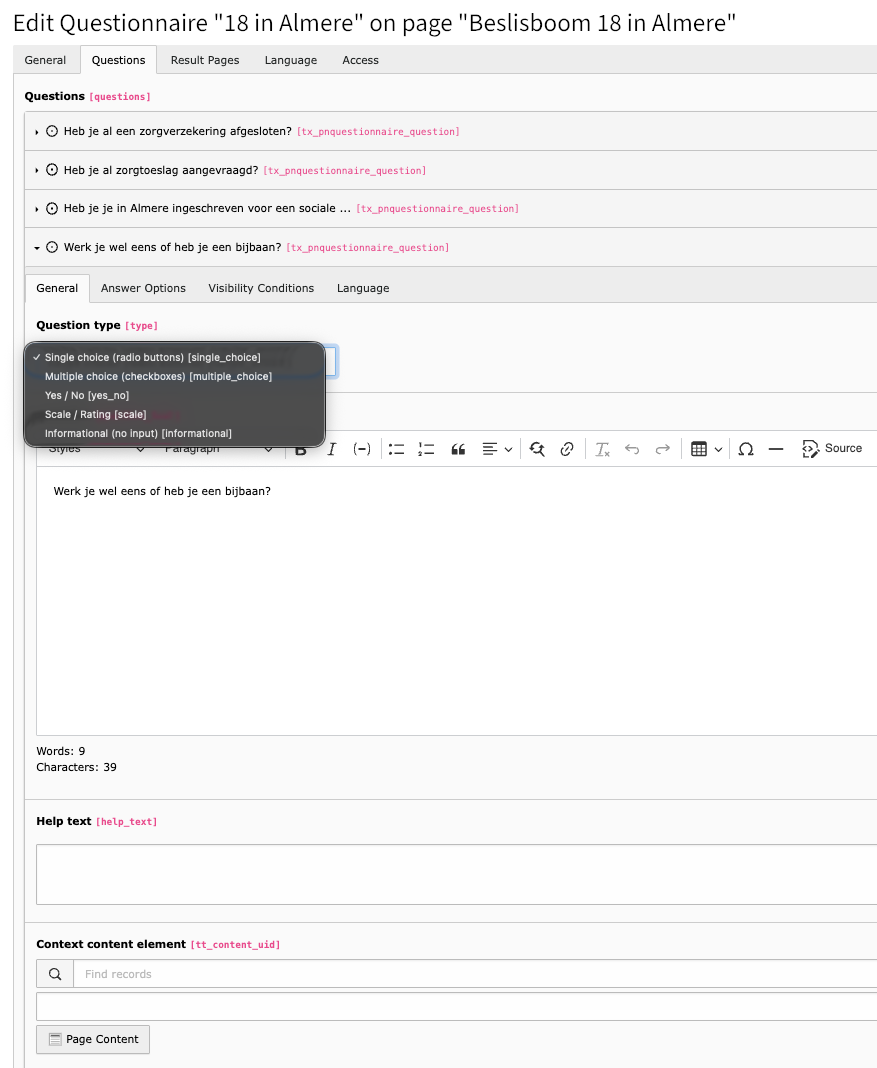
A question record with the Question type dropdown open. The fields below it change with the type that is chosen.
| Field | Description |
|---|---|
| Question | The question text shown to the visitor (supports rich text) |
| Help text | Optional short instruction below the question |
| Context content element | Optional link to an existing content element — useful for adding an image, a video or formatted text as context |
| Question type | The answer type — see Question types |
| Required | Whether the visitor must answer before proceeding |
| Scale minimum / maximum | Lower and upper bound of the numeric scale (scale questions only) |
| Scale display | Radio buttons or a range slider (scale questions only) |
Questions are shown in the order they appear in the list. Drag and drop to reorder, and hide a question to take it out of the flow without deleting it.
Note
Informational questions
Use the Informational type for a screen with text or media but no input — an intermediate explanation, or a section break. The visitor just clicks Next to continue.
Step 4 — Add answer options
For Single choice, Multiple choice and Yes / No questions, open the Answer Options tab of the question and add one option per selectable answer.
| Field | Description |
|---|---|
| Label | The text shown to the visitor |
| Value | Internal identifier, used in conditions and result triggers. Use
something descriptive: employed, yes, option_ |
| Score | Optional numeric score, positive or negative, decimals allowed — only relevant for score-based results |
Drag and drop answer options to reorder them.
Step 5 — Add conditions (branching)
A condition makes a question only visible when a specific previous question was answered in a specific way. This is how a decision tree is built. There are two condition types.
Condition type: Specific answer
- Open the Visibility Conditions tab of the question that should be conditionally shown.
- Click Create new Condition.
- Set Condition type to Specific answer.
- Select the Reference question — the earlier question whose answer decides visibility.
- Select the Reference answer — the answer option that must have been chosen.
- Save.
Condition type: Scale value
Use this when the reference question is a Scale / Rating question and visibility depends on the number the visitor picked.
- Open the Visibility Conditions tab.
- Click Create new Condition.
- Set Condition type to Scale value.
- Select the Reference question; only scale questions qualify.
- Choose an Operator:
>=,<=,>,<or=. - Enter a Value to compare against.
- Save.
For example: show a follow-up question only when the visitor rated satisfaction
>= 8.
Multiple conditions
A question can have more than one condition. Each condition has an Operator field of its own:
| Operator | Meaning |
|---|---|
| AND | This condition must also pass — all AND conditions must be met |
| OR | Passing this condition is enough on its own |
Conditions are evaluated in the order they appear in the list, top to bottom. See Condition evaluation for the exact evaluation order.
Rules
- Conditions can only reference questions that appear earlier in the questionnaire. Keeping to that is the editor's responsibility; nothing enforces it.
- A question with no conditions is always shown.
- Skipped questions count neither toward the progress nor the score.
- For a Scale value condition: when the referenced question has not been answered, the condition fails and the dependent question stays hidden.
Example
Q1: What is your situation?
    → "Employed"           → show Q2a (work questions)
    → "Self-employed"      → show Q2b (entrepreneur questions)
→ "Looking for work" → show Q2c (job-seeker questions)Q2a has one condition: type Specific answer, reference question Q1, reference answer "Employed". Q2b and Q2c work the same way with their own answer.
Step 6 — Add result pages
Open the Result Pages tab of the questionnaire and click Create new Result Page.
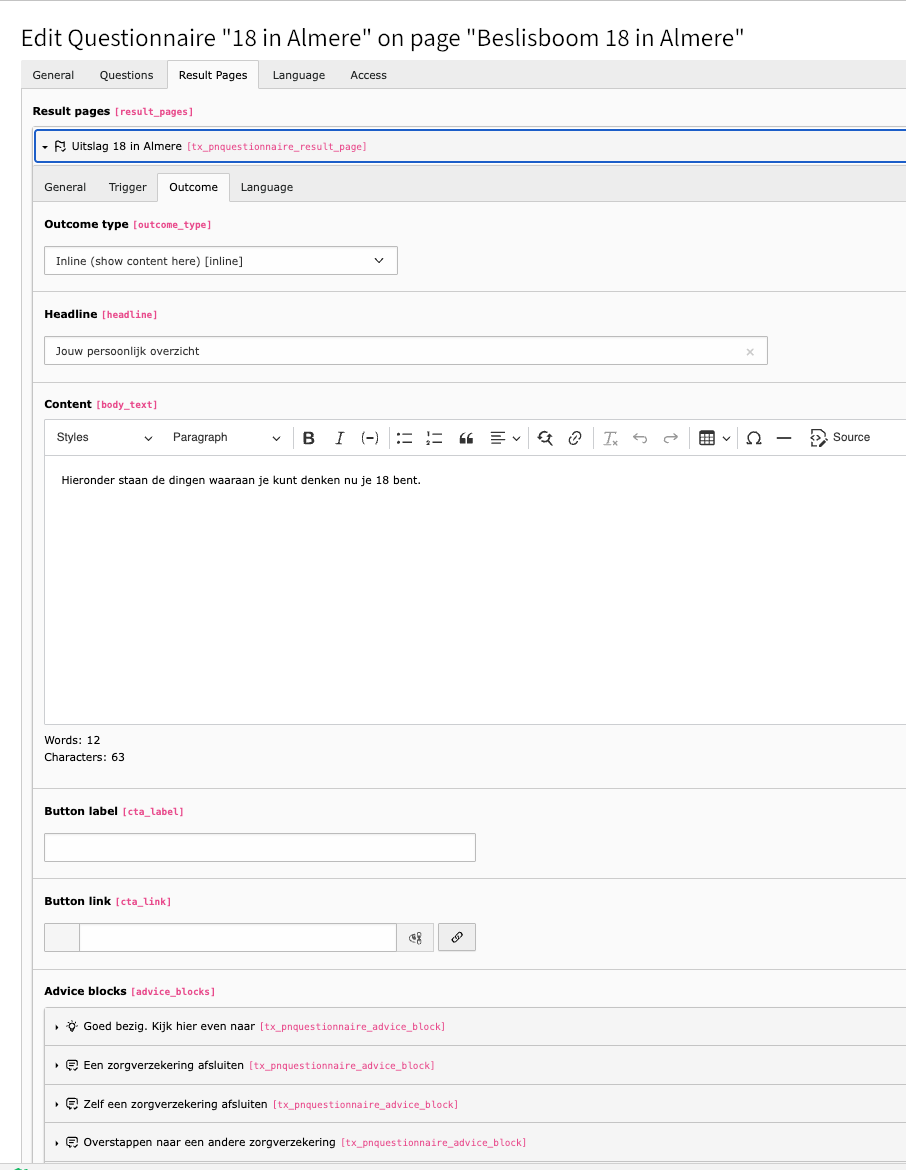
A result page with outcome type Inline. Headline and content are shown to the visitor, followed by the advice blocks listed at the bottom.
Important
Order matters. Result pages are evaluated top to bottom and the first match wins. Place the most specific triggers first and a catch-all last.
Each result page answers two questions: when does it apply, and what happens then.
Trigger — when does this result apply?
| Trigger type | When it matches |
|---|---|
| Catch-all | Always — use as the last result page, as a fallback |
| Score range | When the total score is between score min and max, inclusive |
| Specific answer | When the visitor selected a specific answer option, anywhere in the questionnaire |
| Combination | When both the score range and the specific answer match |
| Scale answer range | When the numeric answer for a specific scale question falls within the configured range, inclusive |
When Scale answer range is selected, three extra fields appear: the Scale question whose answer is checked (only scale questions are listed), and the inclusive Minimum value and Maximum value.
Outcome — what happens when it applies?
| Outcome type | What happens |
|---|---|
| Inline | Result content — headline, body text, advice blocks, button — is shown within the questionnaire on the same page |
| Internal page | The visitor is redirected to a TYPO3 page you select from the page tree |
| External URL | The visitor is redirected to a URL you enter |
| Domain record | The visitor is sent to the detail view of a record from another extension: a news article, event, vacancy, ad or activity. Requires configuration by a developer, see Domain record outcomes |
The fields of an inline outcome:
| Field | Description |
|---|---|
| Headline | Result headline |
| Content | Main result text (rich text — links can go in here) |
| Button label | Call-to-action button text, optional |
| Button link | Call-to-action button target, optional |
| Advice blocks | Conditional content sections, see Step 7 |
Tip
Redirects and visitor expectations
With Internal page, External URL or Domain record, the visitor is silently redirected away from the questionnaire the moment the last answer is submitted. They may not understand why they suddenly land somewhere else.
Consider adding an Informational question as the very last step, to say what will happen next — for example: "Based on your answers we have found a suitable match for you. Click Next to view your result." That makes the redirect feel intentional rather than unexpected.
Tip
Multiple links in a result?
A result page has one call-to-action button. If more links are needed, add them as hyperlinks inside the content field.
Step 7 — Add advice blocks
Advice blocks are conditional content sections within an inline result page. They show personalised advice depending on the visitor's score or a specific answer, within the same result. They are only available when the outcome type is Inline.
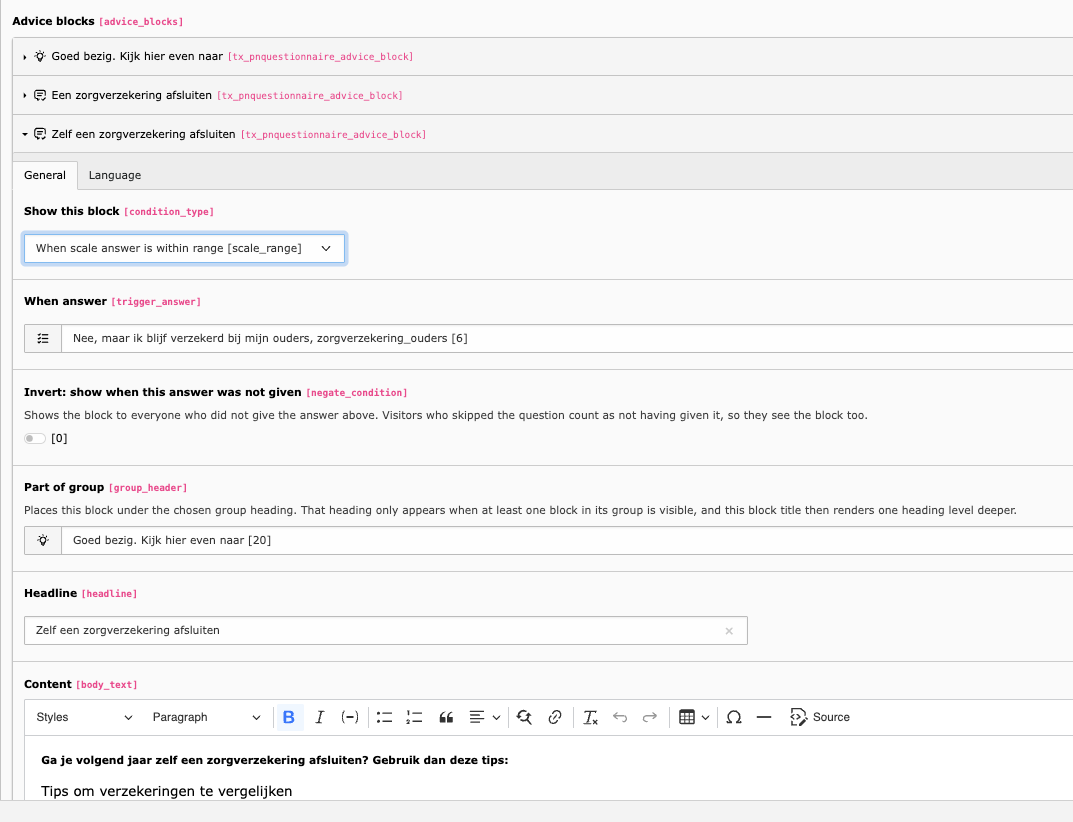
An advice block with a scale answer range condition, the invert checkbox, and a reference to the group heading it belongs under.
| Field | Description |
|---|---|
| Show this block | When to show it: Always / Score range / Specific answer / Scale answer range / Group heading above other blocks |
| Score min / max | Visible score range (score range condition only) |
| When answer | The answer that must have been given (specific answer condition only) |
| Invert | Show the block when the chosen answer was not given |
| Scale question | The scale question whose value is checked (scale answer range only) |
| Minimum / Maximum value | Inclusive range the scale answer must fall within |
| Part of group | Places this block under a group heading |
| Headline | Block heading |
| Content | Block content (rich text) |
Advice blocks appear in the order of the list, and only those whose condition is met are rendered.
Note
A worked example
A result page for everyone with a score of 10–20. Within it:
- block A, always shown: the general recommendation
- block B, specific answer "I work outdoors": an outdoor tip
- block C, score range 15–20: an extra warning for the higher scores
- block D, scale answer range, Q3 satisfaction
>= 8: a positive reinforcement message
Inverting a condition
Invert turns a specific answer condition around: the block appears when the visitor did not choose that answer.
That is useful for advice which only applies to people who skipped something. Take a question about organ donation with an option "I have already registered my choice". Attach a block to that option, tick Invert, and everyone who did not register gets the reminder — while the people who did are spared a message that does not apply to them.
Warning
An unanswered question counts as "not given".
If the question is optional, or the visitor never reached it, the answer is absent — so an inverted block appears. Whether that is what you want depends on the text. A reminder ("don't forget to arrange this") is fine for someone who skipped the question. A statement that assumes a situation ("since you have not arranged this yet") is not. Make the question required when the distinction has to be reliable.
Grouping blocks under a heading
A long result page reads better in sections. Set Show this block to Group heading above other blocks to turn a block into a heading, then set Part of group on every block that belongs underneath it.
What to keep in mind:
- A group heading has no condition of its own. It appears automatically when at least one block in its group is visible, and disappears when none are. The heading's visibility never has to be maintained by hand.
- A group heading has no content — only a headline.
- The headline of a grouped block moves one heading level deeper than an ungrouped one. That matters for the rich text in the body: sub-headings inside a grouped block belong on Heading 5, not Heading 4. Using the wrong level skips a level in the document outline, which screen readers and search engines both read as an error. See Heading levels, and why the RTE needs Heading 4 and Heading 5 for what an administrator has to make available in the RTE.
- Blocks that are not part of any group keep their normal level and can sit before, between or after the groups.
Question types
| Type | Input | Use for |
|---|---|---|
| Single choice | Radio buttons — one answer | Most questions |
| Multiple choice | Checkboxes — one or more answers | "Select all that apply" |
| Yes / No | Two radio buttons, with labels you define | Binary questions |
| Scale / Rating | Numbered scale from min to max, as radio buttons or a range slider | Assessments, NPS, ratings |
| Informational | No input — a Next button only | Intermediate explanation, section break |
Scale questions have a Scale display field:
| Option | Description |
|---|---|
| Range slider (default) | A draggable slider showing the selected value live. Starts at the midpoint of the range when no answer is stored yet |
| Radio buttons | Individual numbered radio inputs, one per step in the range |
Note
Scale and informational questions are score-neutral — they never add to the total score.
Tips and rules of thumb
Questionnaire structure
- Start with a sketch on paper of the question flow and the possible outcomes before building anything in the backend.
- Use descriptive internal titles on questionnaire and result page records; the next editor will thank you.
- Store questionnaire records in a dedicated sysfolder.
Conditions
- Only reference questions that appear above the current one in the list.
- Test the branching by walking through the questionnaire as a visitor — condition mistakes are easy to miss in the backend.
- Use the Start over button while testing to reset the session. It only appears after the first answer has been submitted.
Result pages
- Always add a catch-all result as the last entry. Without it, a visitor who matches no trigger sees an error message.
- For score-based questionnaires, make sure the score ranges cover every possible total without gaps.
Scoring
- Scores can be positive or negative: +2 for a healthy choice, -1 for a risk factor.
- The score is only shown to the visitor when settings.show_score is on.
- Advice blocks with a score condition work whether or not the score is displayed.
Reuse
- The same questionnaire record can be placed on multiple pages — useful for embedding the same tool in different contexts.
- Each placement has its own settings, so the score can be shown on one page and hidden on another.