Quicko - Der Clubmanager 

Extension key

clubmanager

Package name

quicko/clubmanager

Version

main

Language

en

Author

WirkWerk & codemacher

License

This document is published under the Creative Commons BY 4.0 license.

Rendered

Thu, 09 Apr 2026 11:27:16 +0000

Keywords

member, management, organization, association, federation, club, quicko

Copyright

2022

Email

post@quicko.software

TYPO3

The content of this document is related to TYPO3 CMS, a GNU/GPL CMS/Framework available from typo3.org .

It is maintained as part of this third party extension.

If you find an error or something is missing, please: Report a Problem

Extension Manual

This documentation is for the TYPO3 extension 'clubmanager'.

Extension short description

This extension implements a member management system with multiple frontend listings for clubs and associations based on Extbase & Fluid and uses the latest technologies provided by TYPO3 CMS. The functions can be customized individually for your club through many other professional extensions. More information: Quicko.software.


Table of Contents:
Introduction 

This chapter gives you a basic introduction about the TYPO3 CMS ext:clubmanager.

What does it do? 

The ext:clubmanager extension is the basis for managing clubs or associations with TYPO3.

Main features 

  • Members incl. their location management via the list module, i.e. each member can be assigned several locations.
  • Freely selectable categorization of members and their locations possible, e.g. as board members or certificate holders via TYPO3 categories.
  • Highlighting of members by their membership type (e.g. Basic, Gold, Silver, Bronze)
  • Frontend lists, respectively registers incl. extended single view
  • Frontend output as member list, location list or by locations per city
  • Automated frontend login generation for members (using felogin)
  • Automated e-mail dispatch incl. templates for frontend login data
  • Scheduler task for reminder of first frontend login
  • Service for monitoring e-mails sent by the system
  • Integrated 2-click solution for e.g. Google Maps and Youtube iFrames, extensible with ext:cookieman.
  • Dummy member data creation for testing is possible via Upgrade Wizard Task.

The free version of "Quicko - The Clubmanager" can be extended for professional applications: Addons

Screenshots 

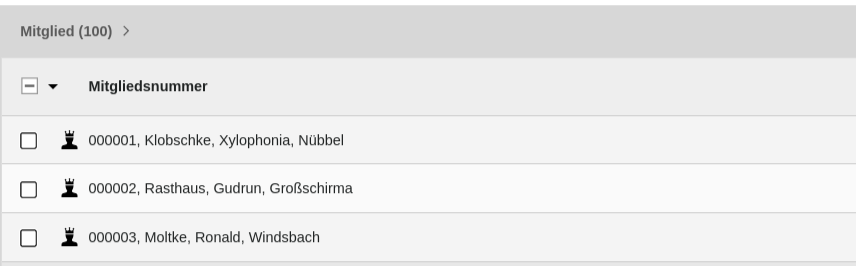
List of members 

List view of members

Members in the "List" view.

Member Details 

Detail view of members

Member in the "Detail" view.

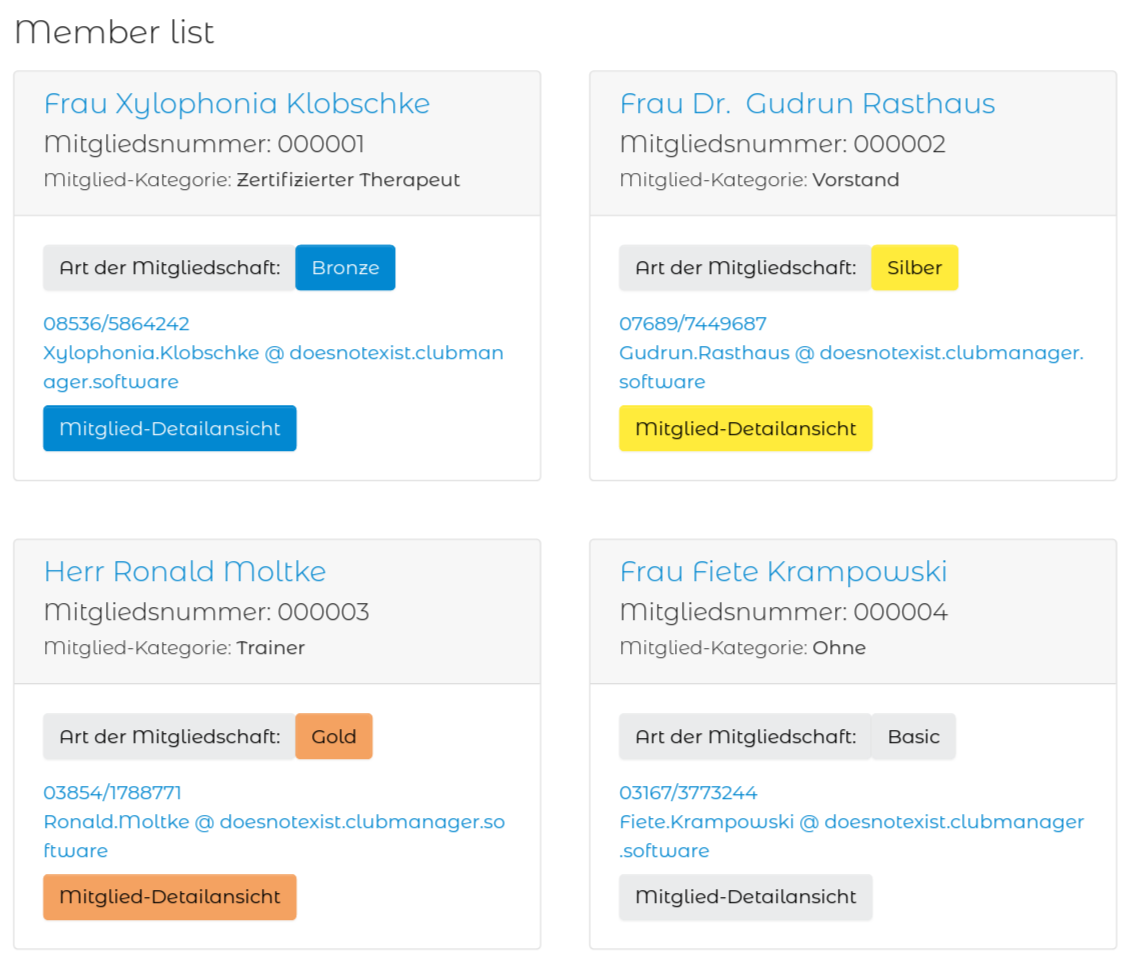
Frontend member list 

List view of members in frontend

Frontend register view of all members

Need Support? 

If you need private or personal support, ask one of the developers at https://quicko.software for it.

Be aware that this support may not be free of charge!

Quick installation 

In a composer-based TYPO3 installation you can install the extension EXT:clubmanager via composer:

composer require quicko/clubmanager
Copied!

In TYPO3 v13.4 composer-based installations the extension is installed automatically. You do not have to activate it manually.

If you have a legacy installation without composer, you can download and install it via the "Extensionmanager"

Update the database scheme 

Open your TYPO3 backend with system maintainer permissions.

In the module menu to the left navigate to Admin Tools > Maintenance, then click on Analyze database and create all.

Clear all caches 

In the same module Admin Tools > Maintenance you can also conveniently clear all caches by clicking the button Flush cache.

Quick configuration 

Enable Site Set 

This extension is configured via TYPO3 Site Sets. Static TypoScript templates are no longer supported. For details, see the TYPO3 main documentation: Site sets.

  1. Open your site config: config/sites/<your-site>/config.yaml
  2. Add the base set dependency:

    dependencies:
      - quicko/clubmanager
    Copied!

Read more about configuration via Site Settings (preferred) and TypoScript fallback in the Configuration section.

Further reading 

Create some initial content 

Create member records 

Before any member record can be shown in the frontend those need to be created.

  1. Go to the module Web > List
  2. Go to the "Member Storage" folder that you created in the first step.
  3. Use the + icon in the topbar Create new record.
  4. Then use the New record icon Clubmanager > Member.
  5. Fill out all desired fields and click Save.
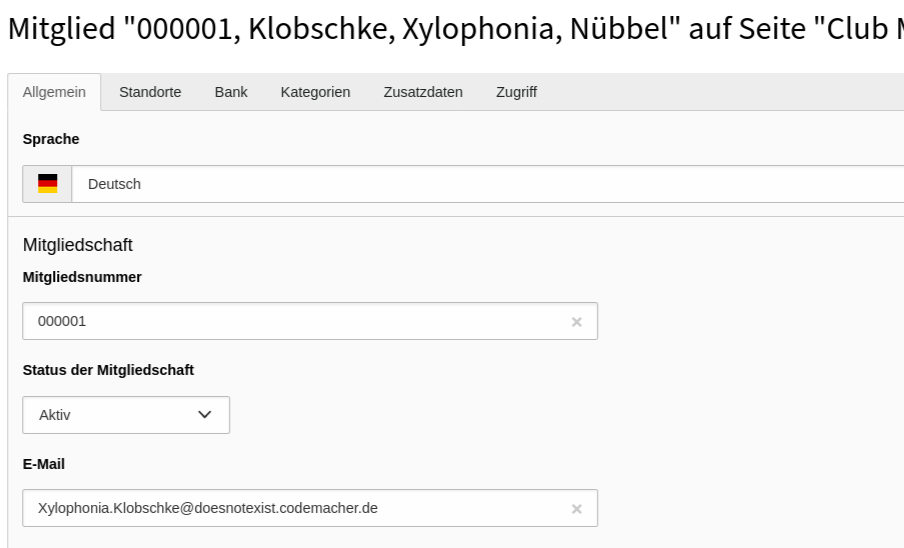
Create new member with web > list module

Create new member with Web > List module

More information about this record can be found here: member record.

Create member and location categories 

Categories are not mandatory but make it easier to structure member and location records. If you want to make use of special categories for your members and their locations have a look at the category record.

Add plugins: display members in the frontend 

Plugins are used to render a defined selection of member records in the frontend.

Follow these steps to add a plugin respectively for list and detail views to a page:

Member/Location list page 

While there are own templates for different listings, creating pages with these listings is the same for all list views (Member/Location/Cities).

Create new plugin with web > page module

Create new plugin with Web > Page module

  1. Go to module Web > Page and to the previously created page "Member list".
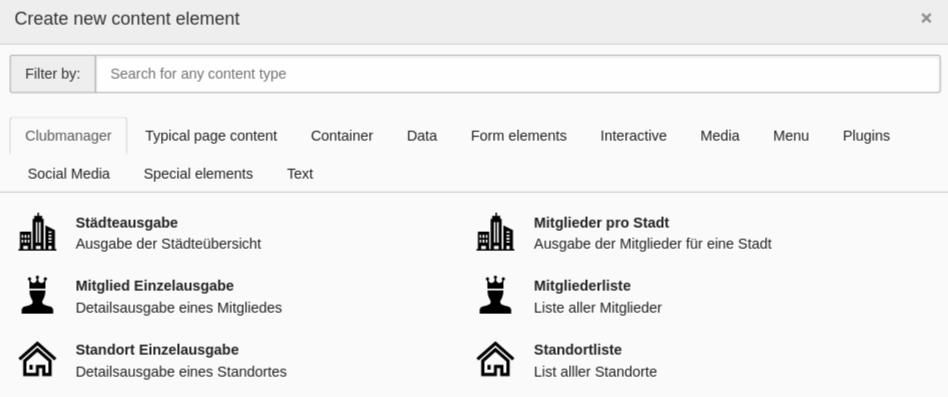
  2. Add a new content element and select the entry, depending on your listing: Clubmanager > Member list.
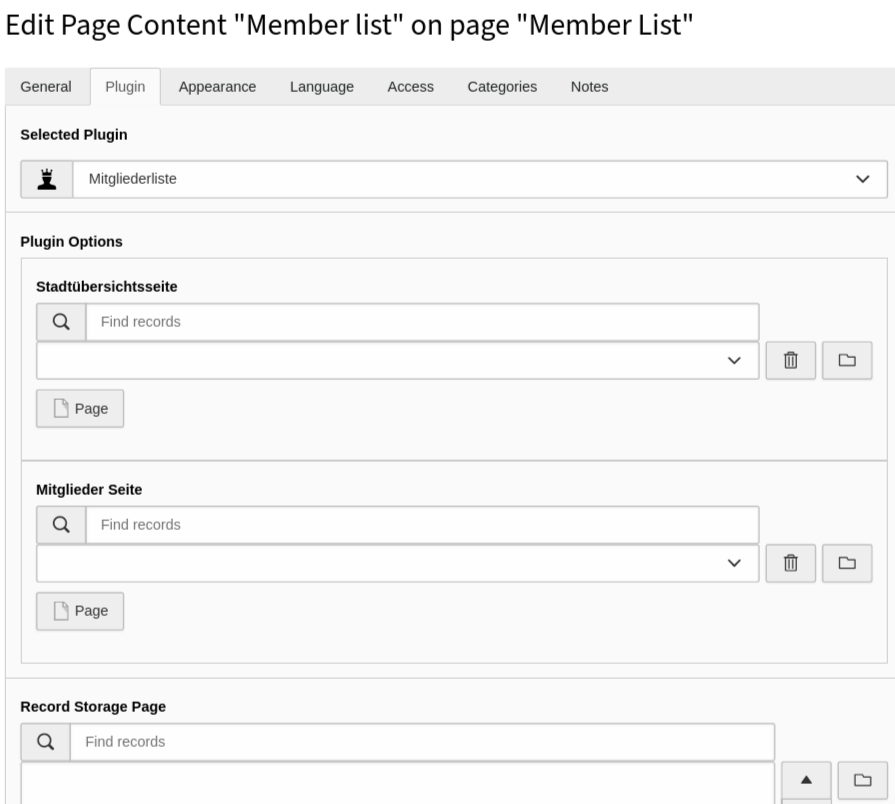
  3. Switch to the tab Plugin where you can define the plugins settings.

    1. The selected view is already Member list.
    2. The settings here are normally set global with the Global extension configuration and TypoScript! You can overwrite the global setting by selecting another Record Storage Page you created in the beginning of the tutorial, or use this if you don't use the global setting.

      Change global settings with plugin options

      Change global settings with plugin options

    3. Save the plugin.

Member/Location detail page 

  1. Go to module Web > Page and to the previously created page "Member detail".
  2. Add a new content element and select the entry Plugins > Member single view.

Cities list page 

Although the inclusion of Clubmanager > City output is the same, as described in Member/Location list page, it has a different function. The plugin shows all cities where members have locations and thus enables a city filter. As a visitor you get additionally displayed how many hits there are per city.

Member per city page 

Again, the inclusion of the plugin is identical with Member/Location list page. This list is displayed when a frontend visitor comes over the Cities list page and has its own fluid template.

Read more about the plugin configuration in chapter Plugins.

Have a look at the frontend 

Load the "Member list". "Location list" or "Cities list" page in the frontend and you should now see the member records, location records or cities filter as output. A click on the name or the detail-button should show the record on the detail page. You want to change the way the records are displayed? Have a look at the chapter Templating

Create placeholder data 

WARNING 

Run upgrade wizard 

  • You must have admin rights.
  • Go to Admin Tools > Upgrade.
  • Click Run Upgrade Wizard
  • Click on Execute in the wizard Create member placeholder data for clubmanager extension.
  • Click Yes to confirm that you understand that the data of some tables will be deleted and rewritten!
  • Click on Perform updates!

1000 member records with associated location and frontend user record were created. In addition, system categories were created for sorting of member and site records. The system categories will be created on the root page of your pagetree. You can transfer them afterwards to your "Sys Categories Storage".

Quick templating in Fluid 

EXT:clubmanager is using Fluid as templating engine. If you are not experienced with Fluid yet you can read more about it in the chapter Templates.

Copy the Fluid templates that you want to adjust to your sitepackage extension.

You find the original templates in EXT:clubmanager/Resources/Private/Templates/ and the partials in EXT:clubmanager/Resources/Private/Partials/.

To override the standard clubmanager templates with your own you can use the TypoScript constants to set the paths:

TypoScript constants
plugin.tx_clubmanager {
   view {
      templateRootPath = EXT:mysitepackage/Resources/Private/Extensions/Clubmanager/Templates/
      partialRootPath = EXT:mysitepackage/Resources/Private/Extensions/Clubmanager/Partials/
      layoutRootPath = EXT:mysitepackage/Resources/Private/Extensions/Clubmanager/Layouts/
   }
   mailView {
      templateRootPath = EXT:mysitepackage/Resources/Private/Extensions/Clubmanager/Templates/Email
      partialRootPath = EXT:mysitepackage/Resources/Private/Extensions/Clubmanager/Partials/Email
      layoutRootPath = EXT:mysitepackage/Resources/Private/Extensions/Clubmanager/Layouts/Email
   }
}
Copied!

Add these lines to the file EXT:mysitepackage/Configuration/TypoScript/constants.typoscript in your sitepackage.

Of course all ViewHelpers provided by TYPO3 can be used.

Site sets reference 

ext:clubmanager is configured via TYPO3 Site Sets and Site Settings. This is the recommended and default approach.

See the TYPO3 main documentation for Site Sets: Site sets.

Properties

Enable Site Sets 

  1. Open your site config: config/sites/<your-site>/config.yaml
  2. Add the needed dependencies:

    dependencies:
      - quicko/clubmanager
      # Optional:
      # - quicko/clubmanager-login
      # - quicko/clubmanager-cookieman
    Copied!

Configure Site Settings 

Add your project-specific values in: config/sites/<your-site>/settings.yaml

Base set quicko/clubmanager 

clubmanager.memberJournalStoragePid

clubmanager.memberJournalStoragePid
type

int

Default
Path

settings.yaml

Page/folder where new member journal entries are stored. If set to 0, entries are stored in the same folder as the member record.

page.theme.cookieconsent.enable

page.theme.cookieconsent.enable
type

bool

Default

false

Path

settings.yaml

The Clubmanager base set disables the Bootstrap Package cookie consent feature by default. This avoids conflicts when quicko/clubmanager-cookieman or ext:cookieman is used for consent handling. Existing project site settings can still override this value explicitly.

Login set quicko/clubmanager-login 

Use this set if you use frontend login features.

clubmanagerLogin.storagePid: 123
clubmanagerLogin.loginFormPid: 45
clubmanagerLogin.memberProfilePage: 67
clubmanagerLogin.emailFrom: 'demo@clubmanager.software'
clubmanagerLogin.emailFromName: 'Clubmanager Demo'
clubmanagerLogin.replyToEmail: 'post@quicko.software'
clubmanagerLogin.redirectPageLogout: 10
clubmanagerLogin.label.login: 'Login'
clubmanagerLogin.label.profile: 'Profil'
clubmanagerLogin.label.logout: 'Logout'
Copied!

Cookieman set quicko/clubmanager-cookieman 

Use this set if you integrate ext:cookieman.

clubmanagerCookieman.contentBlockerMode: 'cookieman'
plugin.tx_cookieman.settings.theme: 'bootstrap5-modal'
clubmanagerCookieman.links.dataProtectionDeclarationPid: 10
clubmanagerCookieman.links.imprintPid: 11
Copied!

The base set already keeps page.theme.cookieconsent.enable = false by default, so Bootstrap Package cookie consent stays disabled unless a project explicitly enables it again. The legacy TypoScript constants imported by the Cookieman set also enforce page.theme.cookieconsent.enable = 0 for the same reason.

Fallback behavior (legacy) 

Site Settings are preferred. For backward compatibility, existing TypoScript and extension configuration values are still used as fallback in these cases:

  • clubmanagerLogin.storagePid = 0 falls back to plugin.tx_clubmanager.settings.feUsersStoragePid
  • clubmanagerLogin.loginFormPid = 0 falls back to plugin.tx_clubmanager.settings.feUsersLoginPid
  • clubmanagerCookieman.links.* = 0 keeps existing values from your legacy cookieman TypoScript/constants configuration

Extension Configuration 

Some general settings can be configured in the Extension Configuration. For TYPO3 v13+ projects using Site Sets, prefer Site settings where available and use extension configuration mainly as global defaults / fallback.

  1. Go to Admin Tools > Settings > Extension Configuration
  2. Choose clubmanager

The settings are divided into several tabs and described here in detail:

Properties

Basic 

UID of the default storage page for members storagePid 

storagePid

storagePid
type

int

Default

Define the parent folder for member records. Important if you want to generate placeholder data with Upgrade wizard. See Create placeholder data for details.

UID of category parent for member uidCategoryMember 

uidCategoryMember

uidCategoryMember
type

int

Default

Define the parent category for member categories

UID of category parent for location uidCategoryLocation 

uidCategoryLocation

uidCategoryLocation
type

int

Default

Define the parent category for location categories

UID of the default city detail page defaultDetailCityPage 

defaultDetailCityPage

defaultDetailCityPage
type

int

Default

Define the default city detail page

UID of the default member detail page defaultDetailMemberPage 

defaultDetailMemberPage

defaultDetailMemberPage
type

int

Default

Define the default member detail page

UID of the default location detail page defaultDetailLocationPage 

defaultDetailLocationPage

defaultDetailLocationPage
type

int

Default

Define the default location detail page

Fe-user-login 

UID of the Default fe_users storage page feUsersStoragePid 

feUsersStoragePid

feUsersStoragePid
type

int

Default

Define the storage folder where fe_users are automatically stored. Used as fallback when clubmanagerLogin.storagePid is 0.

UID of the default UserGroup for FE Users defaultFeUserGroupUid 

defaultFeUserGroupUid

defaultFeUserGroupUid
type

int

Default

Define the default UserGroup for FE Users in Member records

UID of the Default fe_users login page feUsersLoginPid 

feUsersLoginPid

feUsersLoginPid
type

int

Default

Define the default fe_users login page where users are directed to via e-mail link. Used as fallback when clubmanagerLogin.loginFormPid is 0. Can also be overwritten by TypoScript feUsersLoginPid.

UID of the default target page after logout defaultTargetLogoutPage 

defaultTargetLogoutPage

defaultTargetLogoutPage
type

int

Default

Define the default target page after logout from frontend login. This value can be used by project-specific configuration, but there is no automatic TypoScript fallback to styles.content.loginform.redirectPageLogout.

Mail 

Number of attempts for a mail delivery mailTries 

mailTries

mailTries
type

int

Default

6

Define how often a mail delivery via System > Scheduler-Task is tried, when it failed before. See section Mail service task for more information.

TypoScript reference (fallback) 

Properties

General setup 

Set this in your EXT:mysitepackage/Configuration/TypoScript/setup.typoscript

Change your theme css 

Set your own CSS-theme by changing page.includeCSS.theme
page {
 includeCSS {
  theme = EXT:clubmanager/Resources/Public/Scss/Theme/Theme.scss
 }
}
Copied!

General constants 

Set this in your EXT:mysitepackage/Configuration/TypoScript/constants.typoscript

Persistence storage folder storagePid 

tsStoragePid

tsStoragePid
type

int

Default
Path

plugin.tx_clubmanager.persistence

Scope

Plugin, TypoScript Setup

Define the storage folder pid for your member data

plugin.tx_clubmanager.persistence.storagePid = 887366
Copied!

Settings 

It is possible to overwrite existing Extension Configuration with these TypoScript settings.

Frontend users login pid feUsersLoginPid 

tsFeUsersLoginPid

tsFeUsersLoginPid
type

int

Default
Path

plugin.tx_clubmanager.settings

Scope

Plugin, TypoScript Setup

Define the default fe_users login page where users are directed to via e-mail link. Overwrites Extension Configuration feUsersLoginPid!

plugin.tx_clubmanager.settings.feUsersLoginPid = 458788
Copied!

TSconfig reference 

You can change the backend forms for the records member & location with the following Page & User TSconfig

Important TSconfig

Clubmanager member record 

Change the User TSconfig to disable not needed fields in member records for your backend editors. Use Page TSconfig to remove not needed elements in dropdown-fields or to add some and to rename field labels.

In addition, the member record has six predefined fields that you can use for your individual data.

  • customfield1
  • customfield2
  • customfield3
  • customfield4
  • customfield5
  • customfield6

User TSconfig 

page.TCEFORM.tx_clubmanager_domain_model_member {
    starttime.disabled = 0
    endtime.disabled = 0
    reducedRate.disabled = 0
    state.disabled = 0
    feuser.disabled = 0
    directDebit.disabled = 0
    iban.disabled = 0
    bic.disabled = 0
    account.disabled = 0
    mainLocation.disabled = 0
    subLocations.disabled = 0
    altBillingName.disabled = 0
    altBillingStreet.disabled = 0
    altBillingZip.disabled = 0
    altBillingCity.disabled = 0
    altBillingCountry.disabled = 0
    ident.disabled = 0
    title.disabled = 0
    firstname.disabled = 0
    midname.disabled = 0
    lastname.disabled = 0
    zip.disabled = 0
    street.disabled = 0
    city.disabled = 0
    country.disabled = 0
    email.disabled = 0
    altEmail.disabled = 0
    phone.disabled = 0
    company.disabled = 0
    personType.disabled = 0
    salutation.disabled = 0
    level.disabled = 0
    addAddressInfo.disabled = 0
    dateofbirth.disabled = 0
    categories.disabled = 0
}
Copied!

Page TSconfig 

TCEFORM {
    tx_clubmanager_domain_model_member {
        // Set this to 0 if your member categories have no subcategories.
        // 0,1 is useful when using the placeholder data.
        categories.config.treeConfig.appearance.nonSelectableLevels = 0,1

        salutation {
            removeItems =
            altLabels {
                default = LLL:EXT:your_sitepackage/Resources/Private/Language/locallang_db.xlf:tx_clubmanager_domain_model_member.salutation.default
            }
            addItems {
                divers = LLL:EXT:your_sitepackage/Resources/Private/Language/locallang_db.xlf:tx_clubmanager_domain_model_member.salutation.divers
            }
        }
        customfield1 {
            label = LLL:EXT:your_sitepackage/Resources/Private/Language/locallang_db.xlf:tx_clubmanager_domain_model_member.customfield1.default
        }
    }
}
Copied!

Clubmanager location record 

Change the User TSconfig to disable not needed fields in location records for your backend editors. Use Page TSconfig to remove not needed elements in dropdown-fields or to add some and to rename field labels.

User TSconfig 

page.TCEFORM.tx_clubmanager_domain_model_location {
    salutation.disabled = 0
    title.disabled = 0
    firstname.disabled = 0
    midname.disabled = 0
    lastname.disabled = 0
    company.disabled = 0
    street.disabled = 0
    addAddressInfo.disabled = 0
    zip.disabled = 0
    city.disabled = 0
    state.disabled = 0
    country.disabled = 0
    latitude.disabled = 0
    longitude.disabled = 0
    image.disabled = 0
    info.disabled = 0
    categories.disabled = 0
    phone.disabled = 0
    mobile.disabled = 0
    fax.disabled = 0
    email.disabled = 0
    website.disabled = 0
    socialmedia.disabled = 0
    youtubeVideoUrl.disabled = 0
}
Copied!

Page TSconfig 

TCEFORM {
    tx_clubmanager_domain_model_location {
        salutation {
            removeItems =
            altLabels {
                default = LLL:EXT:your_sitepackage/Resources/Private/Language/locallang_db.xlf:tx_clubmanager_domain_model_location.salutation.default
            }
            addItems {
                divers = LLL:EXT:your_sitepackage/Resources/Private/Language/locallang_db.xlf:tx_clubmanager_domain_model_location.salutation.divers
            }
        }
    }
}
Copied!

Use Routing to rewrite URLs 

This section will show you how you can rewrite the URLs for clubmanager detail views using Routing Enhancers and Aspects. TYPO3 Explained has an chapter Introduction to routing that you can read if you are not familiar with the concept yet. You will no longer need third party extensions like RealURL or CoolUri to rewrite and beautify your URLs.

How to rewrite URLs with clubmanager parameters 

On setting up your page you should already have created a site configuration. You can do this in the backend module Site Managements > Sites.

Your site configuration will be stored in /config/sites/<your_identifier>/config.yaml. The following configurations have to be applied to this file.

Any URL parameters can be rewritten with the Routing Enhancers and Aspects. These are added manually in the config.yaml:

  1. Add a section routeEnhancers, if one does not already exist.
  2. Choose an unique identifier for your Routing Enhancer. It doesn't have to match any extension key.
  3. type: For clubmanager, the Extbase Plugin Enhancer (Extbase) is used.
  4. extension: the extension key, converted to UpperCamelCase.
  5. plugin: the plugin name of clubmanager could be city, member or location.
  6. After that you will configure individual routes and aspects depending on your use case.
/config/sites/<your_identifier>/config.yaml
routeEnhancers:
  ClubmanagerCity:
    type: Extbase
    extension: Clubmanager
    limitToPages:
      - /*YOUR PIDS HERE */
    plugin: City
    routes:
      -
        routePath: '/{city}'
        _controller: 'Cities::detail'
        _arguments:
          city: city
    aspects:
      city:
      type: SanitizeValue
      tableName: tx_clubmanager_domain_model_location
      columnName: city
  ClubmanagerMember:
    type: Extbase
    extension: Clubmanager
    limitToPages:
      - /*YOUR PIDS HERE */
    plugin: Member
    routes:
      -
        routePath: '/{ident}'
        _controller: 'Member::detail'
        _arguments:
          ident: member
    aspects:
      ident:
        type: PersistedAliasMapper
        tableName: tx_clubmanager_domain_model_member
        routeFieldName: ident
  ClubmanagerMemberList:
    type: Extbase
    extension: Clubmanager
    limitToPages:
      - /*YOUR PIDS HERE */
    plugin: MemberList
    routes:
      -
        routePath: '/page/{currentPage}'
        _controller: 'Member::list'
        _arguments:
          currentPage: currentPage
    defaultController: 'Member::list'
    defaults:
      currentPage: ''
    aspects:
      currentPage:
        type: StaticRangeMapper
        start: '1'
        end: '100'
  ClubmanagerLocation:
    type: Extbase
    extension: Clubmanager
    plugin: Location
    routes:
      -
        routePath: '/{location}'
        _controller: 'Location::detail'
        _arguments:
          location: location
    aspects:
      location:
        type: PersistedAliasMapper
        tableName: tx_clubmanager_domain_model_location
        routeFieldName: slug
  ClubmanagerLocationList:
    type: Extbase
    extension: Clubmanager
    plugin: LocationList
    routes:
      -
        routePath: '/page/{currentPage}'
        _controller: 'Location::list'
        _arguments:
          currentPage: currentPage
    defaultController: 'Location::list'
    defaults:
      currentPage: ''
    aspects:
      currentPage:
        type: StaticRangeMapper
        start: '1'
        end: '100'
Copied!

Using limitToPages 

It is recommended to limit routeEnhancers to the pages where they are needed. This will speed up performance for building page routes of all other pages.

/config/sites/<your_identifier>/config.yaml
routeEnhancers:
  ClubmanagerCity:
    type: Extbase
    extension: Clubmanager
    limitToPages:
      - 20
      - 21
    plugin: City
    # routes and aspects will follow here
Copied!

About routes and aspects 

In a nutshell:

  • routes will extend an existing route
    (means: your domain and page path) with arguments from GET parameters, like the following controller/action pair of the location detail view.
  • aspects can be used to modify these arguments.
    You could for example map the ident of the current member or the slug (or better: the optimized slug) of the current location. Different types of Mappers and Modifiers are available, depending on the case.
  1. URL of location detail page without routing:
https://www.example.com/location-list/location-detail/?tx_clubmanager_member[action]=detail&tx_clubmanager_member[controller]=Member&tx_clubmanager_member[location]=1&cHash=
Copied!
  1. URL of location detail page with routes:
https://www.example.com/location-list/location-detail/1/?cHash=
Copied!
  1. URL of location detail page with routes and aspects:
https://www.example.com/location-list/location-detail/firstname-lastname-company-city/
Copied!

The following example will only provide routing for the location list and detail view:

/config/sites/<your_identifier>/config.yaml
routeEnhancers:
  ClubmanagerLocation:
    type: Extbase
    extension: Clubmanager
    plugin: Location
    routes:
      - routePath: '/{location}'
        _controller: 'Location::detail'
        _arguments:
          location: location
    aspects:
      location:
        type: PersistedAliasMapper
        tableName: tx_clubmanager_domain_model_location
        routeFieldName: slug
Copied!

Please note the placeholder {location} in routeEnhancer ClubmanagerLocation:

  1. First, you assign the value of the location parameter (tx_clubmanager[location]) in _arguments.
  2. Next, in routePath you add it to the existing route.
  3. Last, you use aspects to map the slug of the given argument.

Both routes and aspects are only available within the current Routing Enhancer.

The names of placeholders are freely selectable.

Common routeEnhancer configurations 

Basic setup (including Member, MemberList, Location, LocationList, Cities) 

Prerequisites:

The plugins for member List View, member Detail View, location List View, location Detail View, cities List View and members per city List View are on separate pages.

Result:

  • Member Detail view: https://www.example.com/member-list/member-detail/ident/
  • Pagination: https://www.example.com/member-list/page/2/
  • Location Detail view: https://www.example.com/location-list/location-detail/firstname-lastname-company-city/
  • Pagination: https://www.example.com/location-list/page/2/
  • Members per city List view: https://www.example.com/cities-list/members-per-city/city/
/config/sites/<your_identifier>/config.yaml
routeEnhancers:
  ClubmanagerCity:
    type: Extbase
    extension: Clubmanager
    limitToPages:
      - 90
      - 91
    plugin: City
    routes:
      -
        routePath: '/{city}'
        _controller: 'Cities::detail'
        _arguments:
          city: city
    aspects:
      city:
        type: SanitizeValue
        tableName: tx_clubmanager_domain_model_location
        columnName: city
  ClubmanagerMember:
    type: Extbase
    extension: Clubmanager
    plugin: Member
    routes:
      -
        routePath: '/{ident}'
        _controller: 'Member::detail'
        _arguments:
          ident: location
    aspects:
      ident:
        type: PersistedAliasMapper
        tableName: tx_clubmanager_domain_model_member
        routeFieldName: ident
  ClubmanagerMemberList:
    type: Extbase
    extension: Clubmanager
    plugin: MemberList
    routes:
      -
        routePath: '/page/{currentPage}'
        _controller: 'Member::list'
        _arguments:
          currentPage: currentPage
    defaultController: 'Member::list'
    defaults:
      currentPage: ''
    aspects:
      currentPage:
        type: StaticRangeMapper
        start: '1'
        end: '100'
  ClubmanagerLocation:
    type: Extbase
    extension: Clubmanager
    plugin: Location
    routes:
      - routePath: '/{location}'
        _controller: 'Location::detail'
        _arguments:
          location: location
    aspects:
      location:
        type: PersistedAliasMapper
        tableName: tx_clubmanager_domain_model_location
        routeFieldName: slug
  ClubmanagerLocationList:
    type: Extbase
    extension: Clubmanager
    plugin: LocationList
    routes:
      -
        routePath: '/page/{currentPage}'
        _controller: 'Location::list'
        _arguments:
          currentPage: currentPage
    defaultController: 'Location::list'
    defaults:
       currentPage: ''
    aspects:
       currentPage:
        type: StaticRangeMapper
        start: '1'
        end: '100'
Copied!

Localized pagination 

Not done yet

Scheduler tasks 

Scheduler tasks provided by ext:clubmanager

Mail service task 

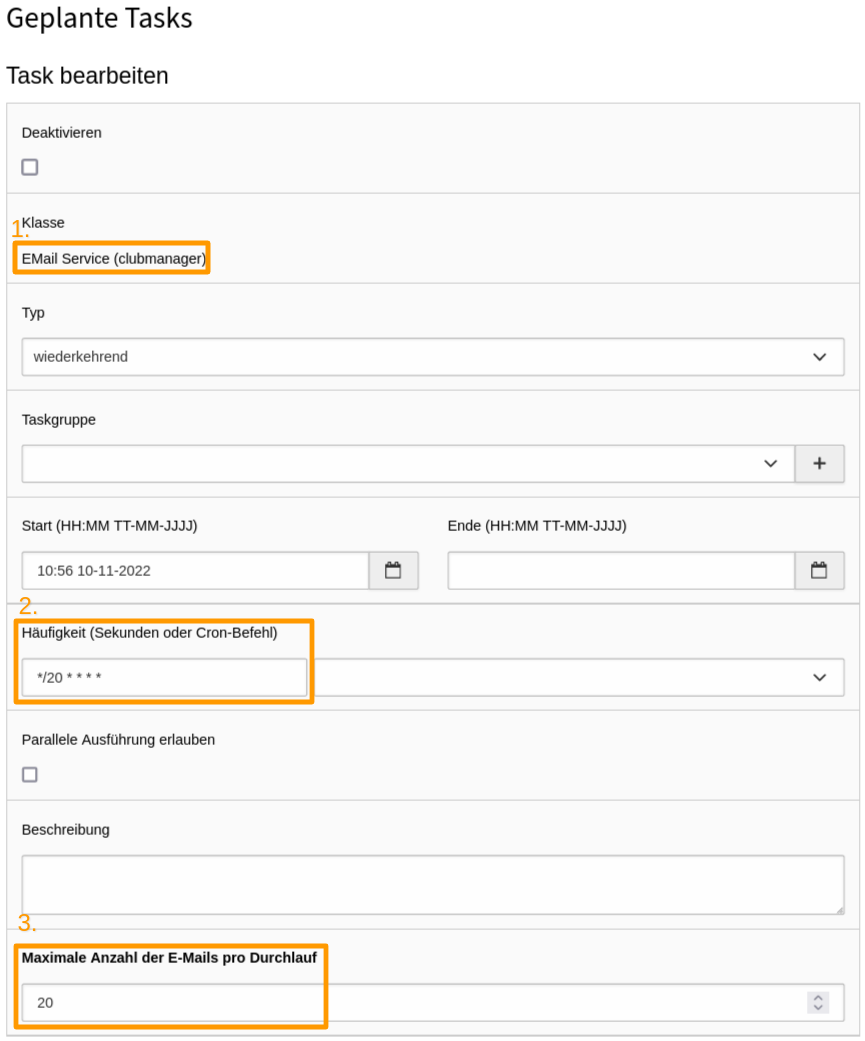
The ext:clubmanager automatically generates e-mails for certain actions. To send them automatically, the scheduler task EMail Service (clubmanager) must be set up and triggered in short intervals if possible.

  1. Go to the module System > Scheduler
  2. Use the + icon in the topbar Create new task
  3. Set dropdown Class to clubmanager > EMail Service (1.)
  4. Set task frequency (2.) to a short interval. */1 * * * * ensures that the task is executed every minute.
  5. Set Maximum number of emails per run (3.) to a number, which fits to the needs of your club. If the number of members is high, it makes sense to increase the Maximum number of emails per run.
  6. After you have filled in all required fields click Save.
Create new task `EMail Service (clubmanager)`

Create new task clubmanager > EMail Service

Member login reminder task 

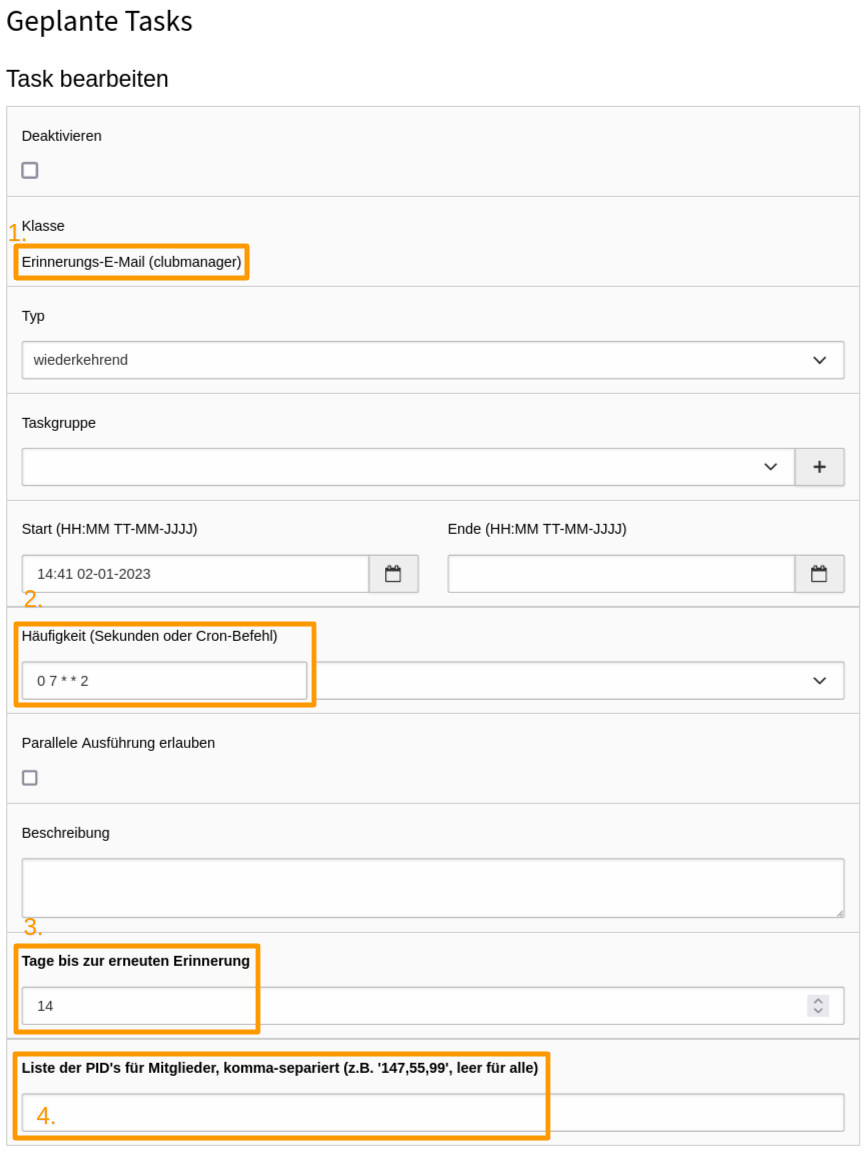
The basic version of ext:clubmanager provides the scheduler Task Reminder Email (clubmanager), which can be used by which members who have never logged in to the member area before get a reminder e-mail after a predefined interval to do so.

  1. Go to the module System > Scheduler
  2. Use the + icon in the topbar Create new task
  3. Set dropdown Class to clubmanager > Member login reminder (1.)
  4. Set task frequency (2.) to the shortest possible interval. 0 7 * * 2 ensures that the task is executed every tuesday at 7am.
  5. Set Days until reminder (3.) to a number of days, after which a member is to be reminded again. The lower the number of days, the higher the probability that a member will perceive the message as spam.
  6. Set List of PIDs for members, comma-separated (4.) if only members from certain folders should receive a reminder email. If the field is empty, all members who have never logged in will receive an email.
  7. After you have filled in all required fields click Save.
Create new task Reminder email (clubmanager)

Create new task clubmanager > Reminder email

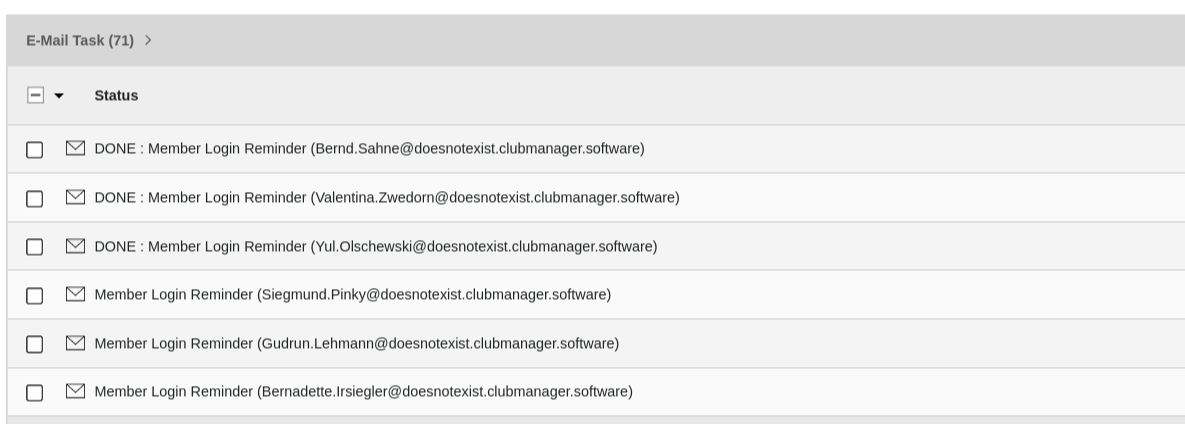
At the set time, the scheduler runs Task Reminder Email (clubmanager) and creates a new reminder email for all active(!) members who have never logged in before, a new Email Tasks Member Login Reminder. During the next automatic execution of the EMail Service scheduler task, all open Email Tasks will be processed one after the other.

Email task table with member login reminder emails

Email task table with Member Login Reminder emails

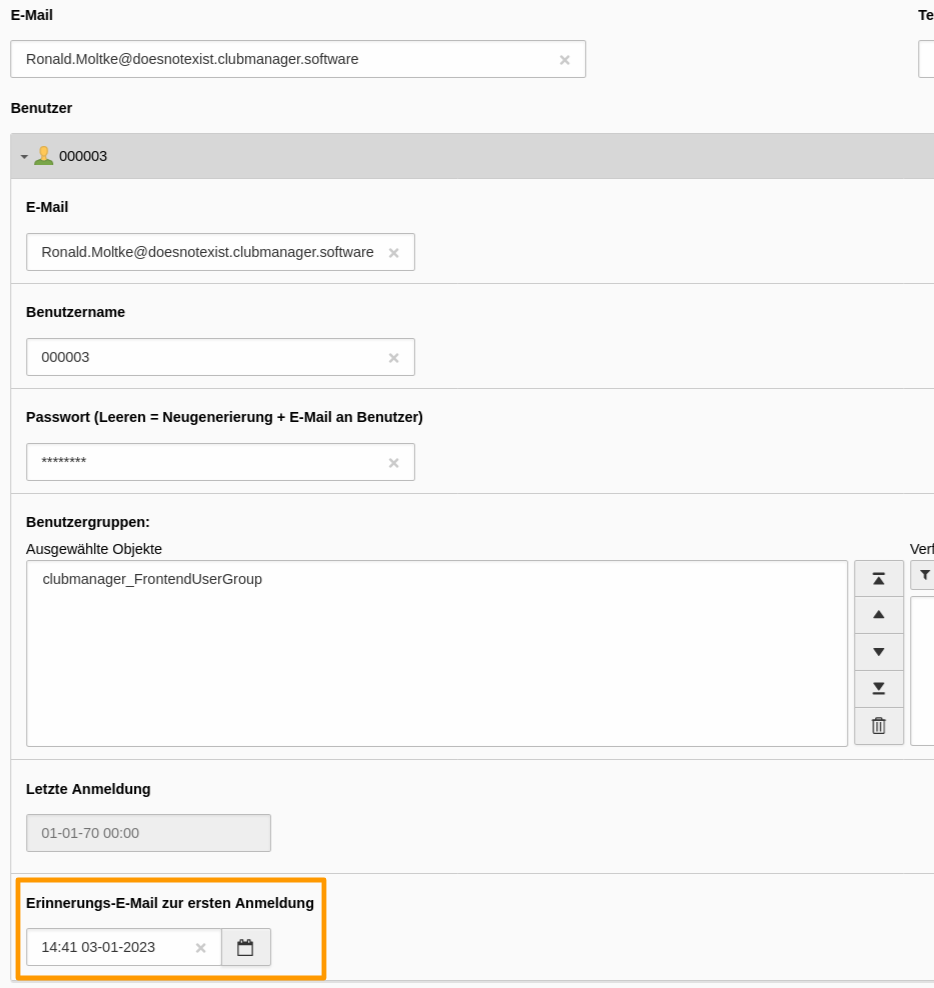
Timestamp for last reminder email for the first registration in frontend-user data

Timestamp for Reminder email for the first registration in frontend-user data

Member Journal processing task 

The Member Journal uses pending entries when a change is scheduled for a future date. To apply such changes automatically, a scheduled task must process due entries regularly.

The recommended setup uses the scheduler task Execute console commands with the command:

clubmanager:journal:process

Recommended cron schedule:

0 2 * * *

Config felogin 

Important steps

Felogin: Enable Site Set 

  1. Install ext:felogin
  2. Open your site config: config/sites/<your-site>/config.yaml
  3. Add the login set dependency:

    dependencies:
      - quicko/clubmanager
      - quicko/clubmanager-login
    Copied!

Felogin: Site settings 

Set login-related values in your site settings file: config/sites/<your-site>/settings.yaml

clubmanagerLogin.storagePid: 123
clubmanagerLogin.loginFormPid: 45
clubmanagerLogin.memberProfilePage: 67
clubmanagerLogin.label.login: 'Login'
clubmanagerLogin.label.profile: 'Profil'
clubmanagerLogin.label.logout: 'Logout'
Copied!

See also Site sets reference.

Felogin pagetree 

Your page tree should look like that:

Home
├── ...
├── Login page
│  └── Restricted content
├── Logout target page
├── ...
└── Storage
   ├── ...
   ├── Frontend User
   └── ...
Copied!

Create default frontend user group 

  1. Go to the module Web > List
  2. Move to Storage > Frontend User in your pagetree.
  3. Click on + Create new record on top of the page.
  4. Click on Frontend Access > Website Usergroup.
  5. Fill in the Group Title and Save.

Important global configuration 

  1. Configure these values in config/sites/<your-site>/settings.yaml:

    clubmanagerLogin.storagePid: 123
    clubmanagerLogin.loginFormPid: 45
    clubmanagerLogin.memberProfilePage: 67
    clubmanagerLogin.emailFrom: 'demo@clubmanager.software'
    clubmanagerLogin.emailFromName: 'Clubmanager Demo'
    clubmanagerLogin.replyToEmail: 'post@quicko.software'
    clubmanagerLogin.redirectPageLogout: 10
    Copied!
  2. Go to Admin Tools > Settings > Extension Configuration.
  3. Choose clubmanager and then Tab Fe-user-login.
  4. Set the uid of your default fe_users group defaultFeUserGroupUid (this is still required for member to fe_user assignment).
  5. Optional fallback values (used if matching site settings are 0): feUsersStoragePid, feUsersLoginPid.
  6. Configure frontend login mail values and the logout target page via site settings: clubmanagerLogin.emailFrom, clubmanagerLogin.emailFromName, clubmanagerLogin.replyToEmail, clubmanagerLogin.redirectPageLogout.
  7. In case you want to change it, set the lifetime of password recovery links in hours: passwordRecoveryLifeTime.
  8. In tab Mail set the number of attempts for a mail delivery.

Felogin TypoScript 

TypoScript is optional and mainly relevant as legacy fallback / targeted override in your own sitepackage. Site settings are the preferred place for login page, mail sender and logout target configuration.

Setup 

Have a look at the ext:clubmanager > felogin localization TypoScript Setup and change wording in your own sitepackage to your needs.

Path to felogin setup
EXT:clubmanager/Configuration/TypoScript/Felogin/setup.typoscript
Copied!

Constants 

Have a look at the ext:clubmanager > felogin TypoScript constants and change them in your own sitepackage to your needs.

Path to felogin constants
EXT:clubmanager/Configuration/TypoScript/Felogin/constants.typoscript
Copied!

Change default core mail templates 

  1. [MAIL] layoutRootPaths: EXT:core/Resources/Private/Layouts/,EXT:backend/Resources/Private/Layouts/,EXT:mysitepackage/Resources/Private/Extensions/Sysmail/Layouts/
  2. [MAIL] partialRootPaths: EXT:core/Resources/Private/Partials/,EXT:backend/Resources/Private/Partials/,EXT:mysitepackage/Resources/Private/Extensions/Sysmail/Partials/
  3. [MAIL] templateRootPaths: EXT:core/Resources/Private/Templates/Email/,EXT:backend/Resources/Private/Templates/Email/,EXT:mysitepackage/Resources/Private/Extensions/Sysmail/Templates/

Afterwards you can overwrite the core templates in your sitepackage and fit them to your needs!

How to setup felogin 

Important steps

Default content elements 

  1. In your pagetree click on Login page
  2. Insert + Content some default content which is shown if members are not logged in yet.
  3. Set Tab Access > Usergroup Access Rights > Hide at login.
  4. Save the contentelement and create a + New one.
  5. Insert a welcome message and stuff which is shown if members are successfully logged in.
  6. Set Tab Access > Usergroup Access Rights > Show at any login.
  7. Create new pages beneath your login page and Edit page properties.
  8. See Tab Access and set Usergroup Access Rights to your felogin_usergroup you created here: Create default frontend user group.
  9. At least insert + Content > Text > Text & Media to say "Logout successful" on page Logout target page.

Testing your felogin setup 

  1. Go to the module Web > List
  2. Go to the "Member Storage" folder that you created in Create some initial content.
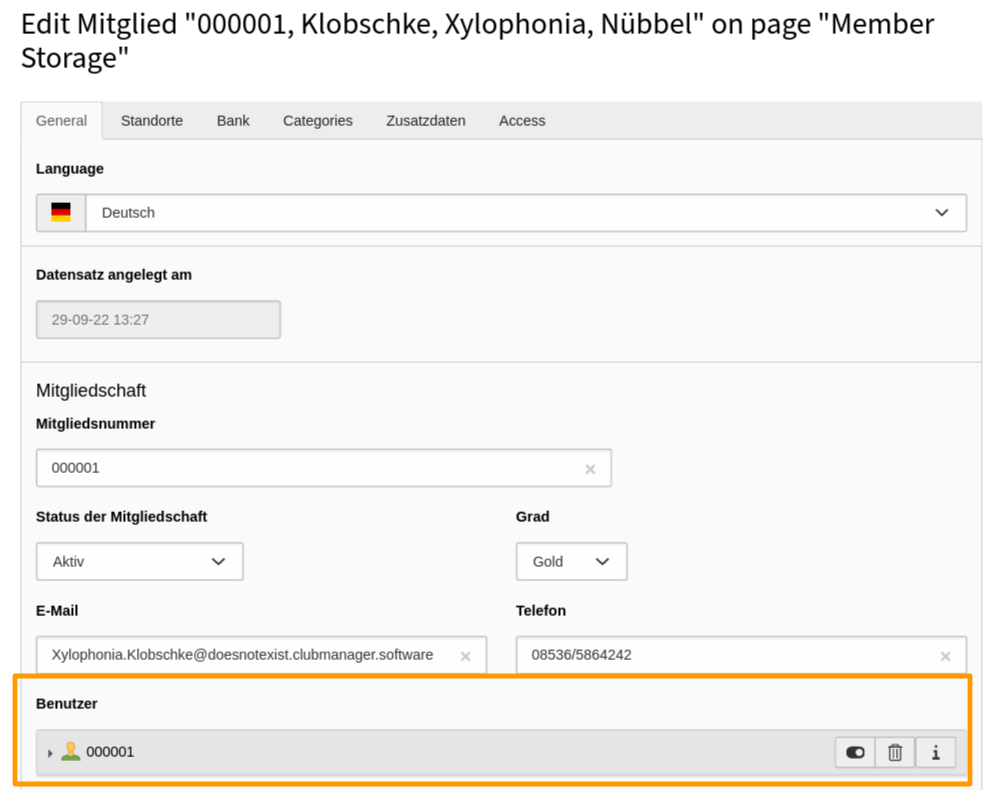
  3. Open a test member with Edit record and have a look at section Frontend User. Now you can (+ Create new) create a Frontend User for this member or edit an exiting one.

    Connected frontend user for member

    Connected frontend user for member

  4. Set/Change Username and change the Password to some easy to remember string for testing. Then save the member data.

  5. Load the "Login page" in the frontend and try to login.

Setup member login reminder task 

Config cookieman 

Out-of-the-box ext:clubmanager has integrated a content blocker for Youtube in the Fluid-template for the detail view of the locations and thus offers a 2-click solution for the display of Youtube movies within the Clubmanager list and detail views.

EXT:clubmanager/Resources/Private/Partials/Youtube.html
Copied!

Important steps

Cookieman: Enable Site Set 

  1. Install ext:cookieman
  2. Open your site config: config/sites/<your-site>/config.yaml
  3. Add the cookieman set dependency:

    dependencies:
      - quicko/clubmanager
      - quicko/clubmanager-cookieman
    Copied!

Cookieman: Site settings 

Set cookieman-related values in: config/sites/<your-site>/settings.yaml

clubmanagerCookieman.contentBlockerMode: 'cookieman'
plugin.tx_cookieman.settings.theme: 'bootstrap5-modal'
clubmanagerCookieman.links.dataProtectionDeclarationPid: 10
clubmanagerCookieman.links.imprintPid: 11
Copied!

See also Site sets reference.

If a project wants to use the Bootstrap Package cookie consent feature instead of ext:cookieman, it can override page.theme.cookieconsent.enable in its site settings.

Cookieman TypoScript (fallback / optional overrides) 

Setup 

Have a look at the ext:clubmanager > cookieman TypoScript Setup and change wording etc. in your own sitepackage to your needs.

Path to cookieman setup
EXT:clubmanager/Configuration/TypoScript/Cookieman/setup.typoscript
Copied!

The plugin.tx_cookieman.settings are preset for ext:clubmanager defaults. Use site settings first and keep TypoScript changes minimal.

Constants 

Have a look at the ext:clubmanager > cookieman TypoScript constants and change wording etc. in your own sitepackage to your needs.

Path to cookieman constants
EXT:clubmanager/Configuration/TypoScript/Cookieman/constants.typoscript
Copied!

Upgrade from 1.2.5 to 2.0.0 

This upgrade introduces breaking changes to the data model of ext:clubmanager. The main architectural change is the introduction of the Member Journal, which replaces direct manipulation of membership status and level fields.

Breaking Changes 

The following fields are no longer editable directly:

  • starttime
  • endtime
  • state
  • level

These values are now exclusively derived from Member Journal Entries. The database field cancellation_wish has been removed.

Architectural Change: Member Journal 

Version 2.0.0 introduces the Member Journal as the single source of truth for all membership status and level changes.

Instead of directly modifying the fields state, level, starttime and endtime inside the member record, all changes are now created as journal entries. The system derives the effective membership state from these entries.

This architectural change ensures:

  • Complete historical tracking of status changes
  • Complete historical tracking of level changes
  • Statistically correct member development over time
  • Persistence of historical data even if a member record is deleted

The Member Journal forms the foundation for advanced features such as statistics, billing and frontend self-service functionality.

Field Behaviour Changes 

The following member fields are no longer editable directly in version 2.0.0. Their values are exclusively derived from Member Journal entries.

starttime 

The field starttime is set automatically when a member receives the status active for the first time. Once set, this value is never modified again, even if the member later changes status (e.g. becomes resting or cancelled).

endtime 

The field endtime is set automatically when a status change to cancelled becomes effective. If the effective date lies in the future, the value is stored but the final status transition is processed by the scheduler task.

state 

The field state is no longer editable. It always reflects the latest processed status change from the Member Journal.

level 

The field level is no longer editable. Level changes must be performed via Member Journal entries of type Level Change.

Upgrade Procedure 

Step 1: Update Extension 

Update ext:clubmanager to version 2.0.0 via Composer or the TYPO3 Extension Repository.

Step 2: Create Missing Tables and Fields 

Run the TYPO3 upgrade wizard Create Missing Tables and Fields to create the new table:

tx_clubmanager_domain_model_memberjournalentry

This table stores all future status and level changes independently from the member record itself.

Step 3: Configure Member Journal Storage Page 

Before running the migration wizard, you must define where Member Journal entries will be stored.

  1. Go to Site Management > Settings
  2. Select your site configuration
  3. Open section Clubmanager > Member Journal
  4. Set the field Member Journal Storage Page to a dedicated sysfolder UID

If this value is set to 0, journal entries will be stored in the same folder as the corresponding member record.

Step 4: Run Upgrade Wizard 

Execute the following upgrade wizard:

Clubmanager: Initiale Member-Journal Einträge

This wizard creates initial journal entries for all existing members based on their current state, starttime and endtime. Existing cancellation wishes are migrated into journal entries before the old field is removed.

The wizard should only be executed once.

Step 5: Optional Repair Wizards for Existing Data 

For installations that were already running with Member Journal data, two additional repair wizards may be relevant.

In some cases, members already marked as cancelled did not receive the corresponding cancelled Member Journal entry. This affected historical data around cancellations effective on or after 31.12.2025. The wizard Clubmanager: Fehlende Kündigungs-Journal-Einträge nachlegen repairs such cases by creating the missing journal entries.

In other cases, deleting a member also removed related Member Journal entries. The wizard Clubmanager: Fälschlich gelöschte Journal-Einträge wiederherstellen restores these incorrectly deleted journal records.

If both repair wizards are offered in your system, run them in this order:

  1. Clubmanager: Fälschlich gelöschte Journal-Einträge wiederherstellen
  2. Clubmanager: Fehlende Kündigungs-Journal-Einträge nachlegen

Step 6: Database Compare 

After the wizard has completed successfully, you may run "Analyze Database" and "Database Compare".

Records 

ext:clubmanager uses multiples records which are described here in detail.

Categories can be used to filter and sort members and locations or to provide additional information.

Member records to organise your club and the memberships. The member records can be displayed by the plugin.

The Member Journal manages all status and level changes of a membership. It provides historical tracking, lifecycle validation and scheduler-based processing.

Location records are always directly linked to a member record. Members can have one main location and several secondary locations. Location records can be displayed by the plugin and are sortable out-of-the-box by city.

E-Mail Tasks are automatically generated by the plugin to send different emails to members and to be able to track the sending of the emails.

Categories 

Categories are not mandatory but make it easier to structure member and location records. The category records themselves are supplied by the TYPO3 Core and might be shared with other extensions.

Create member and location categories 

  1. Go to the module Web > List
  2. Go to the "Sys Categories Storage" folder that you created in the first step at Recommended page structure or alternatively use your "Member Storage".
  3. Use the + icon in the topbar Create new record.
  4. Then use the New record icon Content > Category.

    Create new sys category with web > list module

    Create new sys category with Web > List module

  5. First of all create two parent categories: Locations & Members and Save them.
  6. Now you have to remember the ID's of these two categories and enter them in the Global extension configuration! The ID's can be found out by hovering the mouse pointer over the icon of the the respective category.

    Find out id of important member and location sys category

    Find out id of important member and location sys category

  7. Now create the required member and location categories and in the field Parent set the check mark for the parent category.

Important properties for sys categories 

Important Fields

Description

Title

Title of the category. This field is required!

Parent category

The parent category is used to build a category tree. Therefore select the parent of the current category.

Member 

The member record is obviously the most important record in this extension. It is used to organise the memberships of your club, association or company.

Add member record 

Members can be added in ext:clubmanager only in the <List module>.

Member record data 

The member record is divided into tabs:

Member Tab: General 

Here the general data concerning the membership are recorded.

Membership 

Since version 2.0.0 the membership status and level are no longer edited directly in the member record. All changes are managed via the Member Journal.

Field:

Description:

Membership number (ident)

Unique membership number. Must be set before the first activation. After activation this field is read-only for editors.

Membership status (derived)

Derived from Member Journal entries. Not editable directly.

Level (derived)

Derived from Member Journal entries. Not editable directly.

Reduced membership

Purely descriptive flag. No automatic logic in Base.

Beginning of membership (derived)

Automatically set on first activation. Not editable.

End of membership (derived)

Automatically set when a cancellation becomes effective. Not editable.

Member Journal 

The Member Journal manages all status and level changes of a membership. It replaces the direct editing of the fields state, level, starttime and endtime.

Each change of a membership is stored as a journal entry. The current state of a member record is always derived from the processed journal entries.

The following entry types are available:

  • Status Change
  • Level Change

See Member Journal for a complete functional description including lifecycle rules, validations and scheduler processing.

Member/Person 

Here is recorded whether the member is a person or a company, as well as the name of the member or the direct contact person for the membership. These data are also used for the postal address, for payment requests, or payment confirmations.

Field:

Description:

Type of person

Membership can be requested by the following "person types" by default:

  • "natural person": private individual
  • "Legal person": company, association, etc.

Salutation

Salutation of the member

Academic Title

Academic title of the member

First Name

First name of member

Middle Name

Middle name of member

Last Name

Last name of member

Date of birth

Date of birth of the member, e.g. for automatic sending of congratulations.

Address 

This is where the postal address data is recorded. For payment requests, or payment confirmations, this address is also used, if in the ref:Tab Bank - Alternative Billing Address <recordMemberTabBankAltBillingAddress> no other address is stored.

Field:

Description:

Company

Member's company

Address suffix

Member's address suffix

Street

Street of the member

Postal code

Postal code of the member

City

Location of member

Country

Country of member

Member Tab: Locations 

Different locations can be linked to each member. These are used for presentation in the frontend and displayed in listings. With the ext:clubmanager there is the possibility to display a listing of all locations of members as well as to offer a categorization of member locations according to the the city. See plugins for more information.

Main Location 

See also Record > Location

Sub Location 

See also Record > Location

Member Tab: Bank 

The member's bank details are recorded here if the member participates in the direct debit, which is usually the standard for clubs and associations. For payment requests, or payment confirmations an alternative billing address can be created.

Direct Debit 

Field:

Description:

Participates in direct debit

Is 'true' or 'false'. If 'true', then the fields with the account data must also be filled in.

Account holder

Name of the account holder for direct debit.

IBAN

Alternative Billing Address 

Field:

Description:

Name

Name for payment requests, or payment confirmations.

Street

Member Tab: Categories 

Here, members can be additionally categorized, e.g., according to completed certifications, as members of the board of directors or membership of other bodies.

Member Tab: Additional Data 

In this tab, 6 fields are available for free assignment by default.

  • customfield1
  • customfield2
  • customfield3
  • customfield4
  • customfield5
  • customfield6

The designation can be changed with the following TCEFORM:

TCEFORM {
    tx_clubmanager_domain_model_member {
        customfield1 {
            label = LLL:EXT:your_sitepackage/Resources/Private/Language/locallang_db.xlf:tx_clubmanager_domain_model_member.customfield1.default
        }
    }
}
Copied!

Member Tab: Access 

Field:

Description:

Visible

Only visible member records are displayed in the frontend. In addition, frontend output depends on the effective membership status derived from the Member Journal.

Record created on

Invariant timestamp for the initial creation of the member record.

Relations 

Member records can have relations to other records. These are described in more detail here.

Frontend-Benutzer 

This relation handles the frontend-user for a member.

Field:

Description:

Locations 

Basically, Main location and Other locations have the same data structure. While there can be only one main location, many Other locations are possible. See Record > Location for more information.

Member Journal 

The Member Journal manages all membership status and level changes in ext:clubmanager since version 2.0.0.

Architecture Principle 

Since version 2.0.0 the Member Journal is the single source of truth for membership status and level management.

The member record itself only reflects the current effective state. All changes are stored as journal entries and processed according to defined lifecycle rules.

Core principles:

  • The member record shows only the current effective state.
  • The journal contains the complete historical record.
  • Sorting of entries is based on entry_date.
  • Effectiveness is determined by effective_date.
  • Processing occurs either immediately or via scheduler.

Processing modes:

  • Immediate processing if the effective date is today or in the past.
  • Scheduled processing via the command clubmanager:journal:process if the effective date lies in the future.

Member Fields (Derived Behaviour) 

The following fields of the member record are derived from processed journal entries and are not edited directly.

Field

Behaviour

starttime

Set automatically on first activation. Once set, it is never modified again.

endtime

Set when a cancellation becomes effective. Cleared on reactivation.

state

Always reflects the latest processed status change.

level

Always reflects the latest processed level change.

Reduced membership

Purely descriptive flag without automatic logic in Base.

Membership number (ident)

Functional primary identifier. Must be set before first activation.

The membership number (Membership number (ident)) is editable until the first activation. After activation it becomes read-only for editors. Administrators may modify it if required.

The frontend username is derived from the membership number and is read-only for editors.

Journal Entry Types 

Two entry types are available in the Member Journal:

  • Status Change
  • Level Change

Status Change 

A status change updates the effective membership status.

Allowed statuses in Base:

  • active
  • resting
  • cancelled

Level Change 

A level change updates the effective membership level.

Fields:

Field

Description

old_level

Read-only field reflecting the currently effective level at the time the entry is created.

new_level

New level to become effective. This field is mandatory.

Processing Logic 

Each journal entry is evaluated based on its effective_date.

Immediate Processing 

If the effective_date is today or in the past, the entry is processed immediately after saving.

Processing includes:

  • Updating the effective member state or level
  • Setting derived fields such as starttime or endtime
  • Marking the entry as processed

Scheduled Processing 

If the effective_date lies in the future, the entry remains pending.

Pending entries are processed by a TYPO3 scheduler task.

The recommended setup uses the console command:

clubmanager:journal:process

See Member Journal processing task for configuration details.

Once the effective date is reached, the system applies the change and marks the entry as processed.

Planned Cancellation 

If a cancellation is scheduled for a future date:

  • endtime is set immediately to the defined effective_date
  • The state remains unchanged until the effective date is reached
  • The final transition to cancelled is executed by the scheduler

Status Lifecycle and Side Effects 

Status changes may trigger additional side effects such as setting membership dates or managing the associated frontend user.

First Activation 

Prerequisites:

  • The membership number (Membership number (ident)) must be set. If it is missing, activation is blocked.
  • If the member email is missing, activation is still possible but a warning is shown because no email can be sent.

Side effects:

  • starttime is set automatically (one-time only)
  • A frontend user is created automatically if missing
  • The frontend username is set to the membership number (ident)
  • The user is assigned to the configured frontend user group
  • If an email address exists, an email is sent to request a password

Resting 

If the status becomes resting:

  • state is set to resting
  • endtime remains empty
  • The associated frontend user is disabled
  • Login is not possible

Cancelled 

Immediate cancellation:

  • state becomes cancelled
  • endtime is set to the effective_date
  • The associated frontend user is disabled

Planned cancellation:

  • The entry remains pending until the effective date
  • endtime is set immediately to the defined effective_date
  • state changes to cancelled when the scheduler processes the entry

Reactivation 

Reactivation is performed by creating a new status change to active.

Effects:

  • endtime is cleared
  • starttime remains unchanged
  • The associated frontend user is enabled again

Validation Rules 

The Member Journal enforces strict validation rules to ensure data consistency and historical integrity.

Status Validation 

  • A status change to the currently effective status is not allowed.
  • Only one pending status change is allowed at a time.
  • The membership number (Membership number (ident)) must be set before the first activation.
  • Activation without an email address triggers a warning but is allowed.
  • If effective_date lies in the past, a warning is shown.

Level Validation 

  • new_level must not equal old_level.
  • If effective_date lies in the past, a warning is shown.

Entry Integrity 

  • Entries marked as hidden are not processed.
  • Hidden entries are excluded from statistics and billing.
  • A hidden entry cannot be reactivated if newer journal entries exist (based on entry_date).

Visibility Logic (Hidden Entries) 

The Hidden flag of a journal entry controls whether an entry is processed.

If a journal entry is marked as hidden:

  • It is excluded from processing.
  • It is excluded from statistics and billing.
  • It is treated as if it did not exist for lifecycle evaluation.

The hidden flag is the official mechanism to withdraw a pending journal entry.

Permissions 

Permissions differ between administrators and editors.

Administrator 

Administrators may:

  • Delete journal entries
  • Modify the membership number after activation

Editor (Office) 

Editors may:

  • Create new journal entries
  • Set effective_date
  • Add notes

Editors may not:

  • Modify processed entries
  • Edit entry_date
  • Edit old_level
  • Delete journal entries
  • Modify the membership number after activation

Edge Cases 

The following scenarios require special attention.

Activation without membership number 

Activation is blocked if the Membership number (ident) is not set.

Activation without email address 

Activation is allowed without an email address, but no password email can be sent. A warning is shown.

Reactivation after cancellation 

When reactivating a previously cancelled membership:

  • endtime is cleared
  • starttime remains unchanged
  • The frontend user is re-enabled

Retroactive changes 

If effective_date lies in the past, a warning is displayed. Retroactive changes may affect billing and statistics.

Multiple status changes on the same day 

If multiple status changes share the same effective_date, processing order is determined by entry_date.

Starttime fixation 

Once starttime has been set during first activation, it is never modified again.

Historical consistency 

Journal entries must reflect the chronological order of events. Older hidden entries cannot be reactivated if newer entries exist.

Location 

Location data records are always linked to a member data record and can only be created and edited via the associated member record. Basically, Main location and Other locations have the same data structure. While there can be only one main site, there are many Other locations possible. With the :ext:clubmanager there is the possibility to output a list of all locations of members as well as to offer a categorization of member locations by the city. See plugins for more information.

Add location record 

Location data records are always linked to a member data record and can only be created and edited via the associated member record. So first open the member record with the 'List module' and switch to the tab Locations.

Location record data 

The location record is divided into the tabs:

Location Tab: General 

This is where the general data concerning the site is recorded.

Slug 

The URL fragment for the member's single view. It is formed by default from the following data from the location record: {Firstname}-{Lastname}-{Company}-{City}

Address 

The address of the location is recorded here. From these data Longitude and Latitude in the ref:Tab Geography <recordGeographyTab> are determined.

Field:

Description:

Company

Company of the site

Address suffix

Street of the location

ZIP CODE

Postal code of the location

City

City of the location

Country

Country of the location

State

State of the location

Contact person 

The contact person for the location is entered here. This can vary from location to location and may differ from the actual member.

Field:

Description:

Salutation

Salutation of contact person

Academic Title

Academic title of contact person

First Name

First name of contact person

Middle Name

Last name of contact person

Location Tab: Geography 

From the address of the location here automatically longitude and latitude. is determined. This is done either directly with the Save of the member or manually by clicking Search GPS coordinates.

Field:

Description:

Longitude

Longitude to determine the location with a map provider.

Latitude

Latitude to determine the location with a map provider.

Searches for the coordinates to the specified location address

Location Tab: Meta 

Detailed additional information about a location, primarily for display in the Detail View of the member.

Field:

Description:

Additional Information

RTE field for detailed descriptions of a location and the ability to format them.

Image

Image of the member to display in List-View and/or Detail-View.

Youtube Video ID

Youtube Video ID to be displayed in List-View and/or Detail-View.

Sites can be additionally categorized here, e.g. by sport, subject, etc.

Location Tab: Contact 

This tab handles the contact data for a location.

Field:

Description:

Phone

Phone number (will be linked automatically in the frontend).

Mobile

Mobile number (will be linked automatically in the frontend).

FAX

Fax number

E-mail

E-mail address (will be linked automatically in the frontend).

Url

Website address (will be linked automatically in the frontend)

Location Tab: Social Media 

Each location can have any number of different social media relations. See Relation: Social Media.

Location Tab: Access 

Field:

Description:

Start

If a location is only to be displayed for a limited time, the start time can be set here.

Relations 

Location records can have relations to other records. These are described in more detail here.

Social Media 

This relation handles the social media data for a location.

Field:

Description:

Visible

If contact data is set to invisible with this switch, they will not appear in the frontend listing and will not be used for internal purposes like for example for internal exports.

Type

Social Media Relation Type:

  • Facebook
  • Instagram
  • Youtube
  • Twitter
  • ...

Url

Url for linking to social media service.

Email Tasks 

Important steps

Automatic password recovery email 

  1. Open an existing member and open the connected Frontend User. Clear the Password Input and save the member data. Now you can see, that a new password is automatically generated.
  2. What happens next is, that an "E-Mail Task" is generated which will send an E-Mail to the "Frontend Users" so he can reset the password.

Change core mail settings 

The "ext:clubmanager" uses the TYPO3 core mail settings, which have to be changed in the LocalConfiguration.php. Therefor open Admin Tools > Settings > Configure Installation-Wide Options > Mail and adjust the following settings to your needs:

  1. [MAIL] defaultMailFromAddress > your-email@your-site.tld
  2. [MAIL] defaultMailFromName > Your Name
  3. [MAIL] defaultMailReplyToAddress > no-reply@your-site.tld
  4. [MAIL] defaultMailReplyToName > Your Name

Change clubmanager mail templates 

To override the standard ext:clubmanager mail templates with your own you can use the TypoScript constants to set the paths. Add these lines to the file EXT:mysitepackage/Configuration/TypoScript/constants.typoscript in your sitepackage. and fit the templates to your needs.

TypoScript constants
plugin.tx_clubmanager {
   mailView {
      templateRootPath = EXT:mysitepackage/Resources/Private/Extensions/Clubmanager/Templates/Email
      partialRootPath = EXT:mysitepackage/Resources/Private/Extensions/Clubmanager/Partials/Email
      layoutRootPath = EXT:mysitepackage/Resources/Private/Extensions/Clubmanager/Layouts/Email
   }
}
Copied!

Email Task Record 

Email task are always generated, when emails were send out by the ext:clubmanager itself. The reason for this is to have an overview of the club's email processes and to be able to follow up in case of doubt if there were errors in the dispatch.

Email tasks are titled after the process that triggered them and could not be renamed by an editor.

Field:

Description:

Visible

Only visible tasks are processed by the EMail Service scheduler task

Status

Shows if an email task is Open, Done or Failed

Open attempts for delivery

Shows how many attemps for delivery have taken place and how often the delivery is still attempted

E-Mail Generator Class

Shows the used mail generator

E-Mail Generator Arguments

Shows the used mail generator arguments

Last processing

Shows the datetime of the last processing

Last error time

Shows the datetime of the last failure

Error message

In case of a failed processing the reason is displayed here

Plugins 

The clubmanager plugin is used to output a defined list of member or, more useful, location records.

It can be created by adding a content element from tab Clubmanager and by selecting the desired plugin type.

Adding a content element for clubmanager listings

Adding a content element for clubmanager listings

The available actions are:

List of members 

Displays an unfiltered list of all member records.

Members single view 

This is the detail view to the member-list.

Location list 

Displays an unfiltered list of all location records.

Location single output 

This is the detail view to the Location list.

City overview 

Displays a list of all cities with location records.

Locations per city 

This is the list view to the City overview.

Templates 

EXT:clubmanager is using Fluid as templating engine. If you are used to Fluid already, you might skip this section. You can get more information in the TYPO3 Documentation TYPO3 Explained: Fluid.

Use a site package extension 

It is recommended to always store overwritten templates in a custom TYPO3 extension. Usually this is done in a special extension called the site package.

If you do not have a site package yet you can create one manually following this Official Tutorial: Site Package.

There is also a site package generator available (Provided by Benjamin Kott).

Create a directory called EXT:mysitepackage/Resources/Private/Extensions/Clubmanager for example and create 3 directories therein called Templates, Partials and Layouts. In these directories you can store your version of the Fluid templates that you need to override.

If you want to change a template, copy the desired files to the directory in your site package. If the template is in a sub folder you have to preserve the folder structure.

For example the template:

EXT:clubmanager/Resources/Private/Templates/Location/Detail.html
Copied!

would have to be copied to

EXT:mysitepackage/Resources/Private/Extensions/Clubmanager/Templates/Location/Detail.html
Copied!

Since your site package extends the extension clubmanager you should require clubmanager in your composer.json:

EXT:mysitepackage/composer.json
{
   "require": {
      "quicko/clubmanager": "^2.0"
   }
}
Copied!

And / or ext_emconf.php:

ext_emconf.php
$EM_CONF[$_EXTKEY] = [
    // ...
    'constraints' => [
        'depends' => [
            'clubmanager' => '2.0.0-2.99.99',
        ],
        // ...
    ],
];
Copied!

ViewHelpers 

It is common to use the Fluid ViewHelper with the Xml-namespace <f:. The view helpers supplied by TYPO3 are documented in the ViewHelper Reference.

Any other ViewHelpers from other extensions can be used by using a namespace declaration like

<html xmlns:f="http://typo3.org/ns/TYPO3/CMS/Fluid/ViewHelpers"
     xmlns:cm="http://typo3.org/ns/Quicko/Clubmanager/ViewHelpers"
     xmlns:x="http://typo3.org/ns/Vendor/SomeExtension/ViewHelper"
     data-namespace-typo3-fluid="true">
...
</html>
Copied!

Then ViewHelpers of EXT:clubmanager can be used with any Xml-namespace you like to declare but we recommend to use the prefix cm:.

Overriding templates 

In the most common case, where you want to override the standard clubmanager template with your own templates you can use the TypoScript constants to set the paths:

TypoScript constants
plugin.tx_clubmanager {
   view {
      templateRootPath = EXT:mysitepackage/Resources/Private/Extensions/Clubmanager/Templates/
      partialRootPath = EXT:mysitepackage/Resources/Private/Extensions/Clubmanager/Partials/
      layoutRootPath = EXT:mysitepackage/Resources/Private/Extensions/Clubmanager/Layouts/
   }
   mailView {
      templateRootPath = EXT:mysitepackage/Resources/Private/Extensions/Clubmanager/Templates/Email
      partialRootPath = EXT:mysitepackage/Resources/Private/Extensions/Clubmanager/Partials/Email
      layoutRootPath = EXT:mysitepackage/Resources/Private/Extensions/Clubmanager/Layouts/Email
   }
}
Copied!

If needed, multiple fallbacks can be defined with TypoScript setup:

TypoScript setup
plugin.tx_clubmanager {
   view {
      templateRootPaths {
         99 = EXT:mysitepackage/Resources/Private/Extensions/Clubmanager/Templates/
      }
      partialRootPaths {
         99 = EXT:mysitepackage/Resources/Private/Extensions/Clubmanager/Partials/
      }
      layoutRootPaths {
         99 = EXT:mysitepackage/Resources/Private/Extensions/Clubmanager/Layouts/
      }
   }
}
Copied!

Clubmanager Pro 

The extension for professional use 

  • Backend module for member management
  • Mail journal module for mail task management
  • Dynamic registration process for new members via web form
  • Automated cancellation process for members
  • Prioritization of members (e.g. for advertising purposes)

Clubmanager Billing 

Payment processing made easy 

  • Extension of member management with bank data
  • Set up different contributions and payment frequency
  • One-time admission fee possible
  • Collect membership fees: Submit collection file for house bank
  • Invoice dispatch via e-mail
  • Invoice retrieval in personalized login area
  • Search functions

Clubmanager Calendar 

More information is coming soon 

  • Appointment scheduling
  • Booking appointments for members
  • More to come

Clubmanager Conference 

More information is coming soon 

  • Event Management
  • Bookings with costs
  • More to come

Clubmanager Statistics 

Statistics for management, board and reporting 

  • Membership development over time
  • Joiners and leavers by period and granularity (months, quarters, years)
  • Separate visibility of currently resting and currently requested members
  • User activity tracking, including total logins and total profile changes
  • Evaluations by period and quarter for operational reporting
  • Statistics by member categories such as status, roles or qualifications
  • Marketing evaluation for the How did you find out about us field to assess which campaigns or channels are effective
  • Output in backend for office teams and in frontend for authorized users, for example board members in their profile area
  • Excel export of all statistics for internal reporting and presentations

The Excel export contains multiple worksheets with structured evaluations, for example by year, membership development, joiners and leavers, and further tracked key figures for detailed internal analysis.

Clubmanager Newsletter 

Newsletter subscriptions for members 

  • Frontend plugin Newsletter List for subscribe/unsubscribe and resend confirmation
  • Integration into member management (Newsletters tab in member records)
  • Dashboard integration for members (Newsletters module)
  • Subscription sync based on member lifecycle: active membership, verified email and newsletter consent
  • Support for mandatory and optional newsletters, including sign-in type for new members
  • REST API integration (base URL + API key) for newsletter provider communication
  • Optional mapping of member fields to newsletter custom fields

Clubmanager Privacy 

More information is coming soon 

  • Operation possible without cookie manager
  • Automated data disclosure for members
  • More to come

Sitemap