
Editing in the frontend
The page holding Profiles: edit is what a website user works on. It shows one profile — theirs — and, depending on who is looking and on the state of the installation, either an editing surface or a plain rendering of the same record.
Note
Every screenshot on this page is shown in both colour schemes, on a Light and a Dark tab. Switching one switches them all, so the page can be read through in either scheme.
What the surface looks like is a website's decision rather than this extension's: it is drawn from custom properties a site declares, and the screenshots here are taken on the development site package this repository tests with. Colours, spacing and control shapes will be the website's own. → Styling and theming
The four states of the edit plugin
The plugin always renders the heading Your profile. What follows it is one of four things.
- Nobody is logged in
-
A sentence asks the visitor to log in. Nothing else is rendered, and no profile data reaches the page.


A visitor who is not logged in is told so in one sentence — no form, no error page.
Note
The plugin renders no link to a login page. It has no setting naming one, and it does not guess.
- Somebody is logged in, but owns no profile
- A different sentence says that there is no profile assigned to the account yet. The two cases are deliberately worded differently: "log in first" and "you have no profile yet" are different instructions, and one sentence covering both would be actionable for neither visitor.
- A workspace is active
- The profile is rendered, readable and complete, under a sentence saying that it is shown as it appears in this workspace and that editing is only available in the live workspace. No editing controls are drawn at all — writing is refused in a workspace, and a surface that cannot save would be worse than none.
- The owner is logged in, in the live workspace
- The editing surface, described in the rest of this page.
The rendered profile is the fallback
The website renders the whole record as ordinary HTML, and the editing surface is layered on top of it in the browser. Where that layering does not happen — JavaScript switched off, a script that did not load, a page type for the editing requests that nothing answers — the rendered record is what stays on the page.
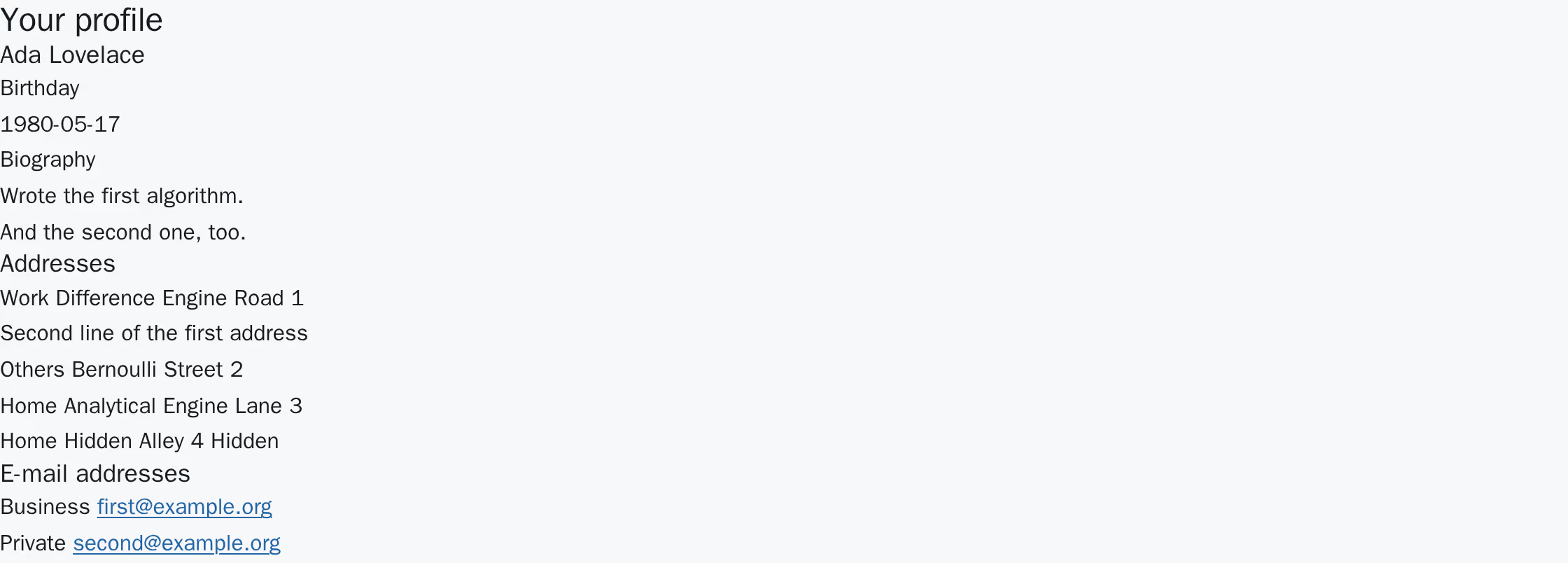

The same profile with the editing component absent: name, birthday, biography, addresses and e-mail addresses, and not a single control. The hidden address is in the list and marked as hidden, because this view is the owner's.
What is missing in that situation is the editing, never the content, and never an error page. An editor can leave the plugin on the page in any of those cases.
The editing surface
Once the component has loaded, it replaces the rendered record with its own surface. Everything the surface can change is inside it, so the page can never show a stale value next to a fresh one.
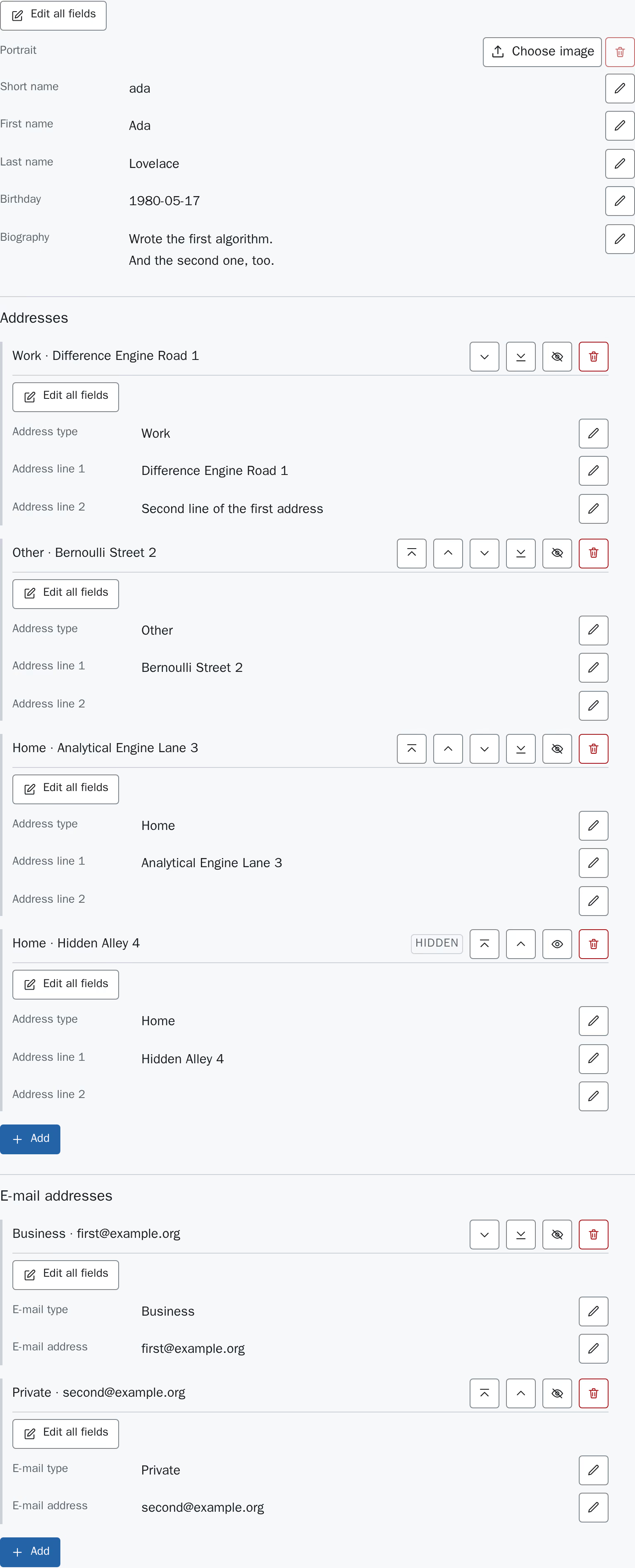
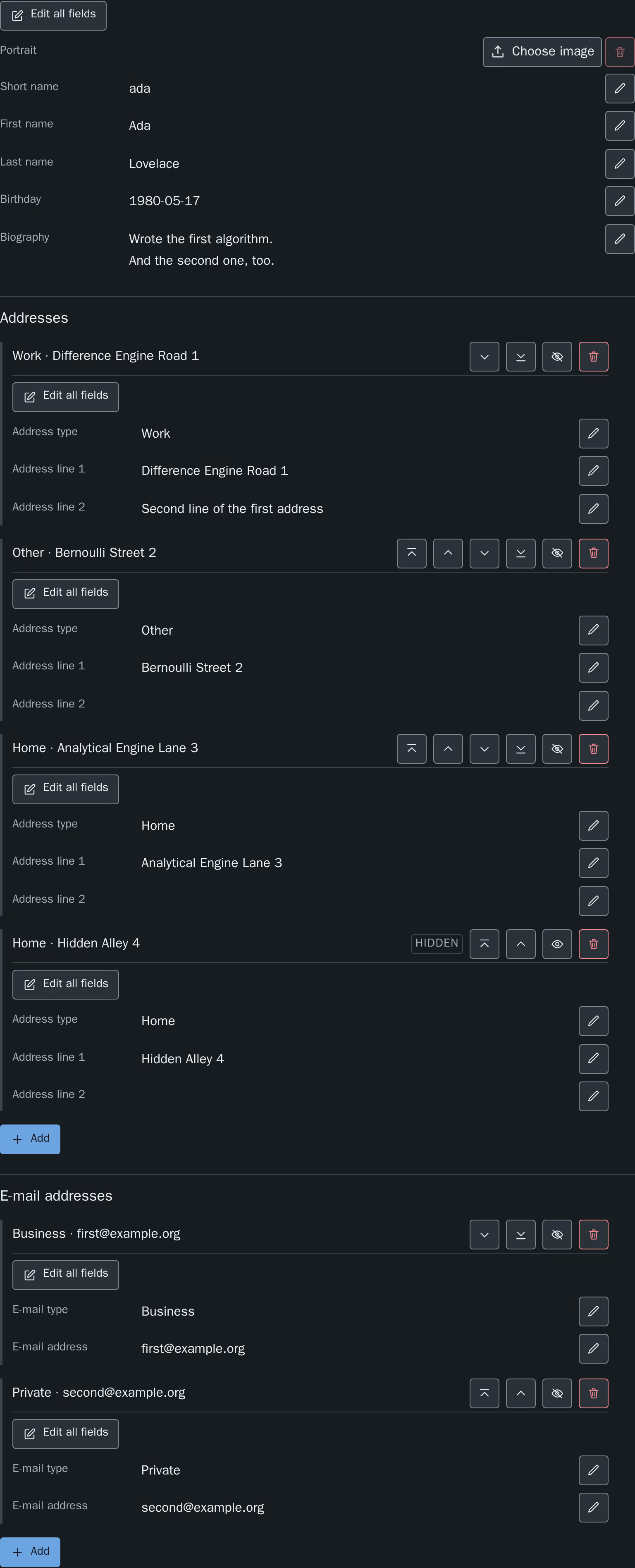
The surface at rest. Every field shows its stored value with an Edit button next to it; each record carries an Edit all fields button of its own; each child record adds Move to top, Move up, Move down, Move to bottom, Hide and Remove; each collection ends in an Add button that opens a dialog; and each collection ends in an empty form for a new entry. The hidden address is marked Hidden and offers Show instead of Hide.
Every save is answered with the profile as it is stored afterwards, and that answer is what the page then shows. A value the server trims or normalises therefore becomes visible immediately, and the surface cannot drift away from what is in the database.
Editing one field
Edit next to a value turns that value into a control and puts the cursor in it. Apply sends only that field; Cancel closes it again without sending anything.


One field open for editing. Two buttons, and they act on this field alone.
Cancel puts the field back to the value the server last confirmed — which, after a save in the same visit, is that saved value rather than the one the page was opened with.
The keyboard works as it does in any single-line form:
| Key | Effect |
|---|---|
| Enter | Applies the open field. Not bound in the biography, where it inserts a line break — taking that away would make a biography a single line. |
| Escape | Cancels the open field, discarding what was typed. |
Editing a whole record
Edit all fields opens every field of one record at once and replaces itself with Save all fields and Cancel. All fields are then sent in a single request.
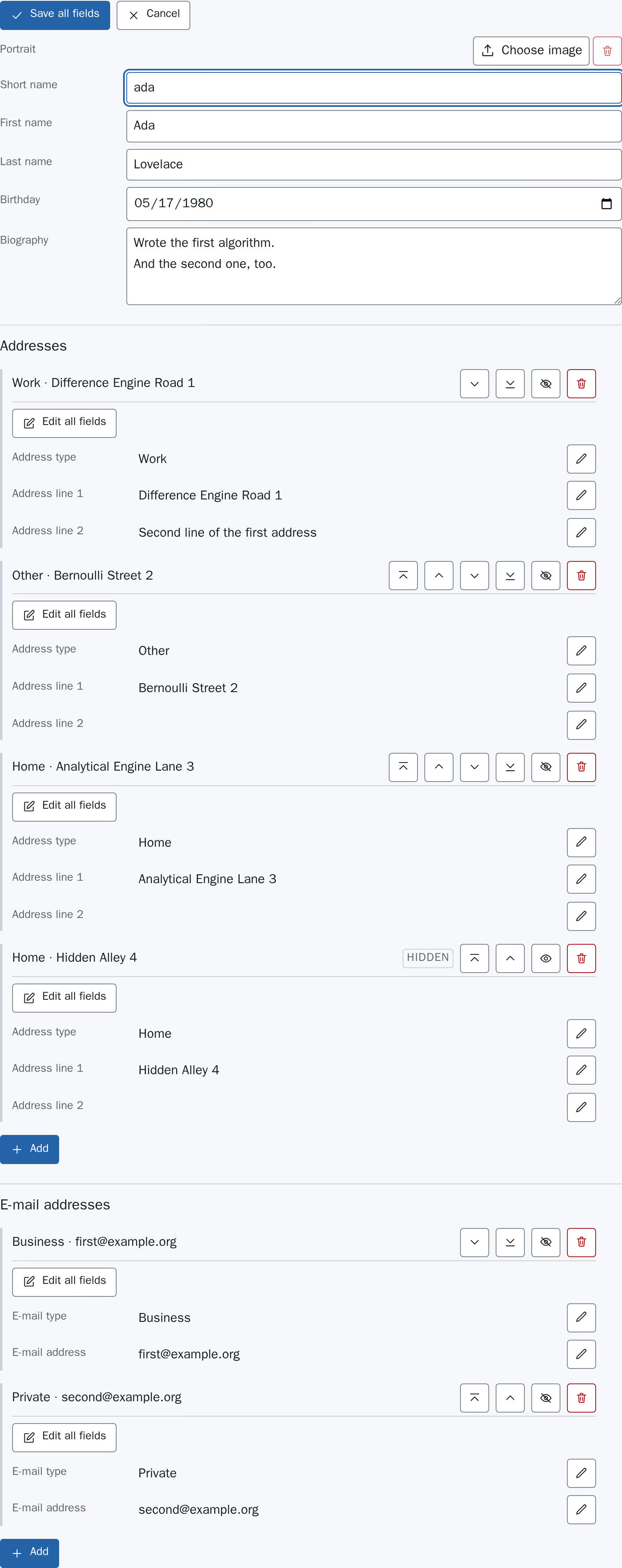
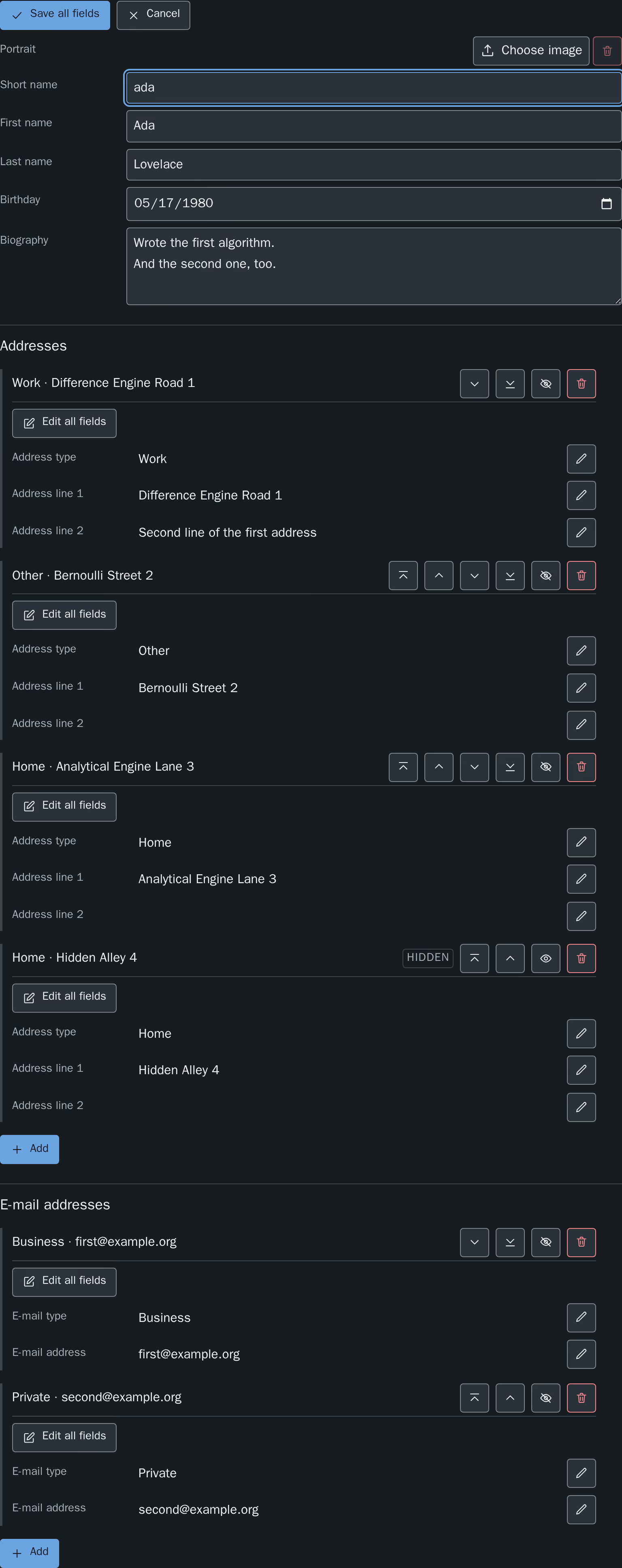
The profile record open as a whole. The child records below are untouched by it — each carries its own Edit all fields.
The two modes are labelled differently on purpose: they sit next to each other on the same surface, and Apply on one field means something else than Save all fields.
The birthday is edited in the browser's own date control, and the biography in a multi-line control.
Addresses and e-mail addresses
Each collection is a list of records, each with its own buttons, followed by an empty form for a new entry.
Every record is headed by its own content — its type and its first line, so Work · Difference Engine Road 1 — and the buttons that act on it sit on that same line. The heading is deliberately not a number: the records can be reordered, and a numbered heading would rename every entry below the one that was just moved. A record keeps its heading wherever it ends up. A record with neither a type nor a first line has no heading, and gains one as soon as something is entered.
The buttons of a record are:
| Button | Effect |
|---|---|
| Add | Creates a record from what was typed into the empty form at the end of the collection. It is stored last, and the form starts over so that a second entry is not created from the first one's leftovers. |
| Remove | Deletes the record. There is no confirmation step and no undo on the website. |
| Move up, Move down | Change the order of the collection by one position, which is the order the detail page renders it in. |
| Move to top, Move to bottom | Send the record to one end of the collection in a single step, rather than repeating Move up for a long list. |
| Hide, Show | Take the record off the list and the detail page, or put it back. A hidden record stays in this surface and is marked Hidden, which is why the owner can find it again. |
Note
A reordering action is not shown on a record it could not move: the first record of a collection offers no Move up or Move to top, and the last offers no Move down or Move to bottom. A collection with only one record shows none of the four.
Every one of these takes effect immediately and is stored; none of them waits for a save step.
The profile image
The image is labelled Portrait and behaves unlike every other field on the surface: choosing a file uploads it straight away, and Remove deletes it straight away. There is no Apply and nothing to cancel, because there is nothing to look at between picking a file and having uploaded it.
The control therefore says which of the two things it is about to do: Choose image while there is none, and Replace image once one is stored. Pressing it opens the file dialog of the operating system, and the file is on its way the moment one is picked.
A replaced or removed image is deleted from the file storage as well, not only from the record — unless something else on the site still references that file, in which case it is kept.
When an upload is refused, nothing was stored: the file control is emptied again and a notice says that the image was not stored and has to be chosen again. That is not a formality — the file really is gone as far as the server is concerned, and a control still showing its name would state the opposite.
When a change is refused
A rejected save keeps what was typed and shows the reason at the field it belongs to, so nothing has to be entered again. Nothing is stored.


A refused value. The field stays open with the typed value in it, and the reason is shown where the value is.
Failures that are not about the value itself are reported as one sentence for the whole record:
| Situation | What the surface says |
|---|---|
| The login has expired | That the session has expired, and that the page should be reloaded and the login repeated. |
| A workspace became active | That records cannot be edited while a workspace is active. |
| Anything else | That the change could not be saved and should be tried again. |
Warning
Two people — or two browser tabs — editing the same profile overwrite each other's changes, and neither is told. The last save wins. Where that matters, treat a profile as edited by one person at a time.