
Basic Usage TYPO3 v14
Once the extension is installed and the API key provided, we are ready to start translating pages, content elements and/or records.
Note
TYPO3 v14 revamped the overall localization process looking different and also working in a different way then in TYPO3 v13.
- See TYPO3 v13 Basic Usage if you are on TYPO3 v13.
Translate Page with or without contents elements
deepltranslate-core respects the new translation workflow and shares the same wizard provided by TYPO3 v14, which means that translating a page and optional directly the contents are started using the generic translation dropdown.
-
Generic translation dropdown to create translation

-
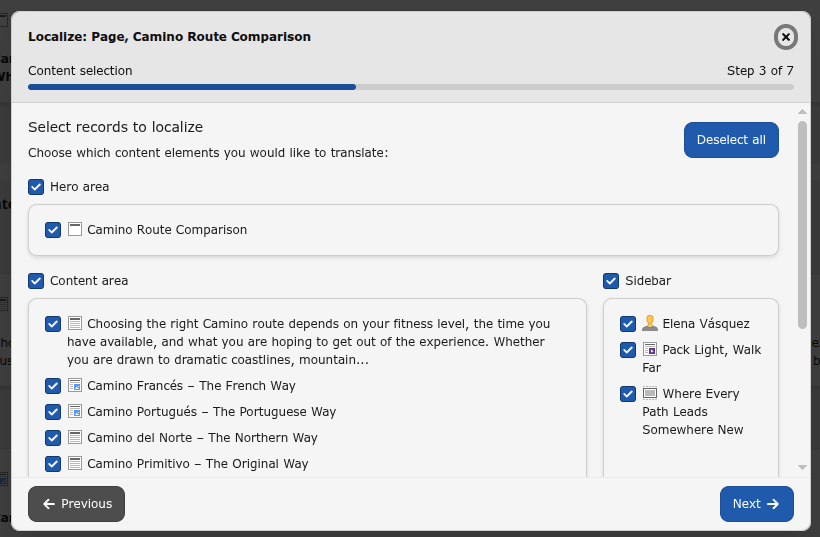
Select content elements to translate
-
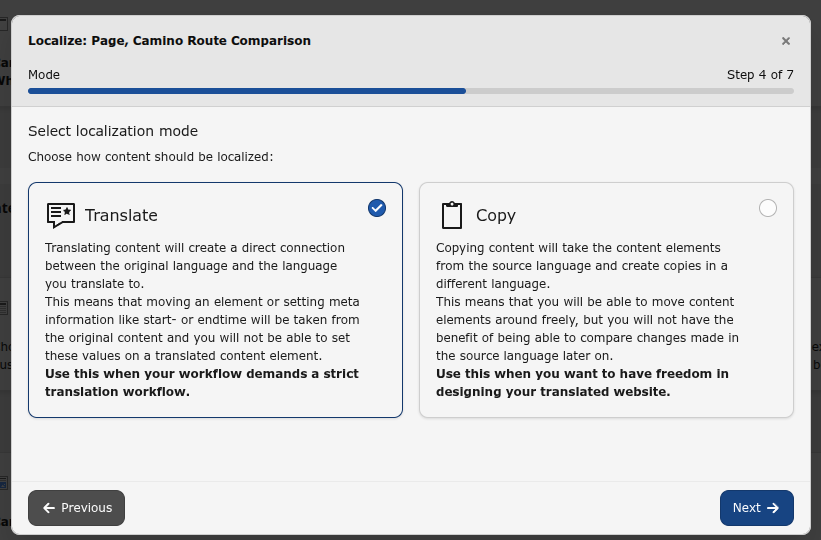
Select Translate localization mode
Note
DeepL based translation is only available for Translate localization mode and will not be available if Copy localization mode is selected here.
-
Select
Translate with Deeplocalization handlerL 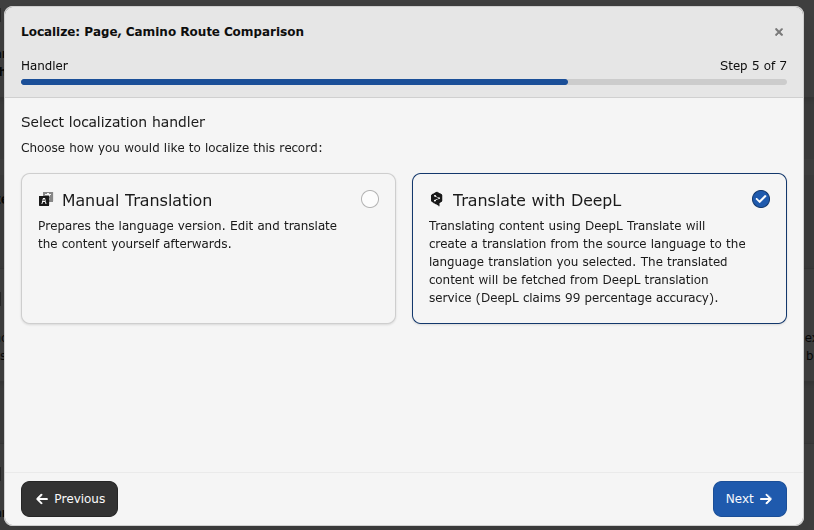
-
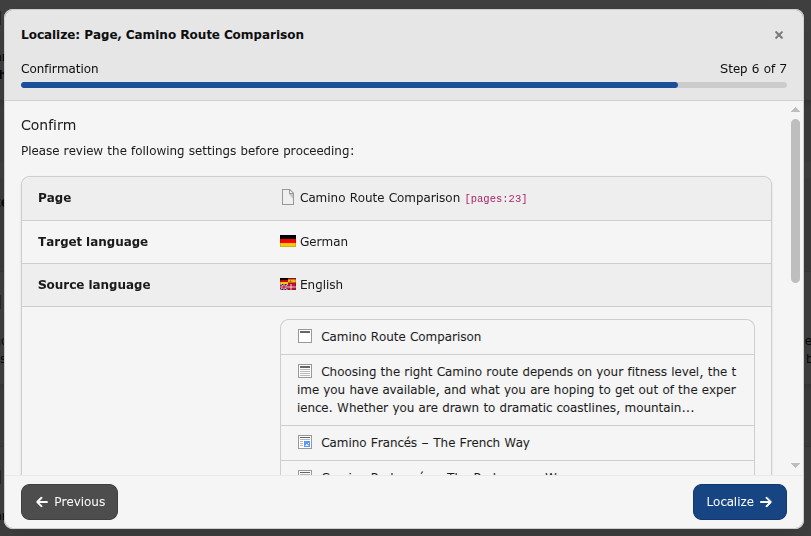
Review and confirm selected localization options
-
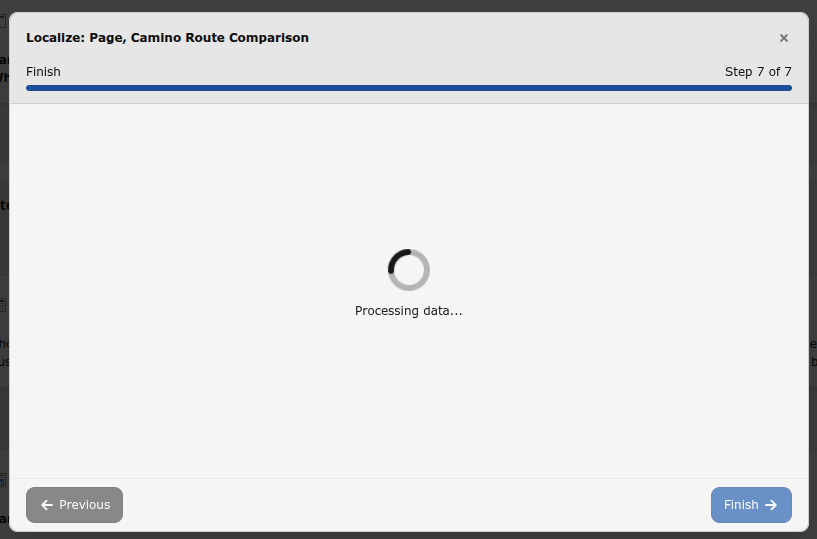
Localization is in progress
-
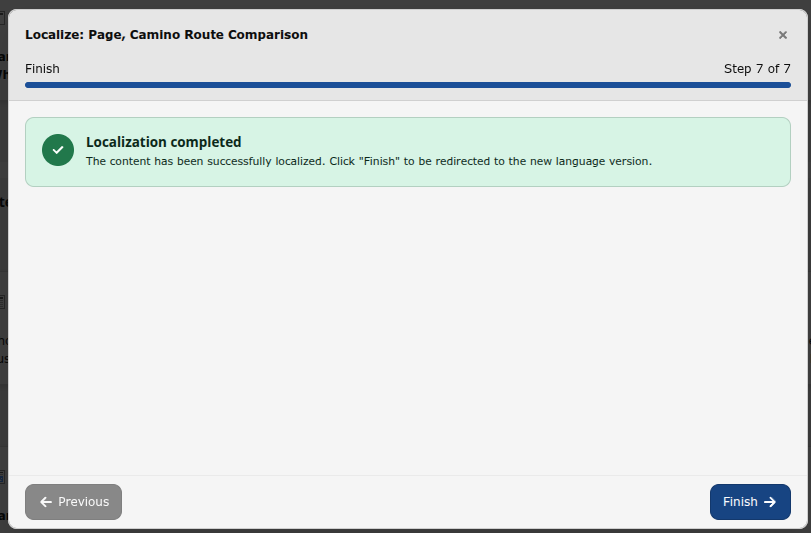
Localization completed successfully
Translate Content Elements
Once the extension is installed and the API key provided, we are ready to start translating content elements. When translating a content element, there are four additional options besides the normal translate and copy.
- DeepL Translate (auto detect).
- DeepL Translate.
-
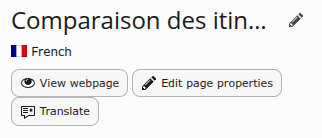
Start translate of missing records for language
-
Select source language
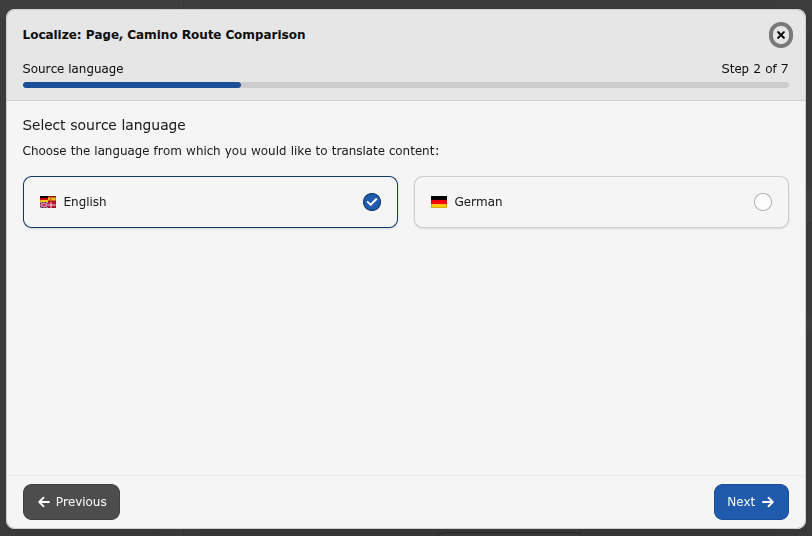
In case content element translation for current page already exists TYPO3 allows to select the source language to translate content elements from.
Note
This step is not shown in case no translated content exists**
-
Select content elements to translate
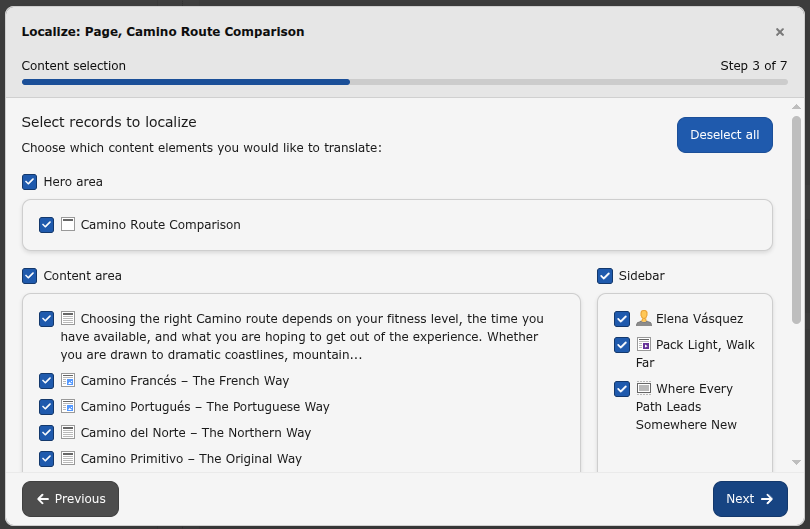
-
Select Translate localization mode
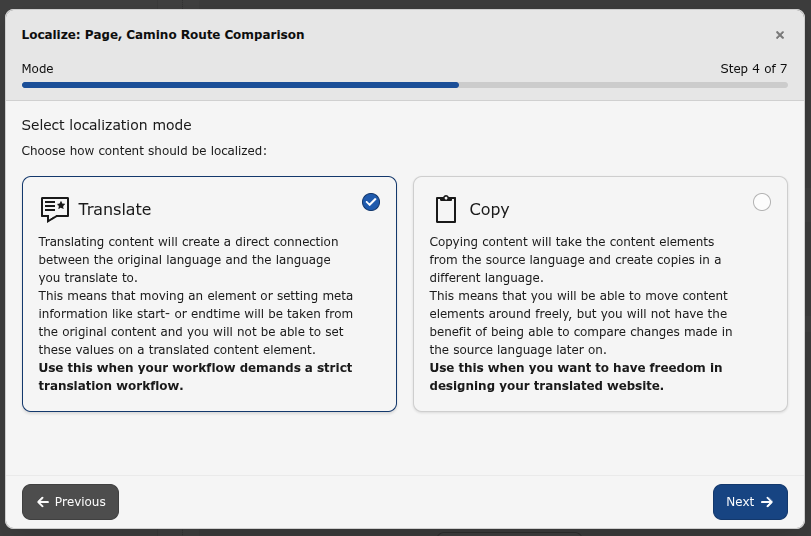
Note
DeepL based translation is only available for Translate localization mode and will not be available if Copy localization mode is selected here.
-
Select
Translate with Deeplocalization handlerL 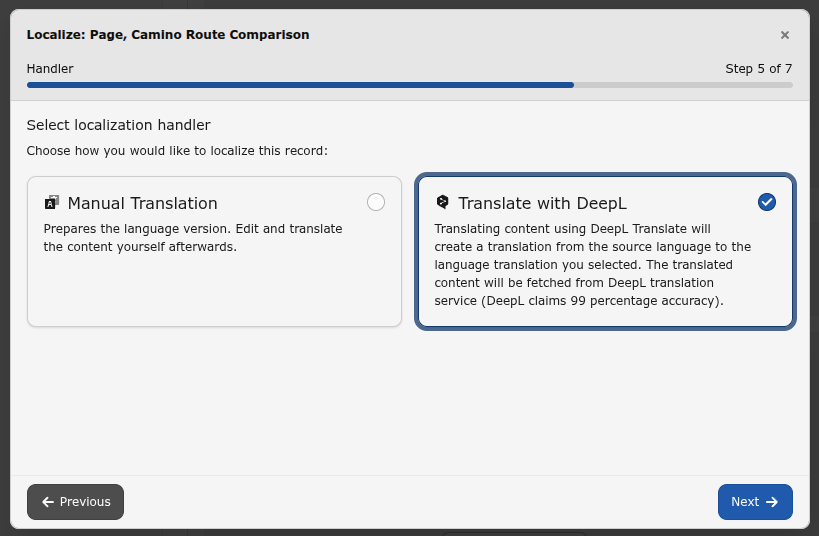
-
Review and confirm selected localization options
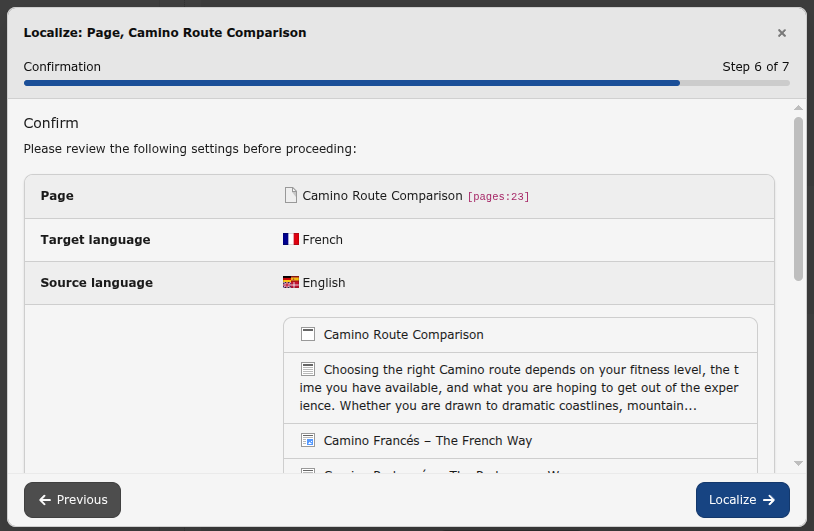
-
Localization is in progress
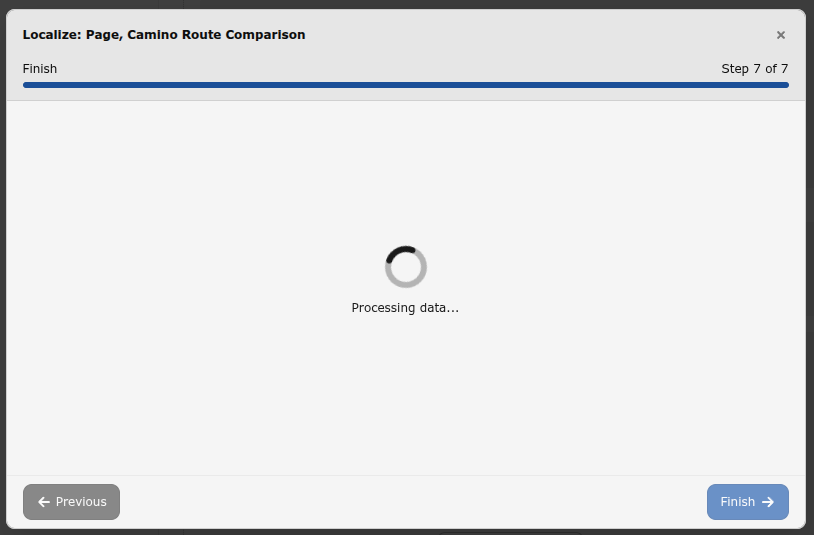
-
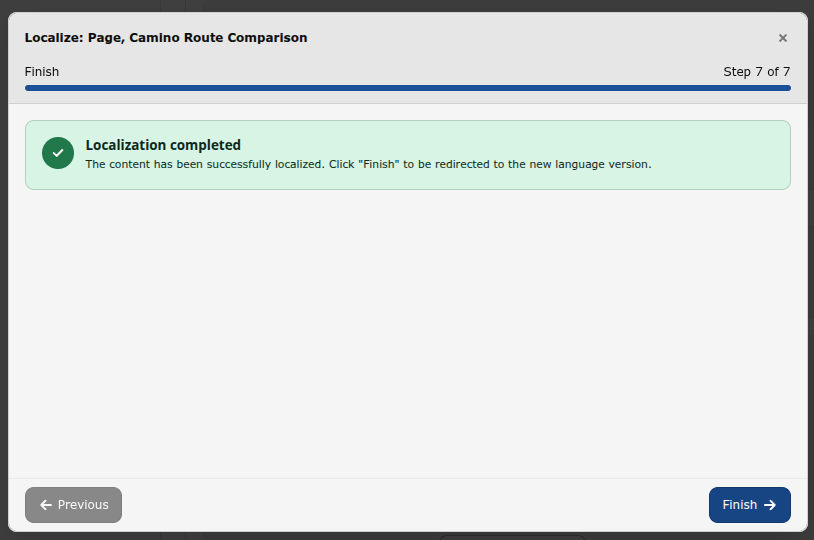
Localization completed successfully
Translate Record
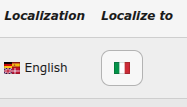
In list view, you are able to translate single elements by clicking the DeepL translate button for the language you want.
Note
In TYPO3 v13 extra localize to action are provided and not available in
case no Deep translation configured for a language. In TYPO3 v14 the
action is always available and in case the selected language does not have
a valid Deep translation the Translate with Deep localization handler
will not show up.
Attention
Fields of custom extensions need to be properly configured in TCA to enable translation.
-
Start localization for a record with Localize to in the Records Module
Note
The process is the same as already visually demonstrated above. Dedicated images will be added in the next extension release.