
Comments
Table of Contents
Every backend user with Content Planner access can add comments to records. Comments are a great way to communicate with other users about the status of a record or to provide additional information.
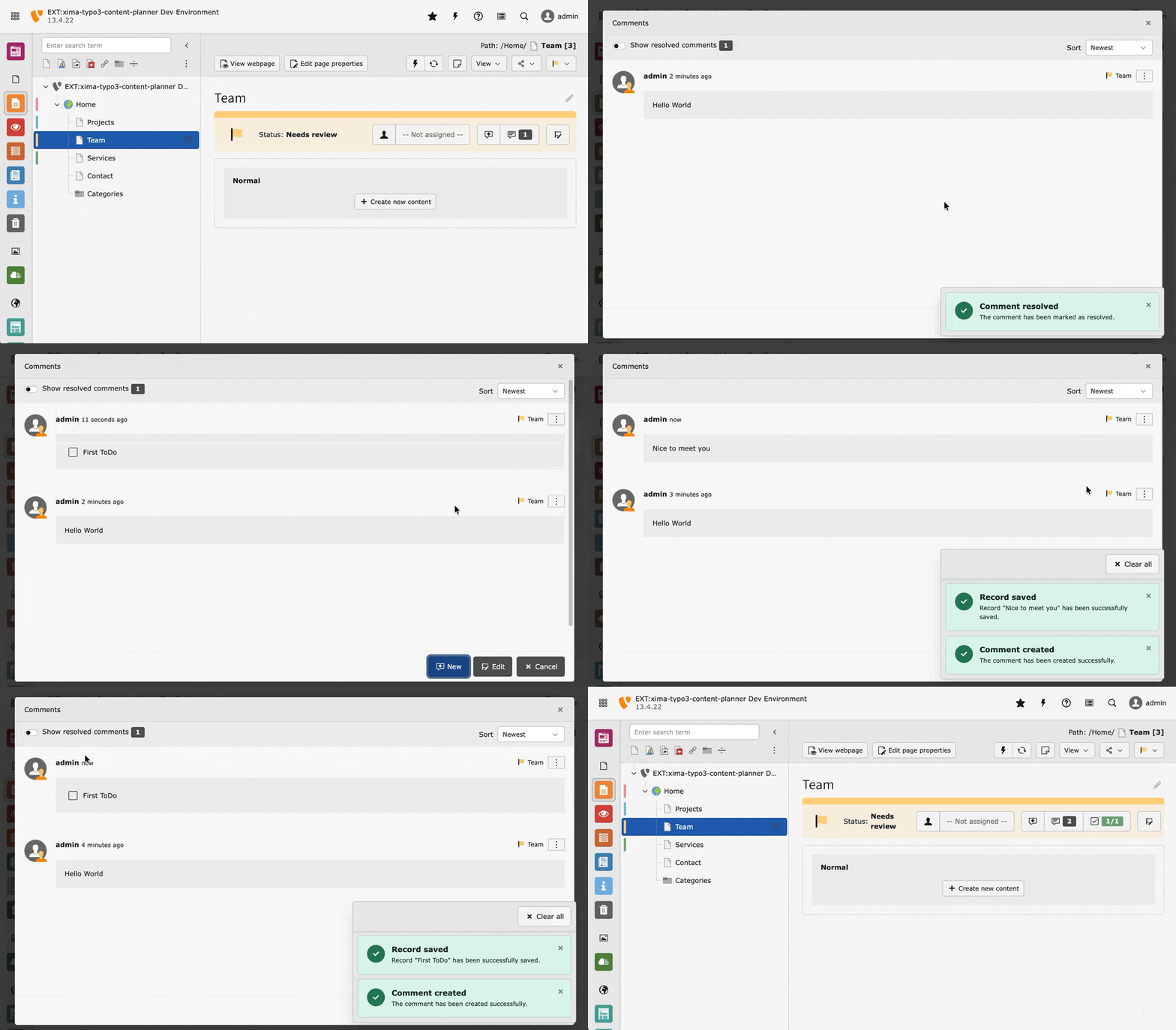
Comments screencast
Create new comment
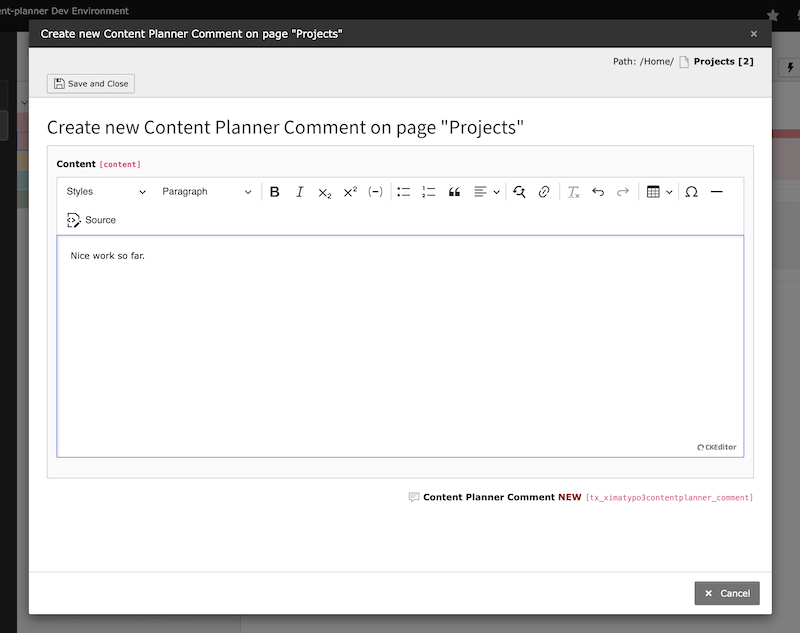
Create new comment modal dialog
Show comments
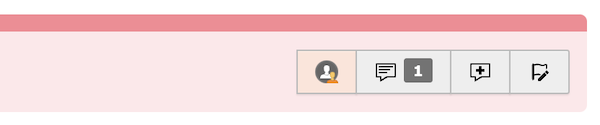
Hint for comments
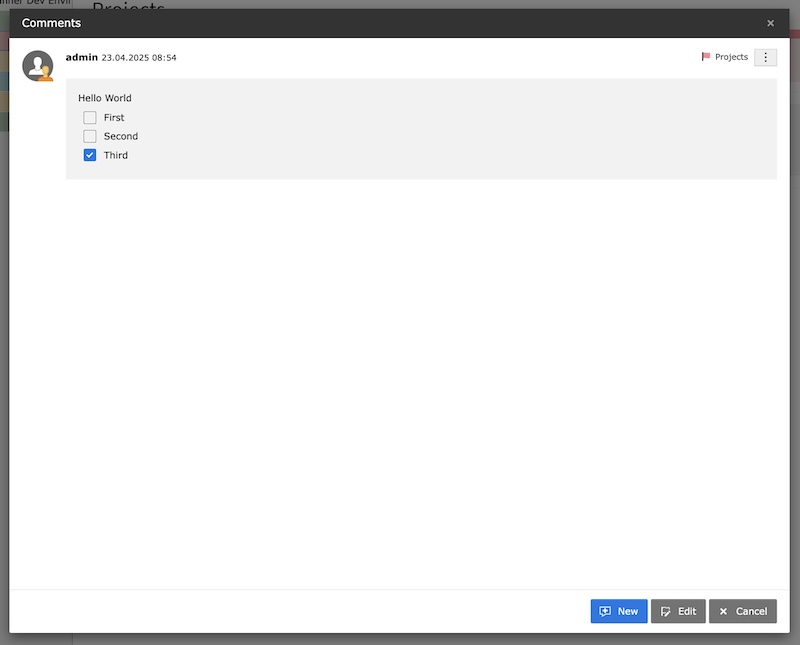
Show comments of a record
Edit comments
New in version 1.4.0
Feature: #70 - Add edit comment functionality and associated UI updates
Use the context menu to edit, resolve or delete a comment.
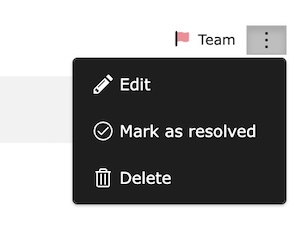
Edit, resolved or delete comments of a record
An edited comment is marked with a label.
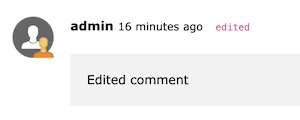
Subsequently edited comment
ToDos
New in version 1.4.0
Feature: #69 - Add todo tracking to comments with resolved and total counts
Use the ToDo list within the editor to track the progress of your comments.
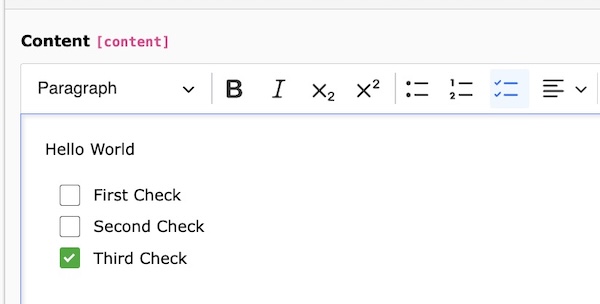
ToDo list in editor
The ToDo count is automatically updated when you add or remove a ToDo item in the comment.
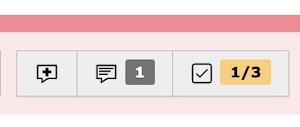
ToDo count in header
Use the ToDo widget to keep track of your ToDo tasks.
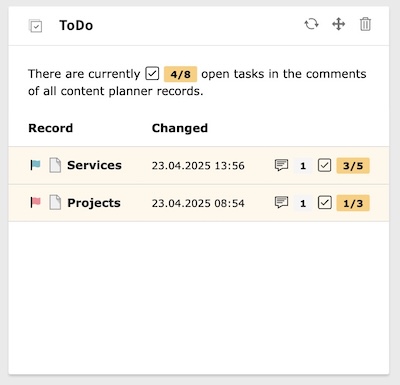
ToDo widget
Resolution
New in version 1.4.0
Feature: #72 - Add comment resolution functionality with sorting and filtering options
In addition to the ToDos in the comments, there is also the option of marking entire comments as completed, in order to keep the comment list clear and organized.
A comment can be marked as completed via the context menu.
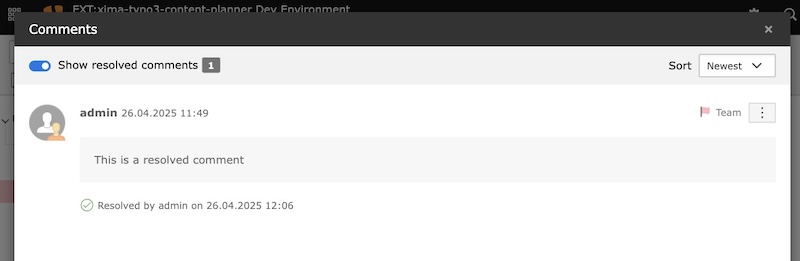
Resolved comments can can be displayed again using the filter
Threaded Replies
New in version 2.2.0
Comments support single-level threaded replies. Each root comment can have replies that are displayed as an indented, collapsible section below it.
Creating replies
Use the Reply action in the comment's dropdown menu or click the reply button at the bottom of the reply list. A reply is created the same way as a regular comment — through the FormEngine modal.
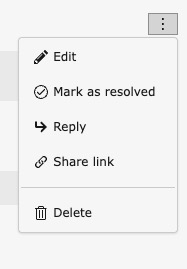
Reply action in the comment dropdown menu
Replies to replies are automatically flattened to a single level (all replies belong to the root comment).
Collapsible section
Replies are collapsed by default. A toggle shows the reply count and the time of the most recent reply (e.g., "3 replies · last 5 minutes ago"). Click the toggle to expand or collapse the reply list.
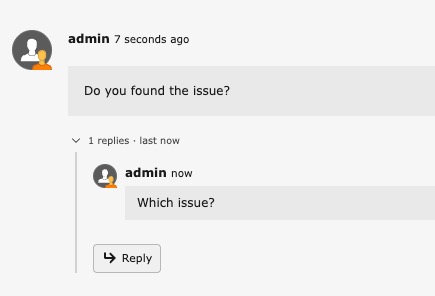
Expanded reply section with inline reply button
The default expand/collapse behavior can be changed globally via the "Expand replies" / "Collapse replies" button in the comment modal's action menu. This preference is persisted per user. See repliesExpanded in user settings.
Sorting
Root comments are sorted by last activity — either their own creation date or the creation date of their most recent reply, whichever is newer. This means a root comment with a fresh reply automatically moves to the top. The "Newest/Oldest" dropdown controls the sort direction for both root comments and replies.
Comment count
The comment count badge in the page header includes both root comments and replies. This reflects the total discussion activity on a record.
Activity stream & widgets
Replies appear in the activity stream with the label "A new reply comment has been added" and in the comment dashboard widget with a reply badge.
Share links for replies automatically expand the collapse section and scroll to the specific reply.
Share link
New in version 2.1.0
Comments and the entire comment modal can be shared with other backend users via a direct link. The link navigates the recipient to the record, automatically opens the comment modal and, if a specific comment was shared, scrolls to it and briefly highlights it.
Use the context menu of a comment to copy the share link to the clipboard. To share a link to the entire comment modal, use the action menu in the filter bar.
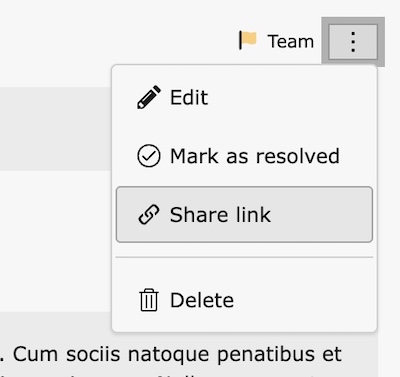
Share a direct link to a comment or the comment modal