This extension documentation is published under the
CC BY-NC-SA 4.0
(Creative Commons) license.
This extension provides an edit menu for editors within the frontend regarding content elements and pages.
Introduction
A quick overview about the main features provided by this extension.
How it works
A detailed explanation of the inner workings of the extension.
Installation
Instructions on how to install this extension and which TYPO3 and PHP versions are currently supported.
Configuration
Learn how to configure the extension in various ways.
Usage
Learn how to use the Edit Menu and the Toolbar.
Developer corner
A quick overview of the possibilities for extending the extension
FAQ
A collection of frequently asked questions.
Migration
A guide to migrate from version 1.x to version 2.x.
Introduction
What does it do?
This extension provides an edit menu for editors within the frontend regarding content elements and pages.
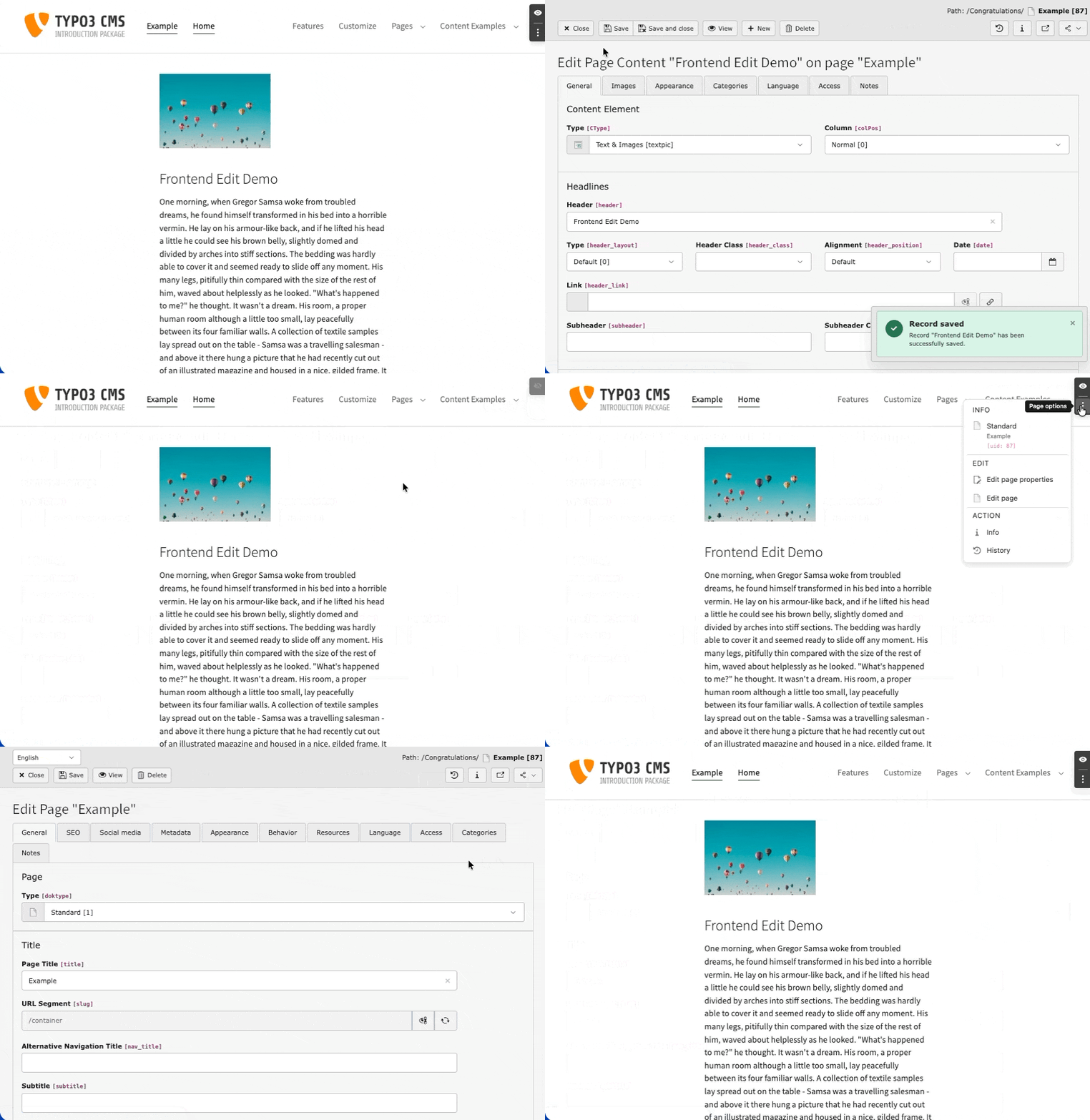
The extension has been developed to provide a simple and lightweight solution to easily start the editing of content elements from the frontend and thus reduce the gap between frontend and backend. Therefore a simple javascript is injected into the frontend, which generates action links to the TYPO3 backend with the corresponding edit views.
Features
Edit Menu - Quick access to edit, hide, delete, and move content elements
Toolbar - Page-level actions and toggle for frontend editing
Data ViewHelper - Add edit links for related records (e.g., news items)
Dark/Light Mode - Automatic or manual color scheme selection
Configurable Position - 12 toolbar positions available
Save & Close - Quick return to frontend after editing
Note
This is not a further development of the "original" extension frontend_editing. It is similar in some ways to the realisation of the feedit extension. This extension is an independent implementation with a different approach.
Unlike content_preview, which provides a split-view with live frontend preview within the backend Page module, this extension works directly in the frontend and does not modify the backend interface.
Support
There are several ways to get support for this extension:
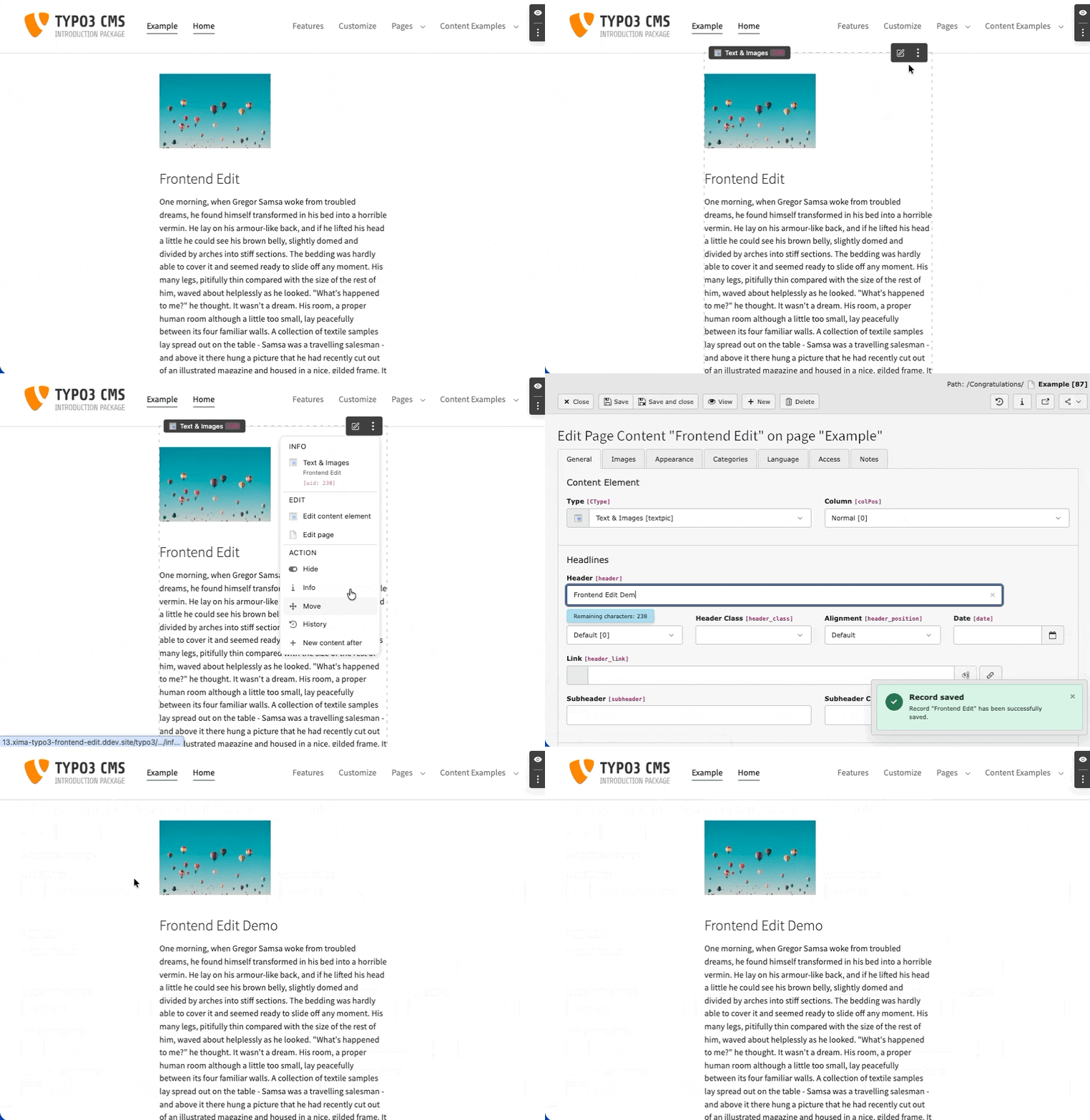
On page load a script calls an ajax endpoint, to fetch information about all editable (by the current backend user) content elements on the current page.
The script then injects (if it's possible) an Edit Menu into the frontend for each editable content element.
This is only possible, if the content element "c-ids" (Content Element IDs) are available in the frontend template, e.g. "c908". By default the fluid styled content elements provide these ids.
This is automatically done by the fluid_styled_content extension. If you are using custom content element templates, make sure to include the "c-id" within the wrapping HTML element of the content element.
The rendered Edit Menu links to the corresponding edit views in the TYPO3 backend.
Note
The script is only injected if the current backend user is logged in.
All configuration options are managed via TYPO3 Site Settings.
This provides site-specific configuration and better caching behavior.
Configuration is done in your site's config/sites/<site-identifier>/settings.yaml file
or via the TYPO3 backend in Site Management > Sites > Edit site > Settings.
Available Settings
Enable/Disable
frontendEdit.enabled
frontendEdit.enabled
type
bool
Default
true
Enable or disable the frontend editing functionality for this site.
frontendEdit:enabled:true
Copied!
Appearance Settings
frontendEdit.colorScheme
frontendEdit.colorScheme
type
string
Default
'auto'
Choose the color scheme for the frontend editing UI. Options: auto (follows system preference), light, dark.
frontendEdit:colorScheme:'auto'
Copied!
frontendEdit.showContextMenu
frontendEdit.showContextMenu
type
bool
Default
true
Show the Edit Menu with additional actions (edit page, hide, move, history). Disable to show only the edit button.
frontendEdit:showContextMenu:true
Copied!
frontendEdit.showStickyToolbar
frontendEdit.showStickyToolbar
type
bool
Default
true
Show the Toolbar with page editing options and toggle functionality.
frontendEdit:showStickyToolbar:true
Copied!
frontendEdit.toolbarPosition
frontendEdit.toolbarPosition
type
string
Default
'bottom-right'
Choose the position for the Toolbar.
Available options:
top-left, top-center, top-right
bottom-left, bottom-center, bottom-right
left-top, left-center, left-bottom
right-top, right-center, right-bottom
frontendEdit:toolbarPosition:'bottom-right'
Copied!
frontendEdit.enableOutline
frontendEdit.enableOutline
type
bool
Default
true
Show an outline around content elements when hovering over them.
frontendEdit:enableOutline:true
Copied!
frontendEdit.enableScrollToElement
frontendEdit.enableScrollToElement
type
bool
Default
true
Automatically scroll to the edited content element after saving and returning to the frontend.
frontendEdit:enableScrollToElement:true
Copied!
Filter Settings
frontendEdit.filter.ignorePids
frontendEdit.filter.ignorePids
type
string
Default
''
Comma-separated list of page IDs (and their subpages) where frontend editing should be disabled.
frontendEdit:filter:ignorePids:'1,2,3'
Copied!
frontendEdit.filter.ignoreDoktypes
frontendEdit.filter.ignoreDoktypes
type
string
Default
''
Comma-separated list of page types (doktype) where frontend editing should be disabled.
Common doktypes: 1 (Standard), 3 (External URL), 4 (Shortcut), 6 (Backend User Section), 7 (Mount Point), 199 (Menu Separator), 254 (Folder), 255 (Recycler).
frontendEdit:filter:ignoreDoktypes:'4,199,254'
Copied!
frontendEdit.filter.ignoreCTypes
frontendEdit.filter.ignoreCTypes
type
string
Default
''
Comma-separated list of content types (CType) to exclude from frontend editing.
frontendEdit:filter:ignoreCTypes:'html,div'
Copied!
frontendEdit.filter.ignoreListTypes
frontendEdit.filter.ignoreListTypes
type
string
Default
''
Comma-separated list of plugin types (list_type) to exclude from frontend editing.
frontendEdit:filter:ignoreListTypes:'news_pi1'
Copied!
frontendEdit.filter.ignoreUids
frontendEdit.filter.ignoreUids
type
string
Default
''
Comma-separated list of specific content element UIDs to exclude from frontend editing.
Go to Admin Tools > Settings > Extension Configuration
Choose xima_typo3_frontend_edit
The extension currently provides the following configuration options:
Features
Save and Close
Save and Close
Type
boolean
Default
1
Enable this option to render a save and close button in the header of edit forms.
Return URL generation
Return URL generation
Type
boolean
Default
0
Enable this option to ignore the referer header for the return url and force the url generation
Target blank
Target blank
Type
boolean
Default
0
Enable the target blank option for all Edit Menu links to open in a new tab
Redirect
Redirect
Type
boolean
Default
0
Use the redirect option to redirect the edit links, so the full TYPO3 backend is loaded instead of only the edit form
Warning
This option is useful if you want to use the full TYPO3 backend, e.g. language switch or modal popups for for inline group type.
But keep in mind, that with this option the return to the frontend using the "close" button will not work anymore.
Debug
Frontend Debug Mode
Frontend Debug Mode
Type
boolean
Default
0
Enable debug logging in browser console for detailed information about content element parsing and assignment.
Warning
This option is only for development purposes and should not be enabled in production environments.
Usage
Once installed and configured, the extension provides two main editing interfaces
in the frontend for logged-in backend users.
Edit Menu
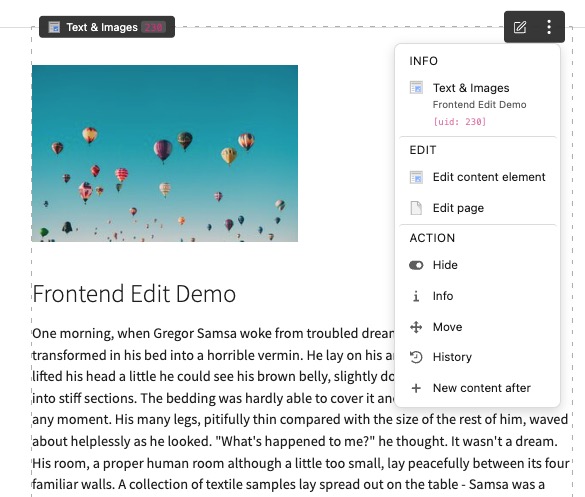
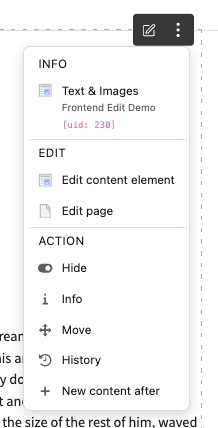
The Edit Menu appears on content elements and provides quick access
to editing actions like edit, hide, delete, and move.
Toolbar
The Toolbar provides page-level actions and a toggle to enable or
disable frontend editing.
Edit Menu
Each content element on the page displays an edit button when you hover over it.
Clicking this button opens the Edit Menu with various actions:
Edit Content Element - Open the content element in the backend editor
Edit page - Open the current page properties
Hide/Unhide - Toggle visibility of the content element
Info - Display content element information
Move - Reorder the content element
History - View the content element's history
New content after - Add a new content element after this one
Note
The Edit Menu is only displayed if the backend user has the necessary
permissions to edit the content element.
Requirements
The Edit Menu requires content elements to have a "c-id" (Content Element ID)
in their HTML output, e.g. id="c908".
This is automatically provided by the fluid_styled_content extension.
For custom templates, ensure the wrapping element includes the content element UID:
<divid="c{data.uid}">
...
</div>
Copied!
See also the FAQ for common issues with the Edit Menu.
Toolbar
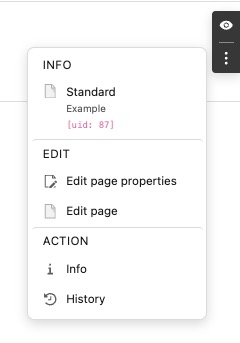
The Toolbar provides quick access to page-level actions. It appears
at a configurable position on the screen (default: bottom-right).
Actions
The Toolbar includes:
Toggle - (eye icon) Enable or disable frontend editing for the current session
Edit page properties - Open the current page properties
Edit page - Open the page module in the backend
Info - Display page information
Move - Reorder page
Position
You can configure the Toolbar position via Site Settings:
frontendEdit:toolbarPosition:'bottom-right'
Copied!
Available positions:
top-left, top-center, top-right
bottom-left, bottom-center, bottom-right
left-top, left-center, left-bottom
right-top, right-center, right-bottom
Disabling Frontend Edit
You can temporarily disable frontend editing by clicking the toggle button
in the Toolbar. This setting is stored per user and persists across sessions.
To disable the Toolbar entirely, set showStickyToolbar: false in the
Site Settings.
Developer corner
Two opportunities exist to extend the Edit Menu with custom entries:
The extension provides two PSR-14 events to customize the Edit Menu and Toolbar.
FrontendEditDropdownModifyEvent
Use the FrontendEditDropdownModifyEvent to modify the Edit Menu for content elements.
You can add, remove or modify buttons for specific content elements.
Available methods:
getContentElement() - Returns the content element data array
getMenuButton() - Returns the current menu button
setMenuButton() - Sets the modified menu button
getReturnUrl() - Returns the return URL for edit links
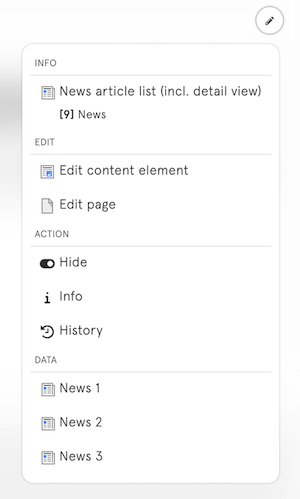
Additionally, there is an option to extend your fluid template to provide data for extra Edit Menu entries, e.g. edit links to all news entries within a list plugin.
This generates a hidden input element with the provided data (only if the frontend edit is enabled). Within the parent content element (e.g. the whole list plugin), a new "data" section will show up in the Edit Menu to list all edit links.
Keep in mind, that this only works if the parent content element has a c-id and offer one of the following data combinations:
Edit record link (provide uid and table of the desired record, the link to the TYPO3 backend will be generated automatically)
Custom edit url (provide a custom url)
Note
Keep in mind, that this option will add additional html elements to your dom, which can causes style issues.
The Edit Menu was styled to not disturb the frontend layout. You can easily adjust the styling by providing an additional css or js file within your ext_localconf.php which will be loaded together with the frontend edit resources:
Why is the Edit Menu not displayed on my page / for my content element?
There may be a number of reasons for this:
Backend user session
Are you currently logged into the TYPO3 backend? Otherwise the frontend edit will not working.
Backend user permission
Does your user have all permissions to edit the page as well as the content elements?
Site Set
Is the Frontend Edit site set included in your site configuration? Check the Site Settings to verify the extension is enabled.
Content Element IDs
Make sure that the content element "c-ids" (Content Element IDs) are available within your frontend template, e.g. "c908".
Content Element on current Page
For now only all content elements on the current page are "editable". So if you're using some kind of inheritance, e.g. for your footer, this content can't be edited. Maybe I will find a smarter solution for this in the future.
Debug
Check the network tab for the initial AJAX call to /typo3/ajax/xima-frontend-edit/edit-information with the information about the editable content elements and the according Edit Menus.
After closing the edit form will I redirected to the wrong frontend location, e.g. to the root page
This could be caused by a strict referer header in your request. If the return url could not be determined correctly, you can force the url generation by pid and language in the extension setting: forceReturnUrlGeneration.
I can't change the language within a content element.
This is a TYPO3 backend limitation. The reduced edit form frame does not support the language switch. Use the redirect configuration in the extension settings to open the edit form within the full TYPO3 backend context, which supports the language switch.
The edit button is not displayed for a different (sub)domain.
The frontend edit needs an active backend user session to work. If you are using a different (sub)domain, the session cookie is only valid for the TYPO3 backend domain and is not available for the frontend edit.
You can have a look at the cookieDomain setting to set a more flexible domain configuration. This allows the session cookie to be shared between different (sub)domains, enabling the frontend edit functionality to work across different domains.
The edit button is not displayed with DCE extension content elements.
Dynamic content elements do not provide the required "c-id" (Content Element ID) in their default templates. You need to customize the DCE templates to include the "c-id" in the HTML output.
DCE Template
<divclass="dce"id="c{contentObject.uid}">
Your template goes here...
</div>
Copied!
Note
Styling problems may occur with nested content elements.
The edit button is not displayed with container extension content elements.
Container content elements do not provide the required "c-id" (Content Element ID) in their default templates. You need to customize the container templates to include the "c-id" in the HTML output.